本文链接:https://blog.tanglu.me/dd
如果没有记录你所需要的vps dd方式,欢迎评论区提出请求
目前记录的将商家有:
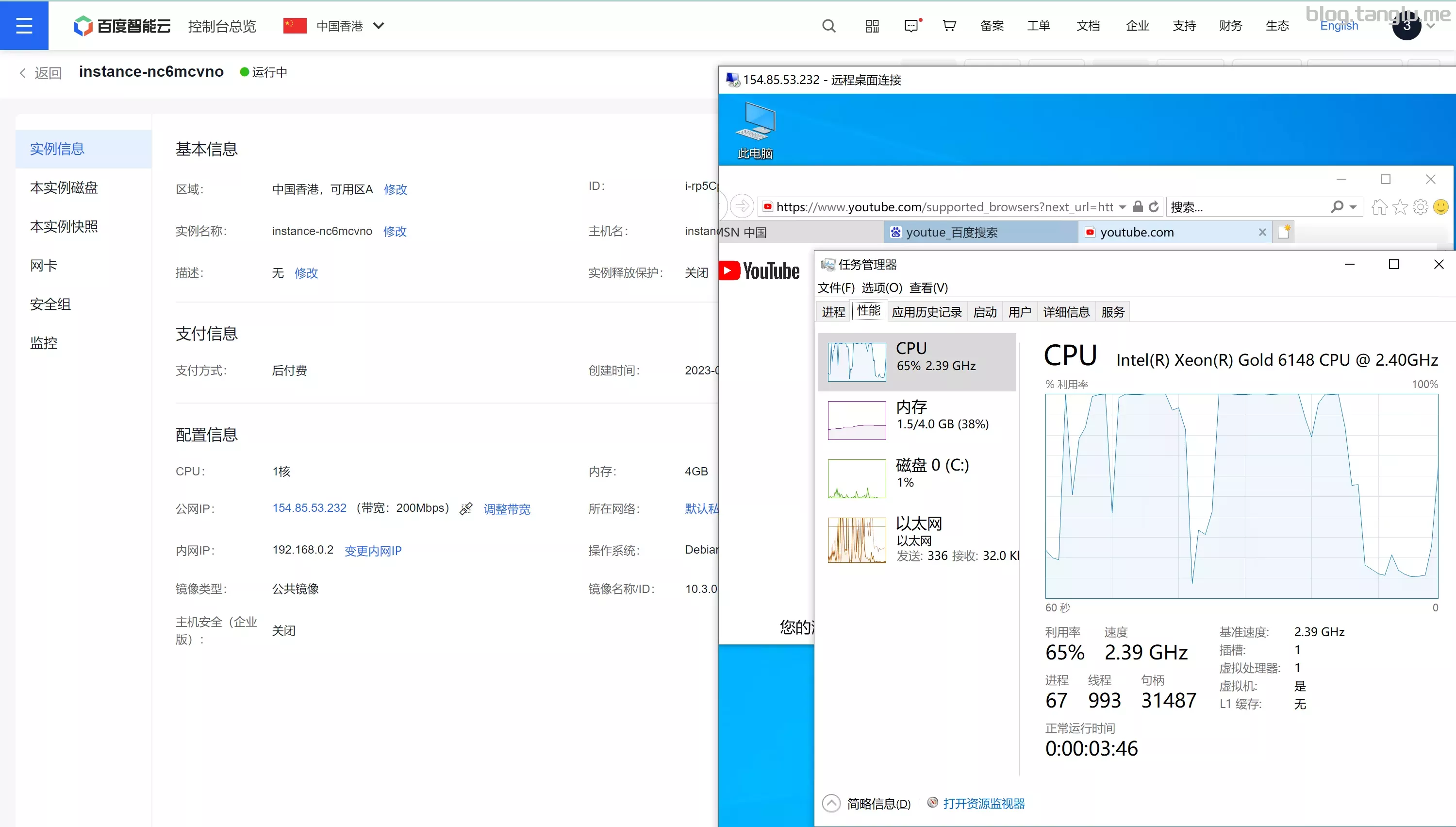
AWS_EC2 AWS_lightsail Google Cloud Azure oracle_amd oracle_arm OVH_public_cloud OVH_bare_metal 腾讯云CVM 腾讯云轻量 阿里云ECS 阿里轻量 华为云ECS 天翼云 百度智能云_BBC coalcloud gcore digitialocean linode Hetzner scaleway oneprovider vultr interserver spartanhost dedipathbuyvm greencloudvps hosthatch liteserver hosmatic | 纯ipv6 1nextnet | 纯ipv6 ucloud virmach racknerd digitalvirt dmit dogyun pingyun bandwagonhost cloudsilk saltyfish olink cloudcone_vps alphavps naranja vmiss extravm kurun regxa server-factory wikihost tk-hosting webdock speedypage RCP datalix ruvds advinservers justhost hostvds contabo melbicom spaceberg silicloud aitch-systems pacificrack profitserver equinix kuroit rw-hosting luneocloud teraswitch hostbrr allhost zenlayer waf hostry wap creeperhost myhosti oblivus limewave vpsnet lightnode xeroz khanwebhost nonic rackdog skrime spectraip A400
可以dd为windows和ubuntu debian10/11 centos7 alpine等
一、前言 机器必须为debian/ubuntu 脚本不支持centos7机器执行
本文记录使用 1keydd leitbogioro bin456789 大佬的脚本,对市面上常见服务商的vps dd成windows和dd成linux的记录
大家可以看右边目录寻找自己需要的
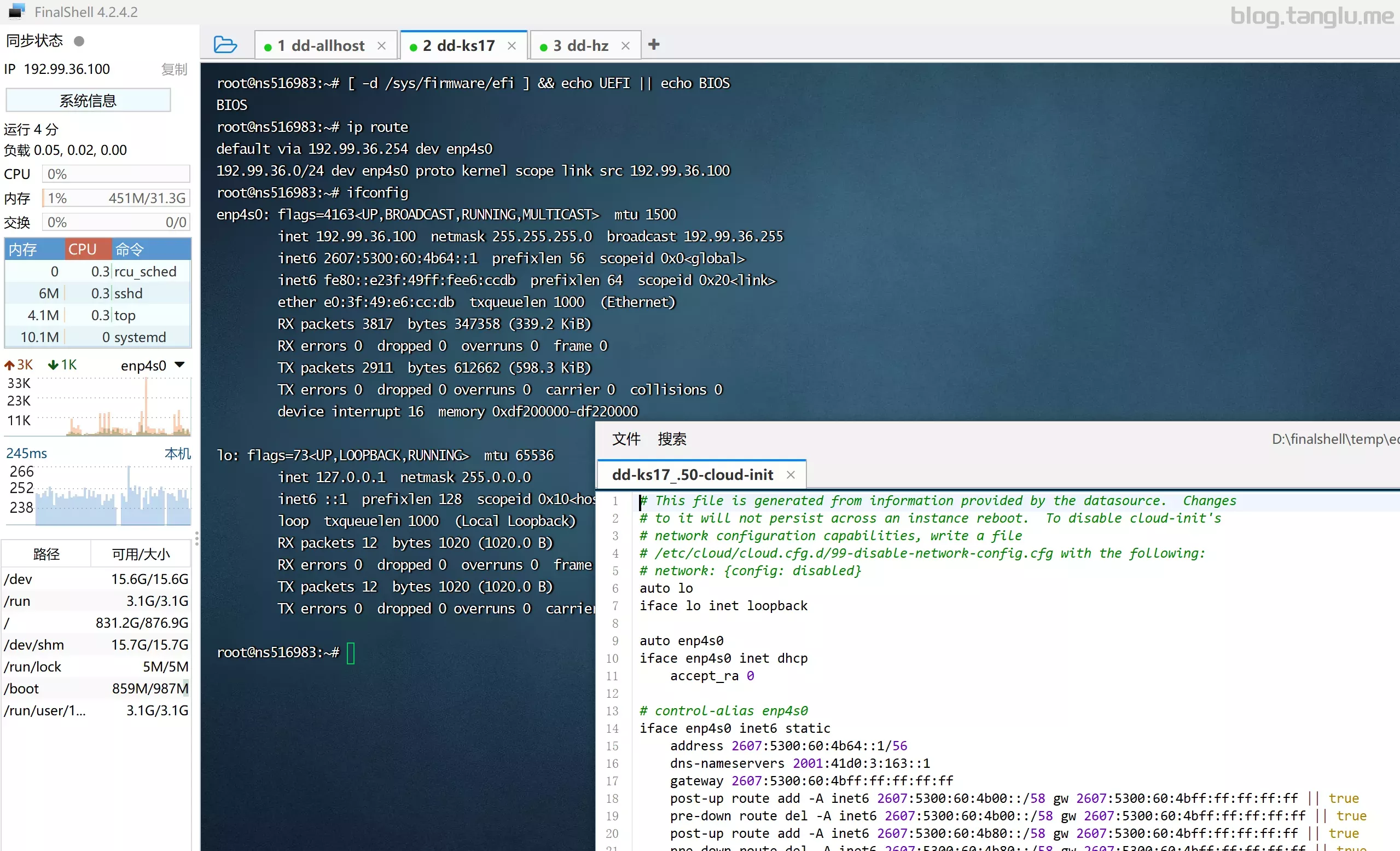
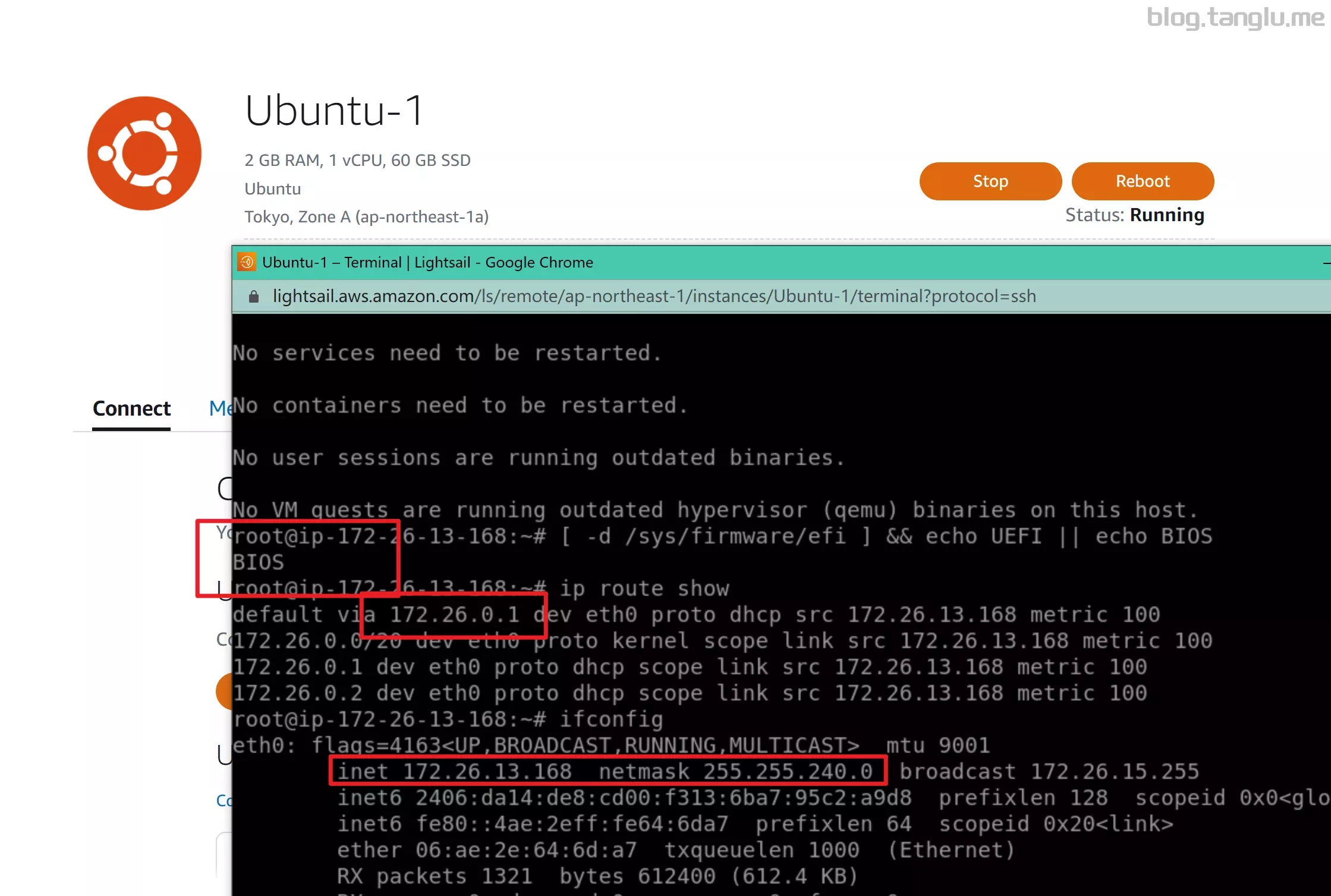
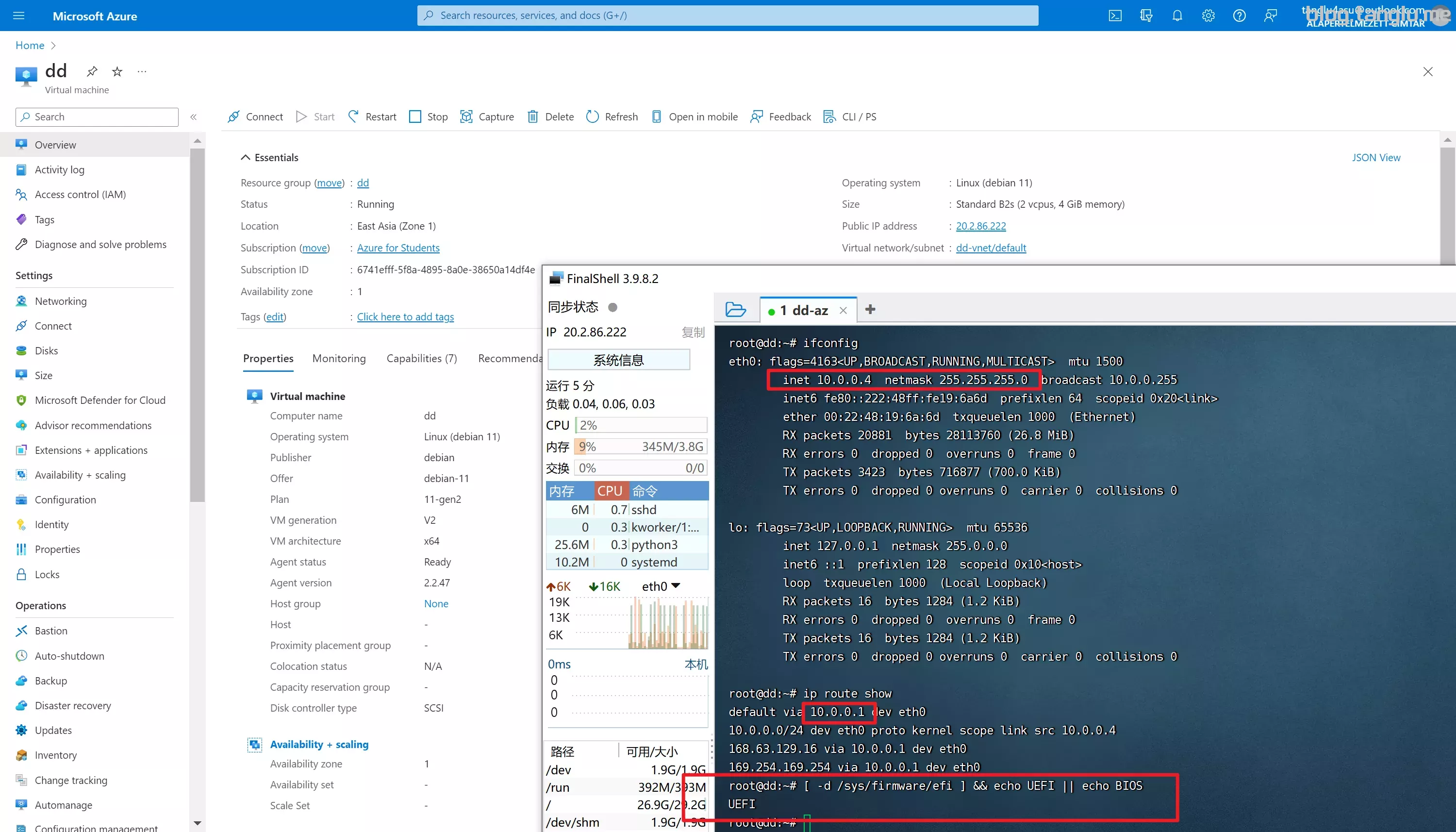
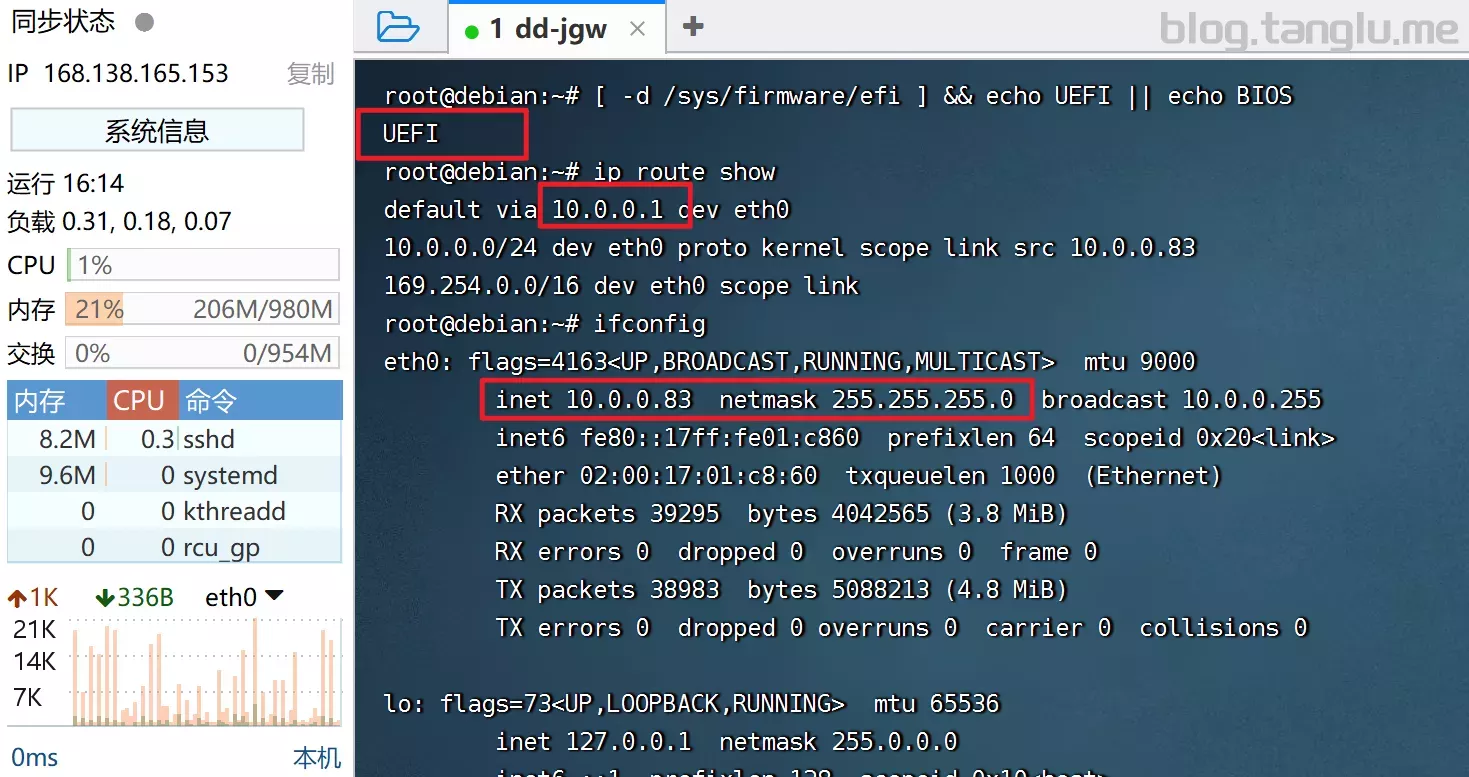
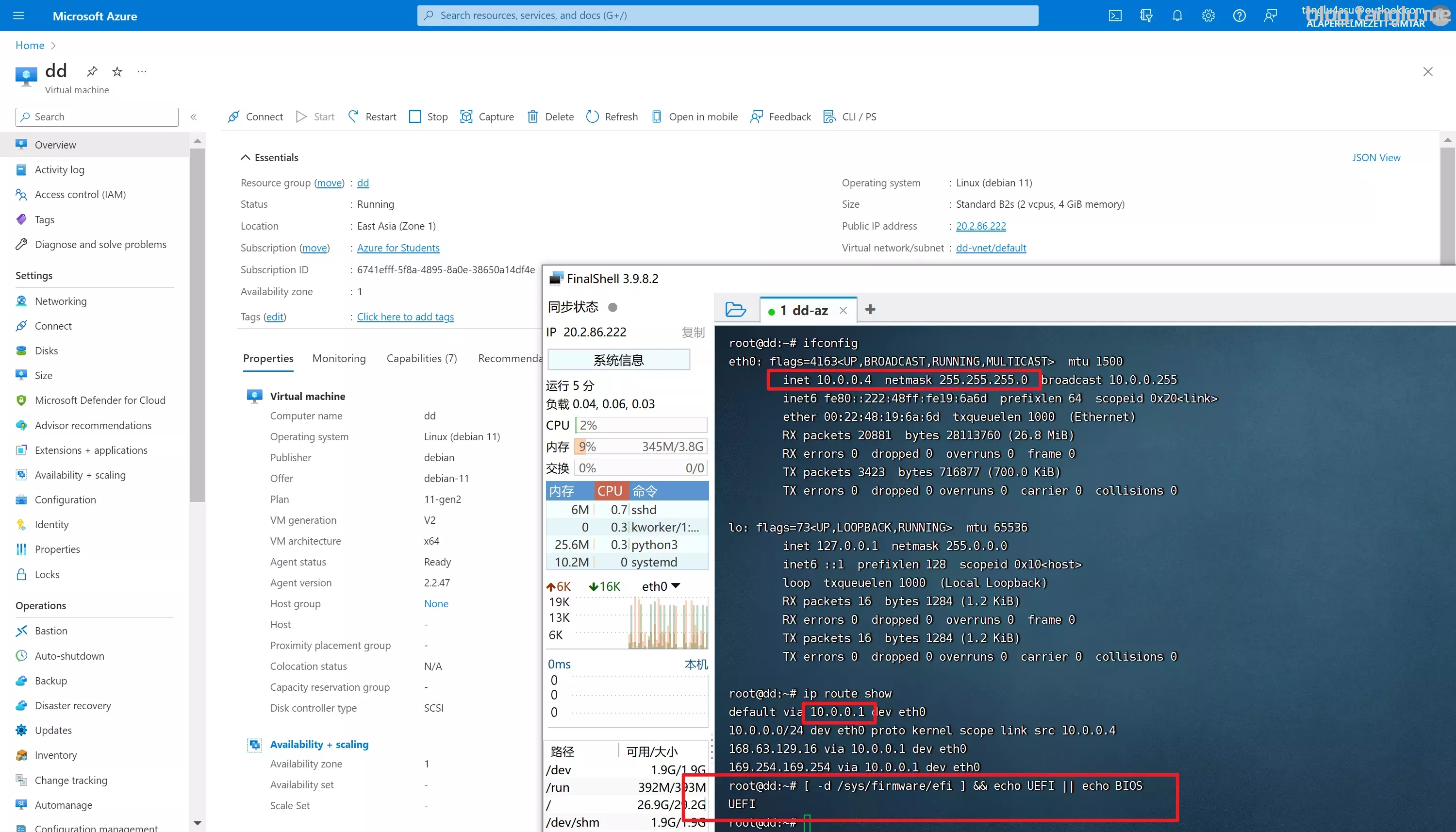
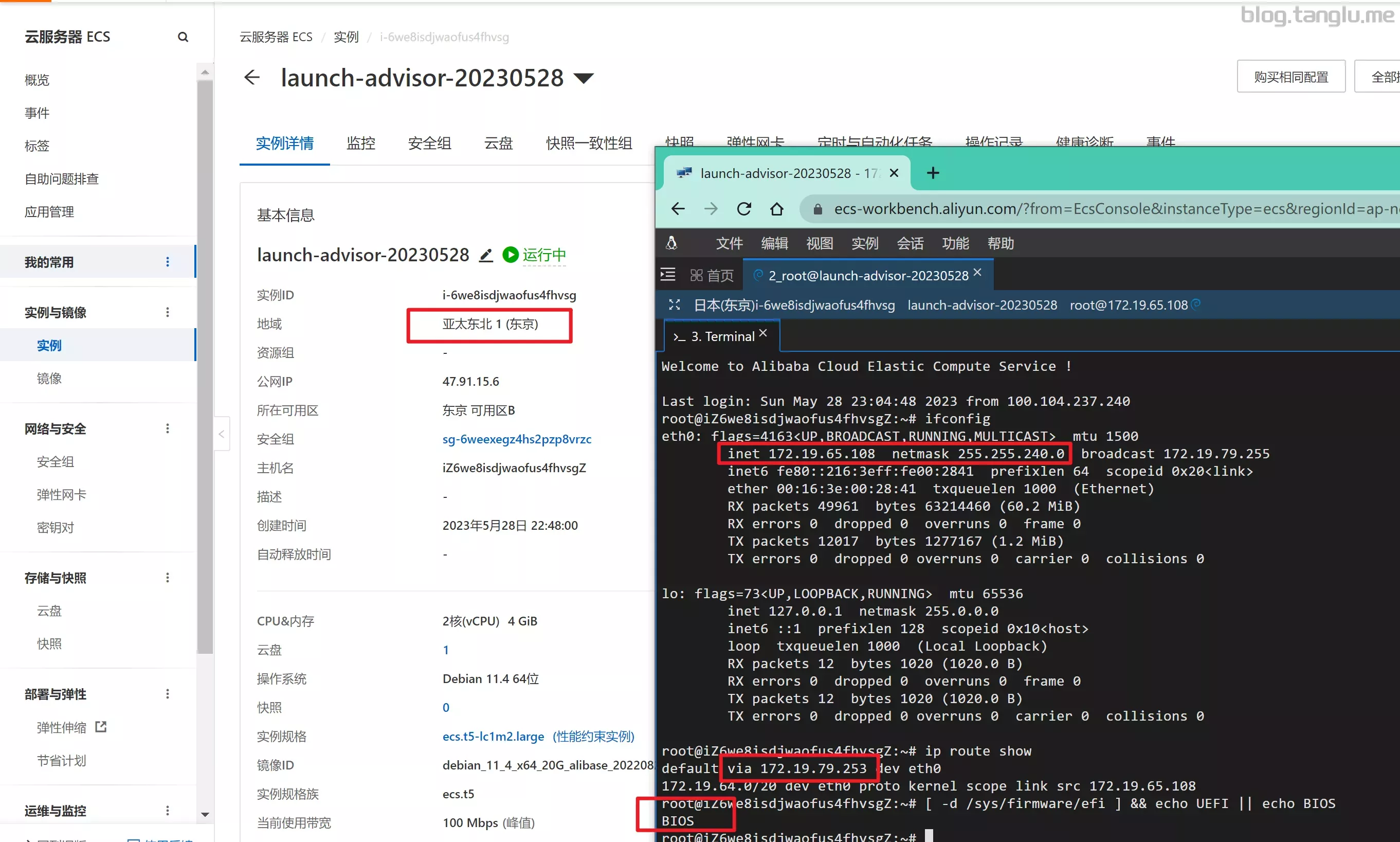
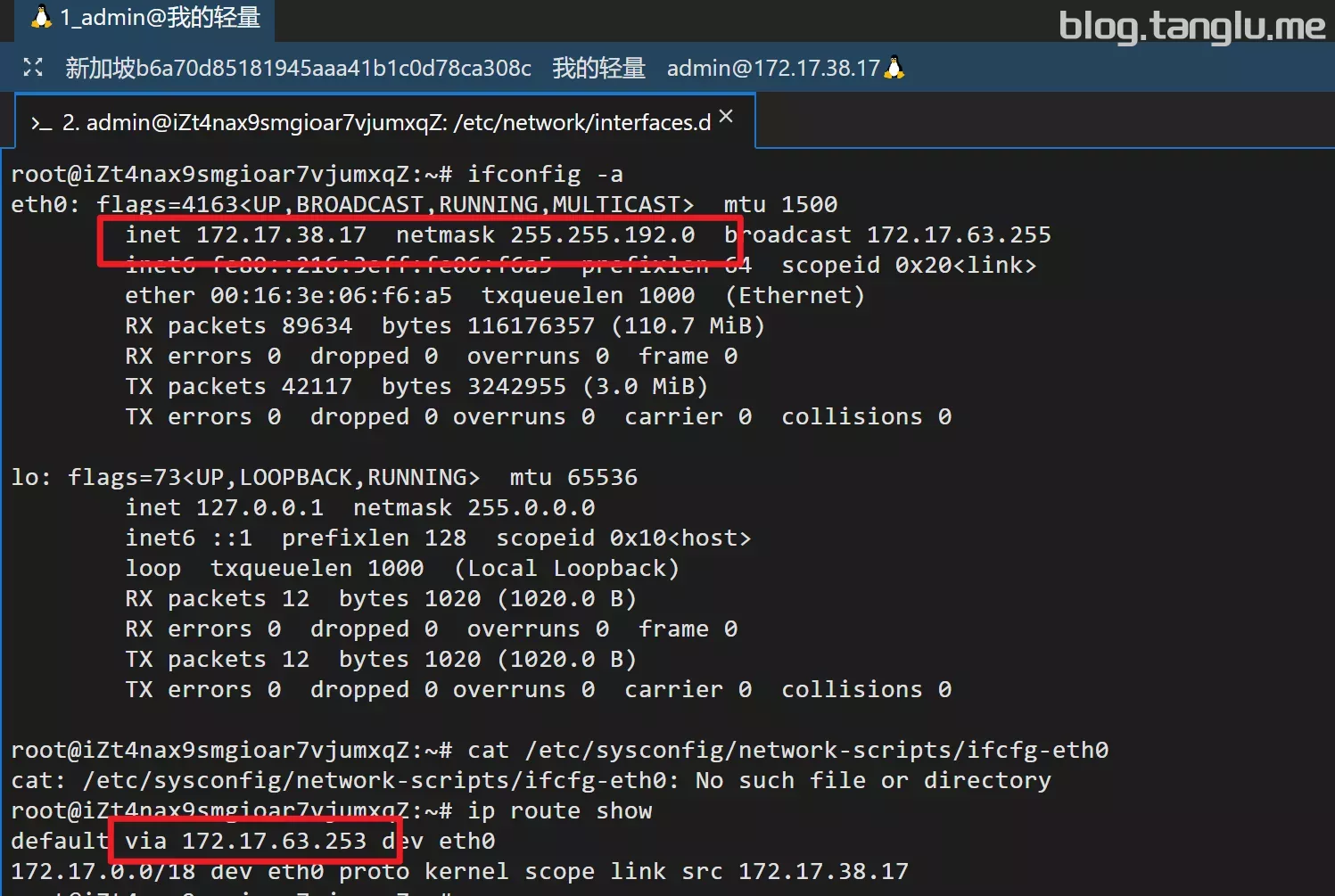
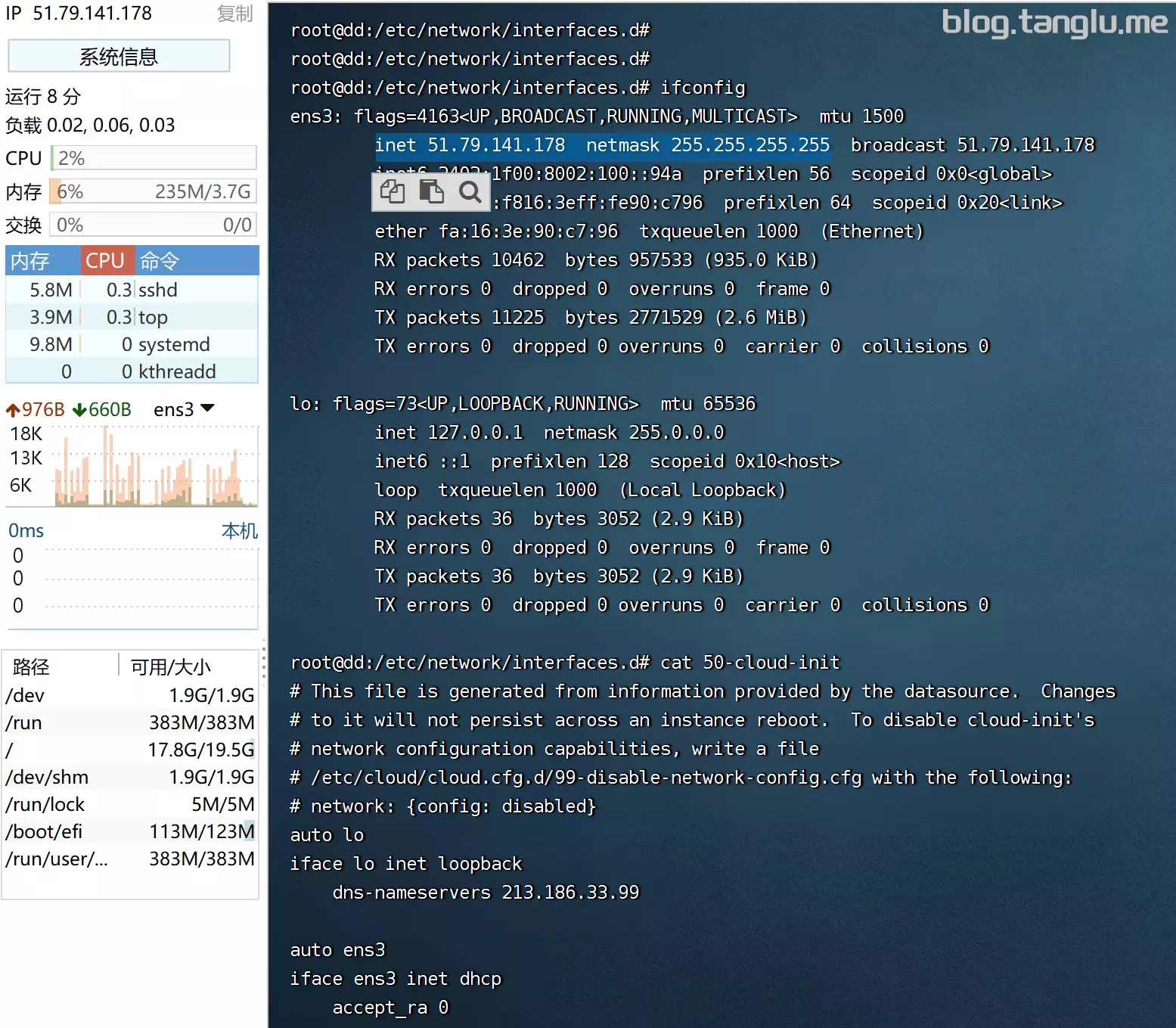
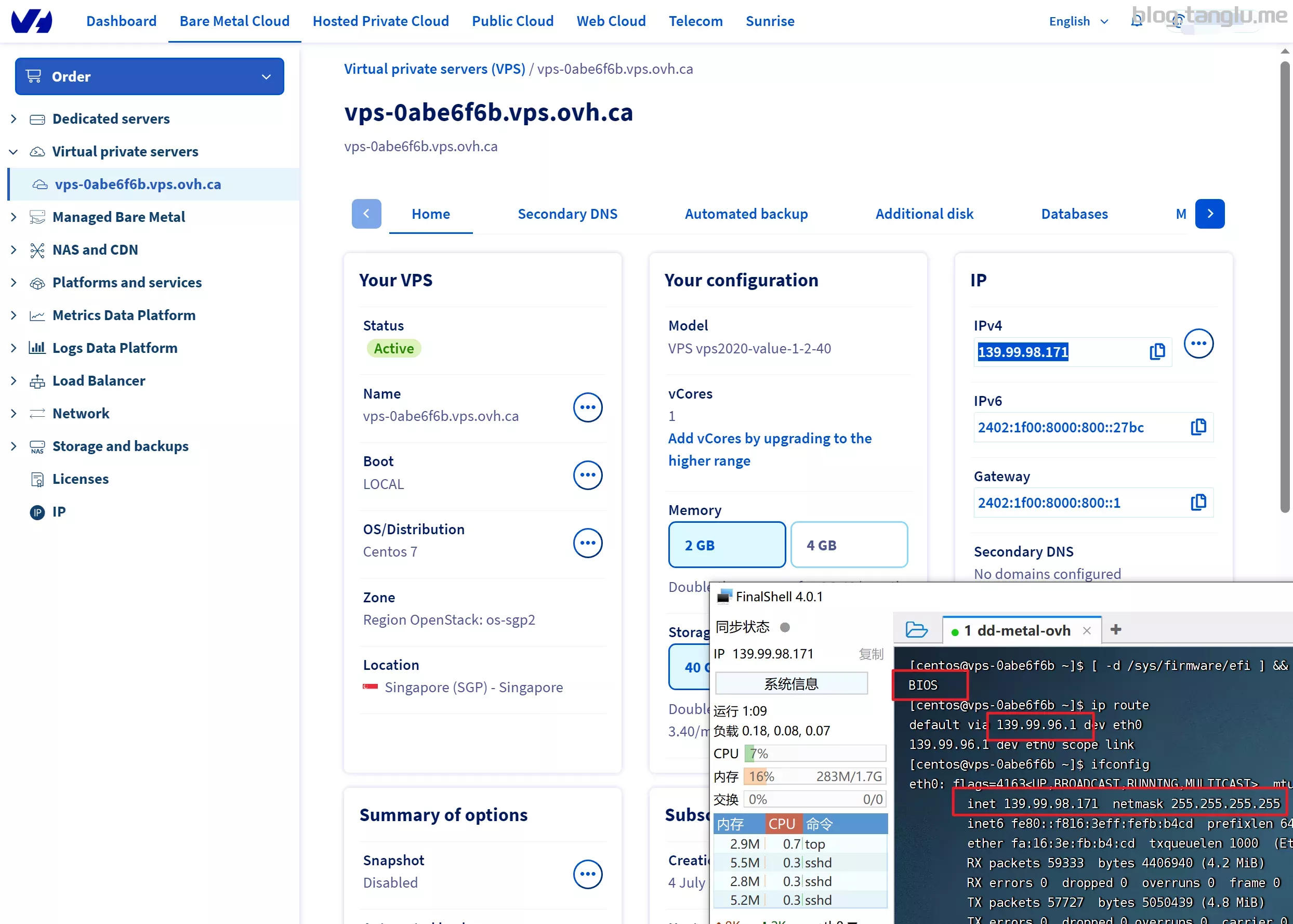
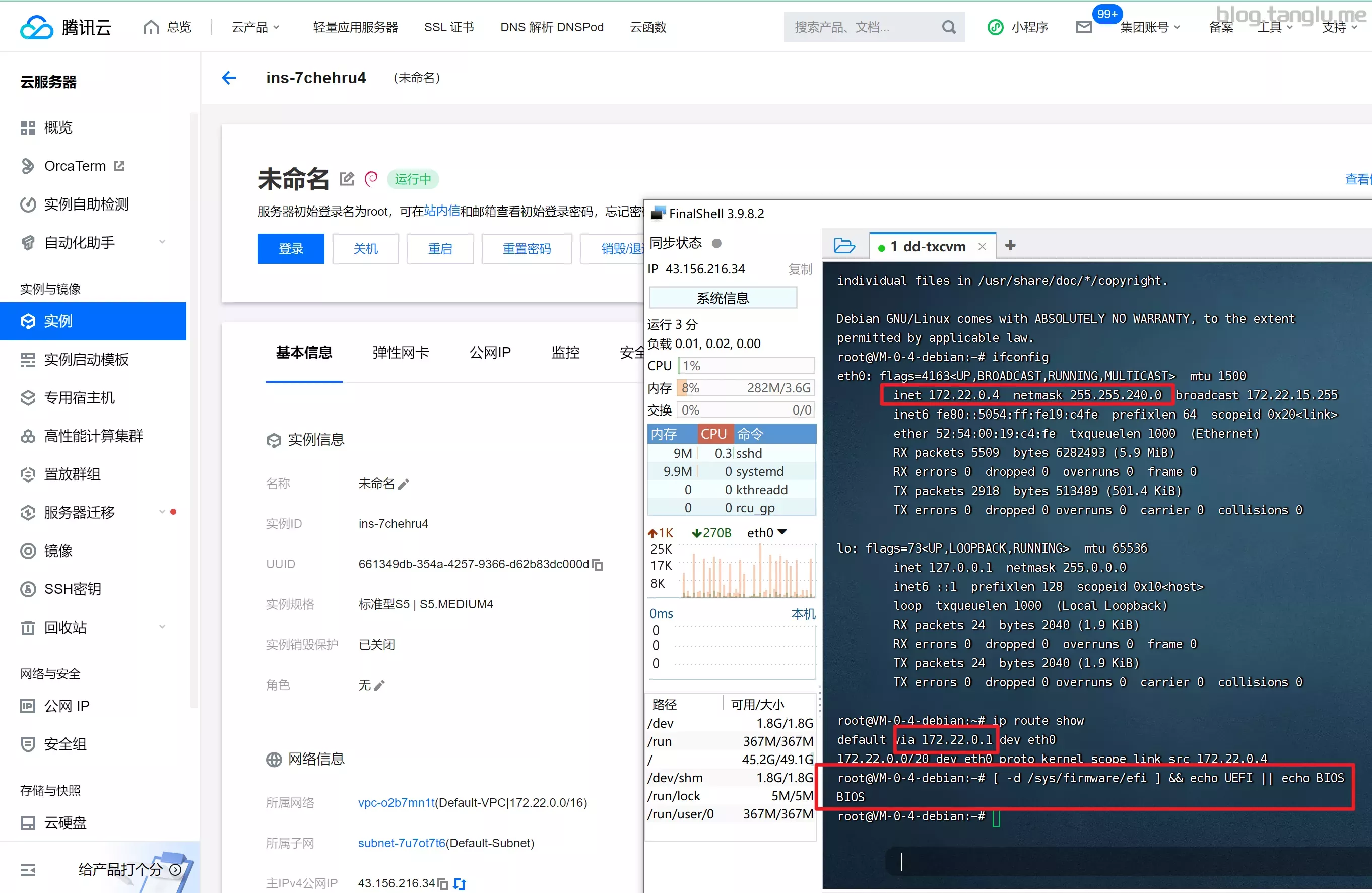
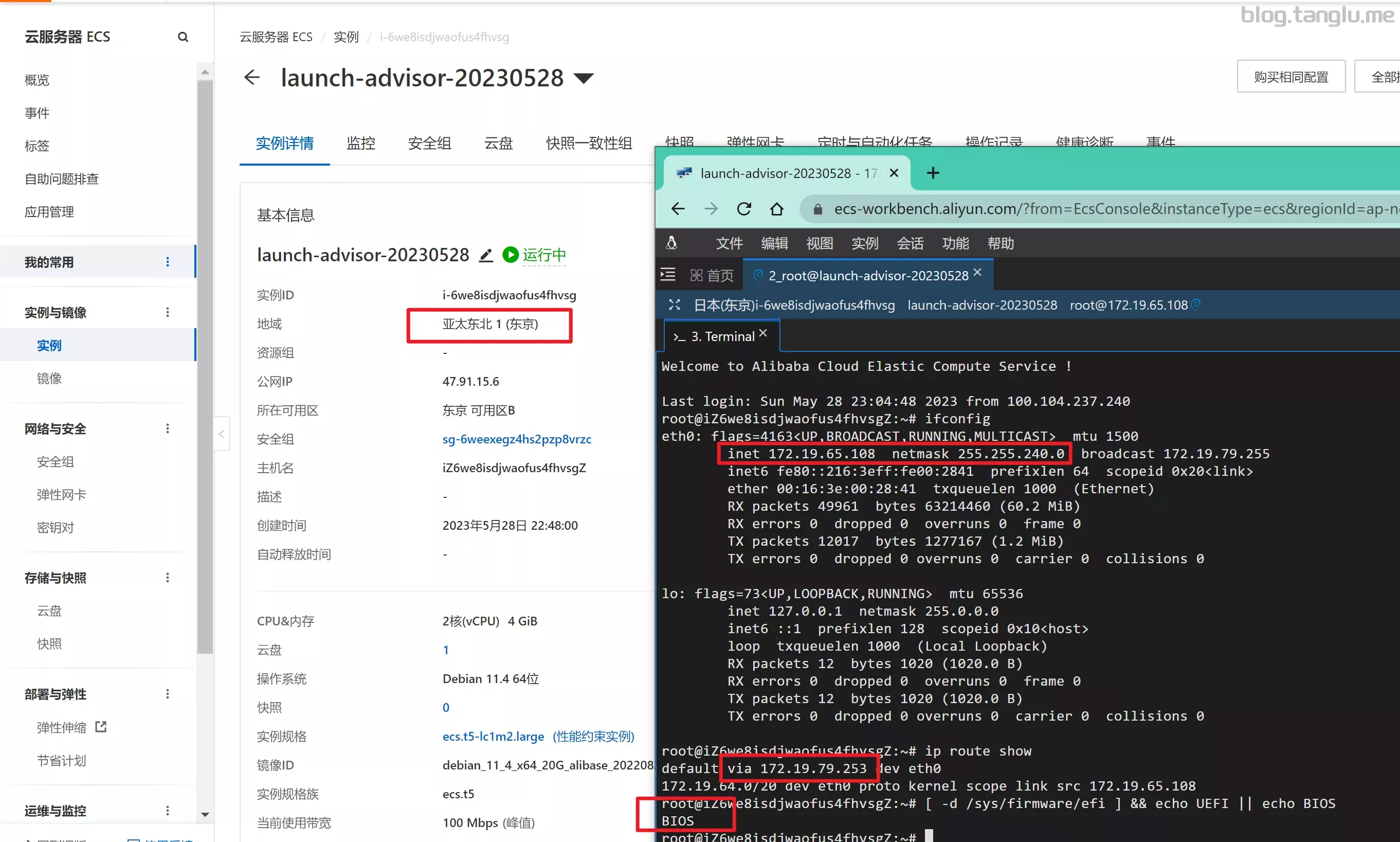
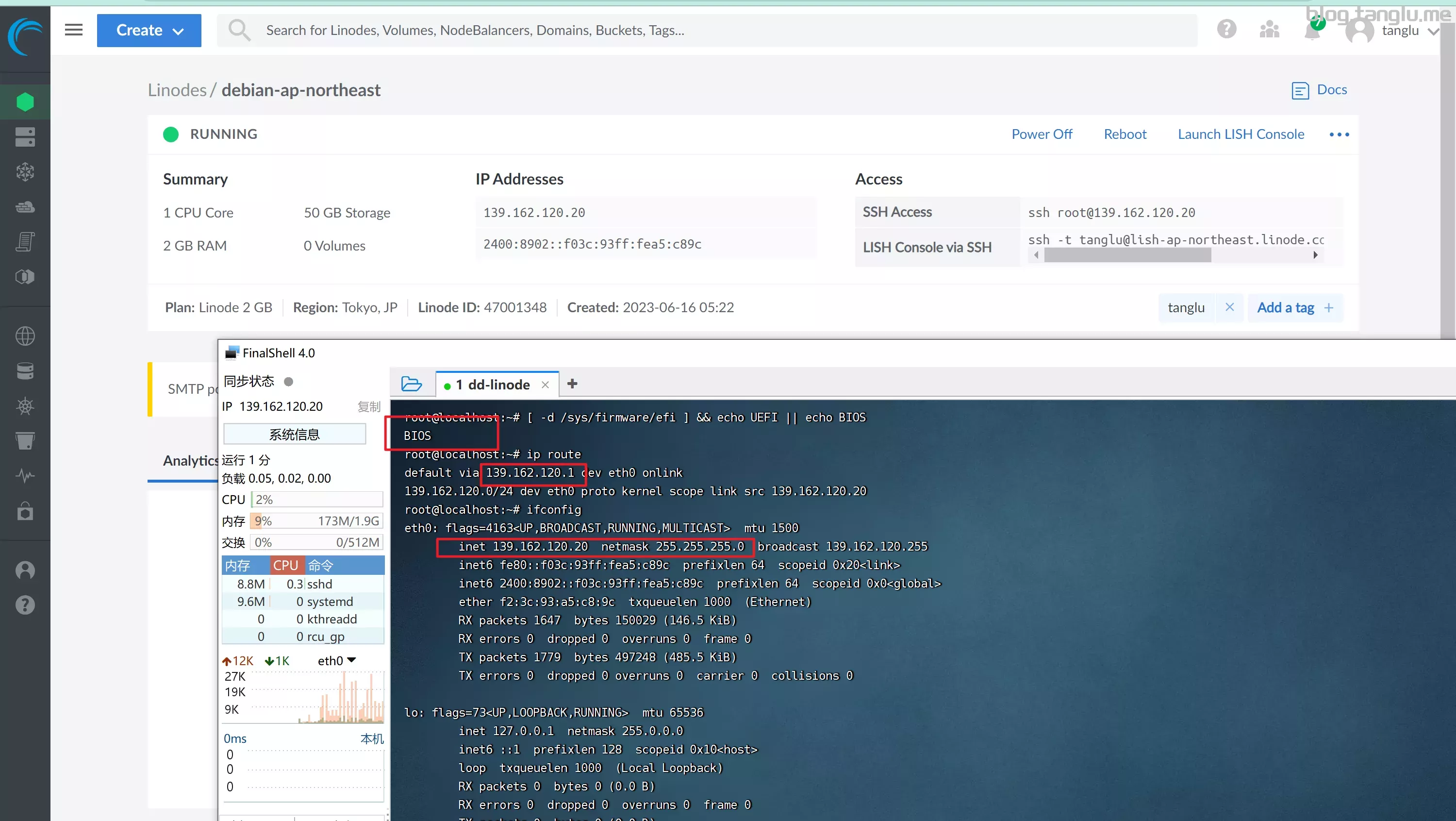
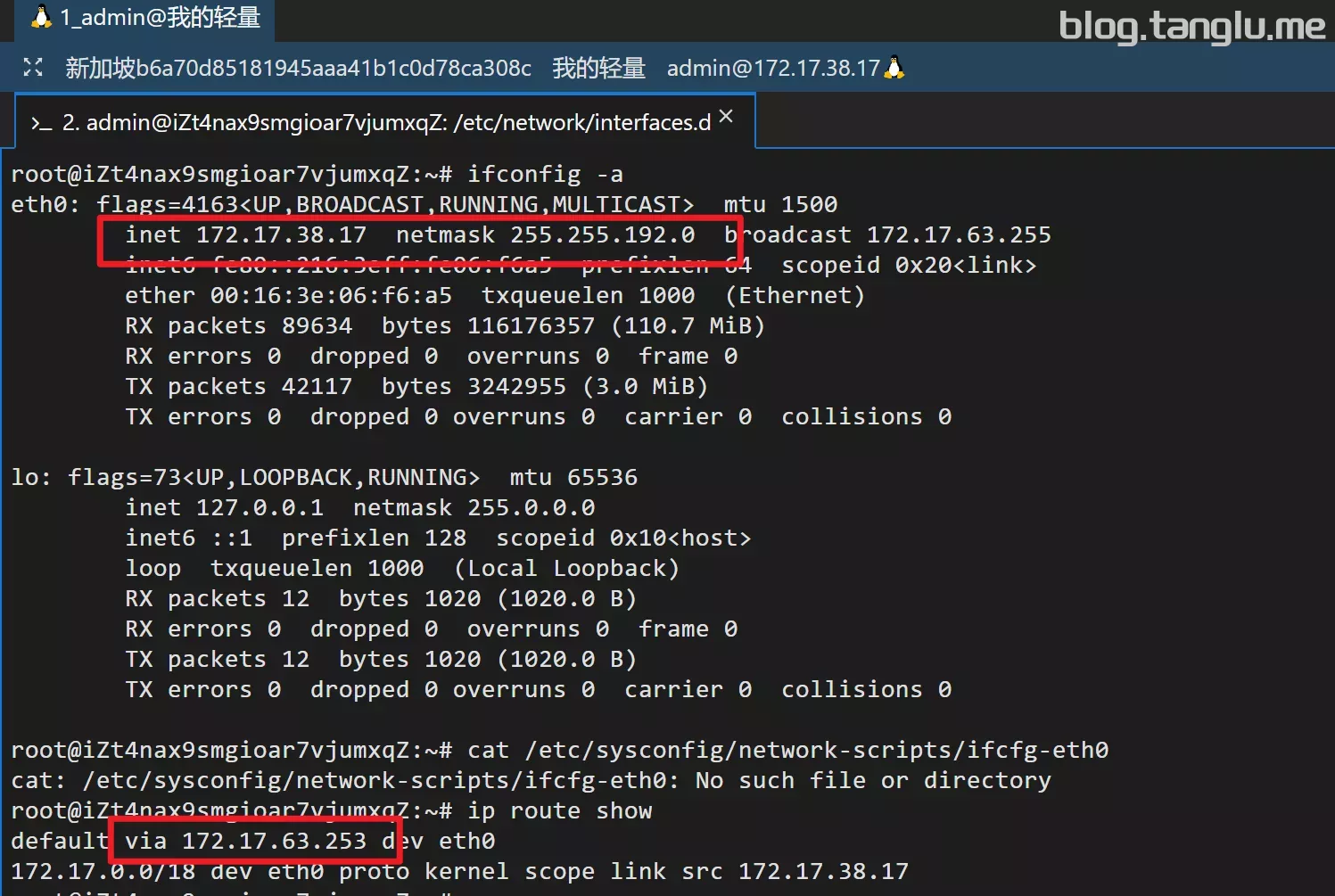
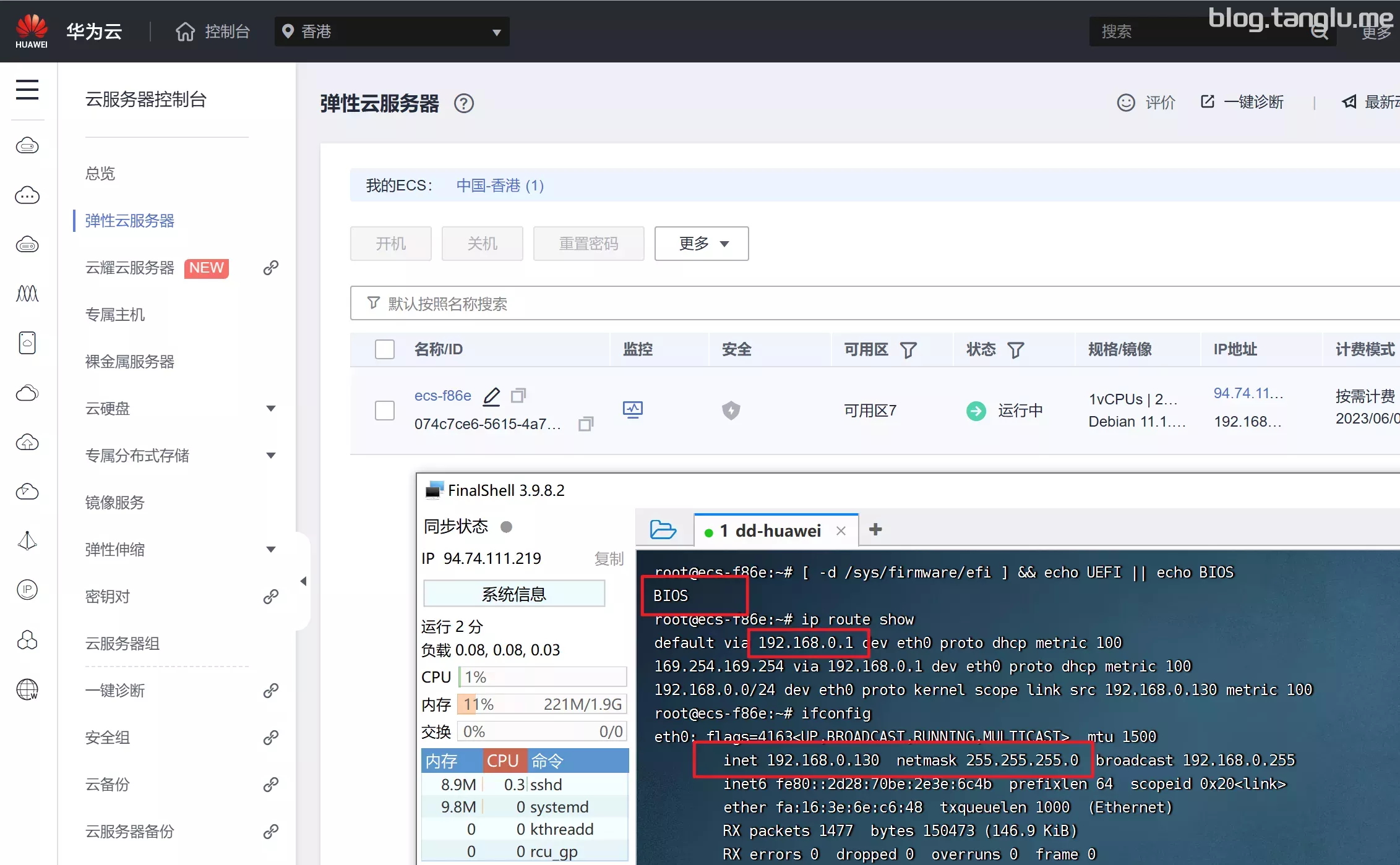
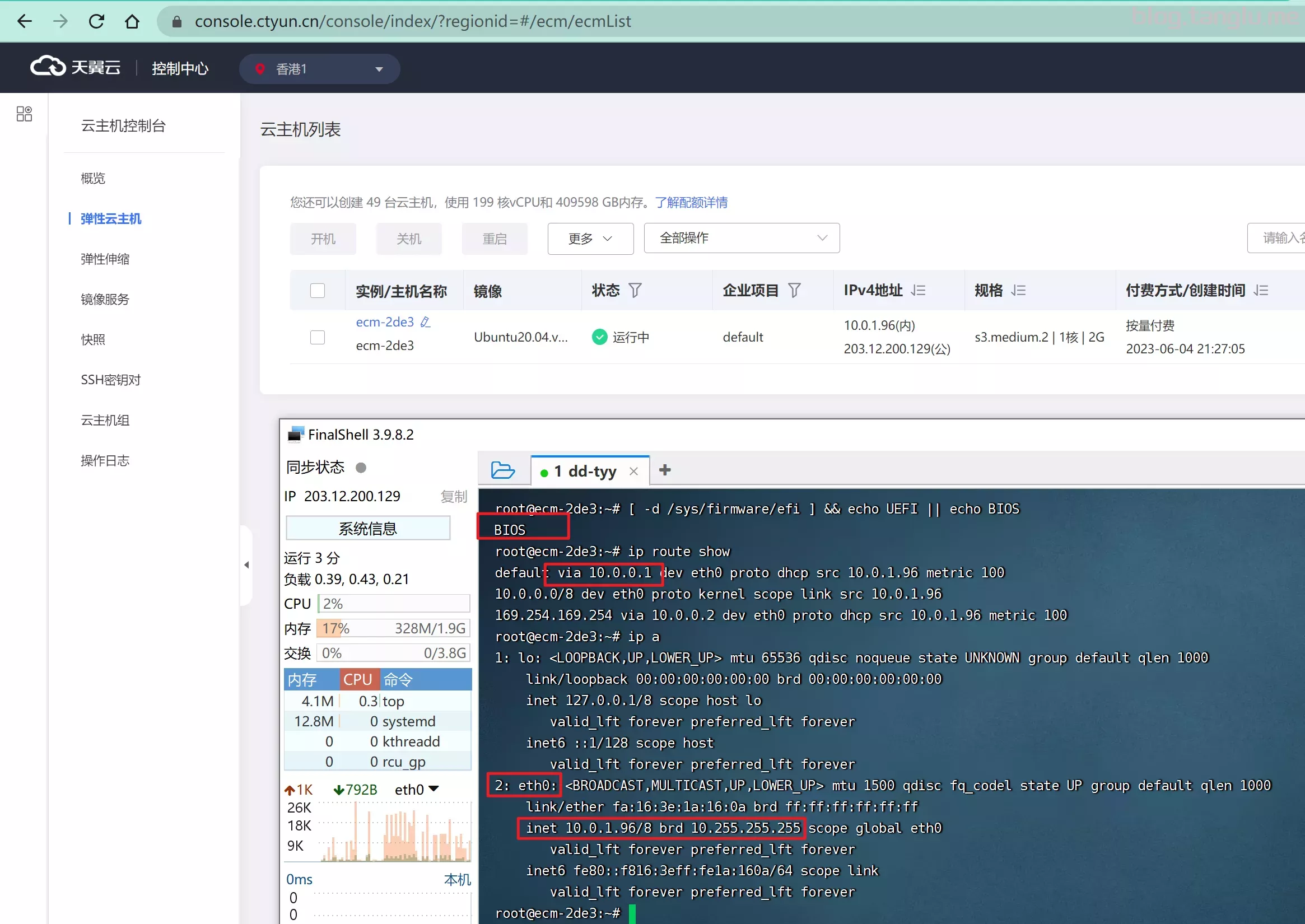
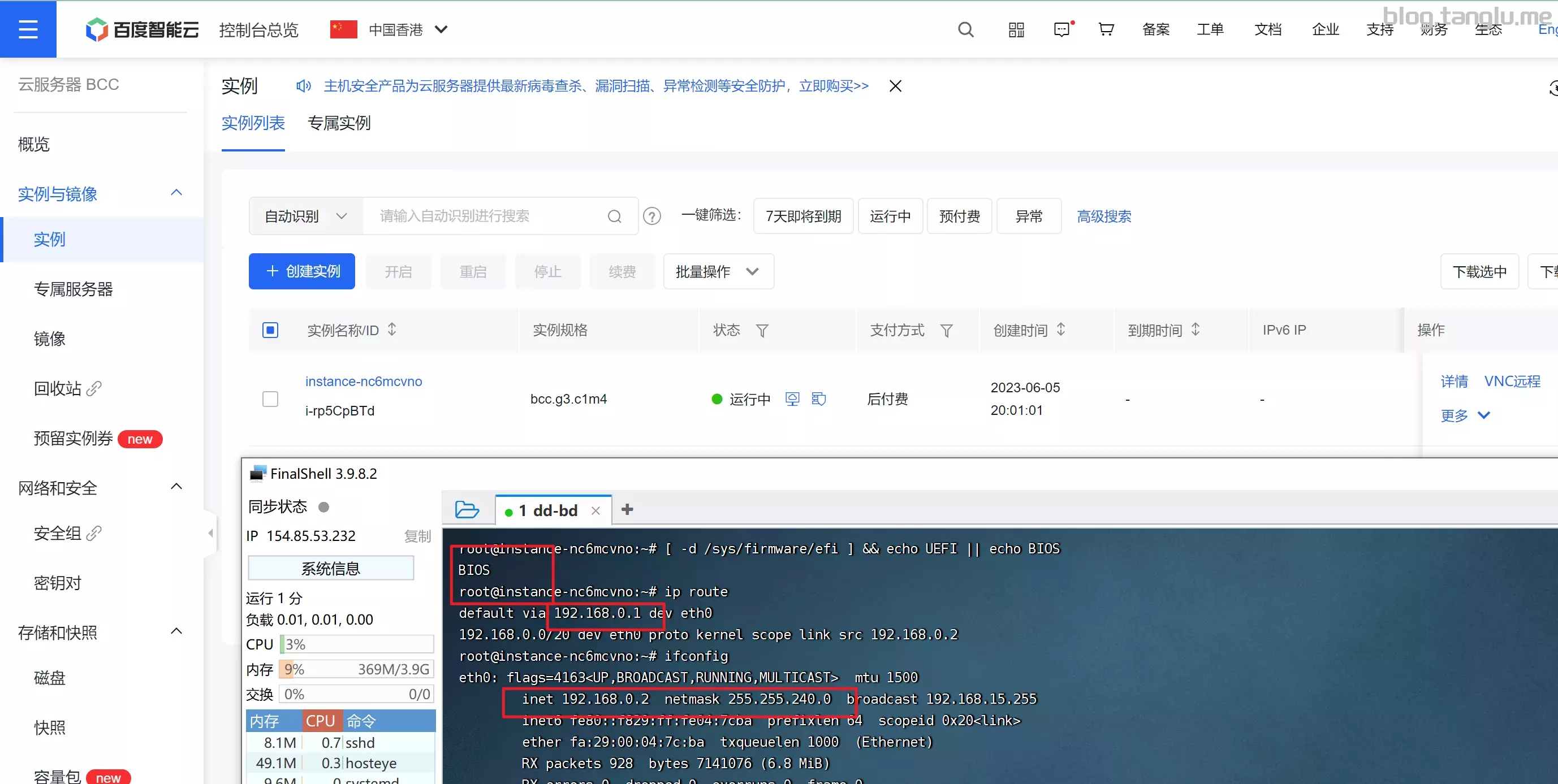
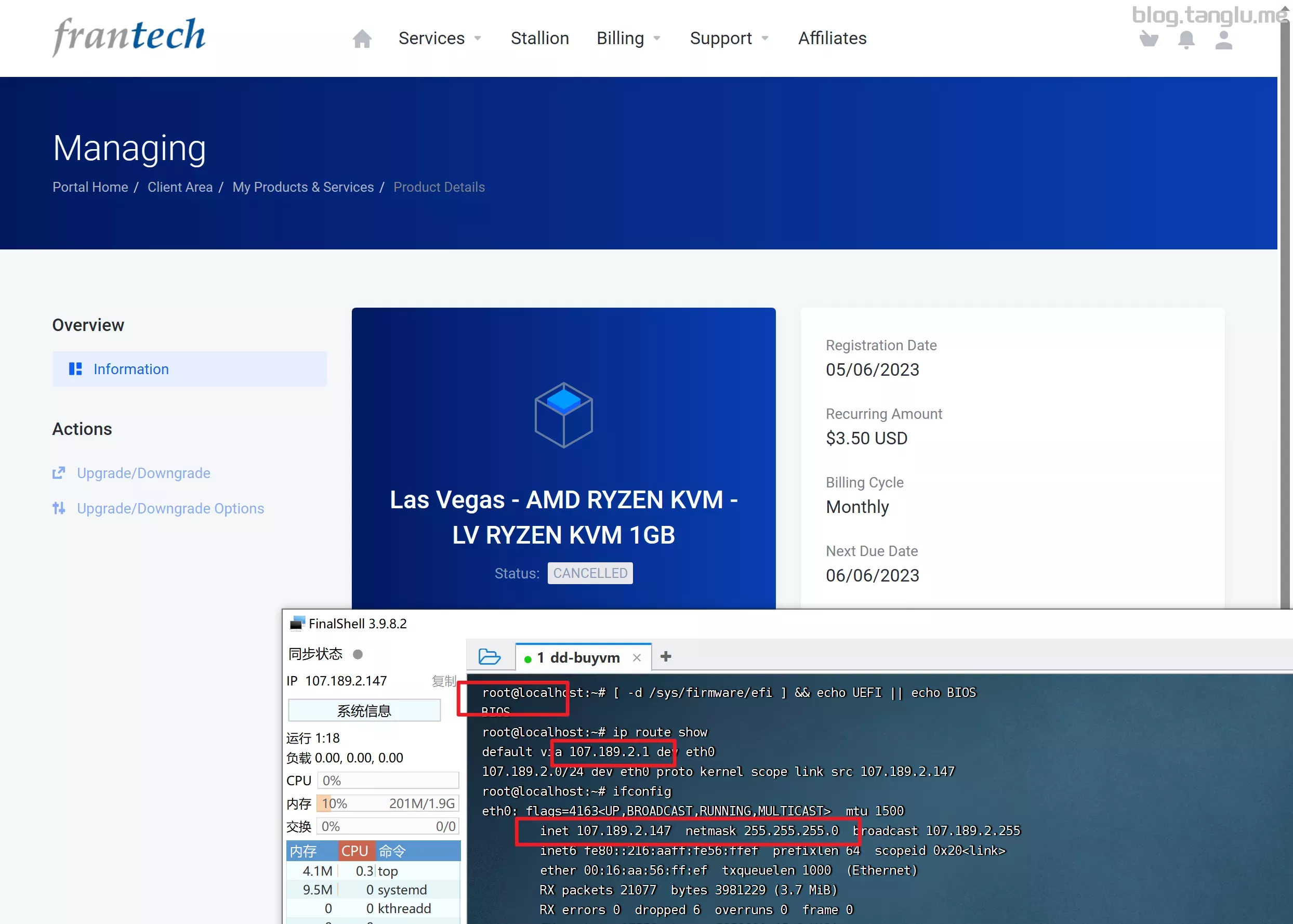
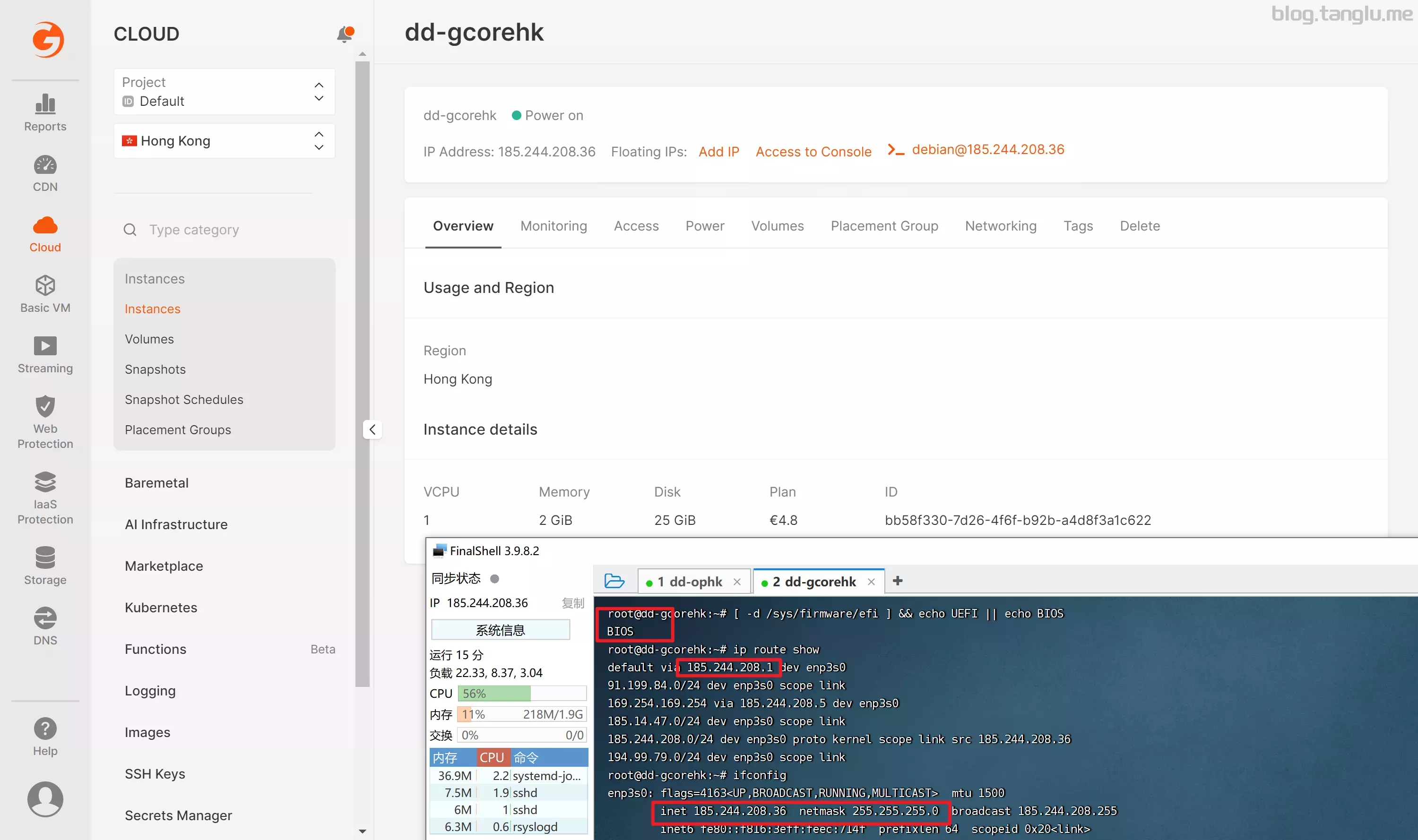
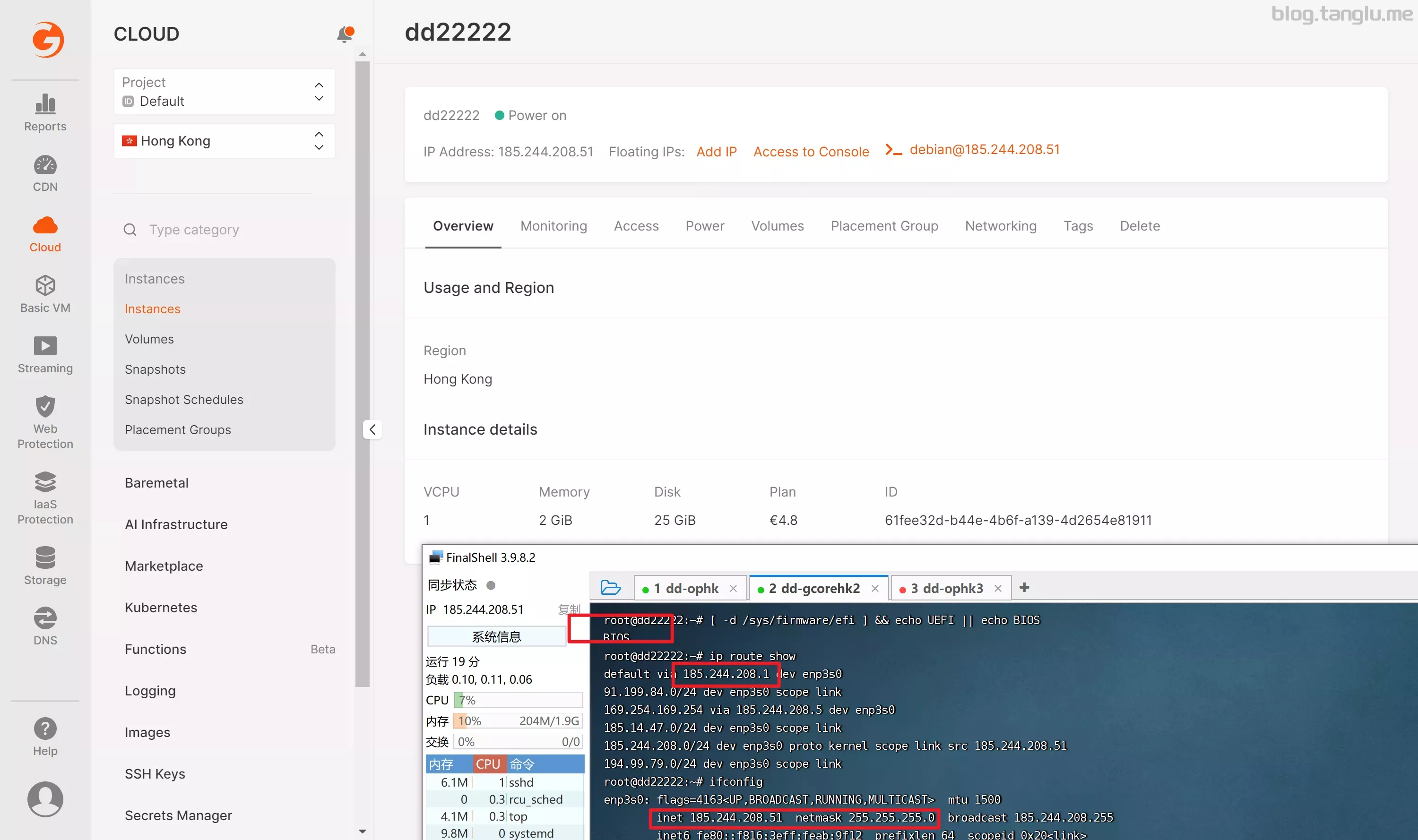
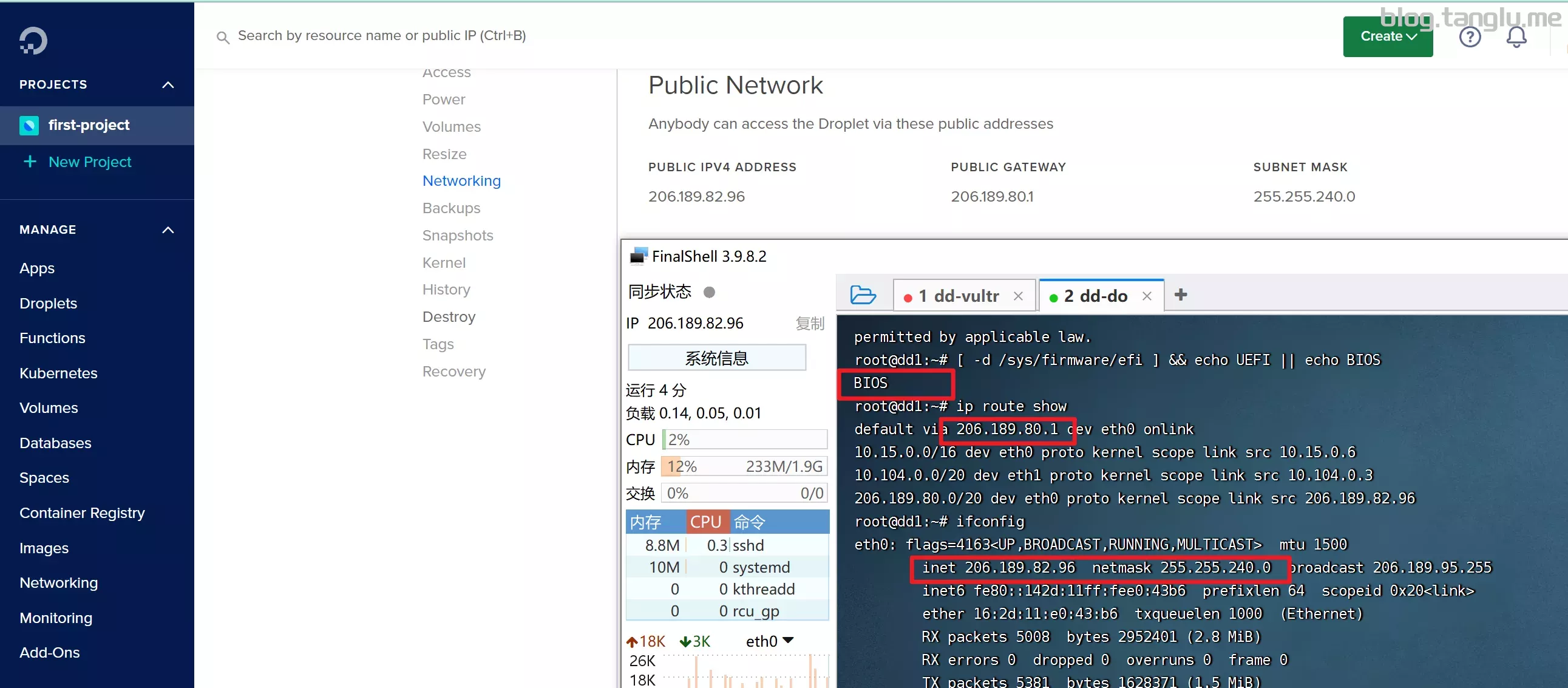
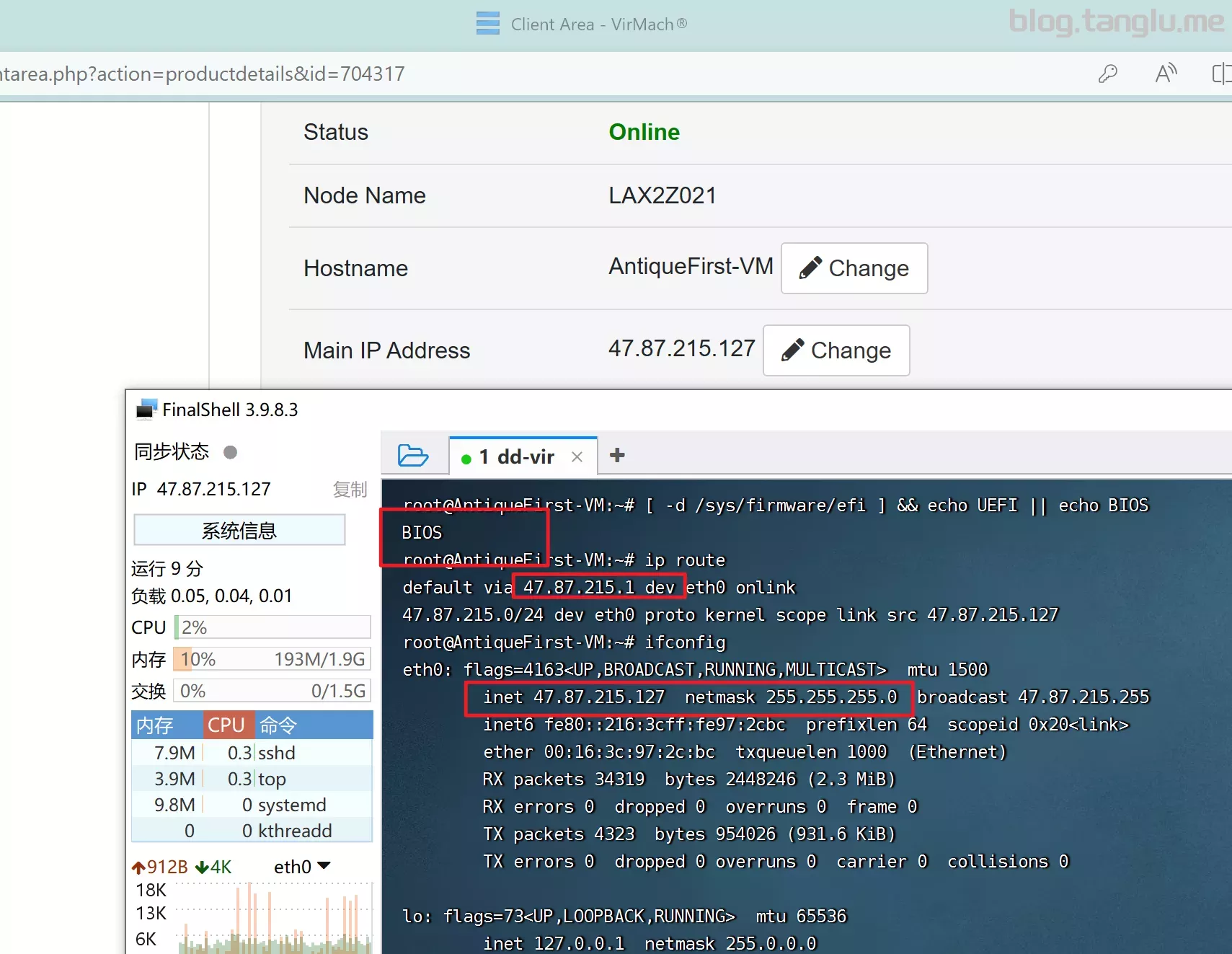
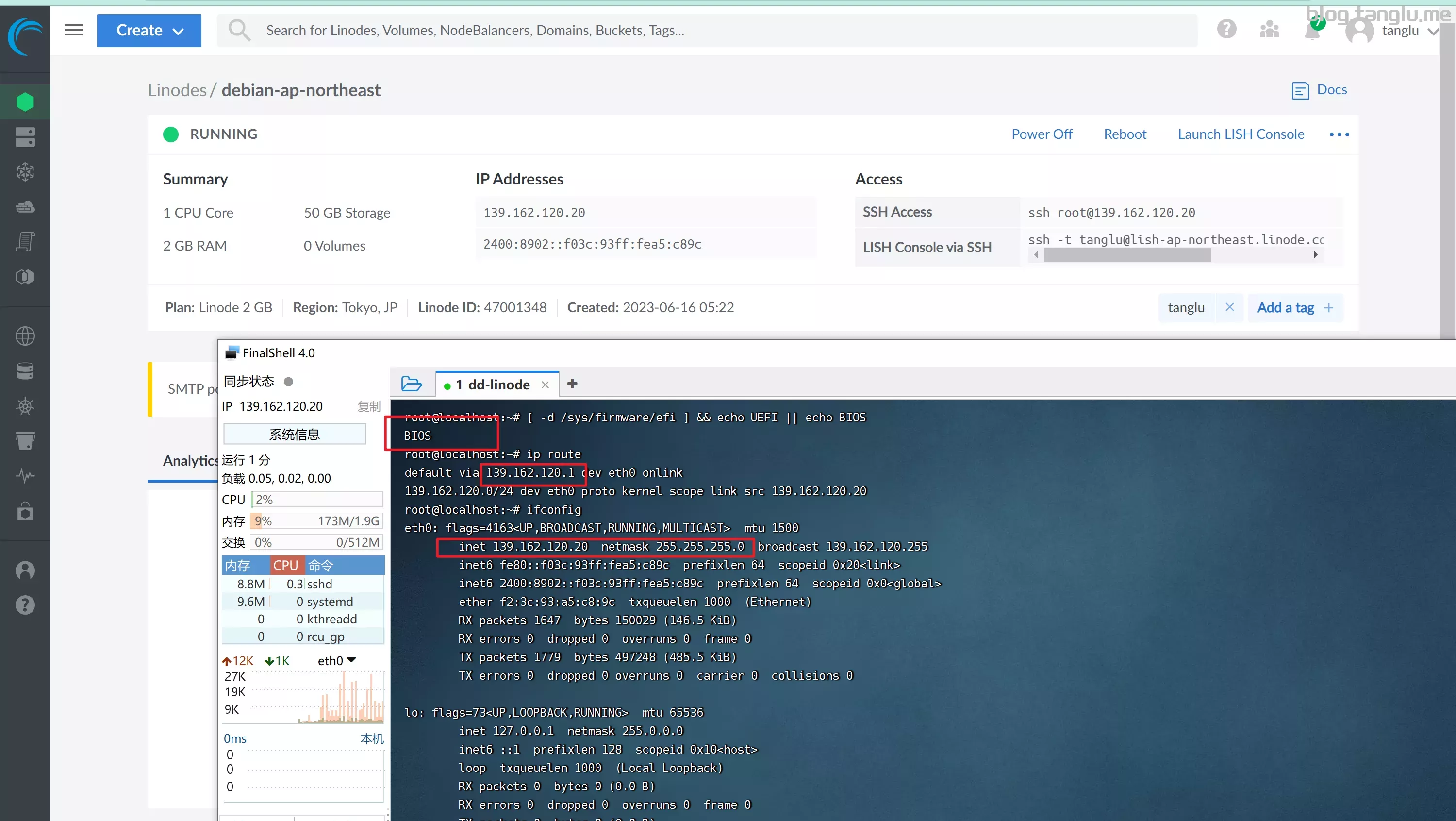
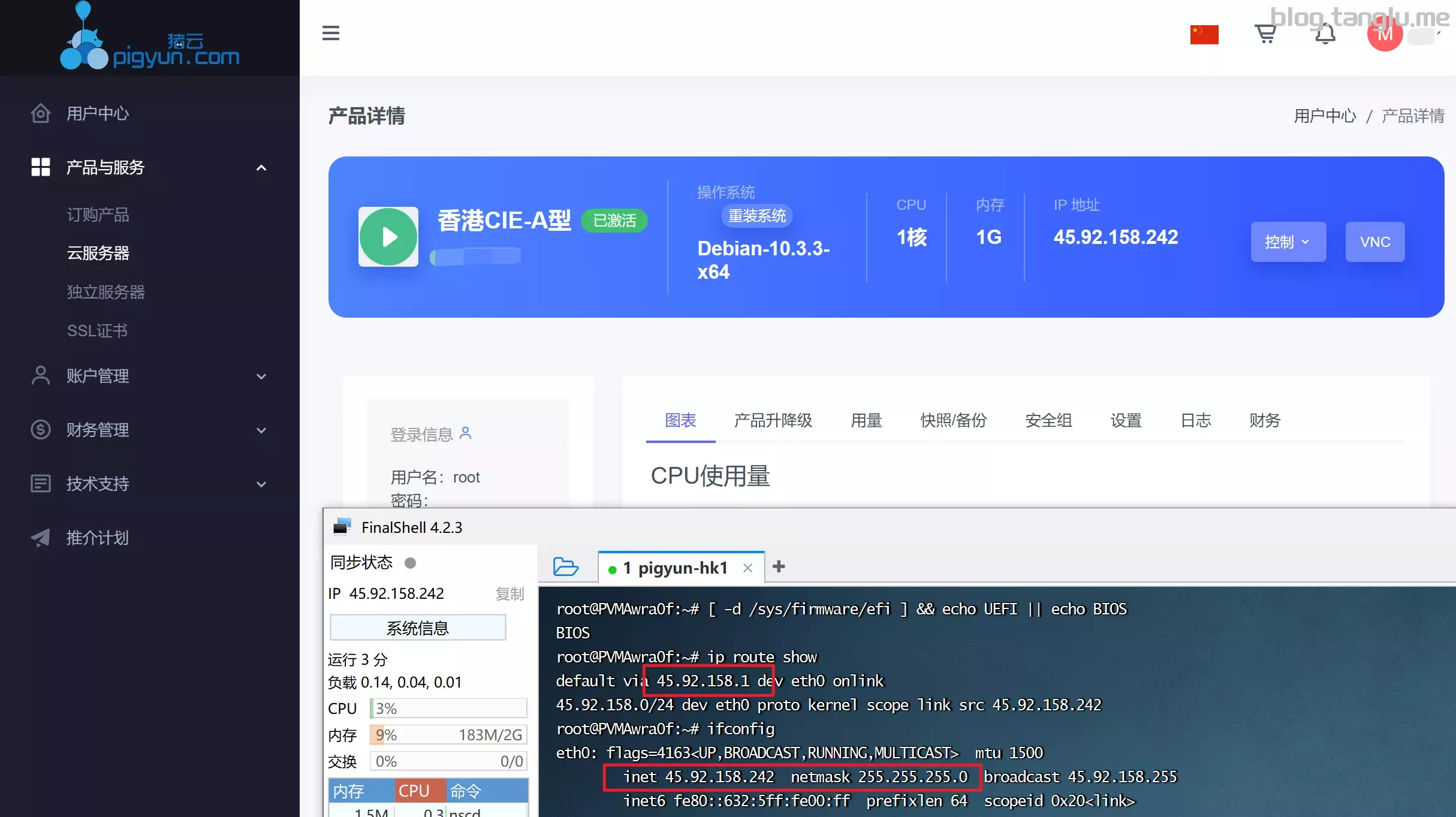
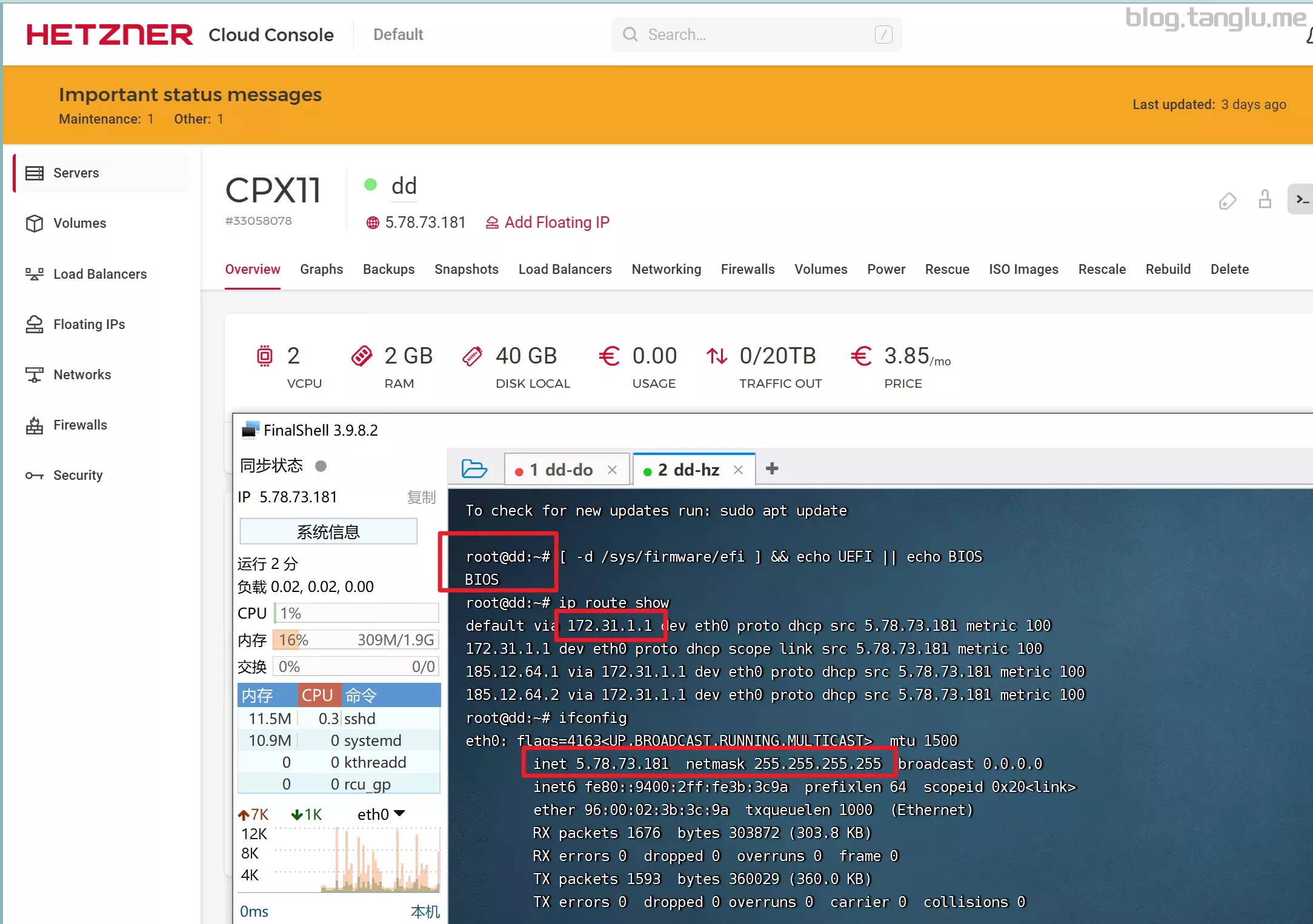
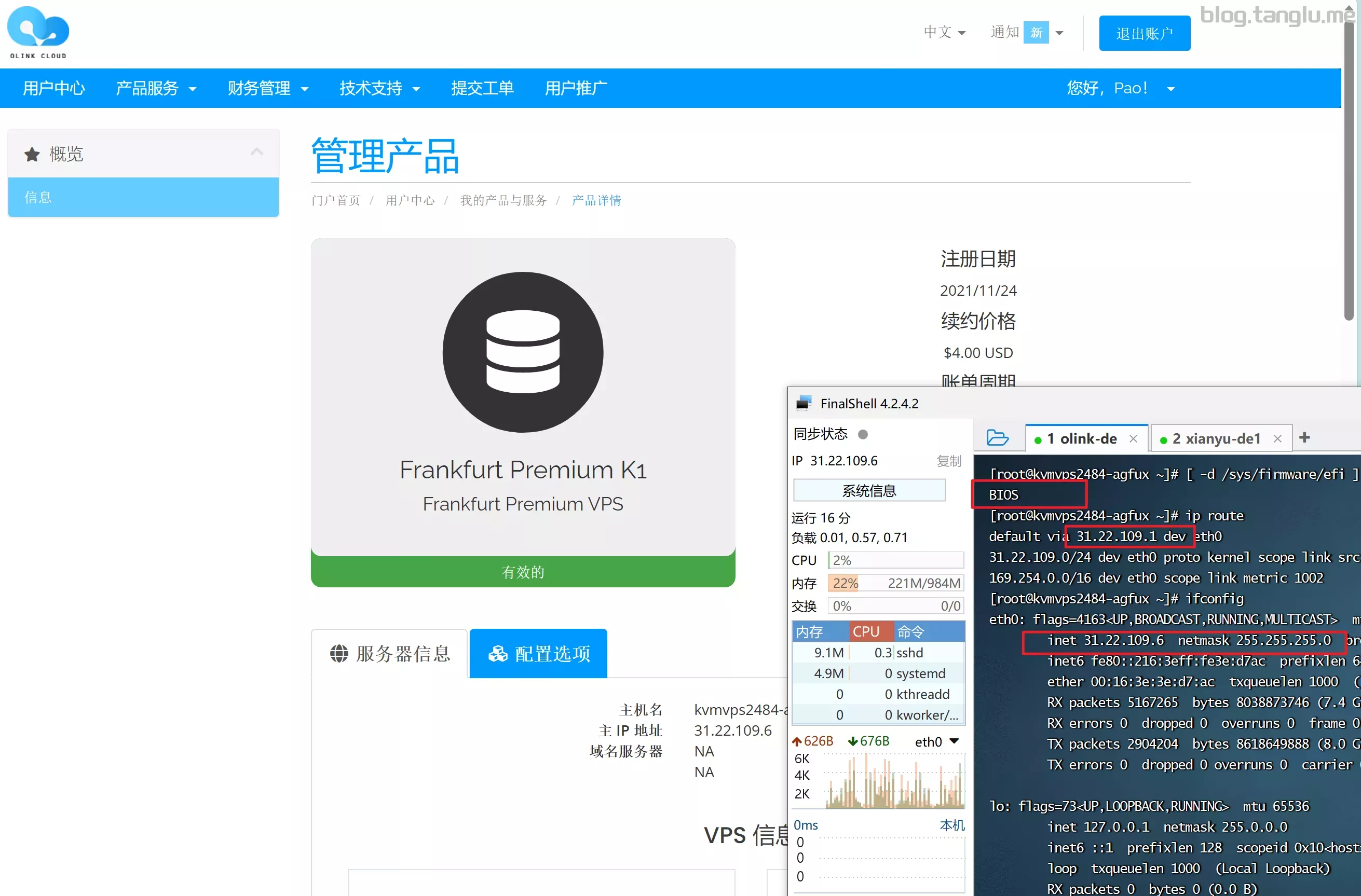
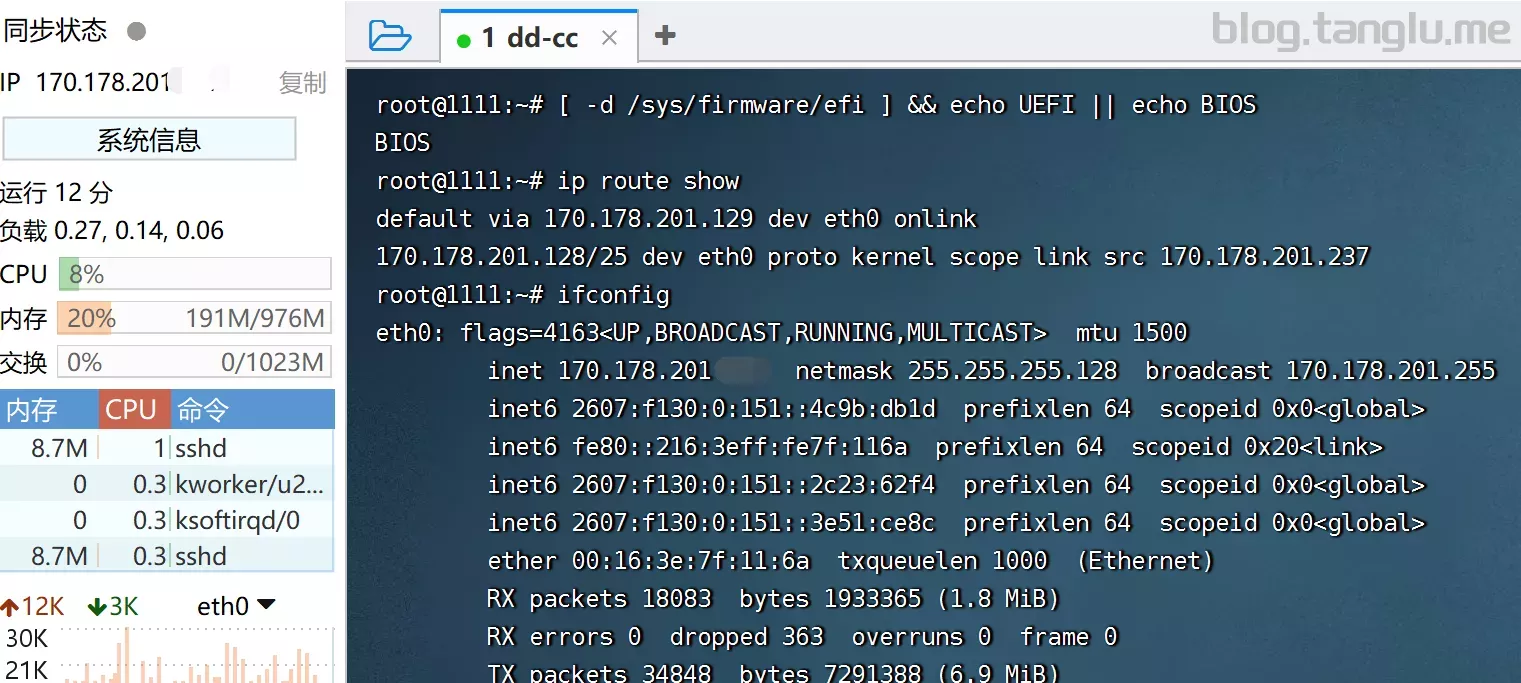
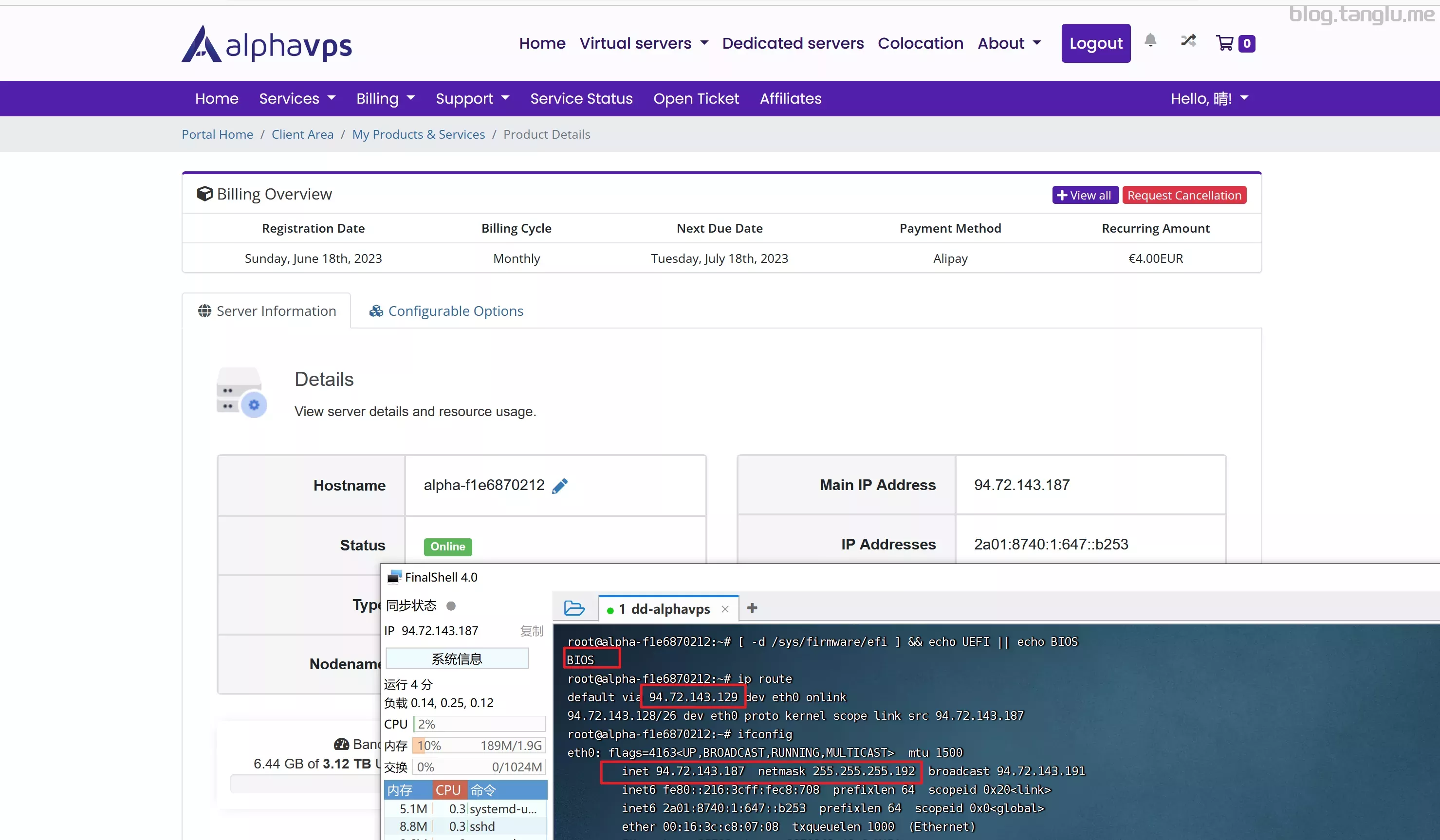
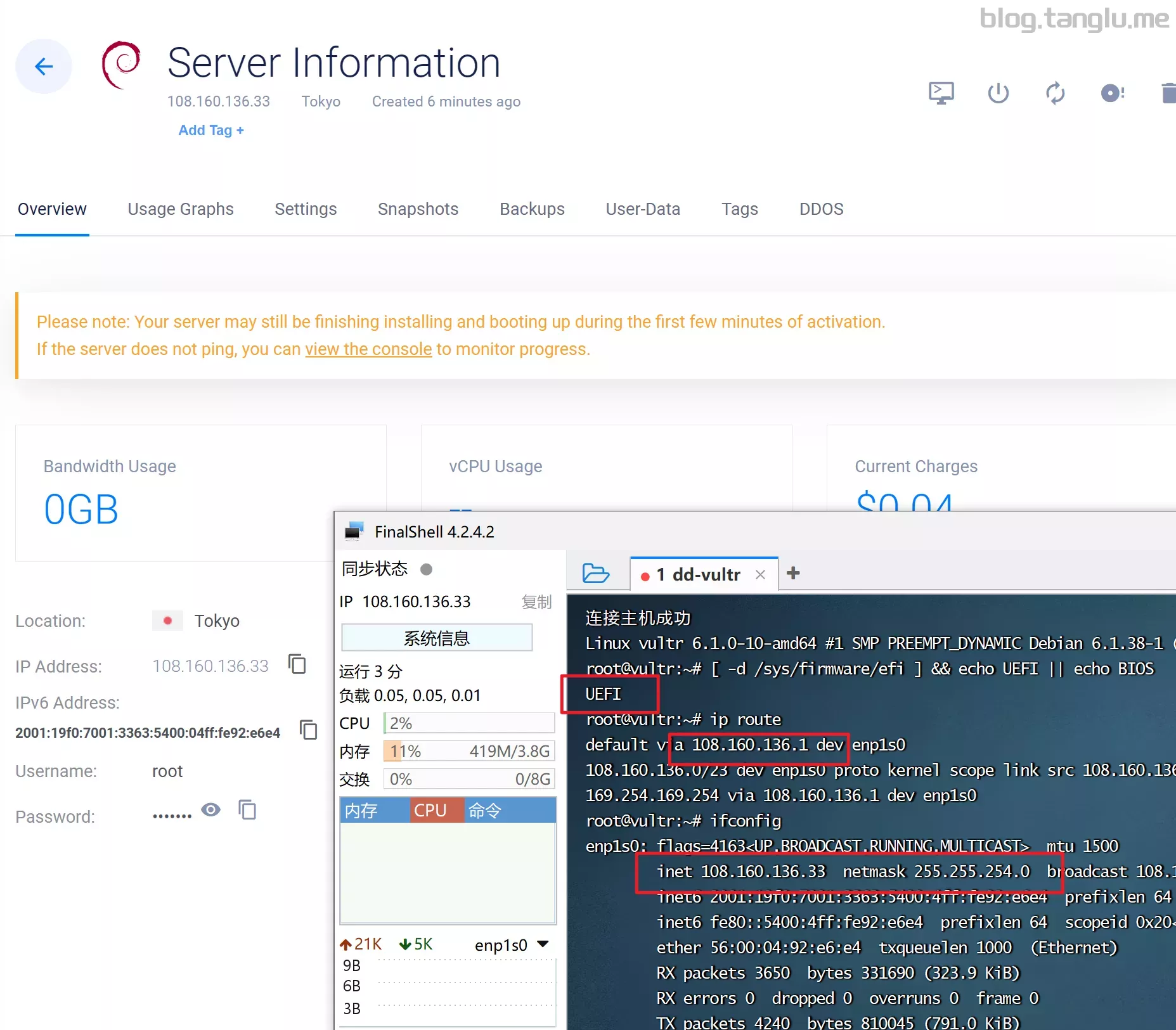
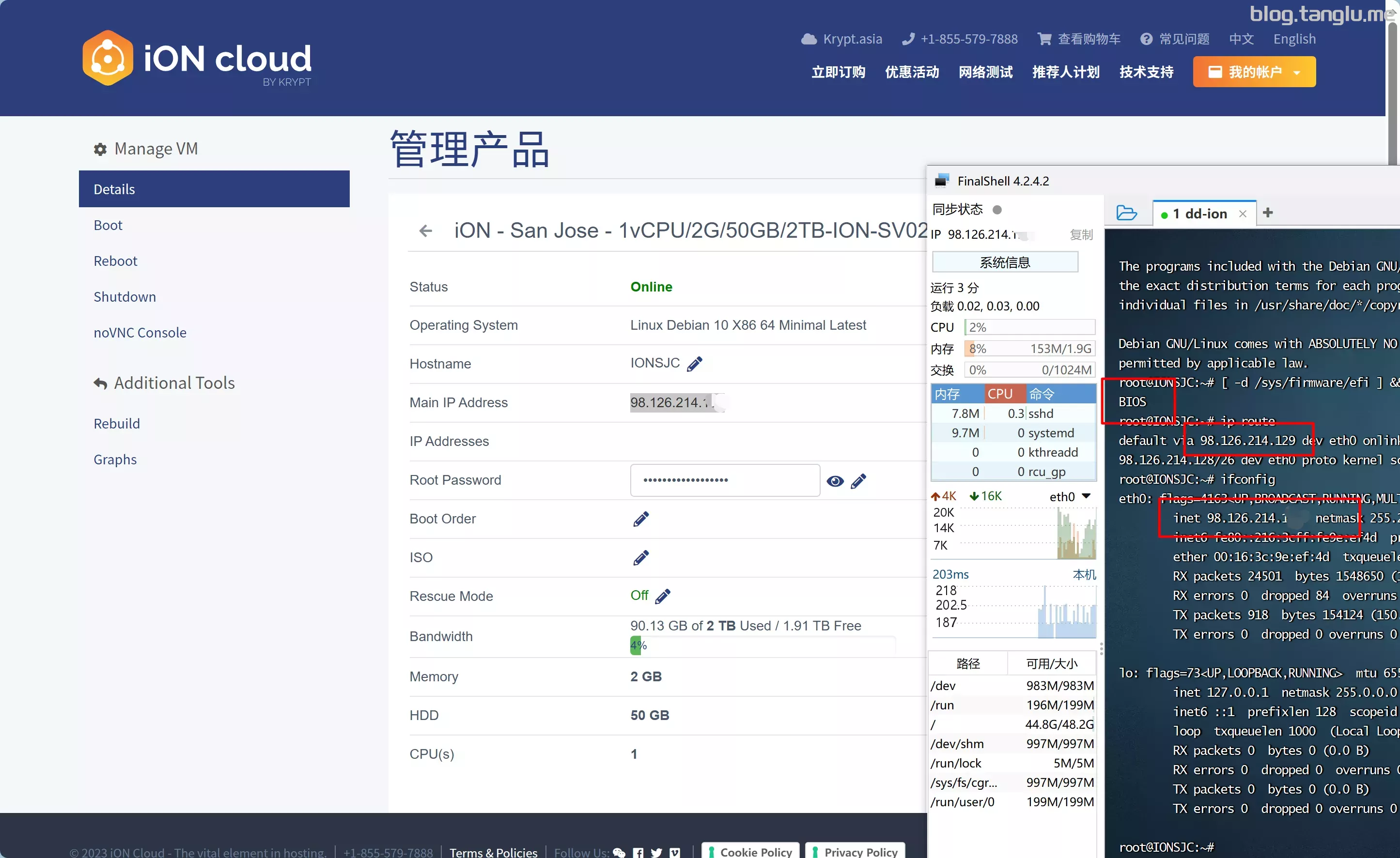
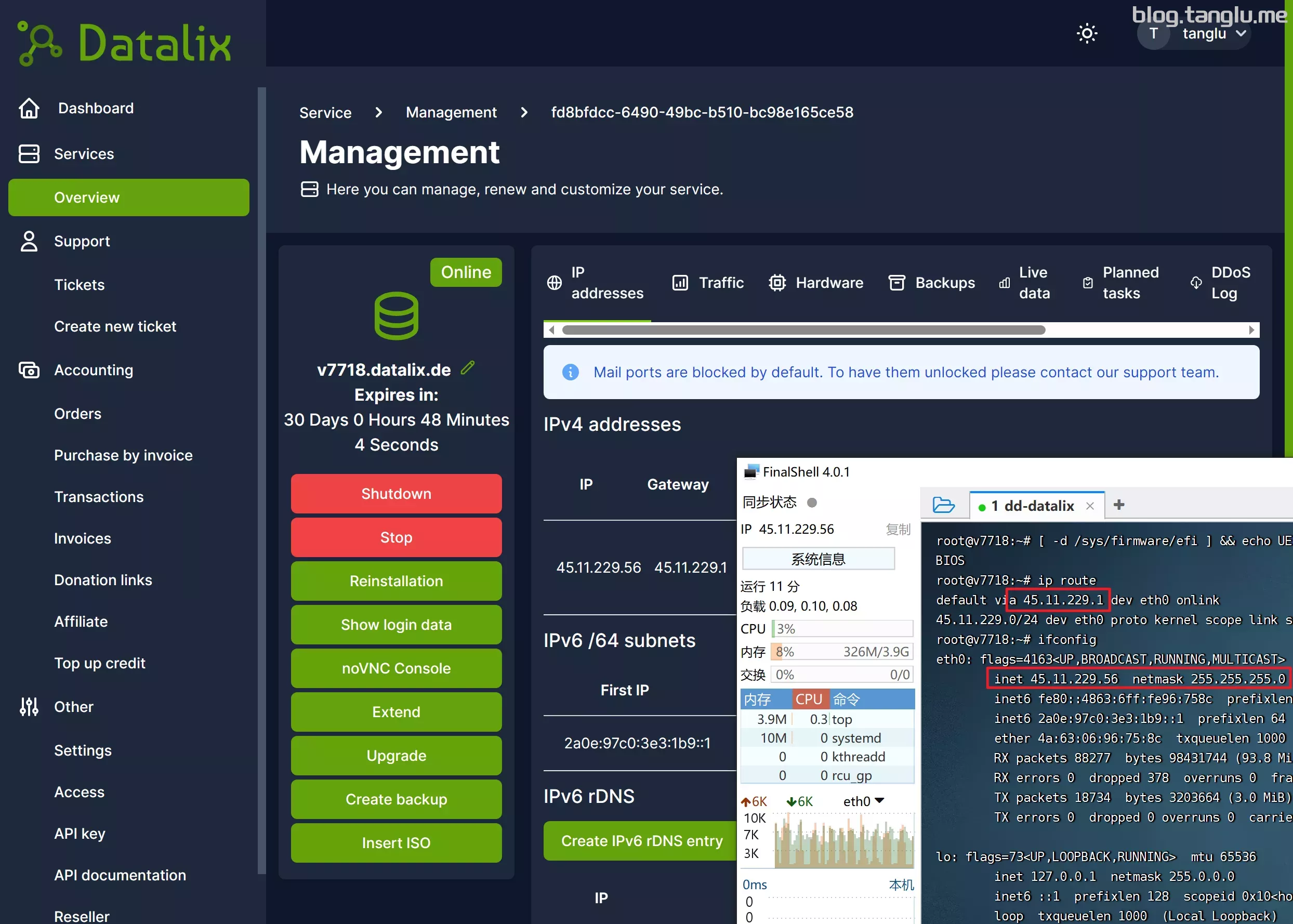
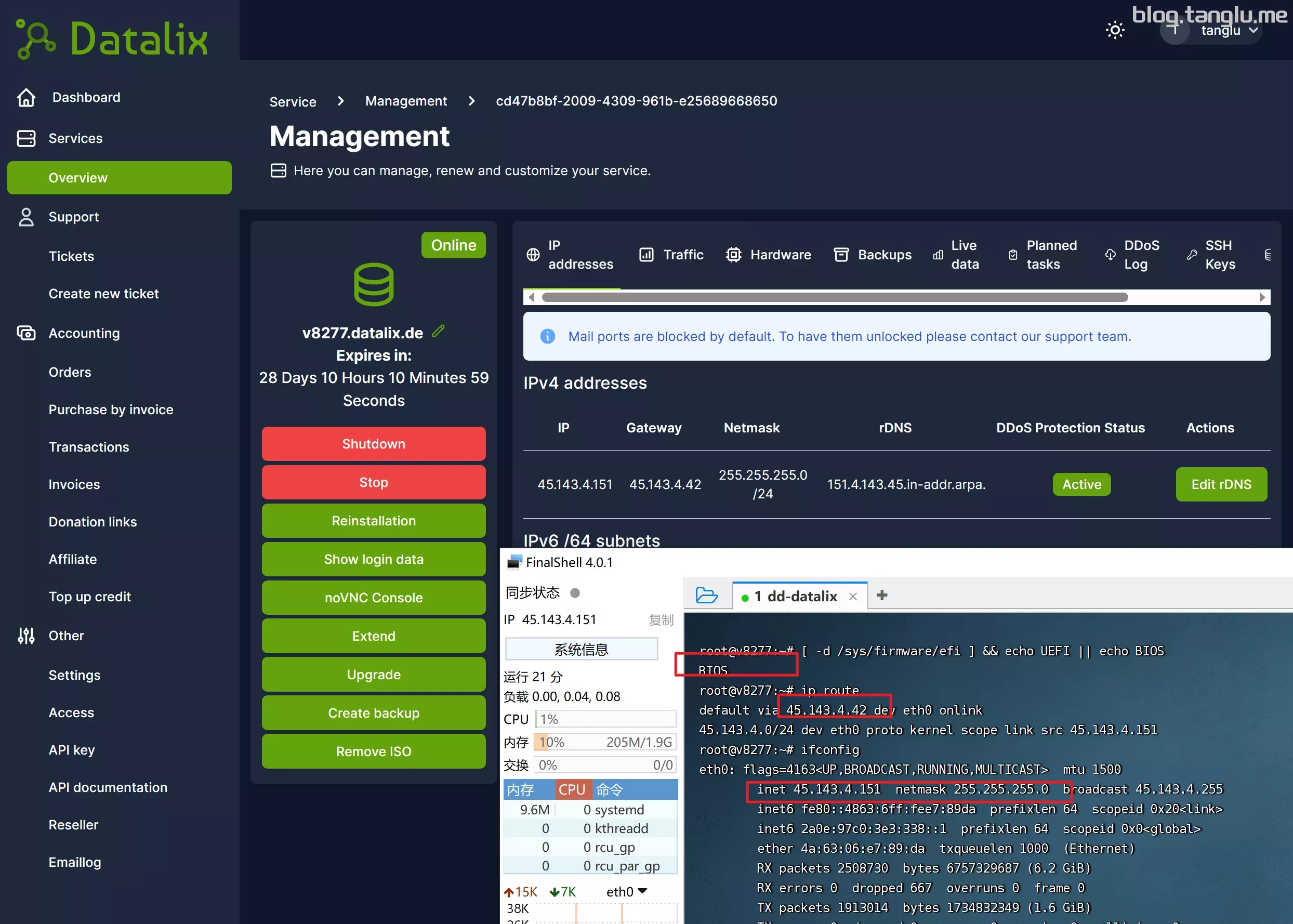
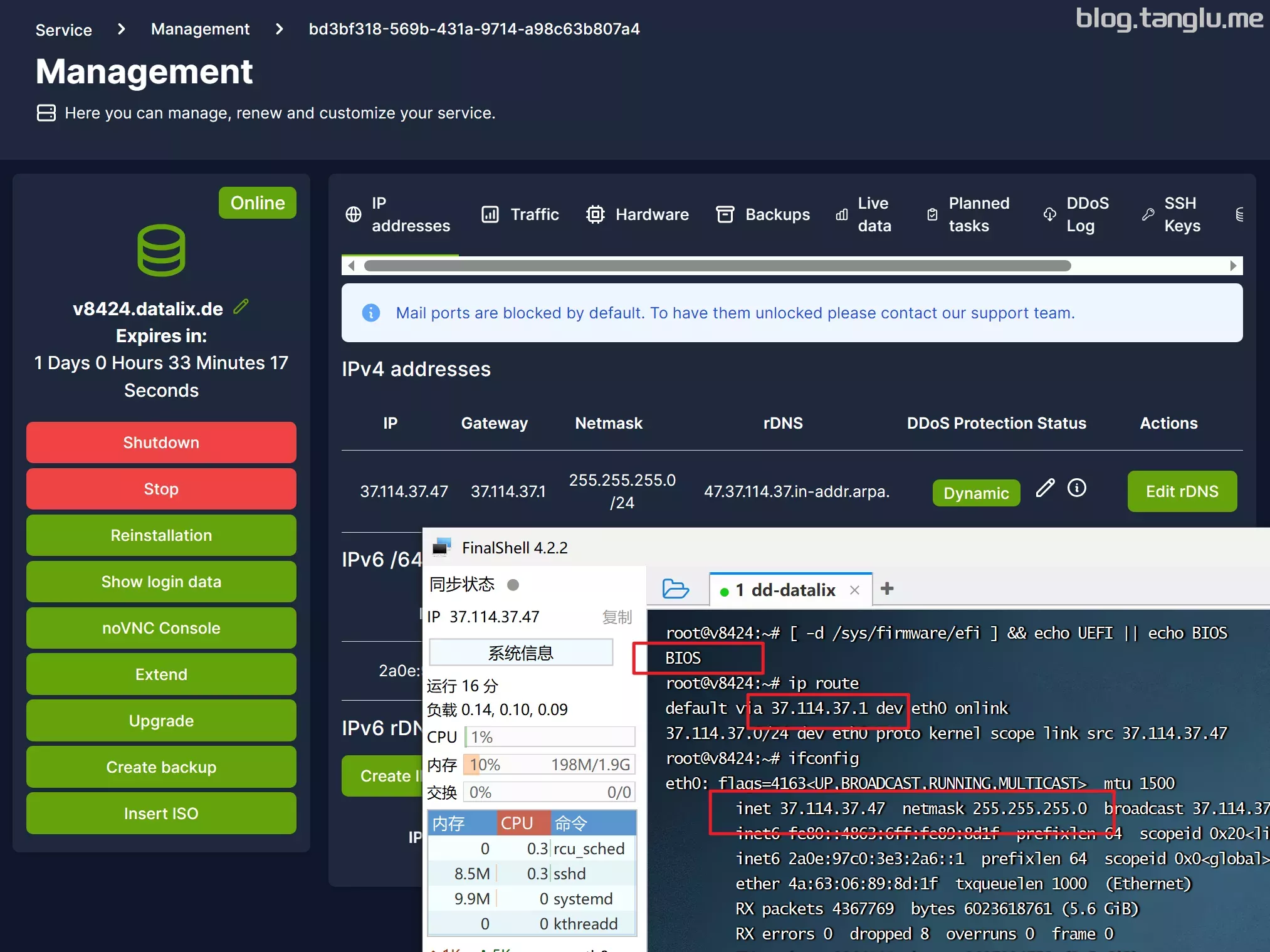
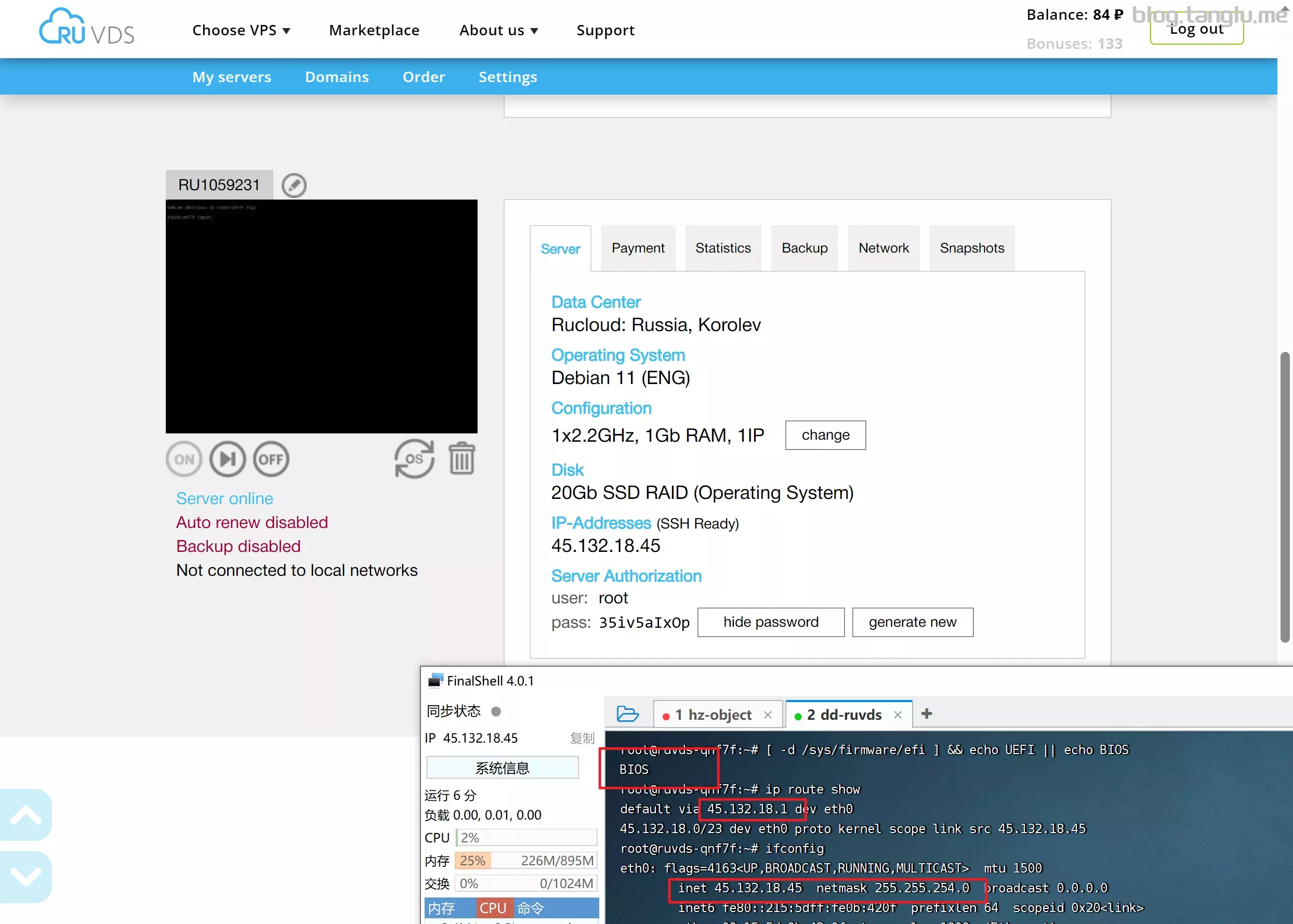
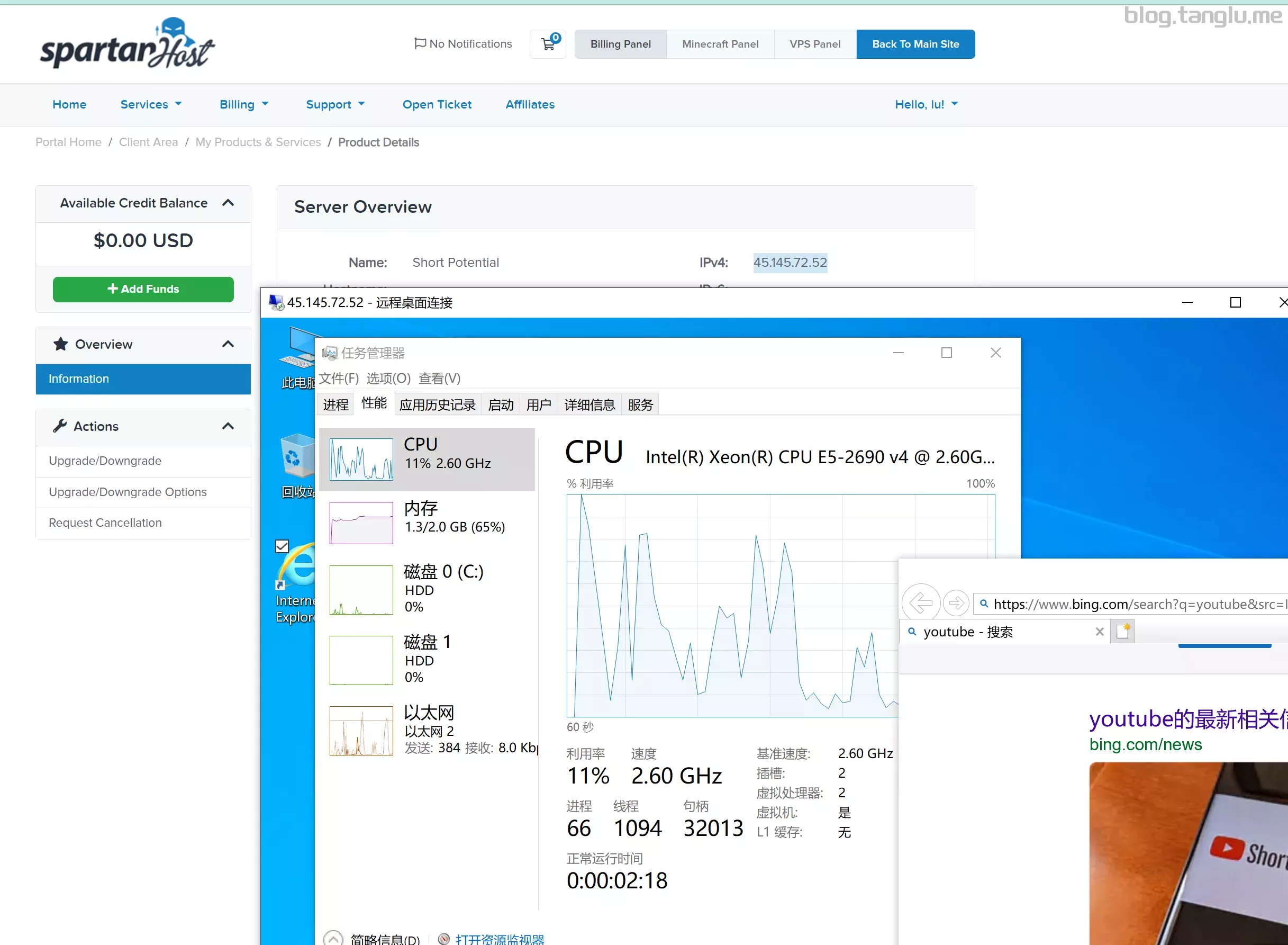
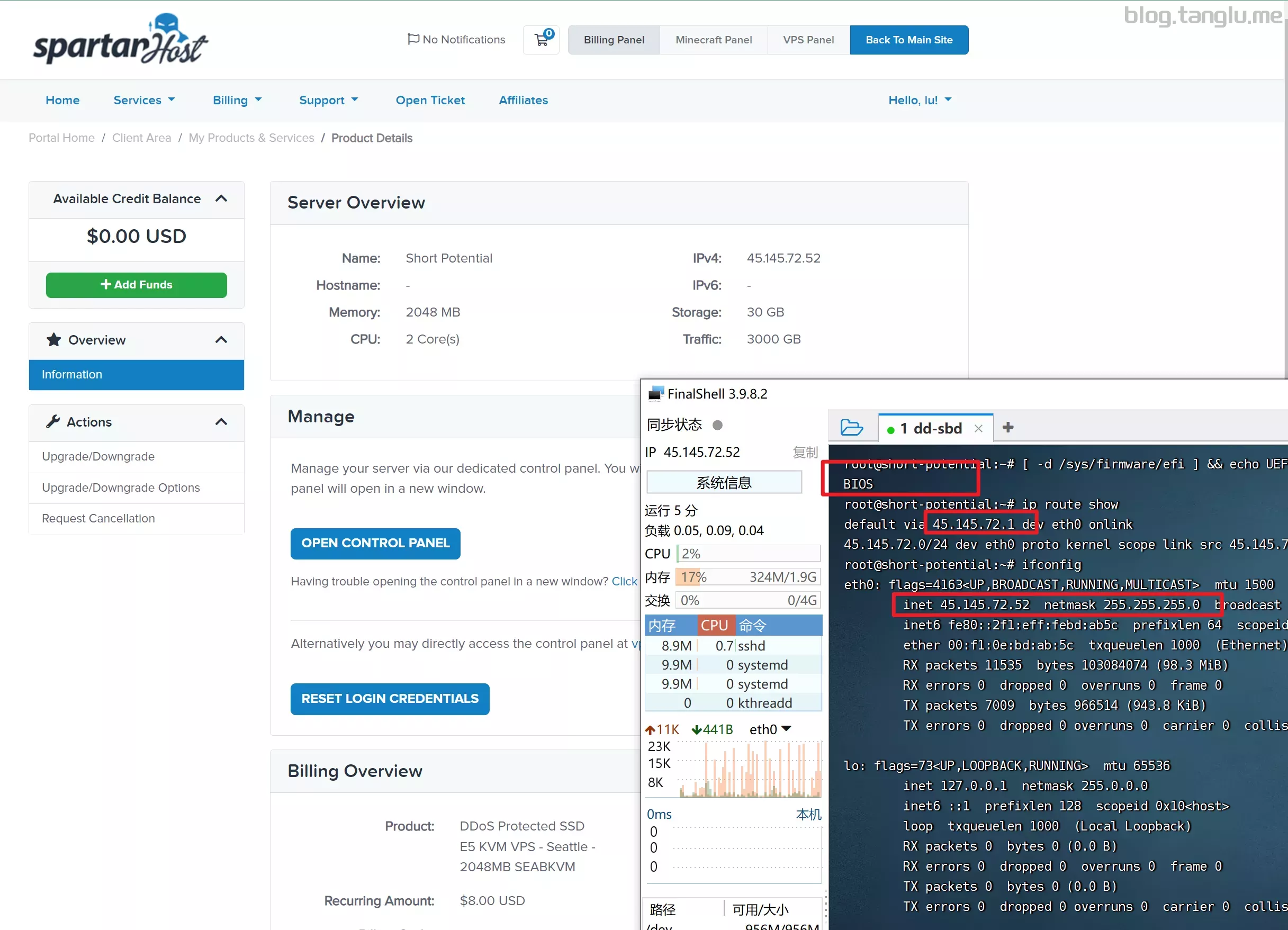
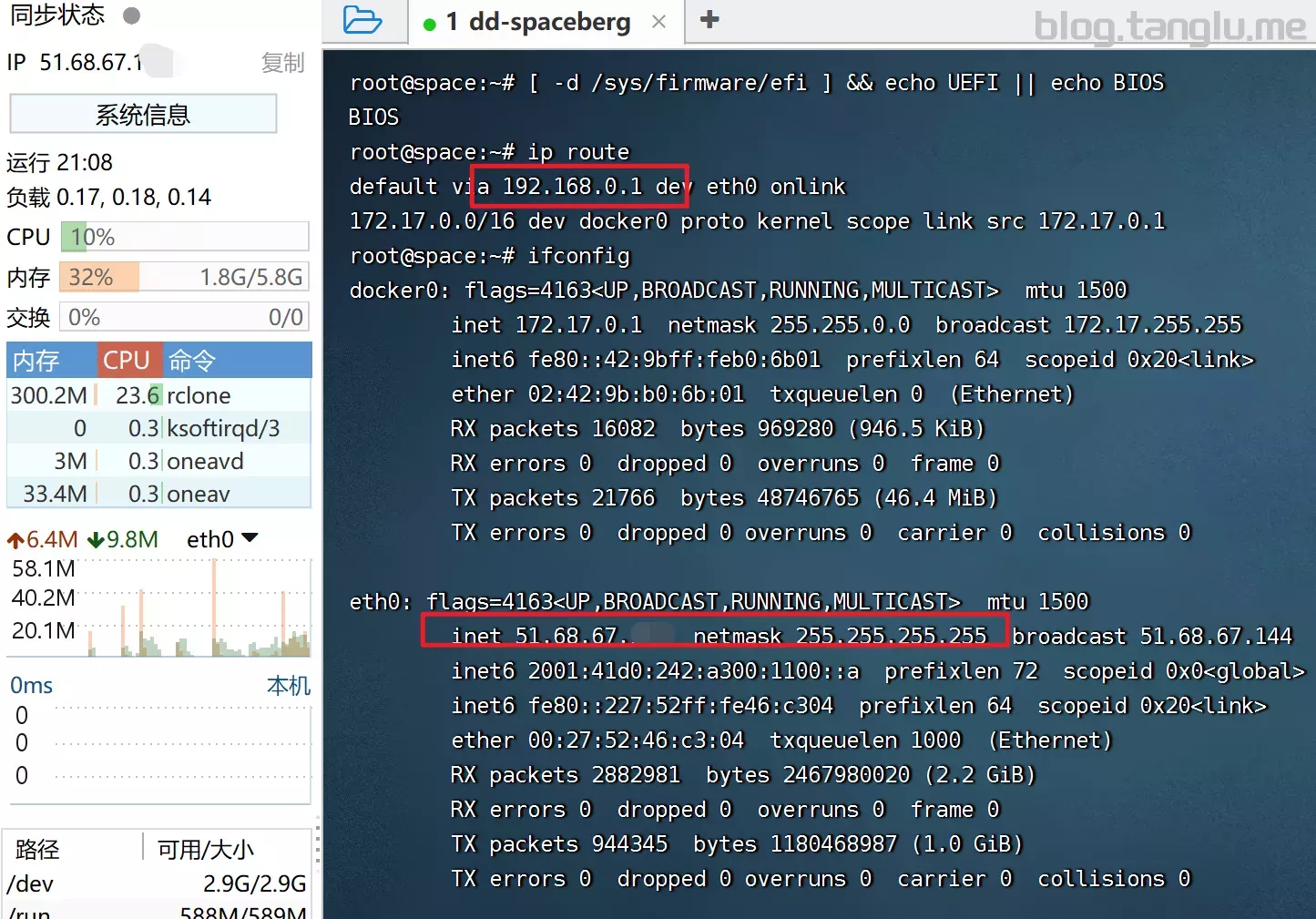
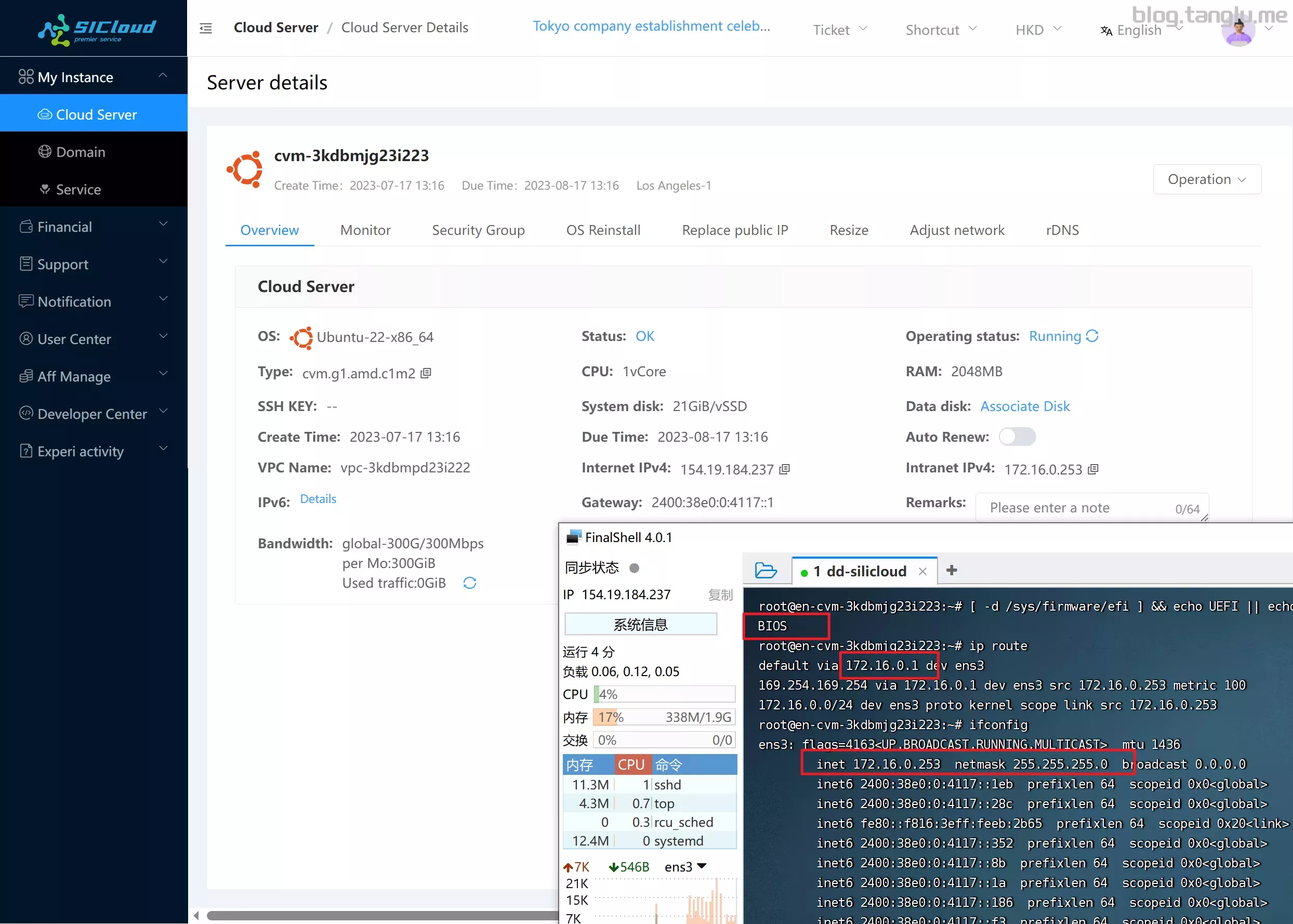
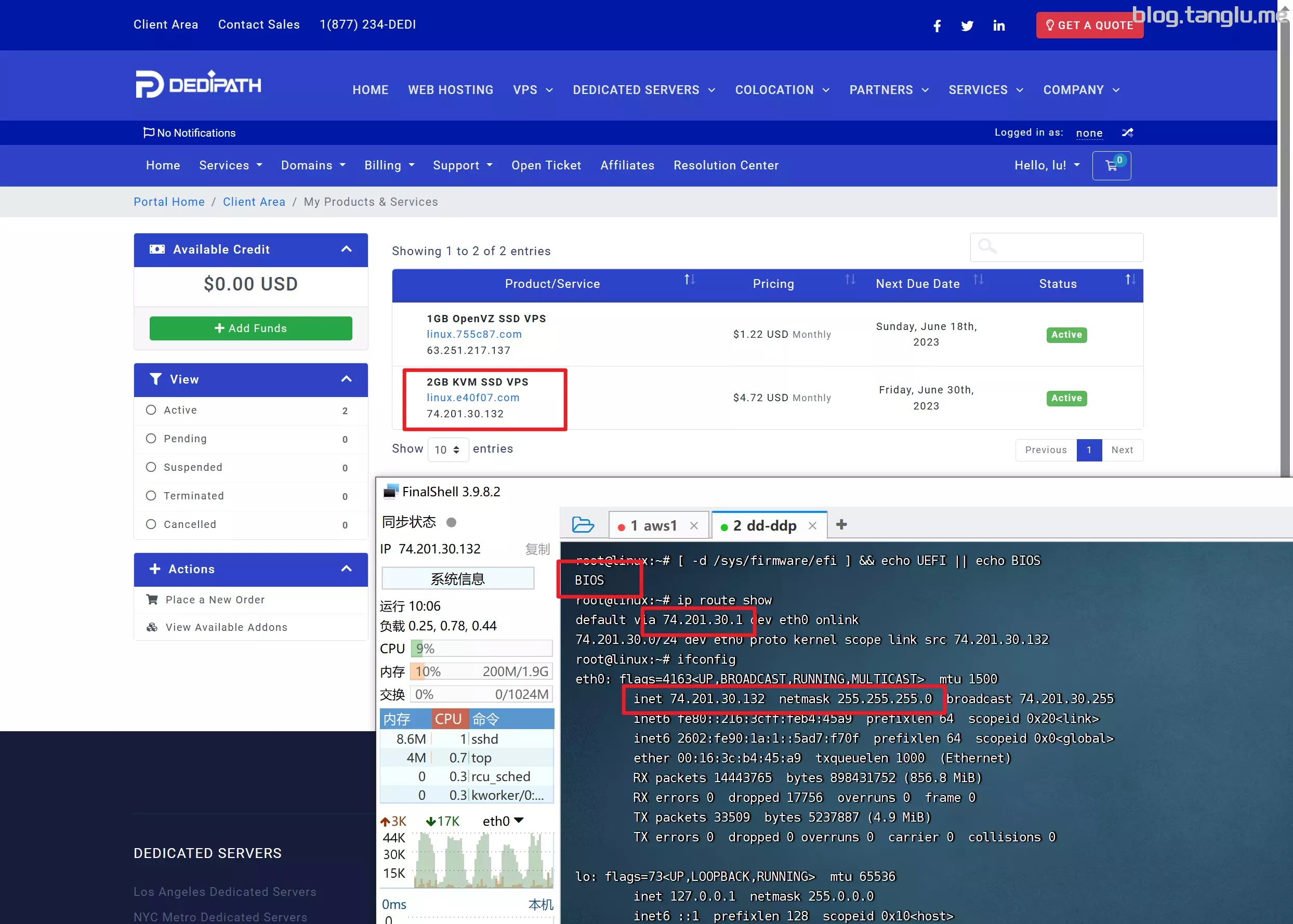
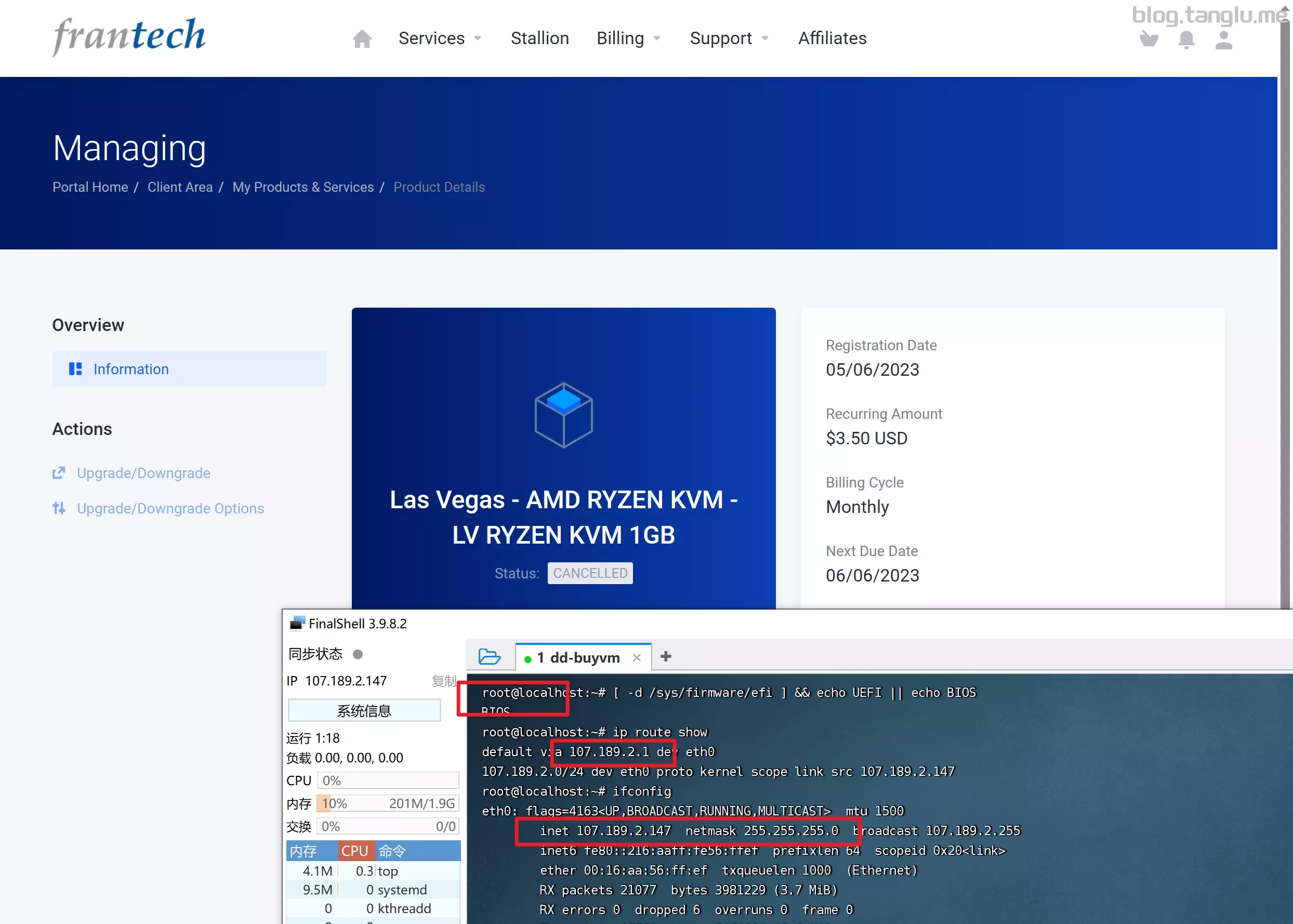
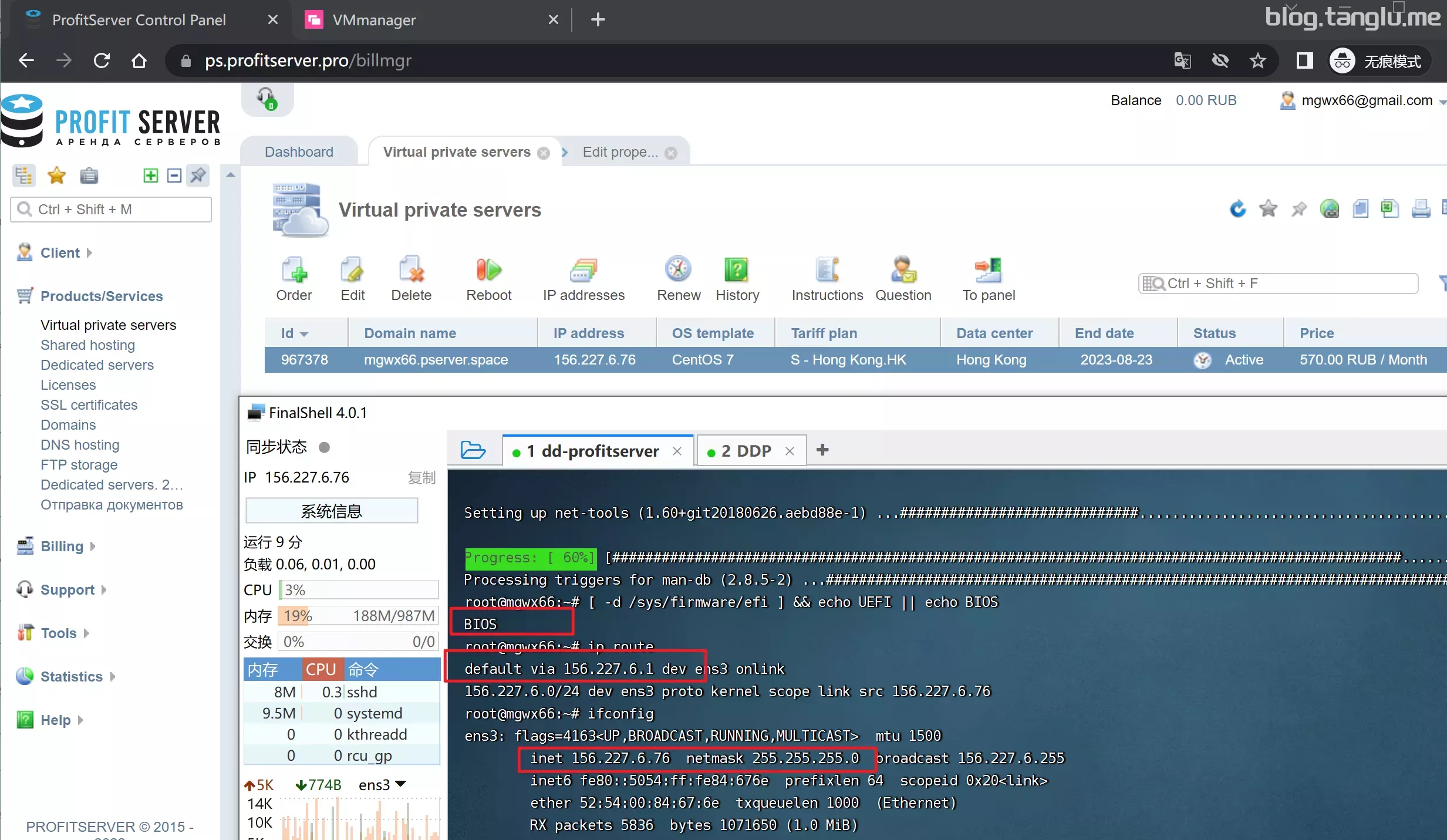
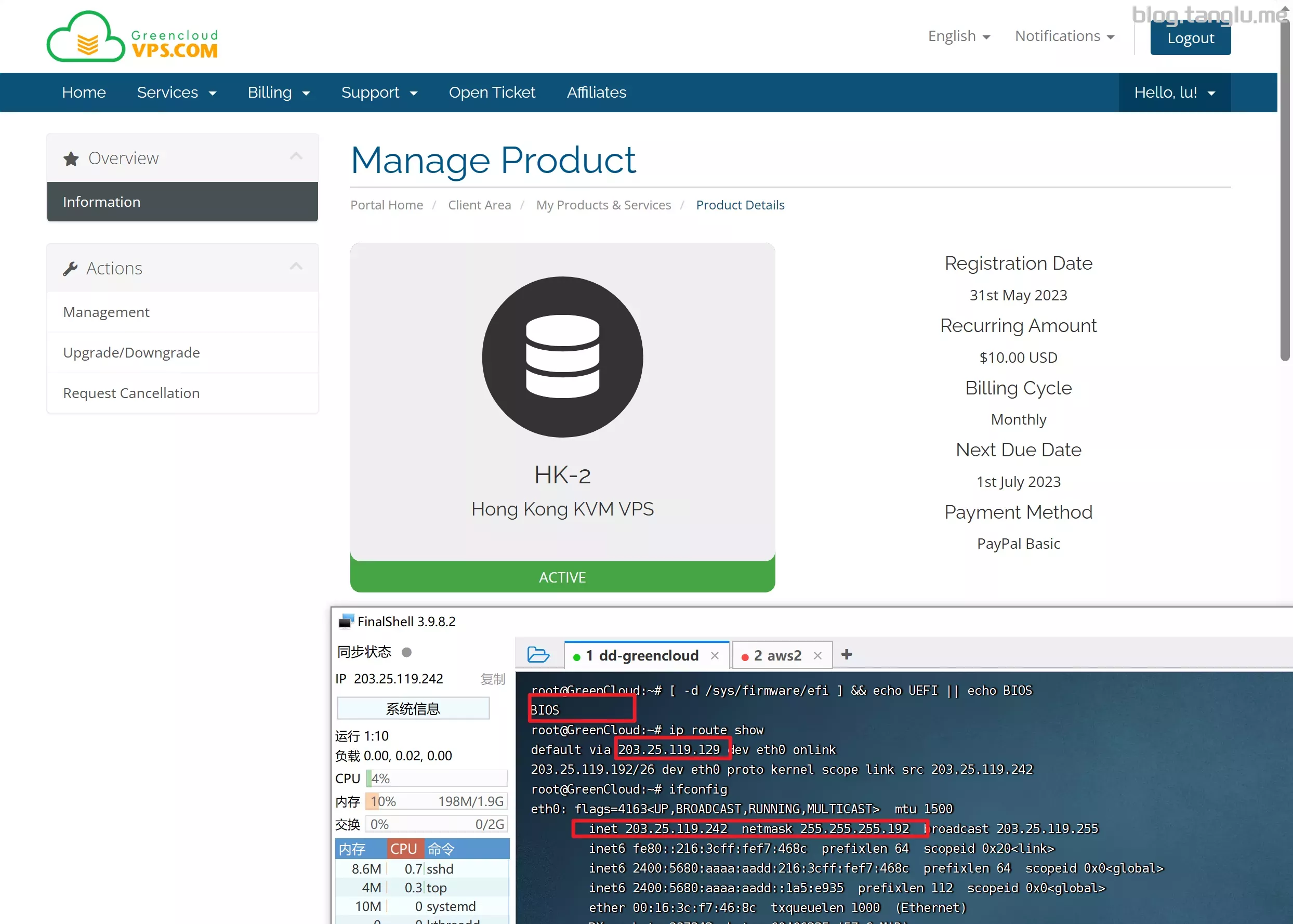
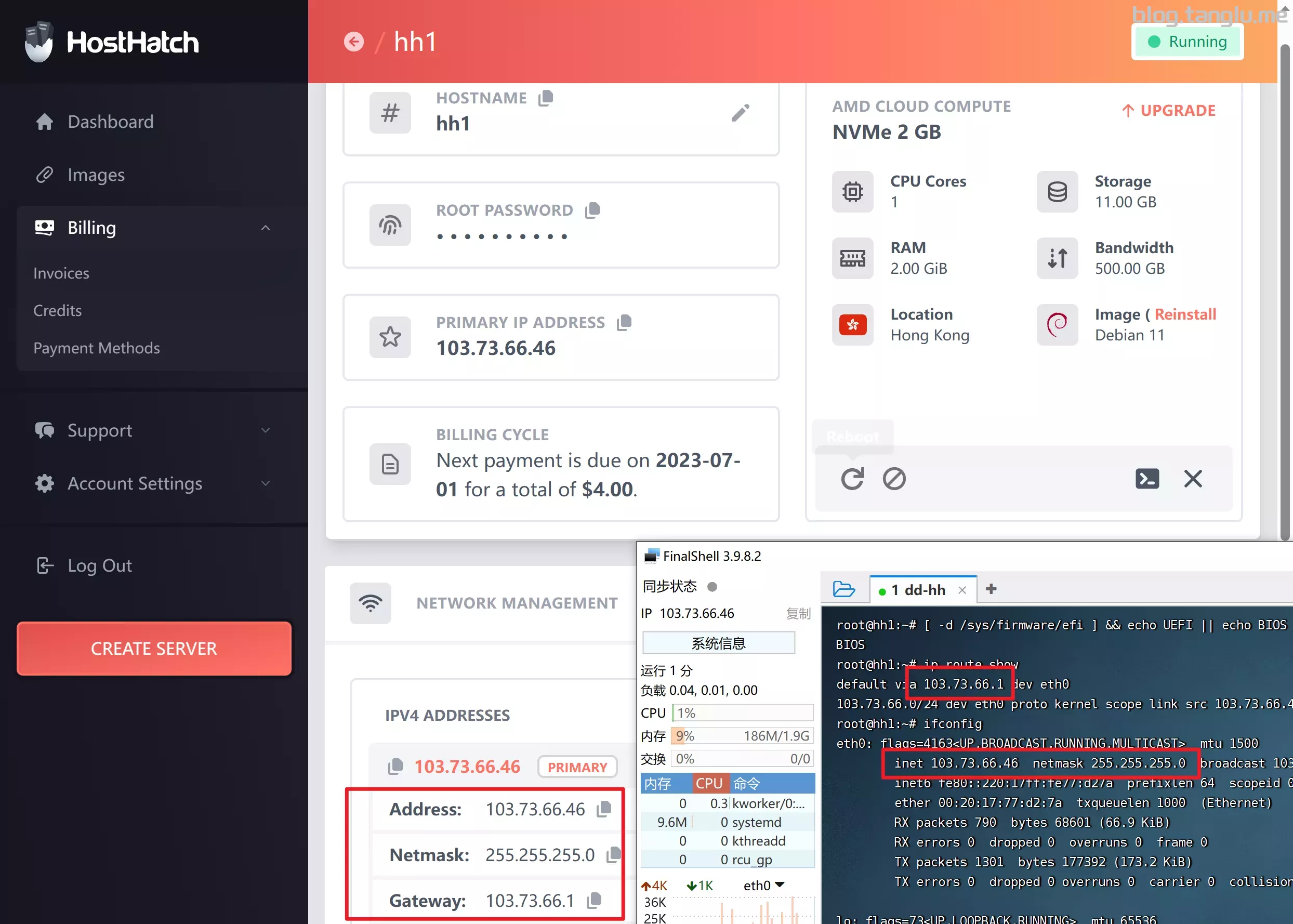
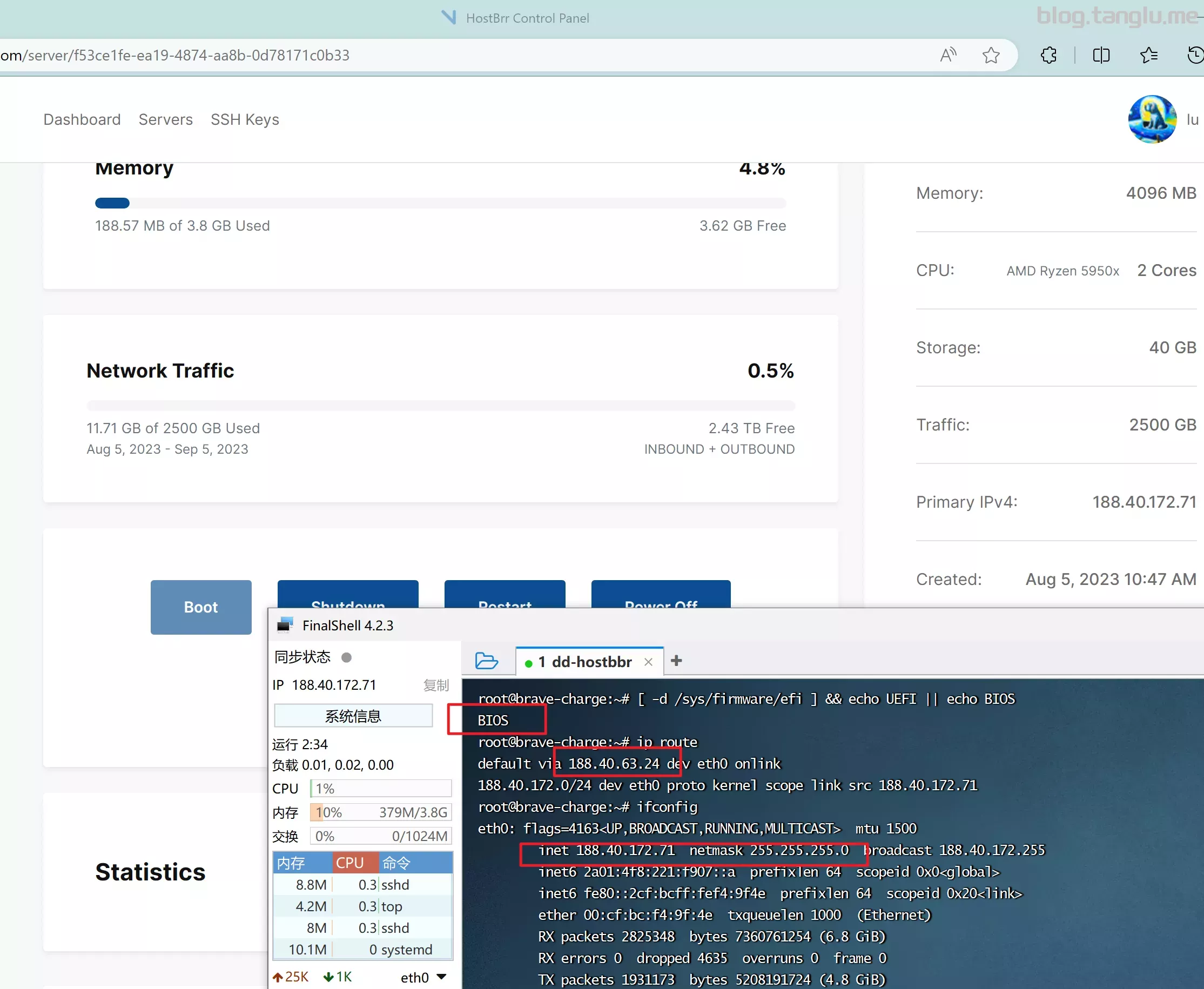
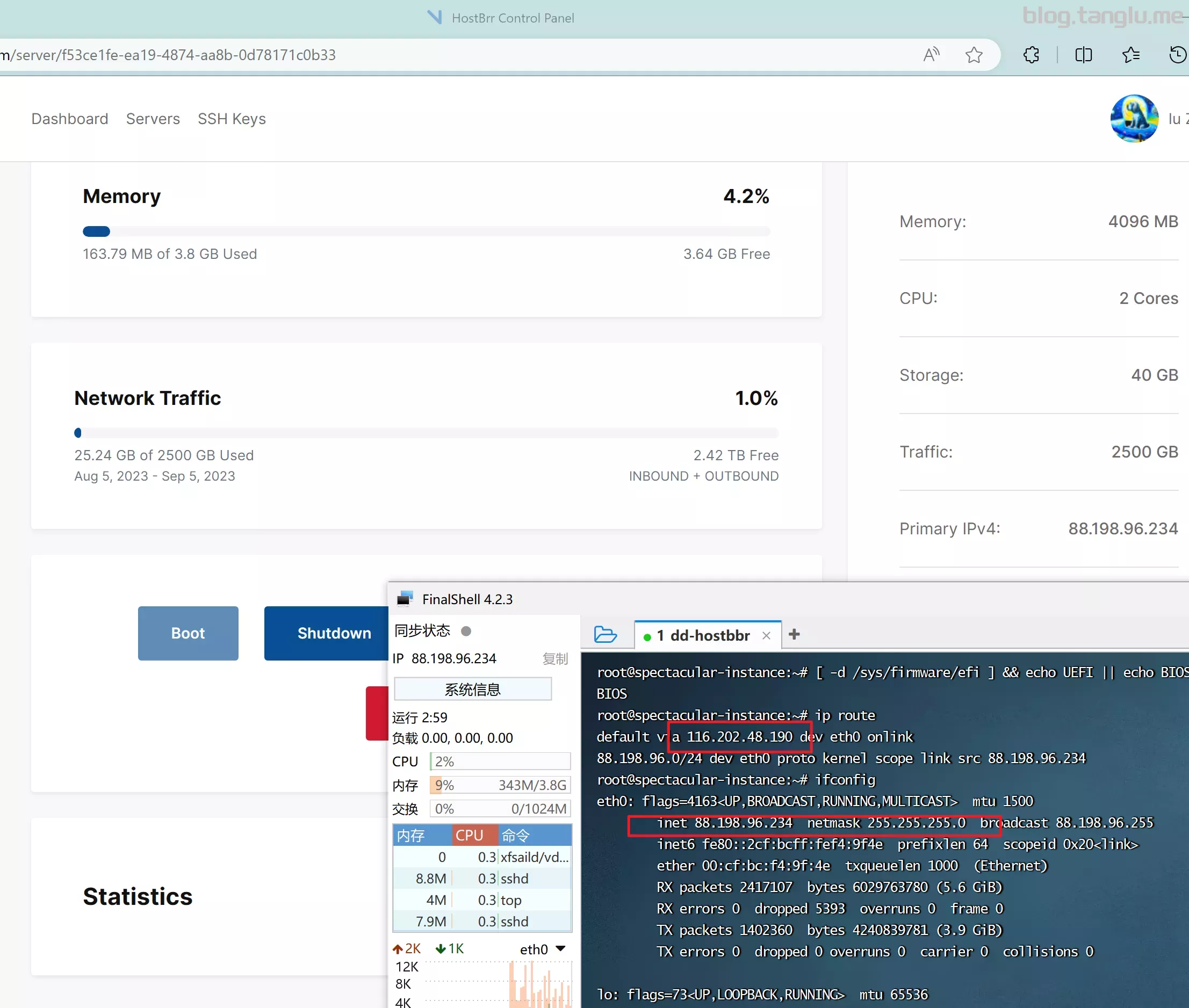
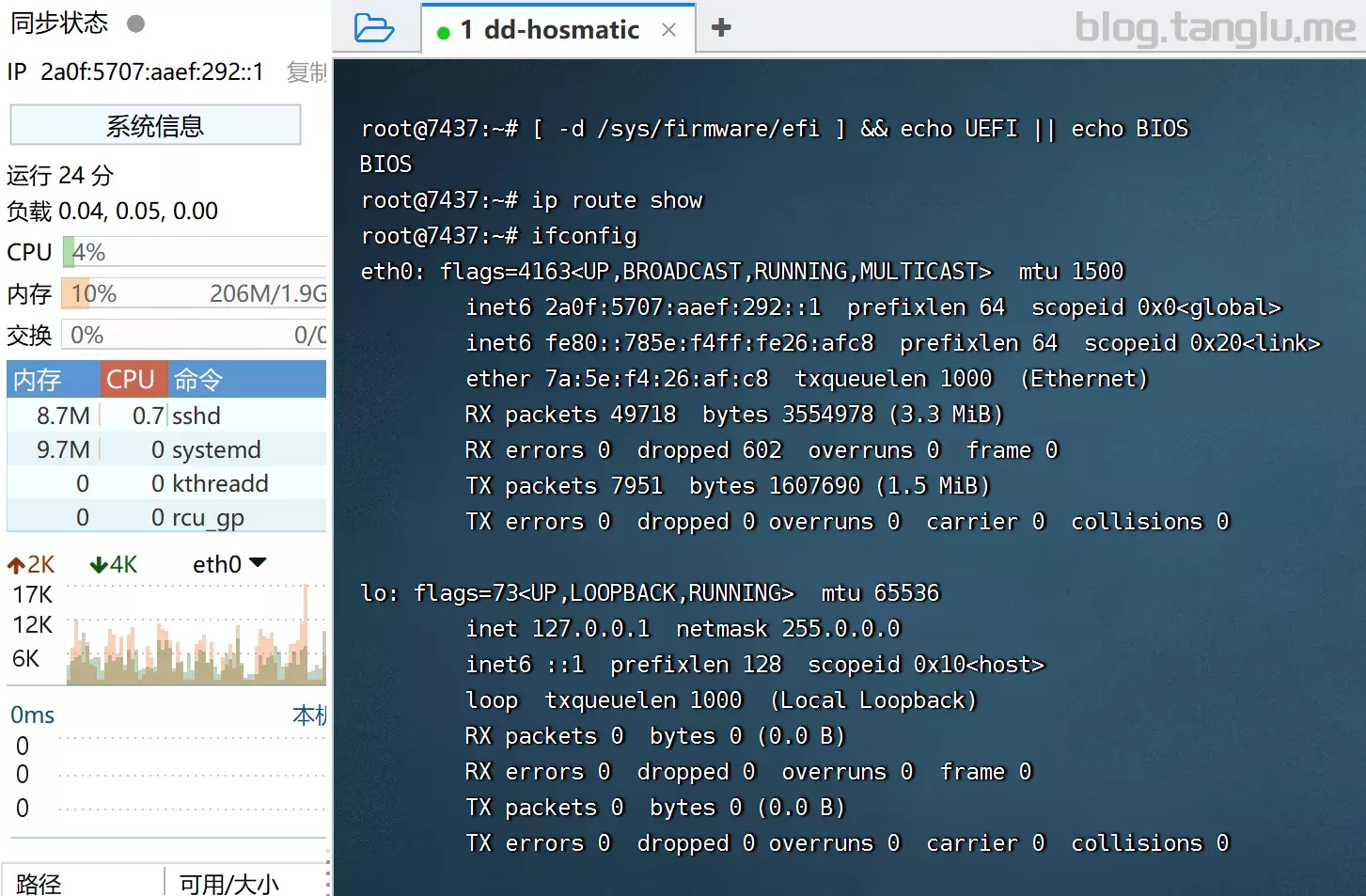
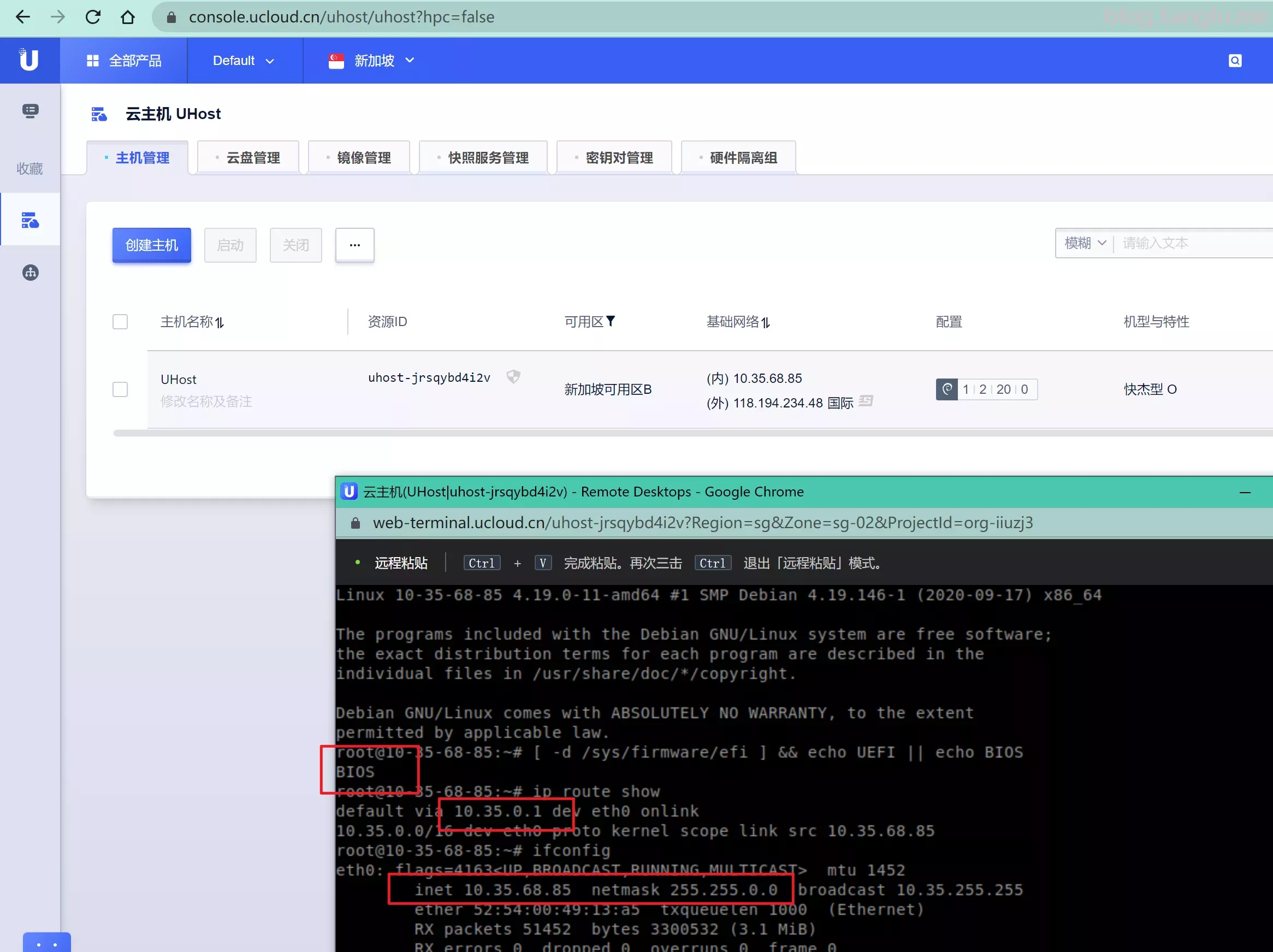
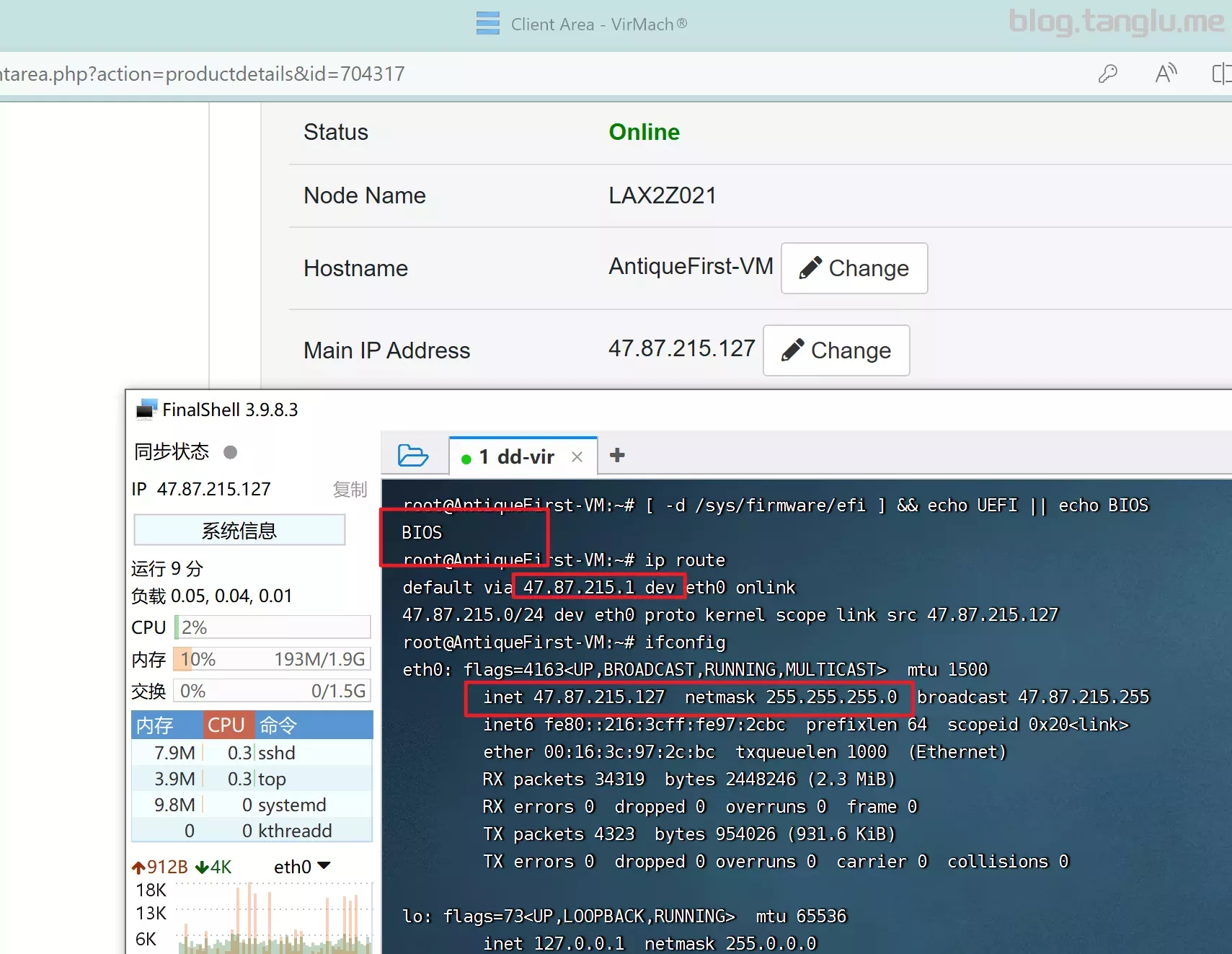
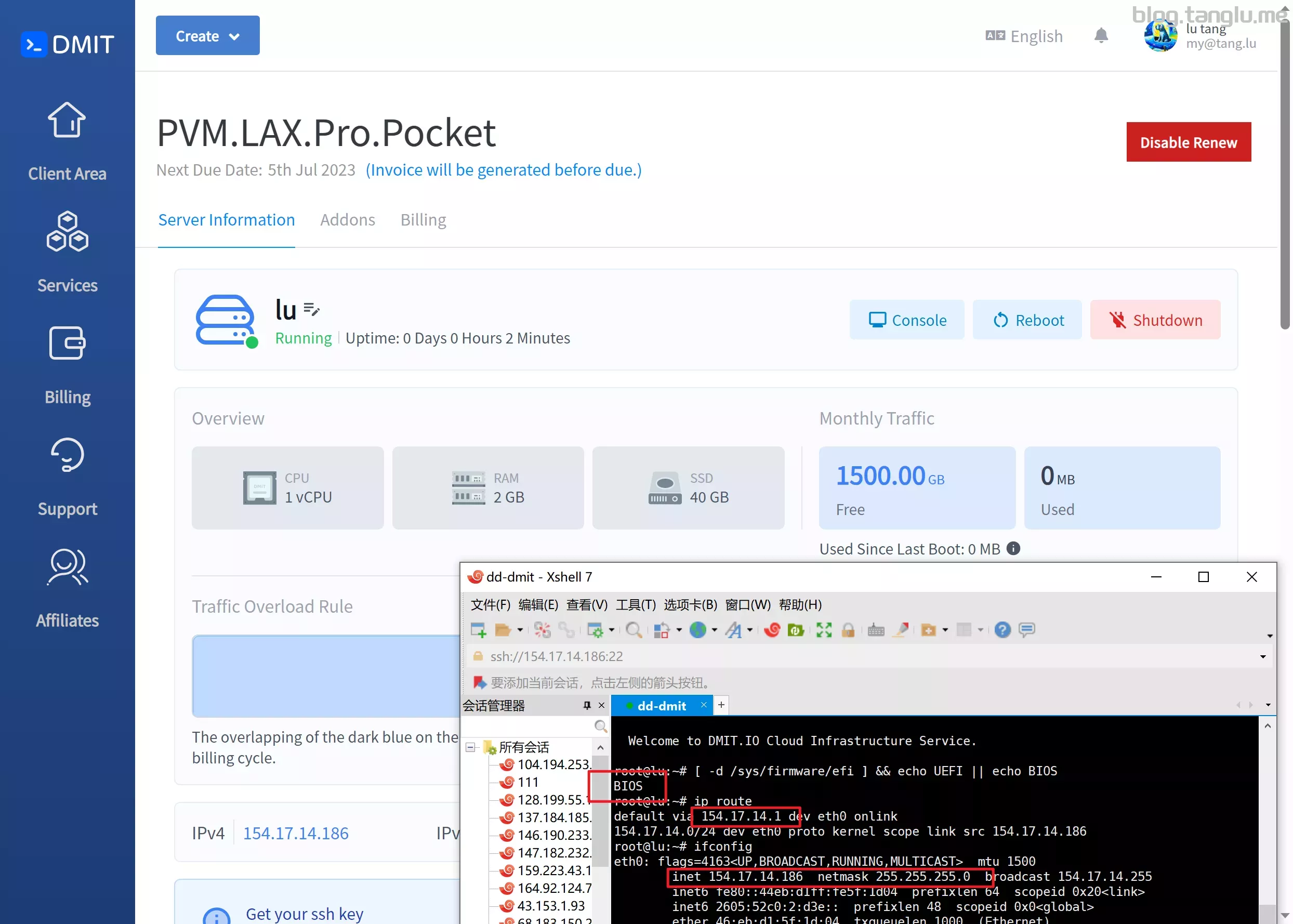
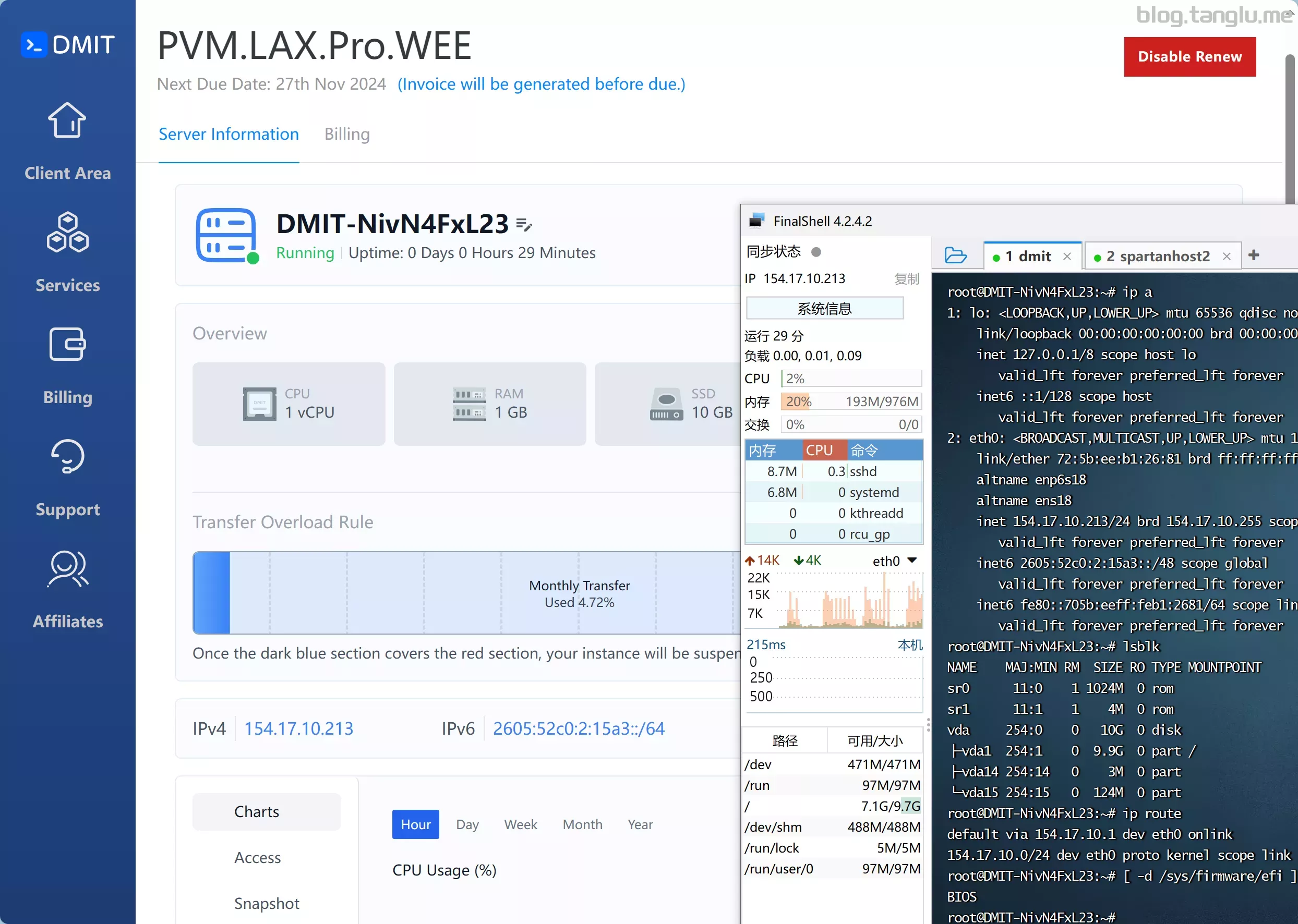
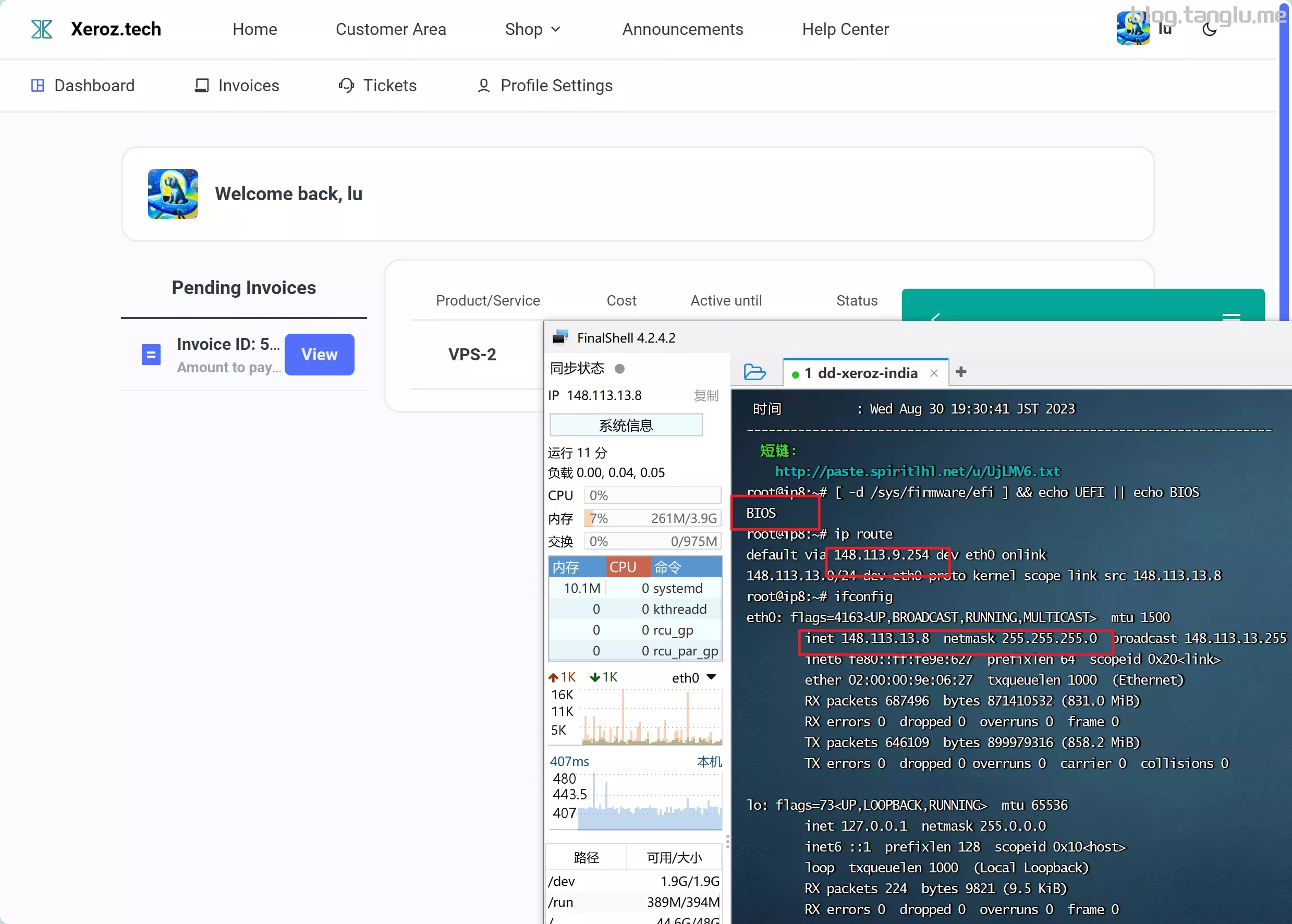
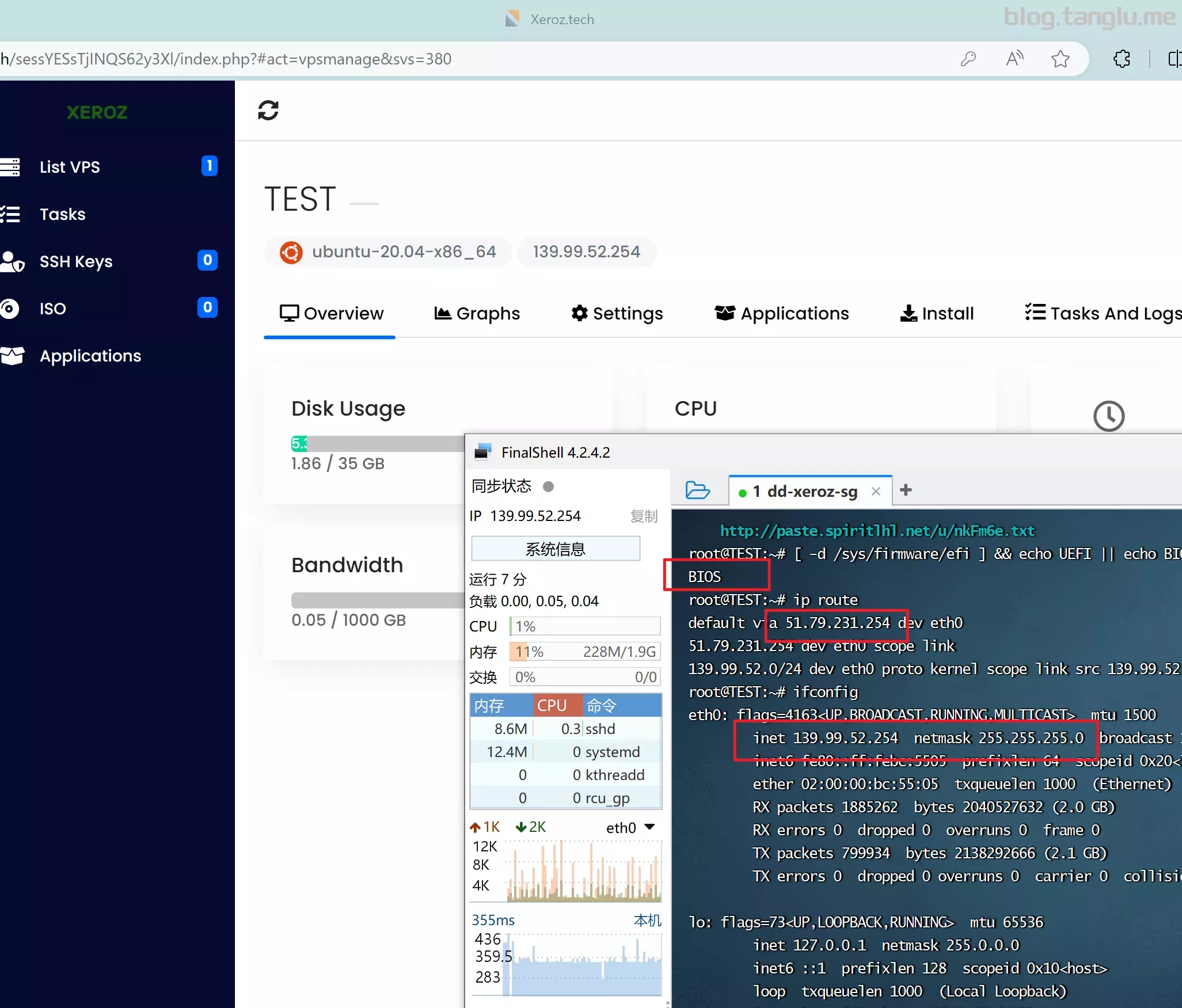
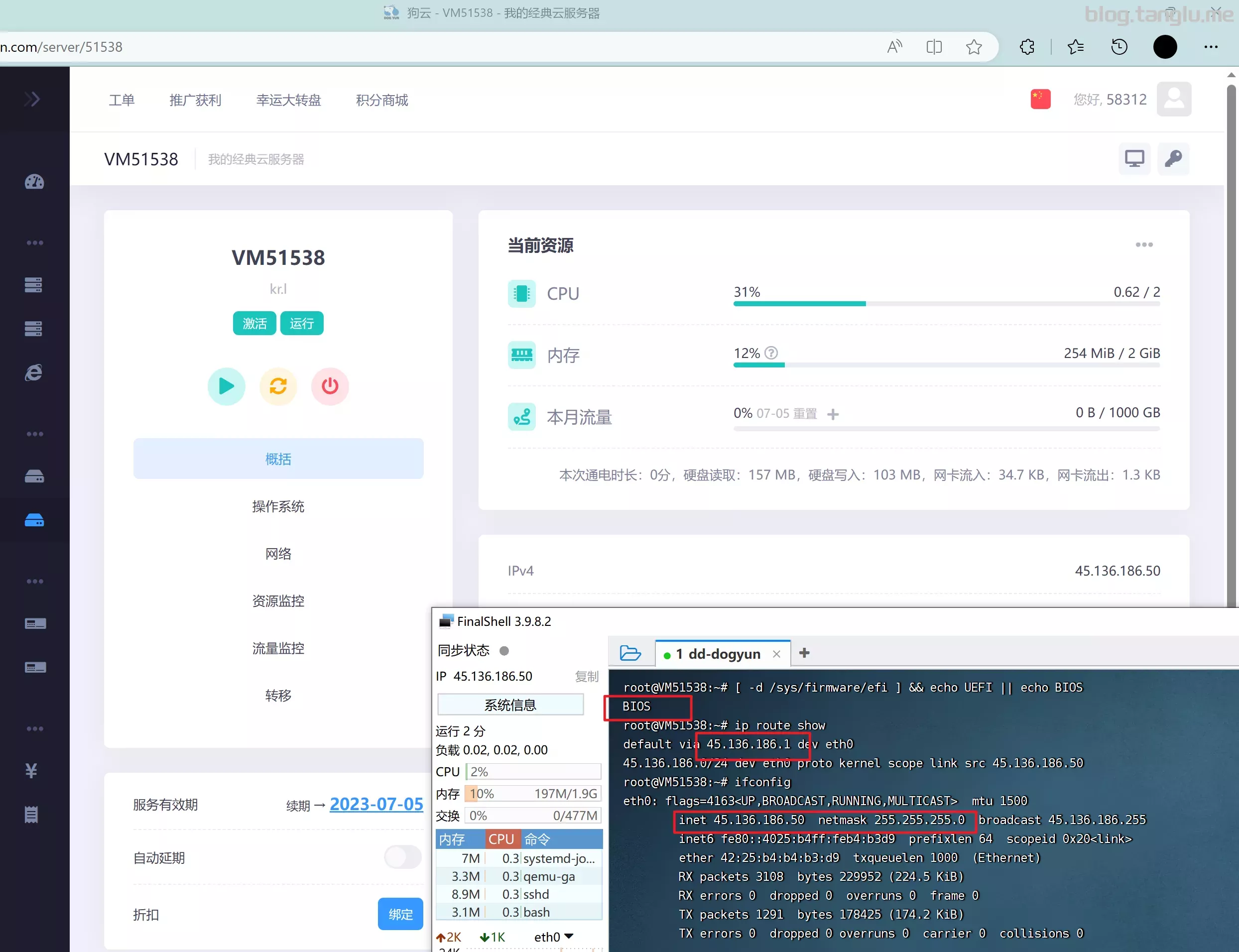
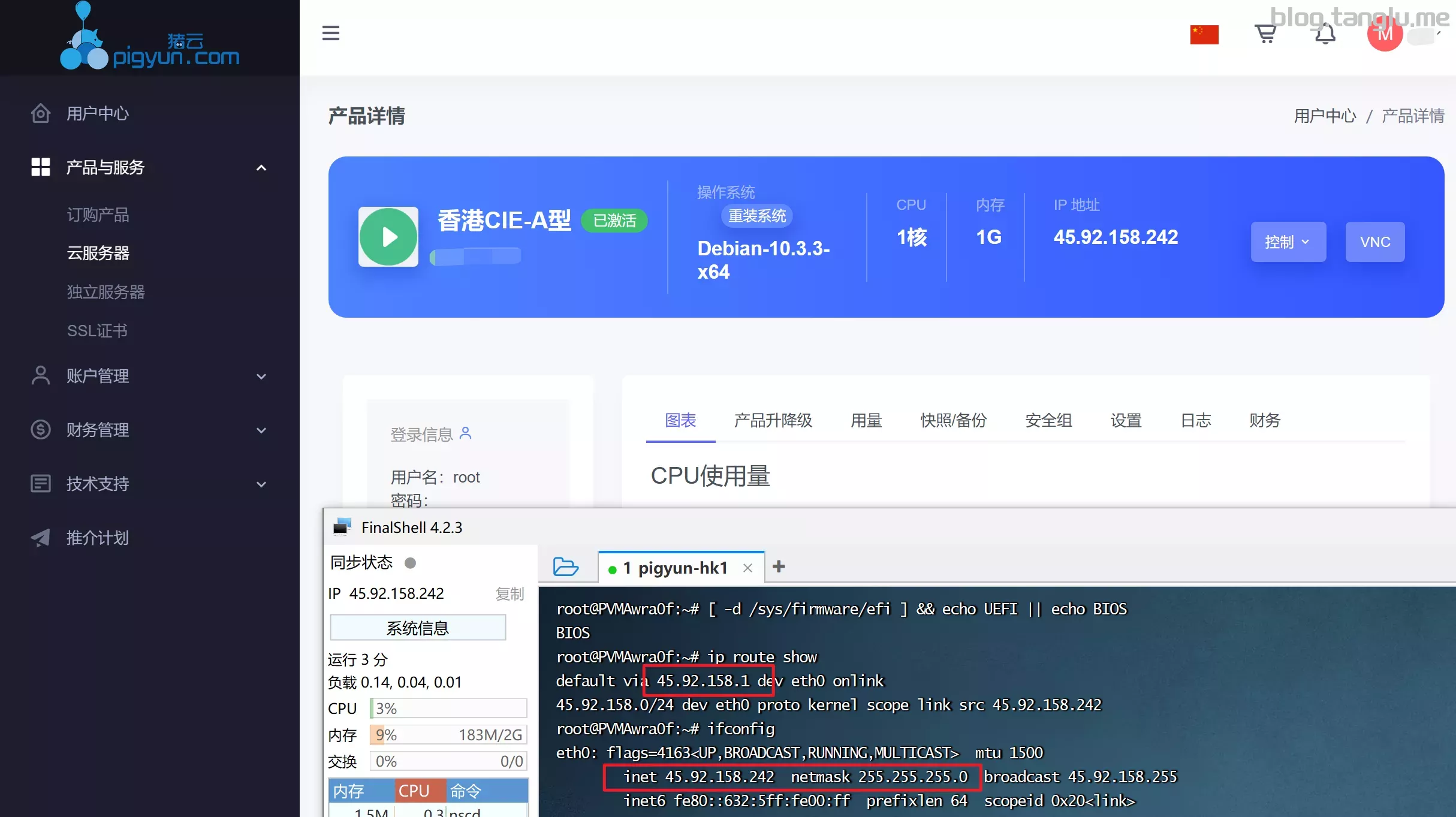
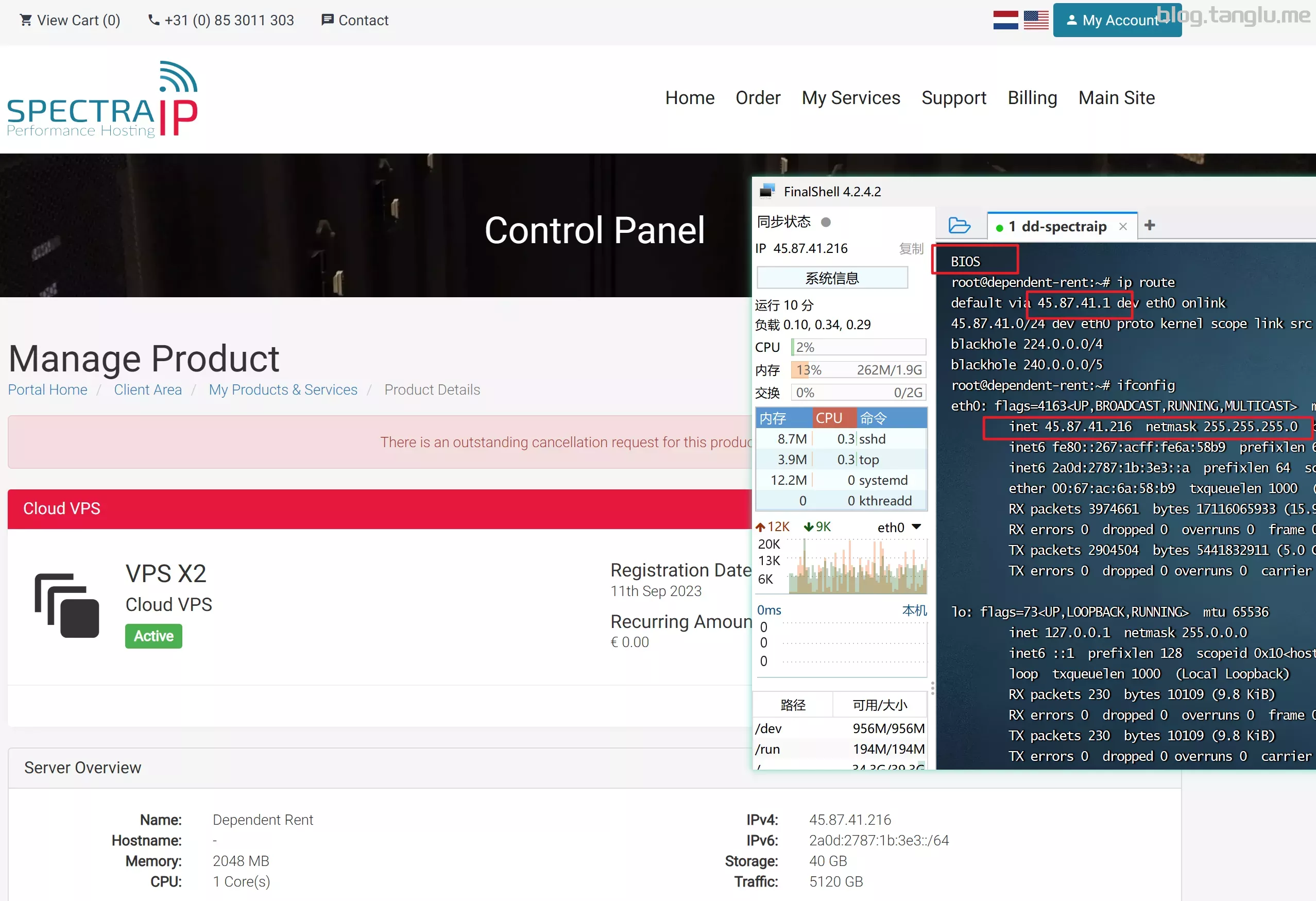
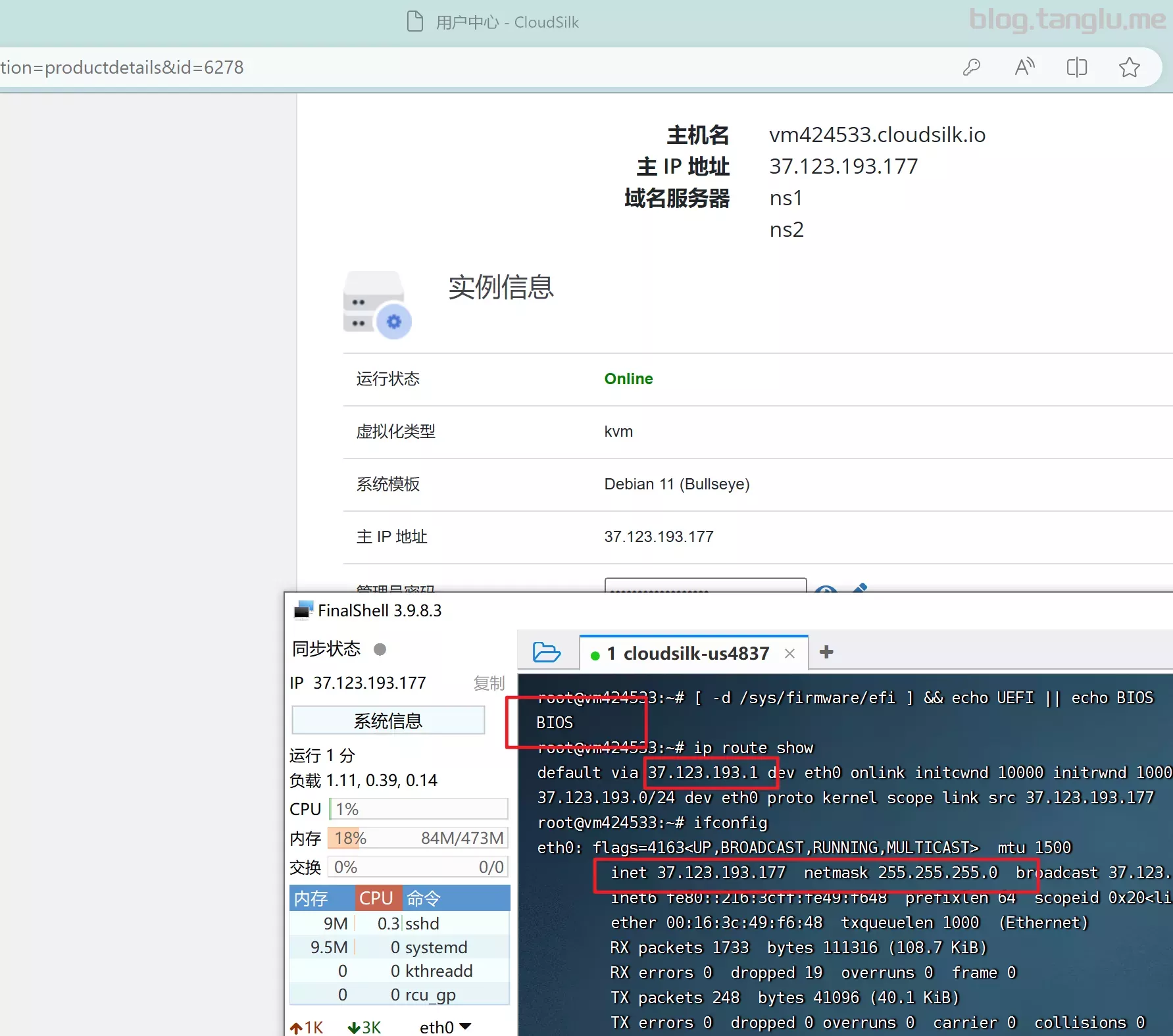
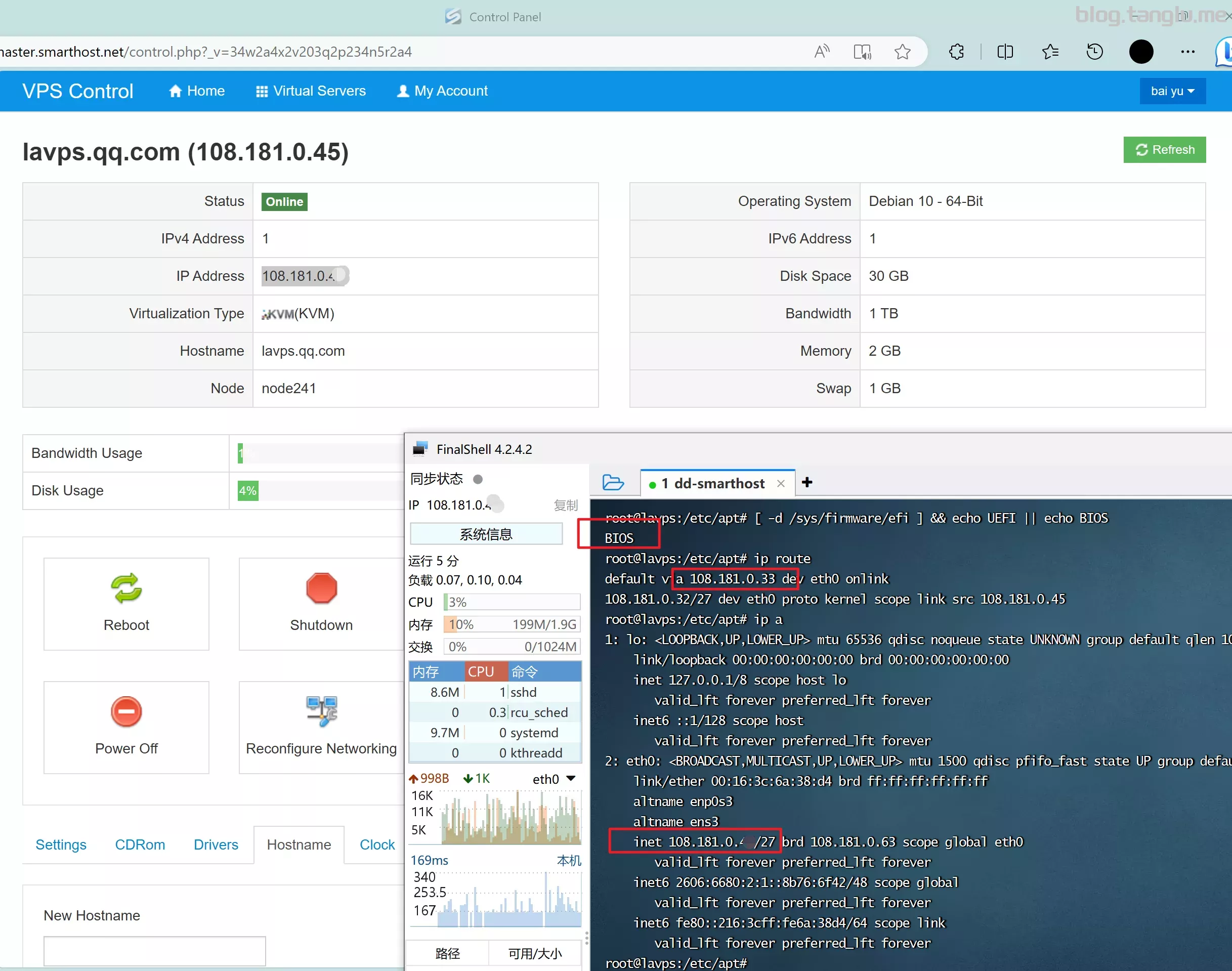
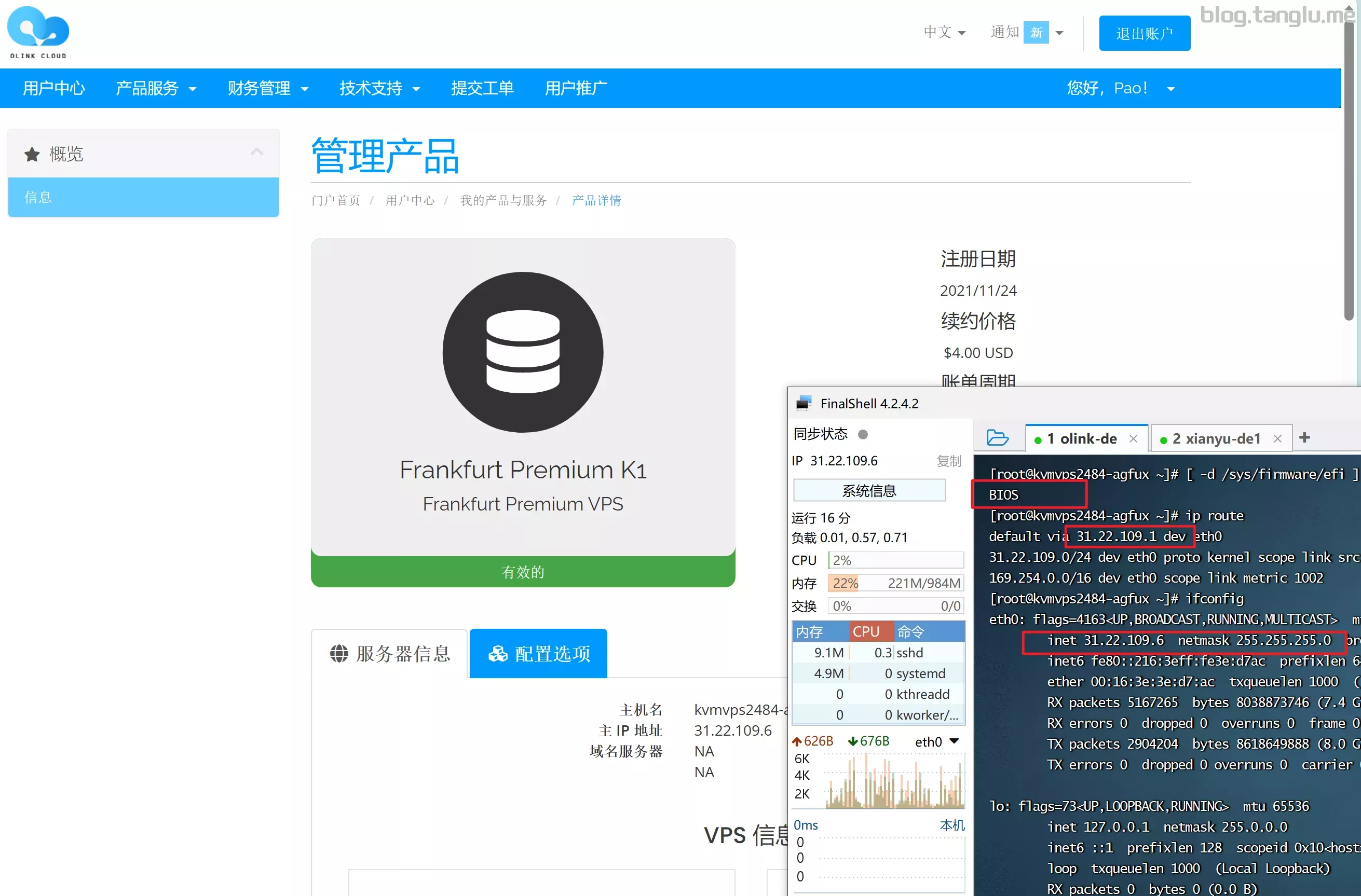
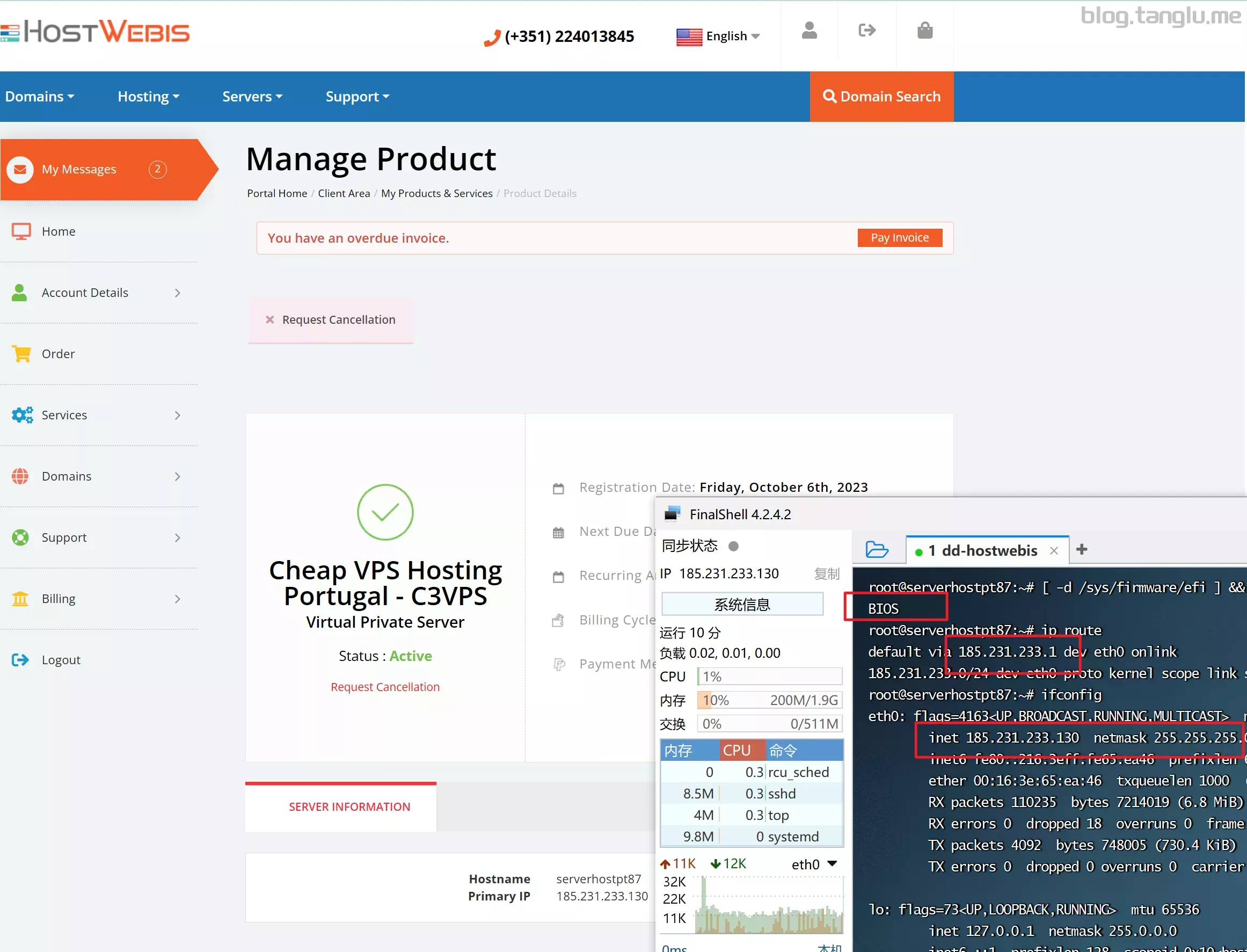
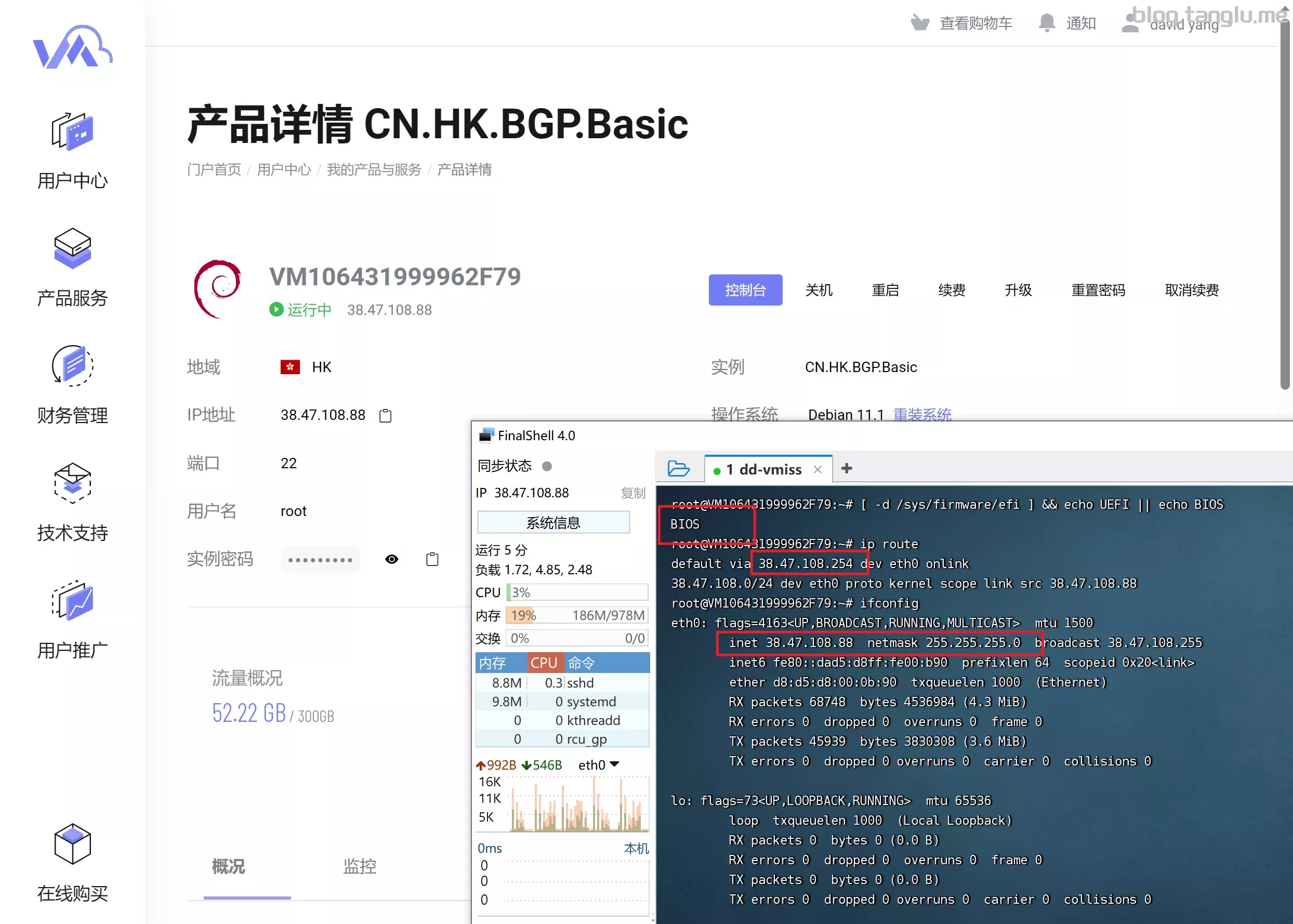
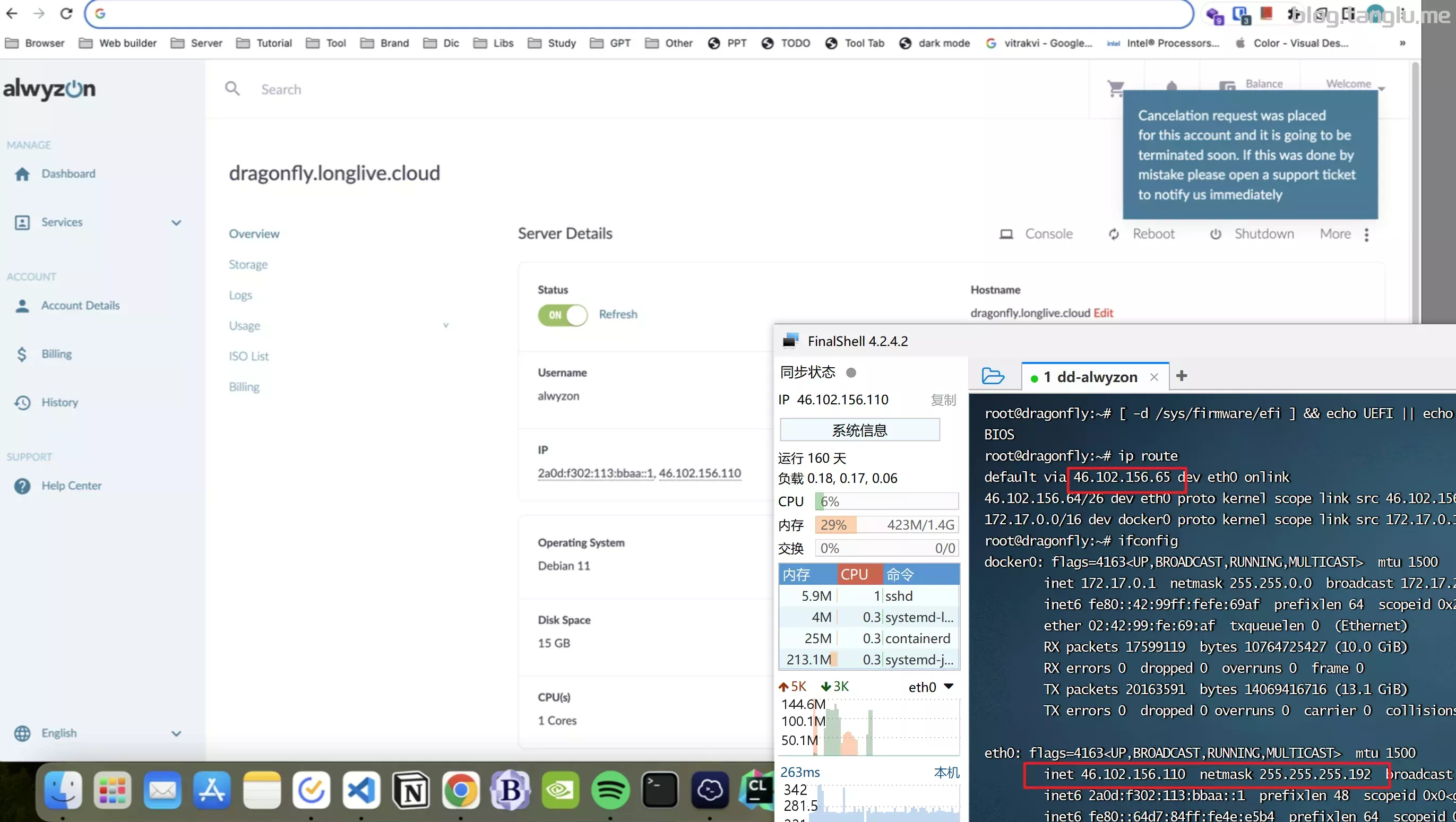
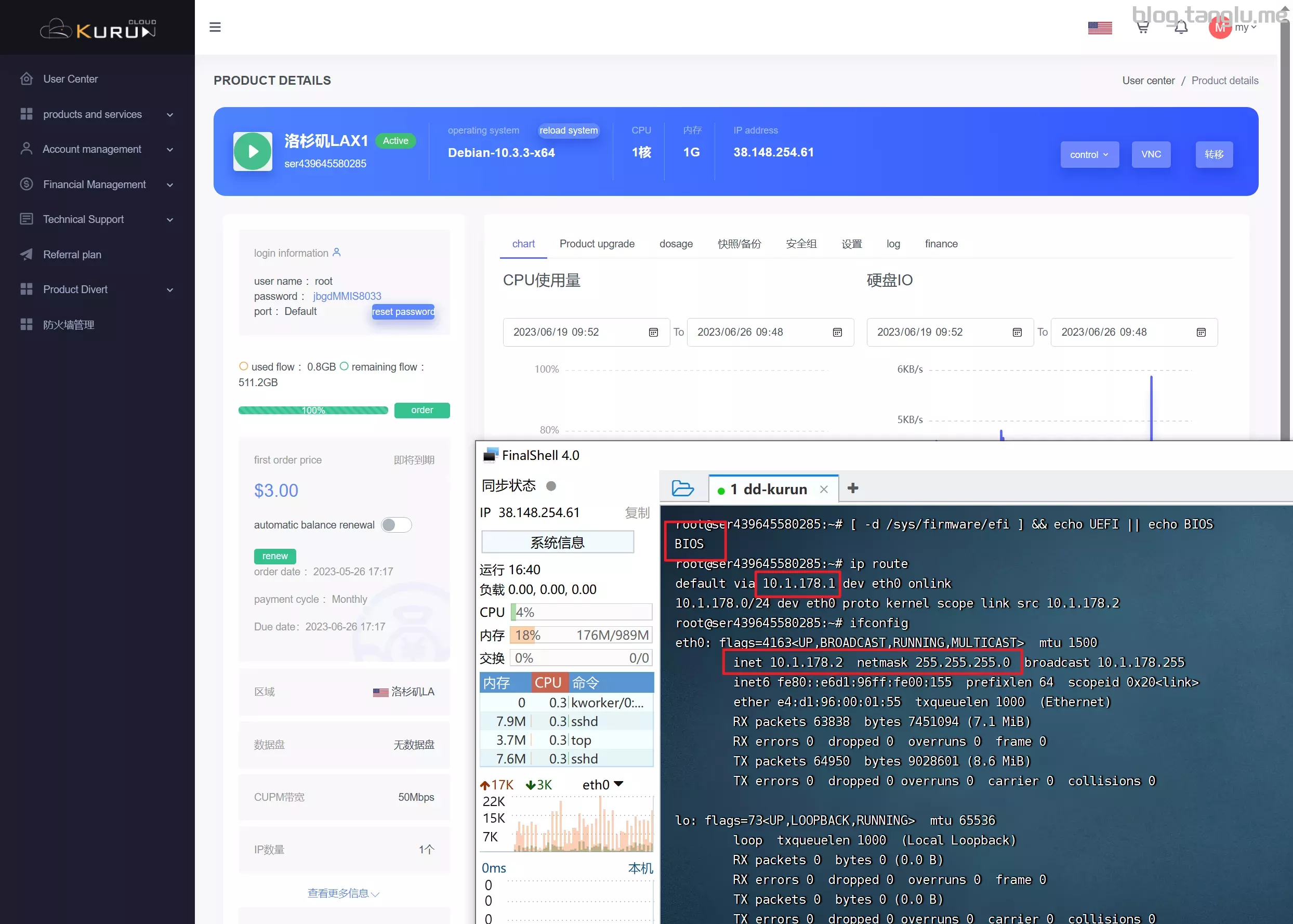
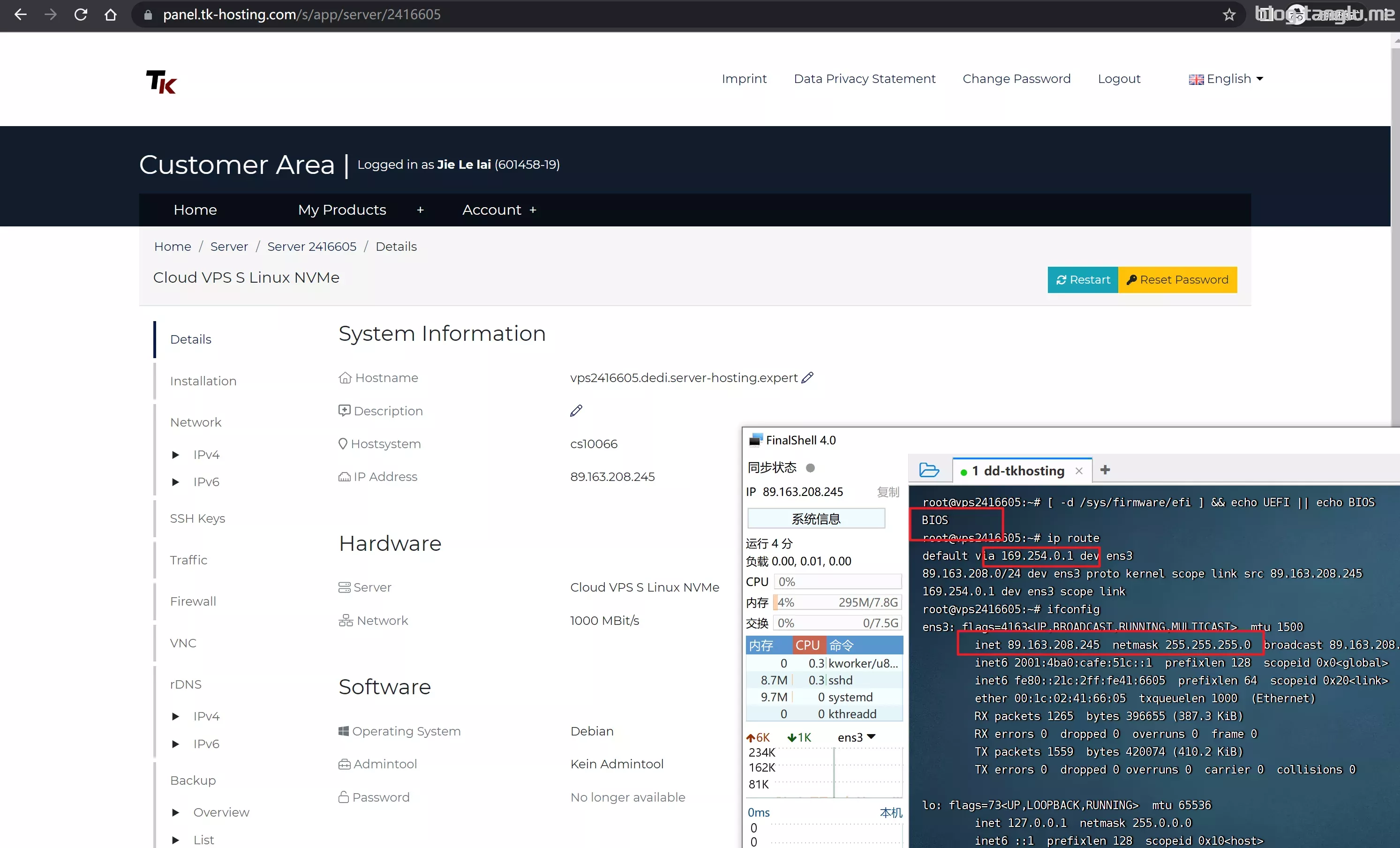
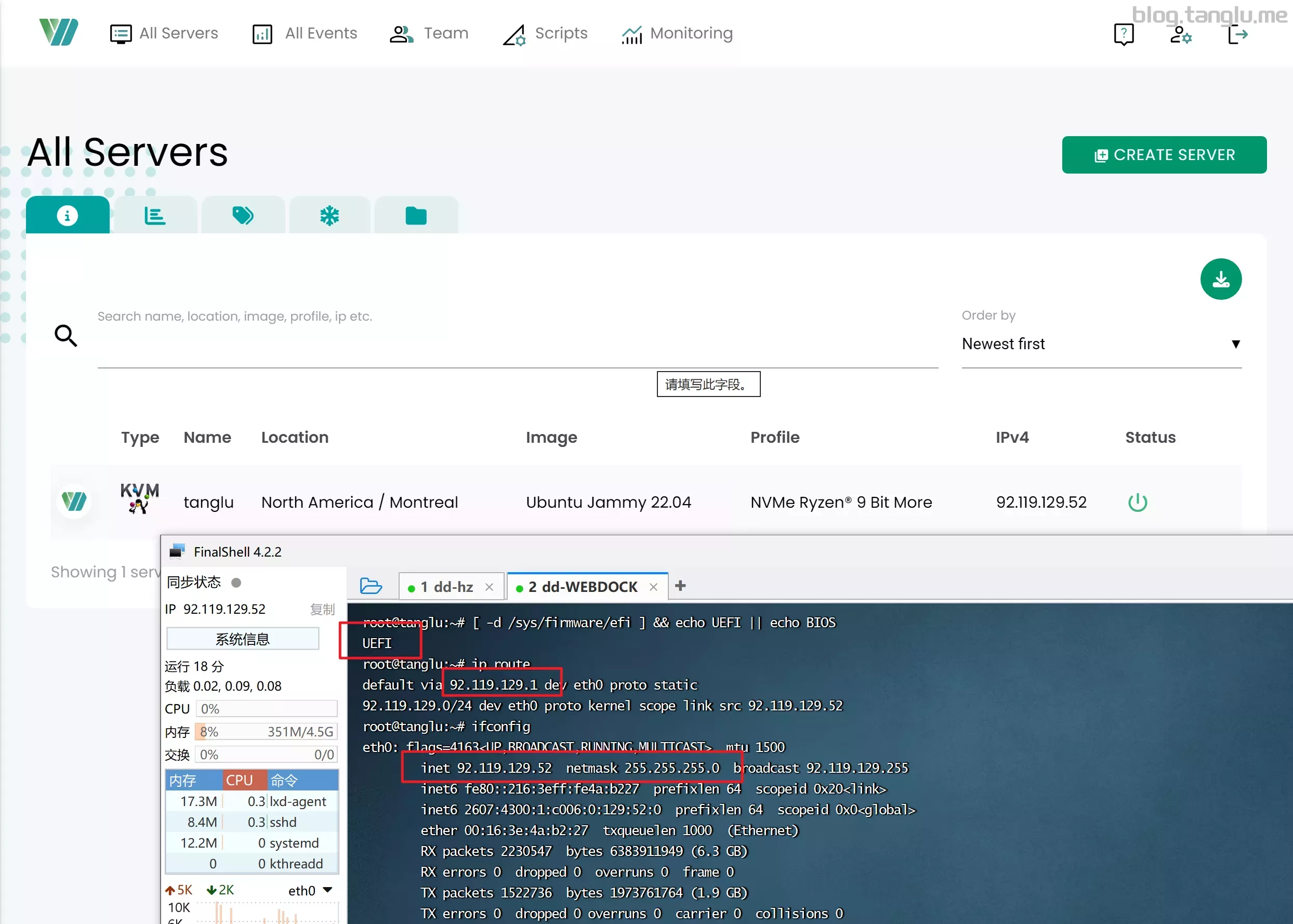
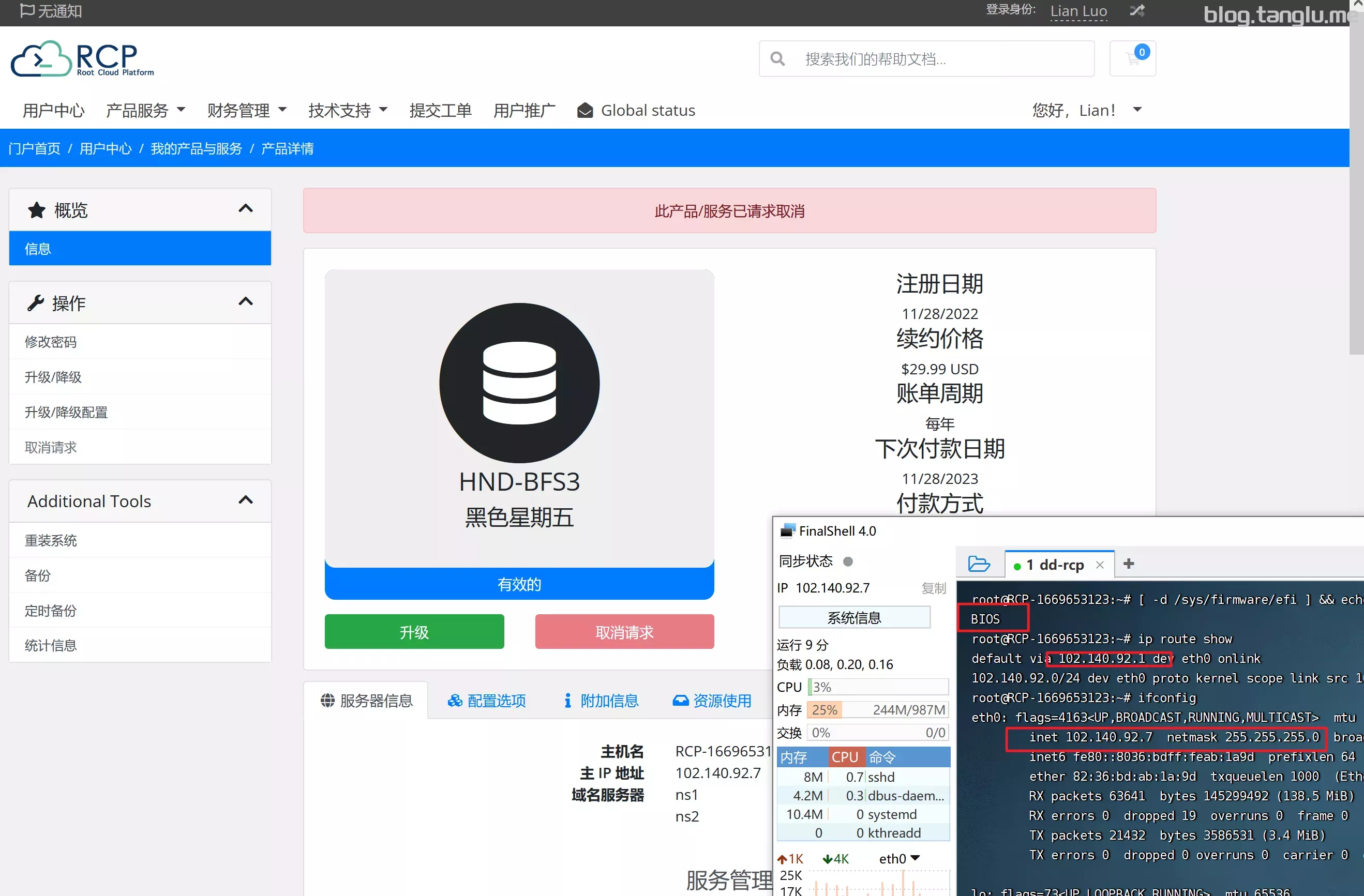
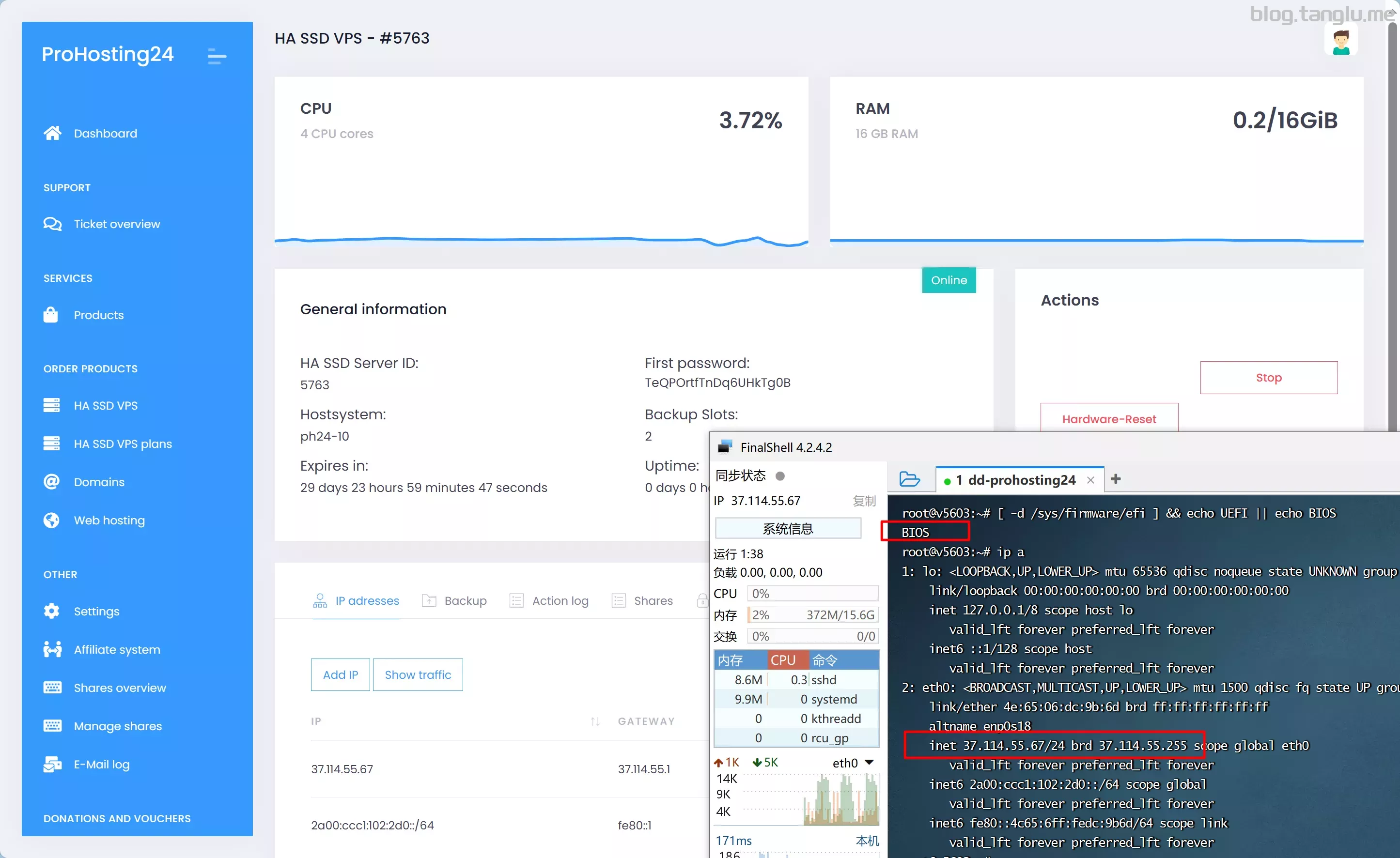
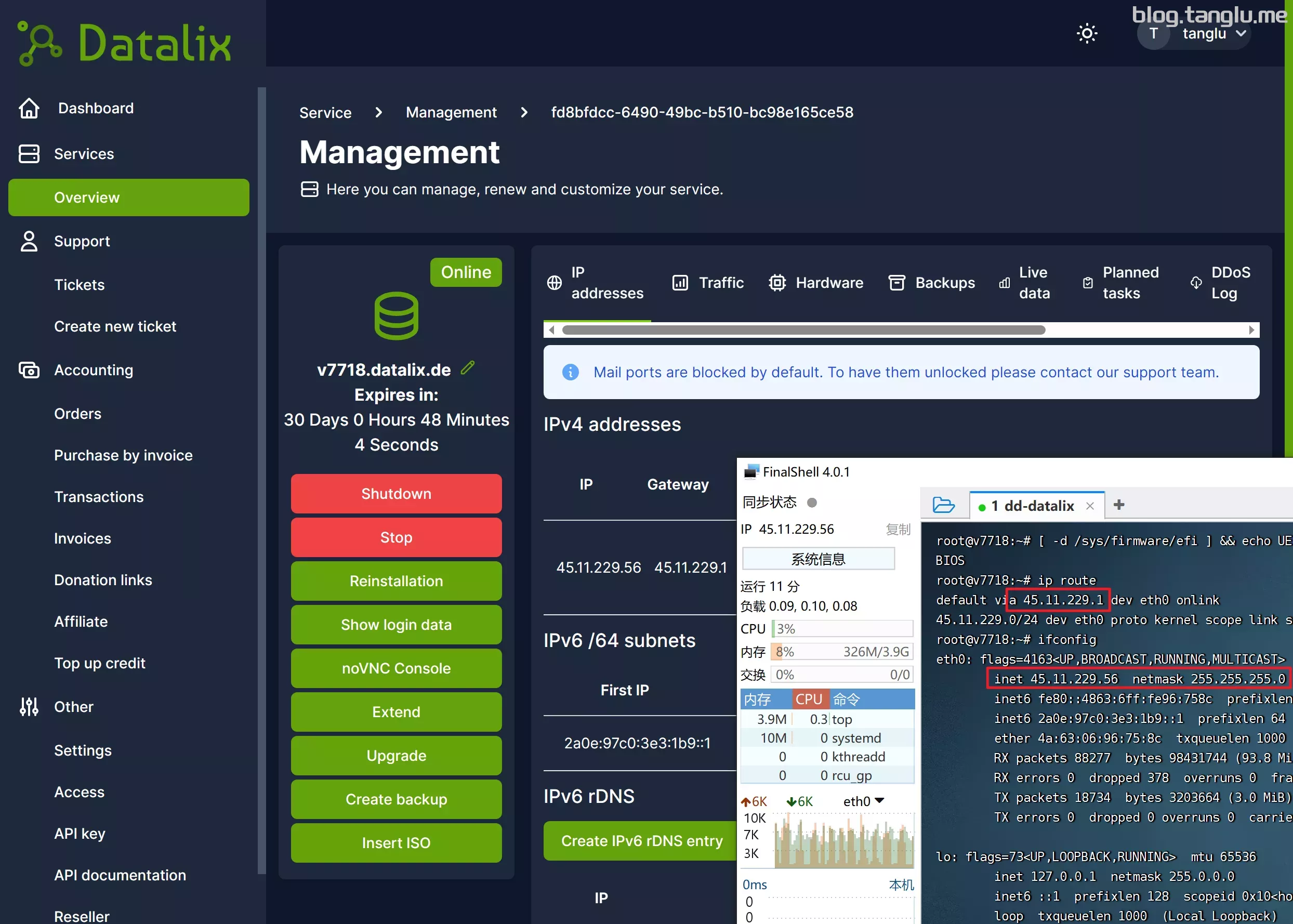
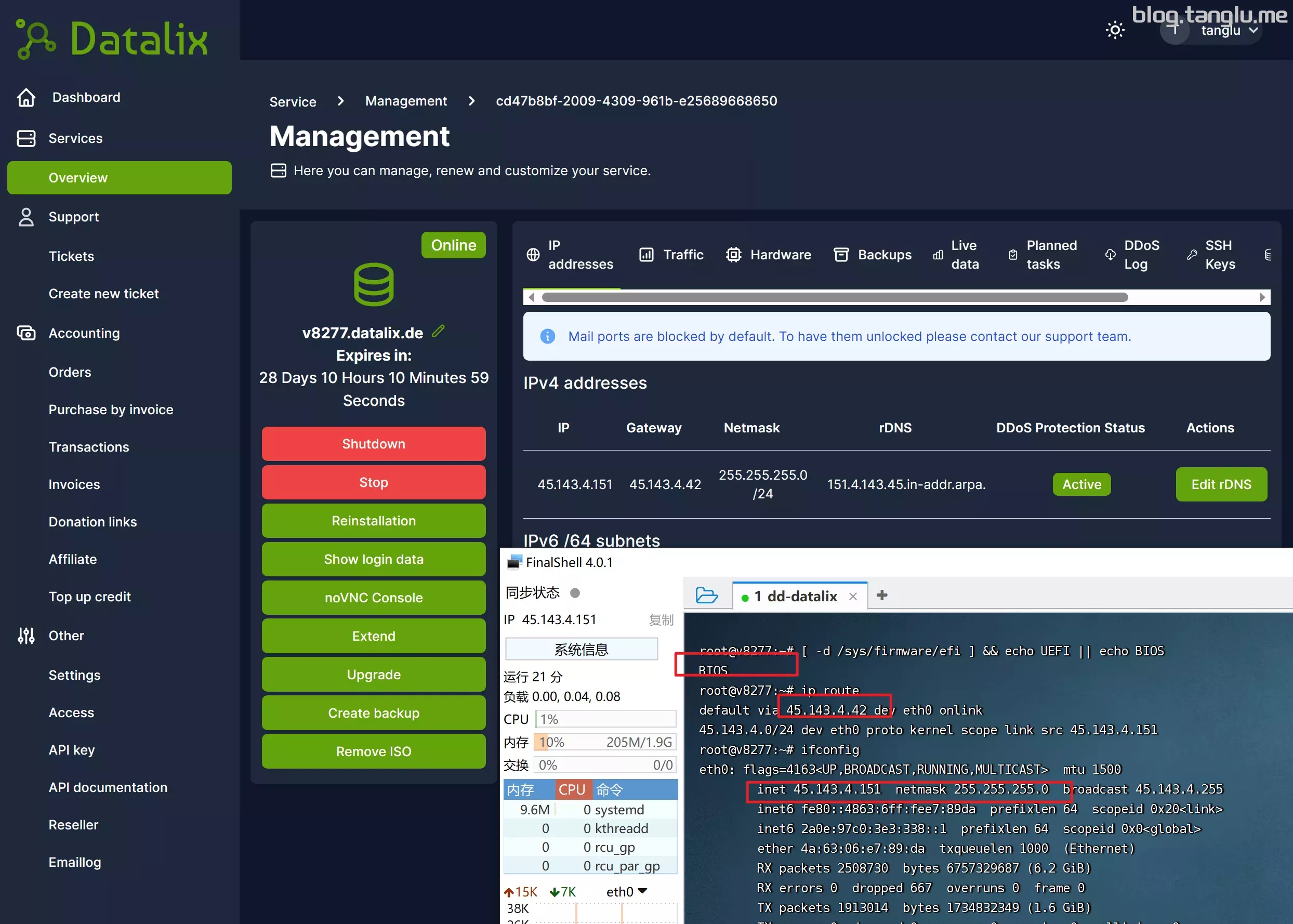
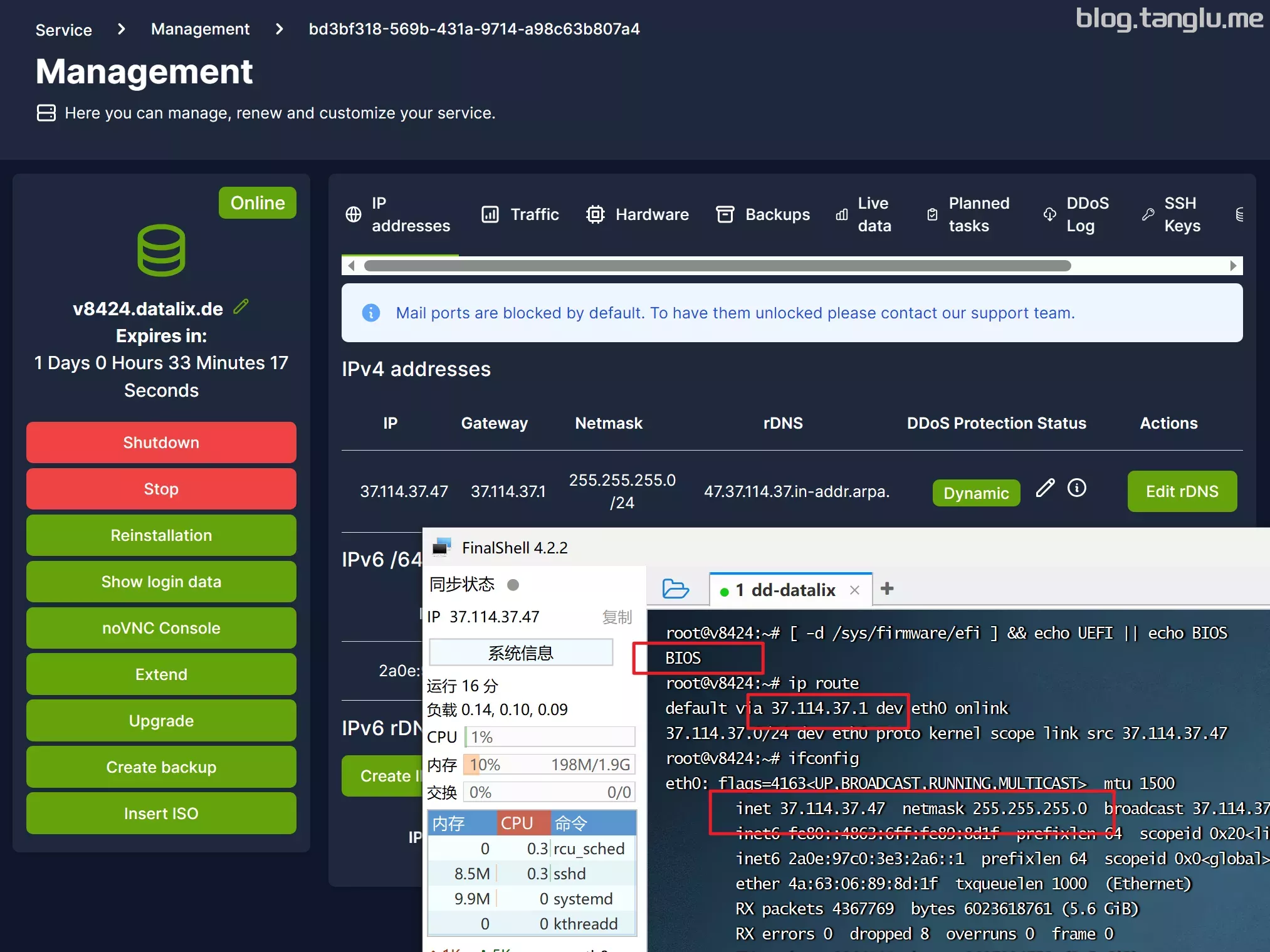
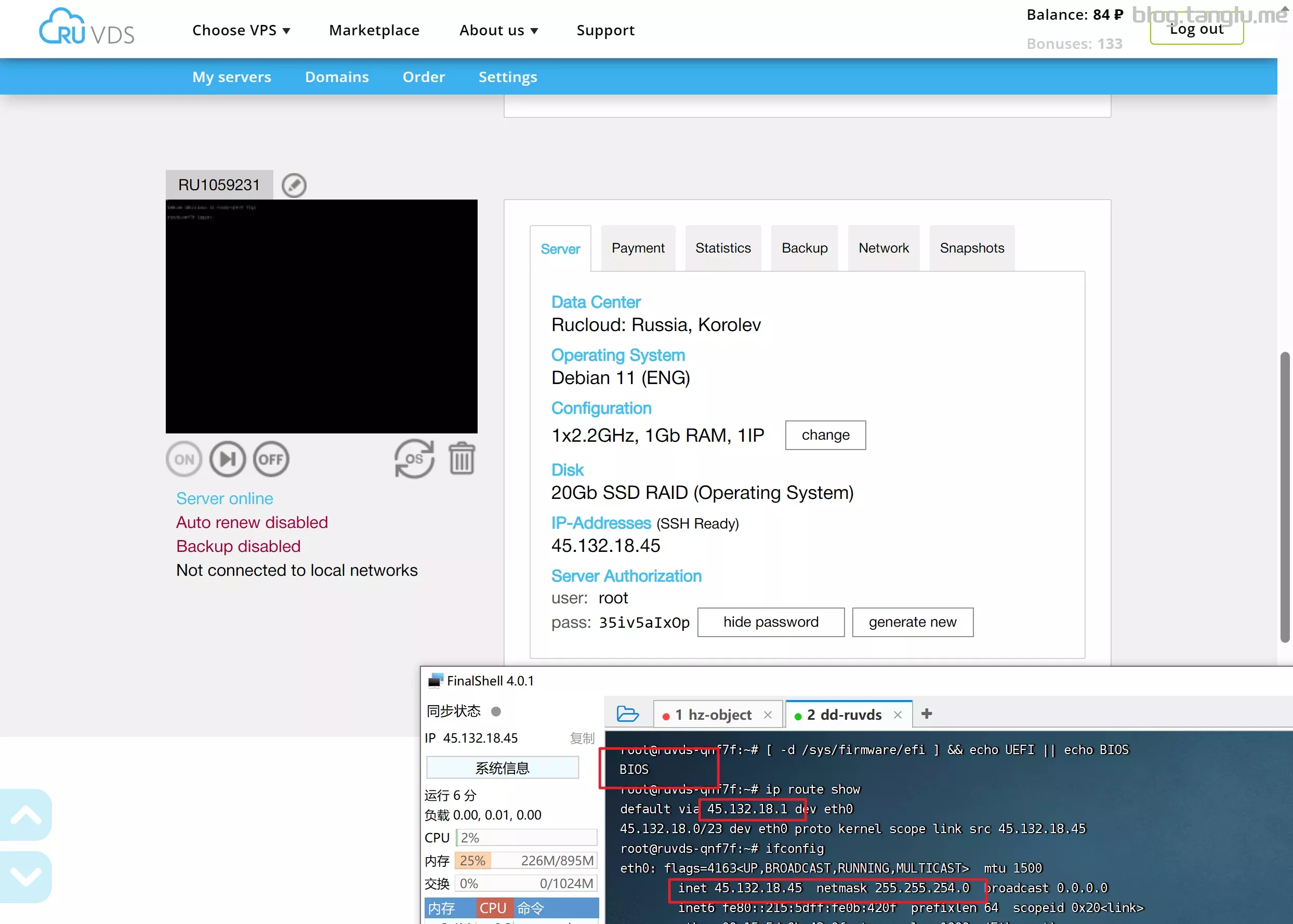
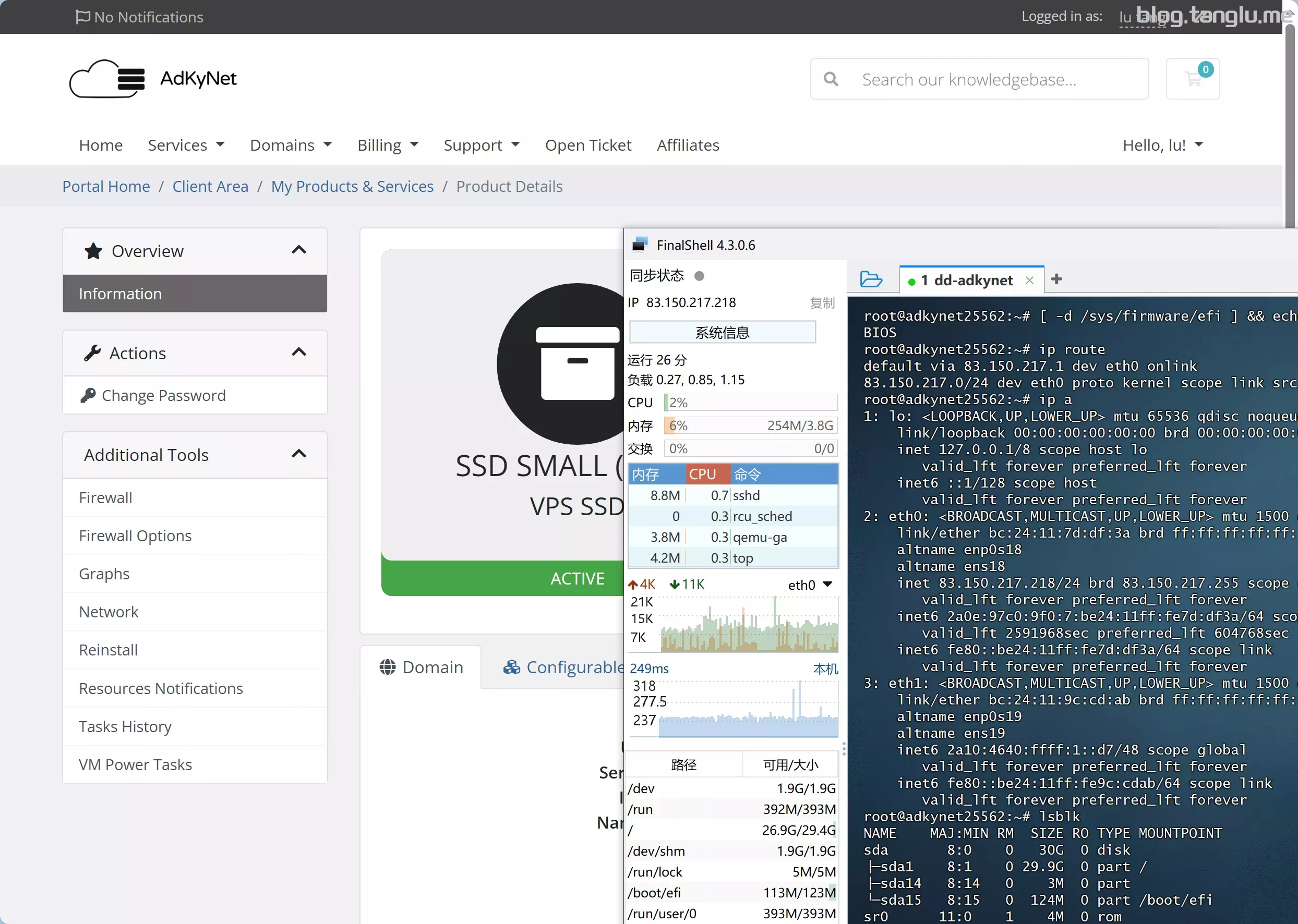
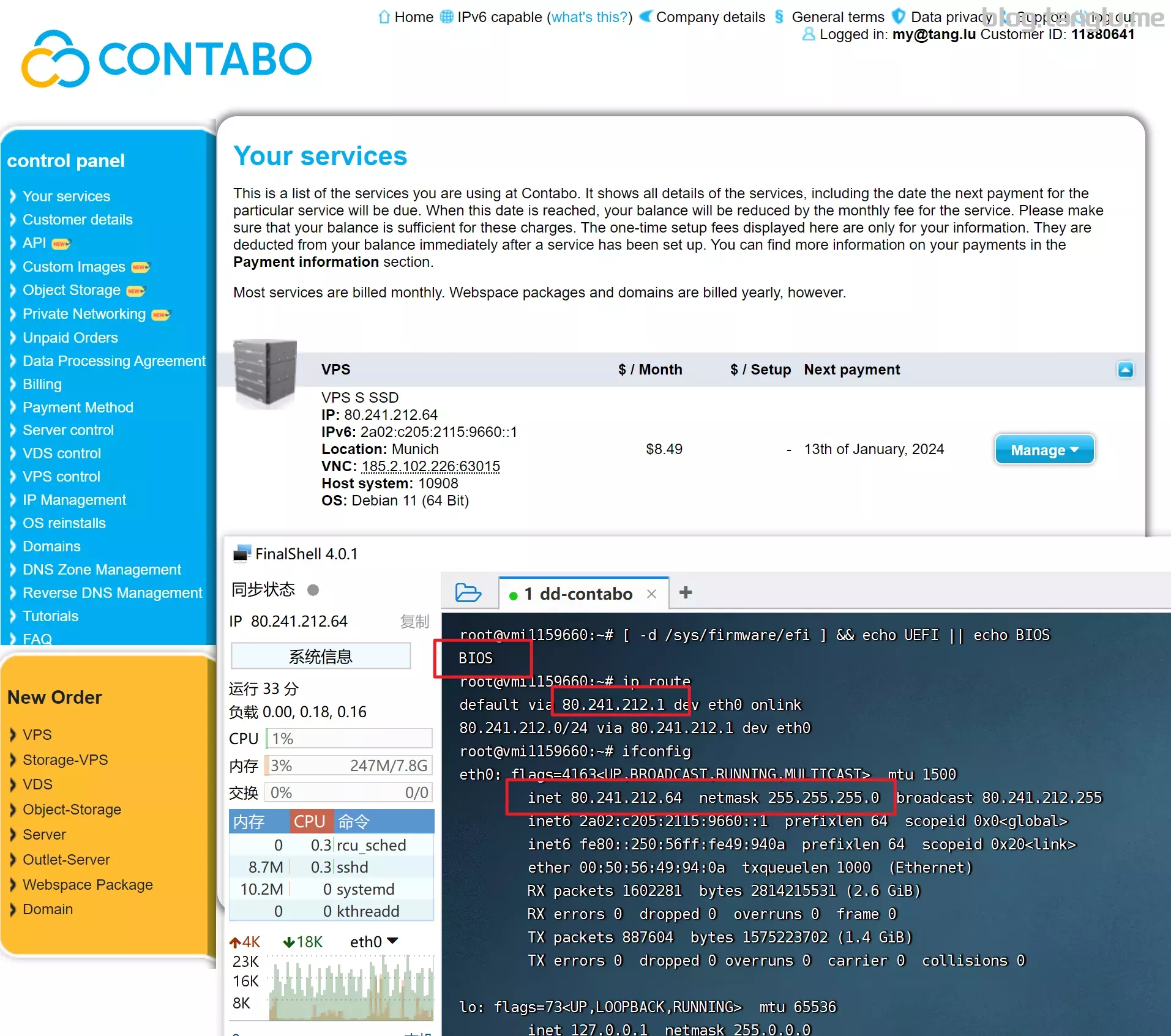
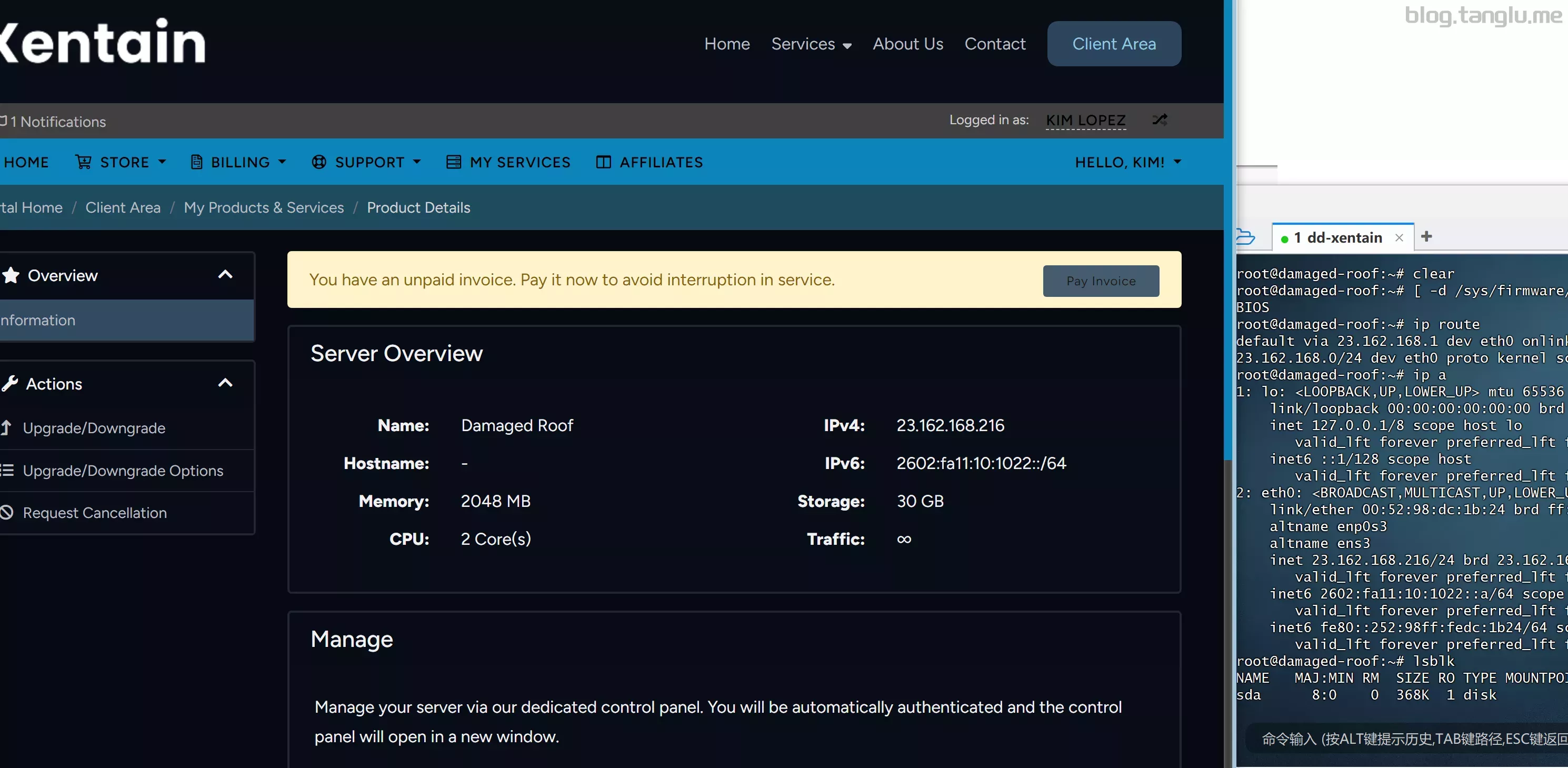
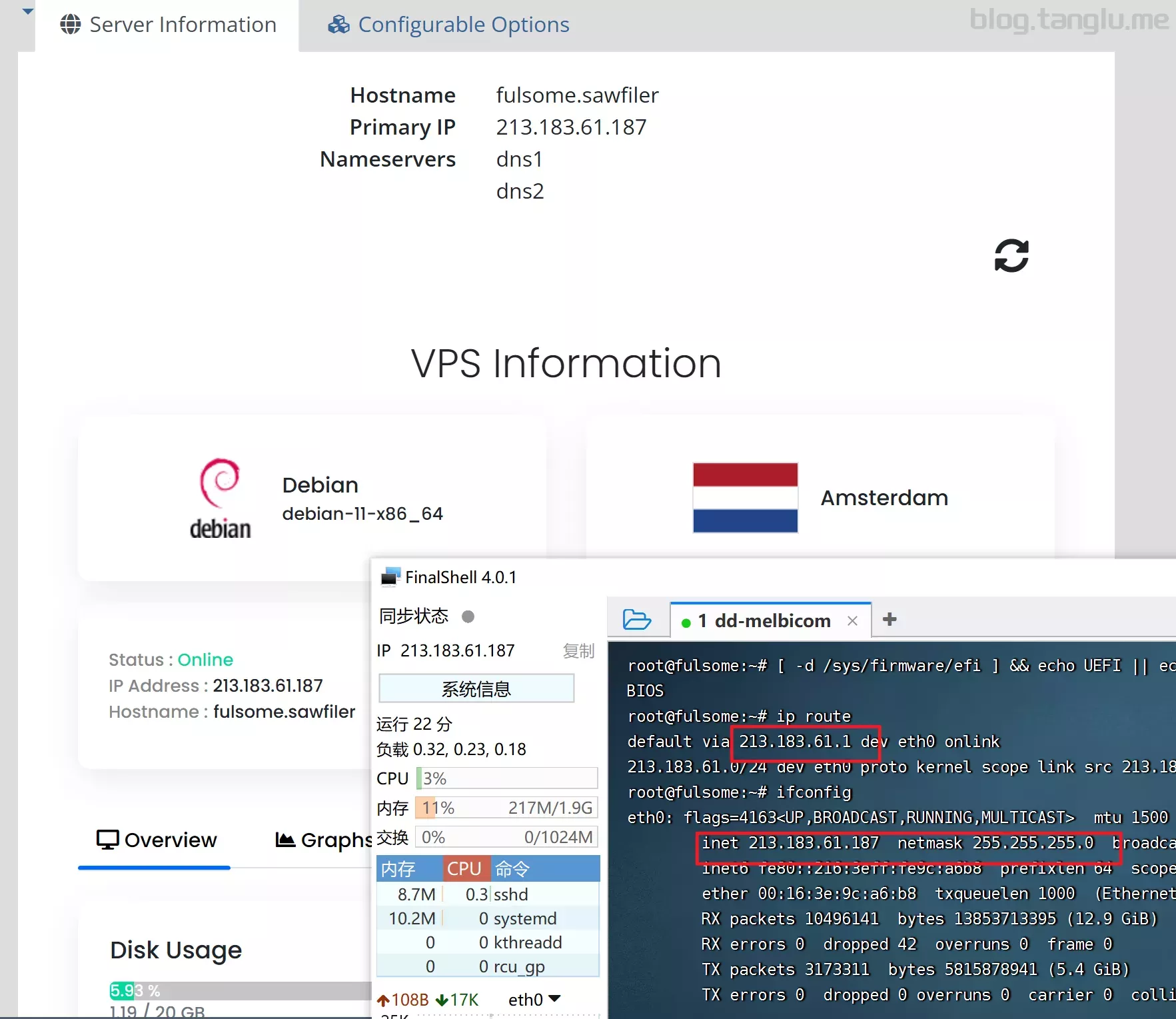
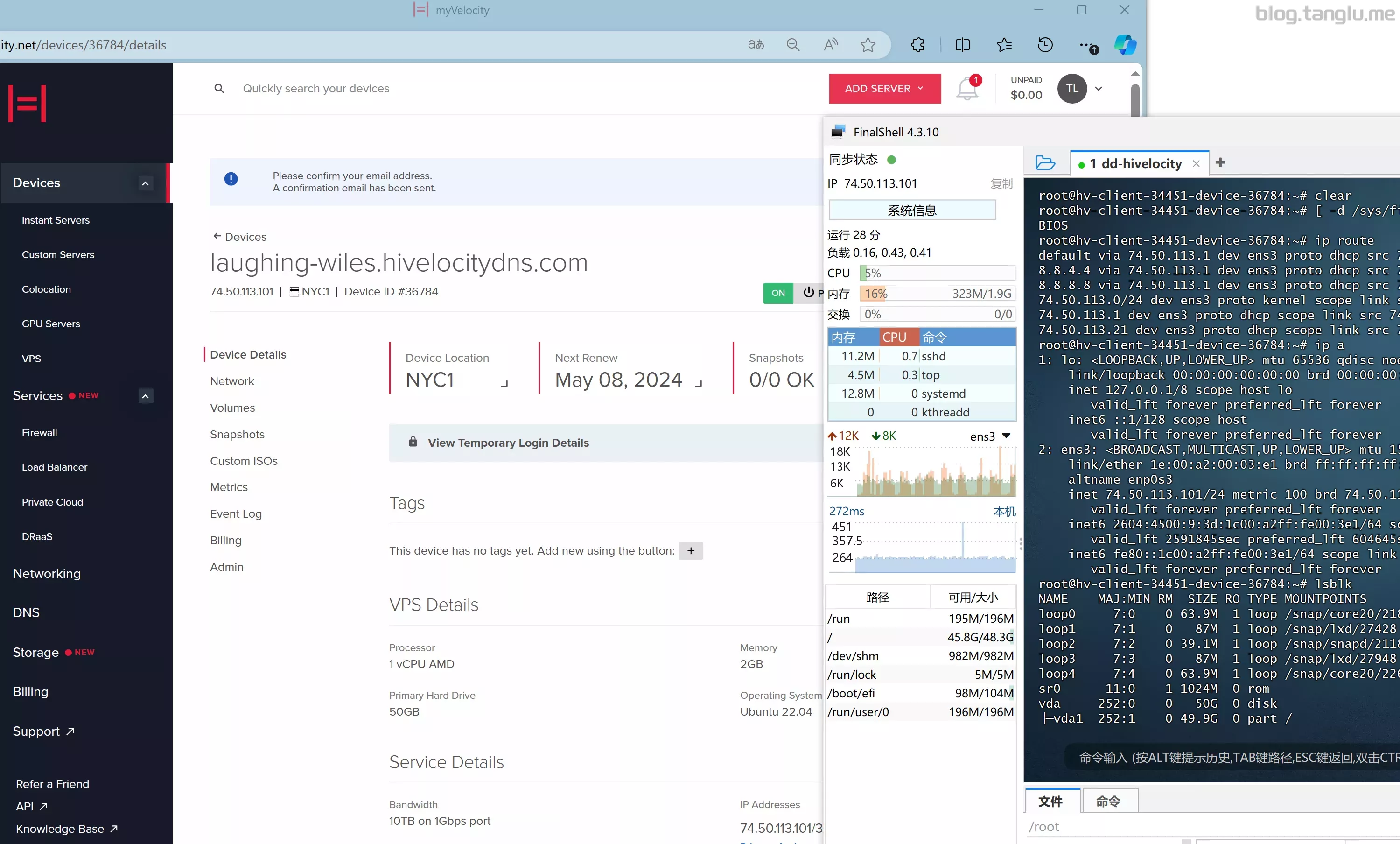
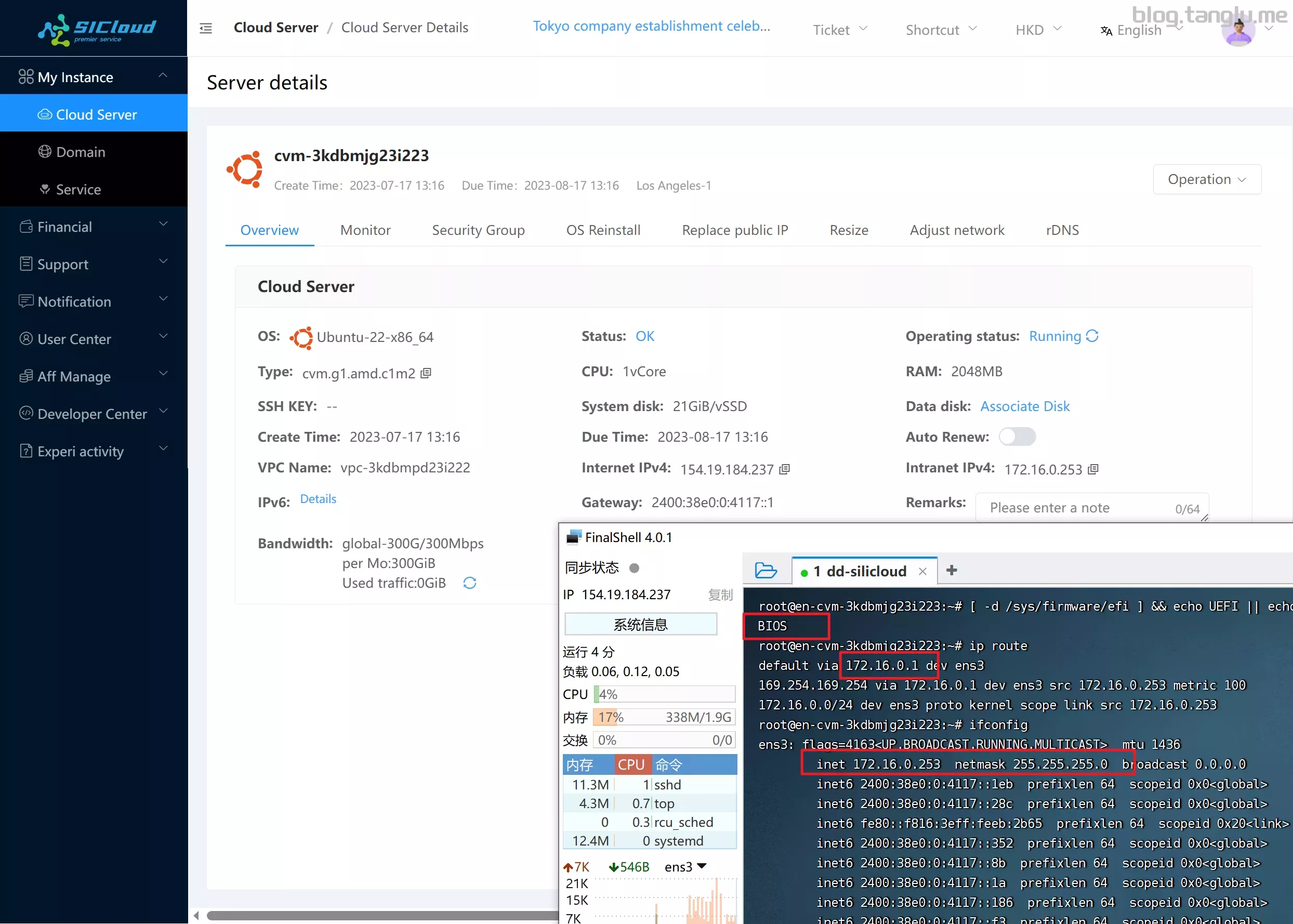
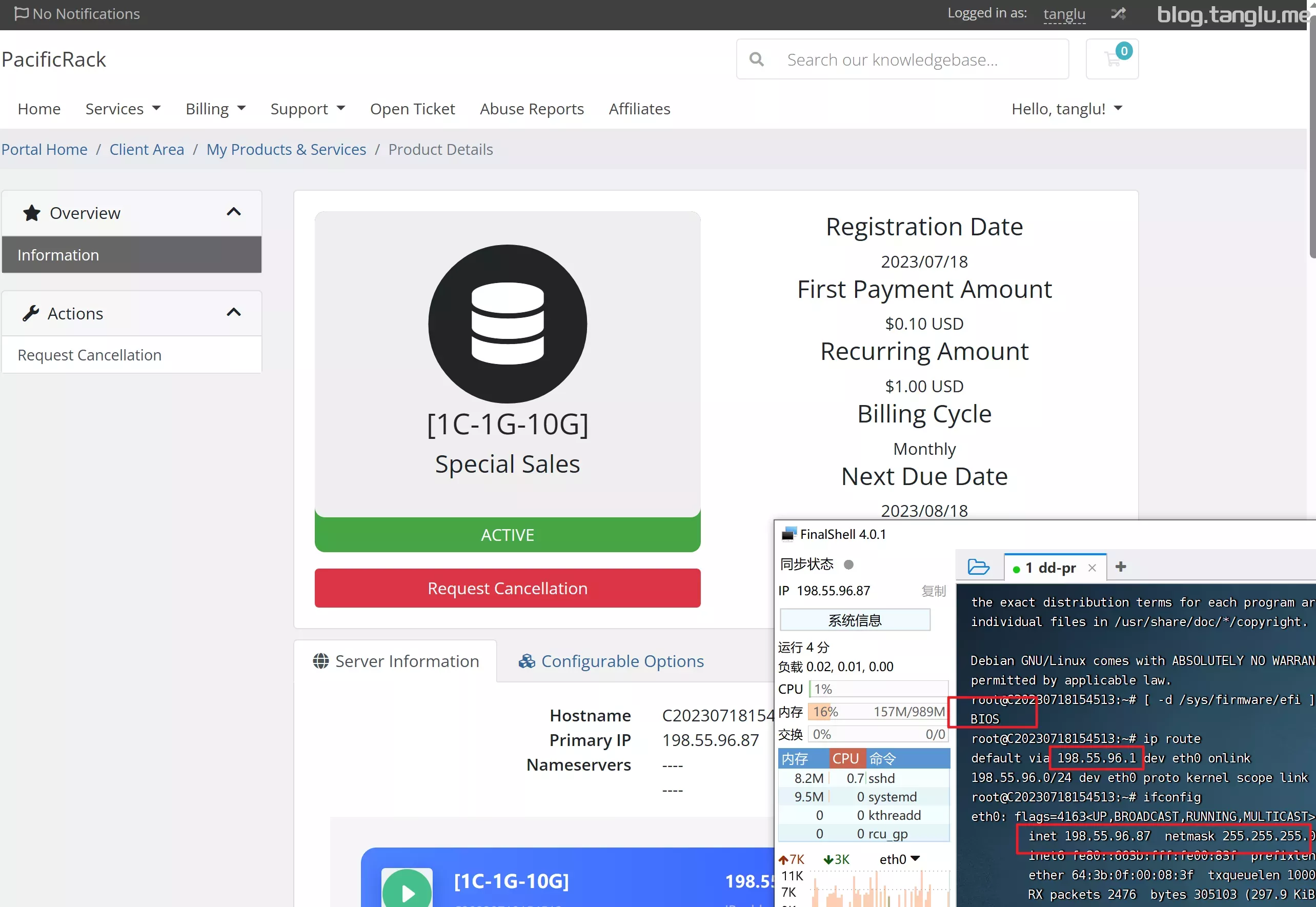
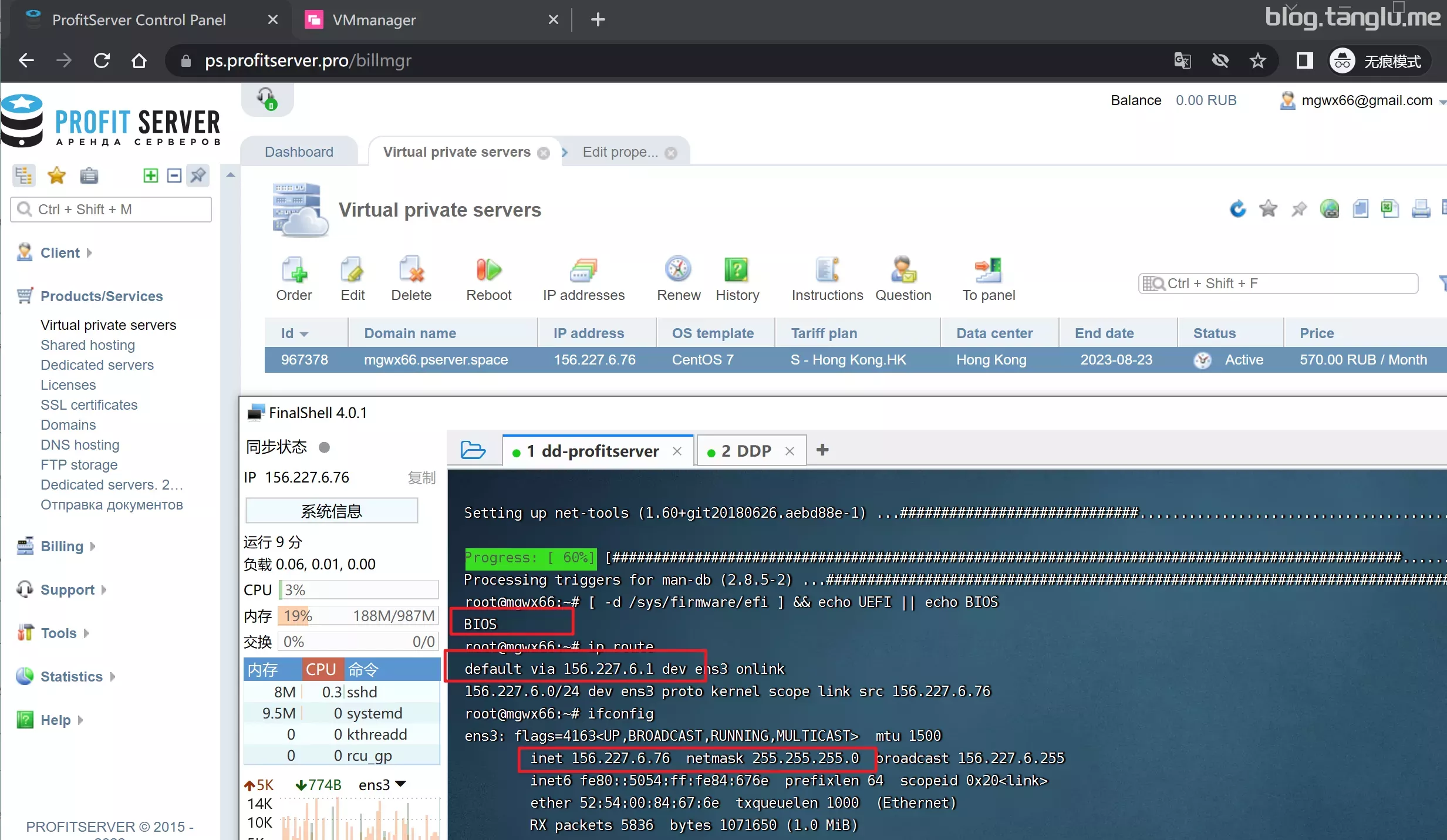
二、脚本使用 1、查看网卡信息 通常是通过 ip route show ifconfig 命令获得,具体可以看我的示例
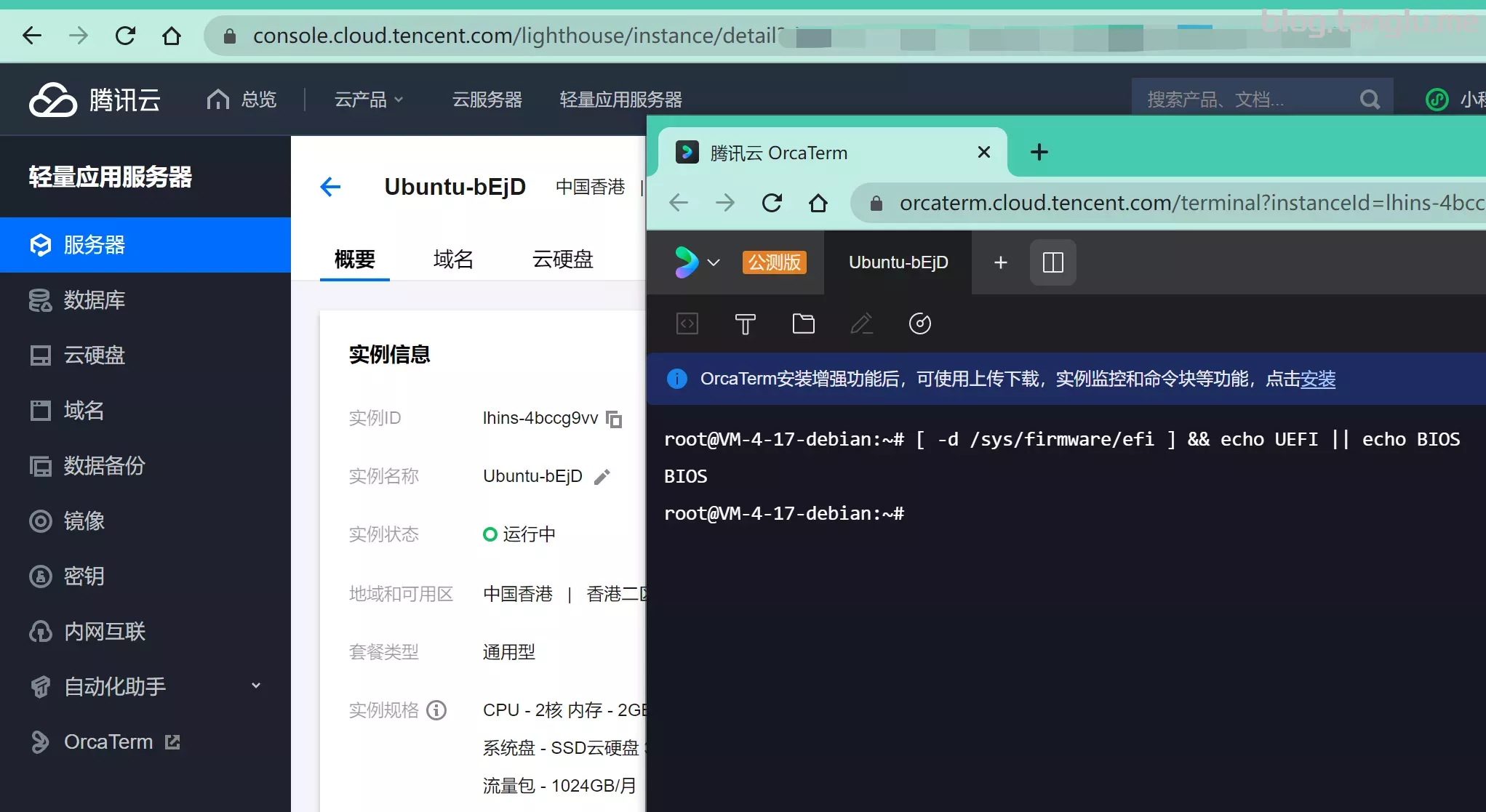
2、查看启动方式 机器不同的启动方式一般对应不同的dd包,执行这条命令查看vps启动方式是 UEFI 还是 BIOS
[ -d /sys/firmware/efi ] && echo UEFI || echo BIOS
1keydd脚本执行 替换为自己的公网IP 子网掩码和网关
镜像可以自定义,你可以换成windows centos ubuntu debian pve 等都行
wget -qO- inst.sh|bash -s - -n ip,netmask,gateway -t 自定义镜像/dd包
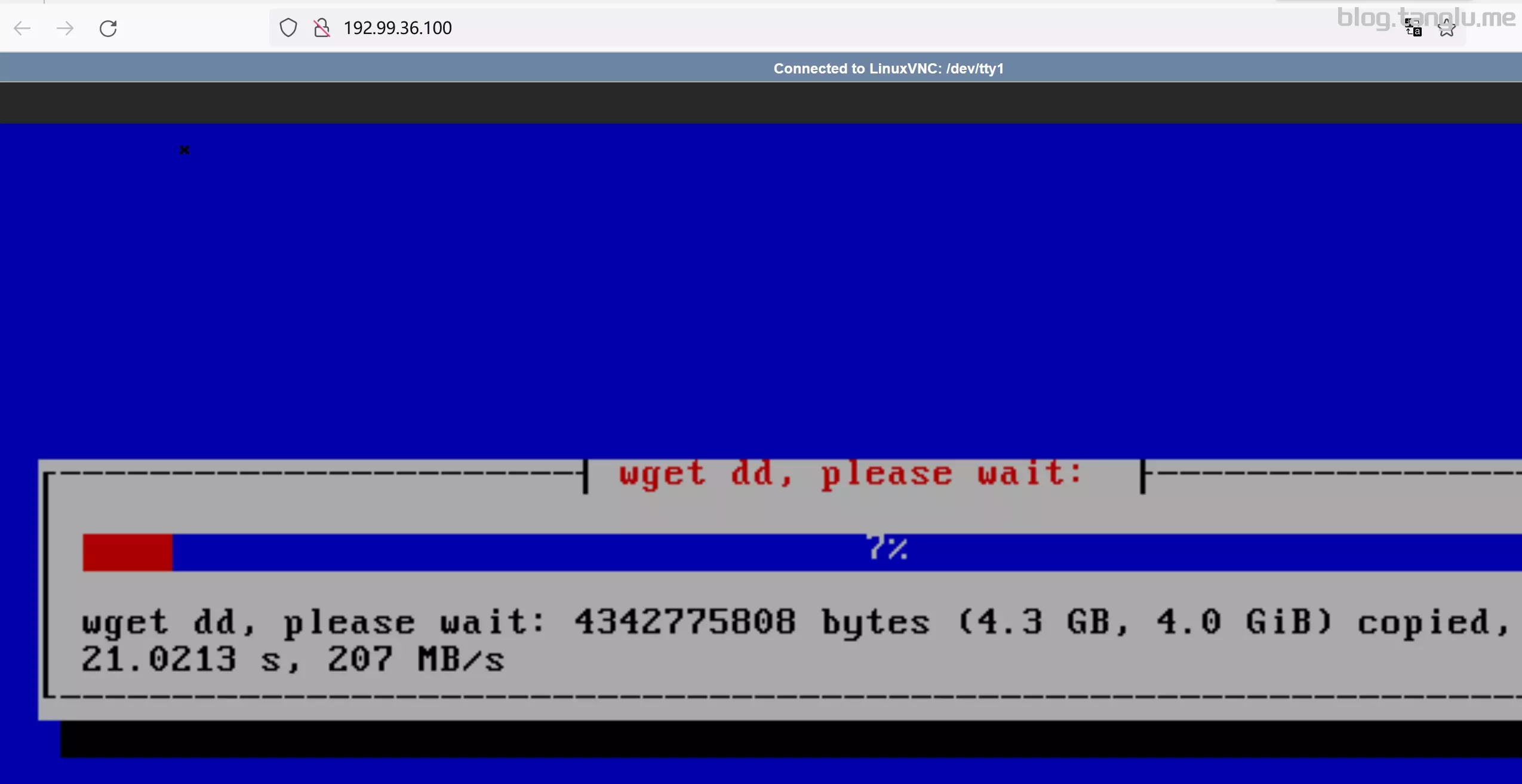
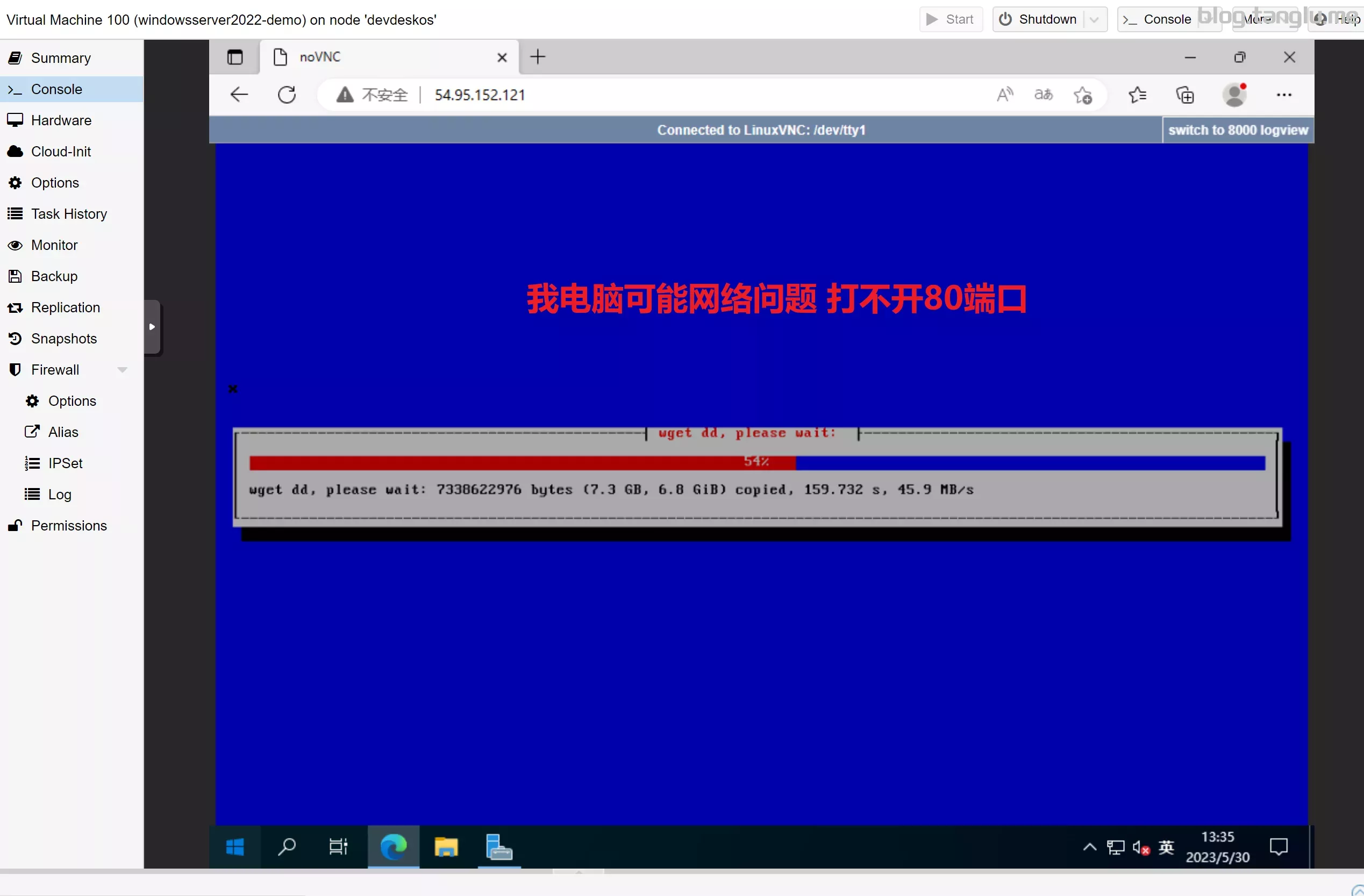
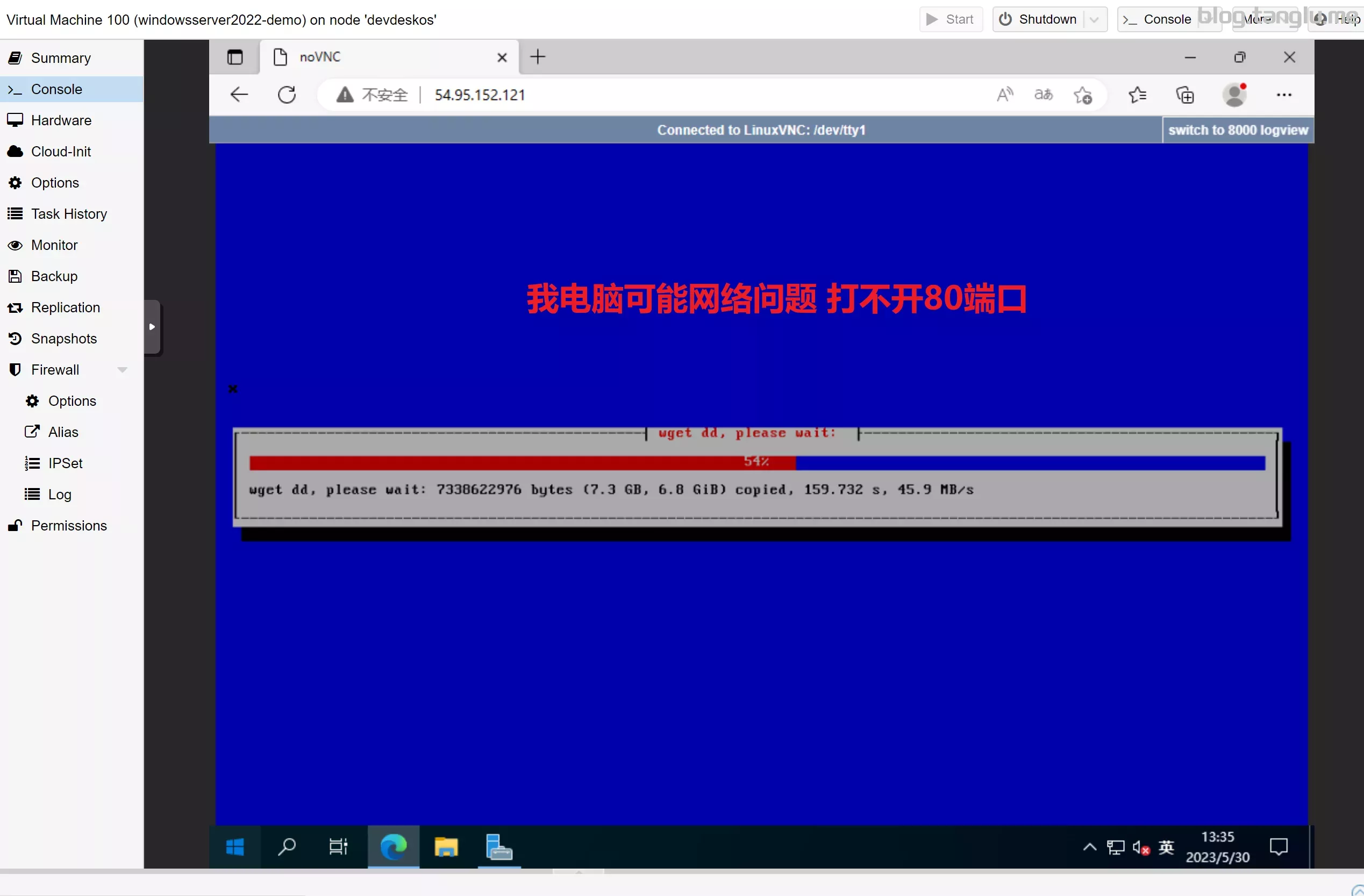
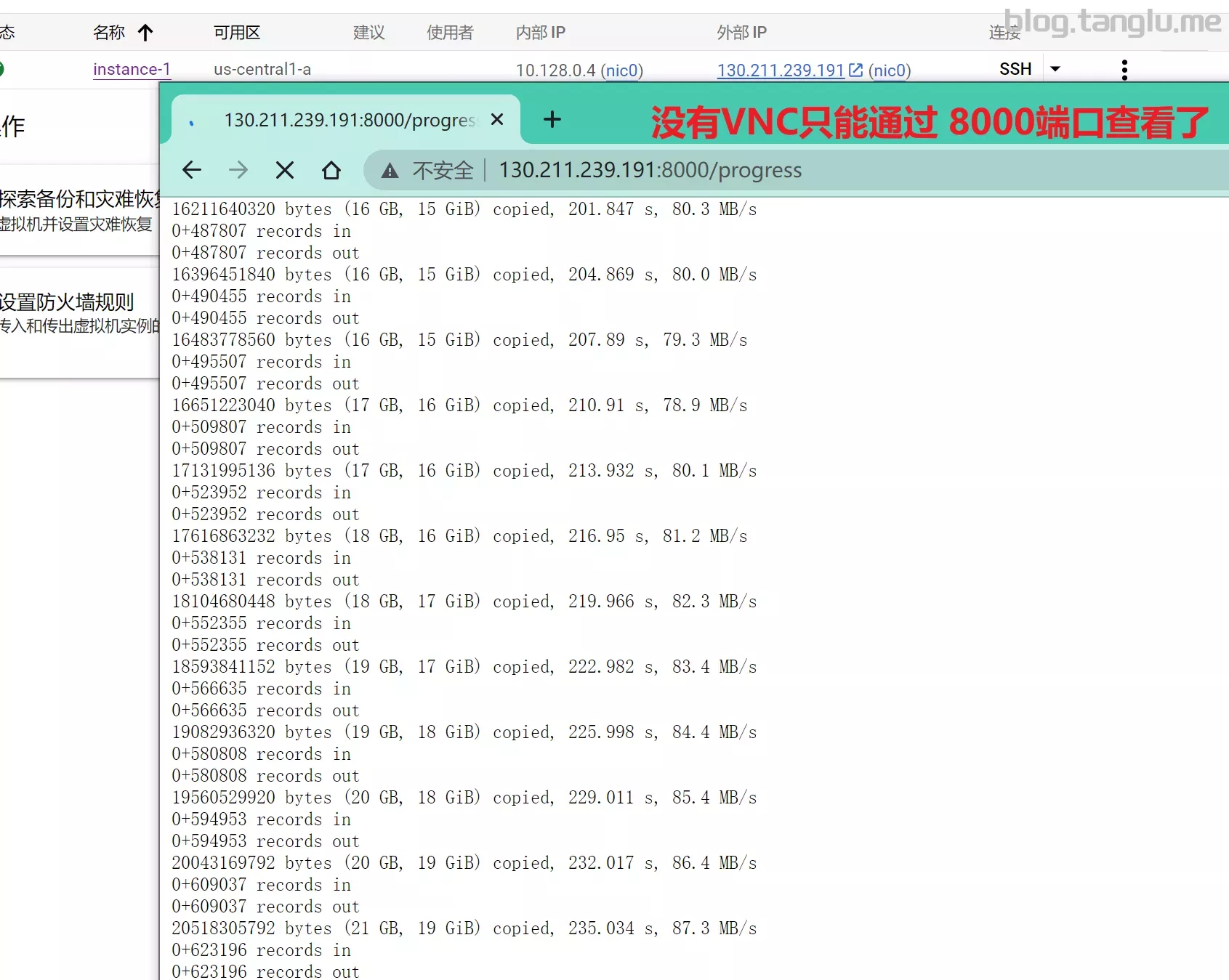
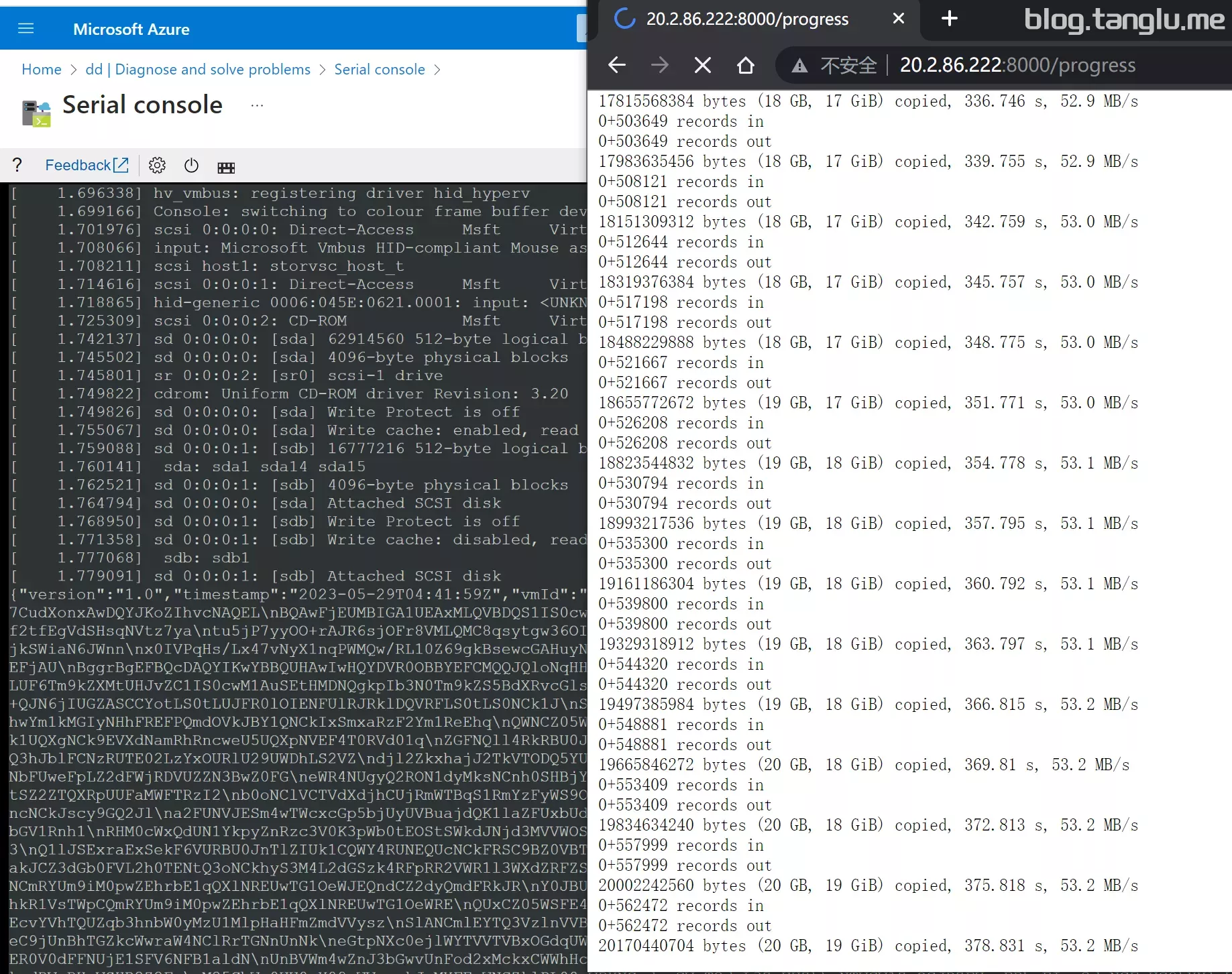
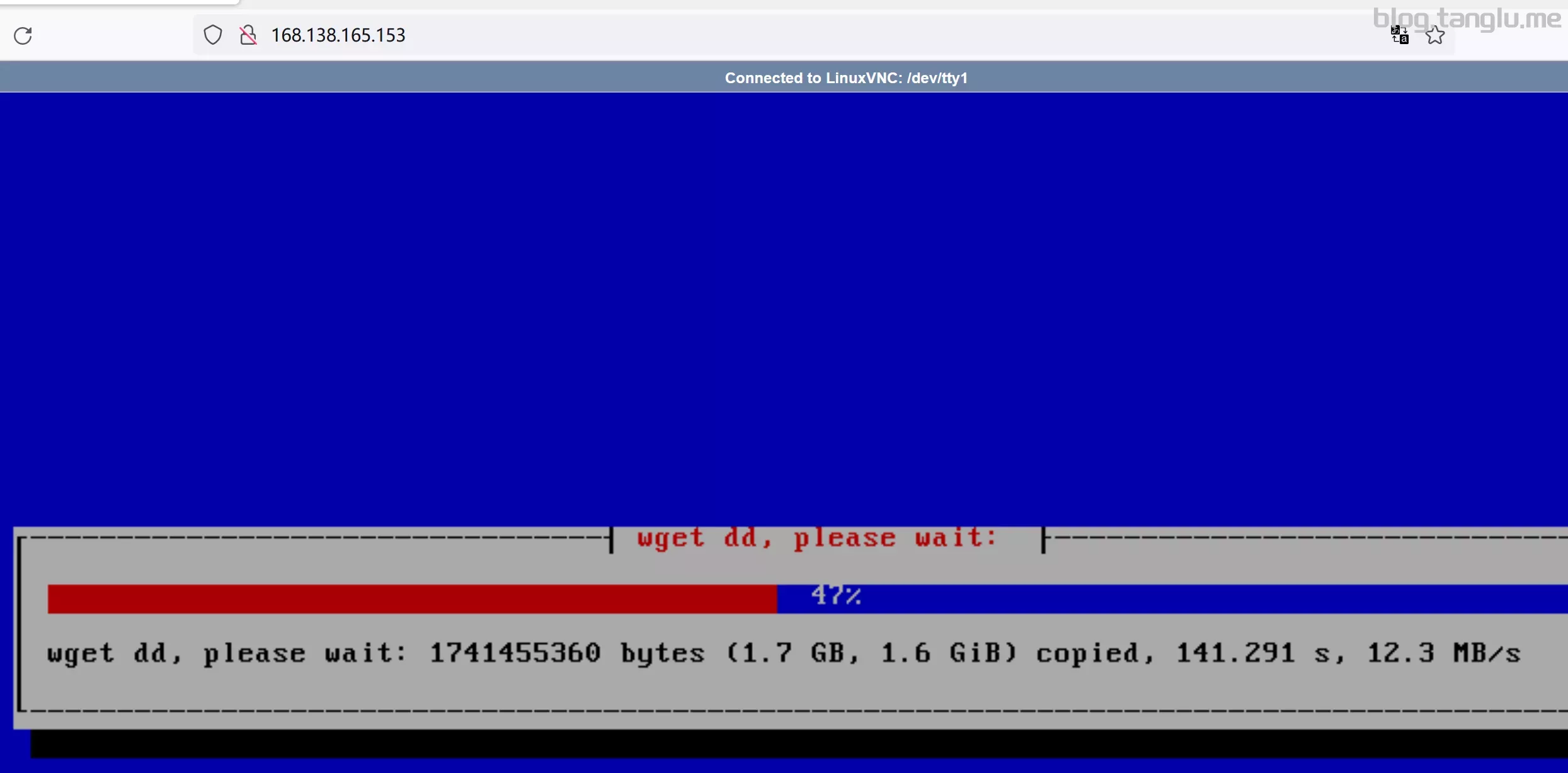
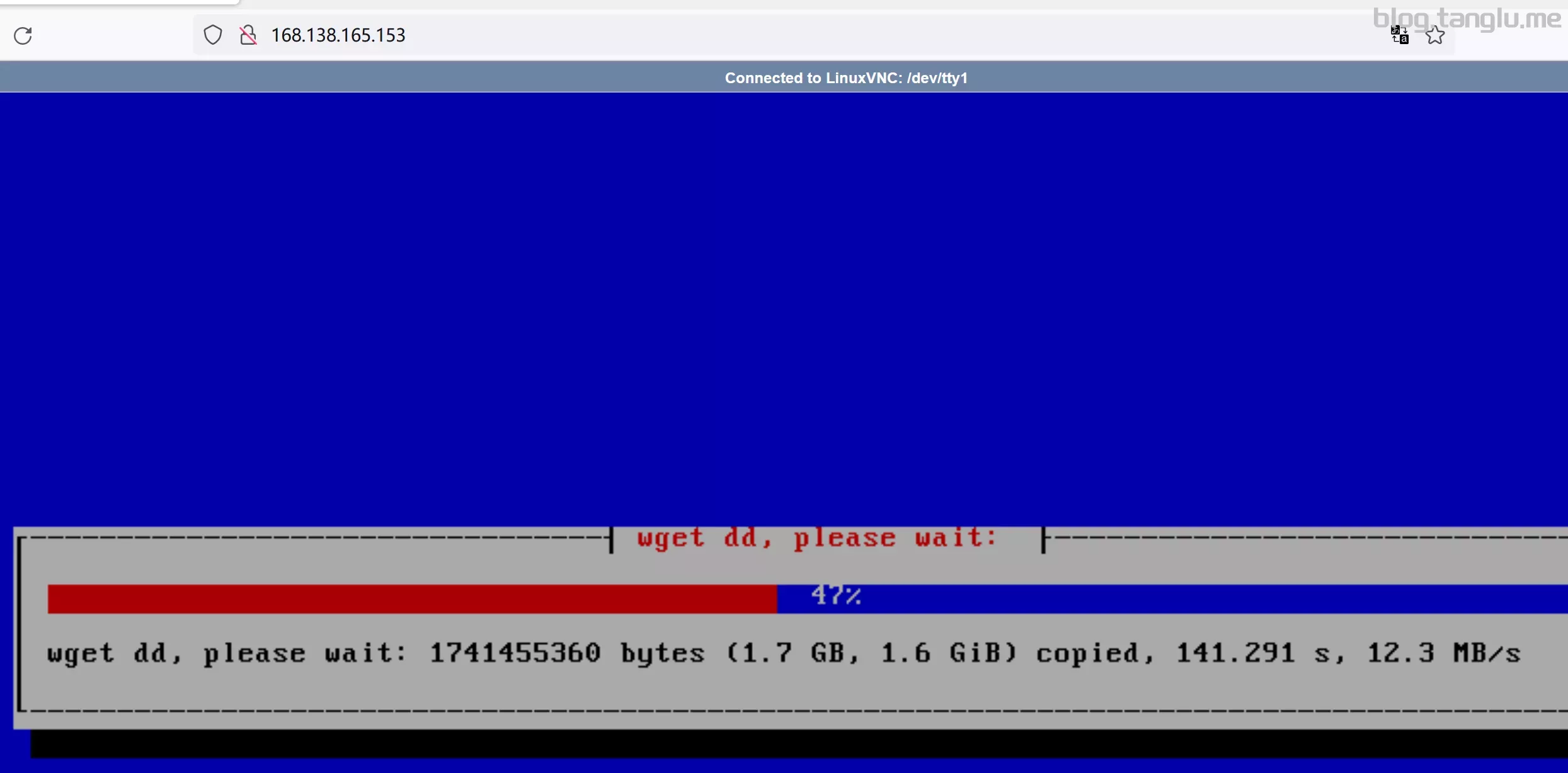
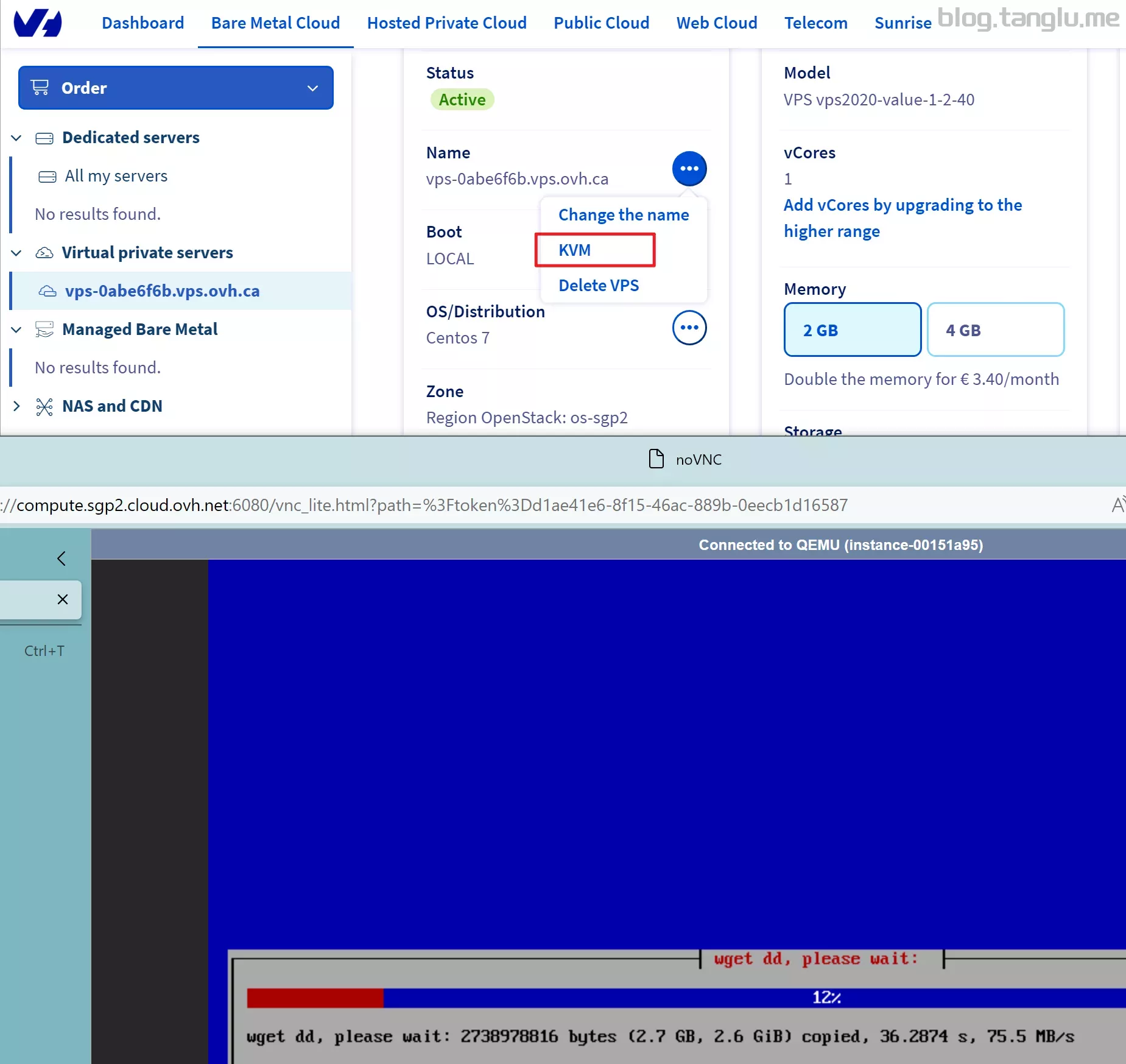
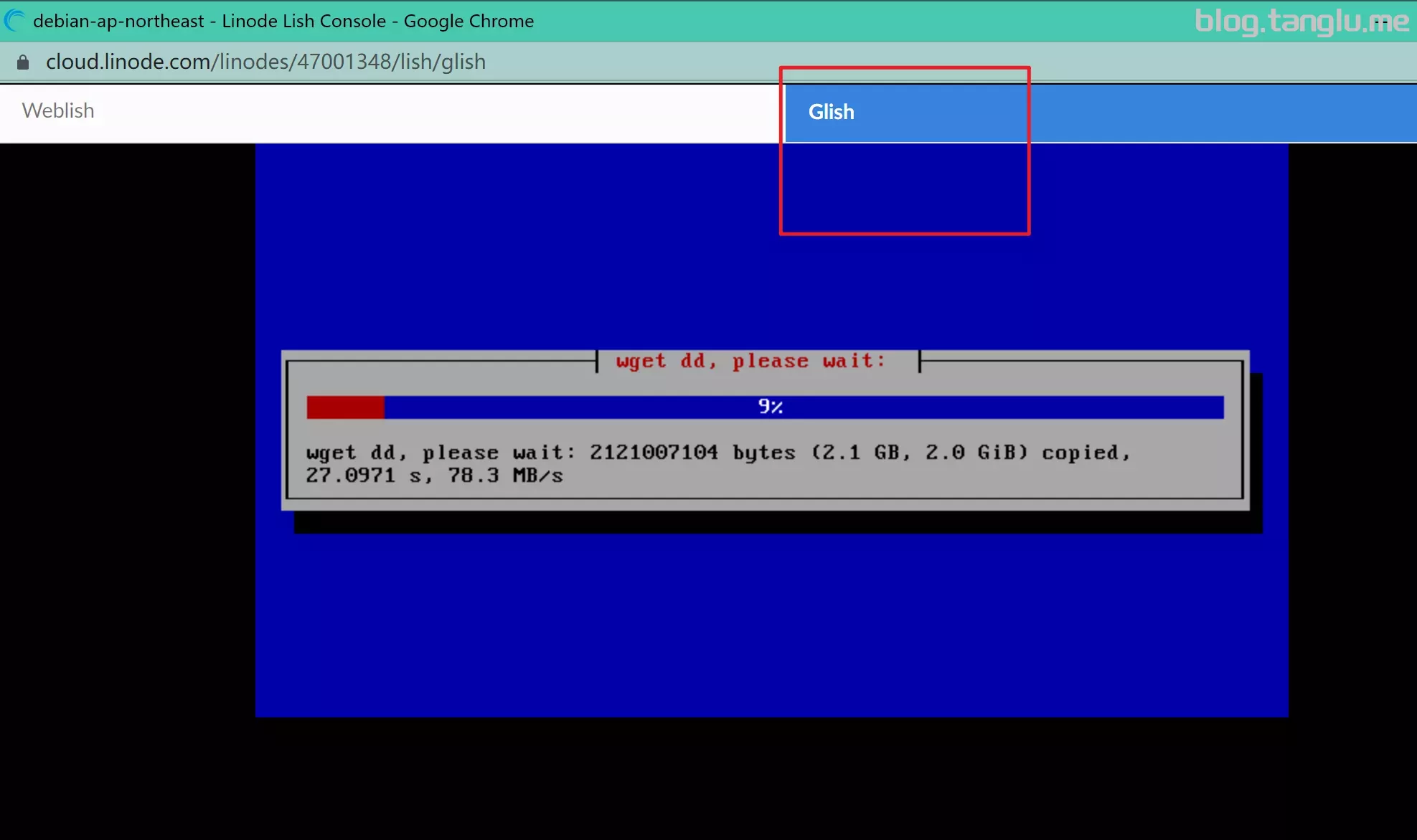
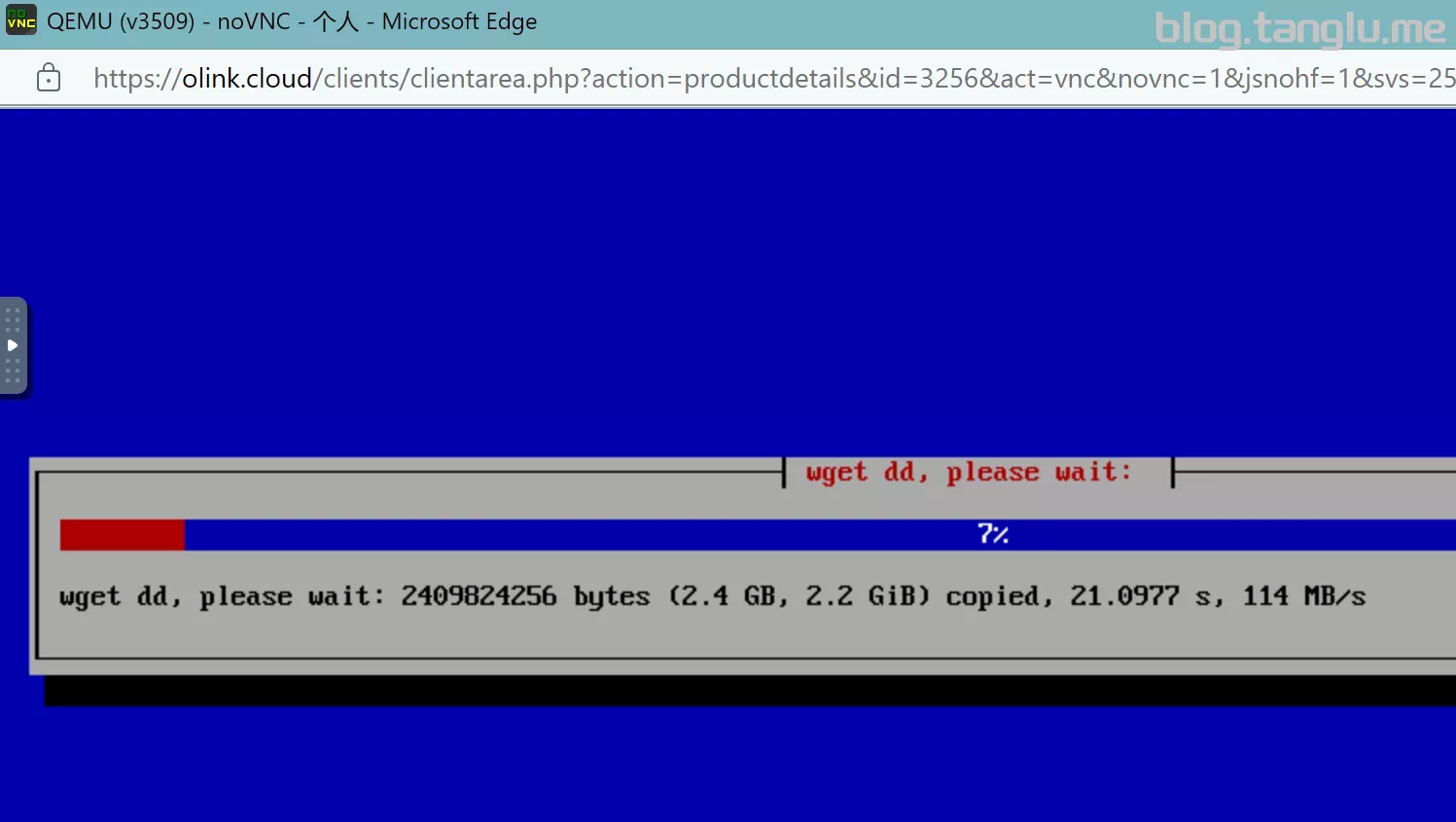
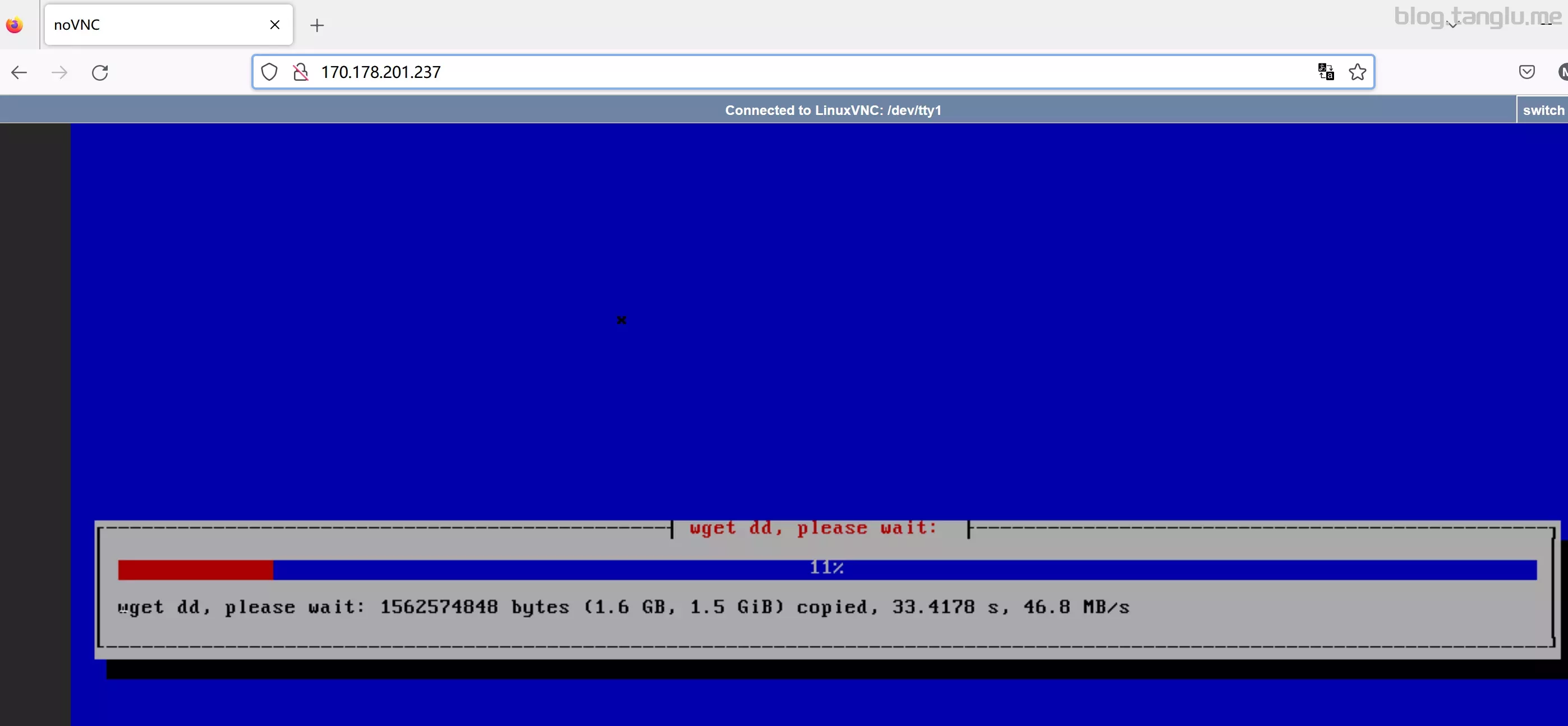
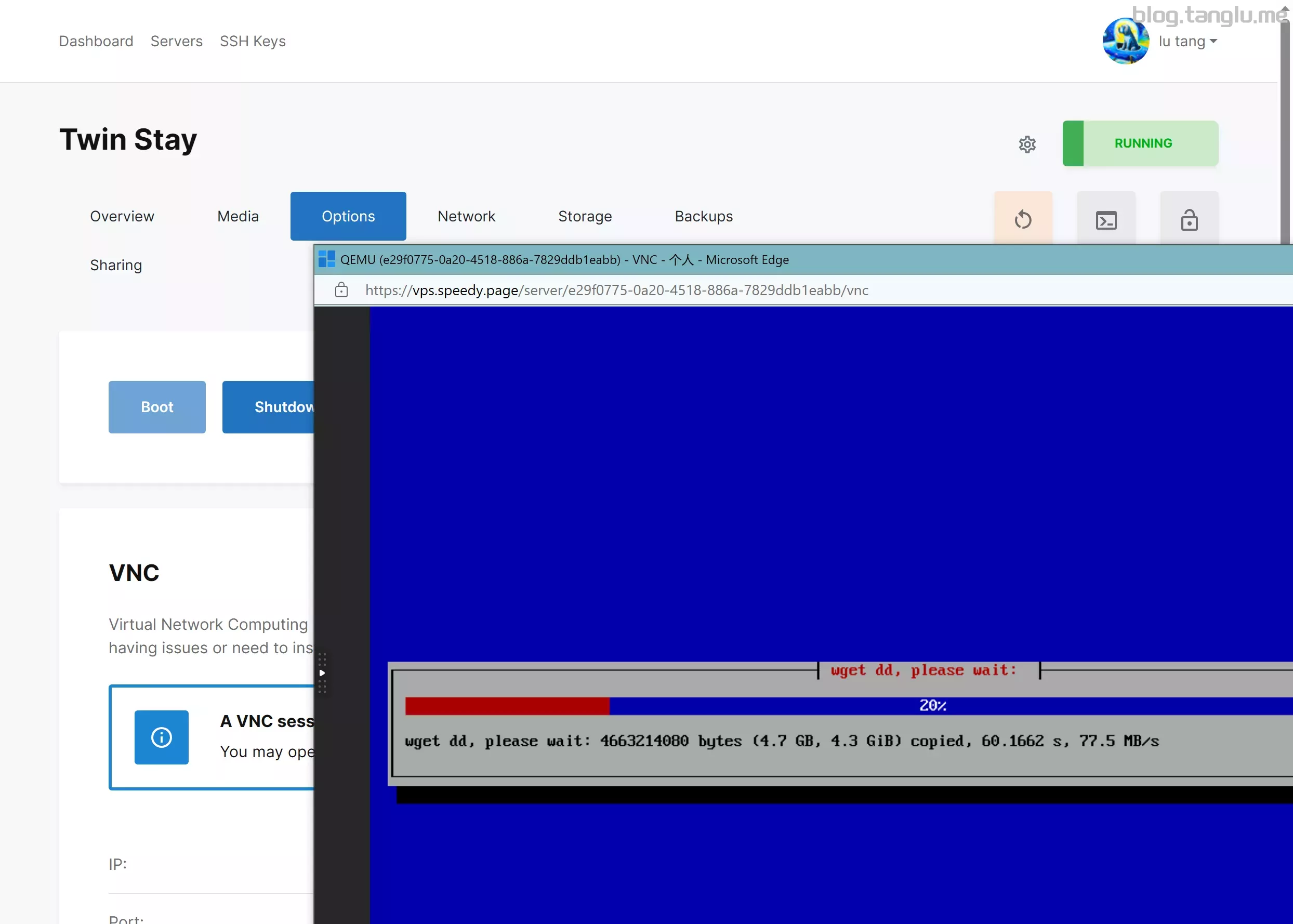
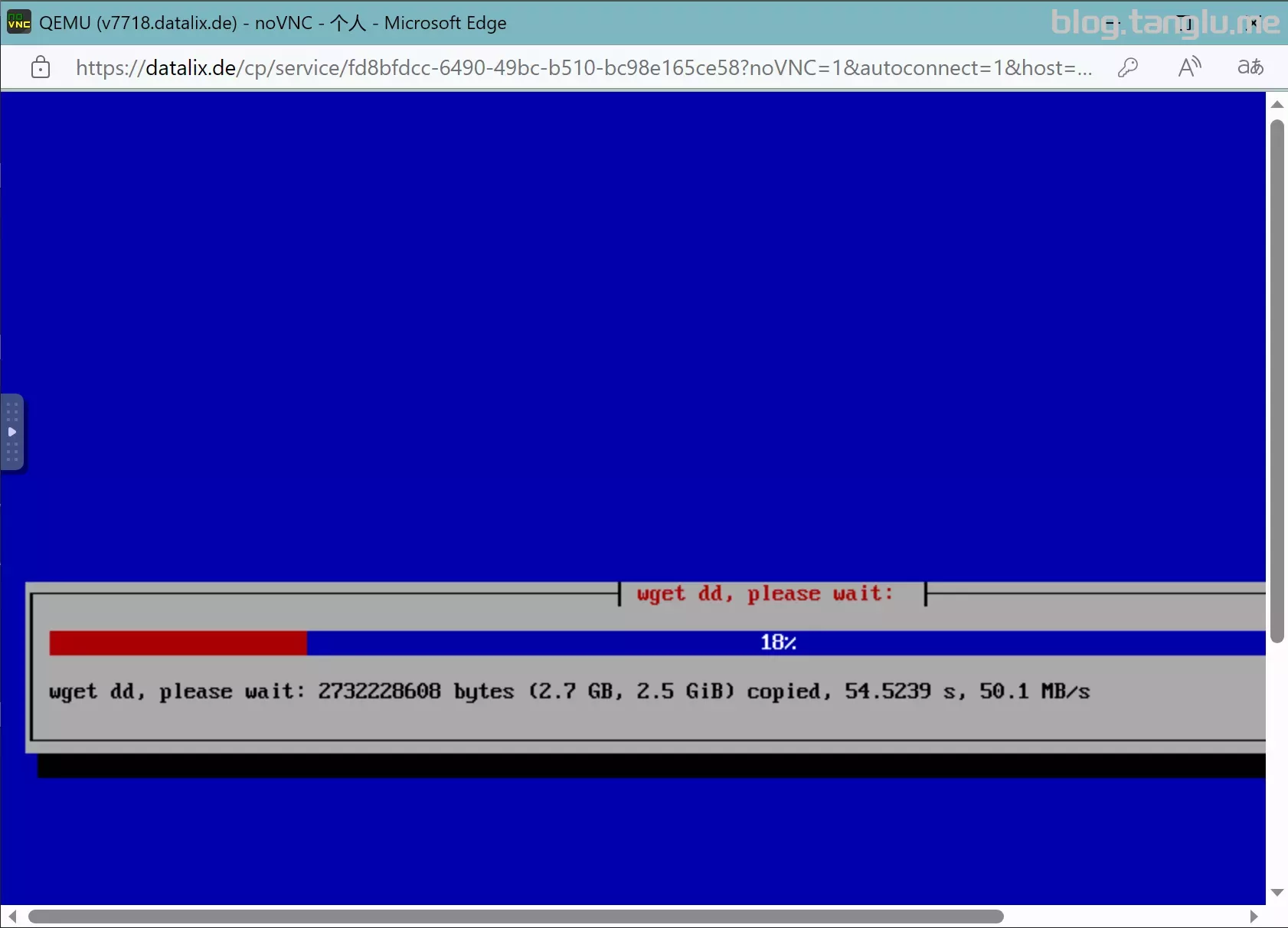
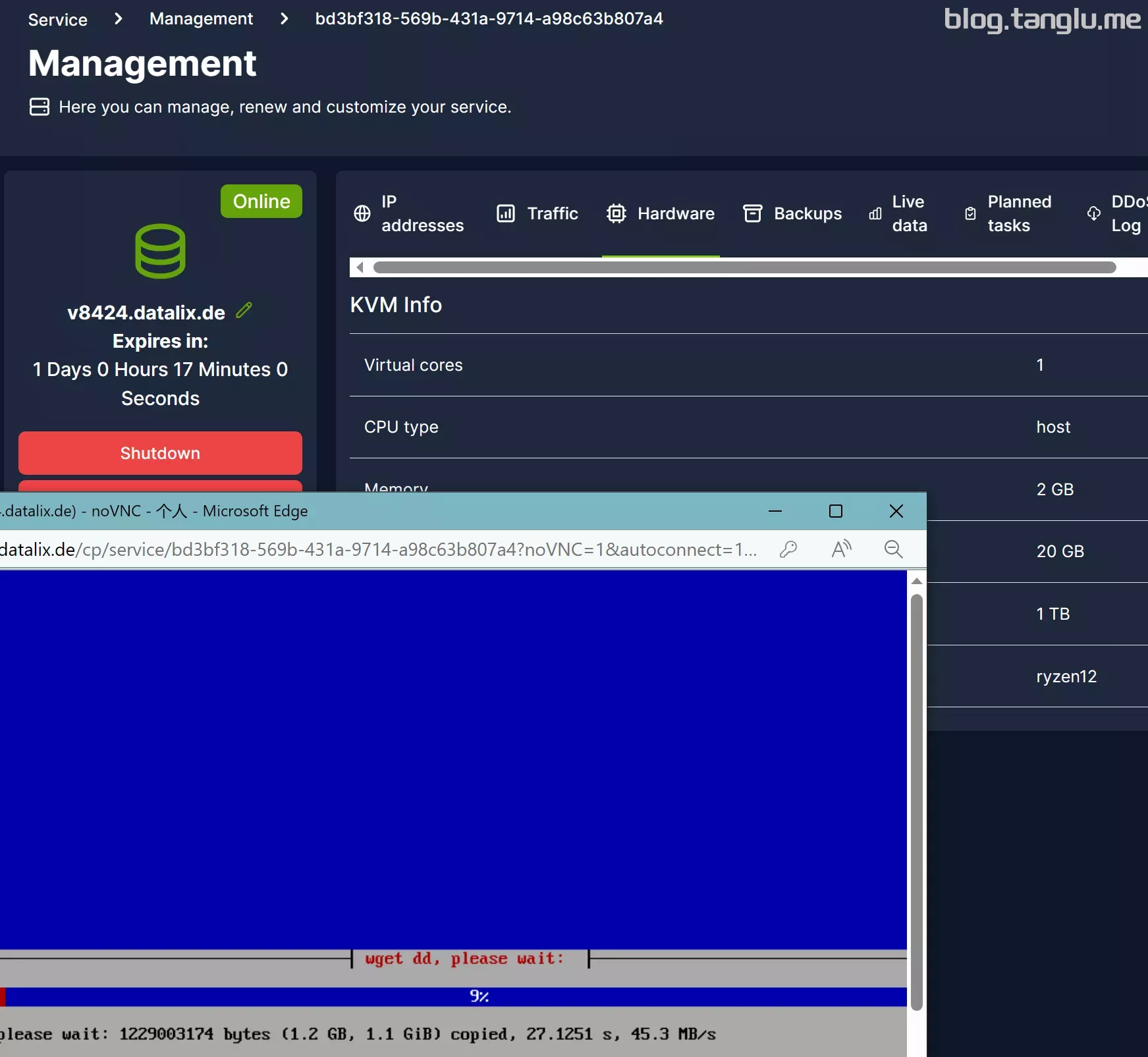
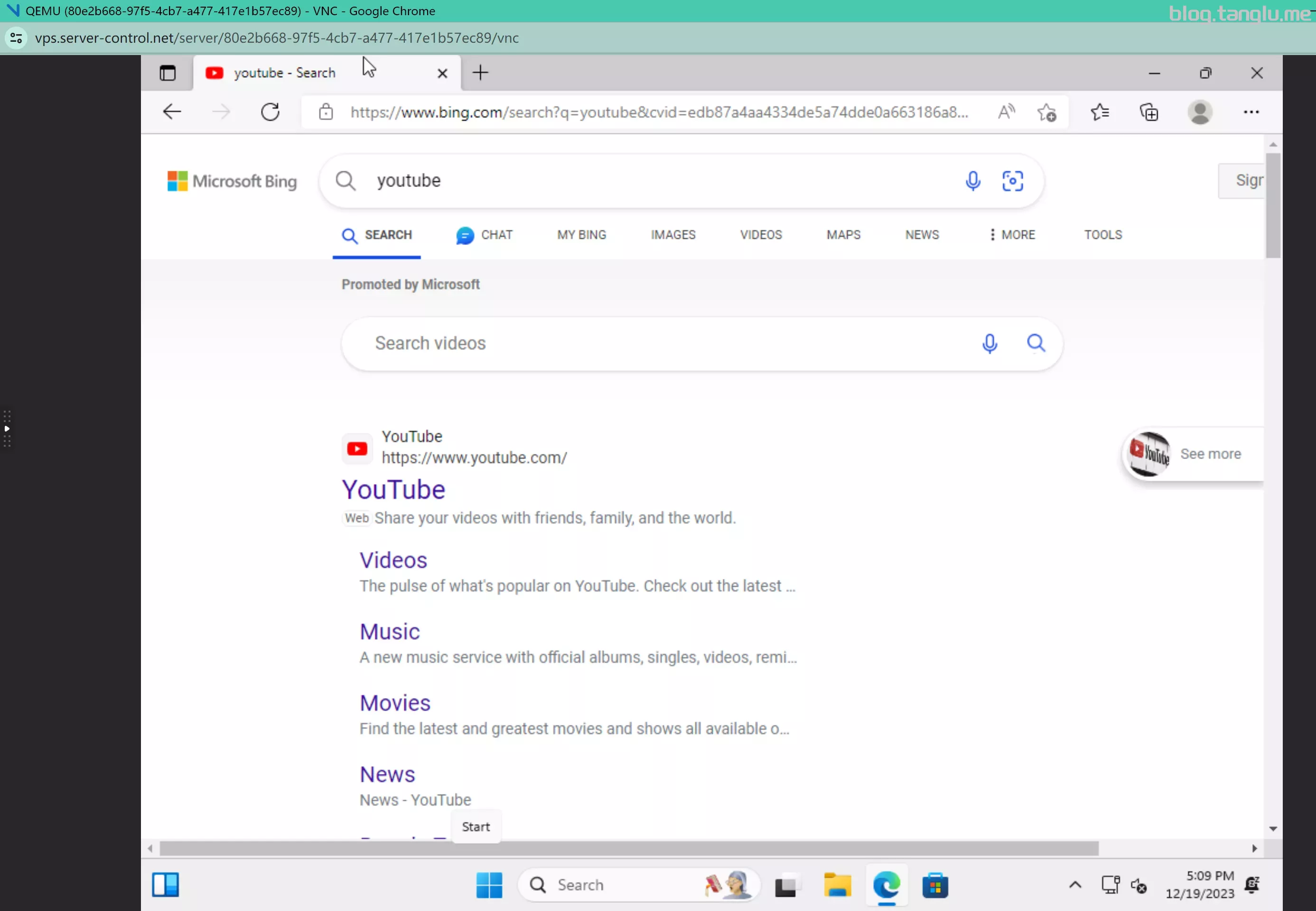
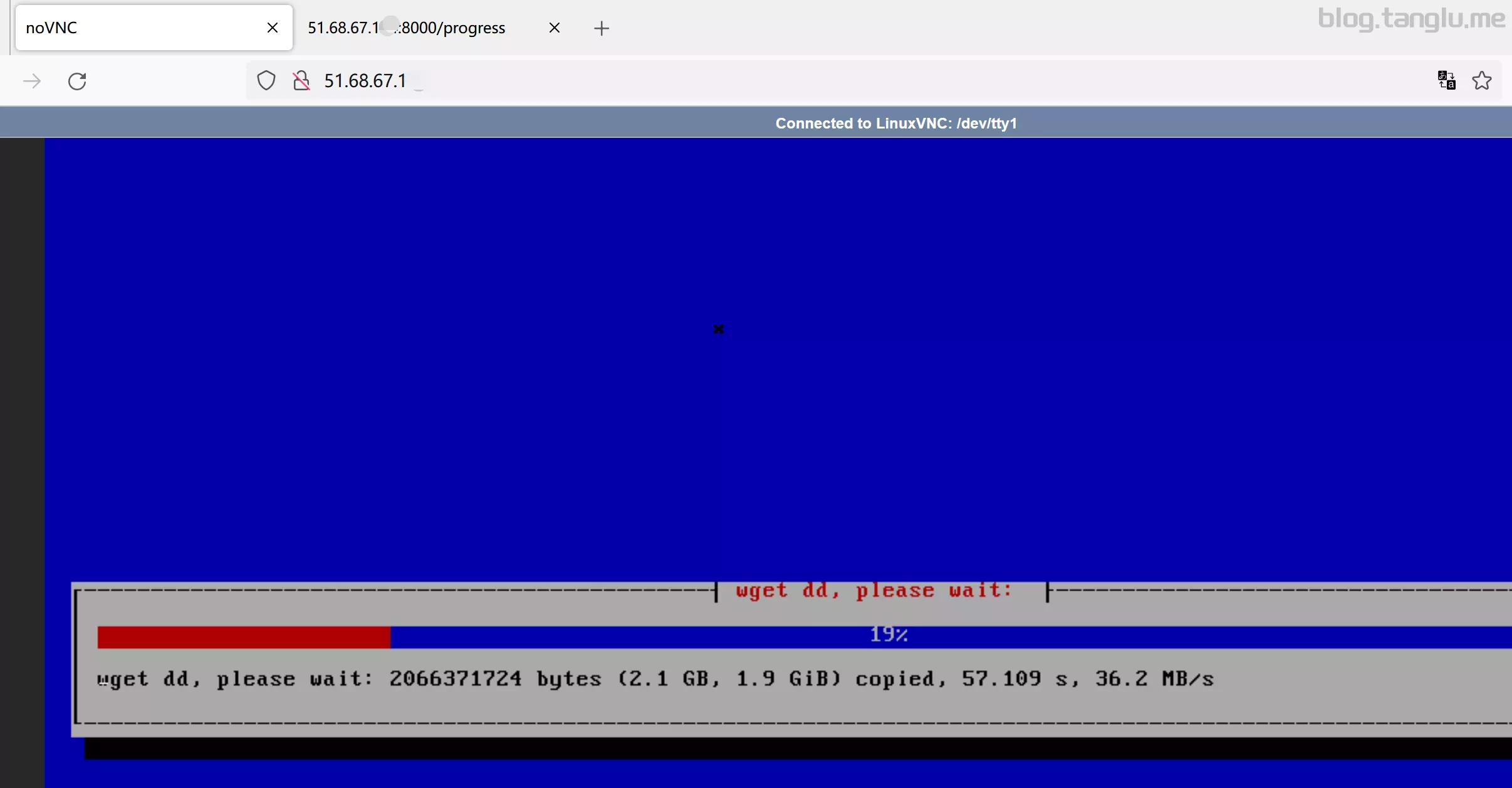
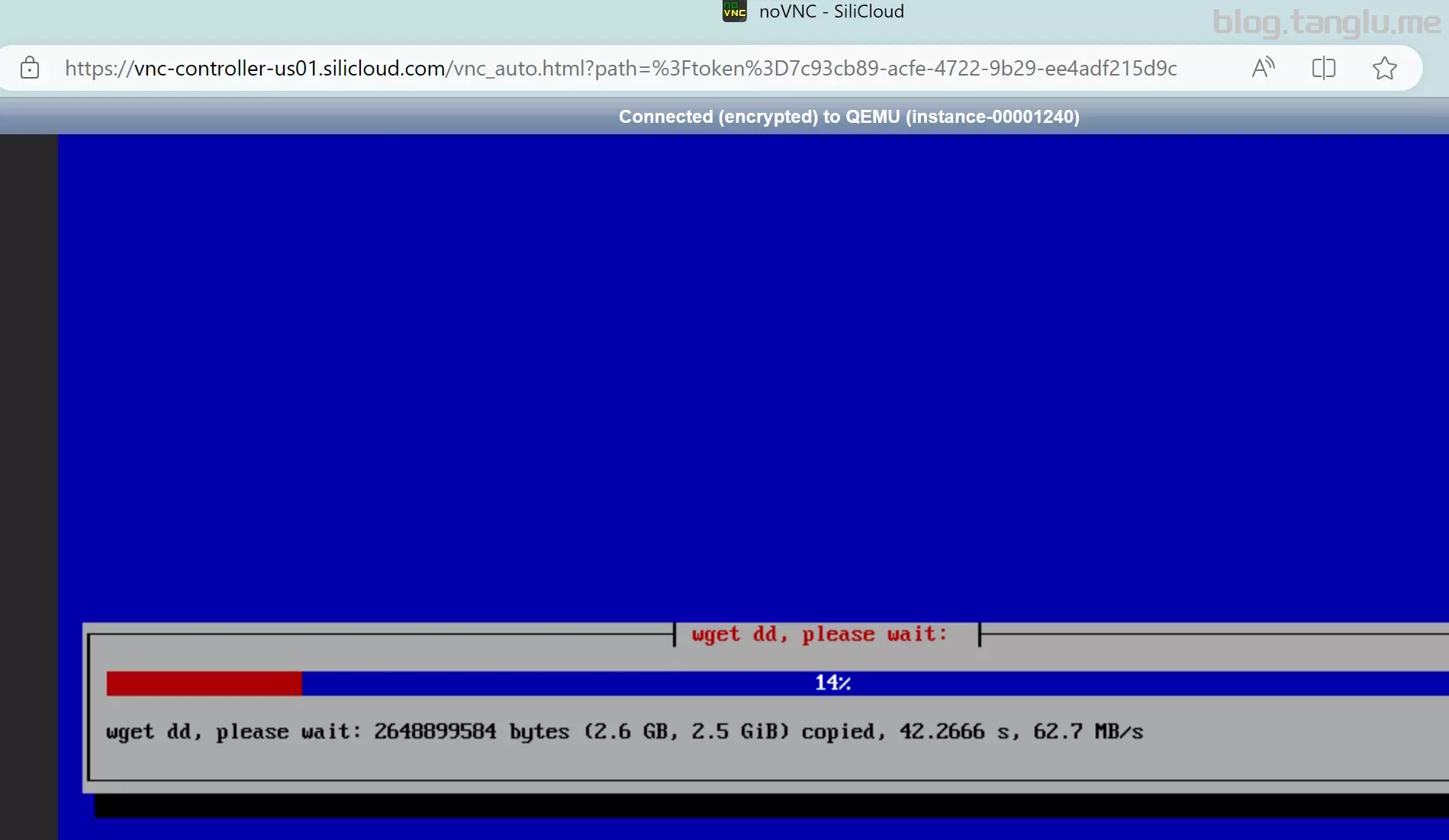
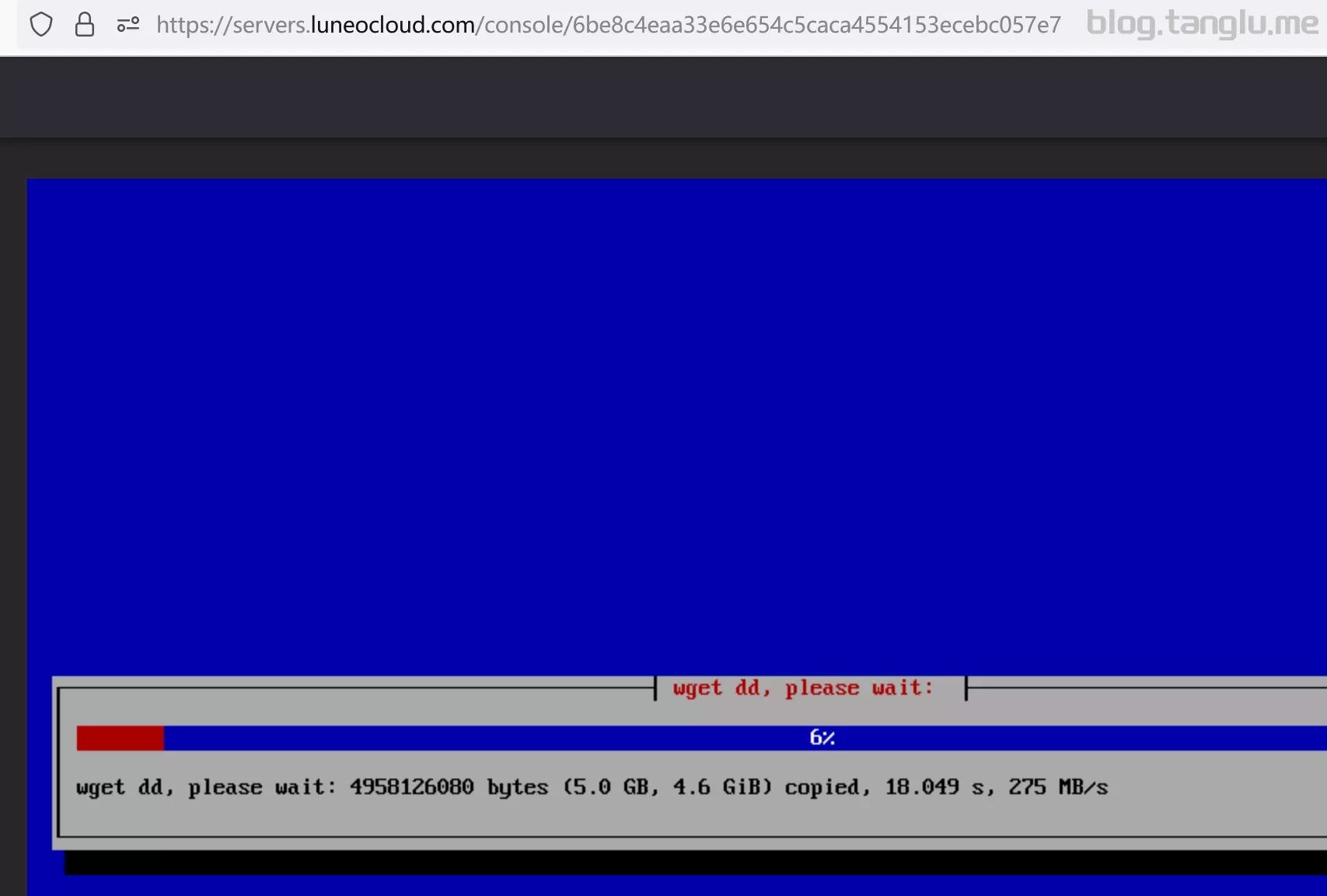
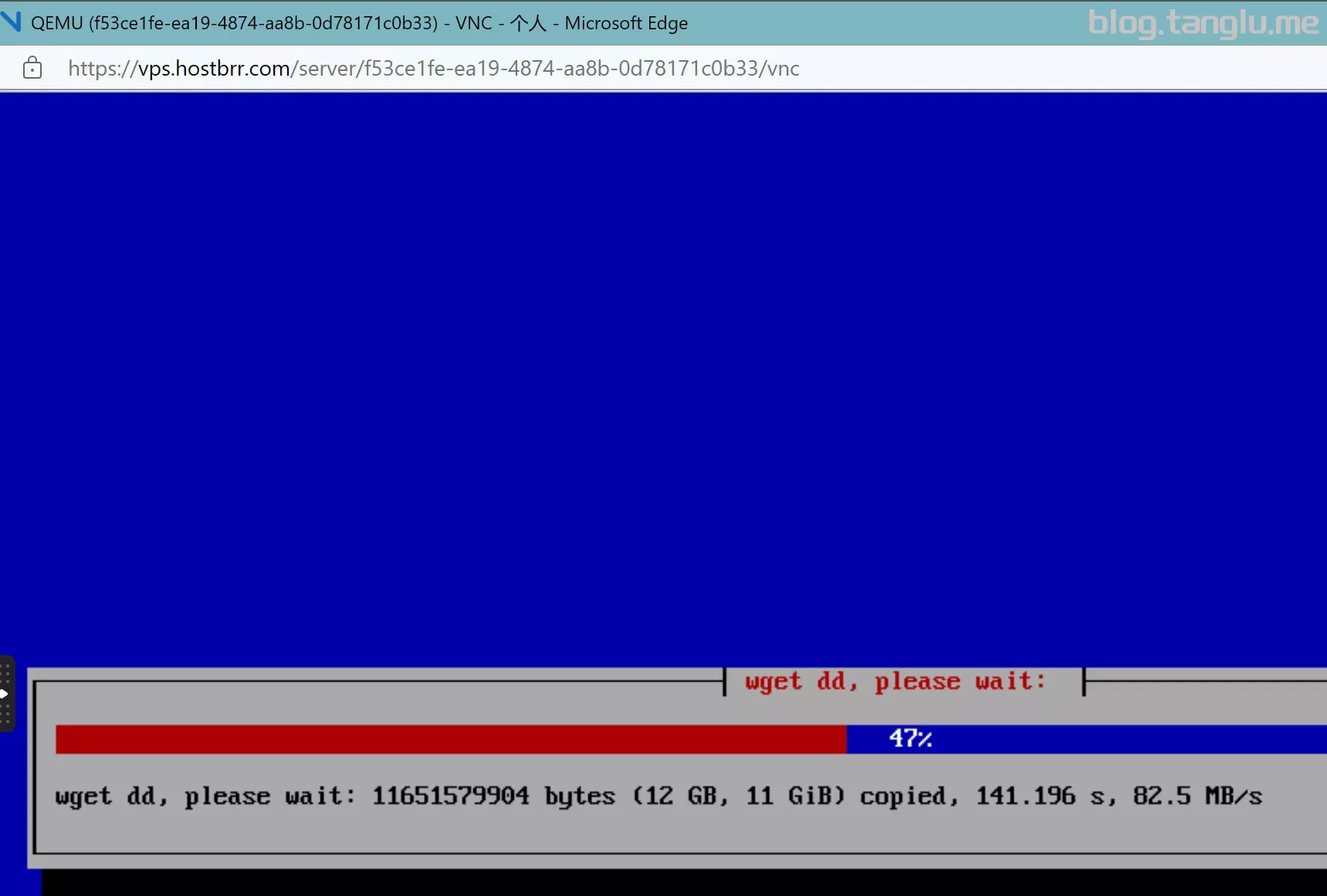
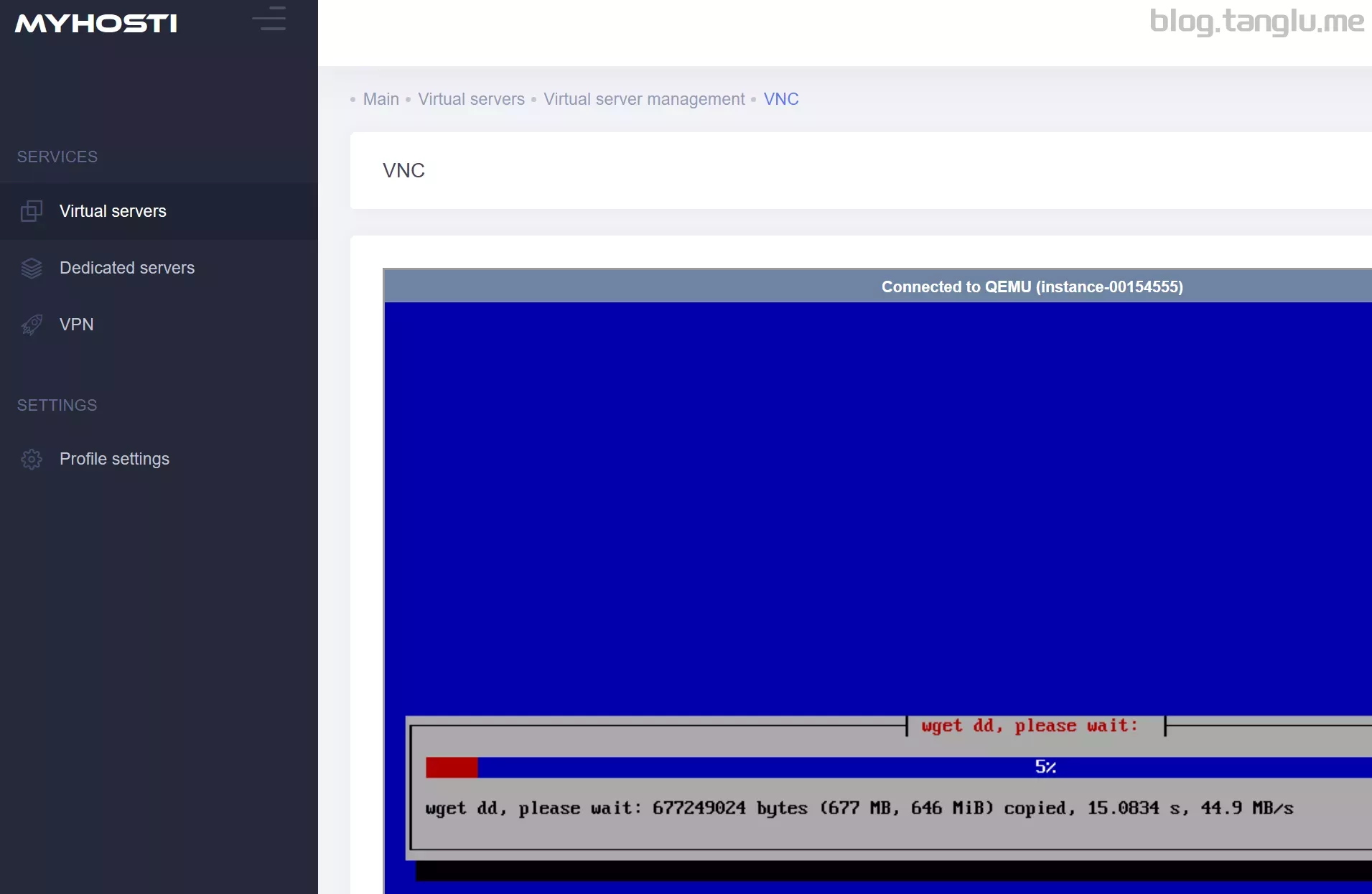
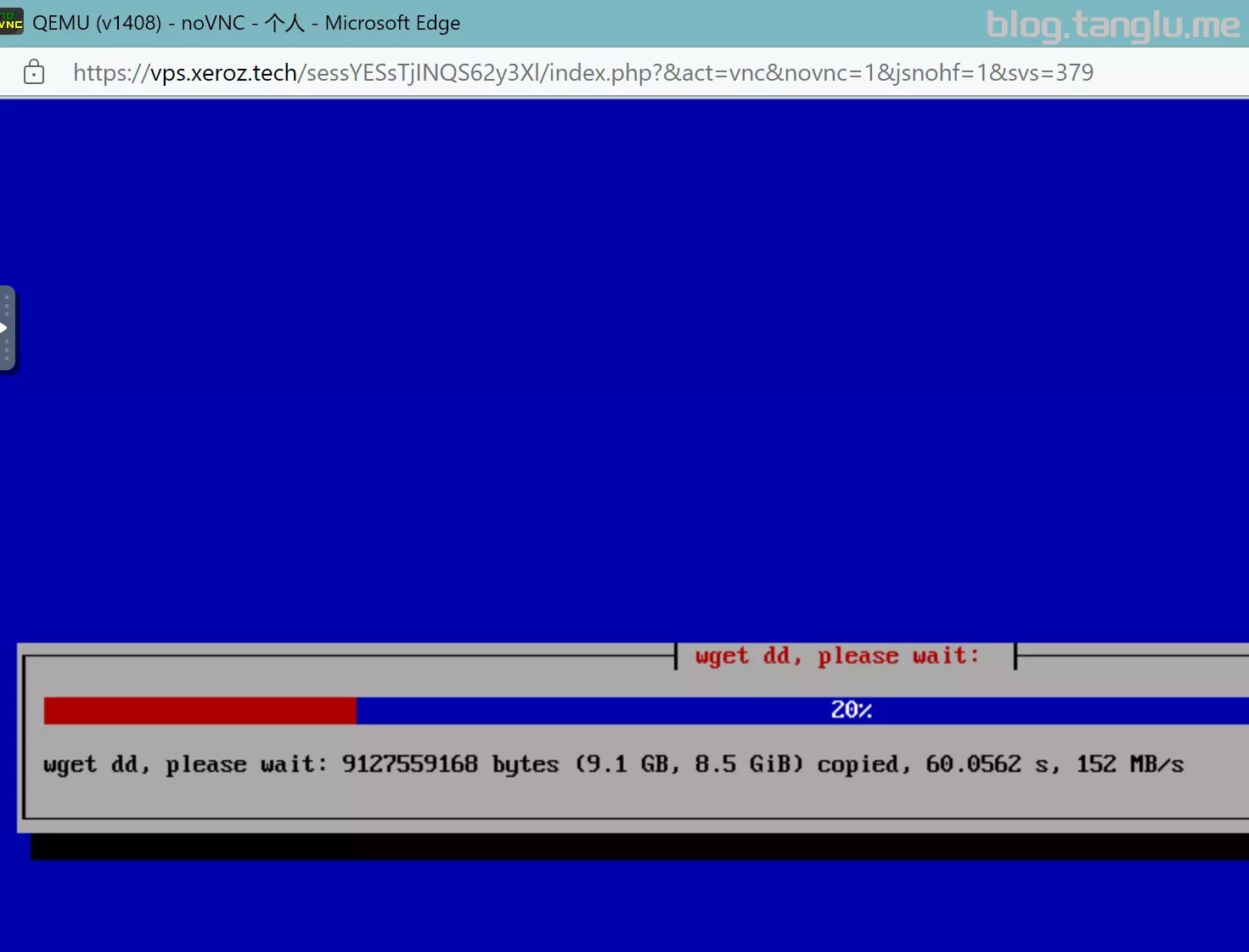
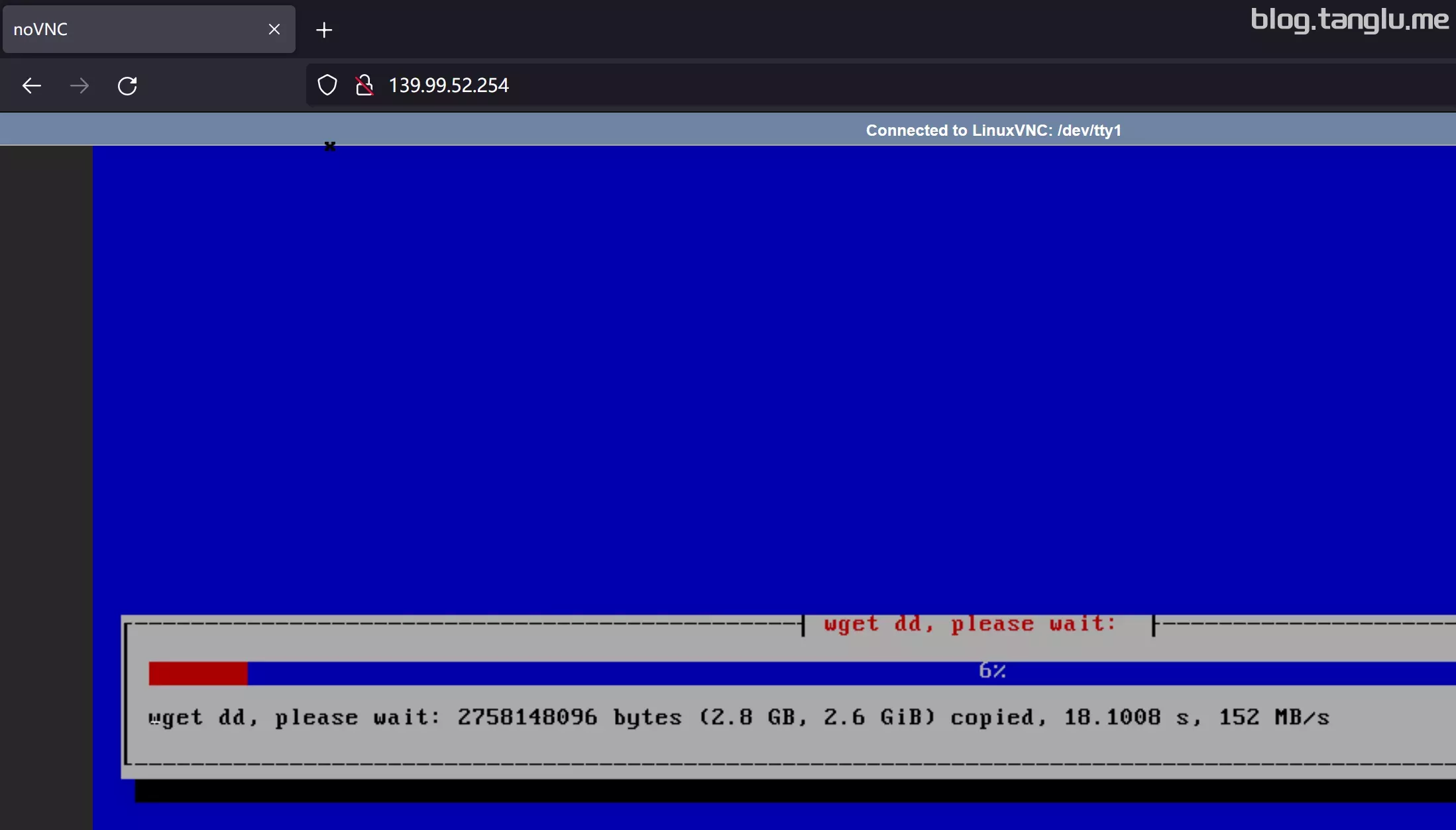
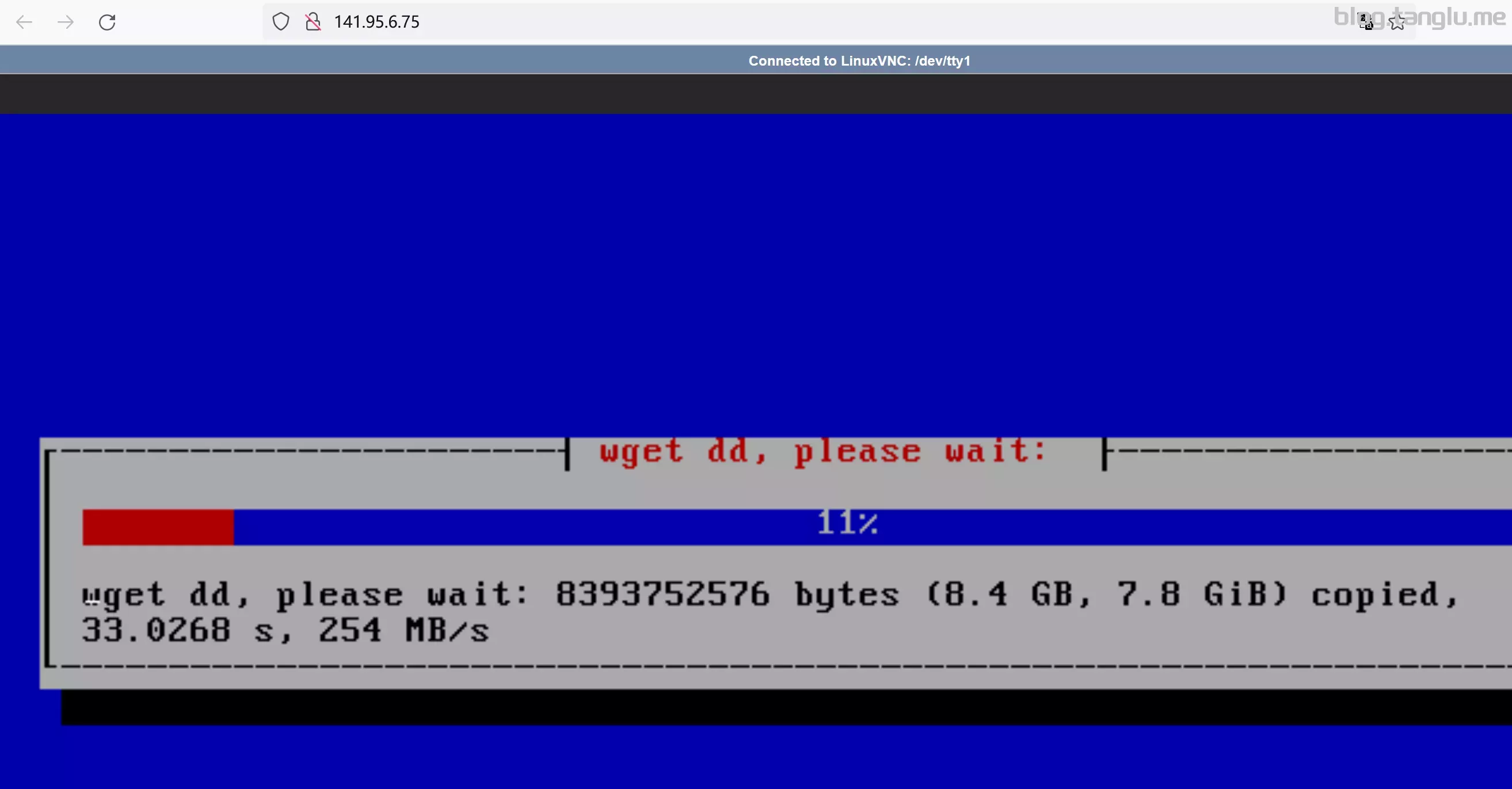
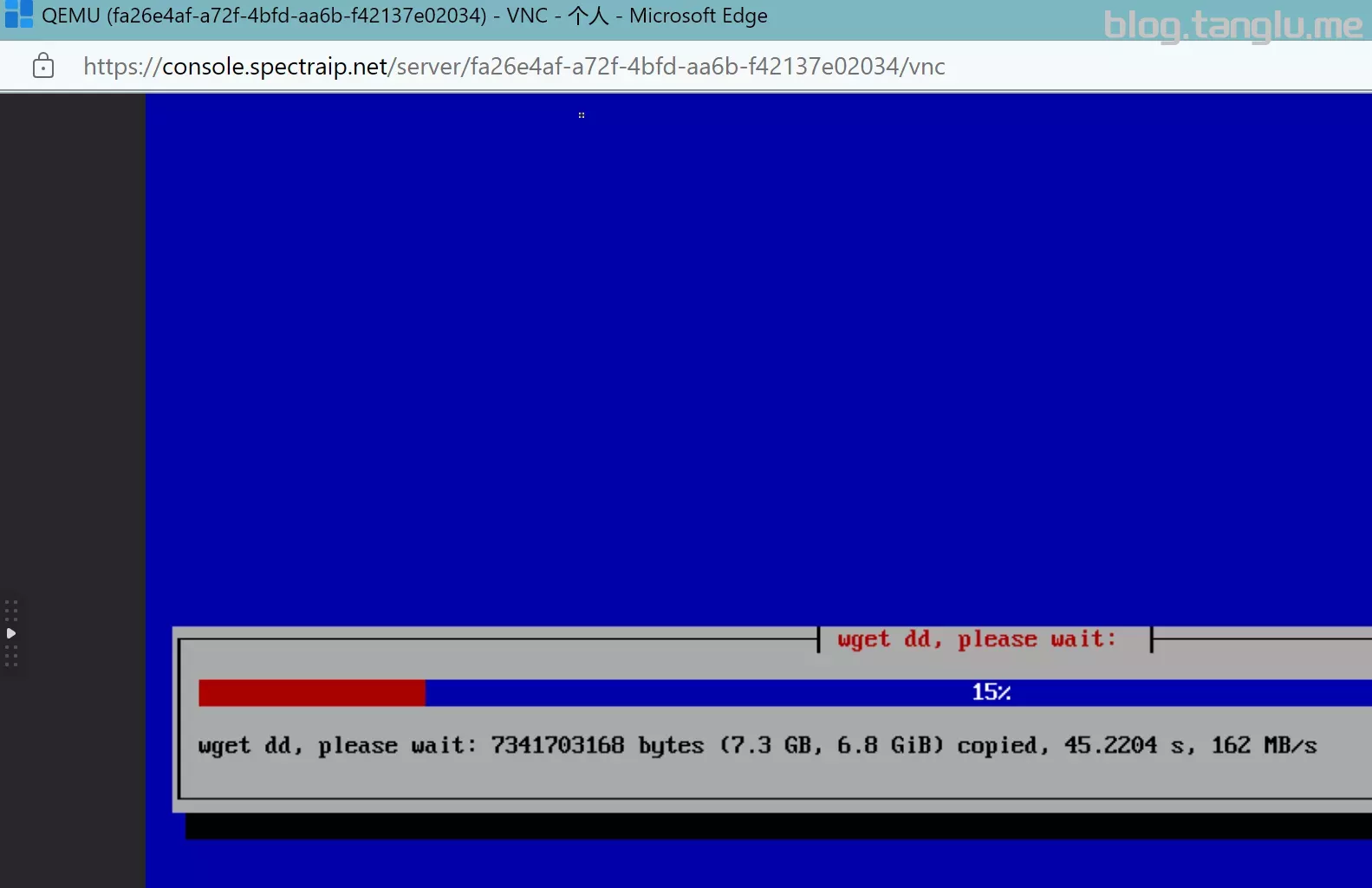
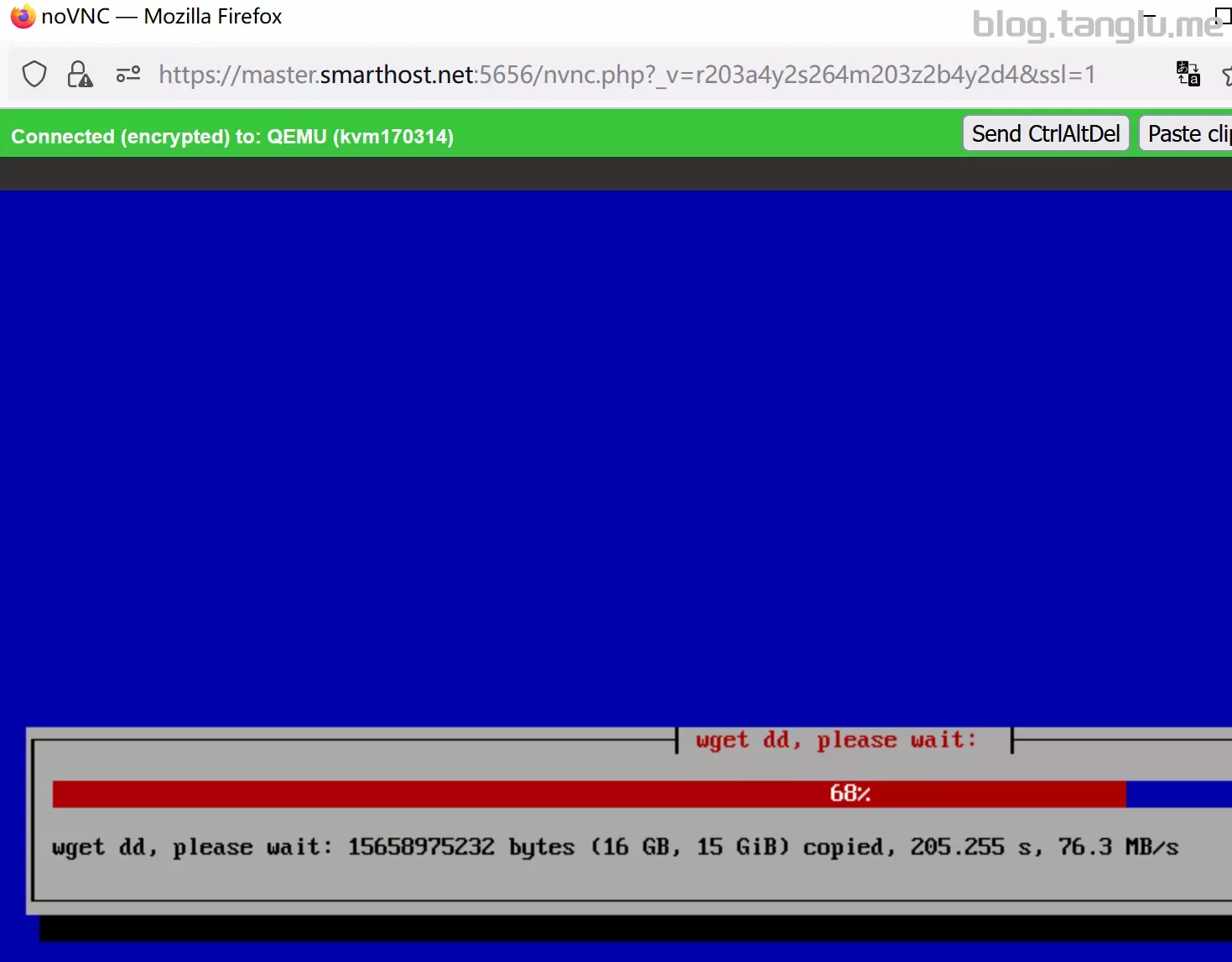
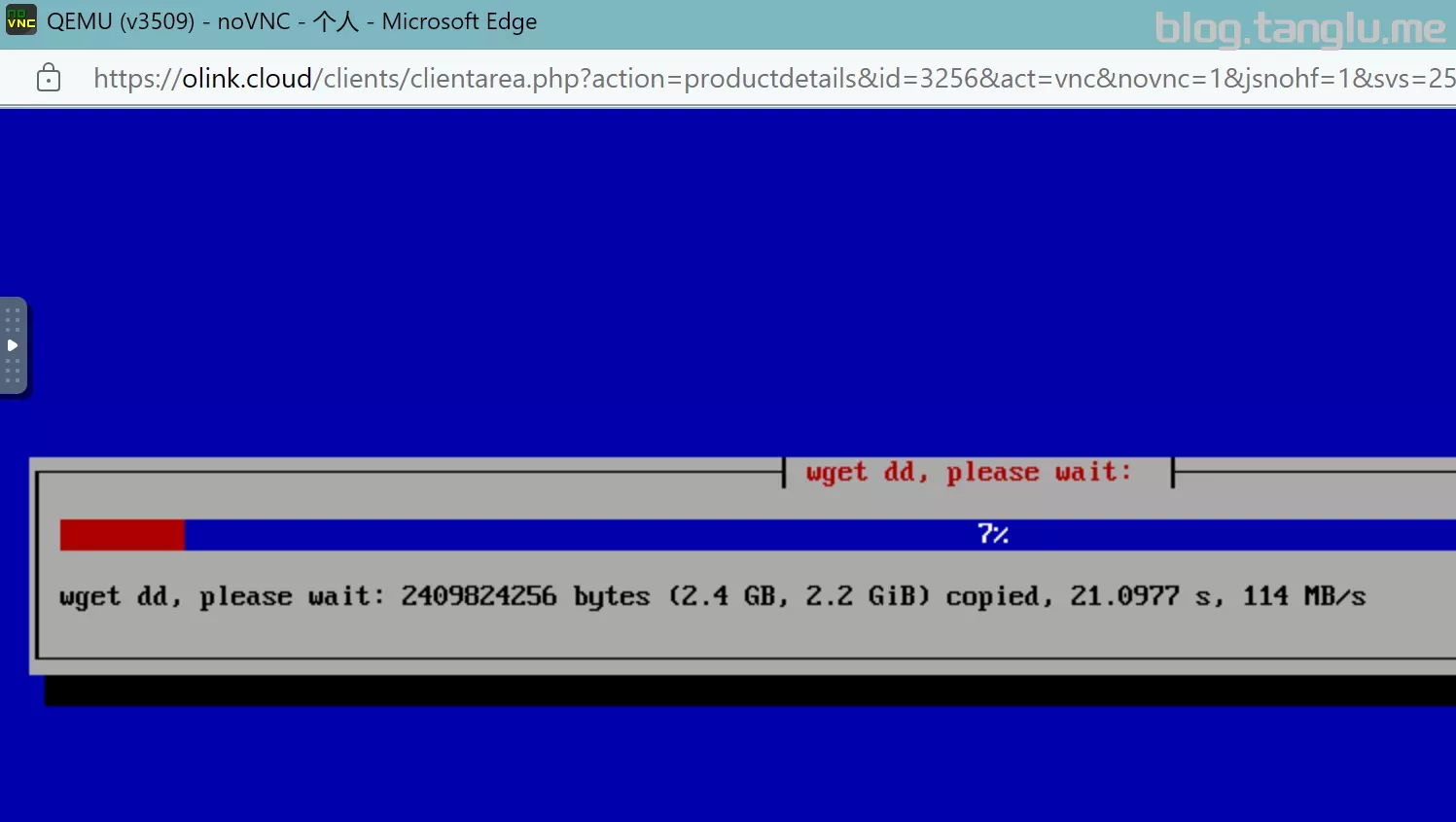
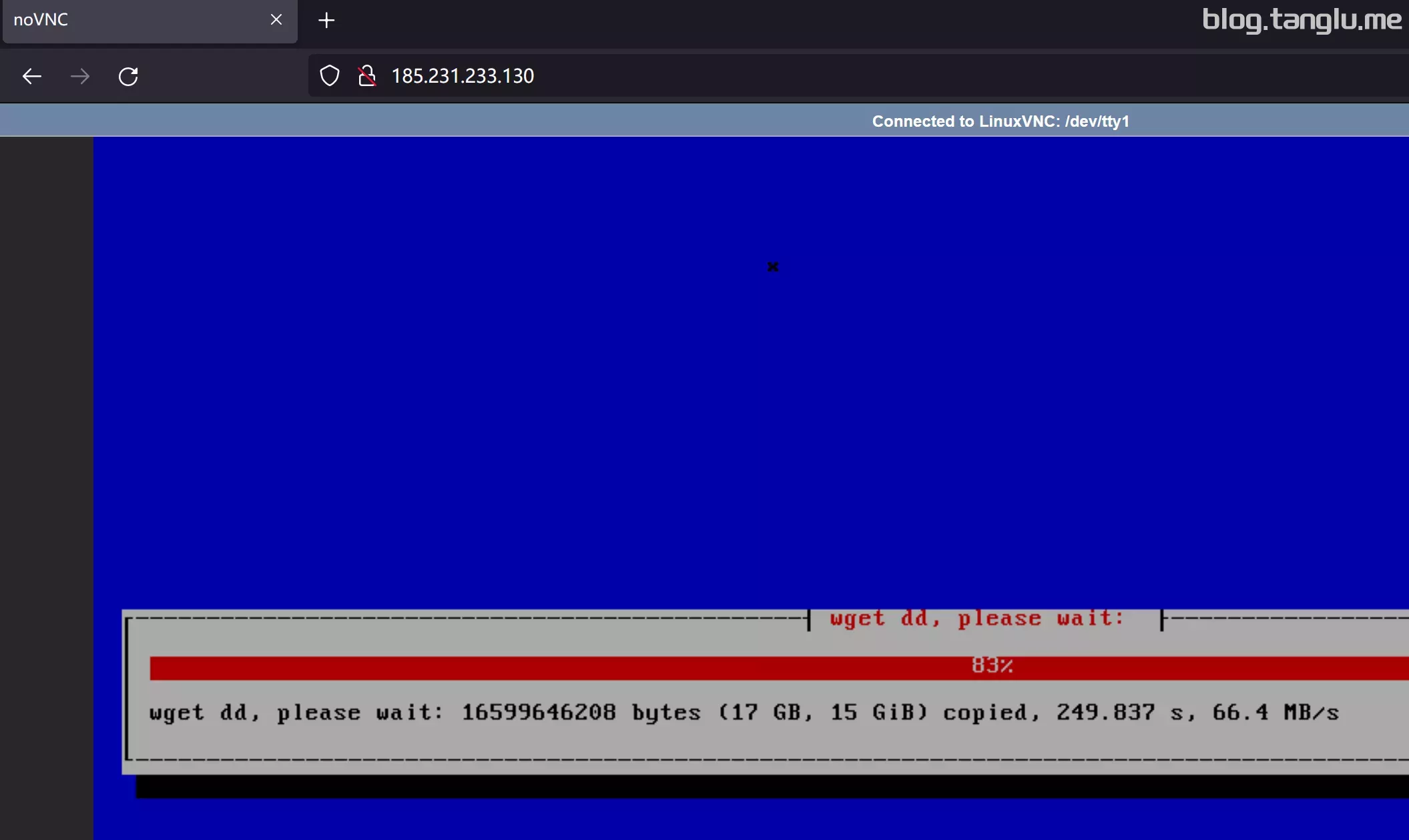
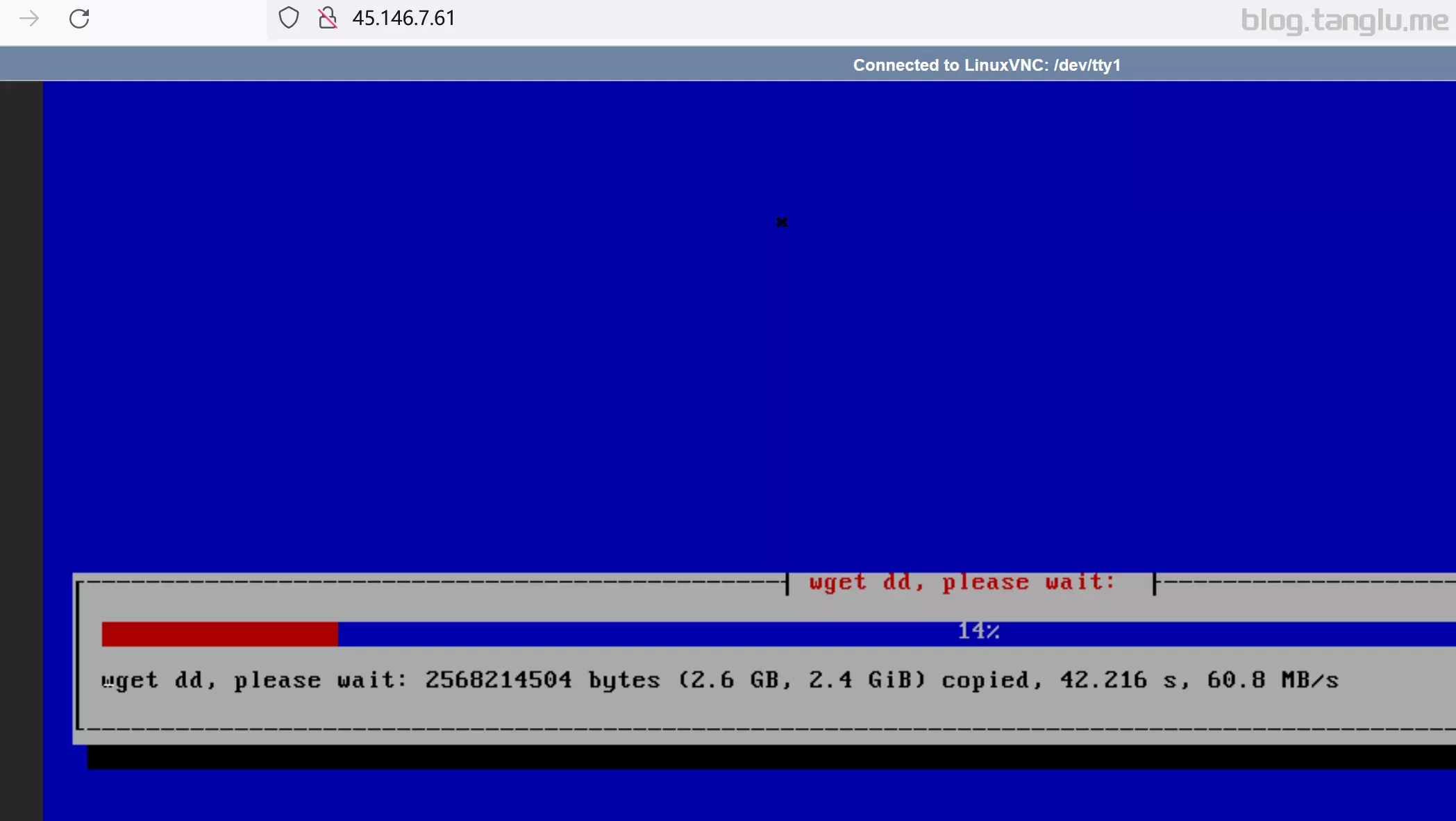
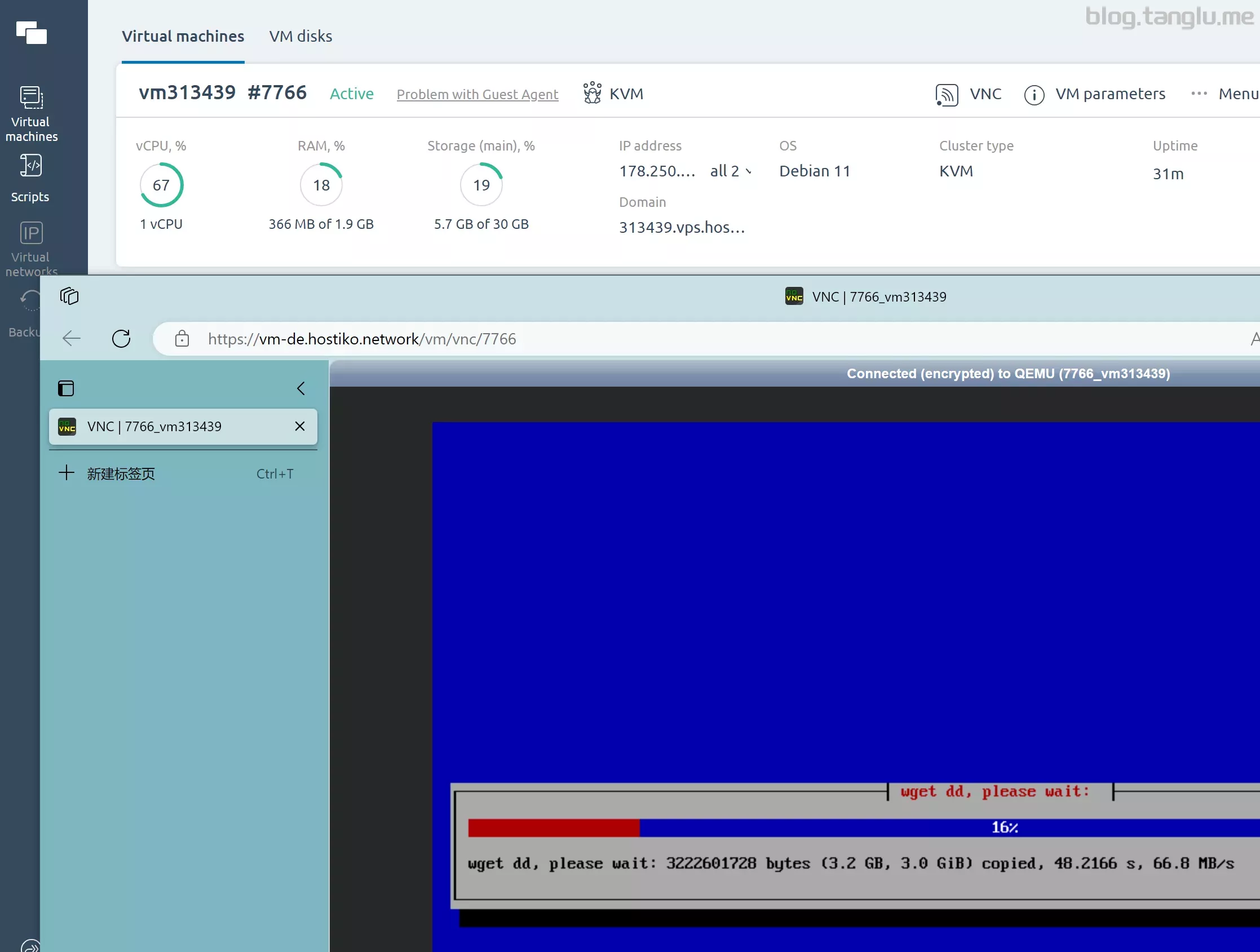
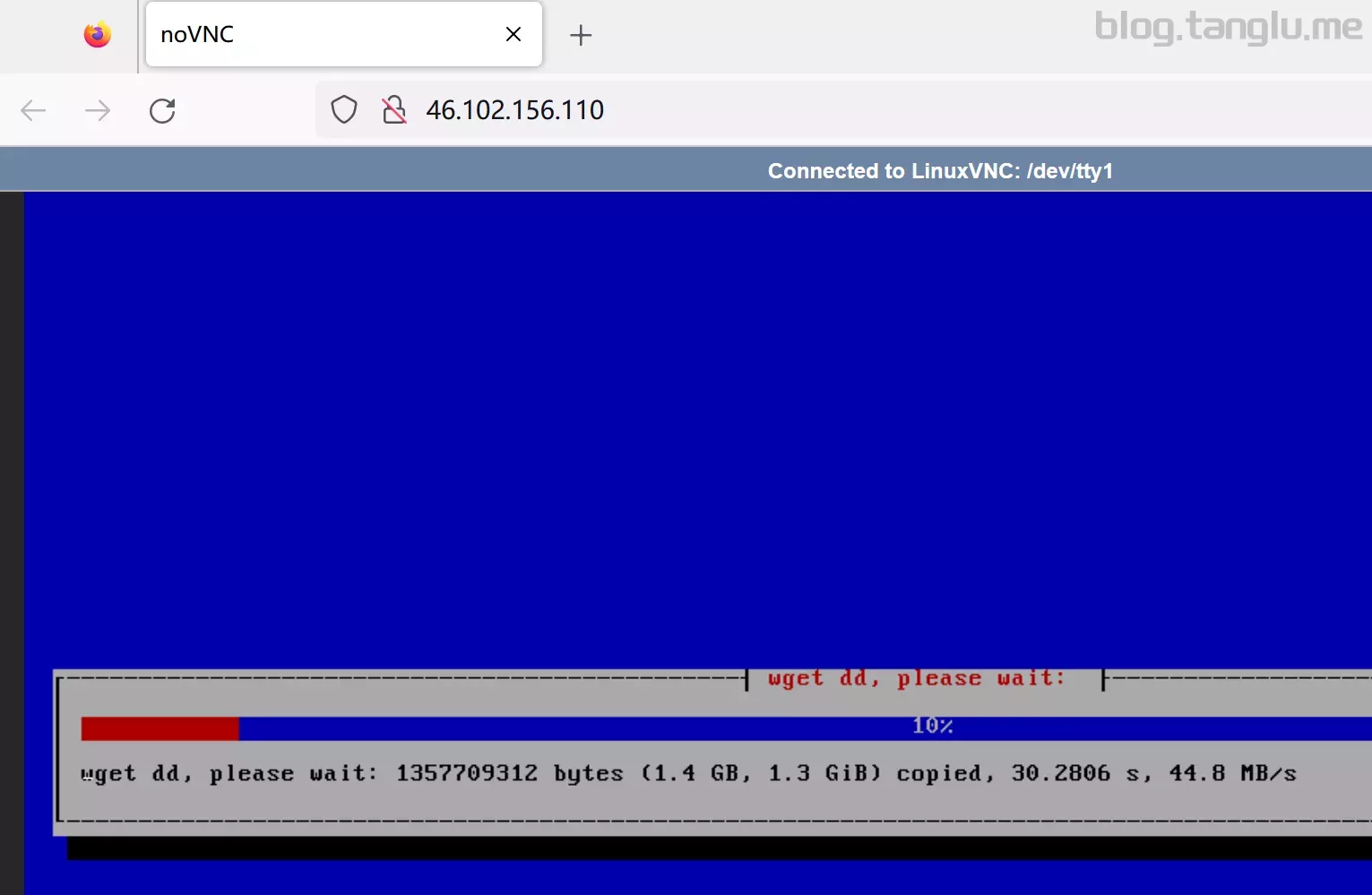
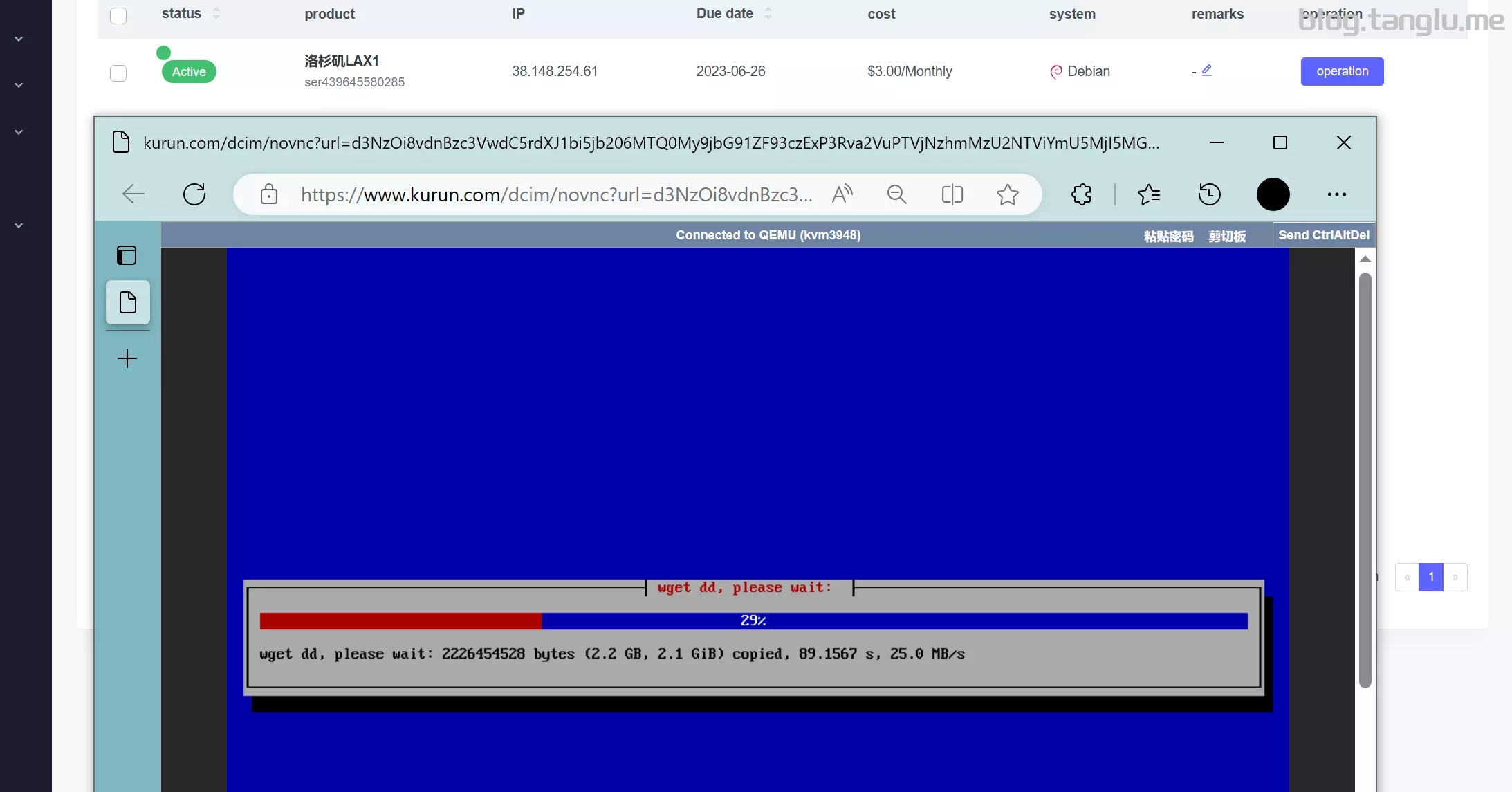
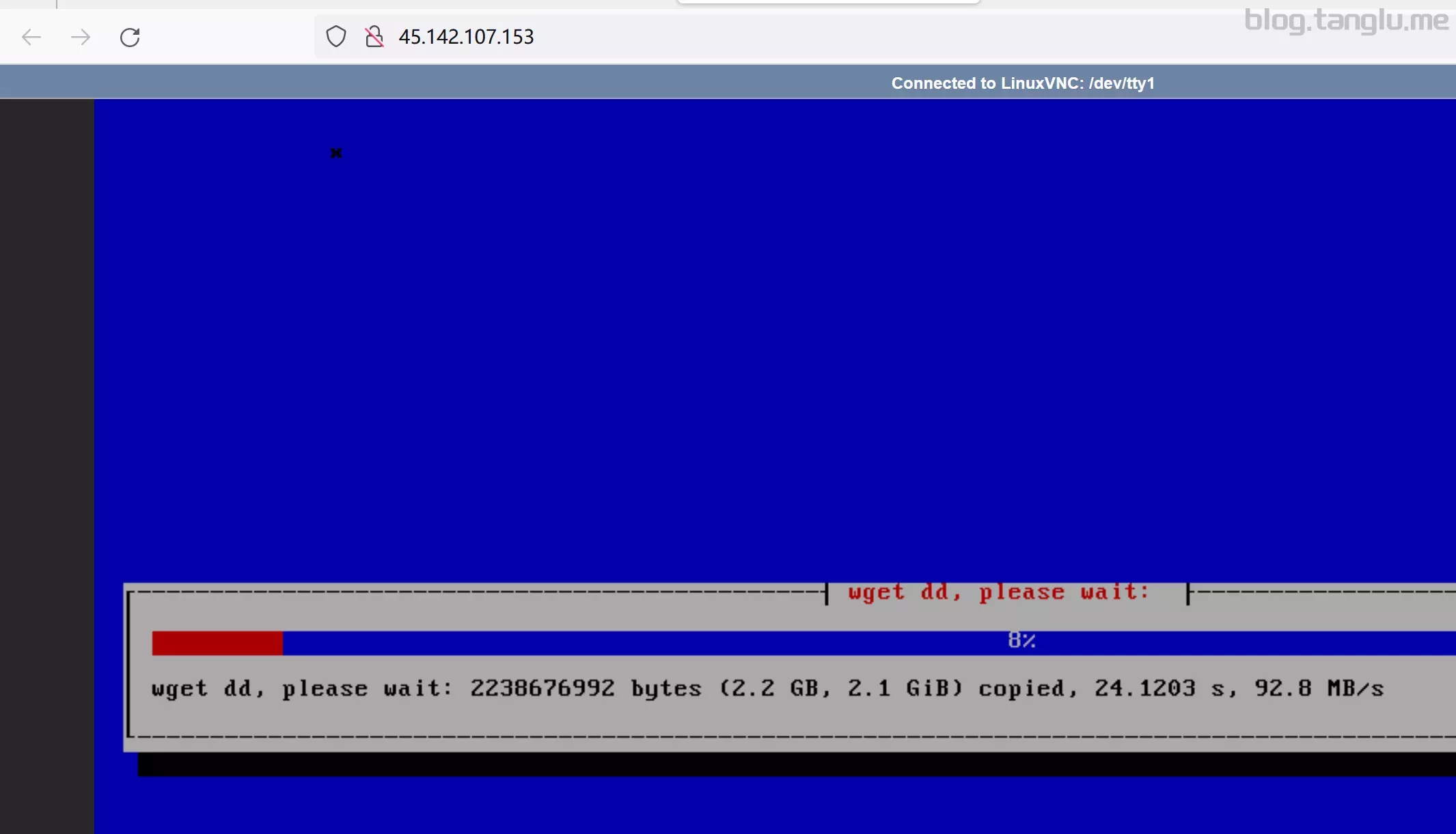
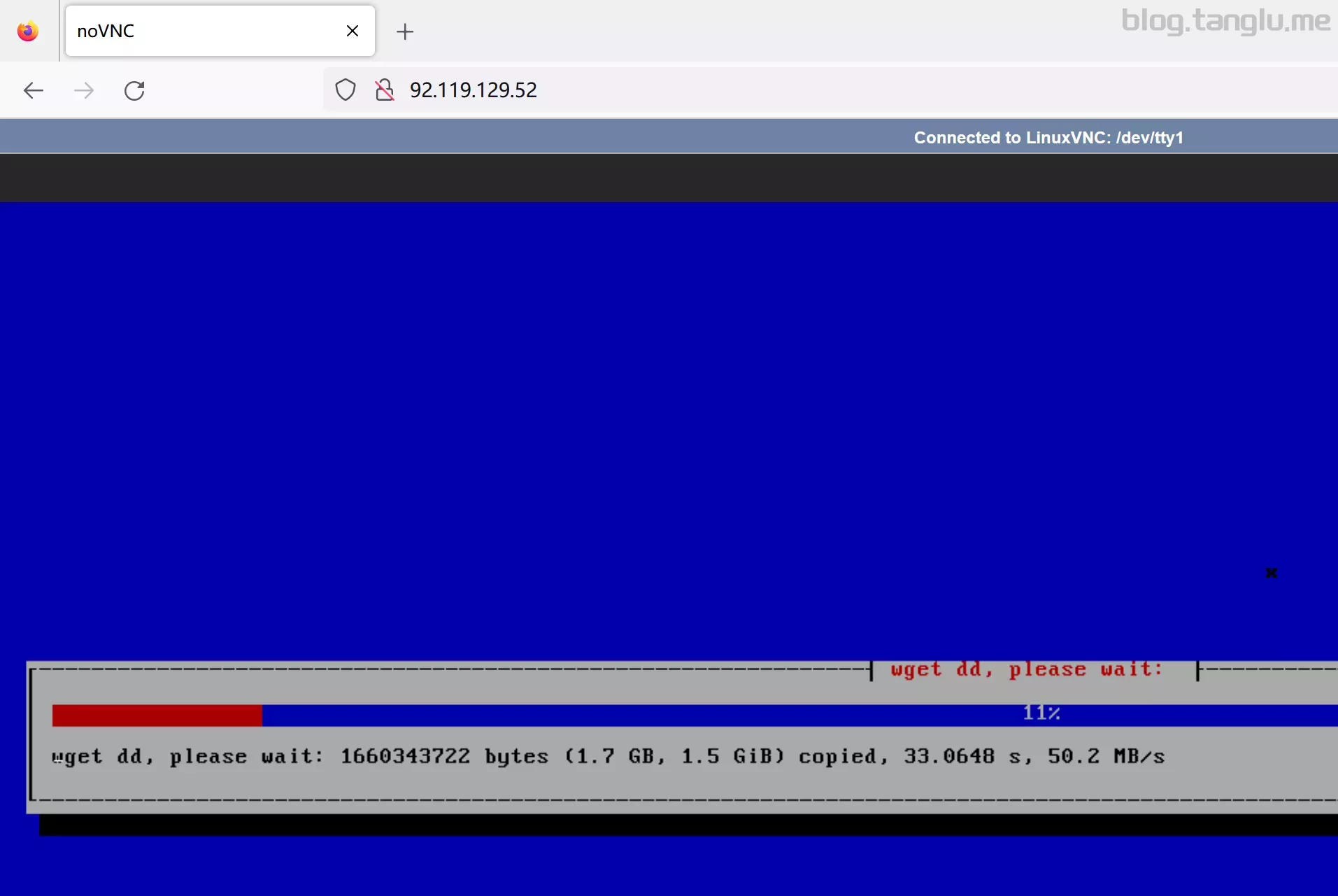
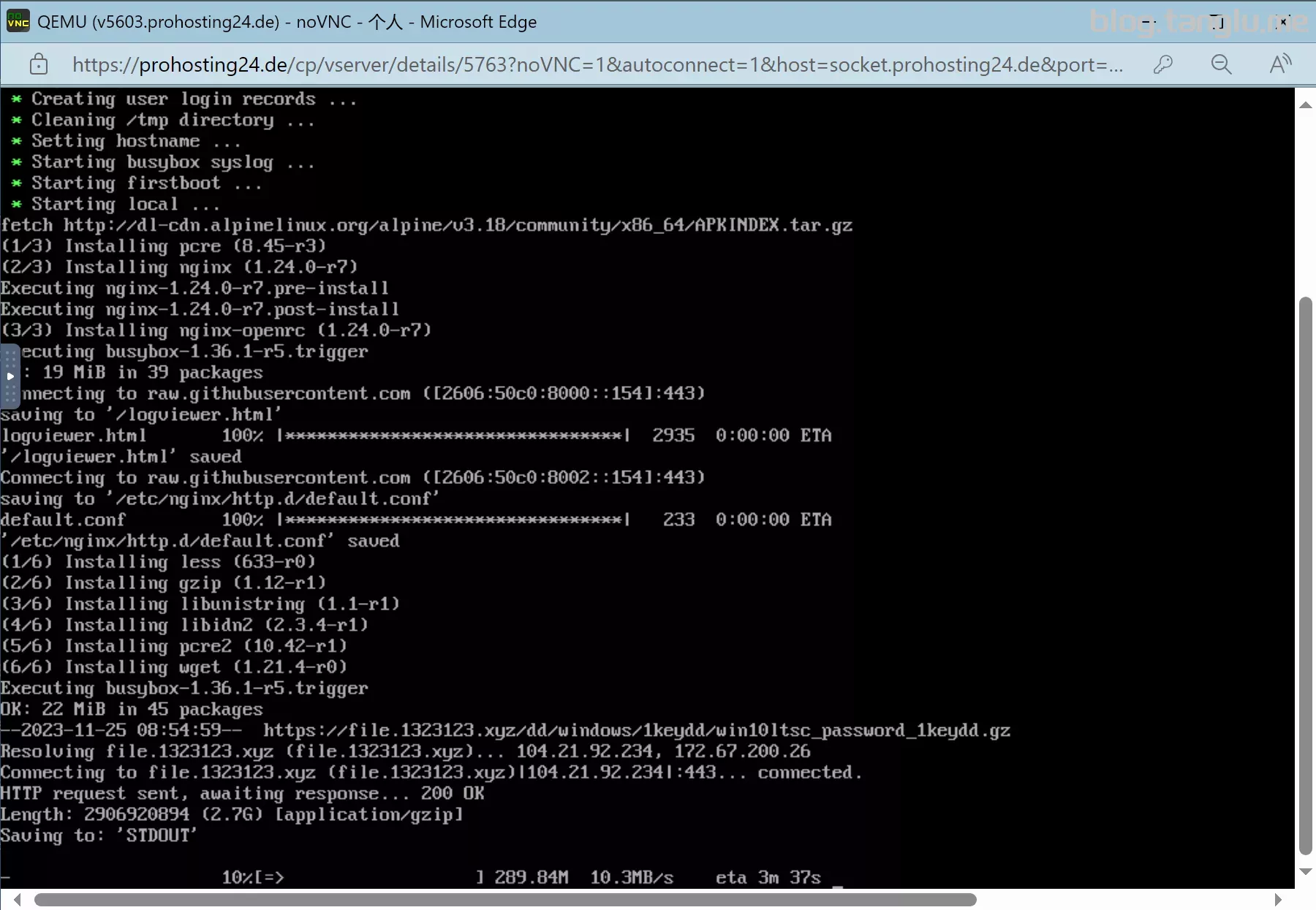
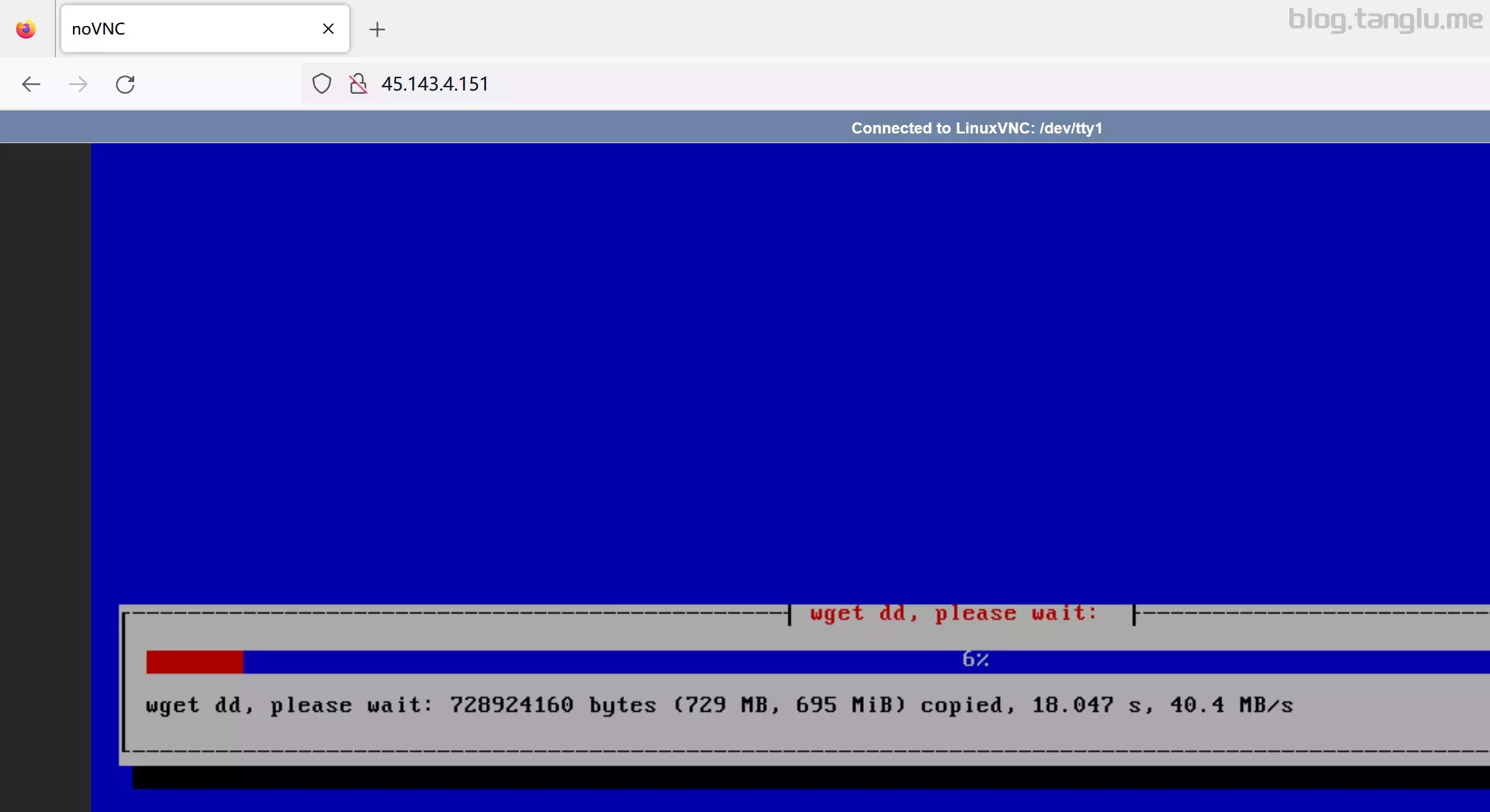
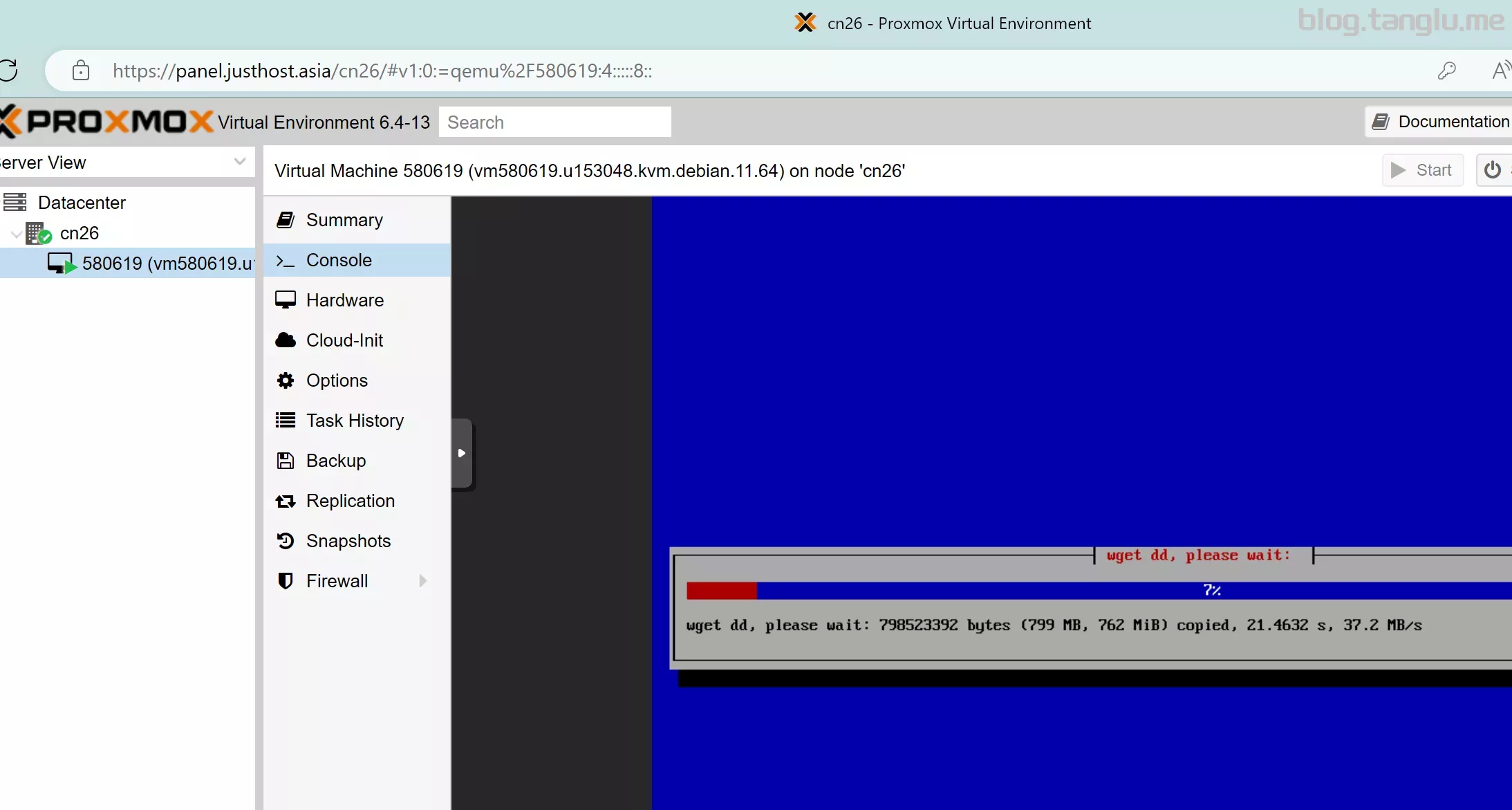
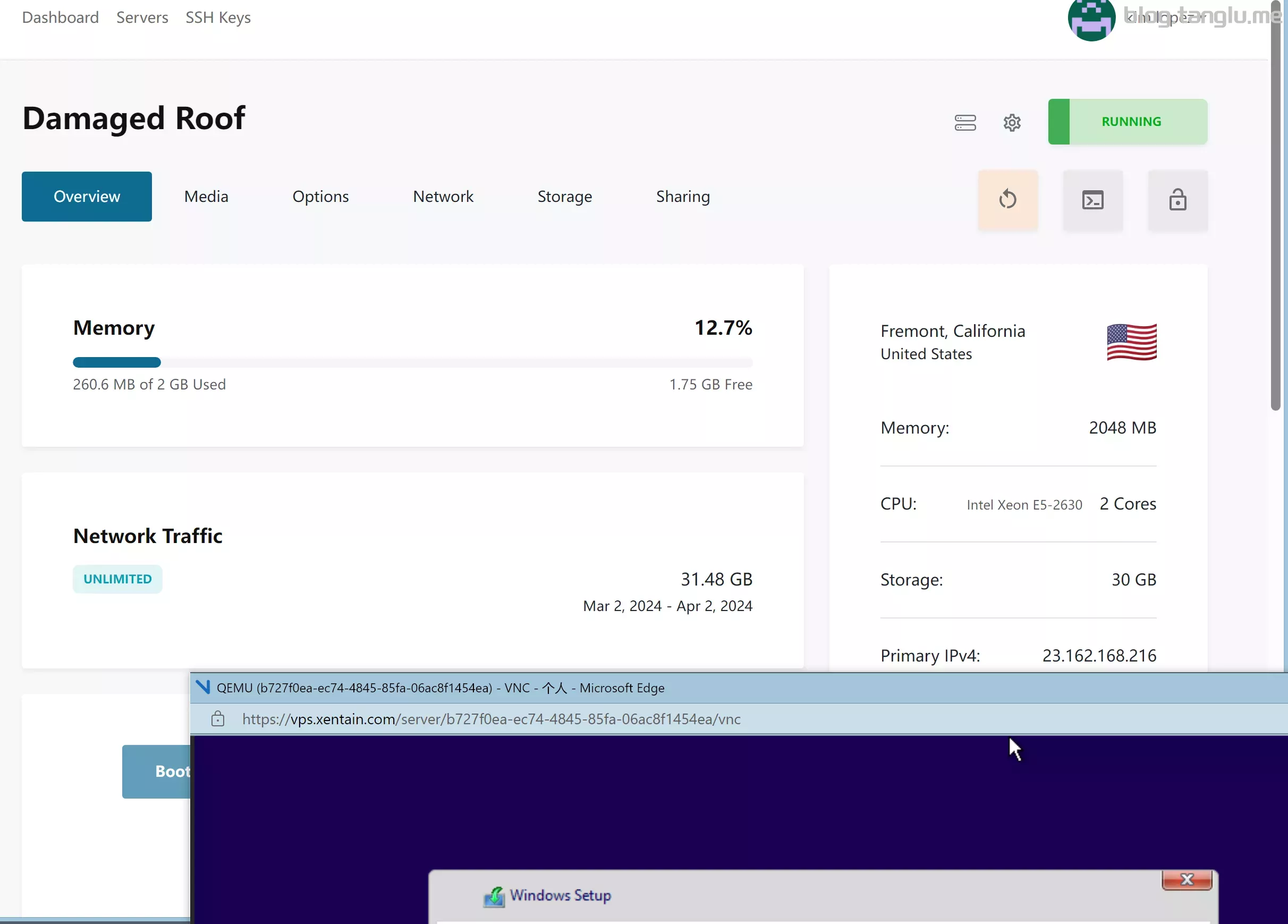
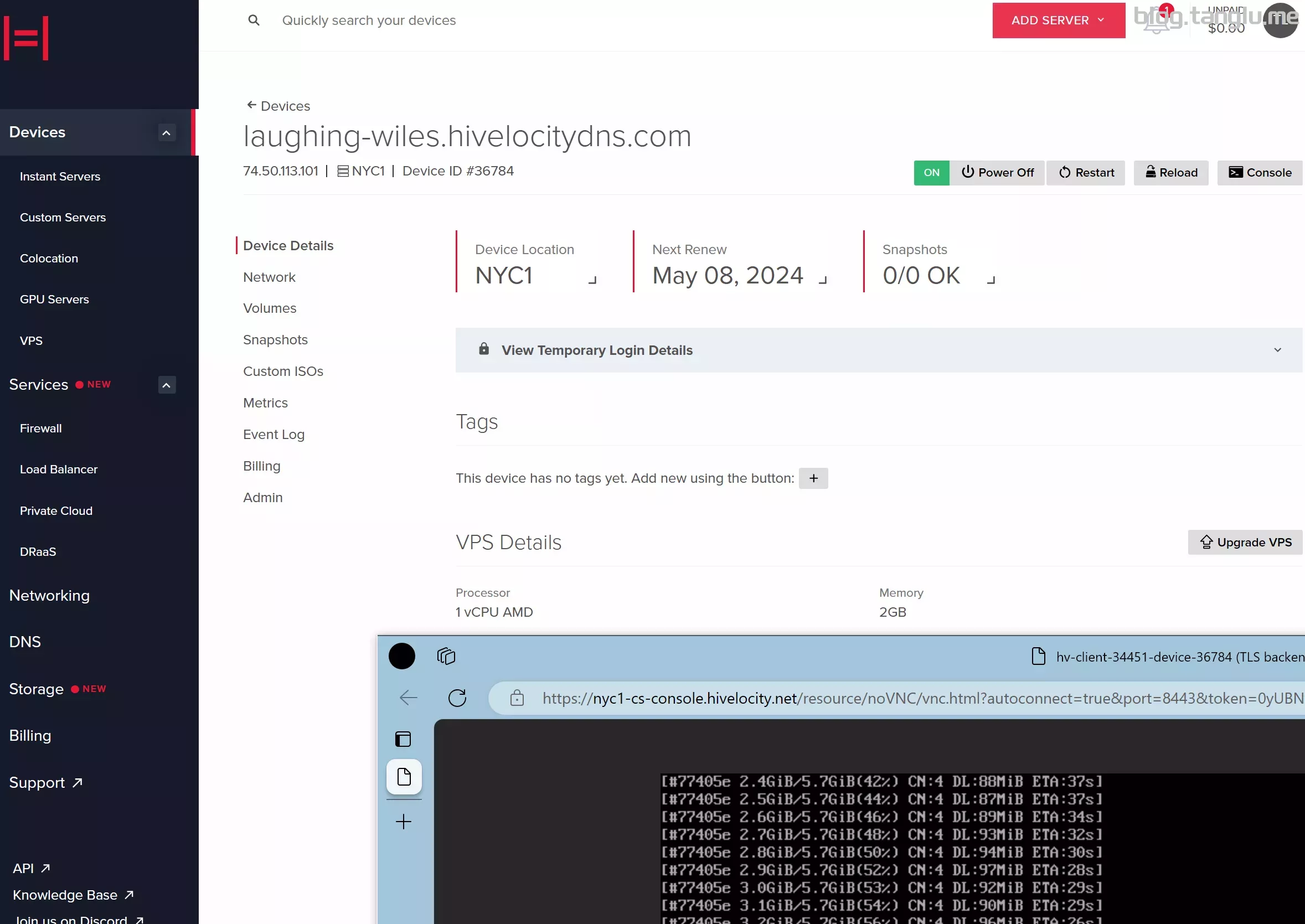
执行成功后可以通过 http://ip:80通过vnc查看dd进度,具体日志可以通过 http://ip:8000 查看
三、镜像dd包 暂时知道的dd包如下:
这里我提供一些我备份的镜像包并列出一些参数
以下备份dd包均亲测有效
注:
如果 file.1323123.xyz 速度过慢(低于15MB/s),可以尝试使用镜像站 file2.1323123.xyz
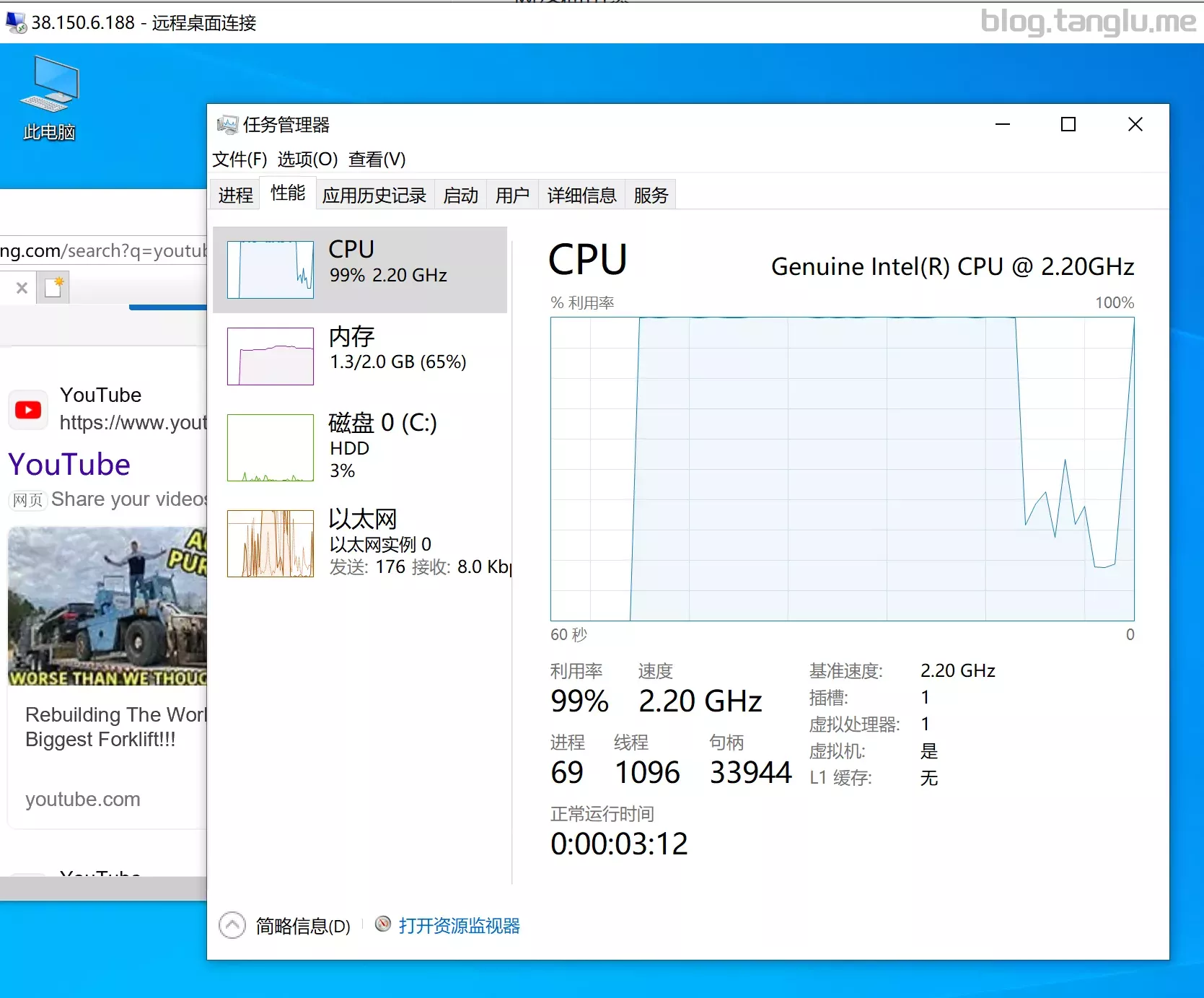
秋水大佬的该win10 ltsc镜像会出现程序 wsappx 大量占用CPU和硬盘IO的情况,原因可能是未安装微软商店,但是实测部分机器 安装微软商店 后没有效果(有些机器也有效果) 暂不推荐使用
部分包不支持dd过程中注入静态网卡,无VNC的机器请选择支持脚本注入网卡的dd包
网卡规则的机器想dd为linux建议首选leitbogioro大佬的脚本,从源安装linux
PS:欢迎推荐其他镜像
四、常见问题 windows账号都是 Administrator ,密码是 1keydd 或者 cxthhhhh.com nat.ee Teddysun.com ,1keydd脚本会将dd包的密码自动更改为 1keydd ,bin456789的不会修改dd包原本密码
可以参考pve那节:安装PVE并创建linux windows mac记录 | tanglu’s blog
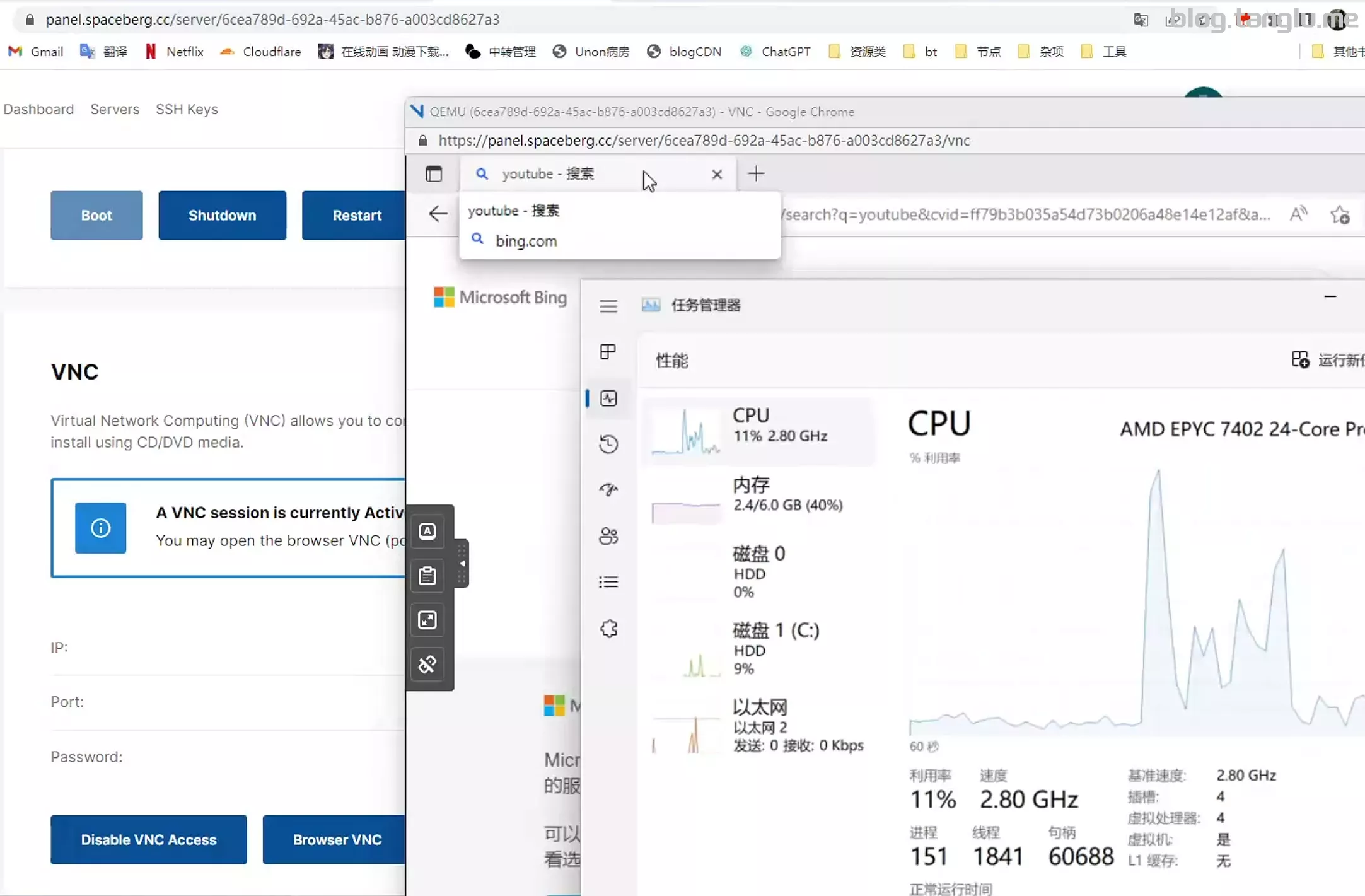
vnc 5900端口未放行
我也遇到过,可能是浏览器插件,后来我下载了个火狐浏览器没有任何插件就行了
需要你自己扩容,windows扩容是在磁盘管理中 比较简单
linux扩容就有些复杂,有些是LVM格式 有些是其他格式,LVM格式扩容可以参考 这里
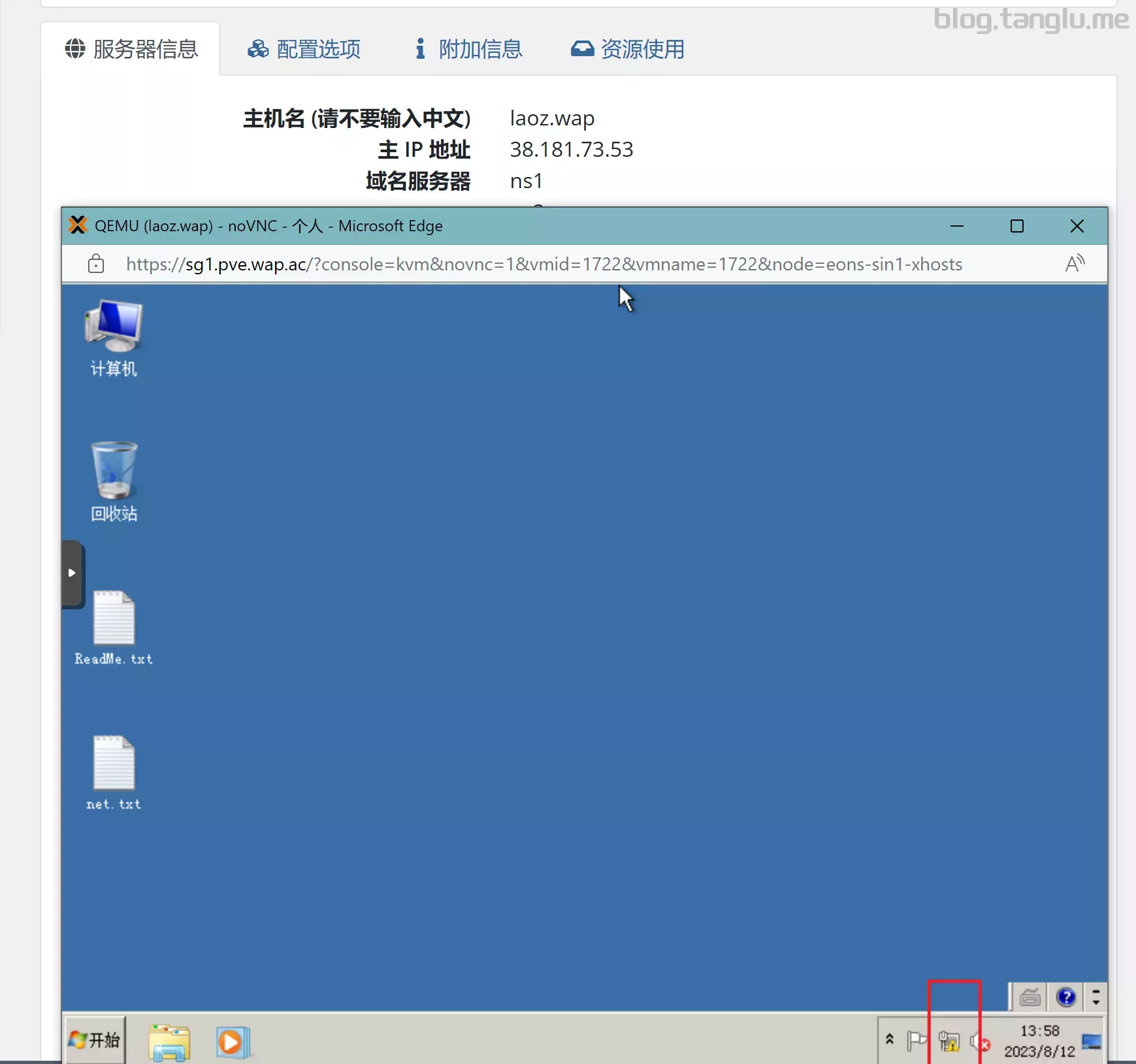
应该是dd后无法进入系统修改网卡,请选用支持注入网卡的dd包。有VNC的可以通过VNC进入,手动配置网卡
通过快捷键win+R打开运行窗口,输入 iexplore 然后确定就可以打开IE浏览器了,通过IE浏览器下载其他浏览器 注意google和edge已经不支持win7
作者拉黑了部分服务商的IP,可以用我复制的备份
镜像的驱动问题,换个镜像试试
BIOS启动的机器你使用的UEFI dd包,或者UEFI启动的机器你使用的BIOS启动的dd包
这个我不会,可以去问问1keydd作者
这很正常 请使用隧道中转
好像是分辨率的问题暂不知道如何解决
不了解 可以去某宝看看
应该可以 没有试过
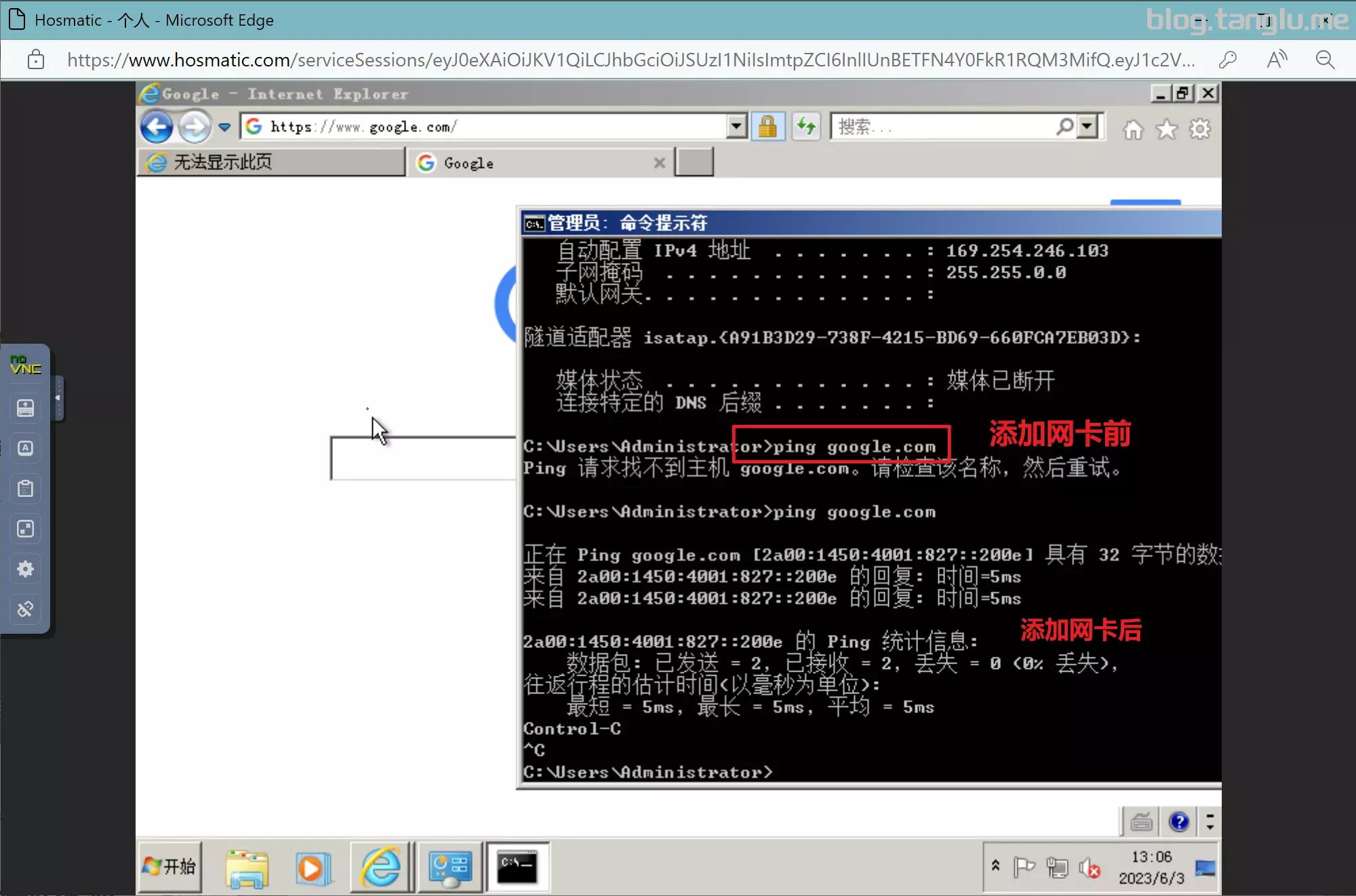
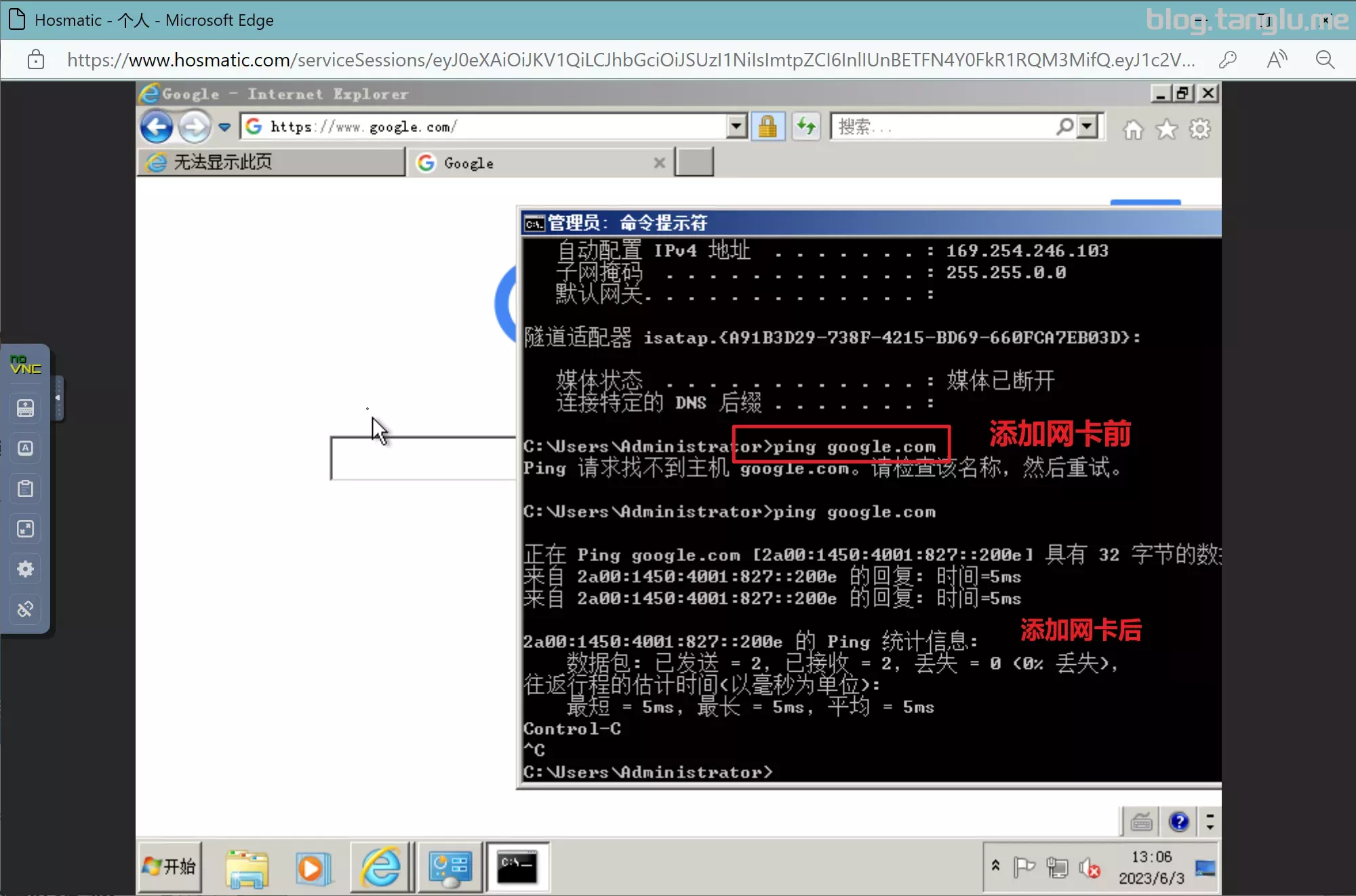
1keydd脚本及萌咖脚本有点小问题:dd后ipv6网卡会消失。纯ipv6小鸡dd后添加网卡可以看下面 hosmatic 这个例子
可能是脚本证书问题导致无法下载 忽略证书检测试试 wget -qO- inst.sh --no-check-certificate | bash -s ...
应该是机器执行 apt update 产生了报错,我也不太懂这个,我的解决办法是将 /etc/apt/sources.list 文件中的内容全部删去 然后新增 deb [trusted=yes] http://deb.debian.org/debian buster main ,再次执行一般不会报错了(此方法不一定对)
详见 dd-extravm
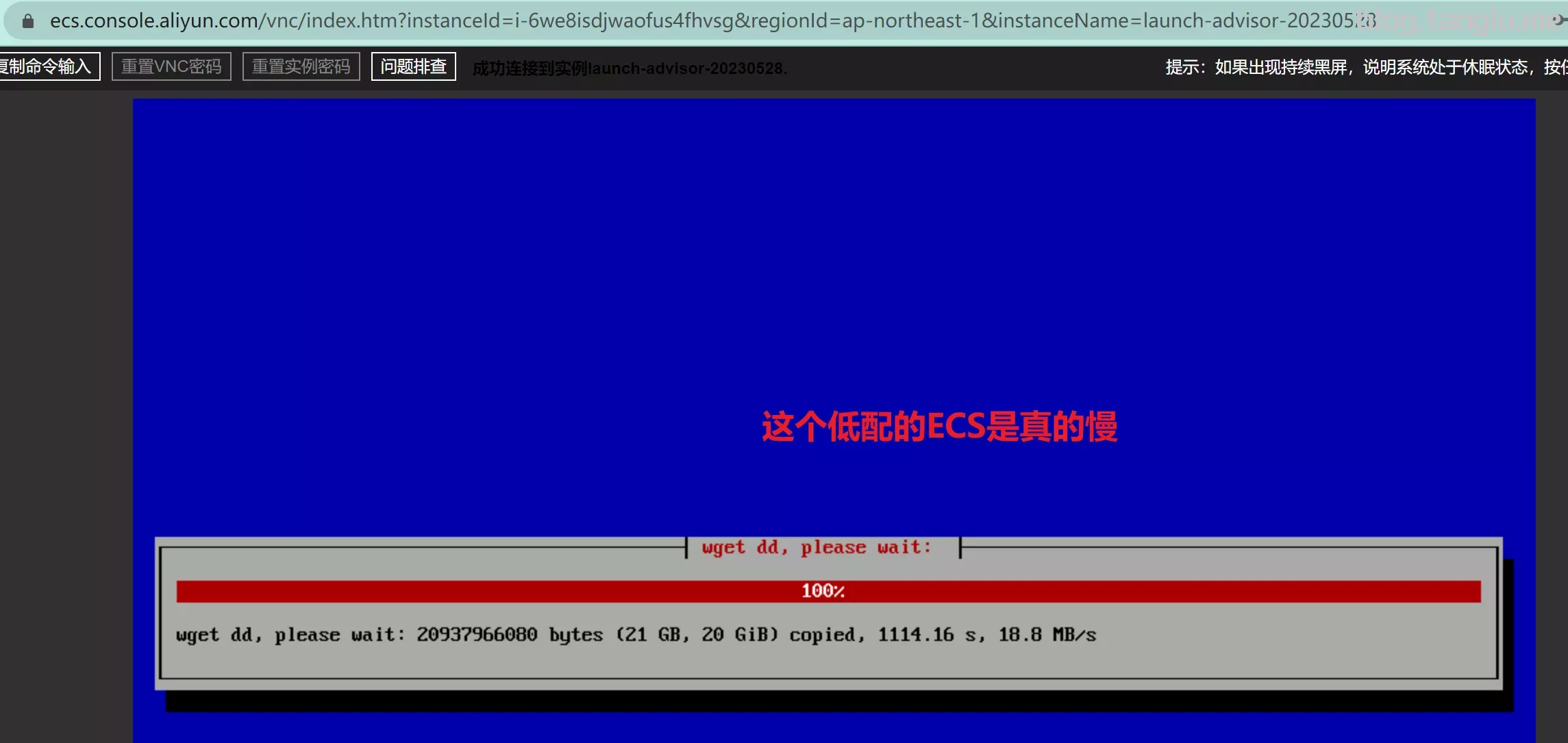
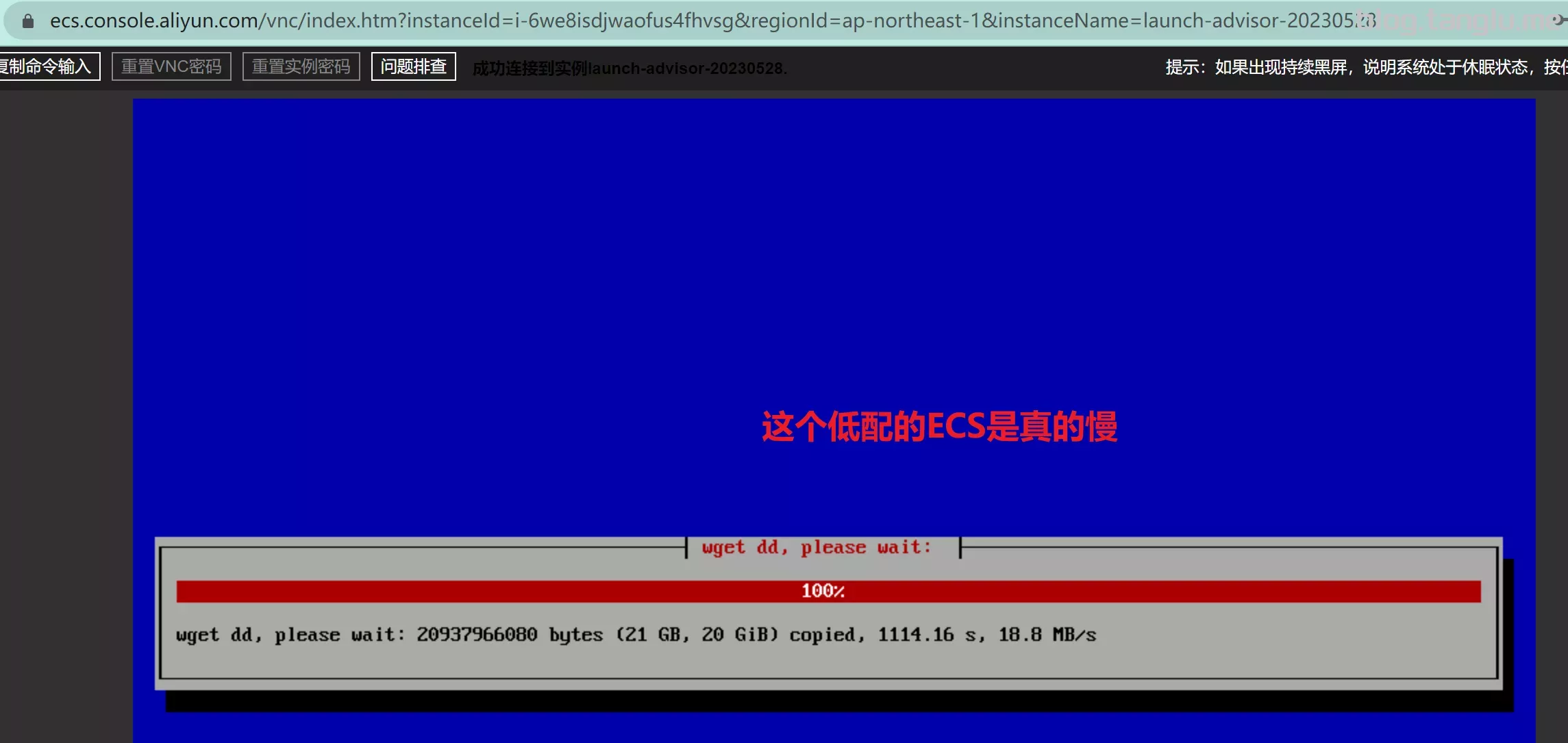
这种情况一般是服务商的网络下载我的备份文件速度过于缓慢,可以尝试将域名更换为镜像站域名 file2.1323123.xyz ,当然也不排除是CPU/硬盘过烂
五、常见dd脚本 以下脚本可能有更新,可能文中部分说法不准确,请评论/联系作者修正
1、萌咖脚本 项目地址:网友备份的站点
大多数dd脚本都是依照萌咖脚本二次开发的
下载脚本
wget --no-check-certificate -qO InstallNET.sh 'https://raw.githubusercontent.com/veip007/dd/master/InstallNET.sh' && chmod +x InstallNET.sh
用法
#详细用法请参考 https://github.com/veip007/dd

bash InstallNET.sh --ip-addr x.x.x.x --ip-gate x.x.x.x --ip-mask x.x.x.x -dd dd包直链
2、1keydd脚本 项目地址:https://github.com/minlearn/1keydd
个人感觉最适合dd windows的脚本
用法
wget -qO- inst.sh | bash -s - -n ,netmask,gateway -t dd包直链

例:
wget -qO- inst.sh | bash -s - -n 5.78.73.181,255.255.255.255,172.31.1.1 -t https://file.1323123.xyz/dd/windows/1keydd/win10ltsc_password_1keydd.gz

wget -qO- inst.sh | bash -s - -n 2a0f:5707:aaef:292::1,ffff:ffff:0000:0000:0000:0000:0000:0000,2a0f:5707:aae0::1 -t https://file.1323123.xyz/dd/windows/cxthhhhh/Disk_Windows_7_Vienna_Ultimate_CN_v2.0.vhd.gz
特点:
3、leitbogioro脚本 项目地址:https://github.com/leitbogioro/Tools
个人推荐用来dd成linux
下载脚本
wget --no-check-certificate -qO InstallNET.sh 'https://raw.githubusercontent.com/leitbogioro/Tools/master/Linux_reinstall/InstallNET.sh' && chmod a+x InstallNET.sh
用法
#详细用法请参考 https://github.com/leitbogioro/Tools
#默认密码 LeitboGi0ro
例:
bash InstallNET.sh --image https://file.1323123.xyz/dd/windows/natee/guajibao-win7-sp1-ent-x64-cn.vhd.gz --ip-addr 139.162.52.1 --ip-mask 24 --ip-gate 139.162.52.1 --ip6-addr 2a07:e040:2:1d3::1 --ip6-gate 2a07:e040::1 --ip6-mask 32

bash InstallNET.sh -centos 7 --ip-addr 139.162.52.11 --ip-mask 24 --ip-gate 139.162.52.1 --ip6-addr 2a07:e040:2:1d3::1 --ip6-gate 2a07:e040::1 --ip6-mask 32
特点:
支持从源dd为linux,支持的linux系统很全
只支持DHCP或者规则的静态网卡,不支持不规则网卡的机器
用dd包dd windows时,无法插入网卡,因此不适合无VNC的非DHCP小鸡dd windows
…
4、bin456789脚本 项目地址:https://github.com/bin456789/reinstall
支持从windows系统dd成linux系统(亲测可行)
linux和windows密码都是 123@@@
windows示例:
#首先下载好 reinstall.bat 和 reinstall.sh
https://raw.githubusercontent.com/bin456789/reinstall/main/reinstall.bat
https://raw.githubusercontent.com/bin456789/reinstall/main/reinstall.sh

#通过云镜像dd到linux
.\reinstall.bat centos 7 --ci

#通过镜像包dd到其他系统
.\reinstall.bat dd --img=https://file.1323123.xyz/dd/windows/teddysun/zh-cn_windows11_22h2.xz

#通过windows iso dd为其他windows
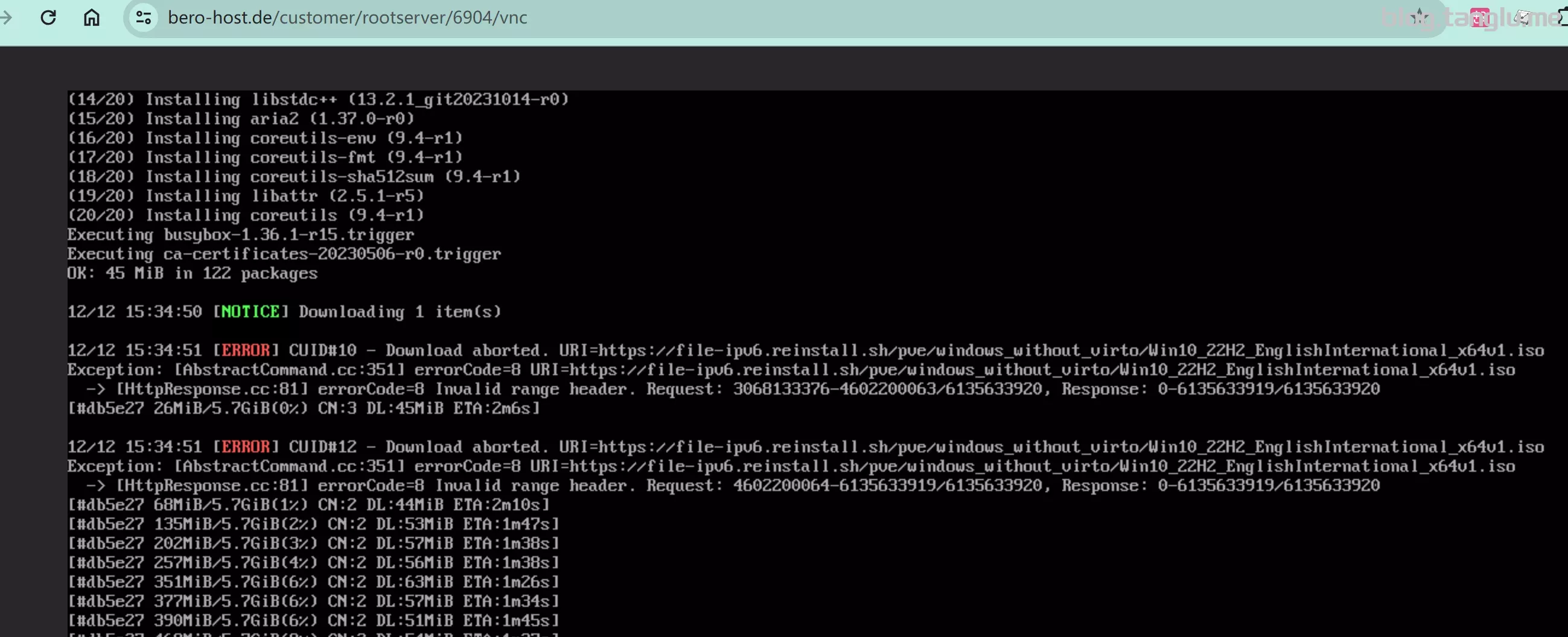
.\reinstall.bat windows --iso='https://file.1323123.xyz/pve/windows_without_virto/Win10_22H2_EnglishInternational_x64v1.iso' --image-name='Windows 10 Pro N'

#通过iso dd到linux
#此方法只支持DHCP 不推荐
.\reinstall.bat debian 10
Linux示例:
linux我只尝试过通过dd包进行dd,并没有尝试使用iso安装
#首先下载脚本
curl -O https://raw.githubusercontent.com/bin456789/reinstall/main/reinstall.sh

#通过云镜像dd到linux
bash reinstall.sh centos 7 --ci


#通过镜像包dd到其他系统
bash reinstall.sh dd --img=https://file.1323123.xyz/dd/windows/natee/guajibao-win10-ent-ltsc-2021-x64-cn.vhd.gz

#通过windows iso dd为其他windows
bash reinstall.sh windows --iso=https://file.1323123.xyz/pve/windows_without_virto/Win10_22H2_EnglishInternational_x64v1.iso --image-name='Windows 10 Pro'

#通过iso dd到linux
#此方法只支持DHCP 不推荐
bash reinstall.sh debian 10
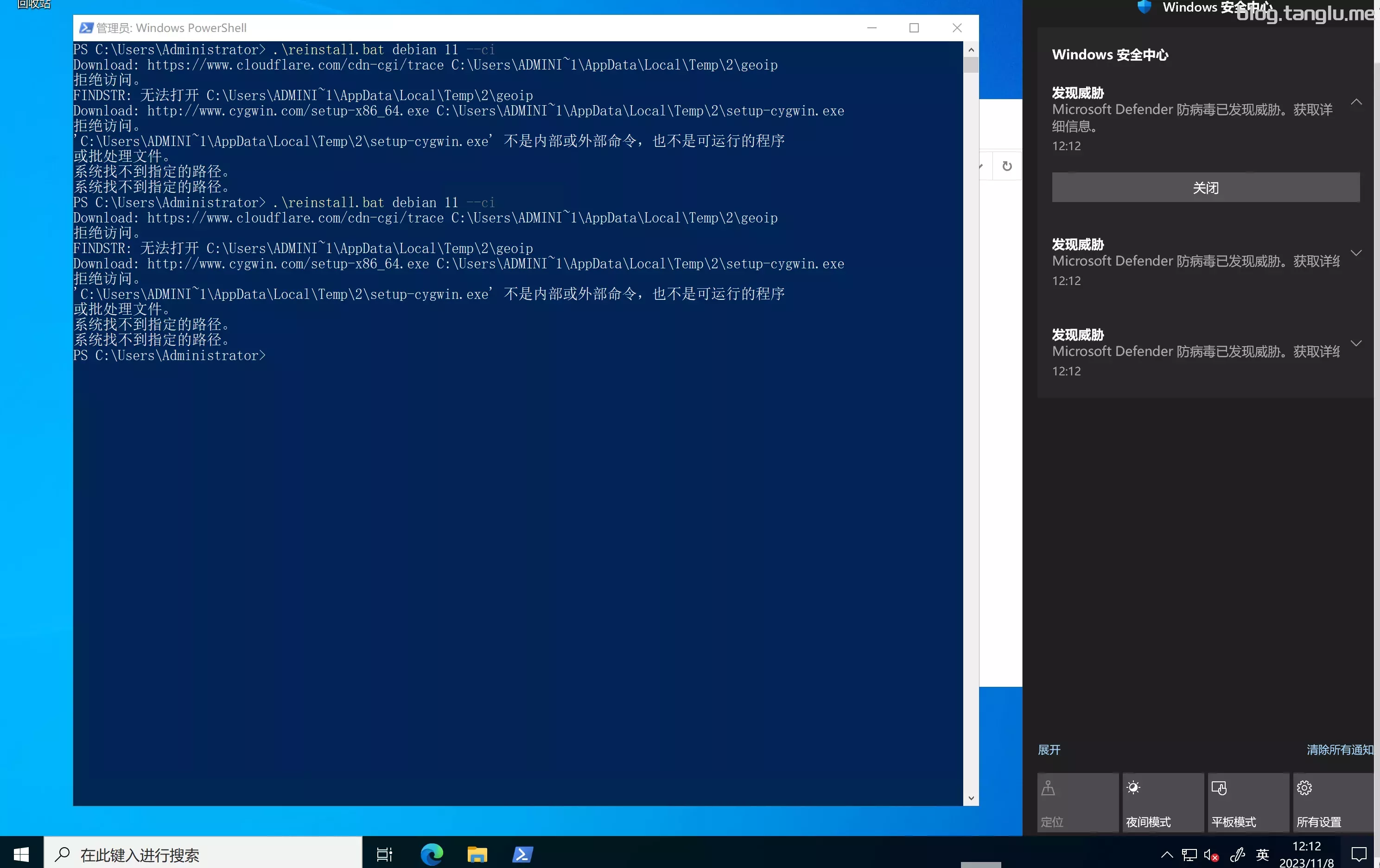
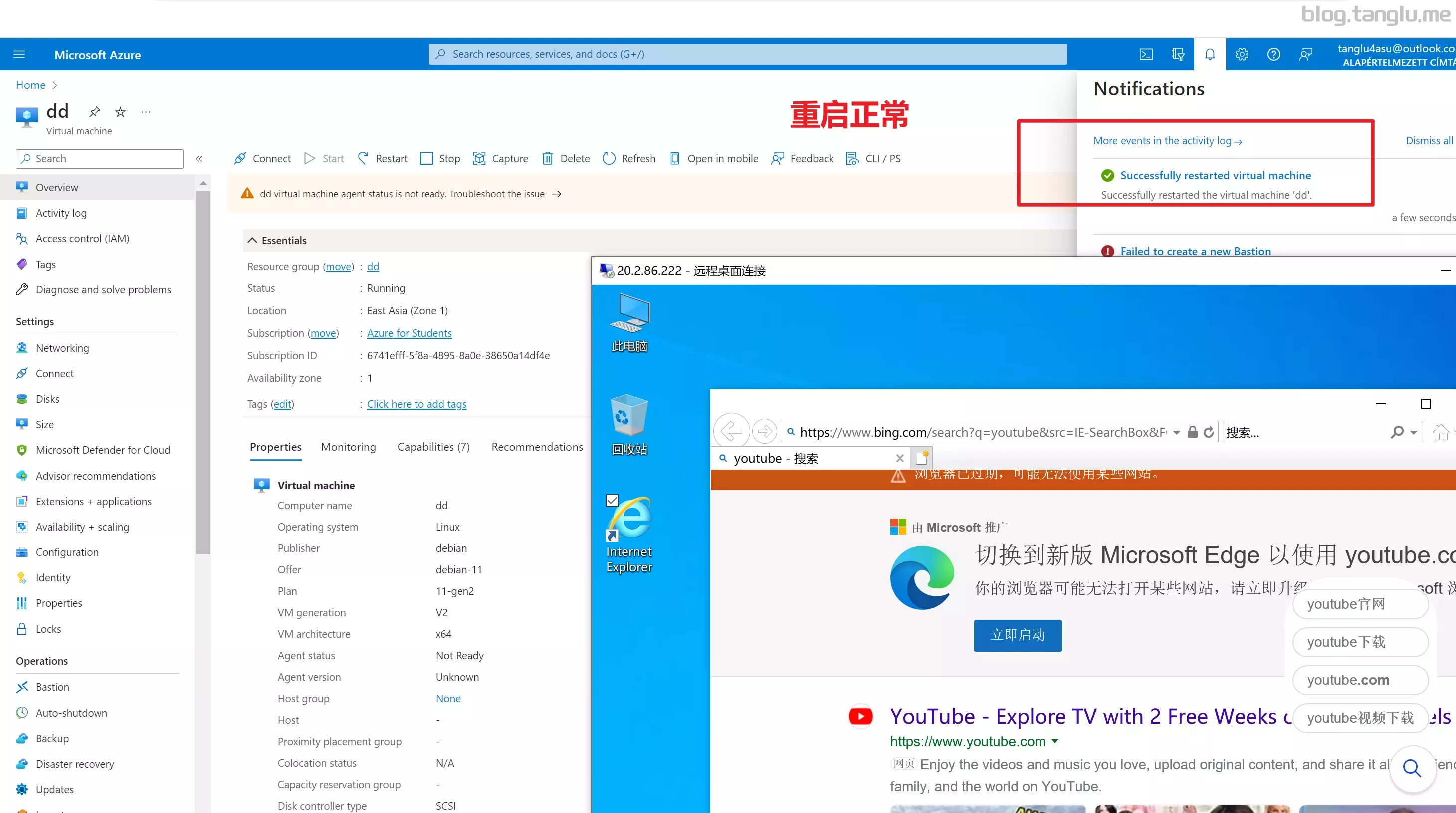
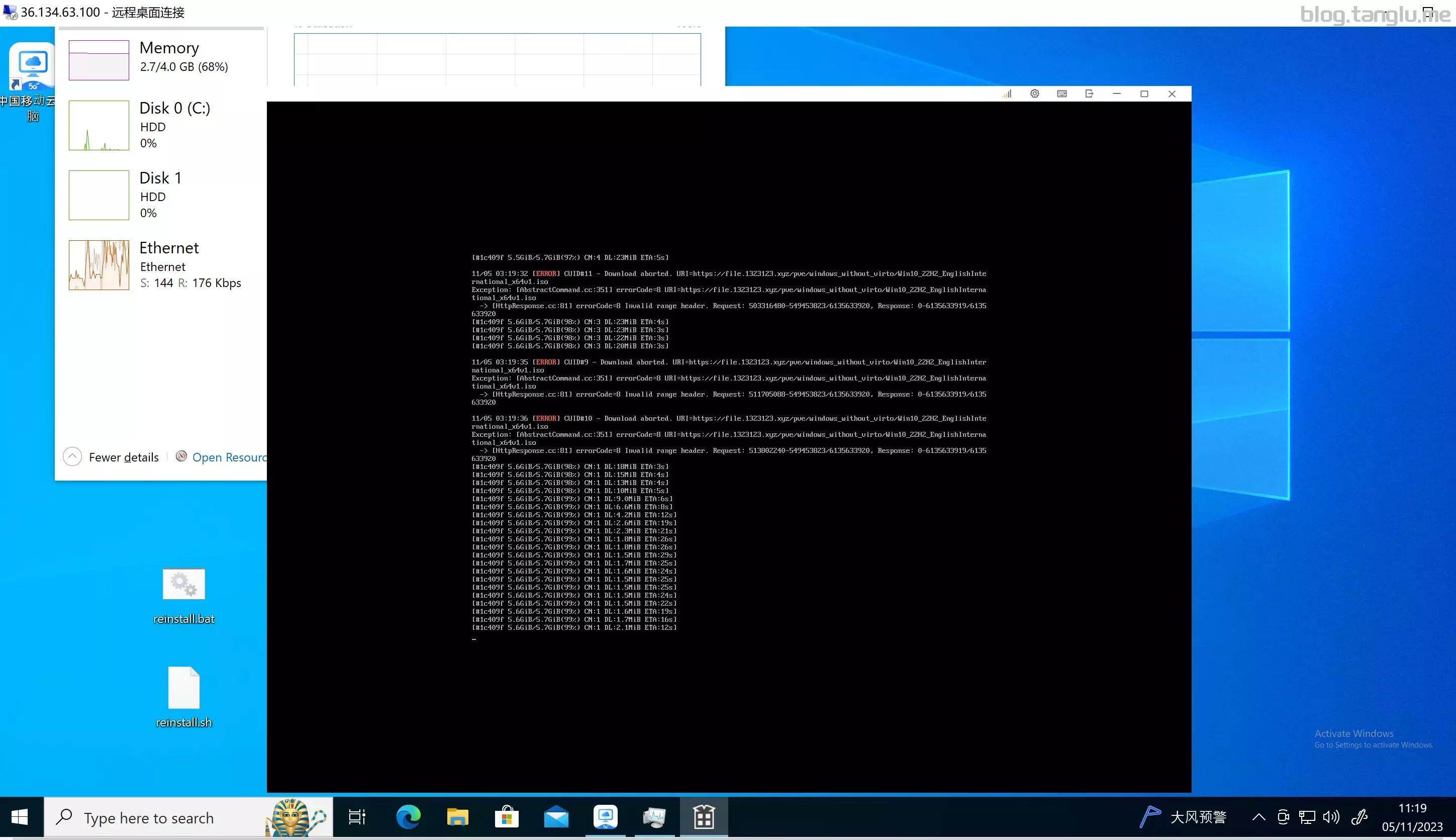
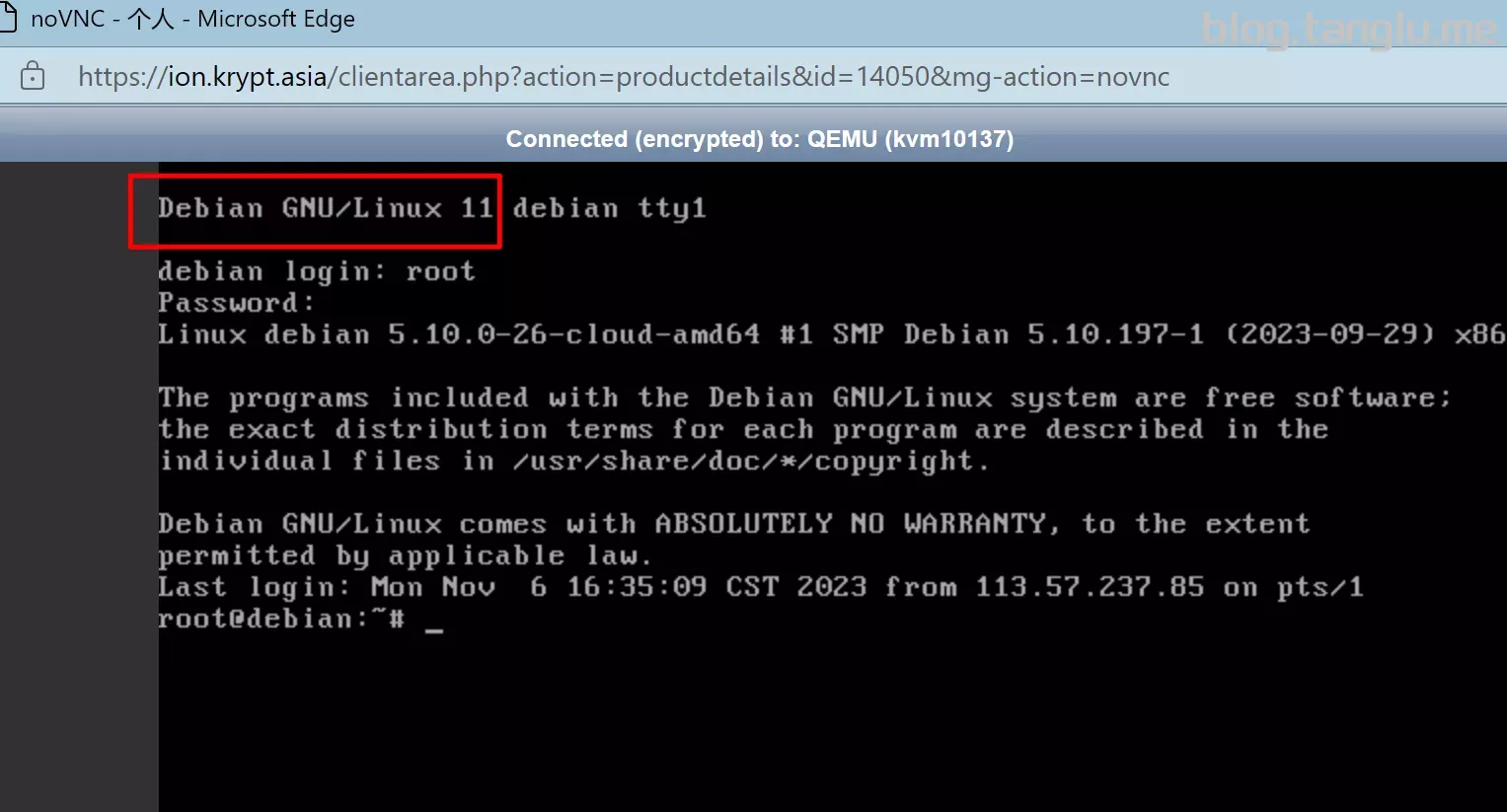
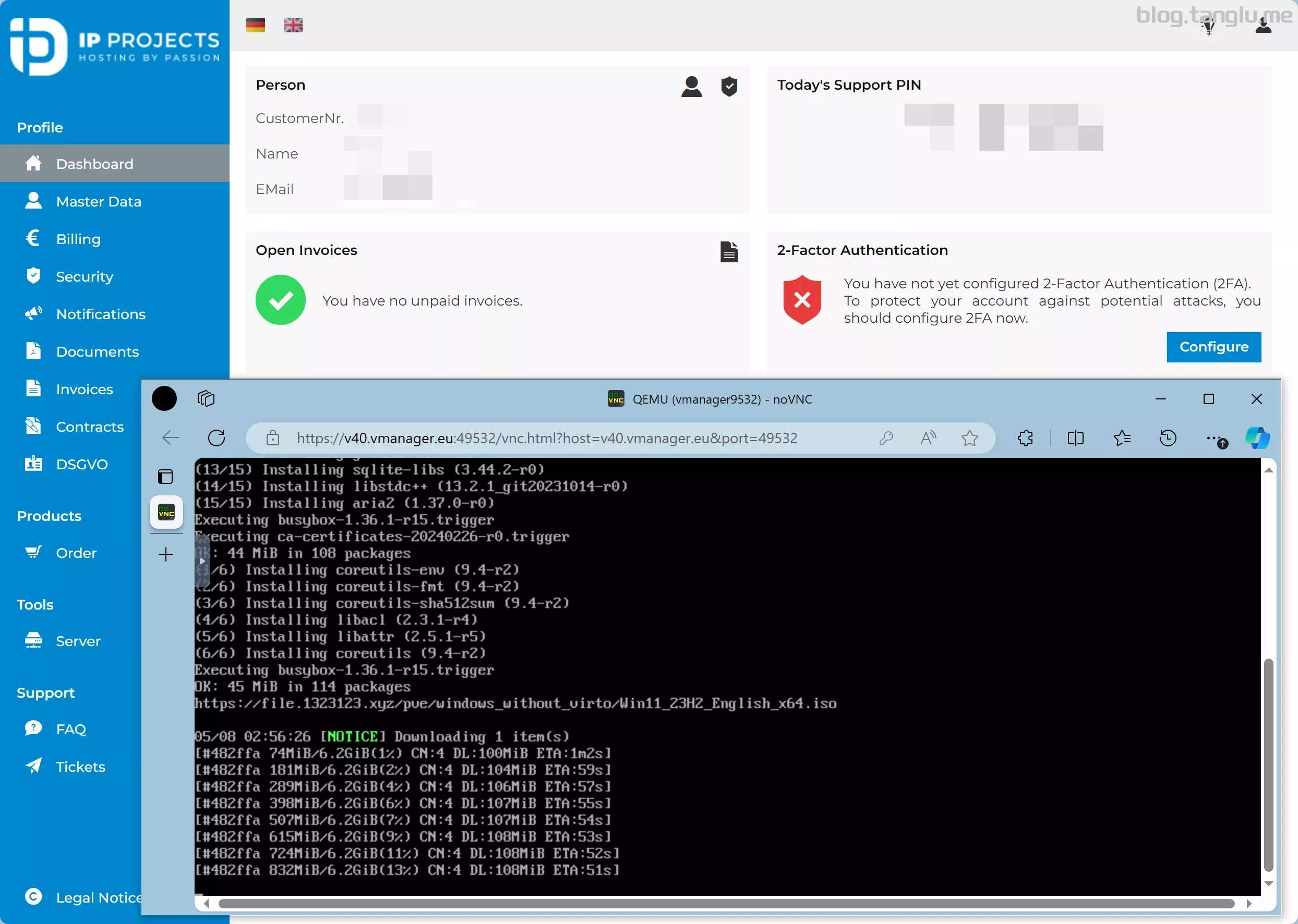
记得关闭windows defender 尤其是实时保护,否则可能会出现如下报错
特点:
5、秋水逸冰脚本 项目地址:https://teddysun.com
萌咖脚本的二开版本
用法
#我不太请求秋水的脚本用法

wget -qO DebianNET.sh qiu.sh/dd && bash DebianNET.sh -dd dd包直链
六、示例 以下服务器默认是服务商的vps,而非独服。几乎所有均为境外vps
请仔细阅读服务商条款,一些商家不允许dd windows 可能有删机/封号风险
商家口碑可以查看此频道的评论:https://t.me/vps_reviews 例如hetzner就搜索 #hetzner
前提条件:
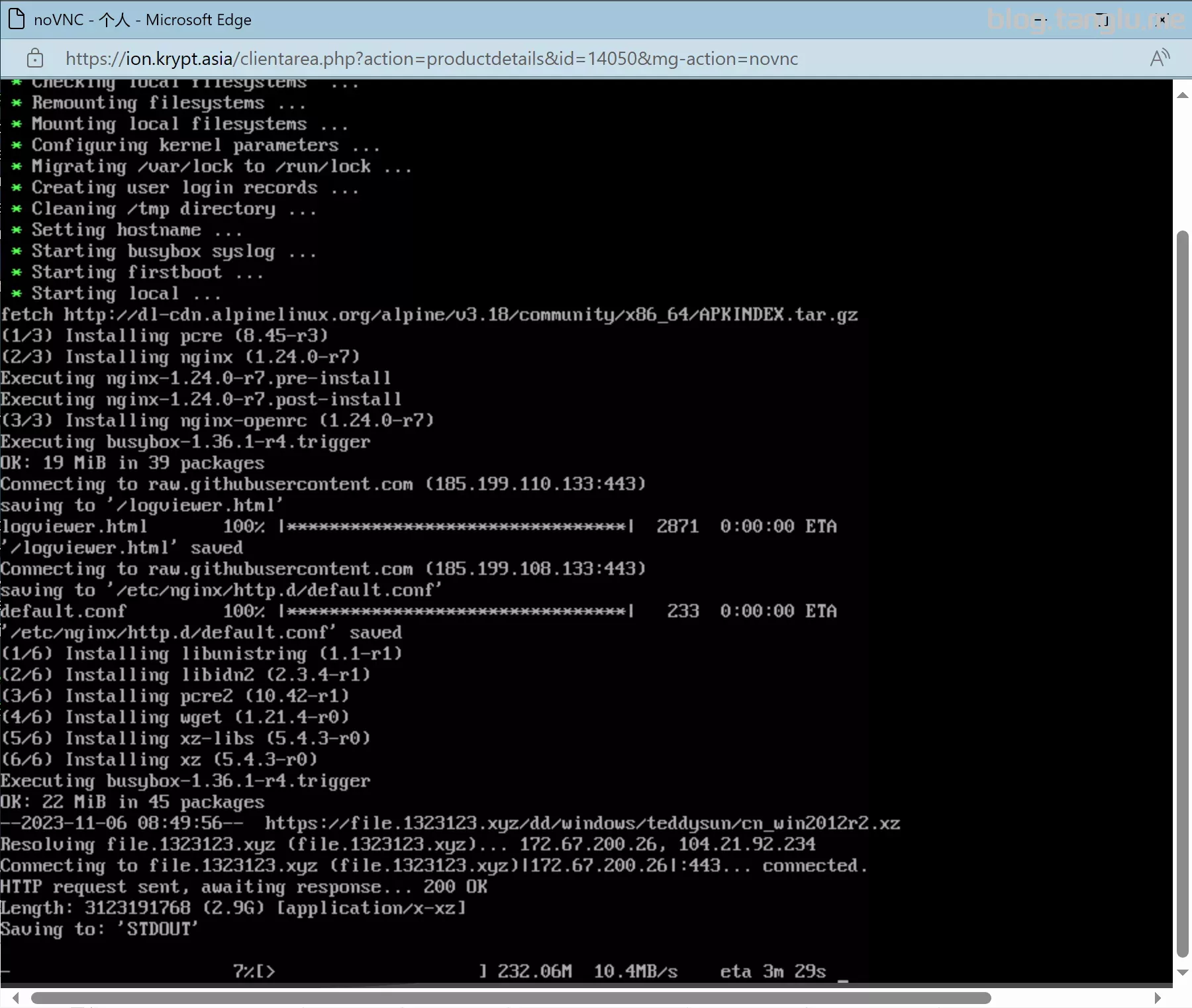
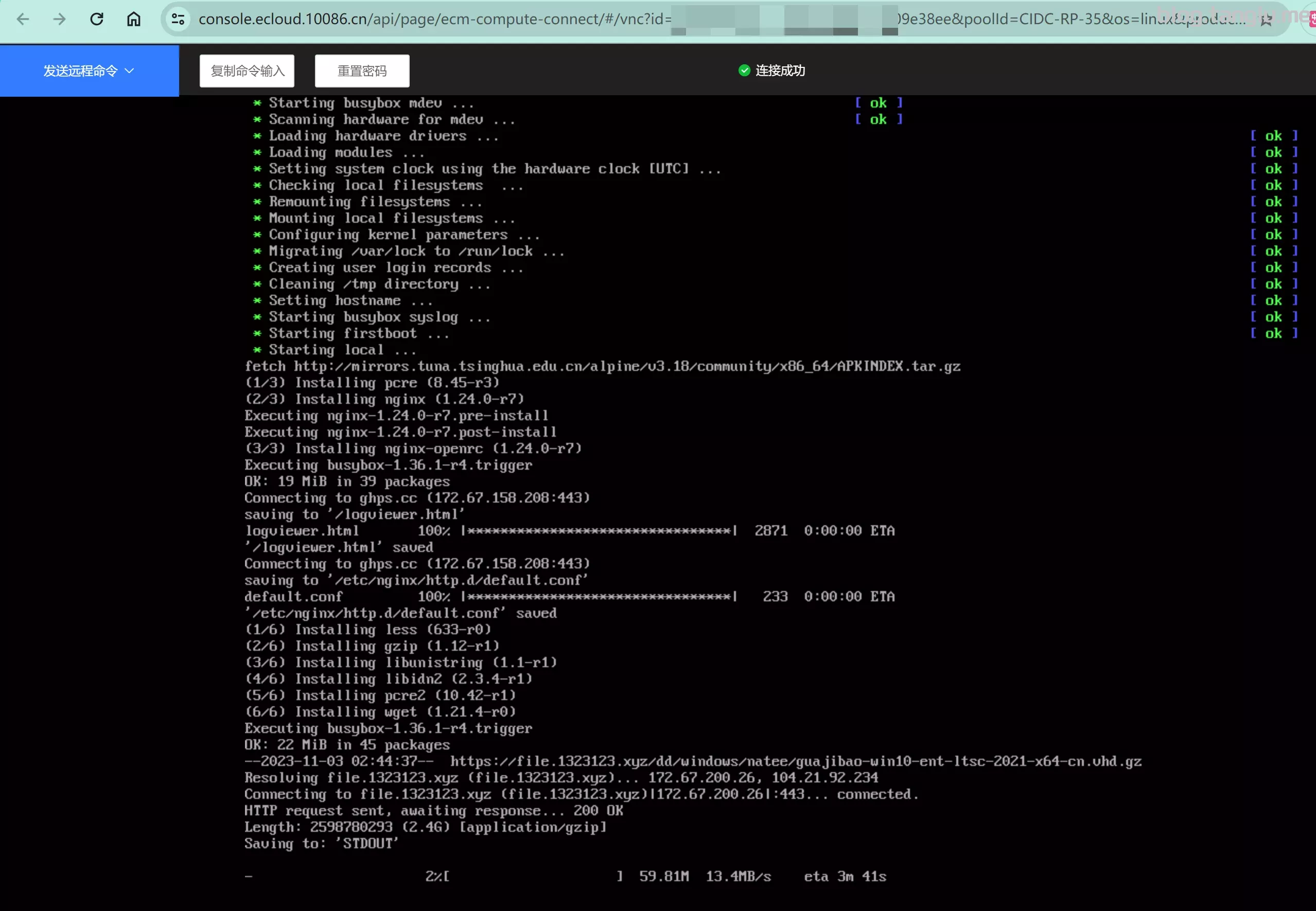
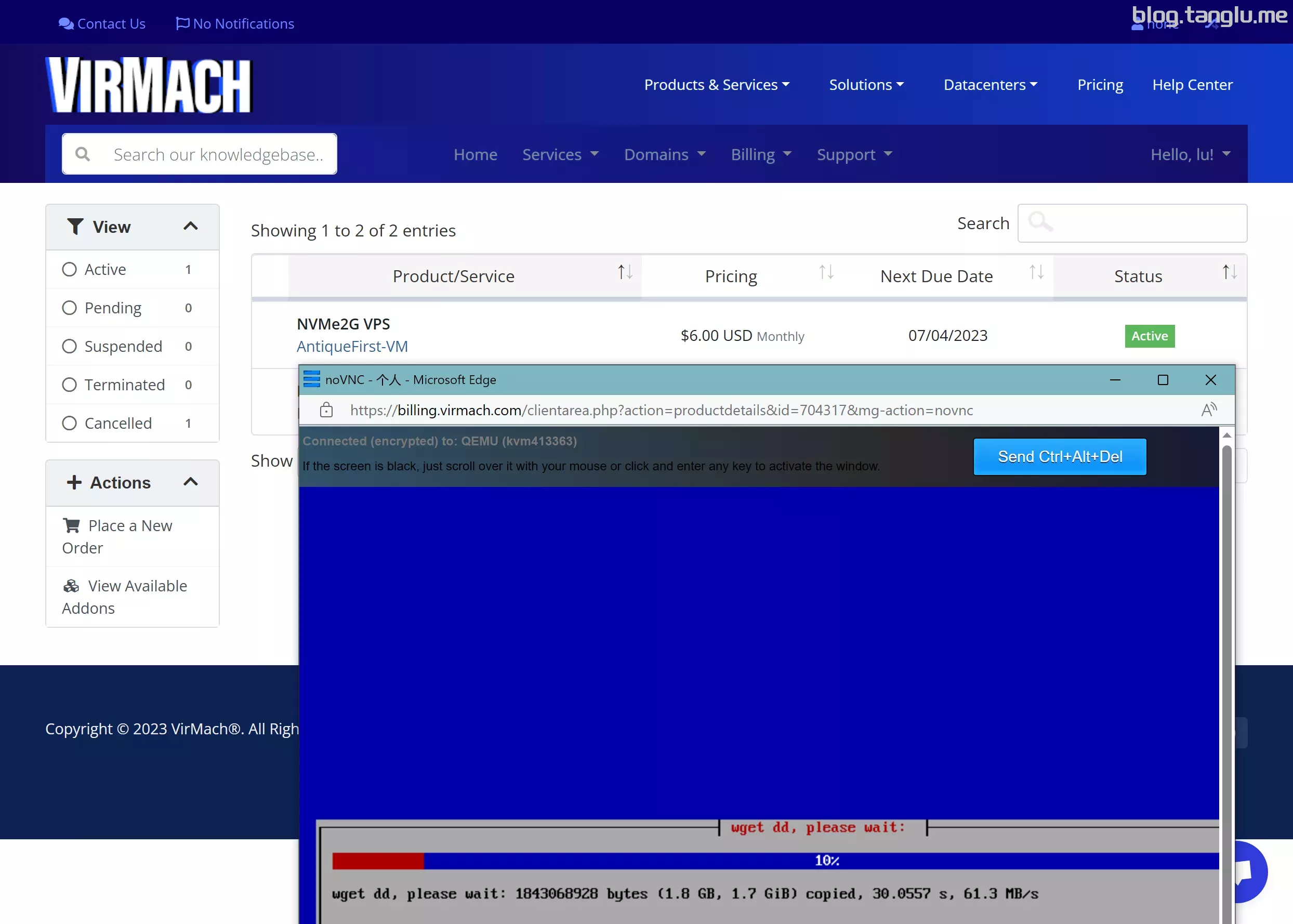
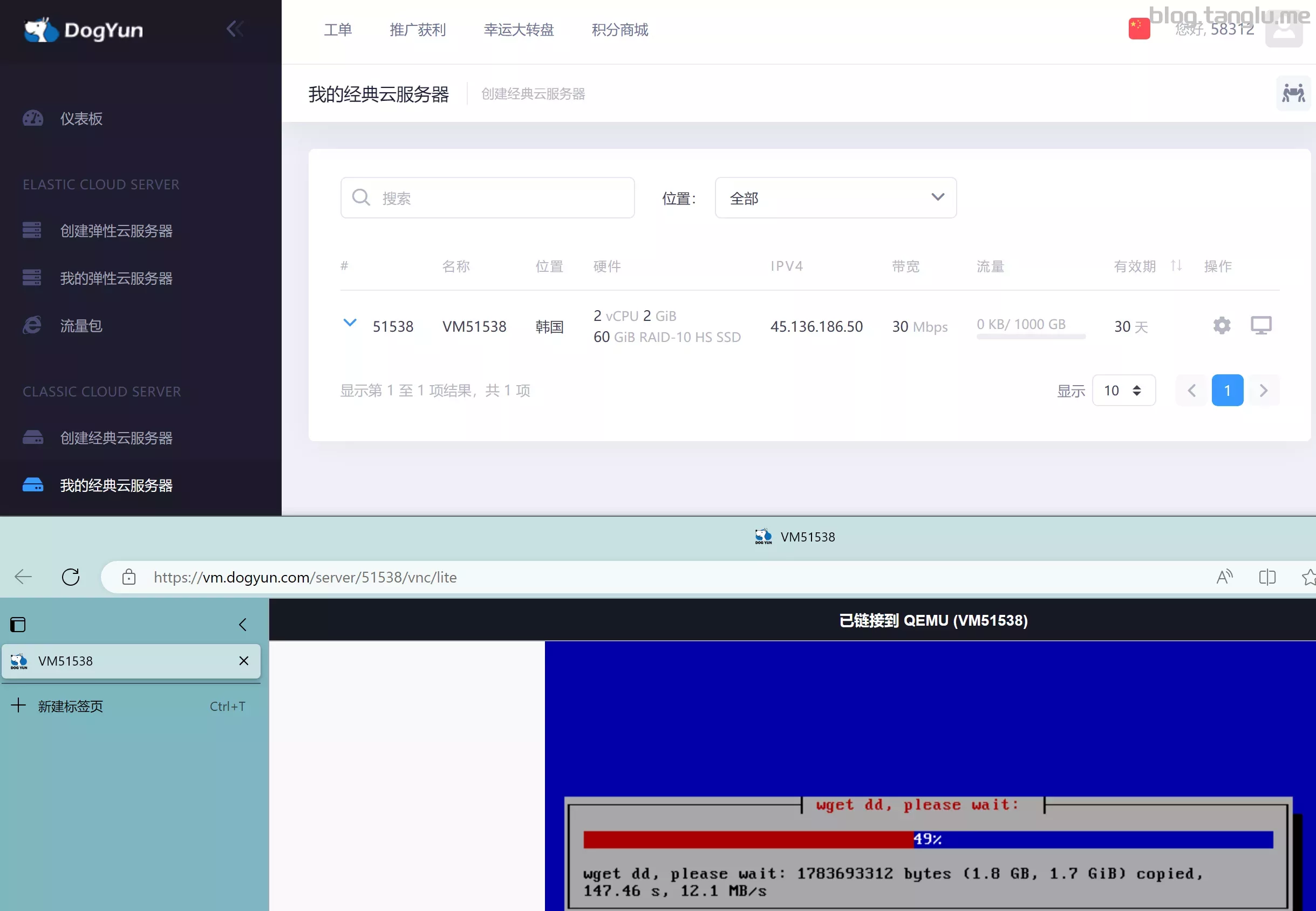
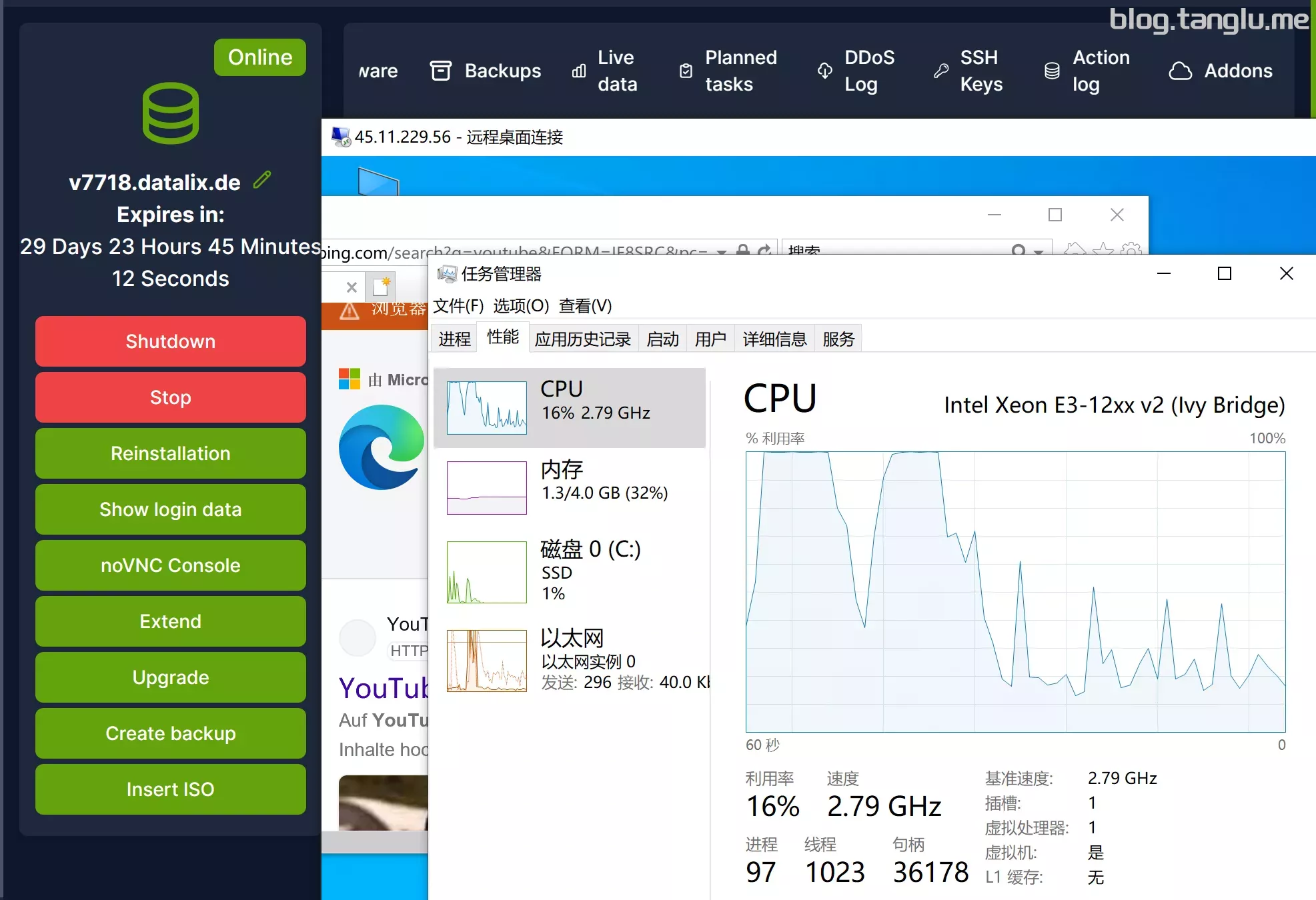
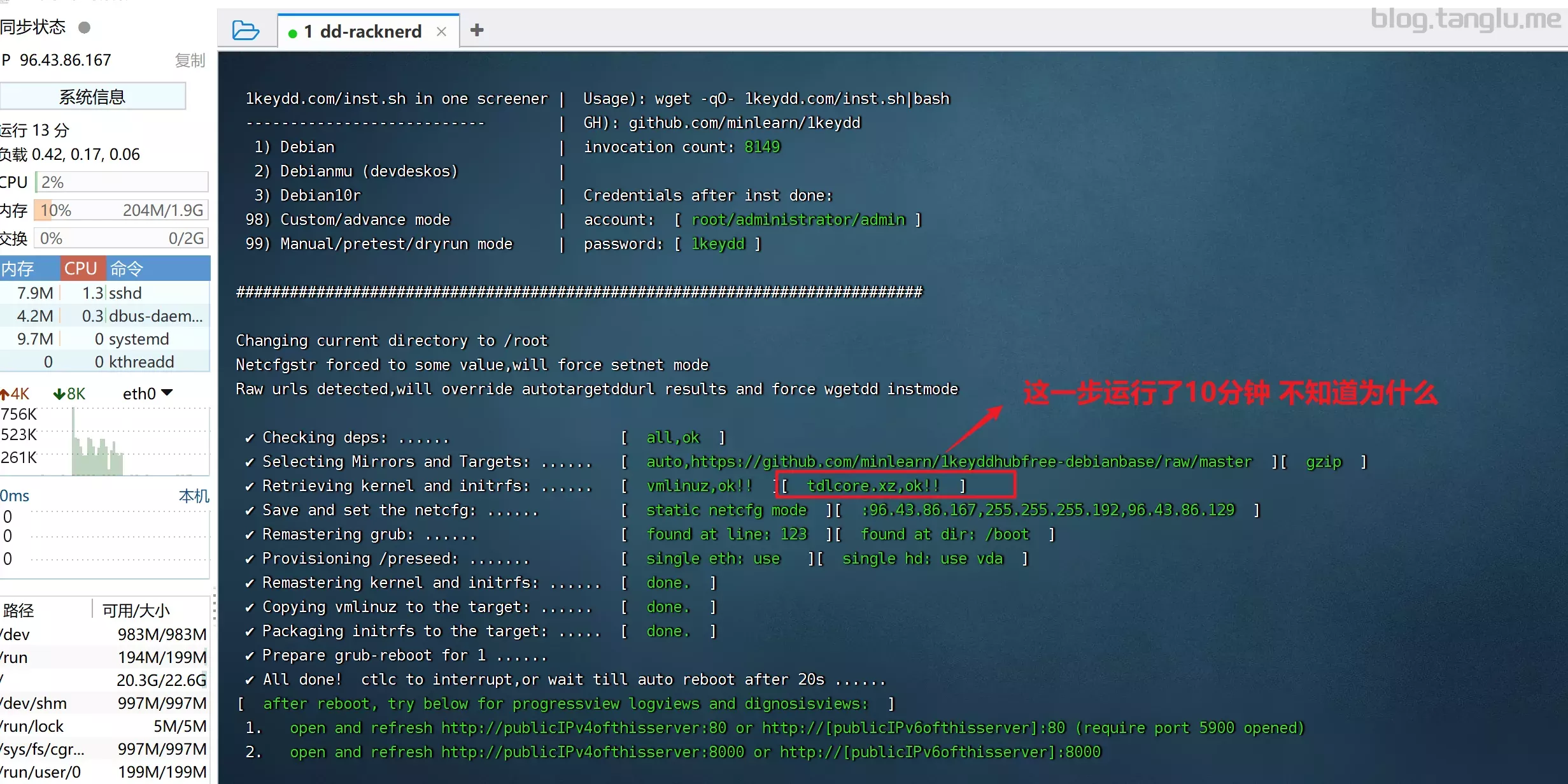
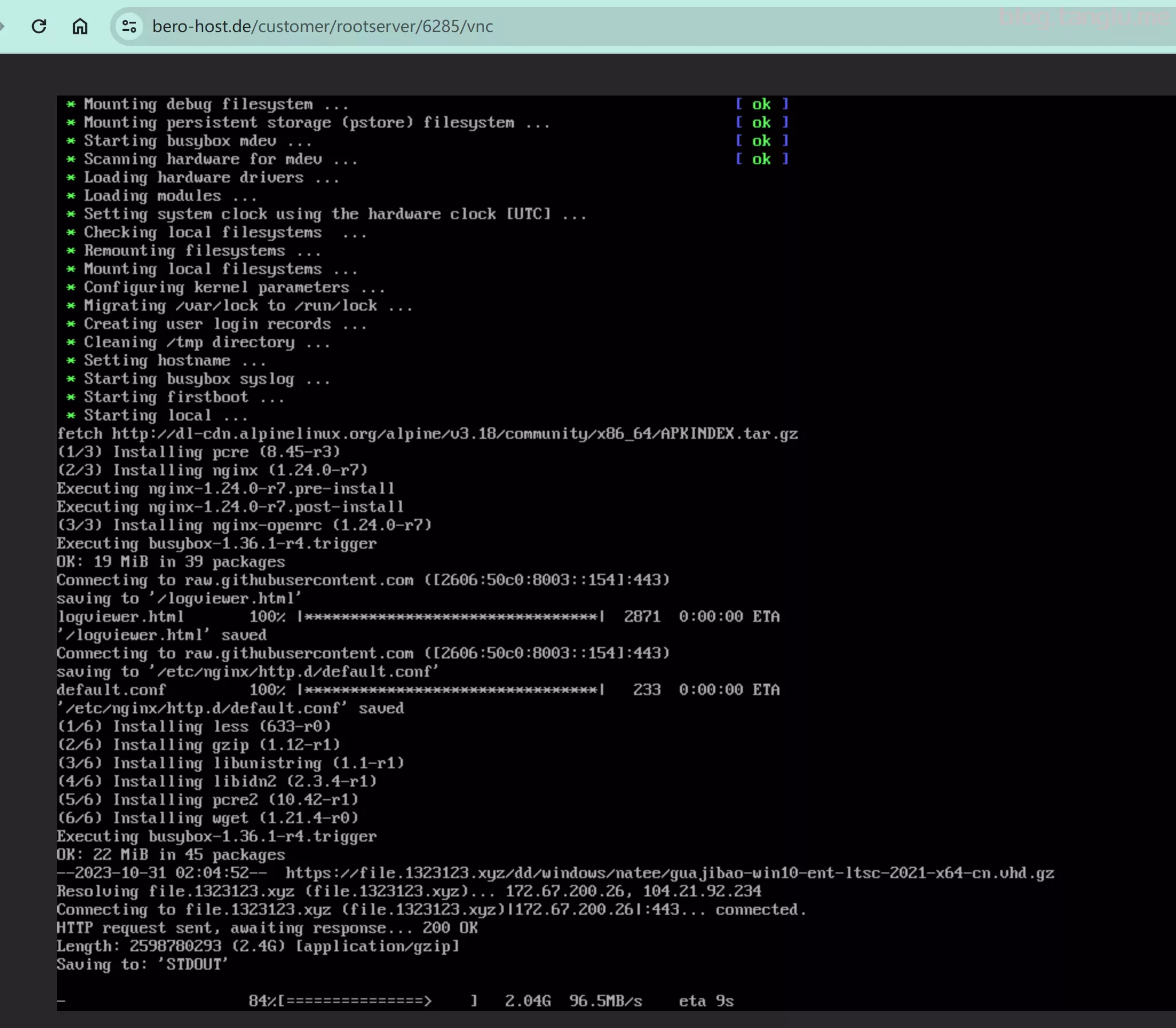
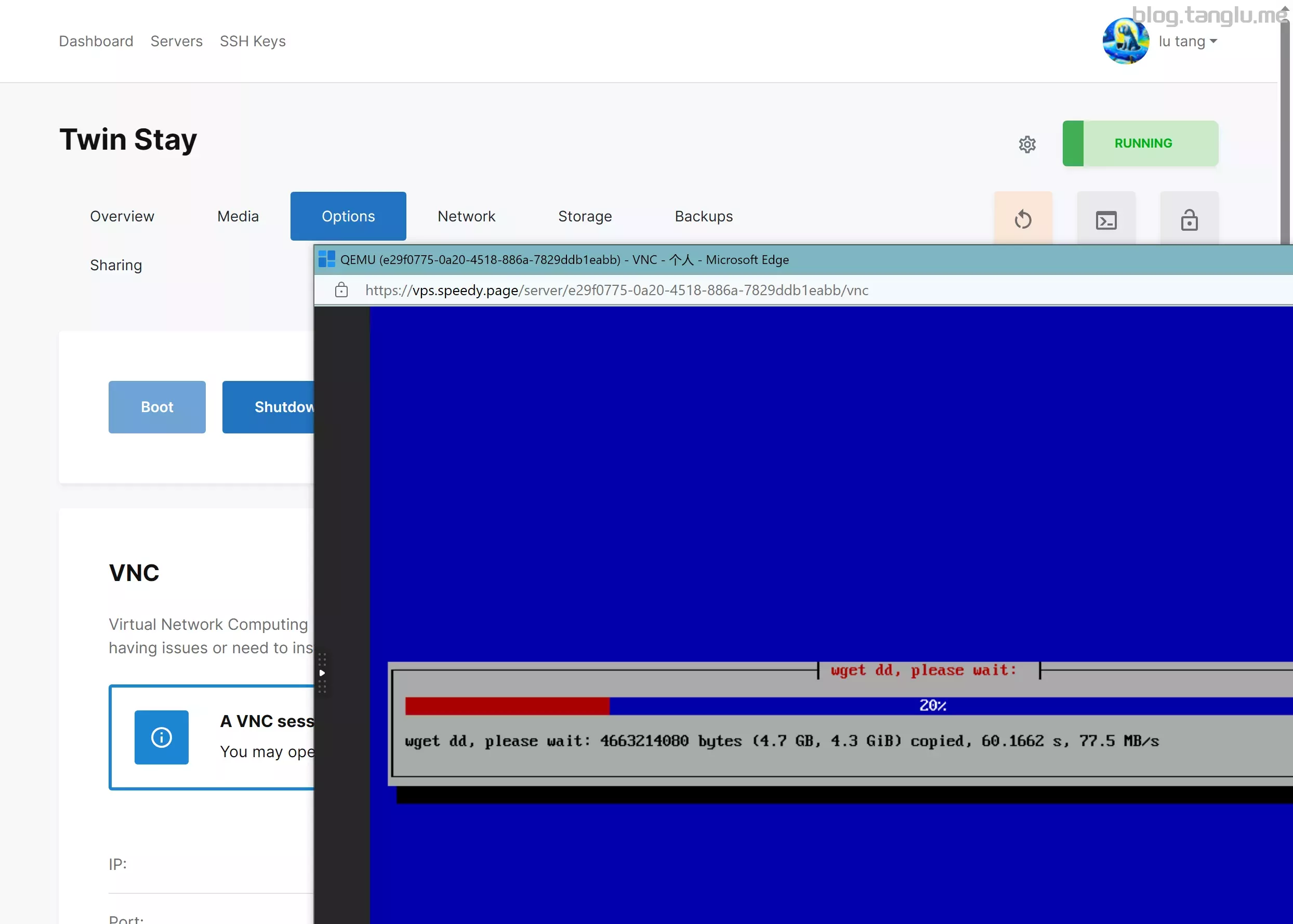
通过 ip:8000/progress 或80vnc端口 显示解压完后,会重启 重启这个过程会花费1~20分钟
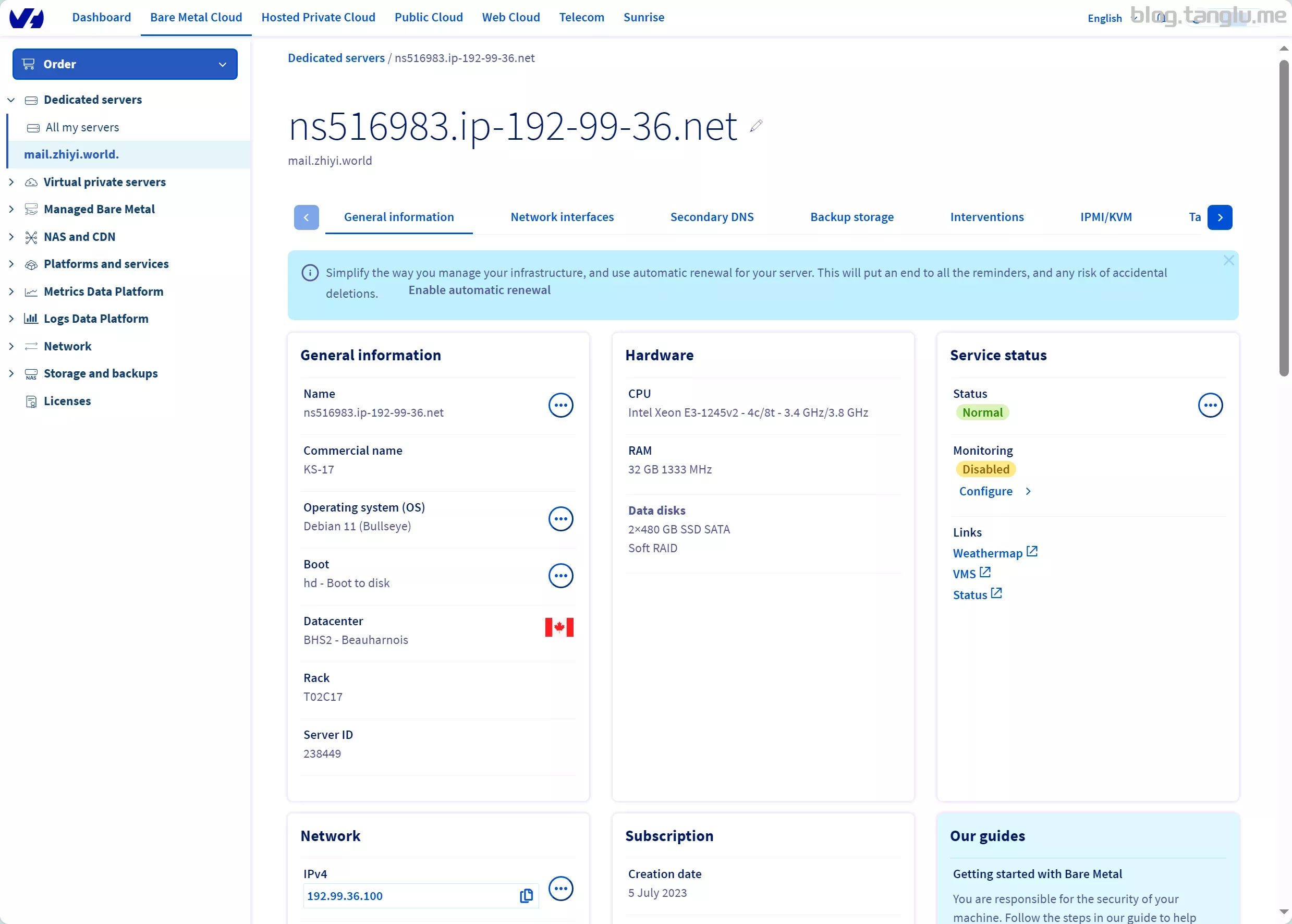
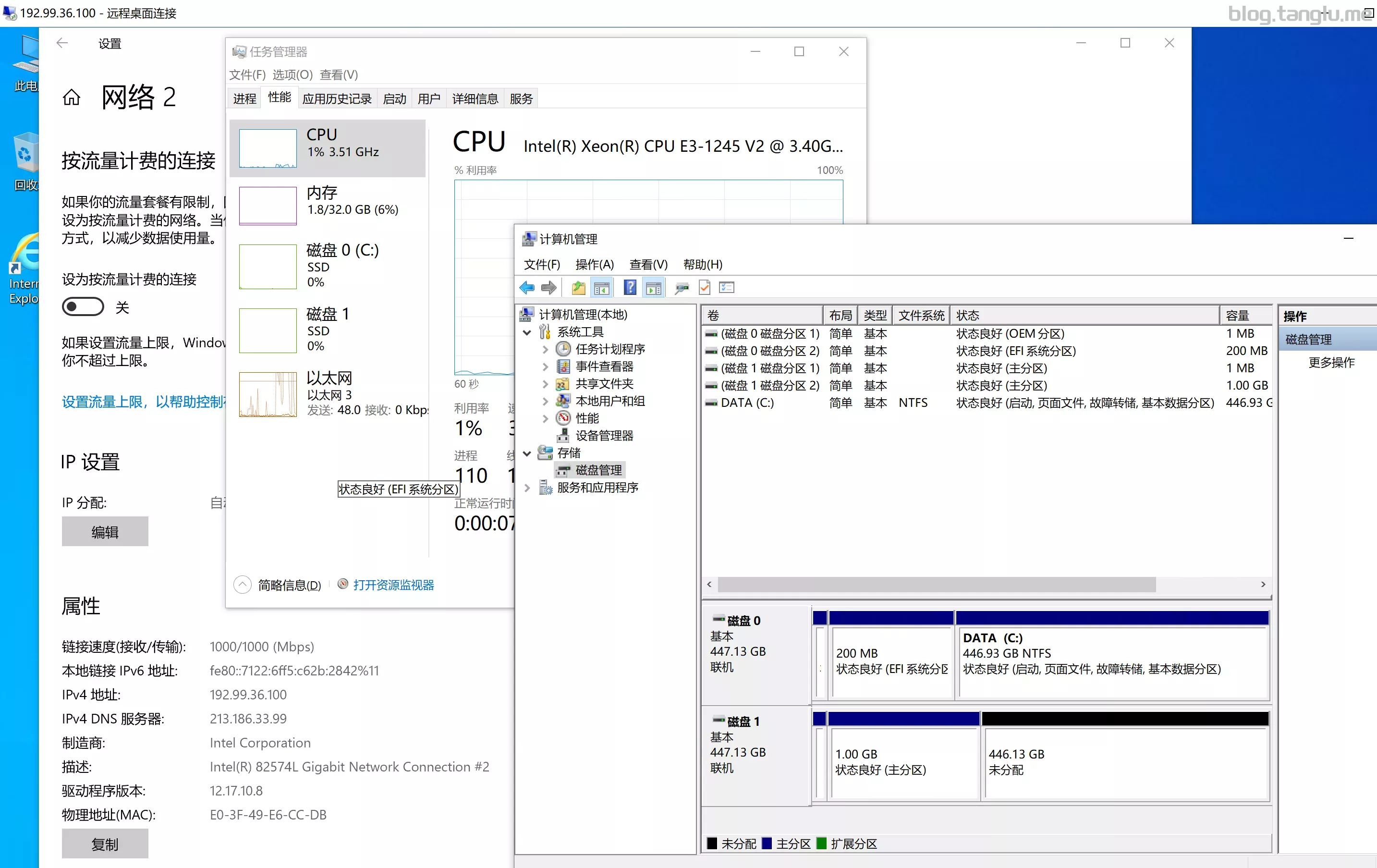
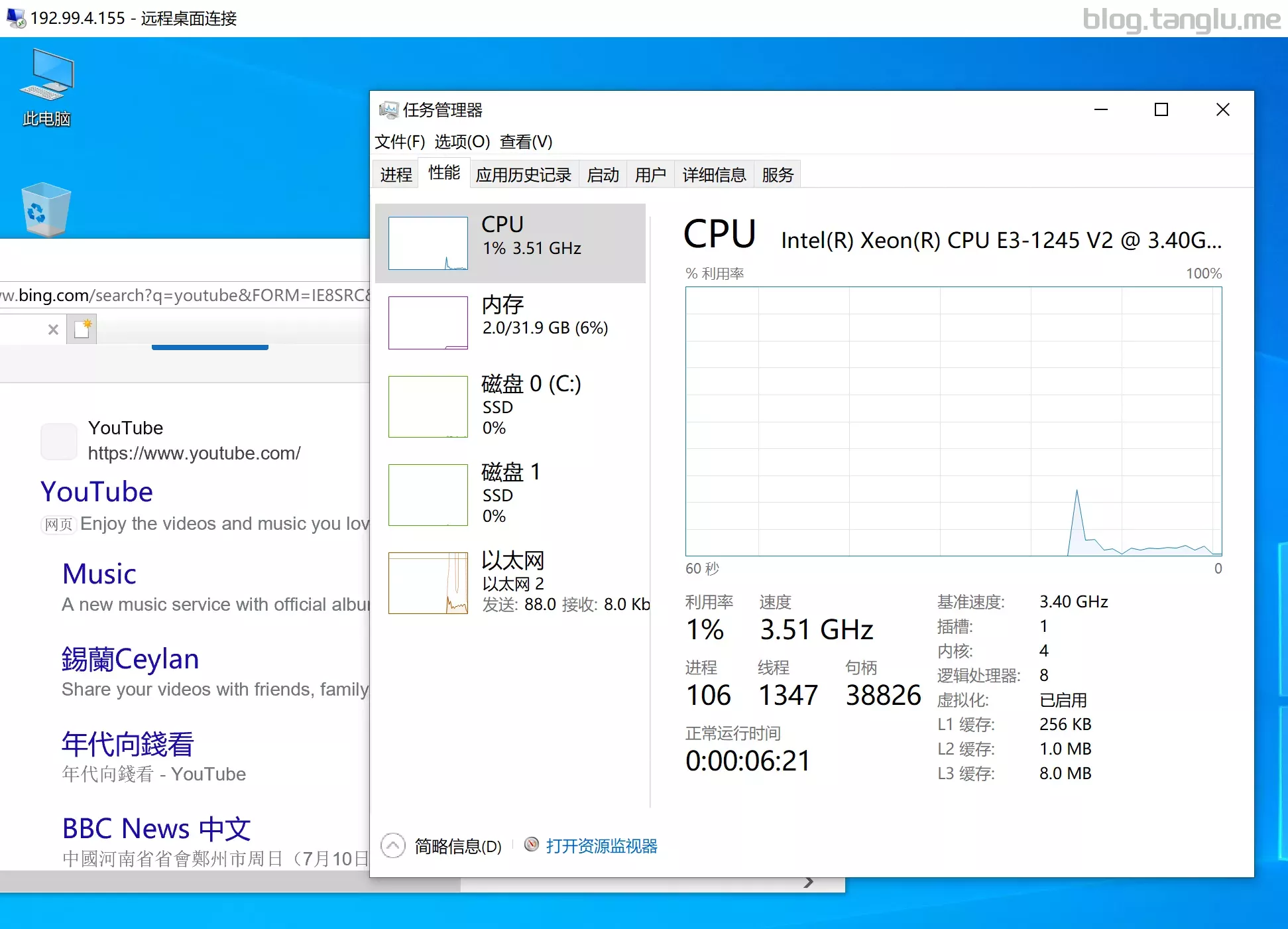
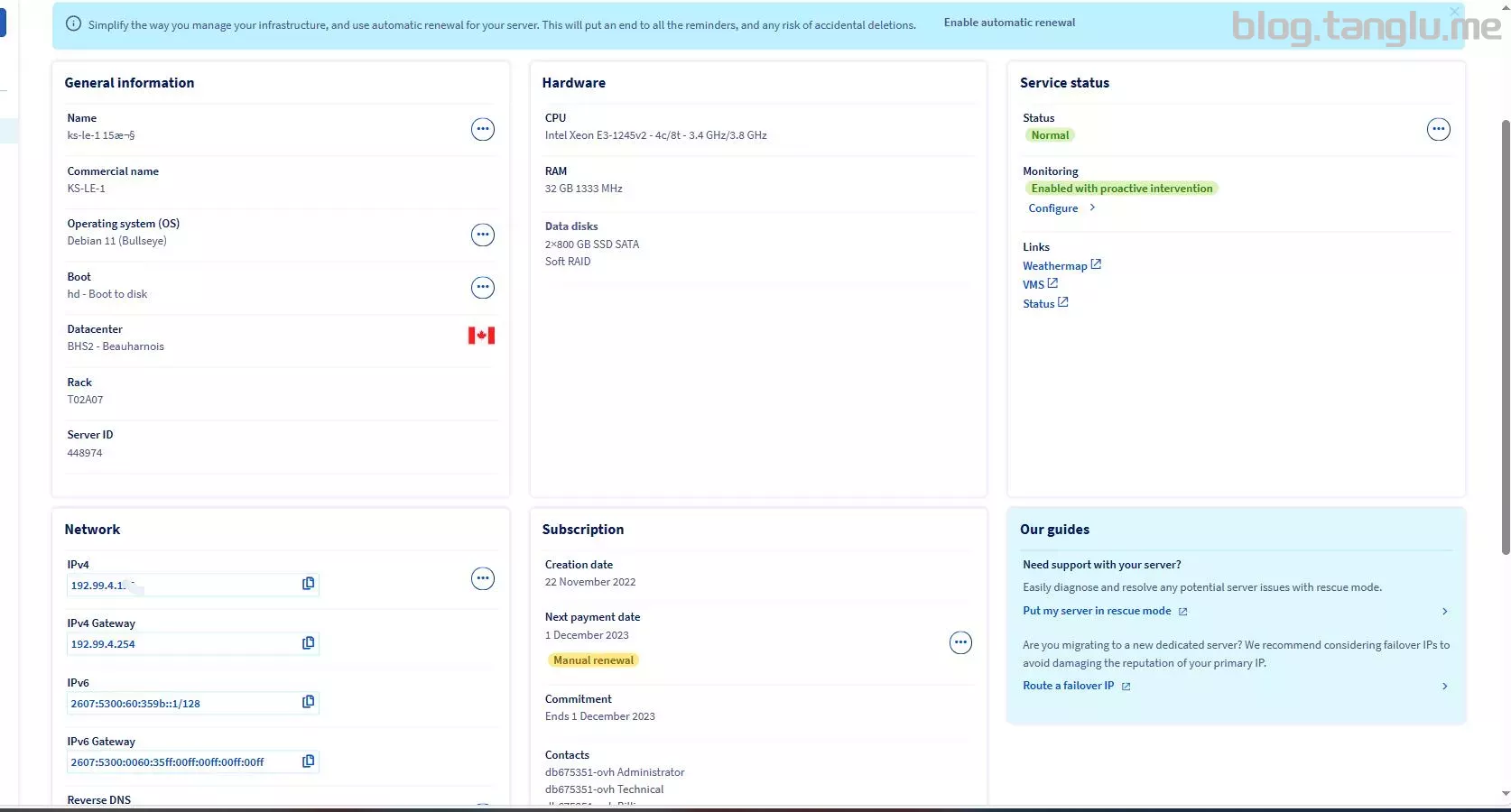
OVH_dedicated kimsufi-17 ks-le-1 DHCP
脚本1
wget -qO- inst.sh | bash -s - -n 192.99.36.100,255.255.255.0,192.99.36.254 -t https://file.1323123.xyz/dd/windows/1keydd/win10ltsc_password_1keydd.gz


脚本2
wget --no-check-certificate -qO InstallNET.sh 'https://raw.githubusercontent.com/leitbogioro/Tools/master/Linux_reinstall/InstallNET.sh' && chmod a+x InstallNET.sh && bash InstallNET.sh --image https://file.1323123.xyz/dd/windows/1keydd/win10ltsc_password_1keydd.gz
KS-le-1
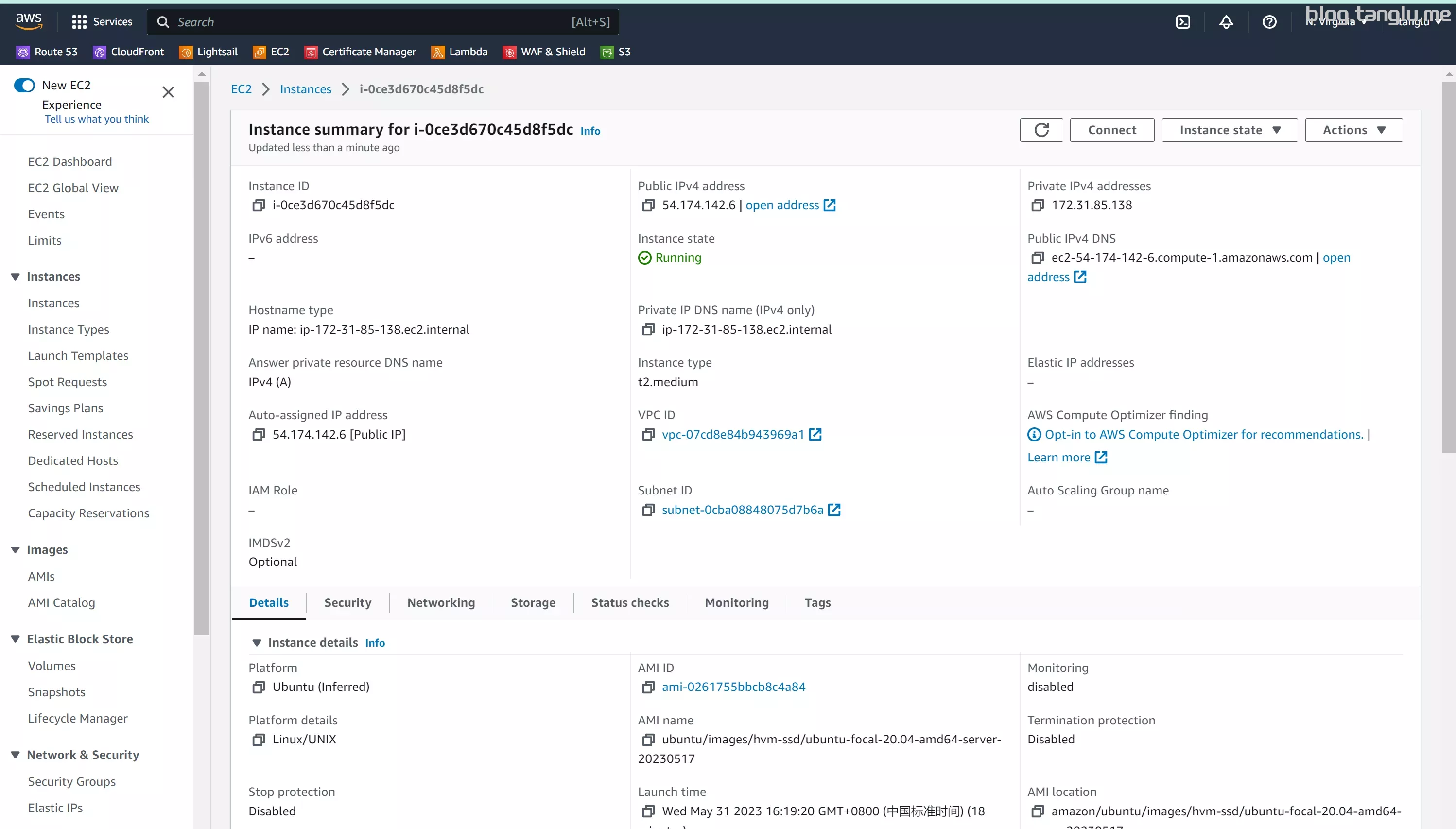
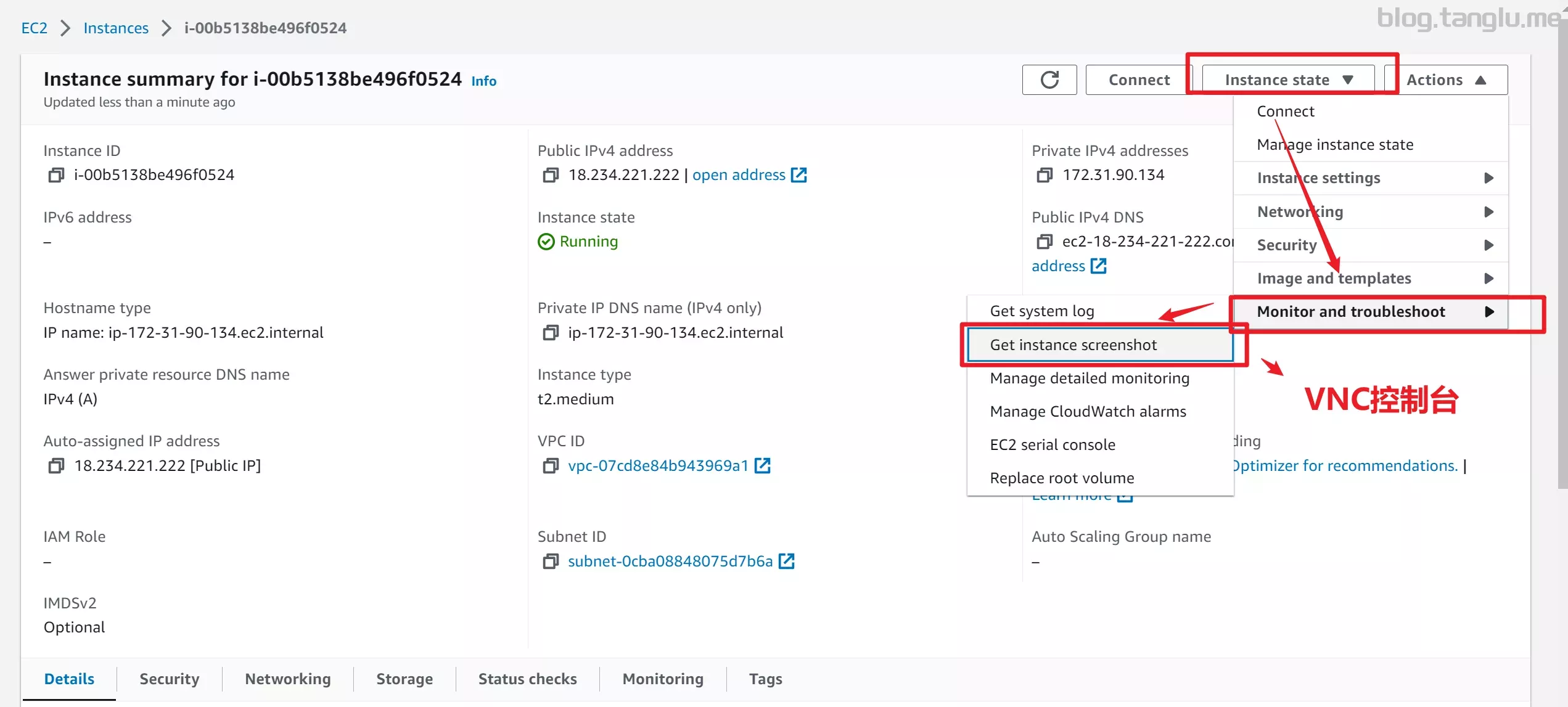
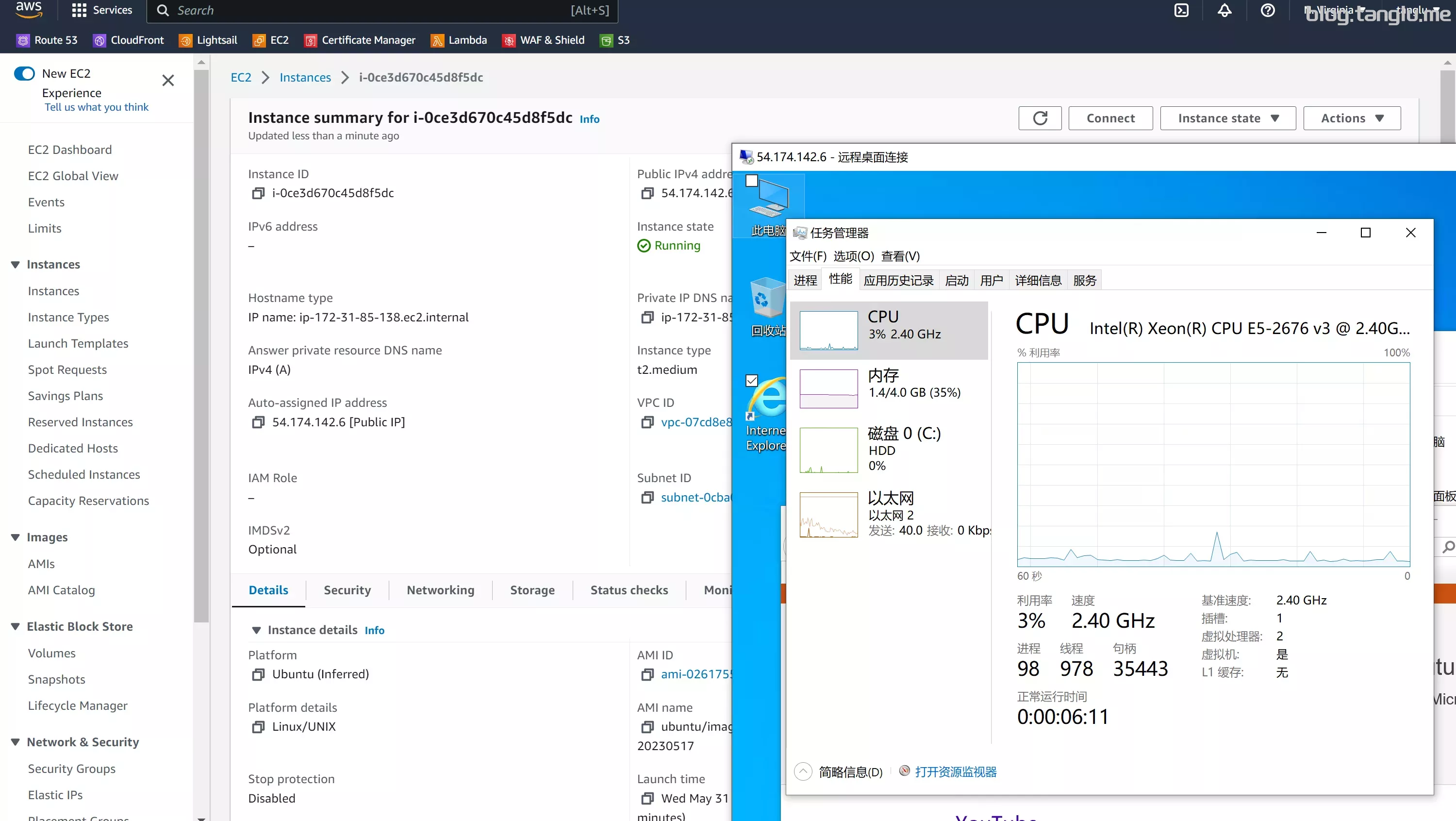
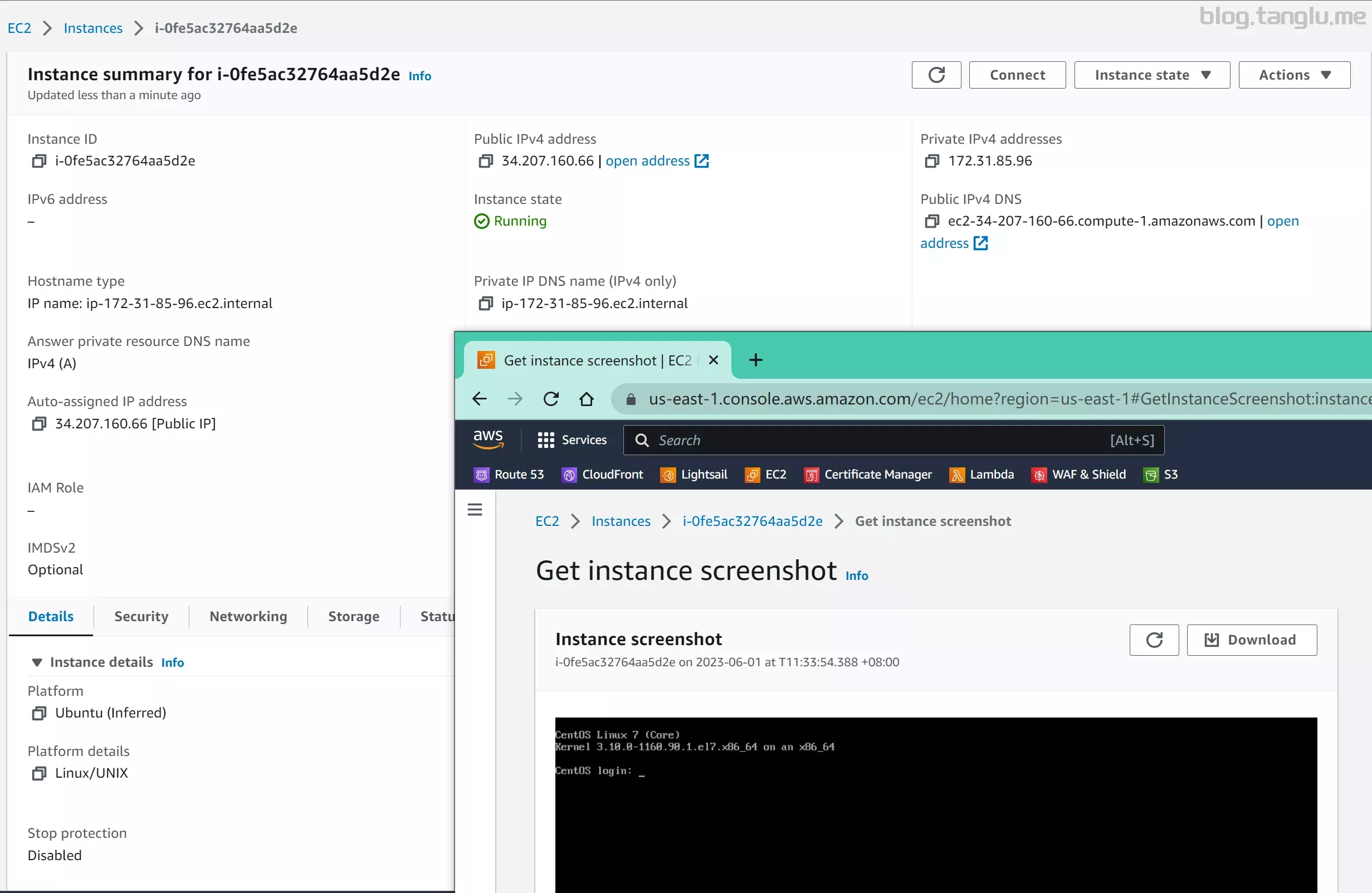
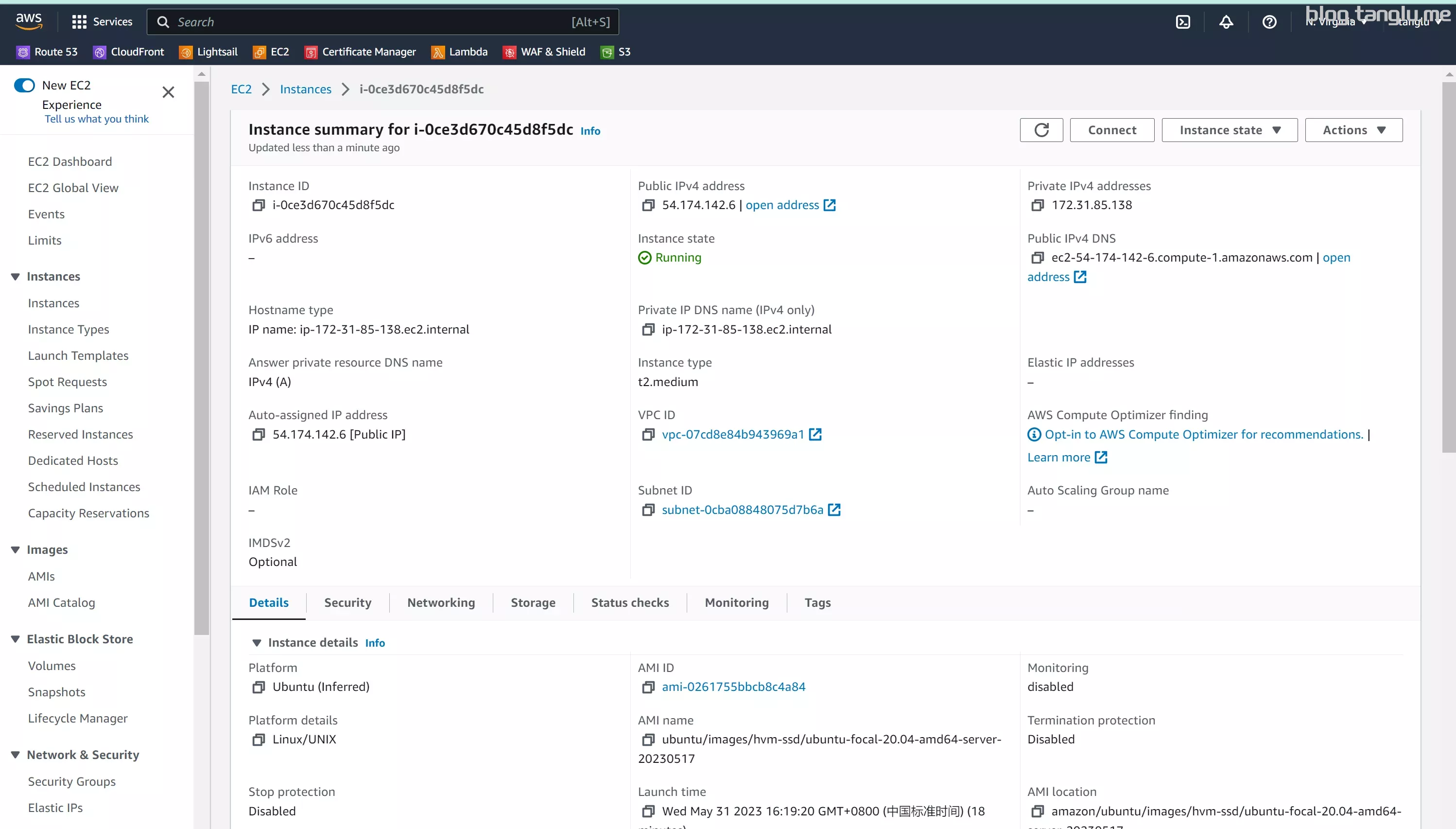
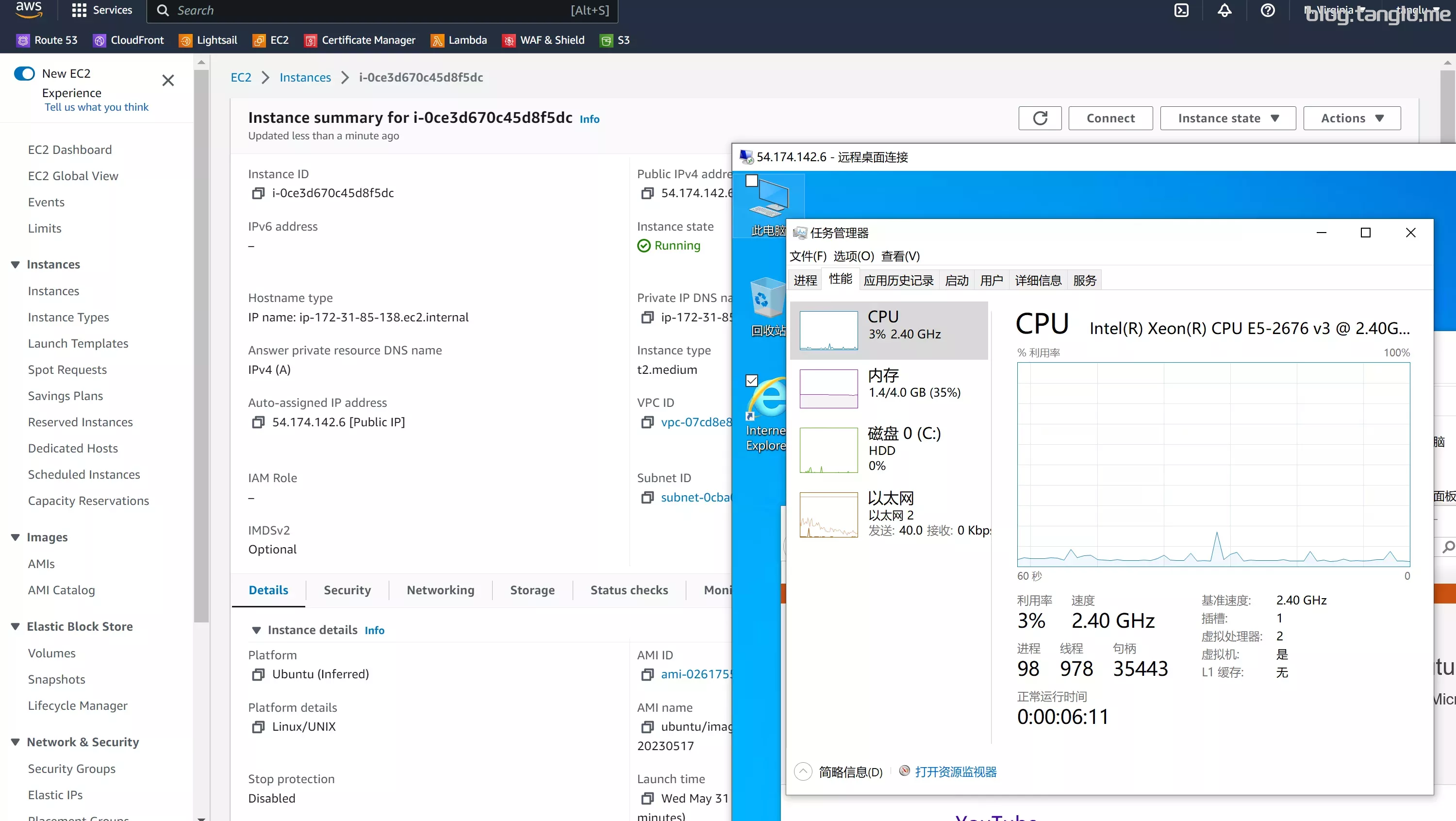
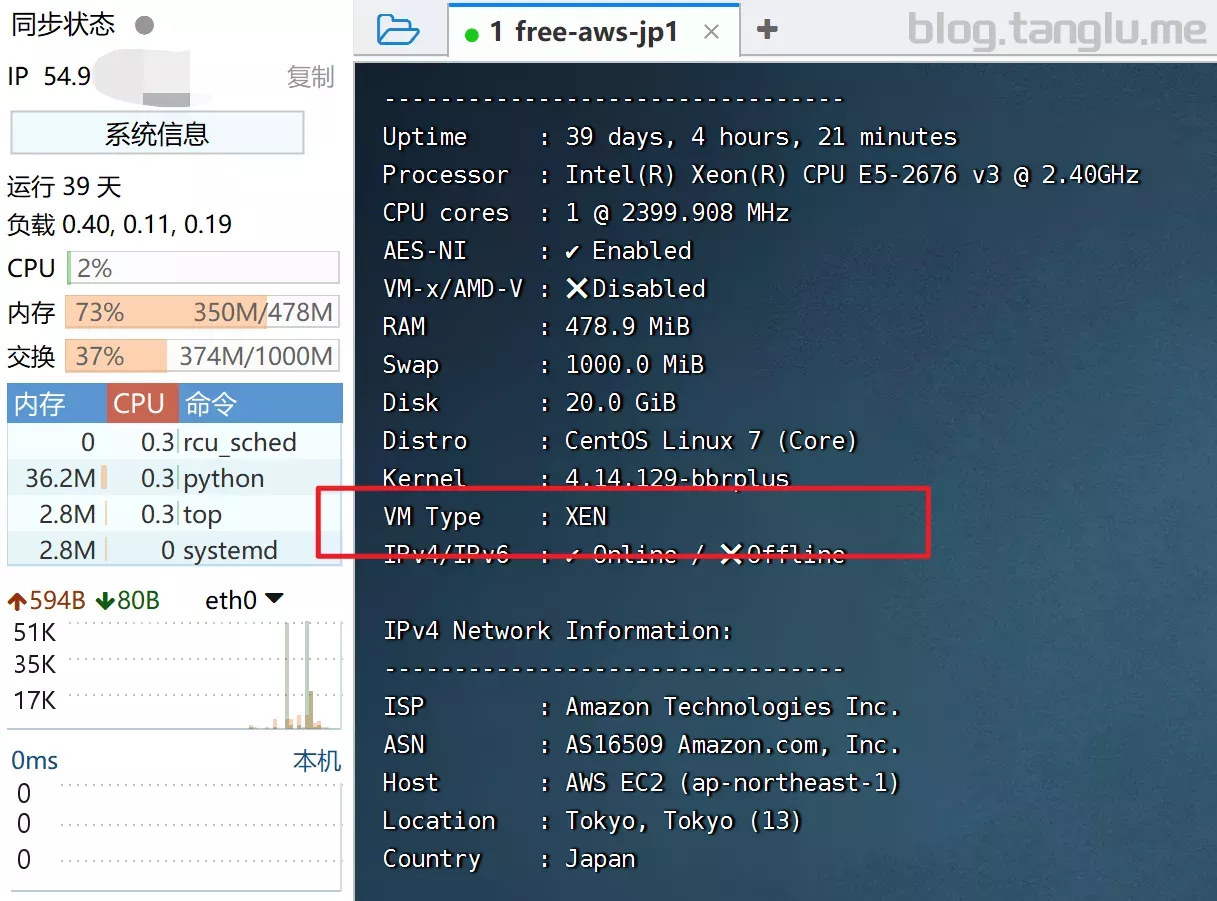
AWS_EC2 BIOS启动 默
qO- inst.sh | bash -s - -t https://file.1323123.xyz/dd/windows/1keydd/win10ltsc_password_1keydd.gz

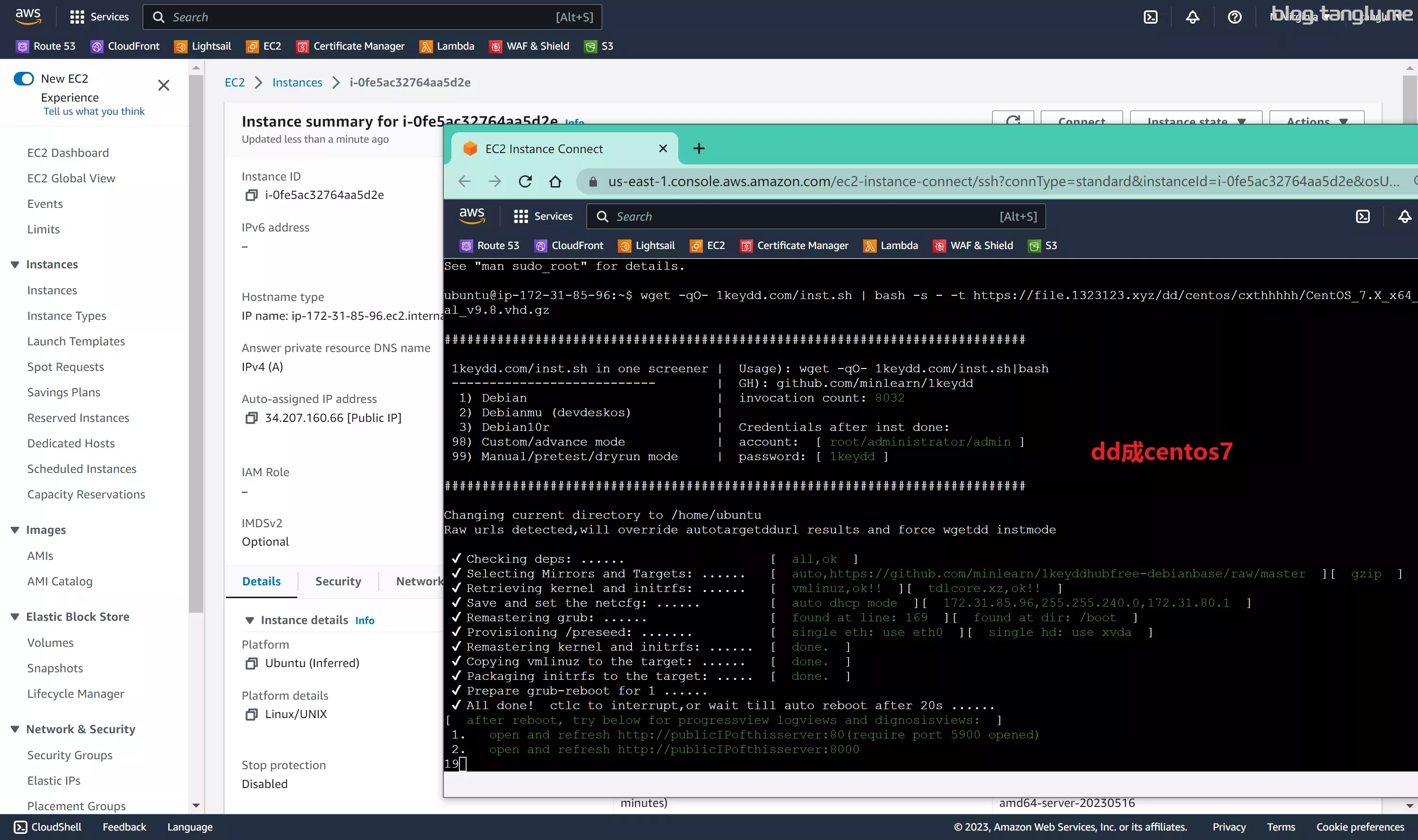
wget -qO- inst.sh | bash -s - -t https://file.1323123.xyz/dd/centos/cxthhhhh/CentOS_7.X_x64_Legacy_NetInstallation_Final_v9.8.vhd.gz
demo2:dd成centos7
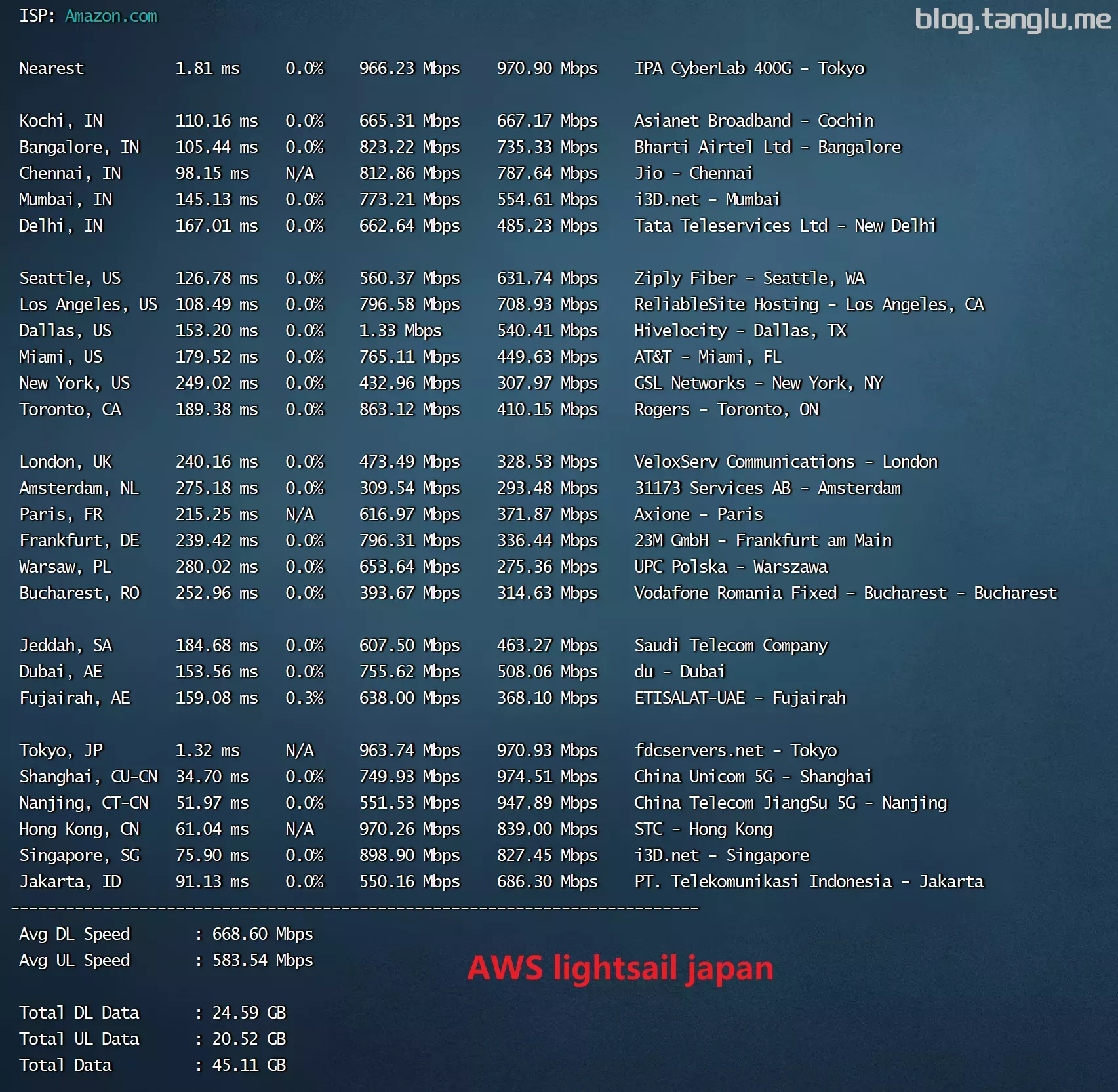
AWS_lightsail aws轻量 亚马逊轻量
况
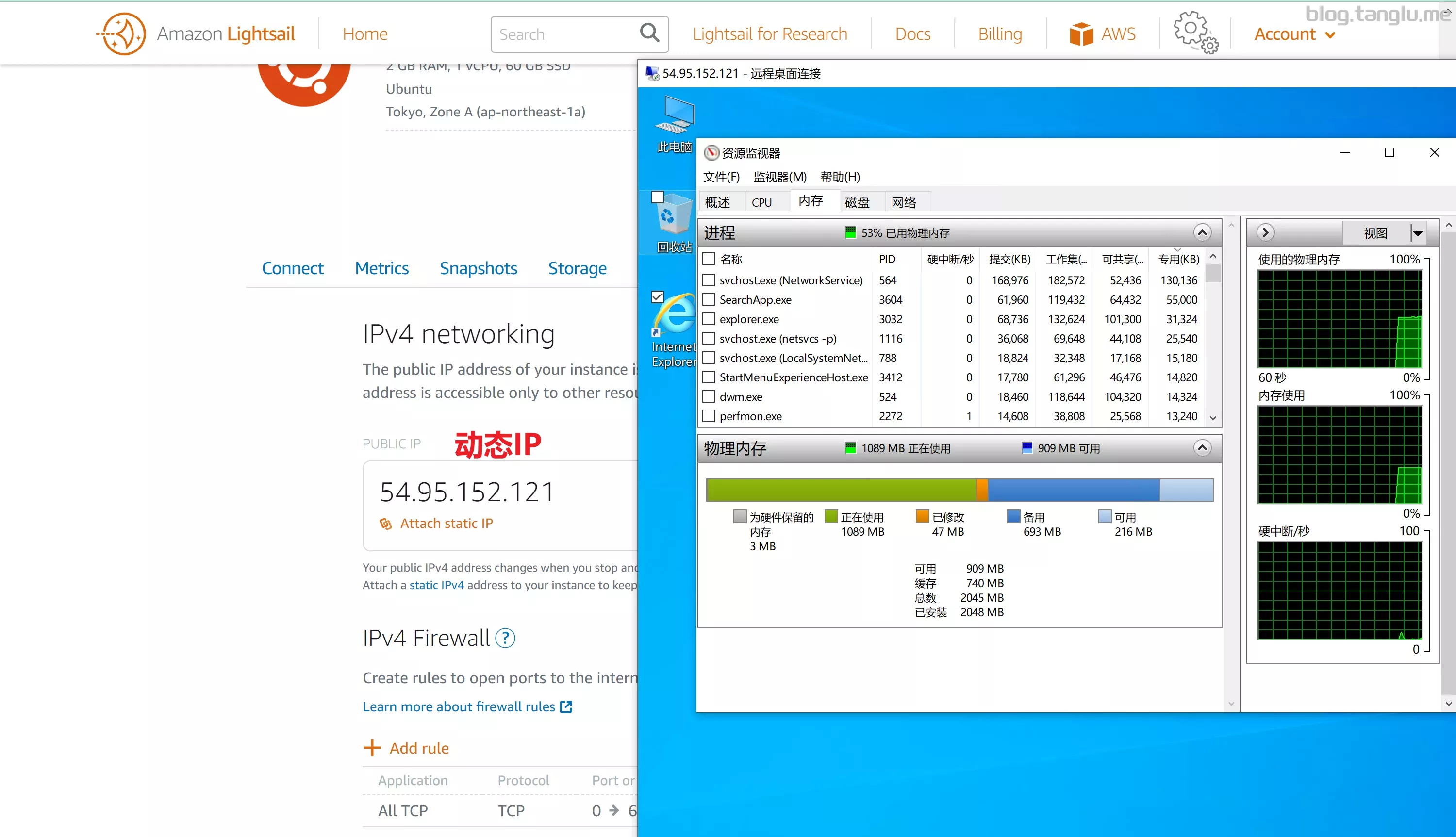
我用的动态IP静态IP应该也是一样的
我用debian没成功 换用的ubuntu22.04可以
wget -qO- inst.sh | bash -s - -n 172.26.13.168,255.255.240.0,172.26.0.1 -t https://file.1323123.xyz/dd/windows/1keydd/win10ltsc_password_1keydd.gz
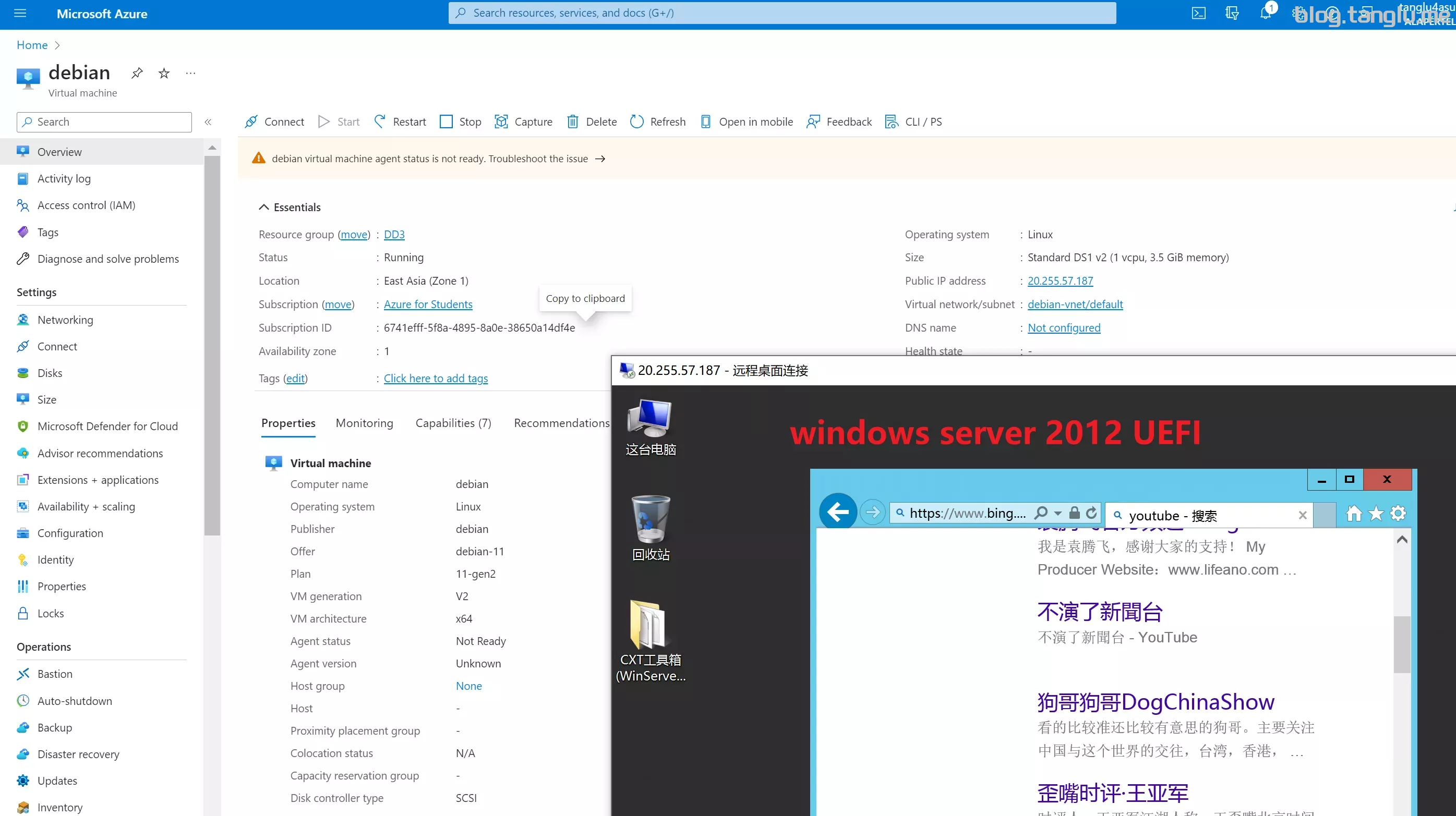
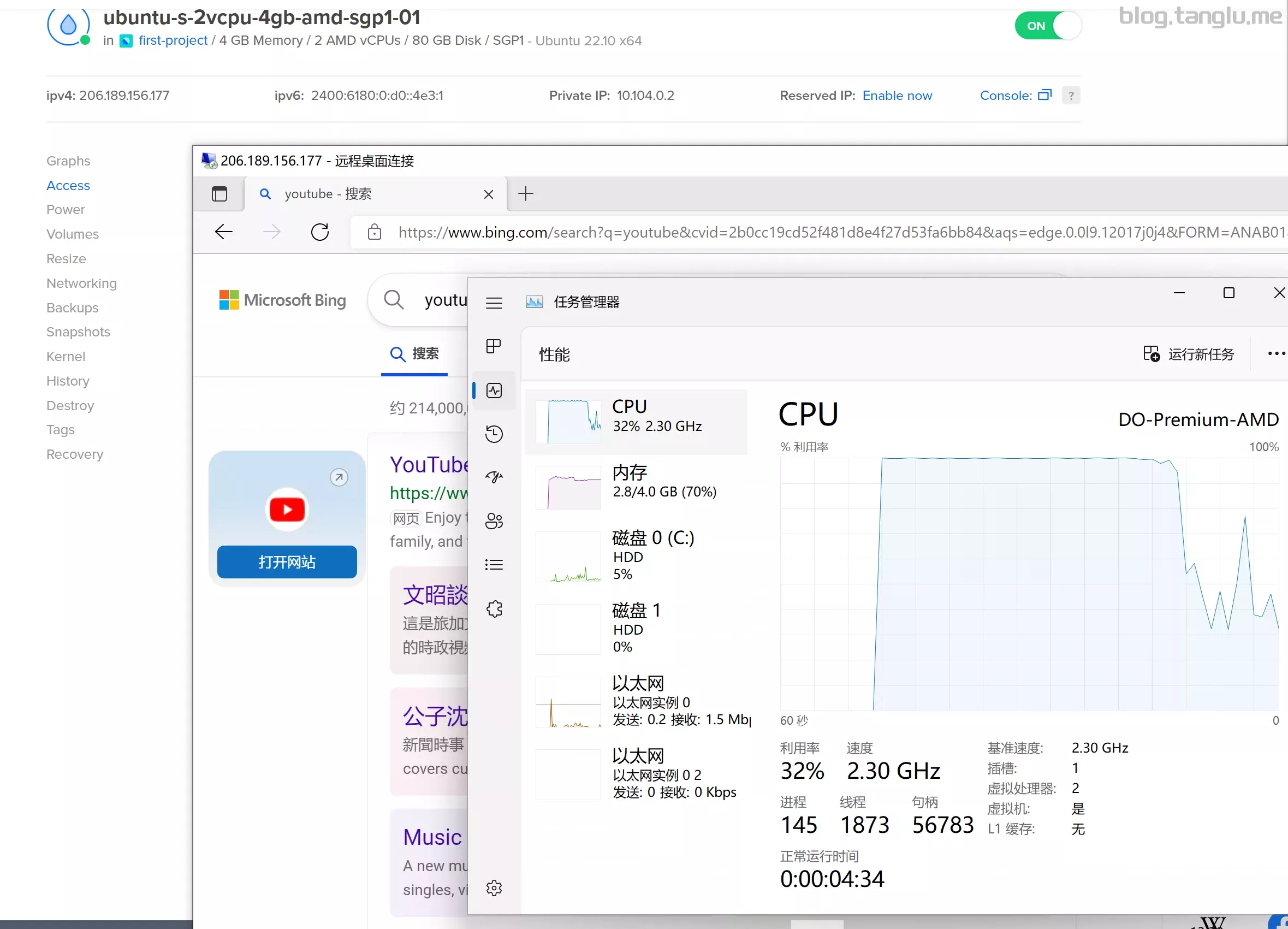
Google Cloud GCP
UEFI启动 默认情况端口未开放
wget -qO- inst.sh | bash -s - -n 10.128.0.4,255.255.25
口未开放 有故障恢复台(Serial console)
wget -qO- inst.sh | bash
)
demo1
demo2
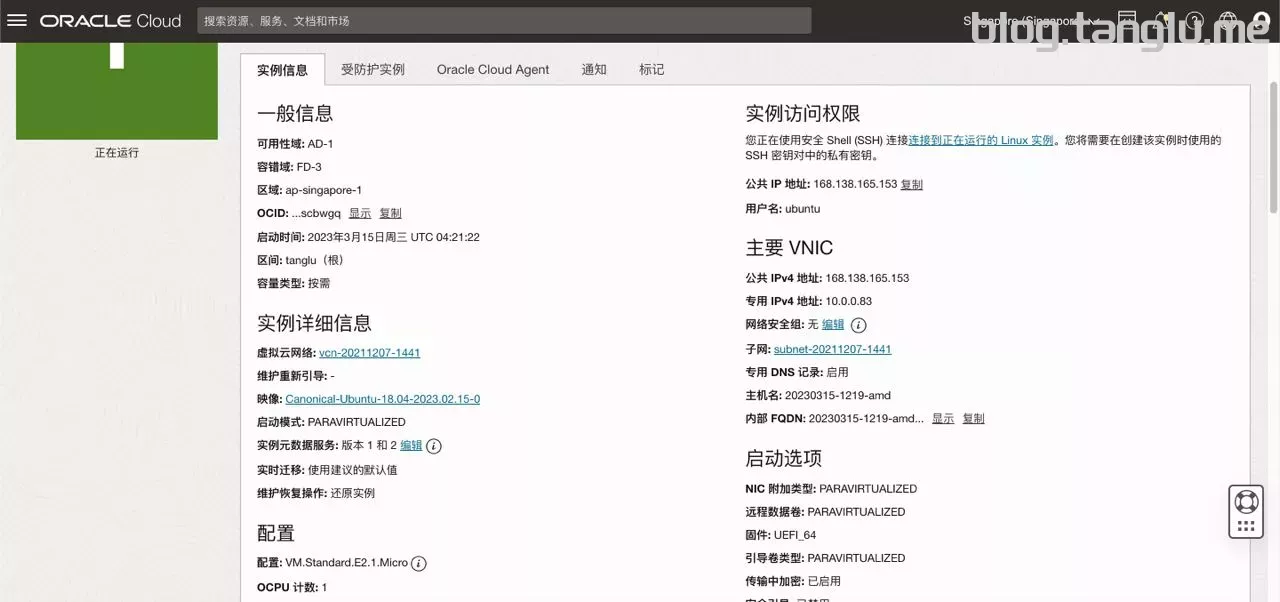
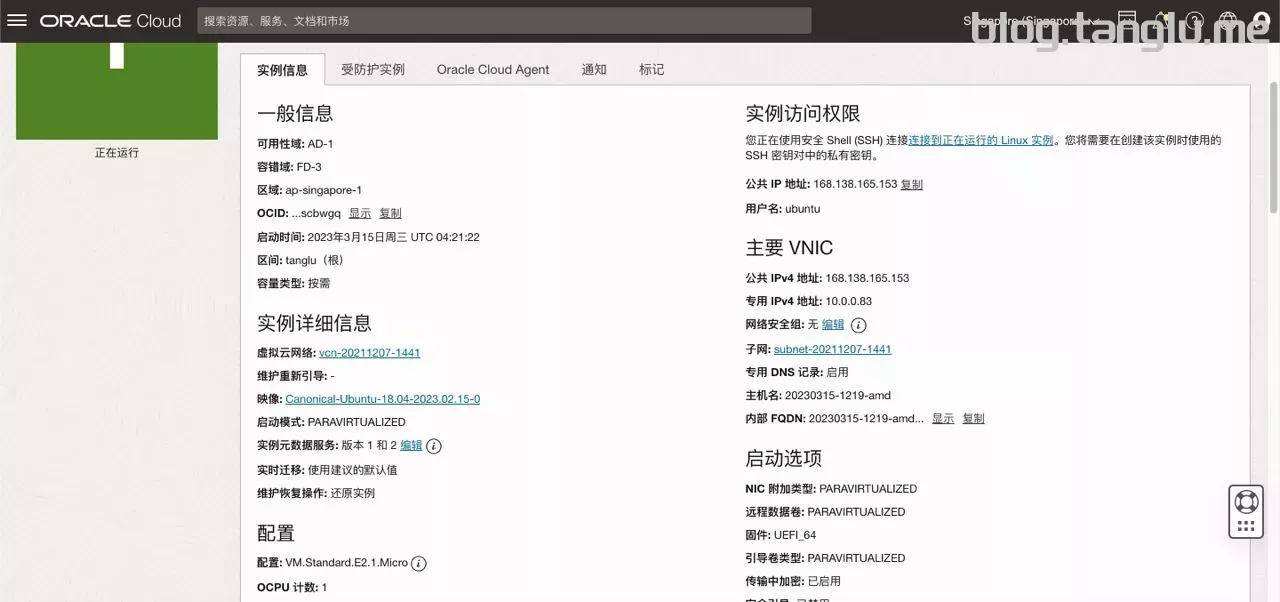
oracle_amd 甲骨文amd 乌龟壳
UEFI启动 默认情况端口未开放 有VNC(但上手较复杂)
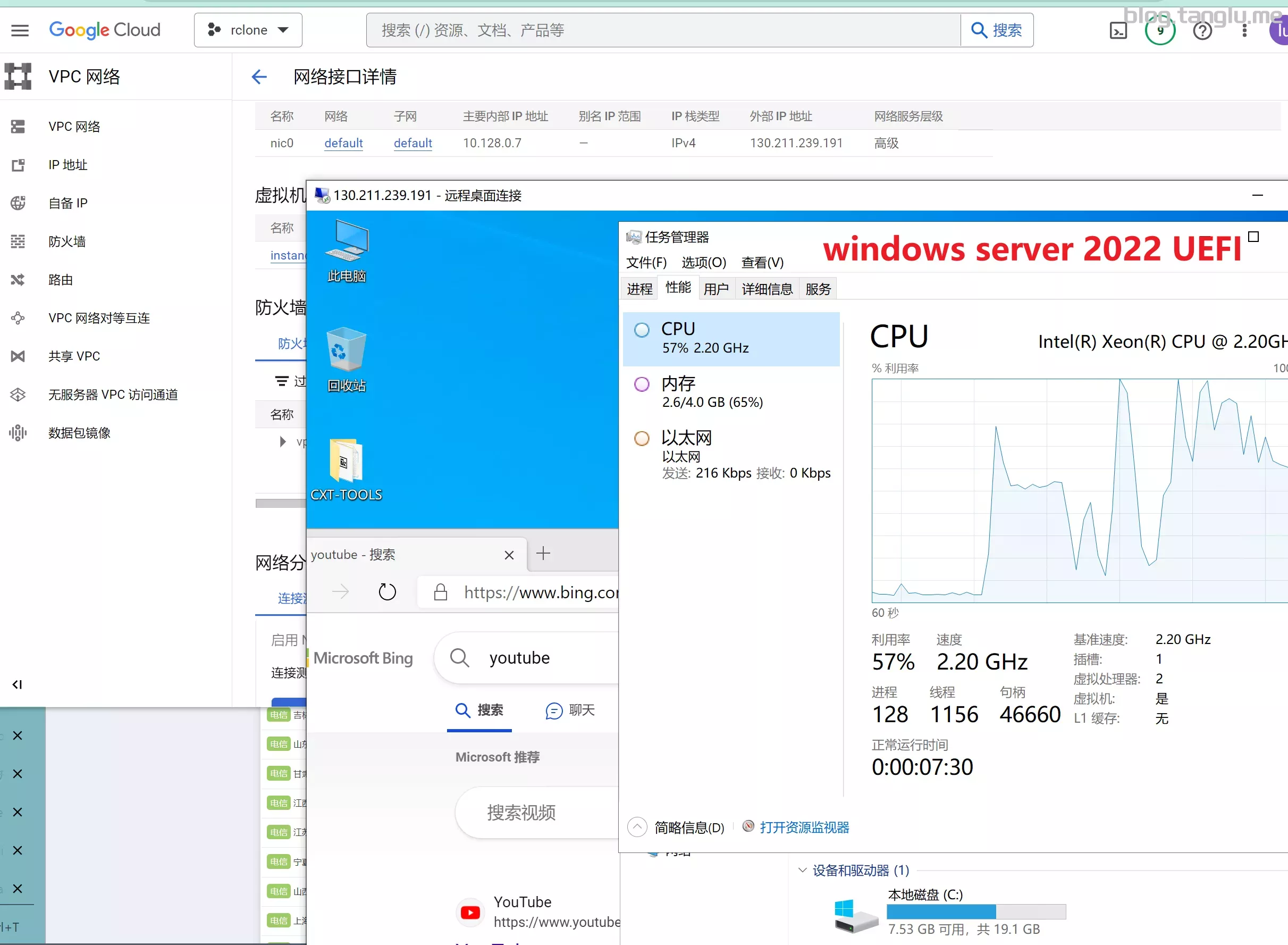
wget -qO- inst.sh | bash -s - -n 10.0.0.83,255.255.255.0,10.0.0.1 -t https://file.1323123.xyz/dd/windows/cxthhhhh/Disk_Windows_Server_2022_DataCenter_CN_v2.12_UEFI.vhd.gz
oracle_arm 甲骨文arm
没有支持ram架构的windows,这里只能dd linux
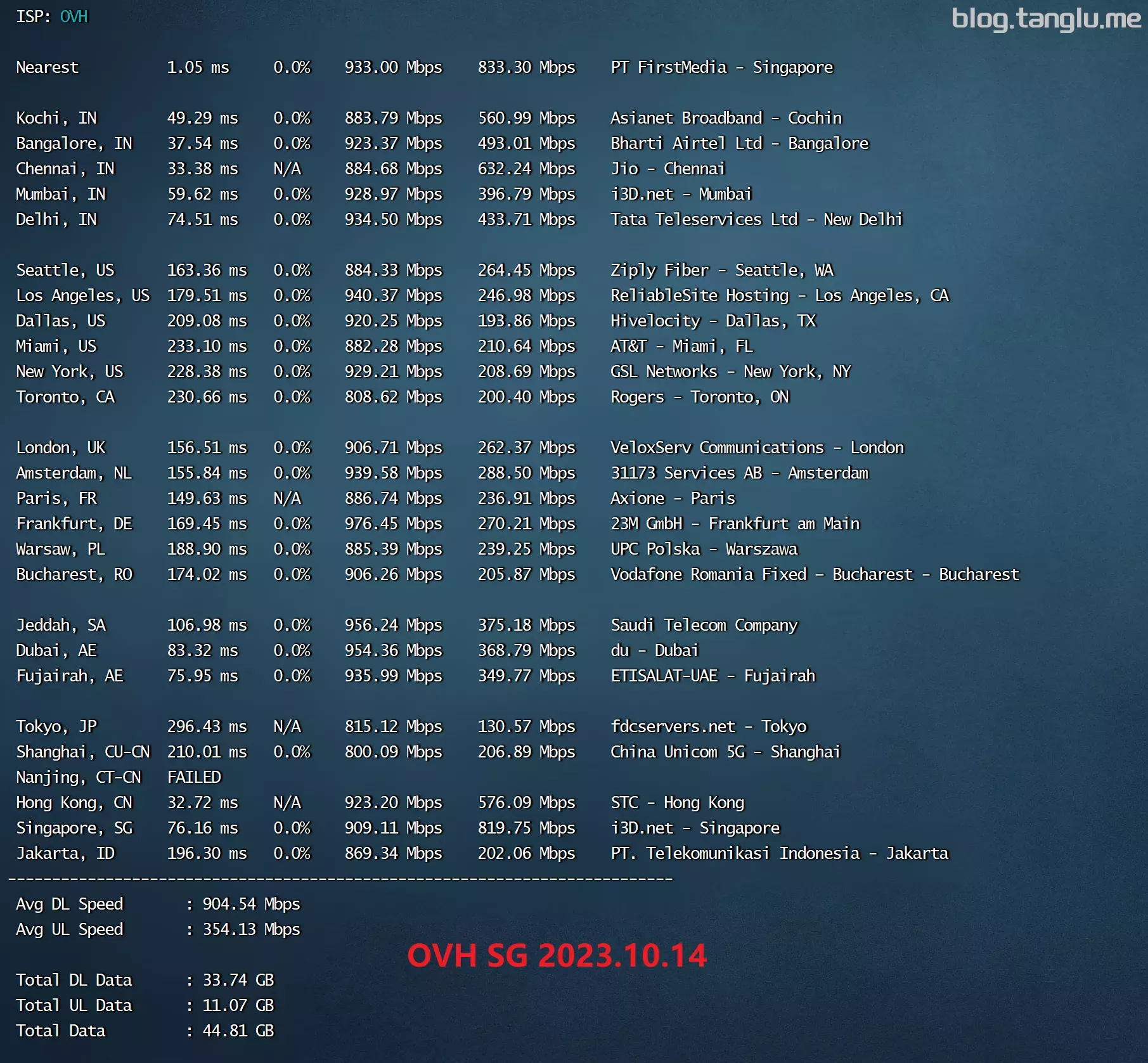
OV BIOS启
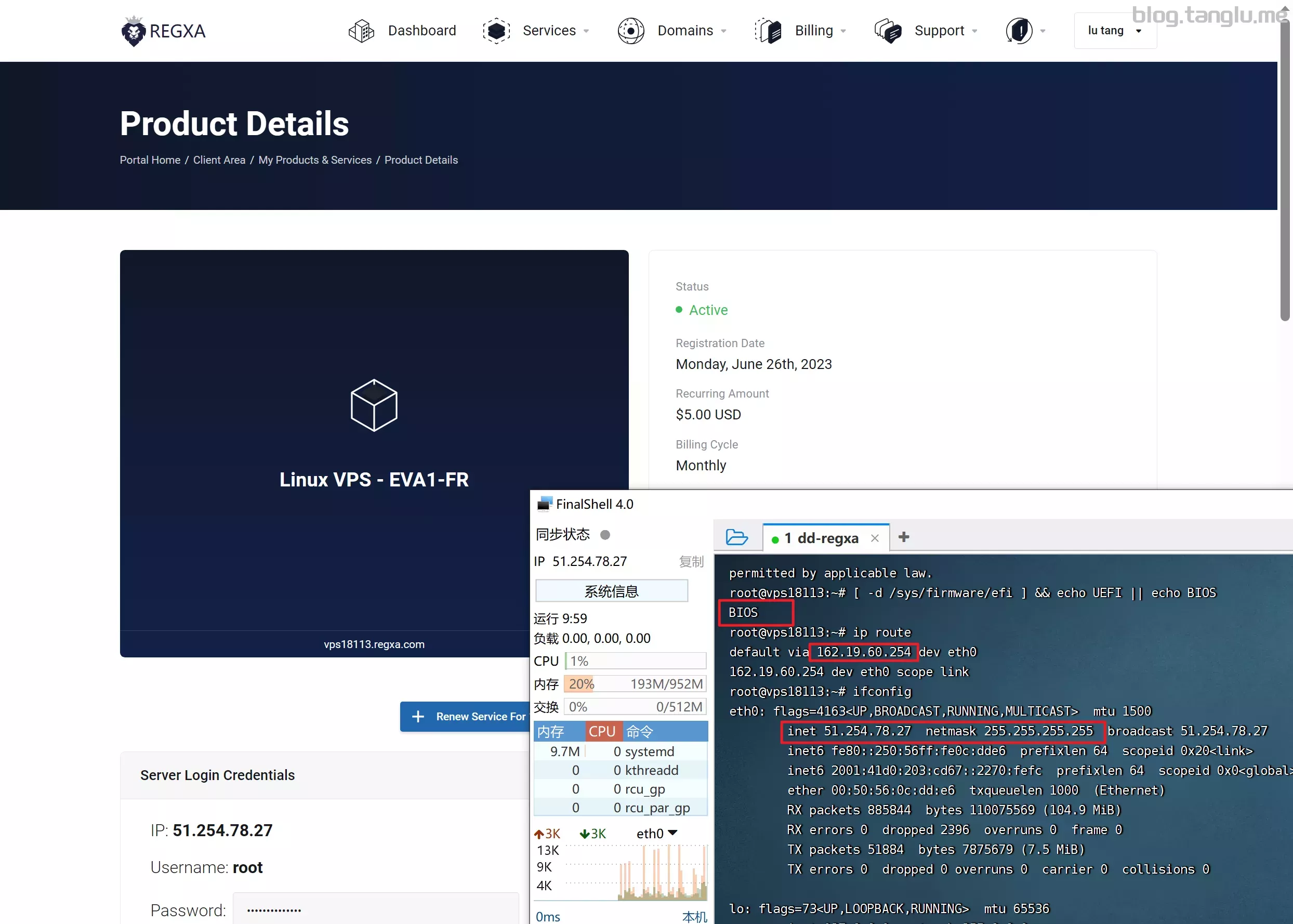
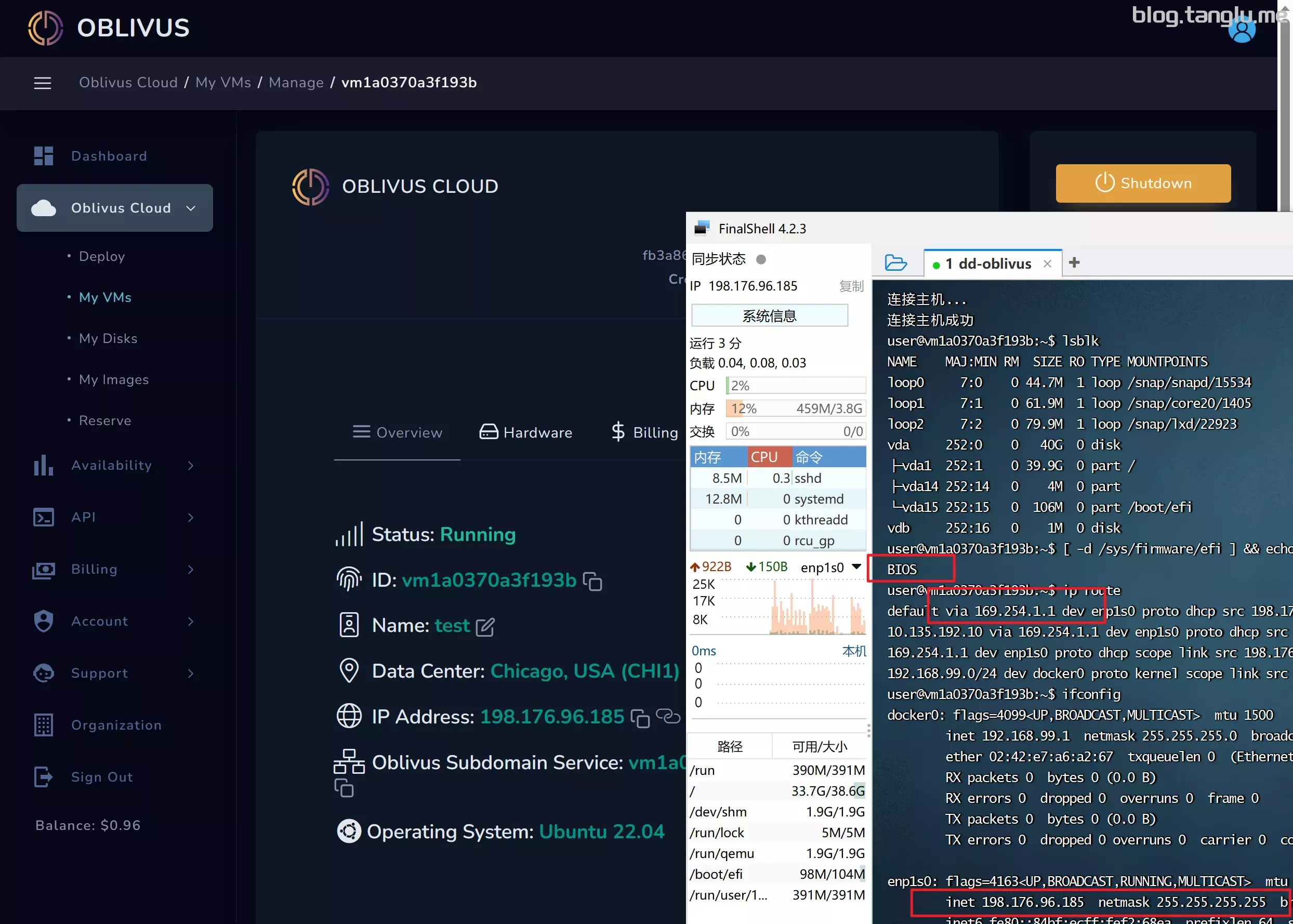
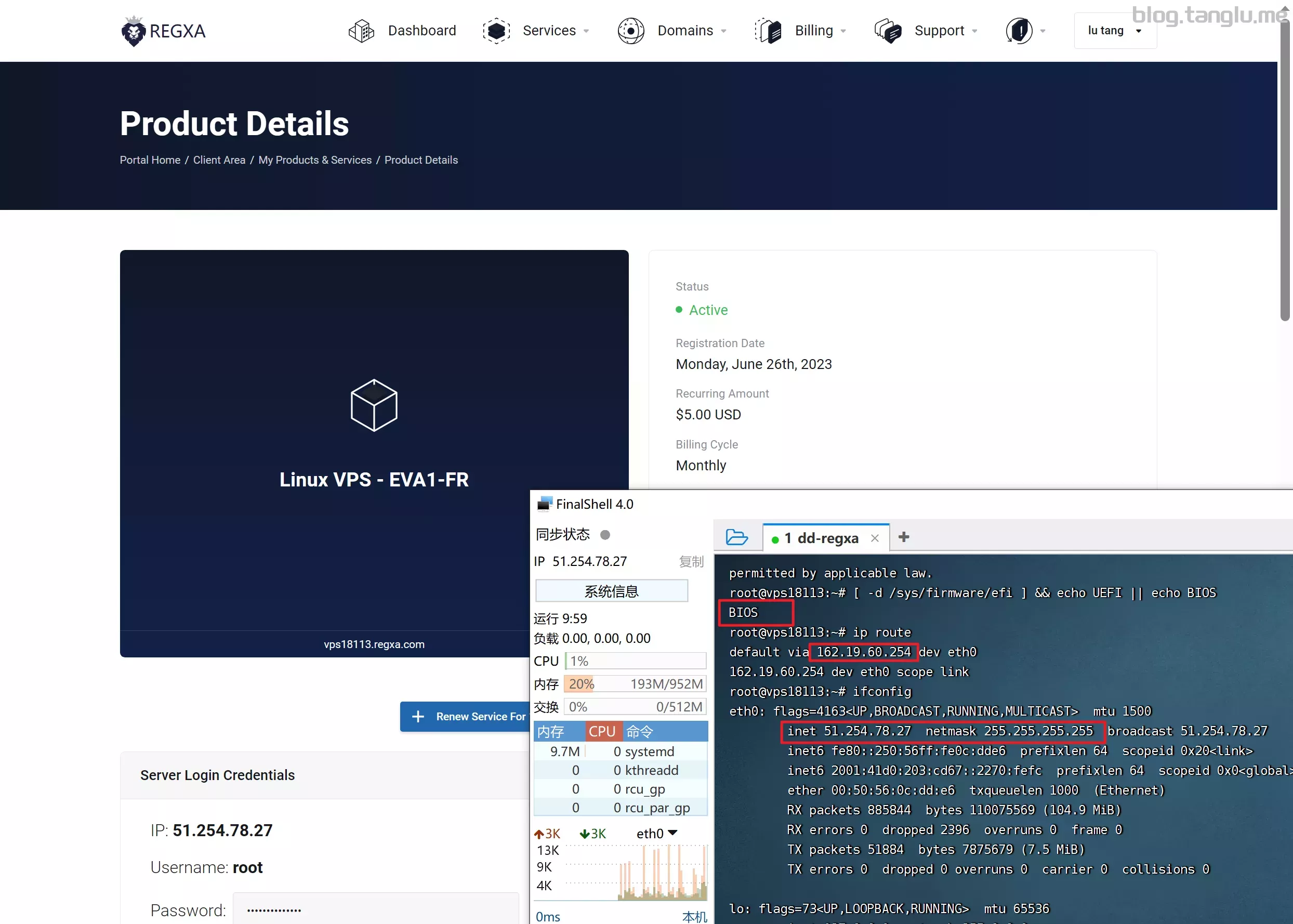
网关在控制台面板看,子网掩码用 ifconfig 显示是 /32 对应的 255.255.255.255
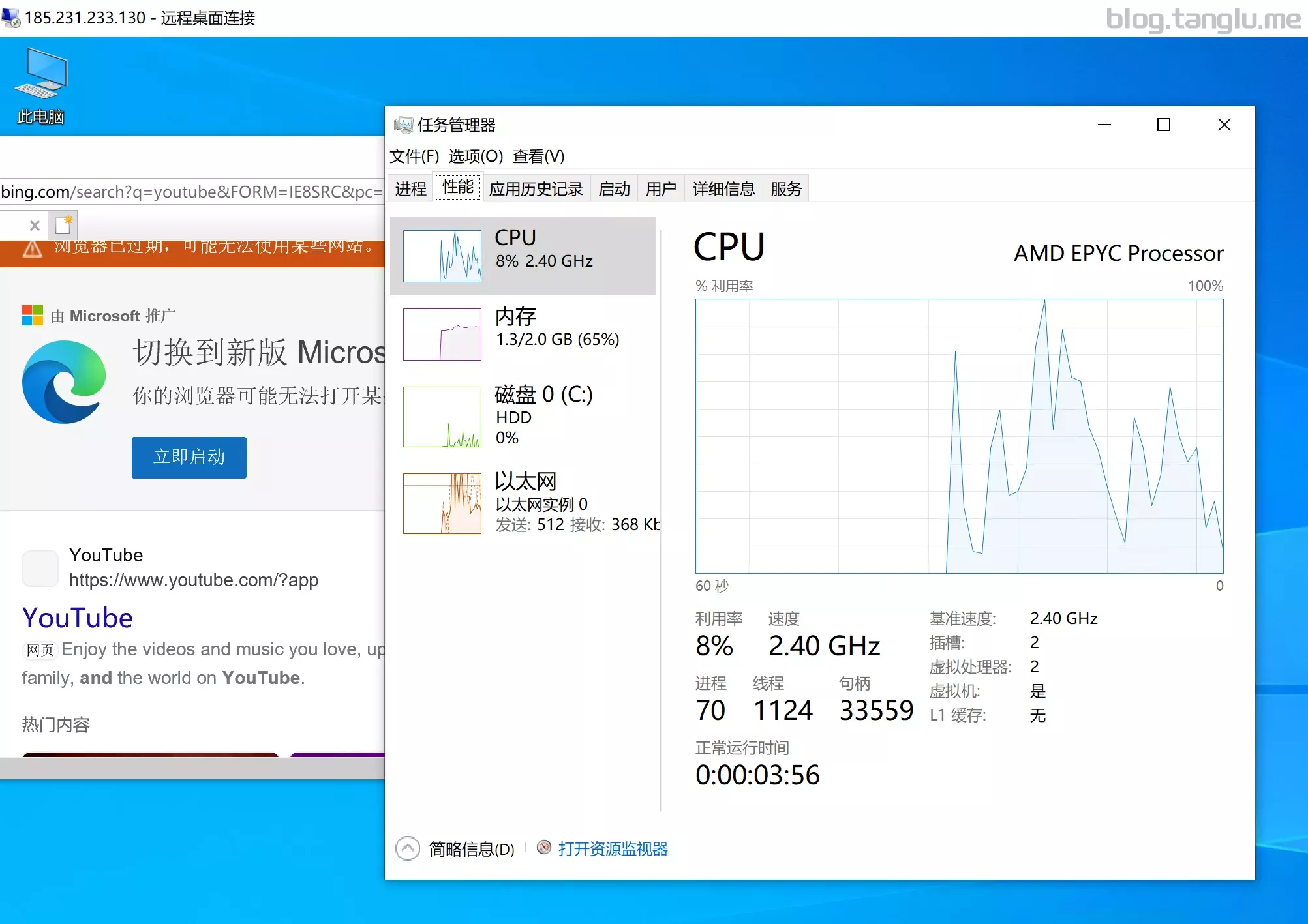
我尝试过ctxhhhhh大佬的windows10会蓝屏报错,但是windows server可以 1keydd大佬的win10也可以
wget -qO- inst.sh | bash -s - -n 51.79.141.178,255.255.255.255,51.79.140.1 -t https://file.1323123.xyz/dd/windows/1keydd/win10ltsc_password_1keydd.gz

wget -qO- inst.sh | bash -s - -n 51.79.141.178,255.255.255.255,51.79.140.1 -t https://file.1323123.xyz/dd/windo
腾 良心云 凉
S启动 默认情况端口未开放 控制台有VNC
我用cxthhhhh大佬的windows server 2022/2008镜像报 0xc000021a 蓝屏错误
wget -qO- inst.sh | bash -s - -n 172.22.0.4,255.255.240.0,172.22.0.1 -t https://file.1323123.xyz/dd/windows/1keydd/win10ltsc_password_1keydd.gz


wget -qO-
ver_
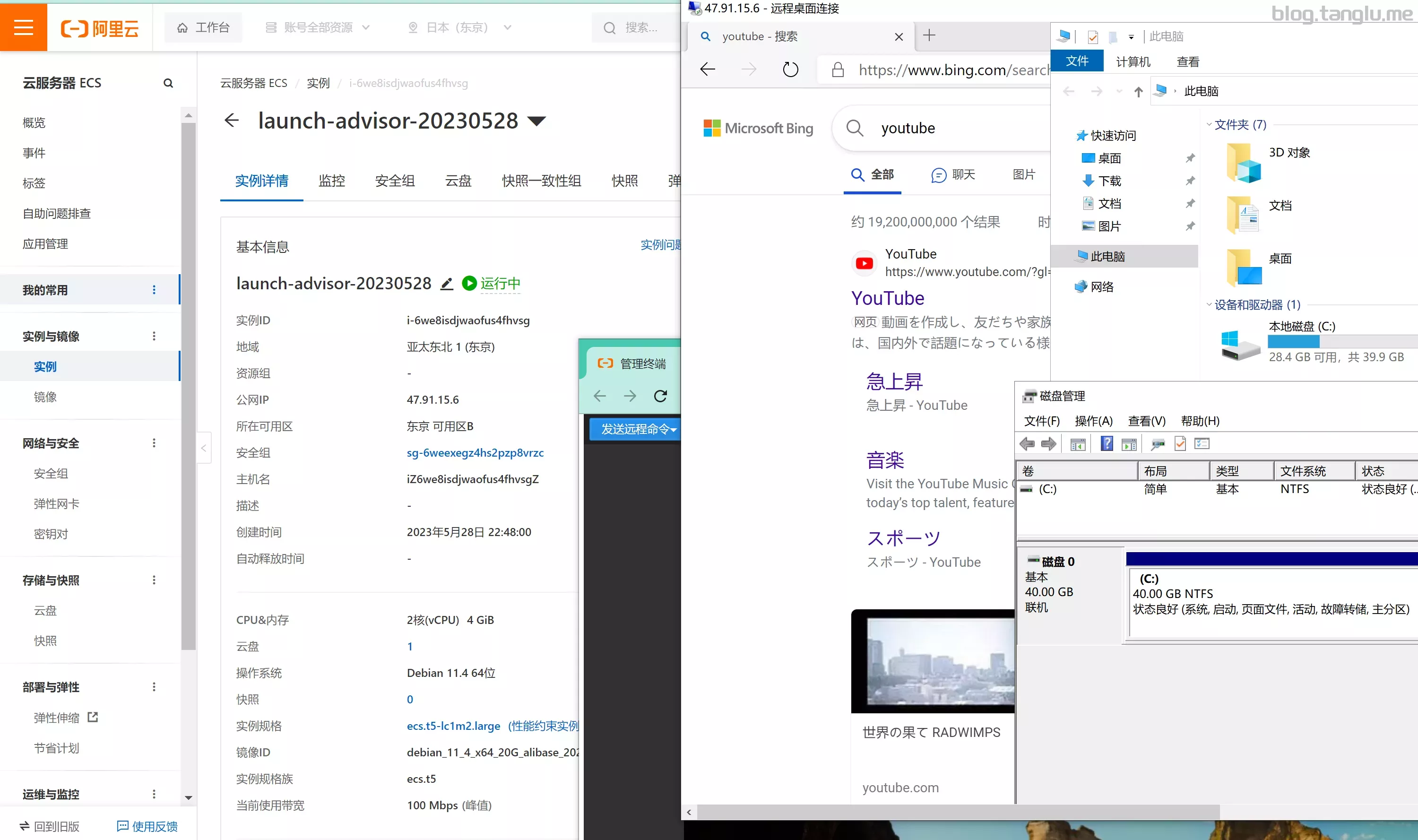
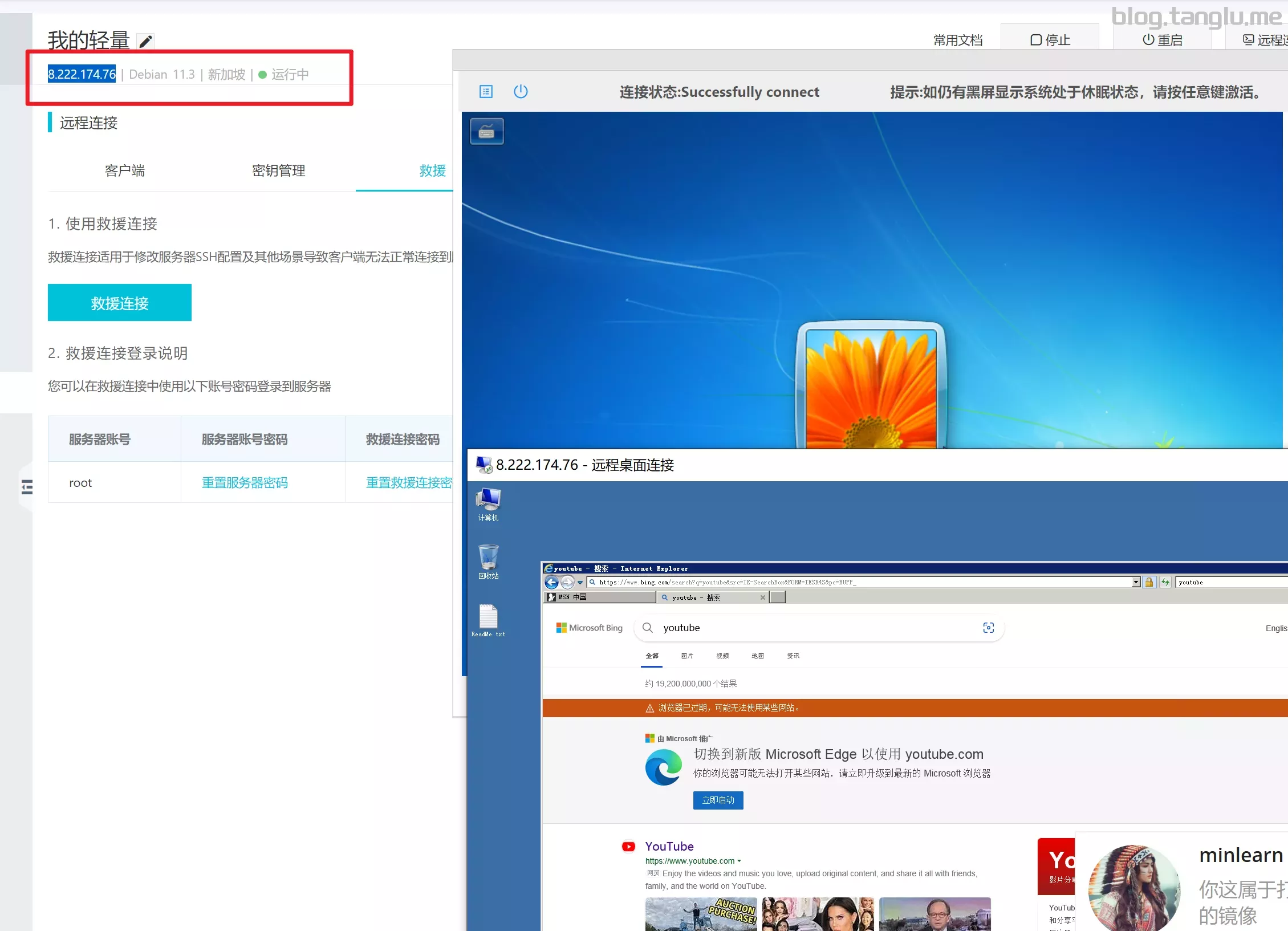
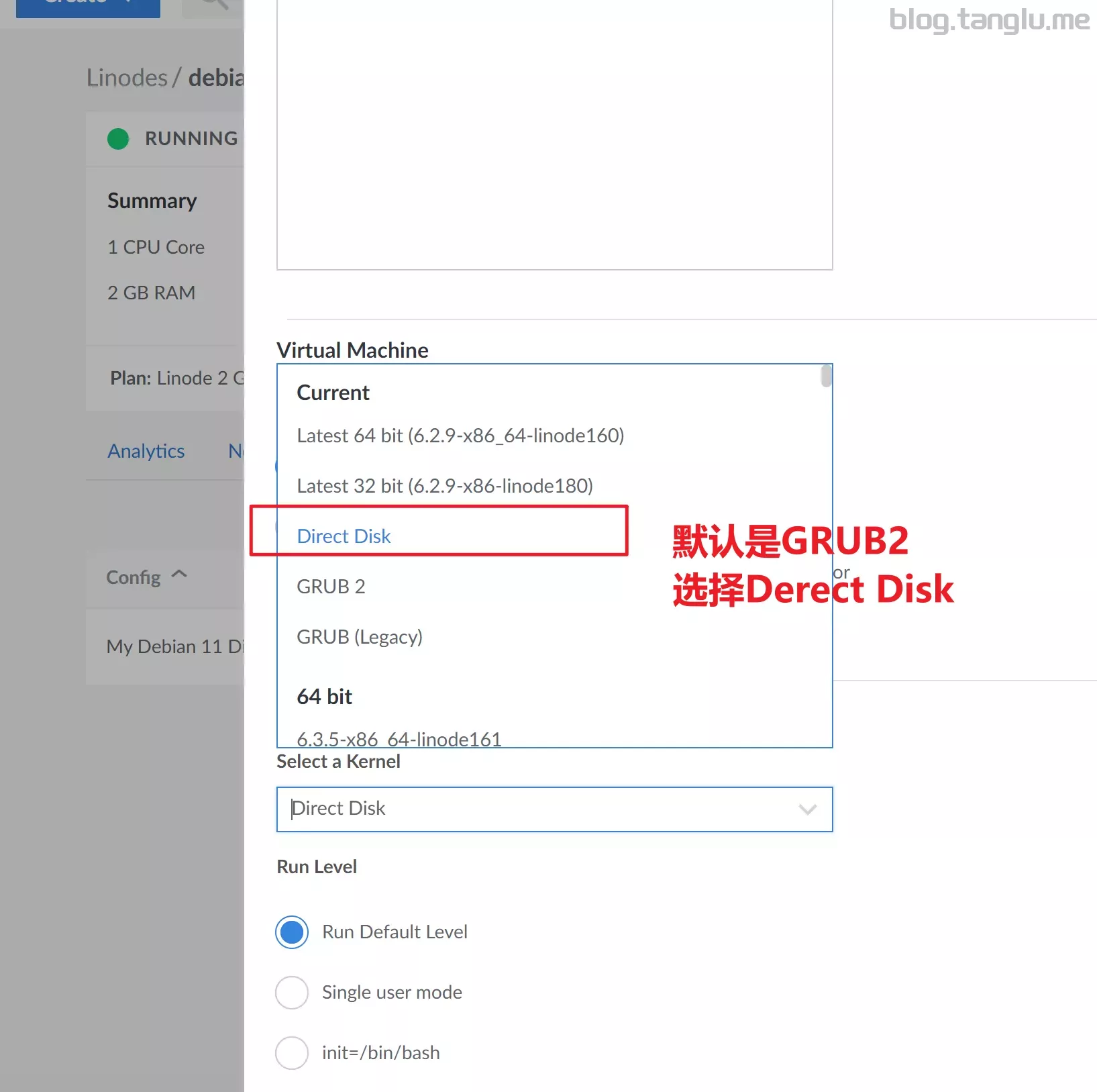
阿里云_轻量 BIOS启动 默认情况端口未开放 控制台有VNC(救援模式)
wget -qO- inst.sh | bash -s - -n 172.17.38.17,255.255.192.0,172.17.63.253 -t https://file.1323123.xyz/dd/windows/cxthhhhh/Disk_Windows_7_Vienna_Ultimate_CN_v2.0.vhd.gz
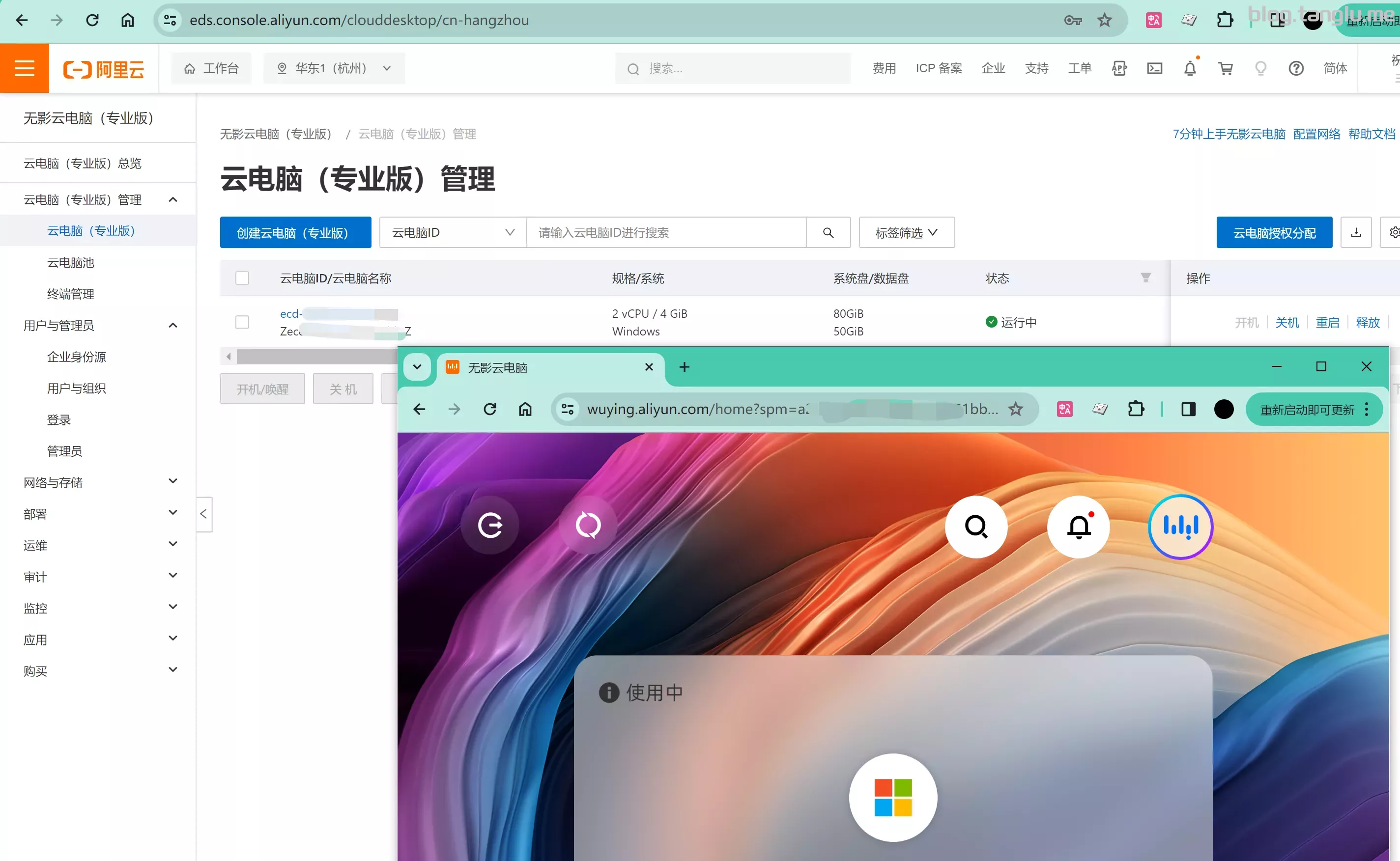
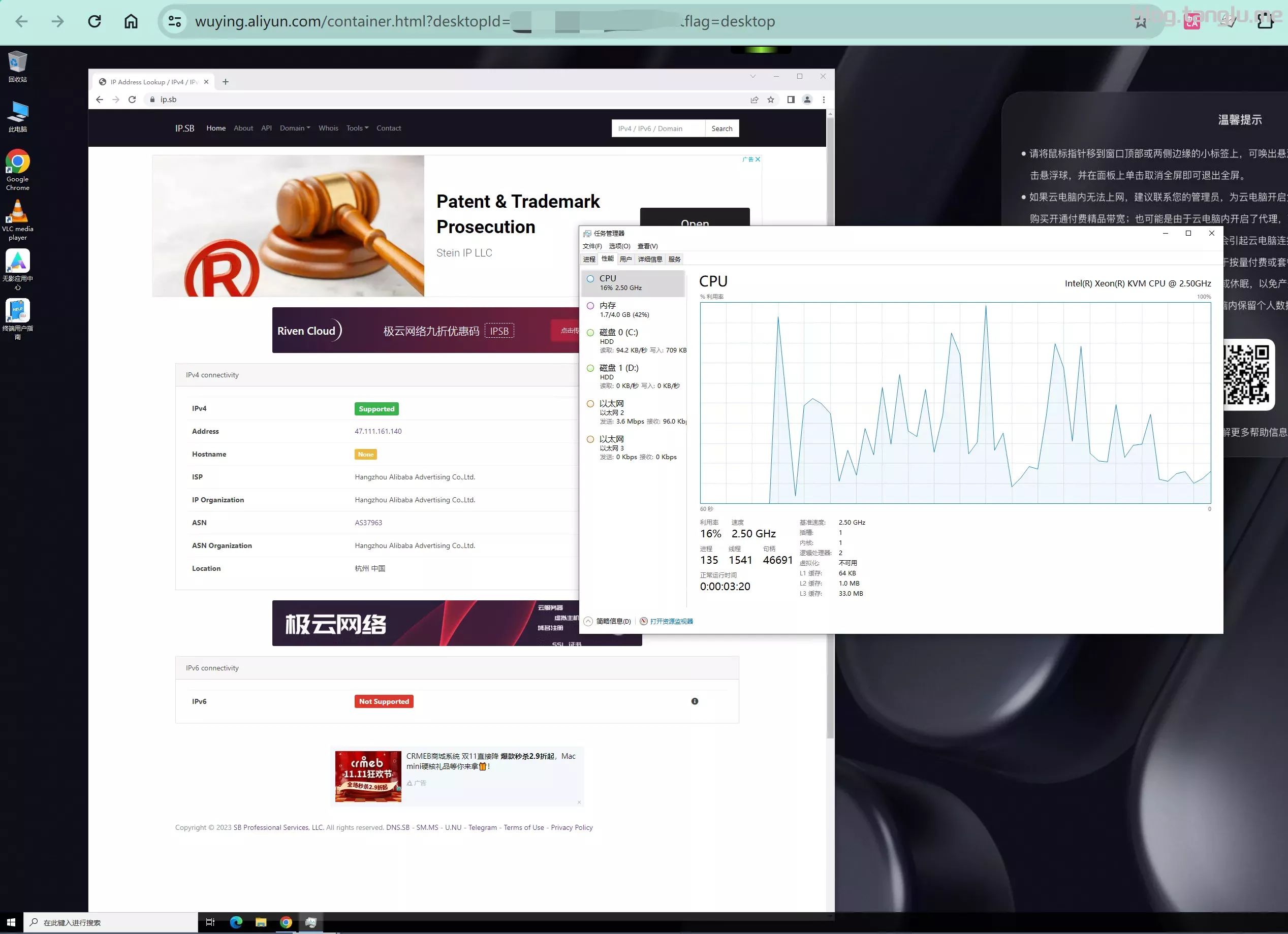
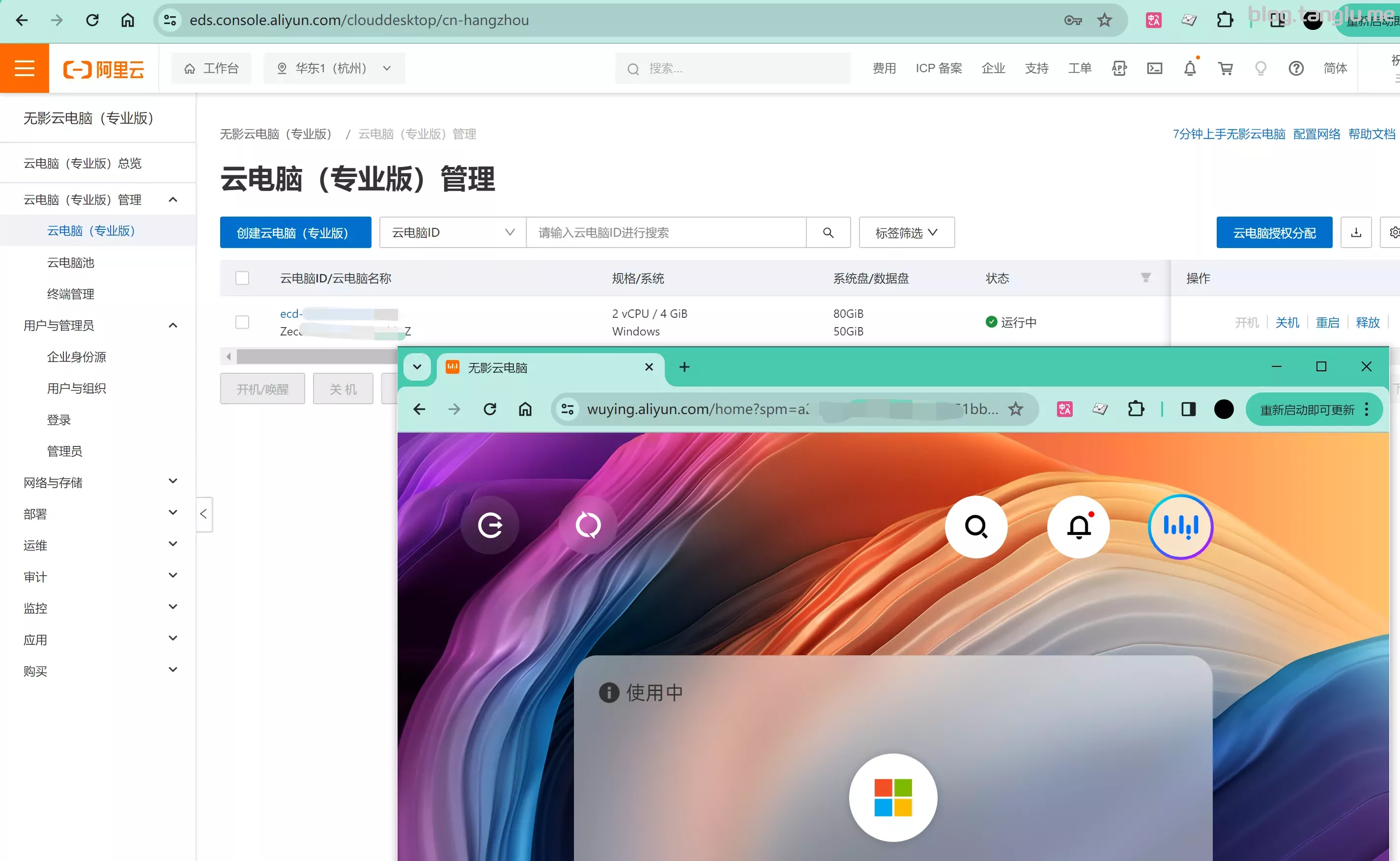
阿里云_无影云电脑 专业版
支持重装windows和ubuntu桌面版
bin456789脚本用法
#windows dd 为linux
#可以dd为linux 但是无法启动,联系工程师他会告诉你已经dd好了
.\reinstall.bat debian 11 --ci
华为云ECS huawei cloud
BIOS启动 有VNC 默认情况端口未开放
wget -qO- inst.sh | bash -s - -n 192.168.0.130,255.255.255.0,192.168.0.1 -t https://file.1323123.xyz/dd/windows/c --ci
#linux dd 为 windows
#我测试有鼠标偏移的现象
curl -O https://ghps.cc/https://raw.githubusercontent.com/bin456789/reinstall/main/reinstall.sh.1 -t https://file.1323123.xyz/dd/windows/cxthhhhh/Disk_Windows_10_x64_Lite_by_CXT_v1.0.vhd.gz
移 086 ecloud
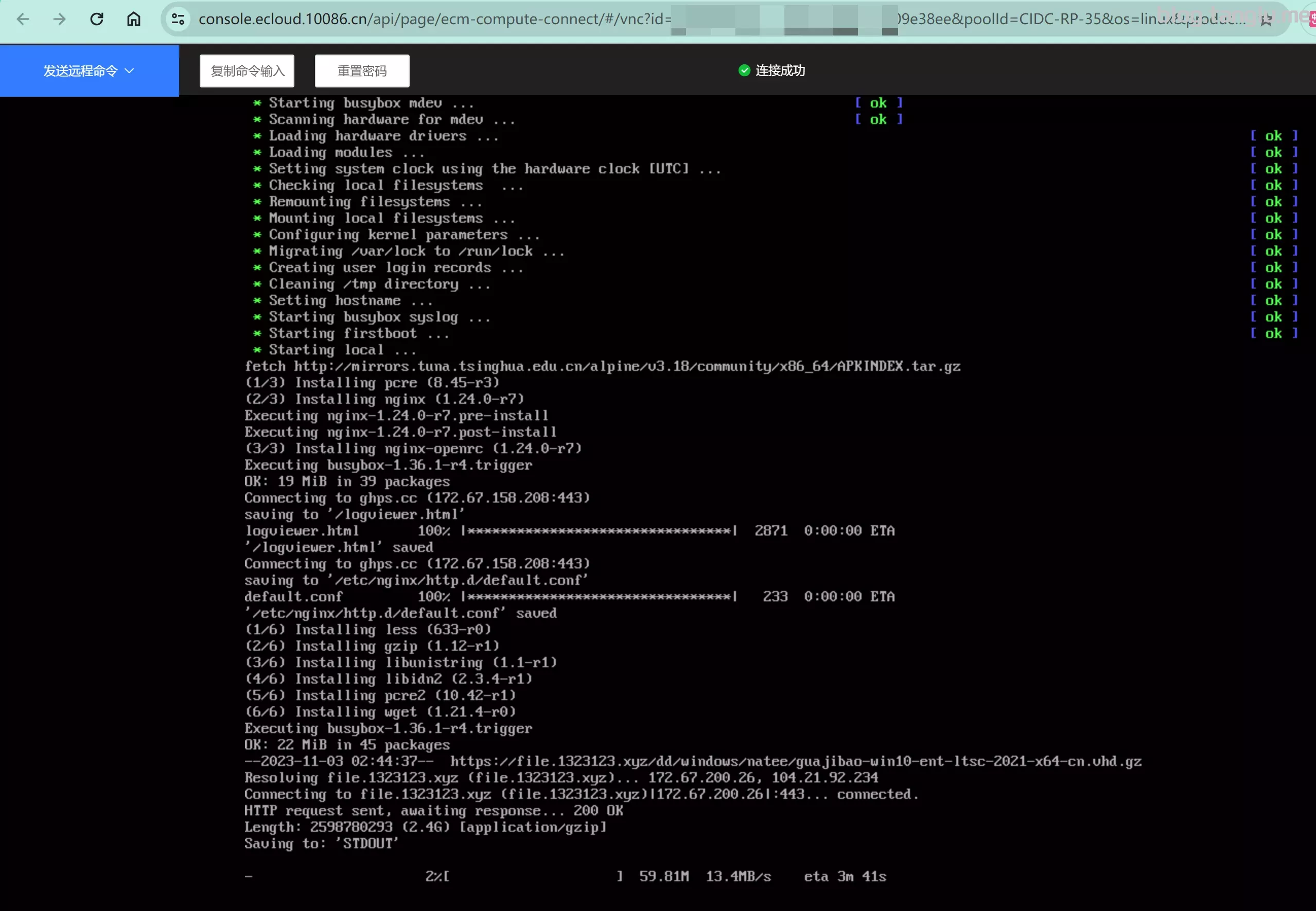
有VNC BIOS启动 默认情况端口未开放 支持一键免费安装windows
curl -O https://ghps.cc/https://raw.githubusercontent.com/bin456789/reinstall/main/reinstall.sh && bash reinstall.sh dd --img=https://file.1323123.xyz/dd/windows/natee/guajibao-win10-ent-ltsc-2021-x64-cn.vhd.gz
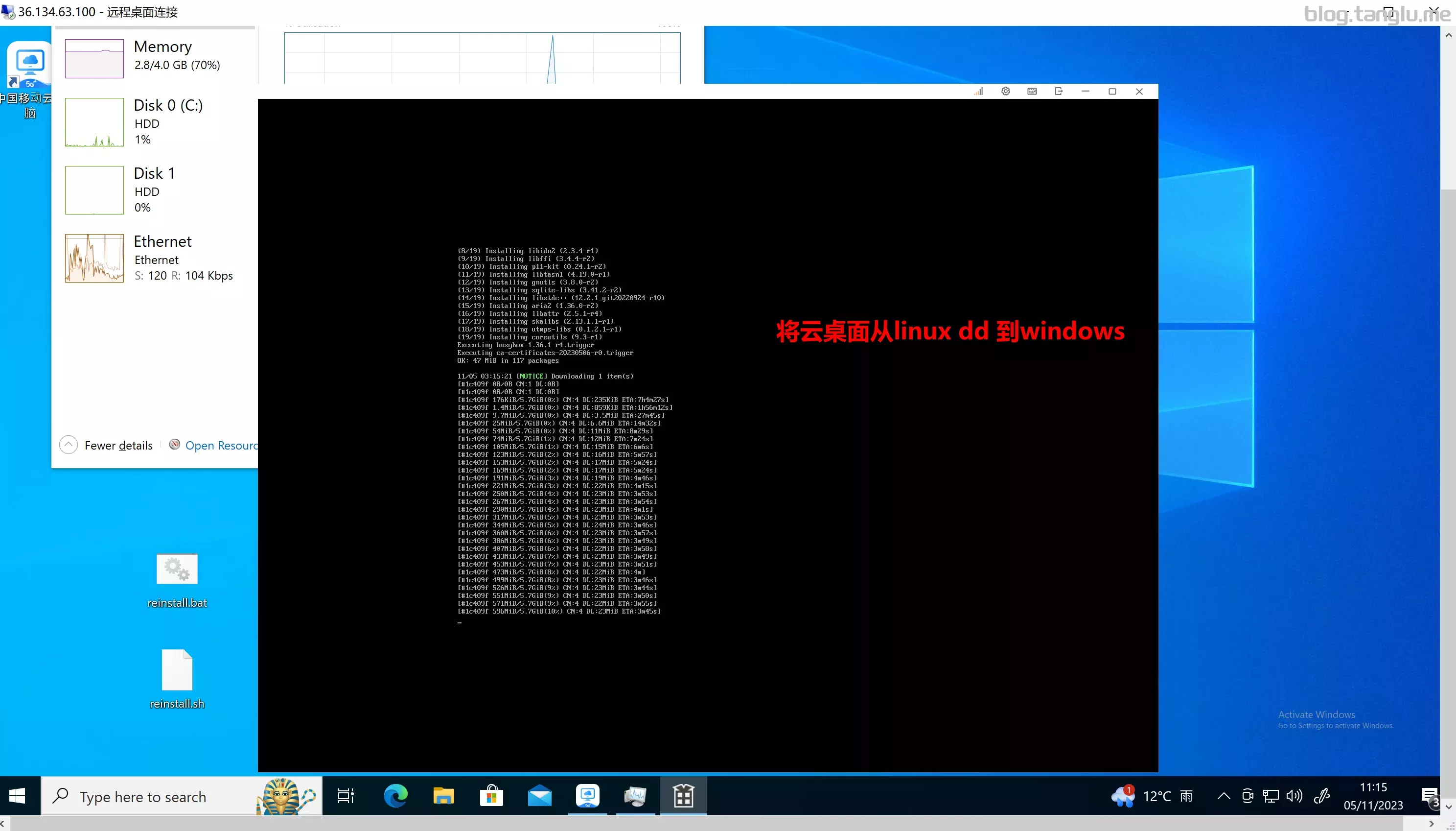
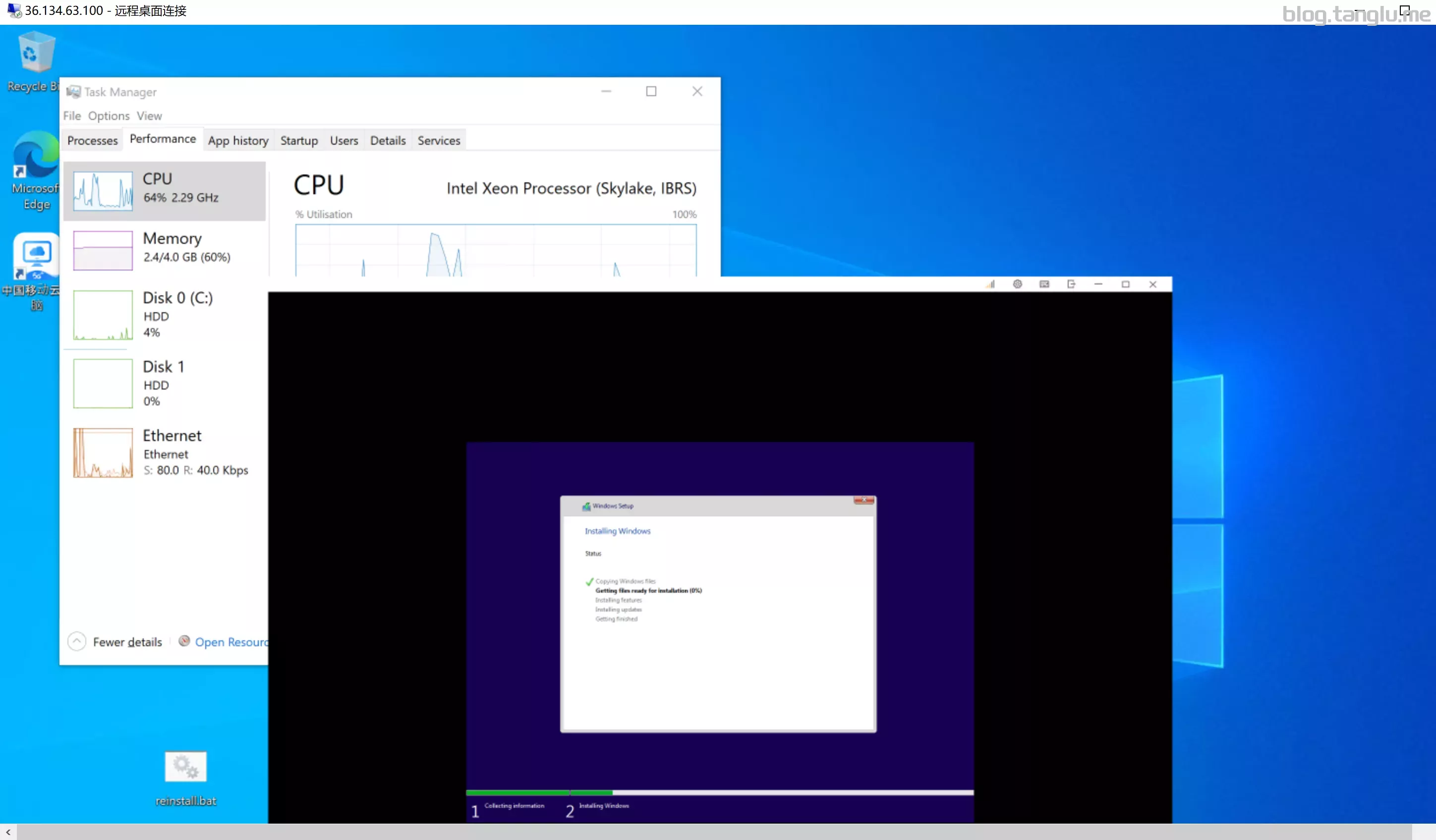
移动云_云电脑 公众版
手机端可以重装系统或者提工单重装,重连后系统不变
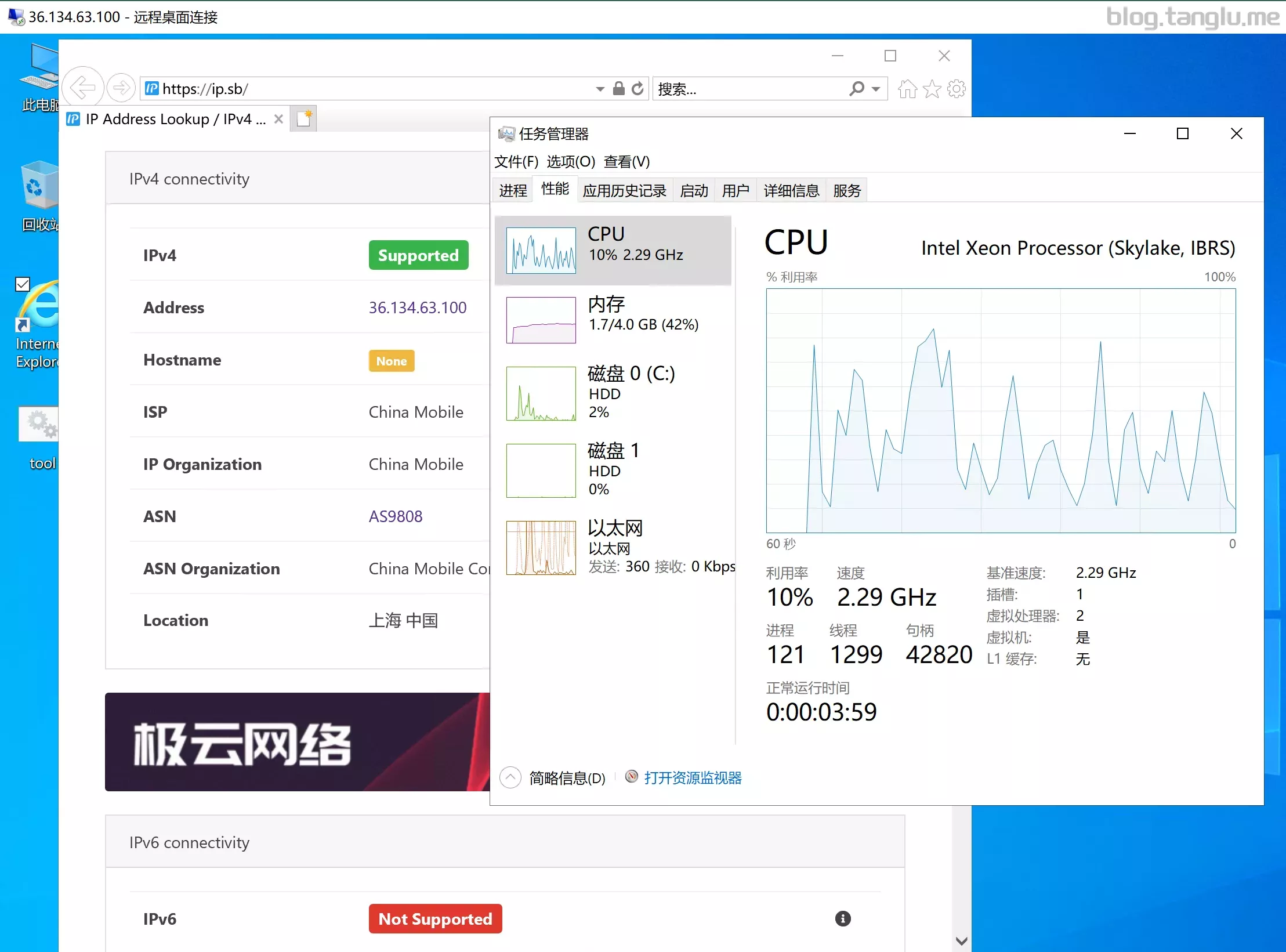
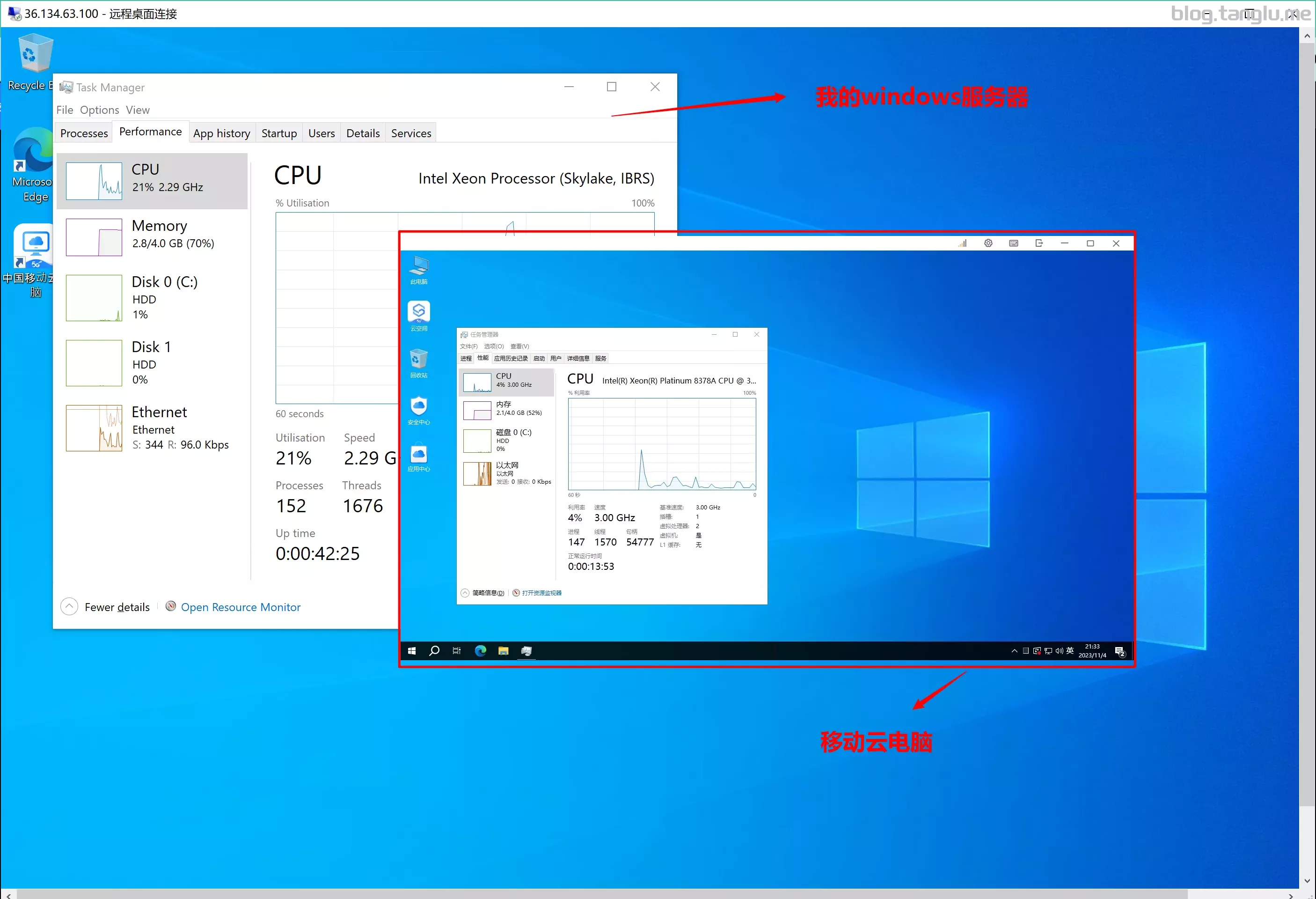
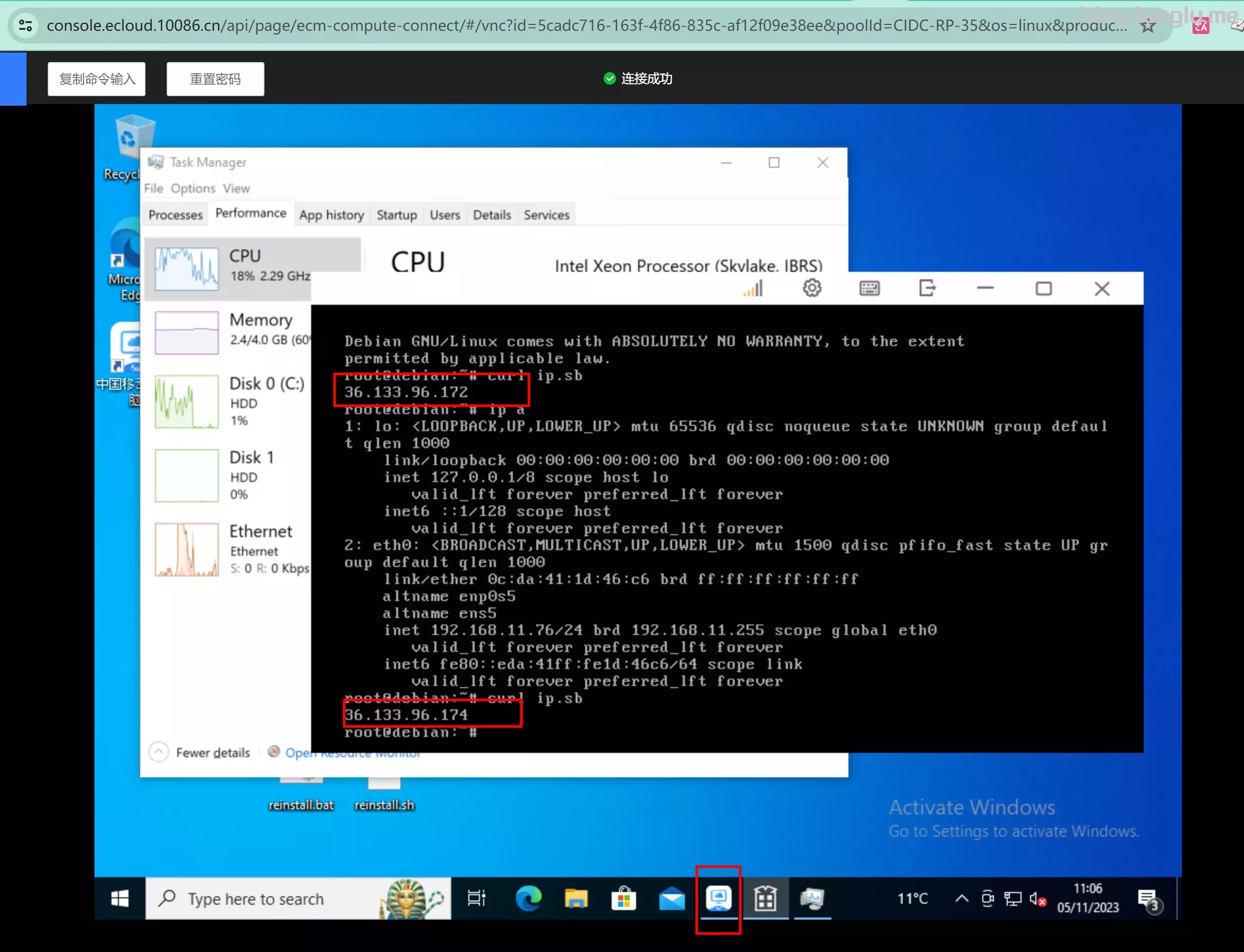
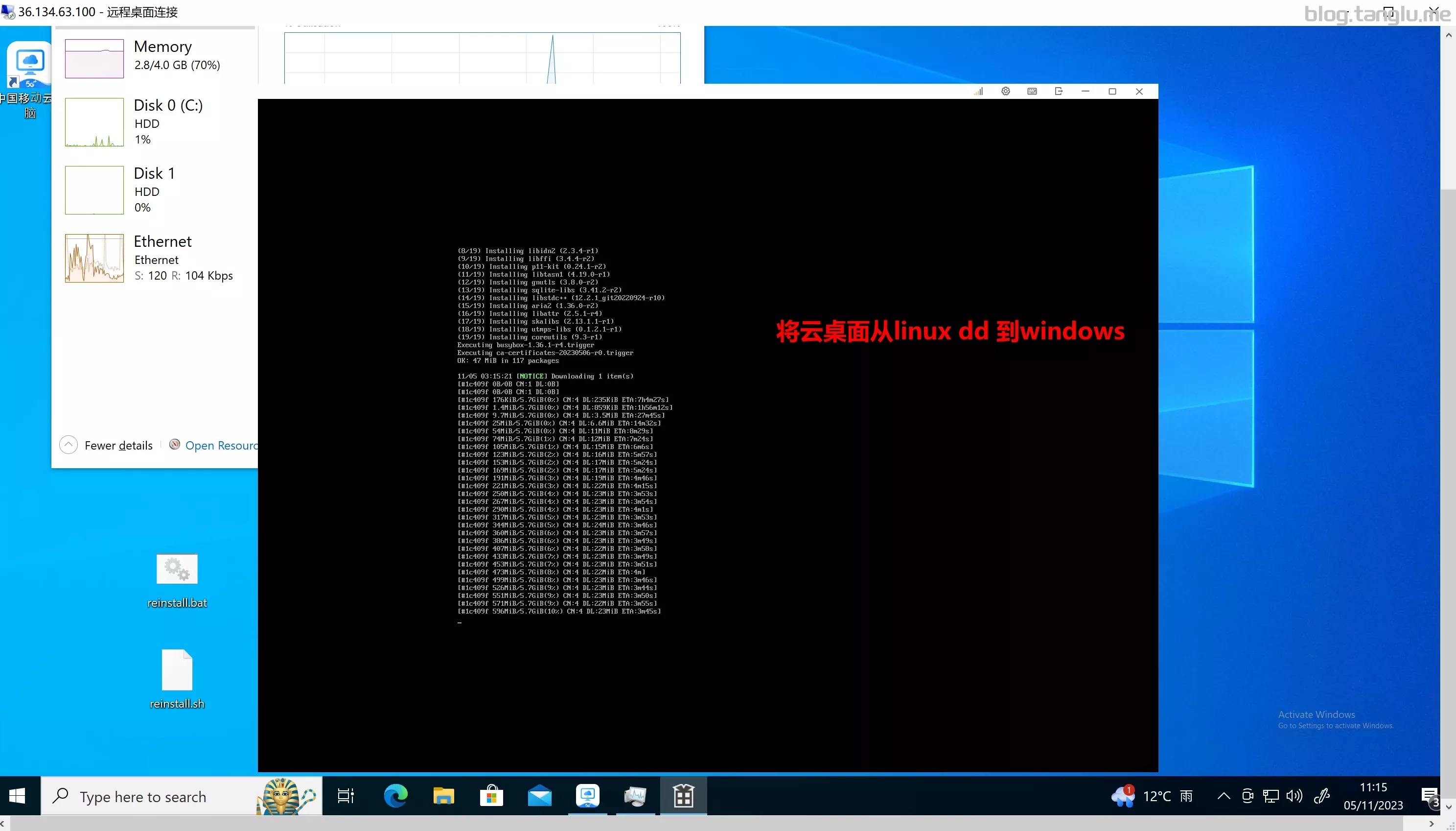
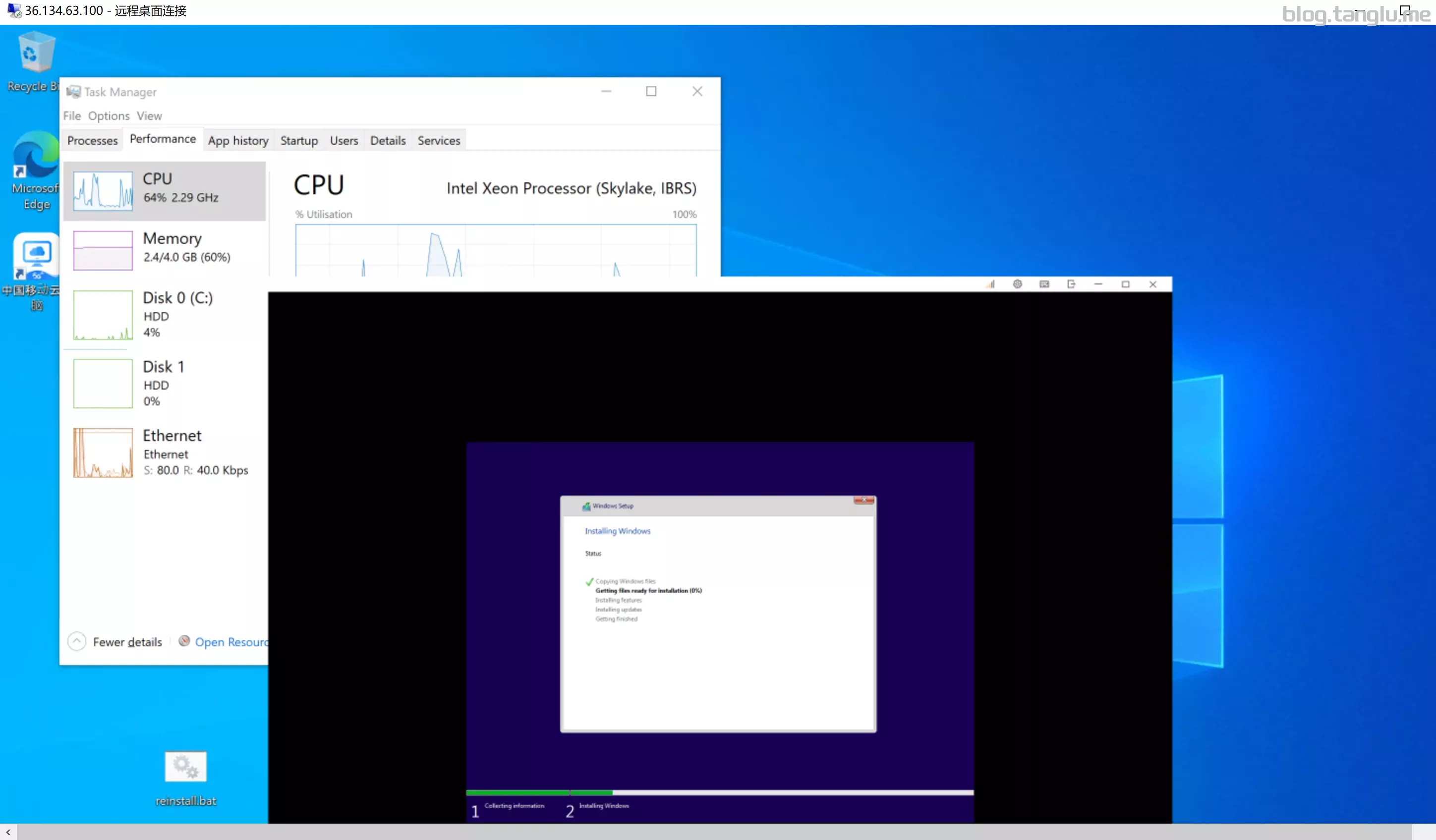
36.134.63.100这台windows服务器是上面移动云ECS,我不想在本地安装中国移动云电脑APP 所以就在windows服务器装了
bin456789脚本用法
#windows dd 为linux
.\reinstall.bat
ows
coalcloud 碳云
这家黑料太多 暂时不敢购买,有机器可以联系我帮你dd
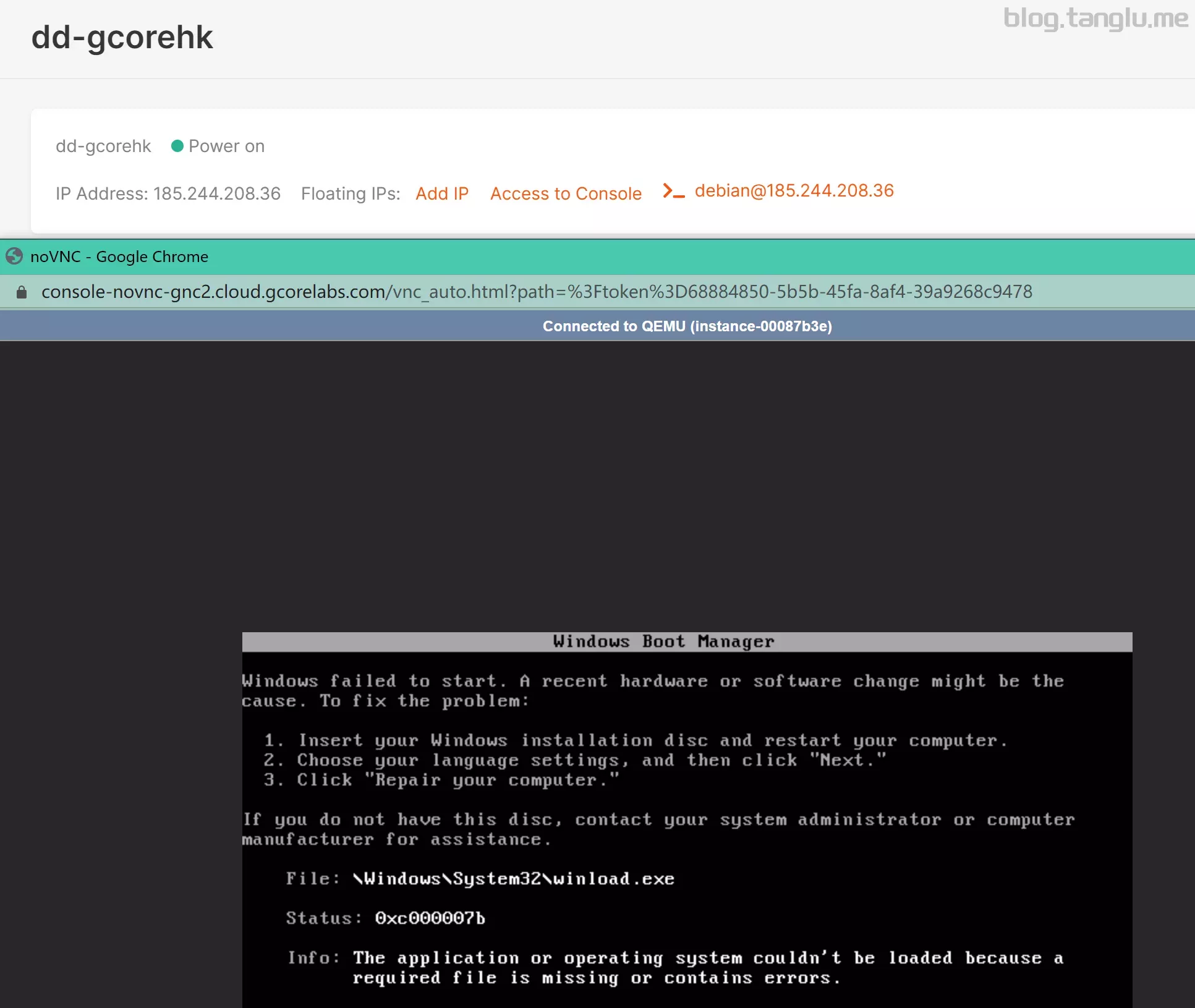
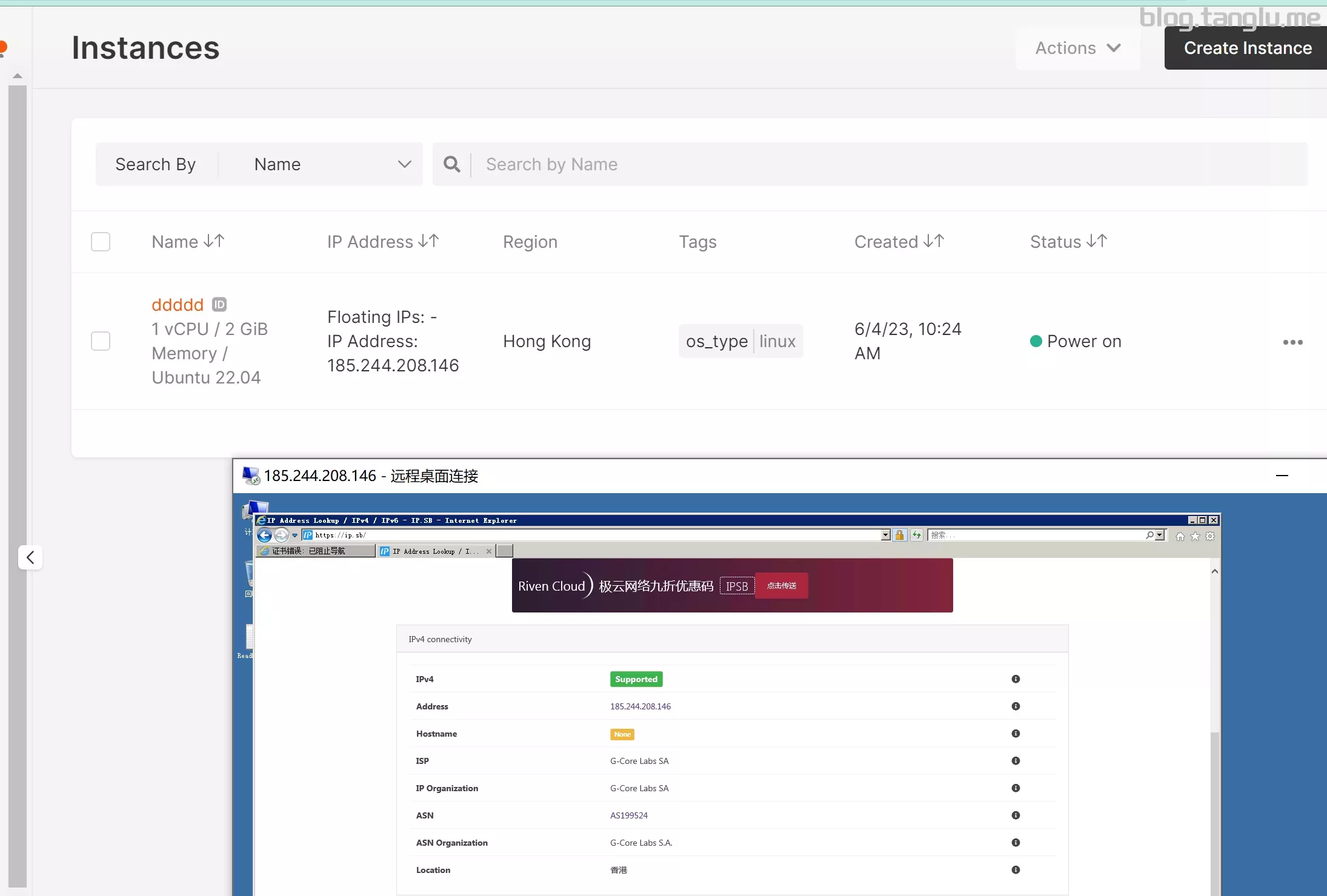
gcore BIOS启动 有VNC 默认情况端口未开放
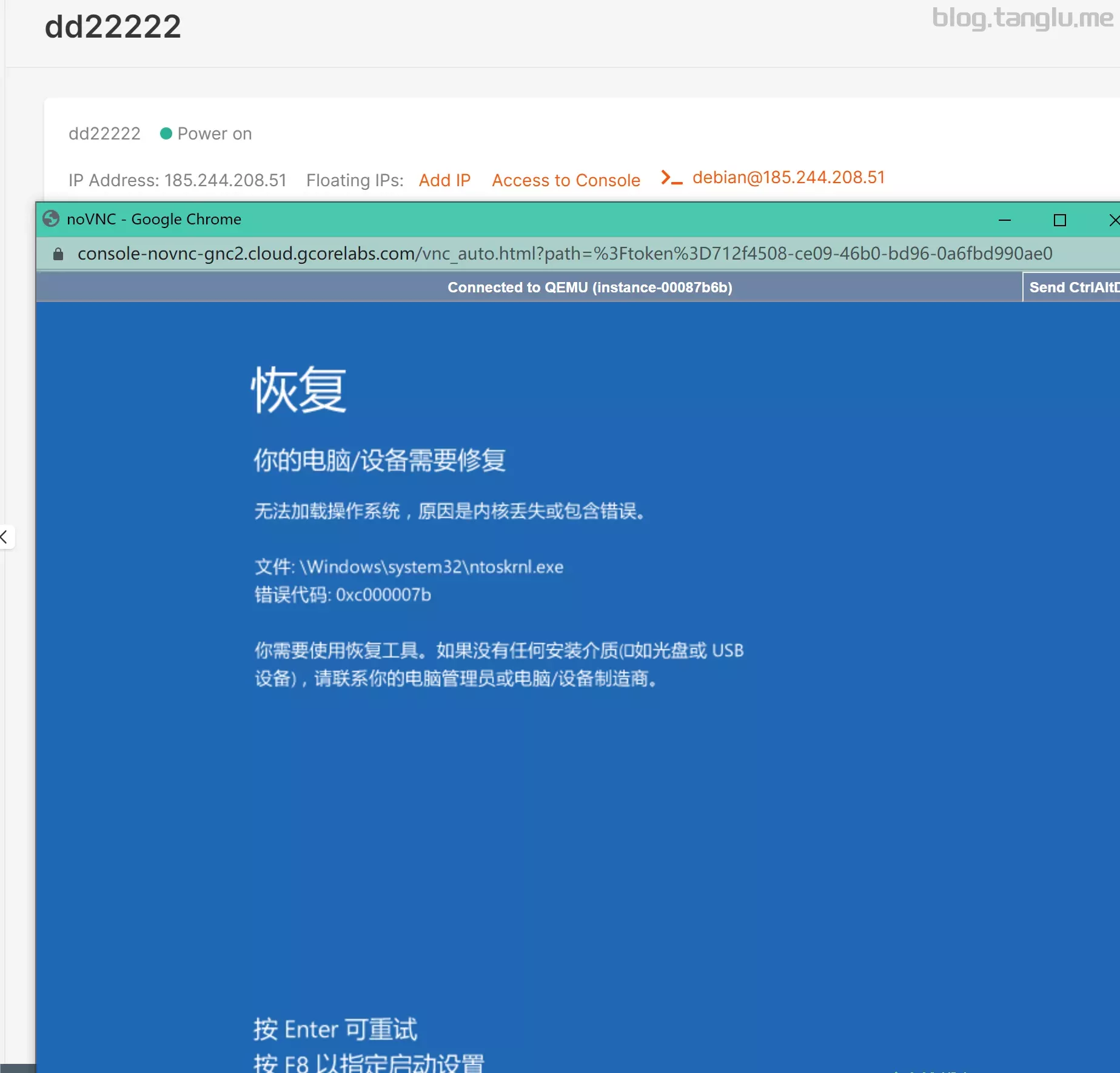
我试过cxthhhhh大佬的win7可以,win10 和windows server似乎不行
wget -qO- inst.sh | bash -s - -n 185.244.208.146,255.255.255.0,185.244.208.1 -t https://file.1323123.xyz/dd/windows/cxthhhh.255.240.0,206.189.80.1 -t https://file.1323123.xyz/dd/windows/1keydd/win10ltsc_password_1keydd.gz
#win11
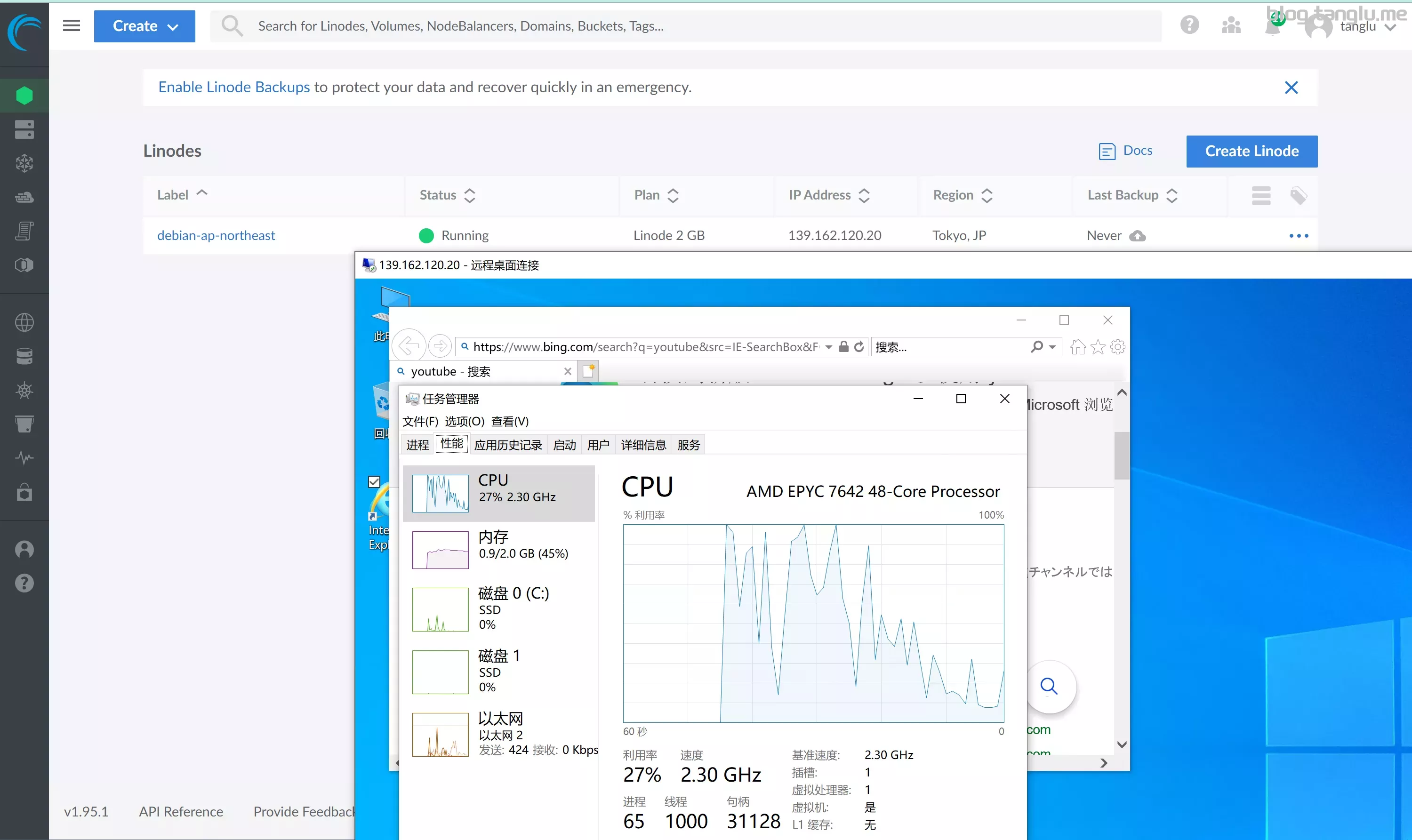
wget -qO- 20.20,255.255.255.0,139.162.120.1 -t https://file.1323123.xyz/dd/windows/1keydd/win10ltsc_password_1keydd.gz
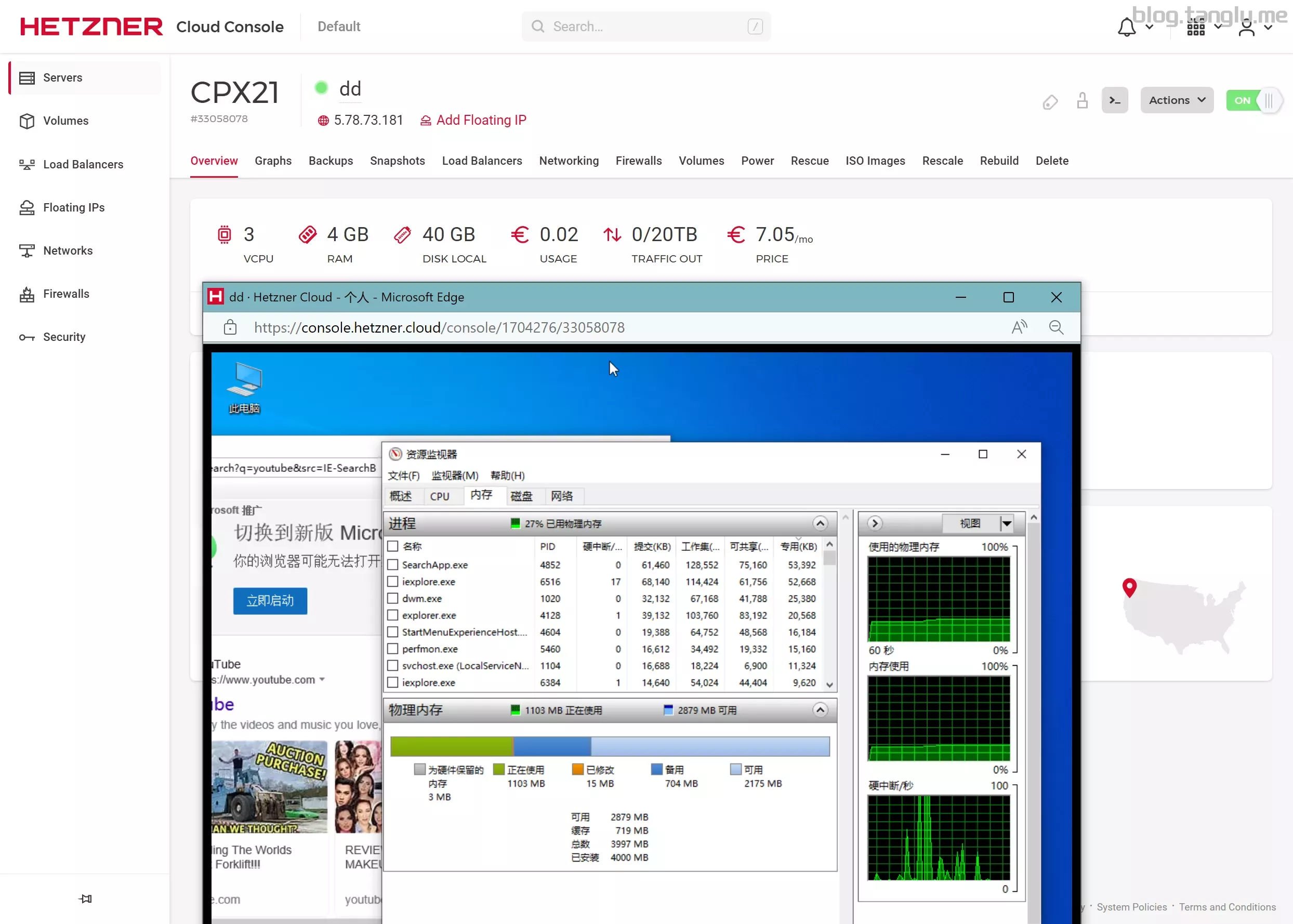
hz
BIOS启动 有VNC(故障恢复控制台)
hz也支持自己安装windows server镜像,不过那个需要安装 Virto 稍微有点麻烦
我尝试过cxthhhhh大佬的win10镜像 会蓝屏报错
vnc 123@@@会被识别为123”””,所以需要输入 123”””
wget -qO- inst.sh | bash -s - -n 5.78.73.181,255.255.255.255,172.3-speed.xyz/r/1698321828_29YIEF_GLOBAL.txt
#Ashburn,US
https://result.network-speed.xyz/r/1698321871_55QUI5_GLOBAL.txt
#Nuremberg,DE
https://img.tanglu.m6789/reinstall/main/reinstall.sh && bash reinstall.sh dd --img=https://dl.lamp.sh/vhd/en-us_win10_ltsc_uefi.xz
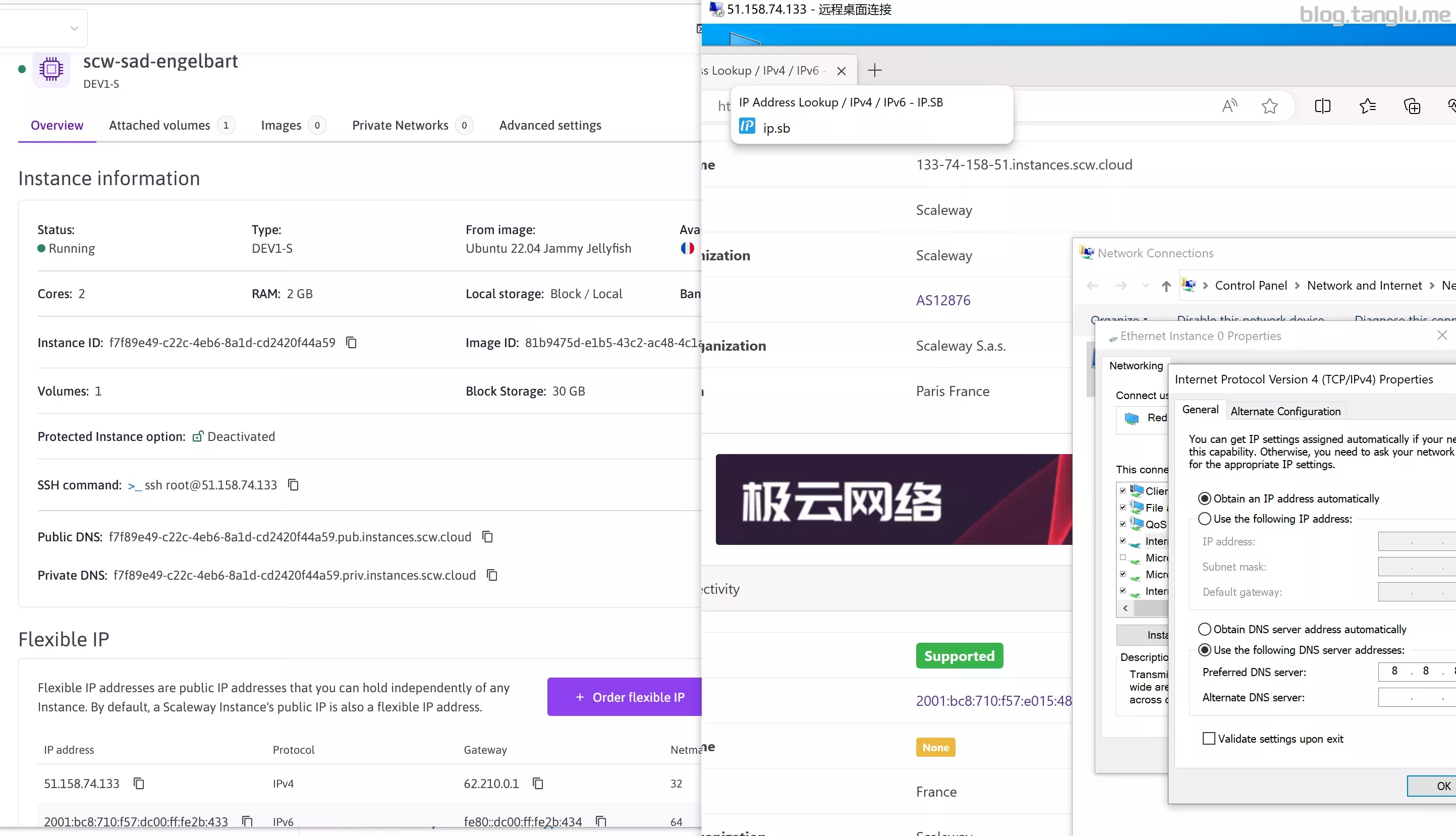
#dd完后需要手动添加ipv4
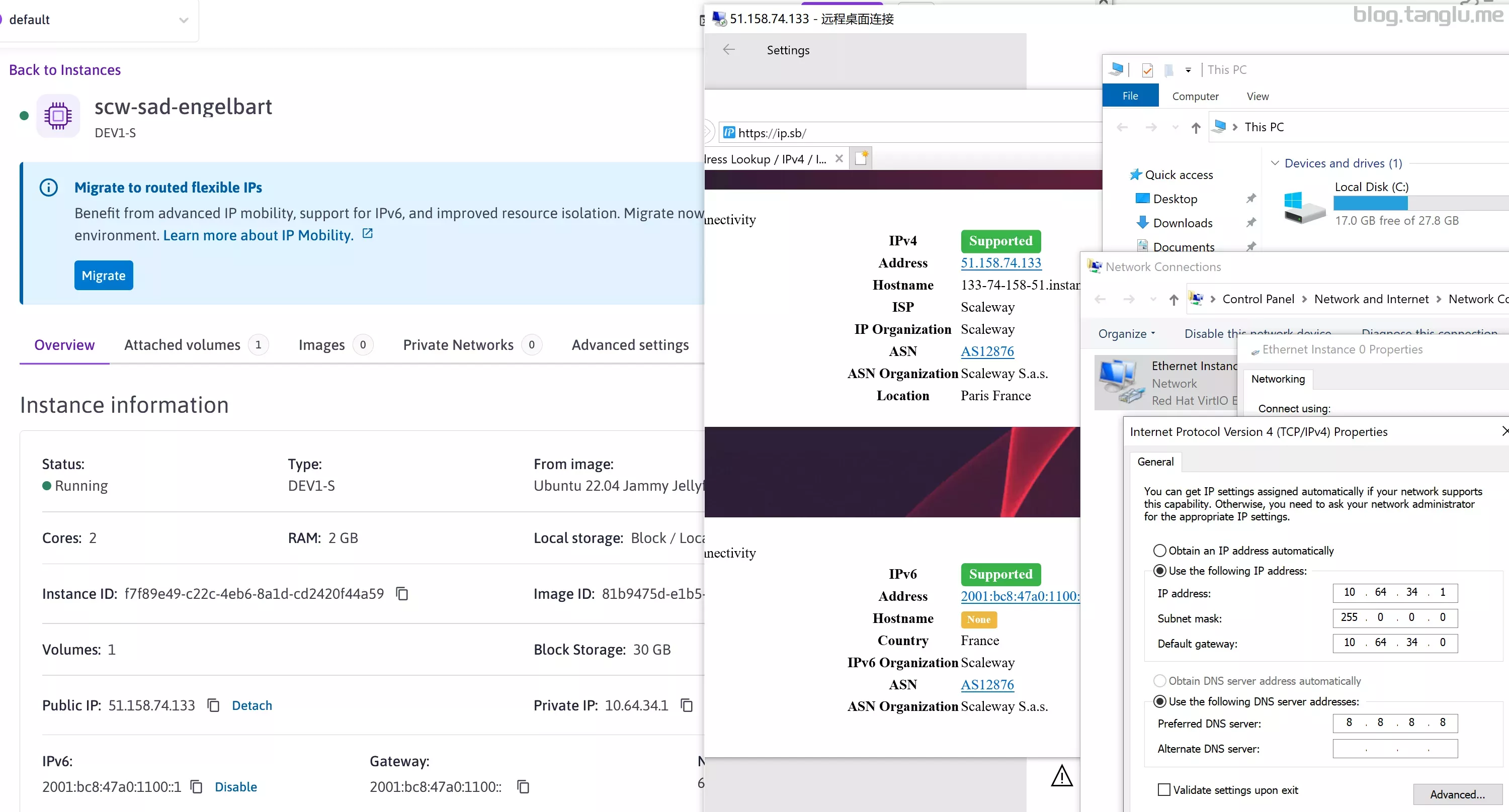
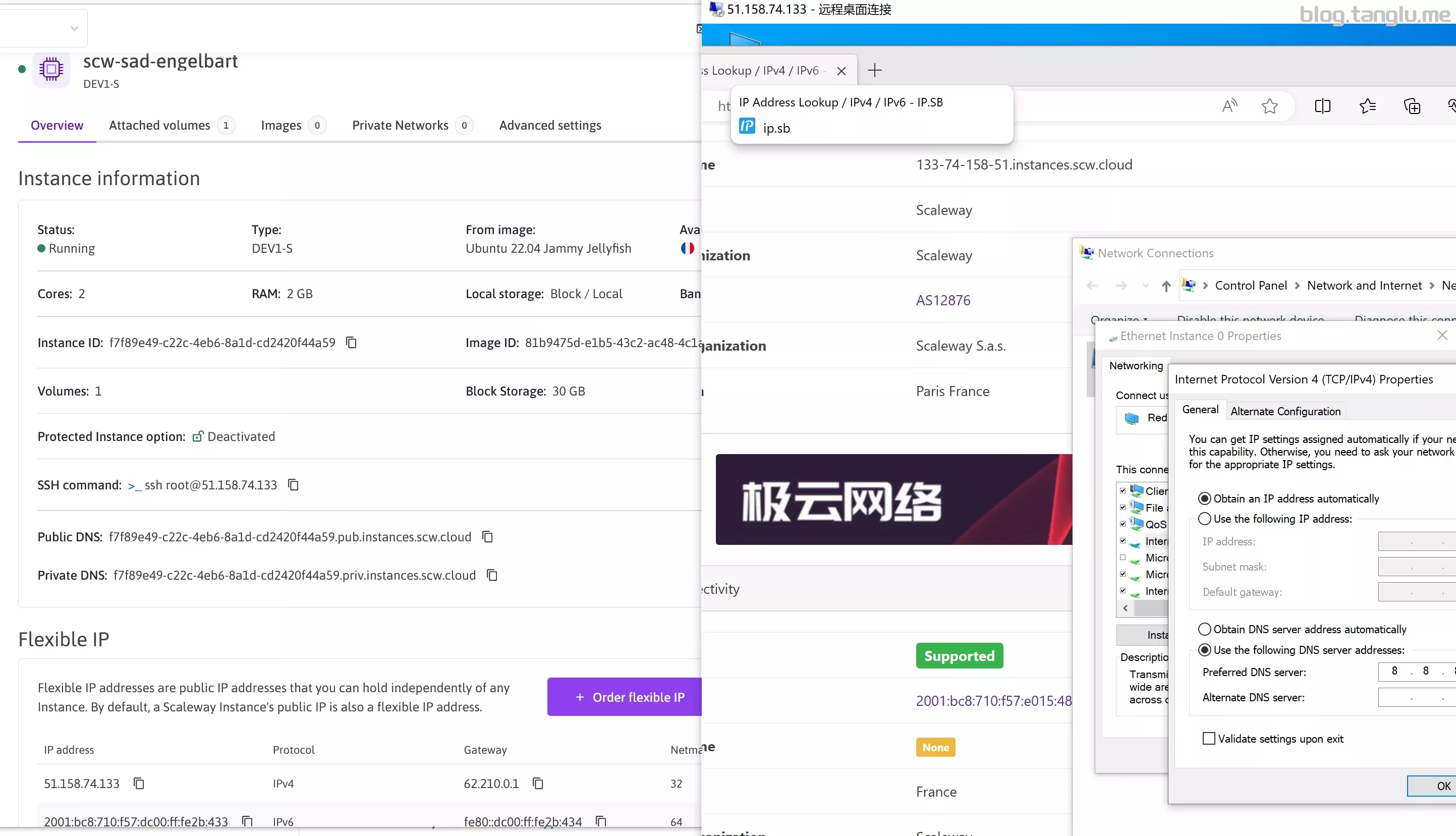
似乎是启动方式的问题,需要dd成linux可以参考这篇文章:scaleway命令行CLI开通STARDUST1纯ipv6小鸡
network
#GP1-XS

#PAR
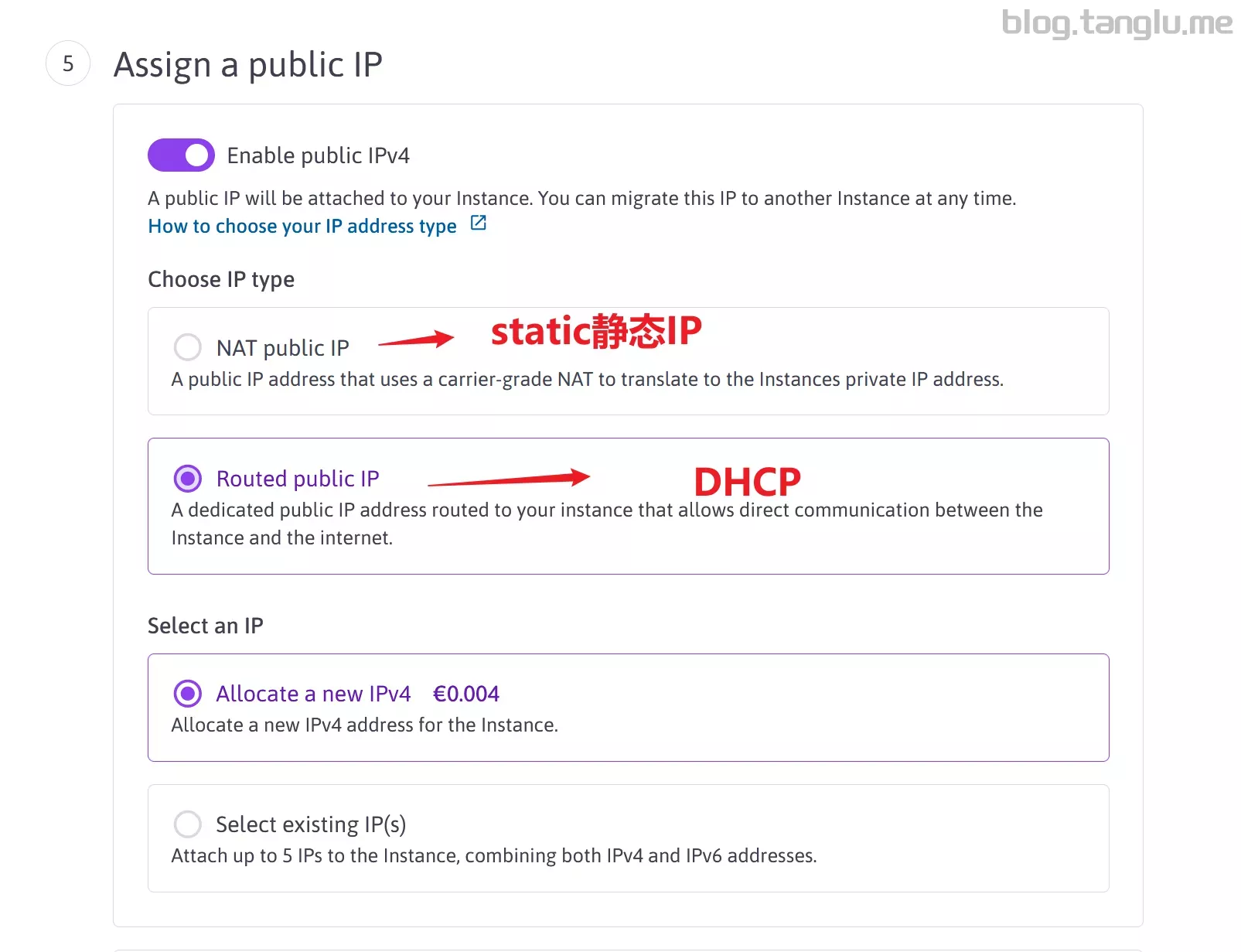
Routed public IP 这个直接是DHCP
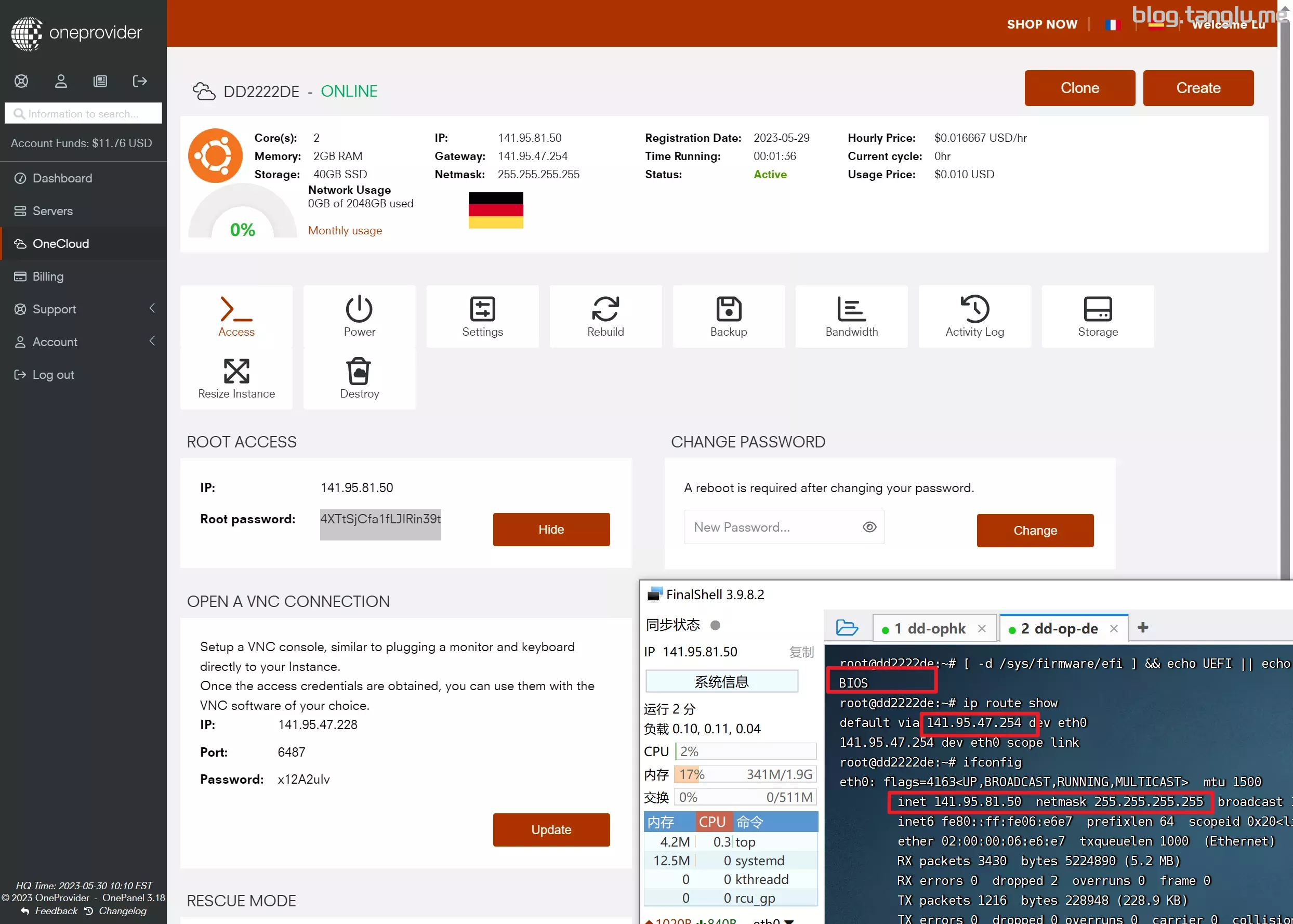
oneprovider op
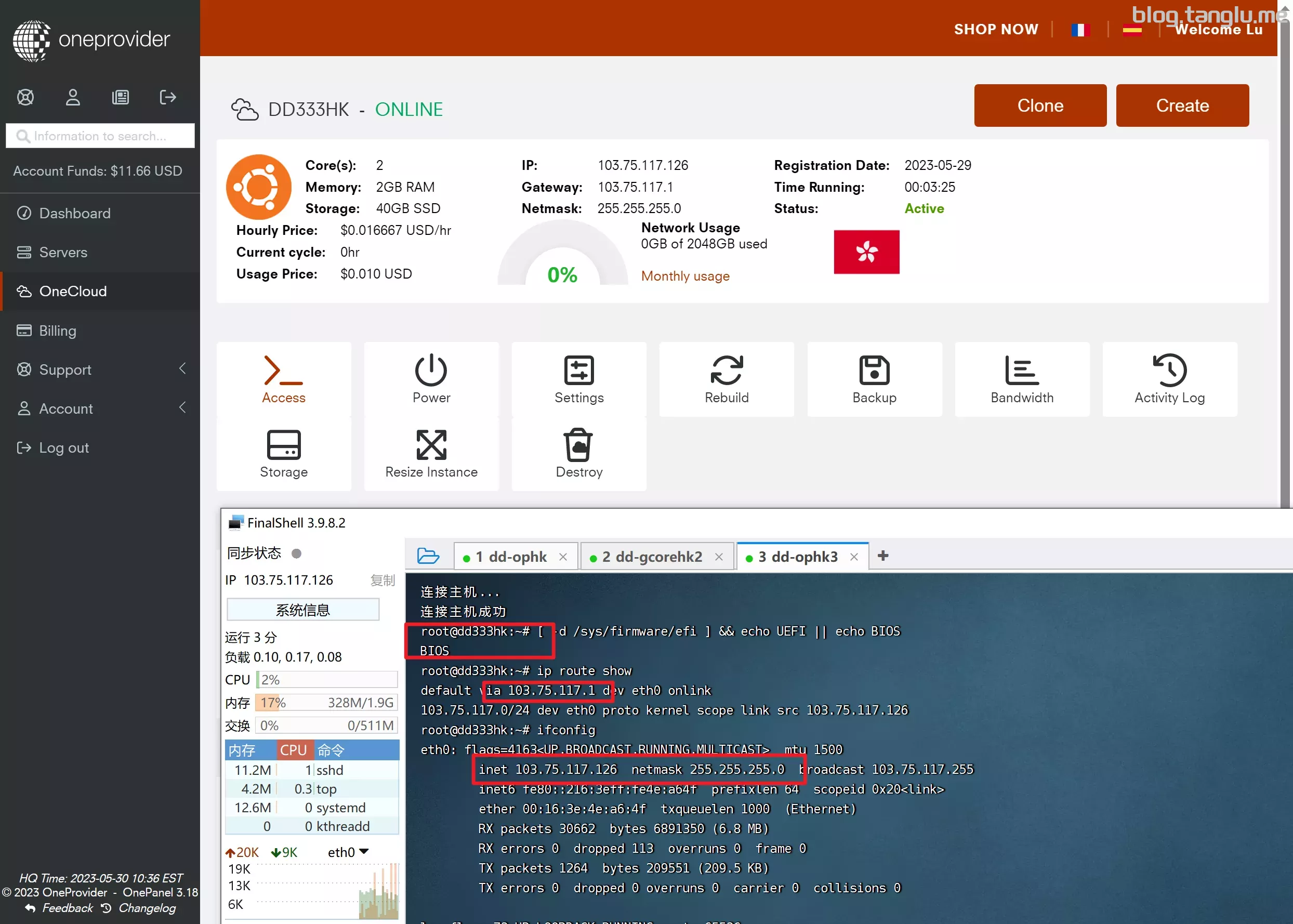
BIOS启动 有VNC(需要vnc客户端工具连接)
op家家机器好像都不是自己的,每个地区配置可能不通,这里我演示一下香港和德国的onecloud
使用HK地区的Debian系统dd失败,用的ubuntu系统,而且HK地区的VNC也打不开
wget -qO- inst.sh | bash -s - -n 103.75.
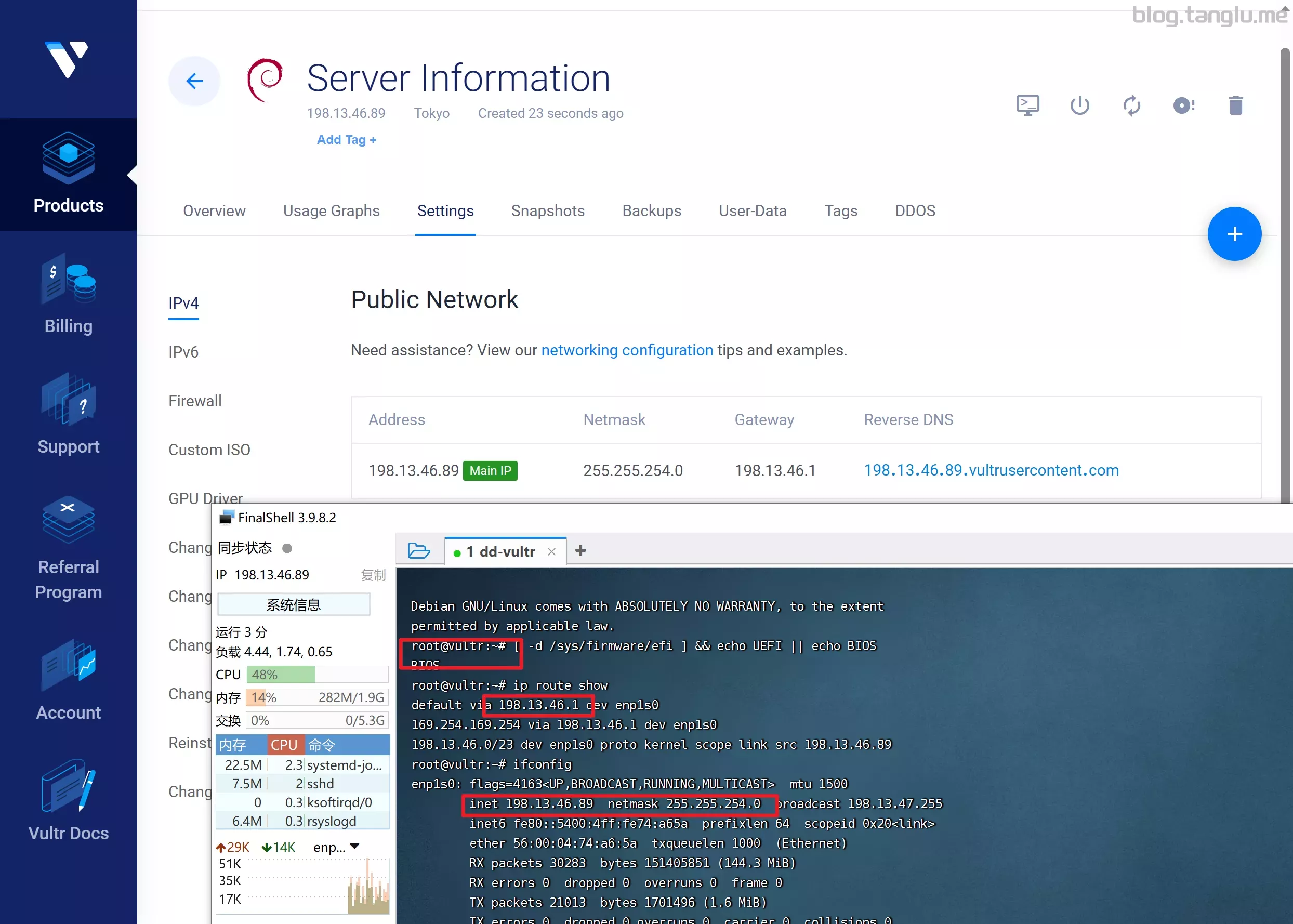
IOS启动 部分UEFI启动
mpute 的 AMD HighPerformance 型号是UEFI启动
#BIOS
wget -qO- inst.sh | bash -s - -n 198.13.46.89,255.255.254.0,198.13.46.1 -t https://file.1323123.xyz/dd/windows/1keydd/win10ltsc_password_1keydd.gz

#UEFI
wget -qO- inst.sh | bash -s - -n 108.160.136.33,255.255.254.0,108.160.136.1 -t https://file.1323123.xyz/dd/windows/1
tall.s
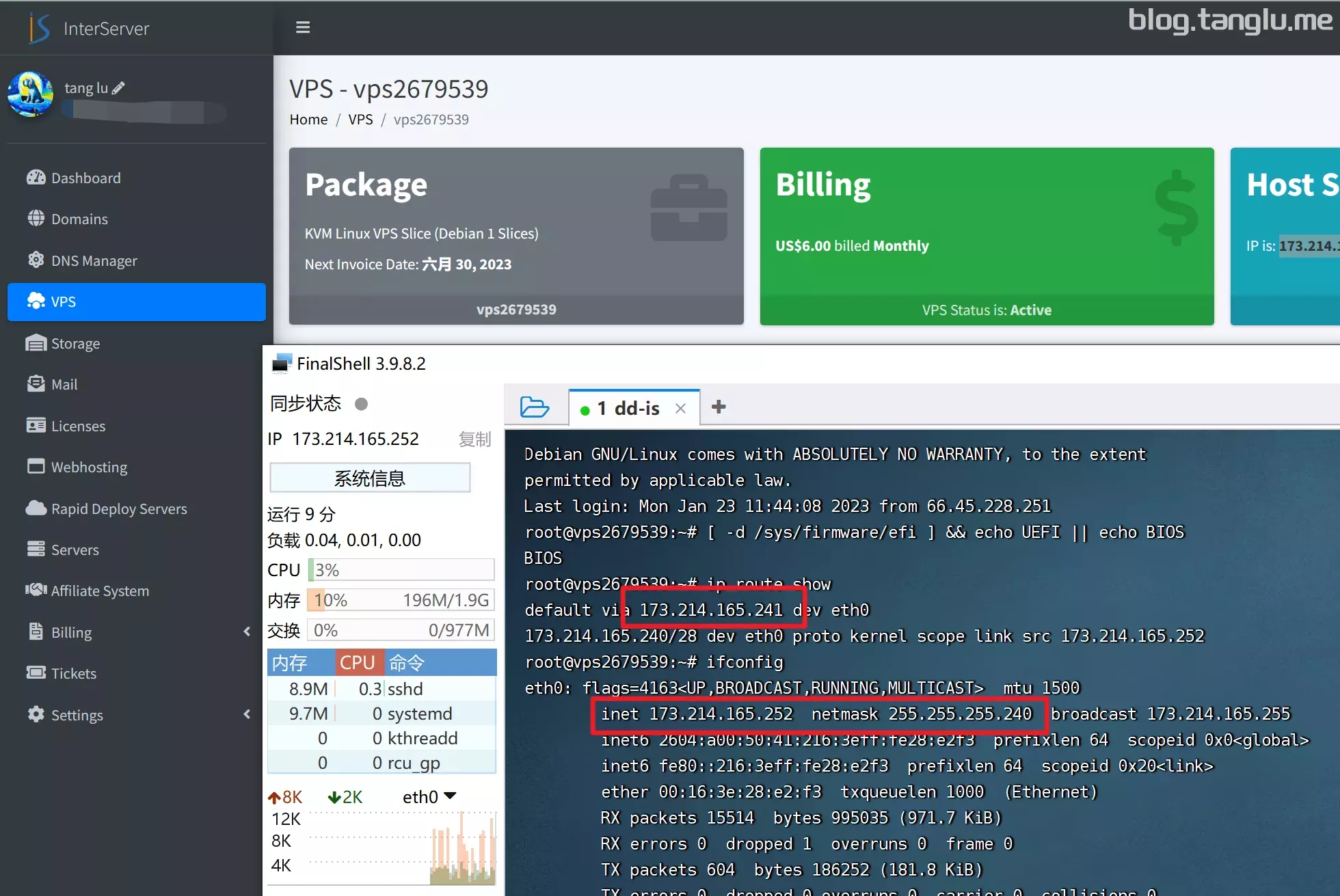
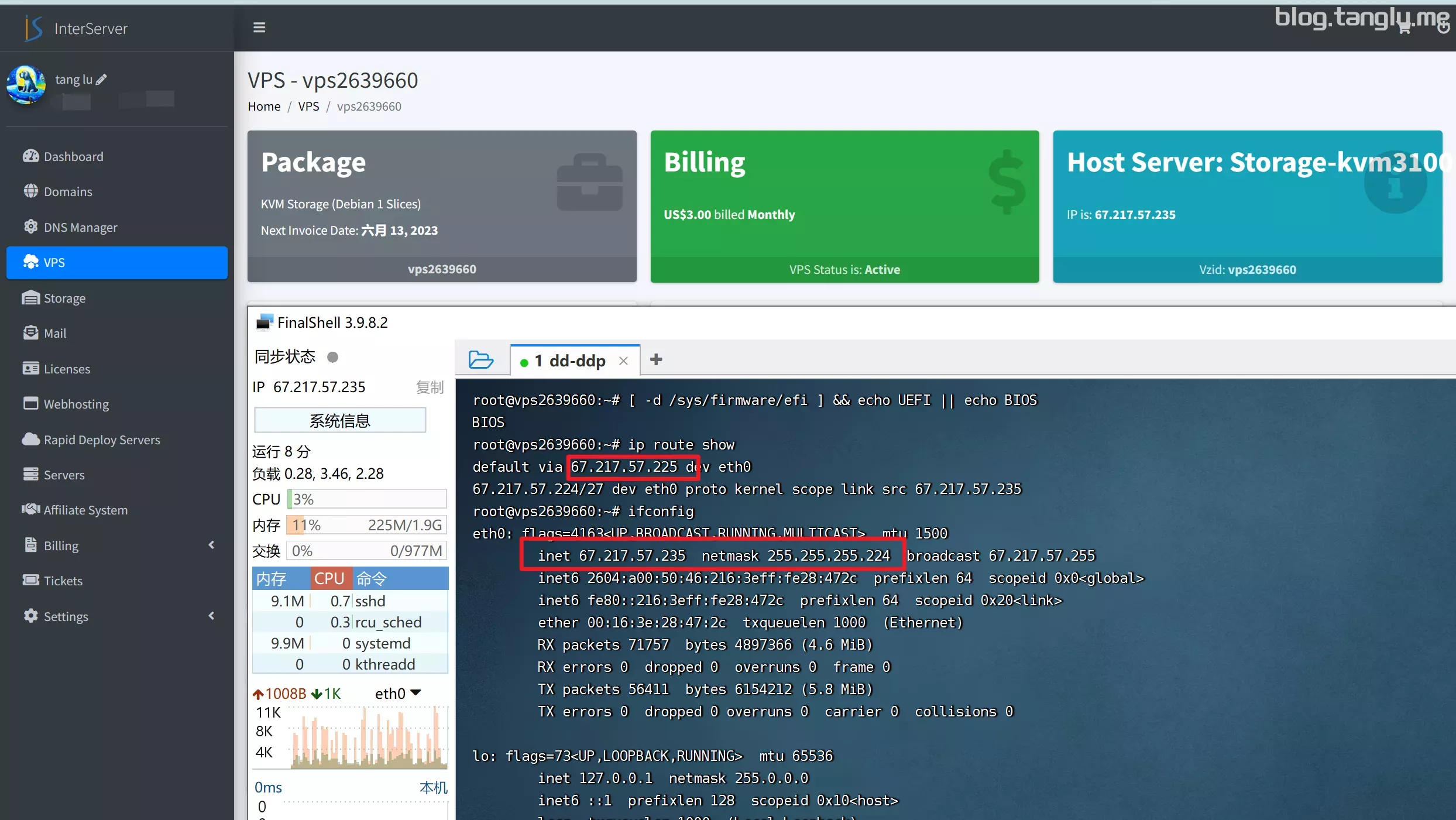
interserver BIOS启动 有VNC
#linux vps
wget -qO- inst.sh | bash -s - -n 173.214.165.252,255.255.255.240,173.214.165.241 -t https://file.1323123.xyz/dd/windows/1keydd/win10ltsc_password_1keydd.gz

#storage vps
wget -qO- inst.sh | bash -s - -n 67.217.57.235,25
费安装windows server2012&2019
wget -qO- inst.sh | bash -s
ntech
BIOS启动 有VNC
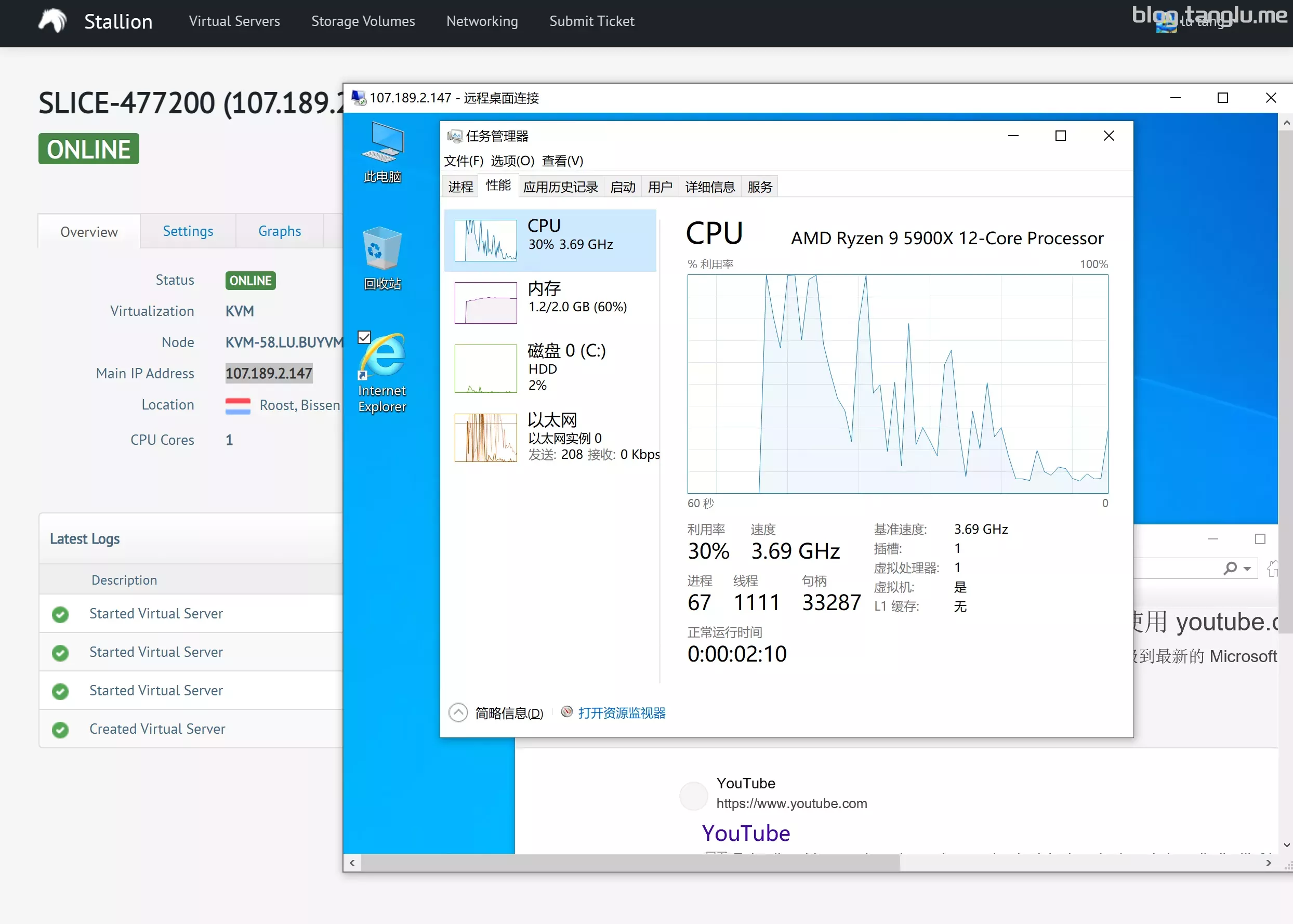
支持一键免费安装windows server
wget -qO- inst.sh | bash -s - -n 107.189.2.147,255.255.255.0,107.189.2.1 -t https://file.1323123.xyz/dd/windows/1keydd/win10ltsc_password_1keydd.gz
greencloudvps 2023.7.16 更新:
我怀疑过是绿云镜像包问题,尝试过dd成debian 再dd成windows,结果是可以dd成debian 但无法dd成windows
绿云 绿帽云
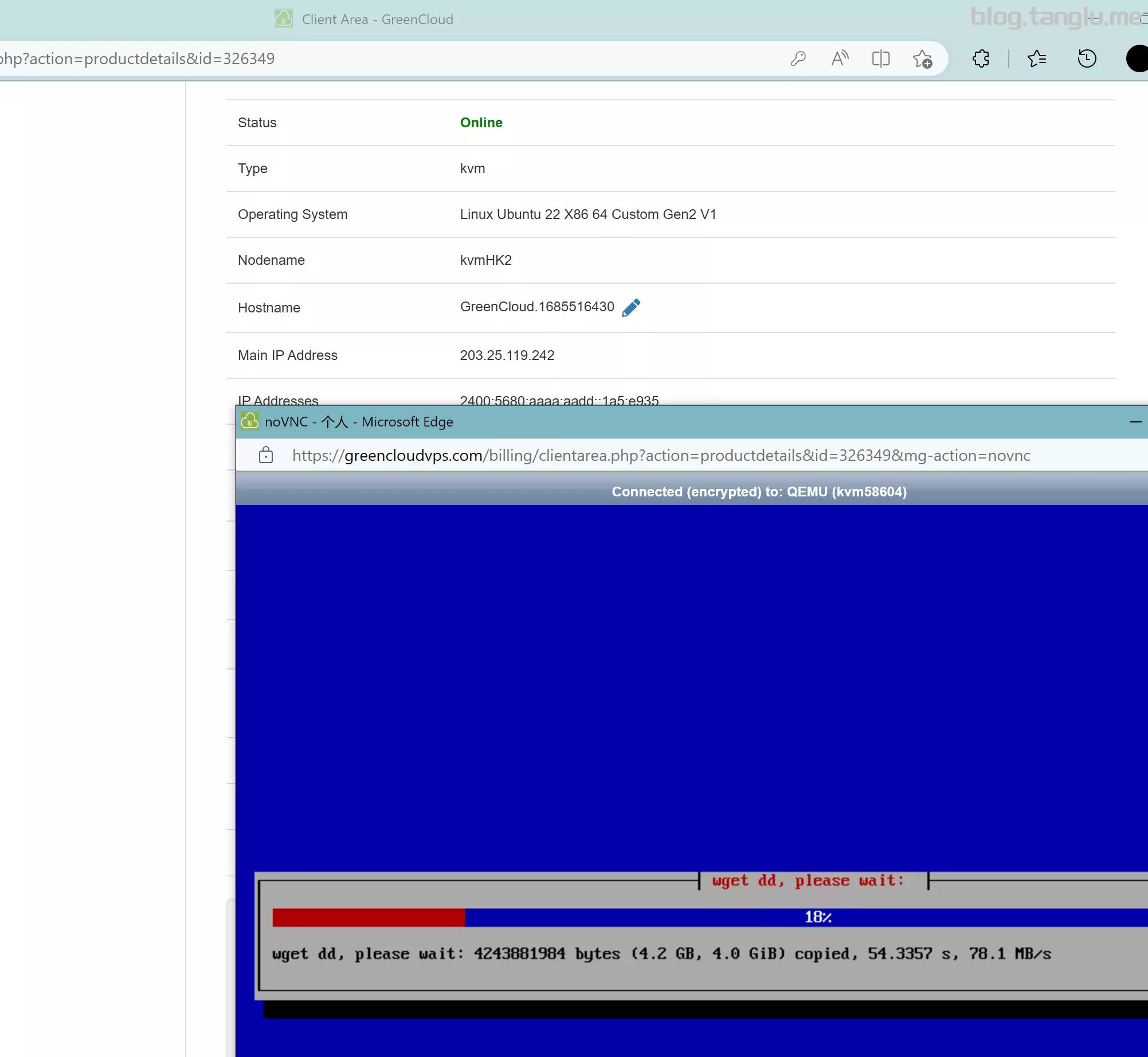
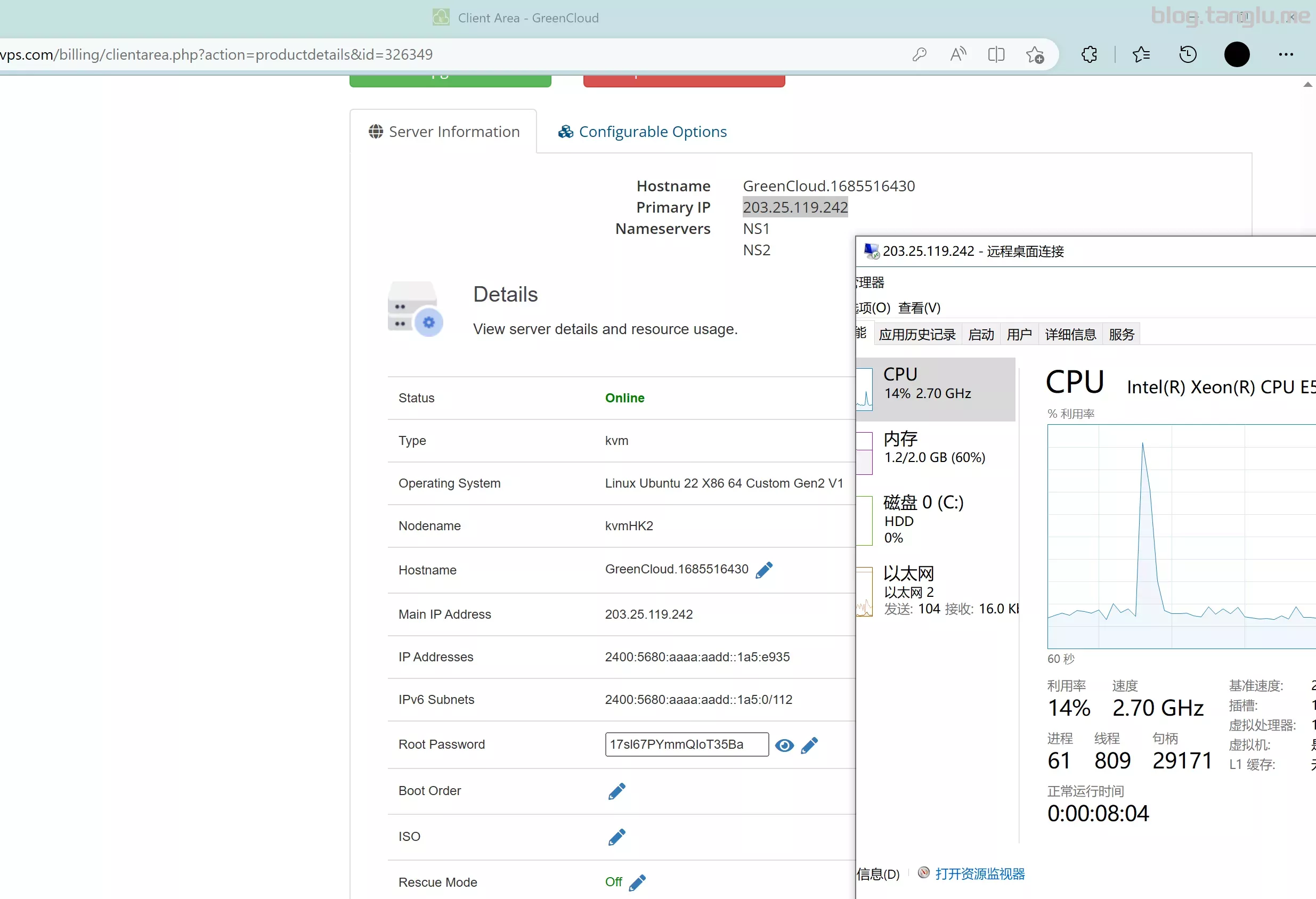
BIOS启动 控制台有VNC
绿云HK这台不开bbr下载脚本极慢 建议开启BBR
这台使用的ubuntu系统,我使用debian系统似乎有点问题
wget -qO- inst.sh | bash -s - -n 203.25.119.242,255.255.255.192,203.25.119.129 -t https://file.1323123.xyz/dd/windows/1keydd/win10ltsc_password_1keydd.gz
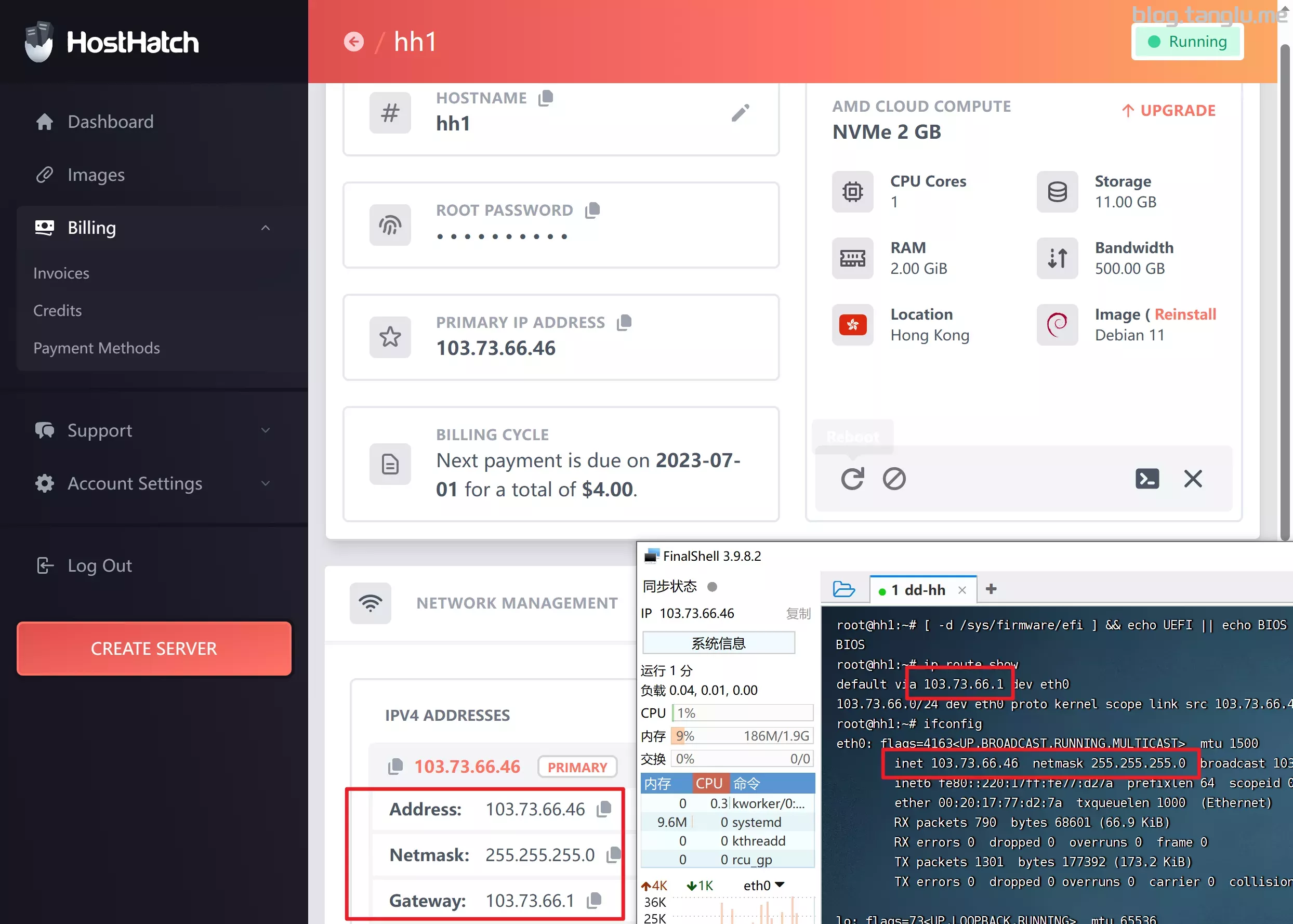
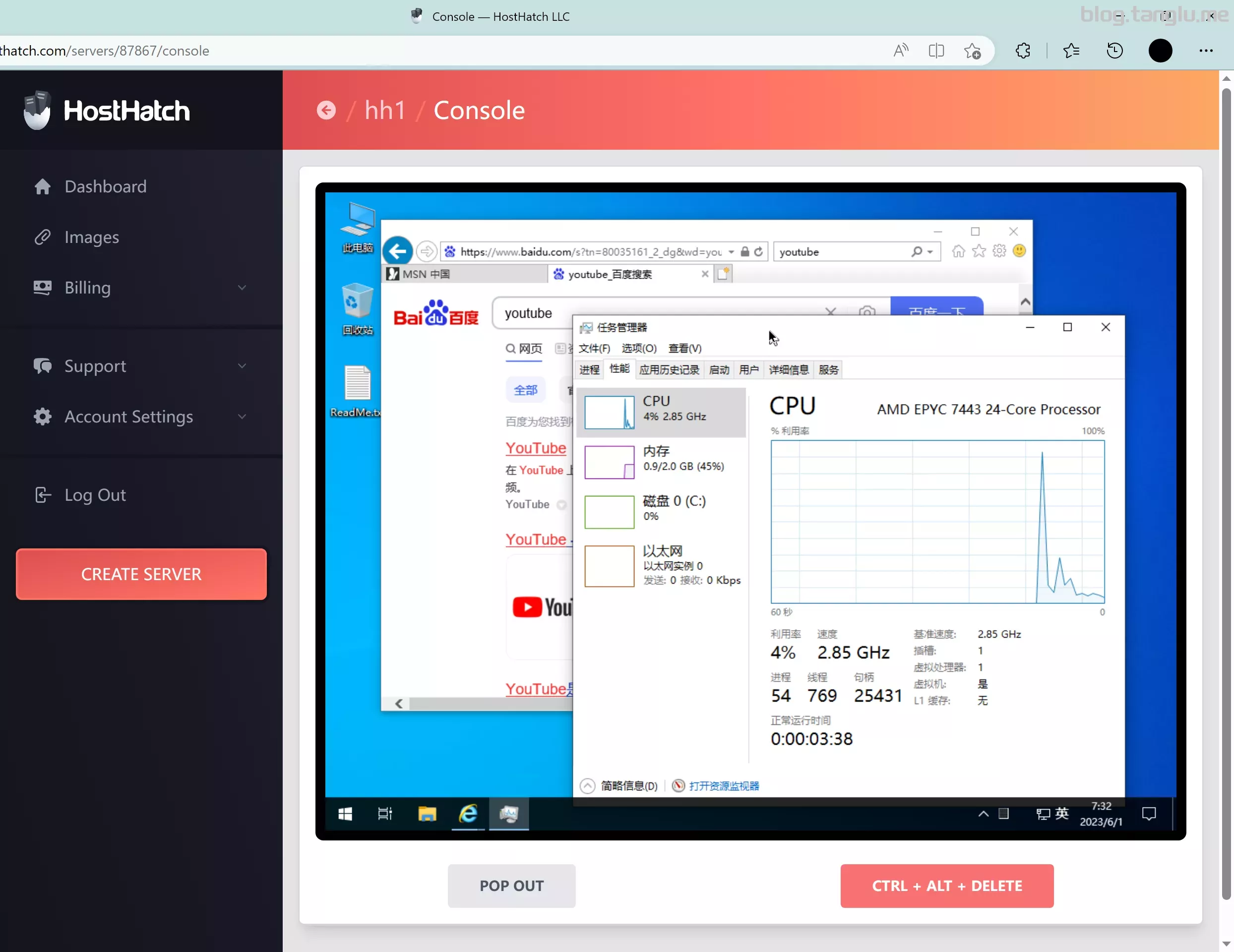
hosthat 这台只有1
et -qO- inst.sh | p
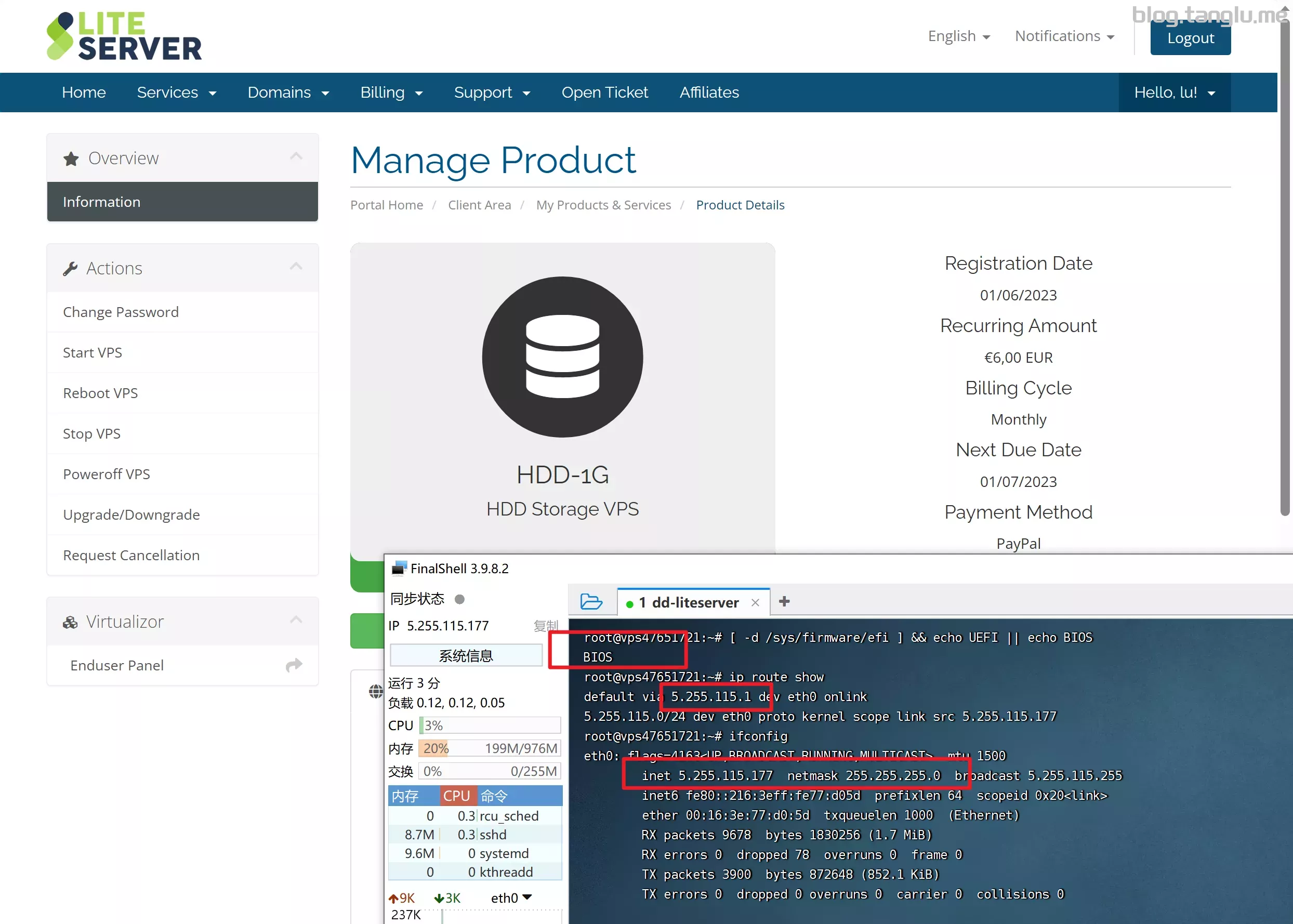
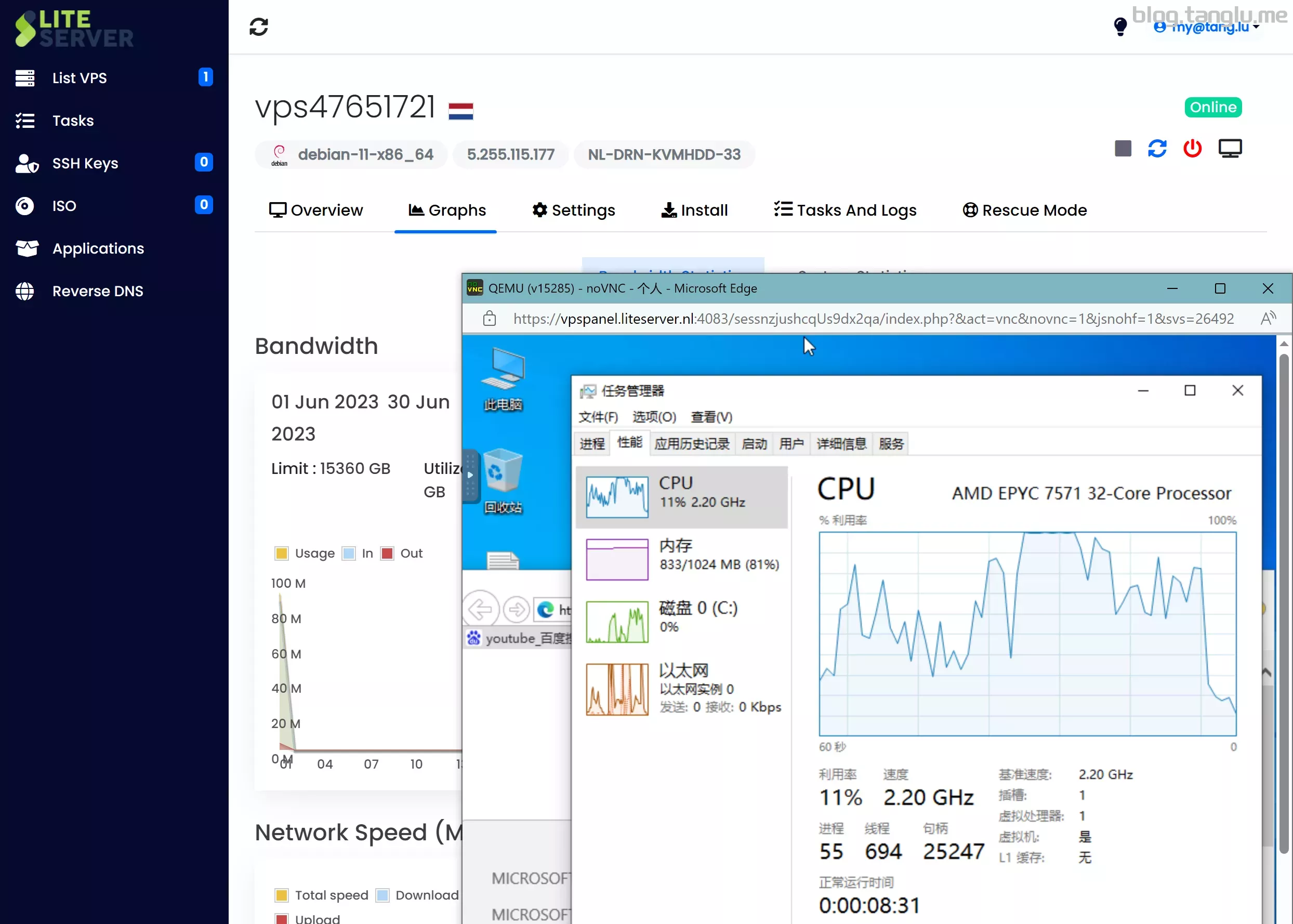
liteserver BIOS启动 有VNC
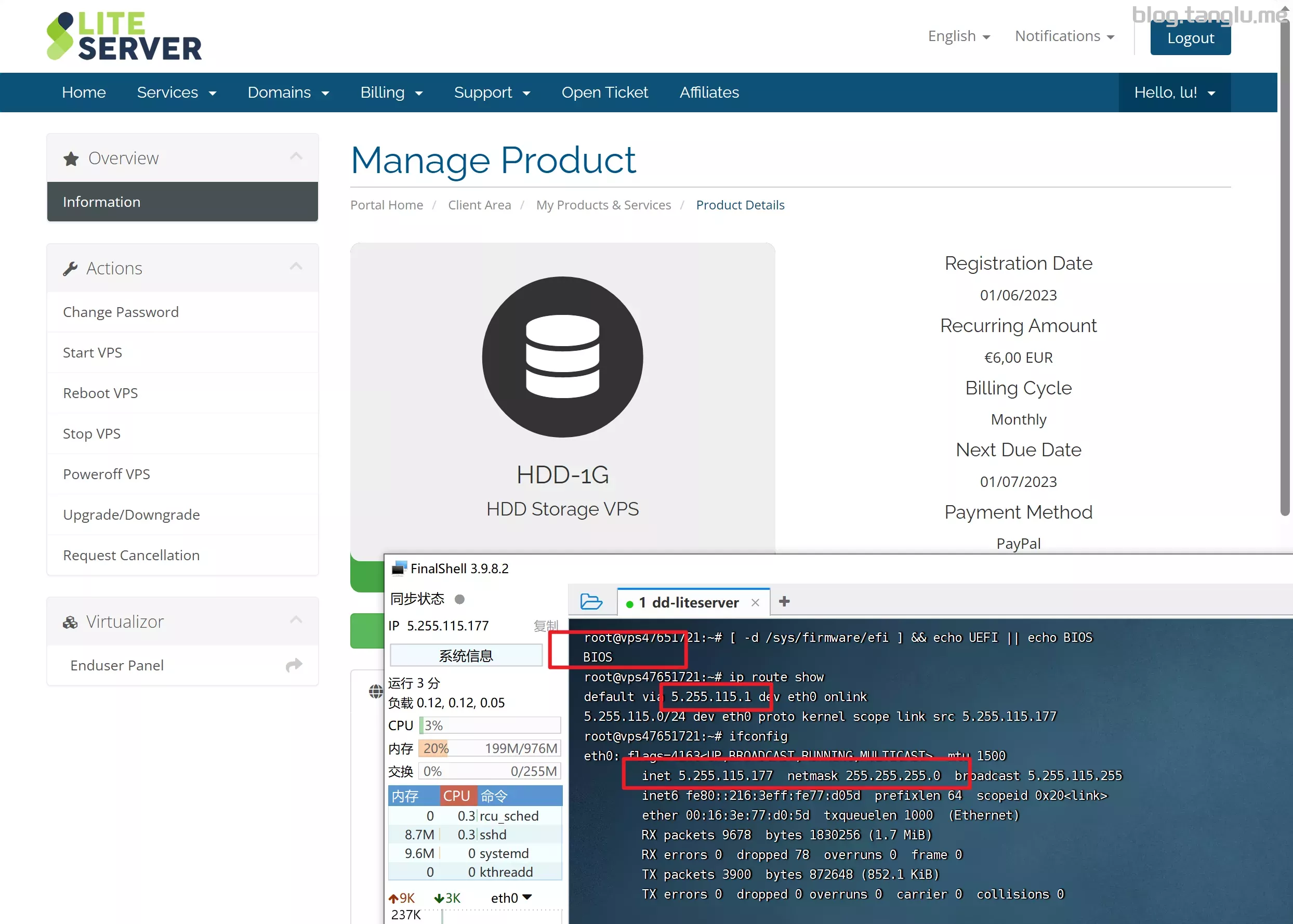
这款是1核1GB内存 500GB硬盘的机器
wget -qO- inst.sh | bash -s - -n 5.255.115.177,255.255.255.0,5.255.115.1 -t https://file.1323123.xyz/dd/windows/cxthhhhh/Disk_Windows_10_x64_Lite_by_CXT_v1.0.vhd.gz
hosmatic | 纯ipv6 BIOS启动 有VNC
纯ipv6机器
因为没有ip
ipv4 | tanglu
的脚
dns服务器,换为nat64服务器
#即修改 /etc/resolvconf/
n 2a0f:5707:a
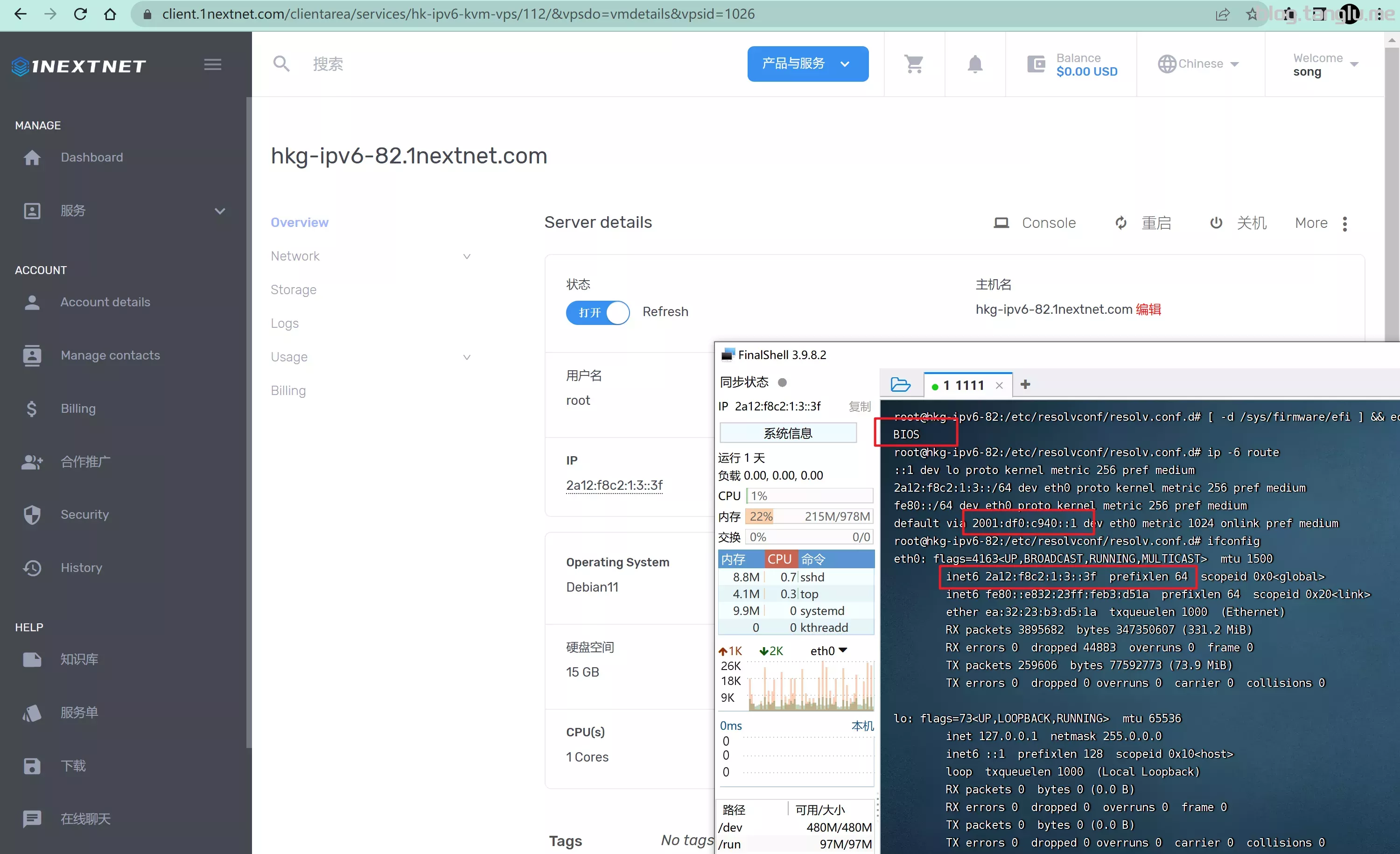
1nextnet | 纯ipv6 访问ipv4网络请参考上个 hosmatic 教程
这个网络有点问题,暂时搁置
wget -qO- inst.sh | bash -s - -n 2a12:f8c2:1:3::3f,ffff:ffff:0000:0000:0000:0000:0000:0000,2001:df0:c940::1 -t https://file.1323123.xyz/dd/windows/cxthhhhh/Disk_gz
racknerd rn
BIOS启动 有VNC
wget -qO- inst.sh --no-check-certificate | bash -s - -n 96.43.86.167,255.255.255.192,96.43.86.129 -t https://file.1323123.xyz/dd/windows/cxth.243.2,255.255.255.0,10.0.243.1 -t https://file.1323123.xyz/dd/win.14.1 -t https://file.1323123.xyz/dd/windows/cxthhhhh/Disk_Windows_10_x64_Lite_by_CXT_v1.0.vhd.gz
#dd到debian12
curl -O https://raw.githubusercontent.com/bin456789/reinstall/main:
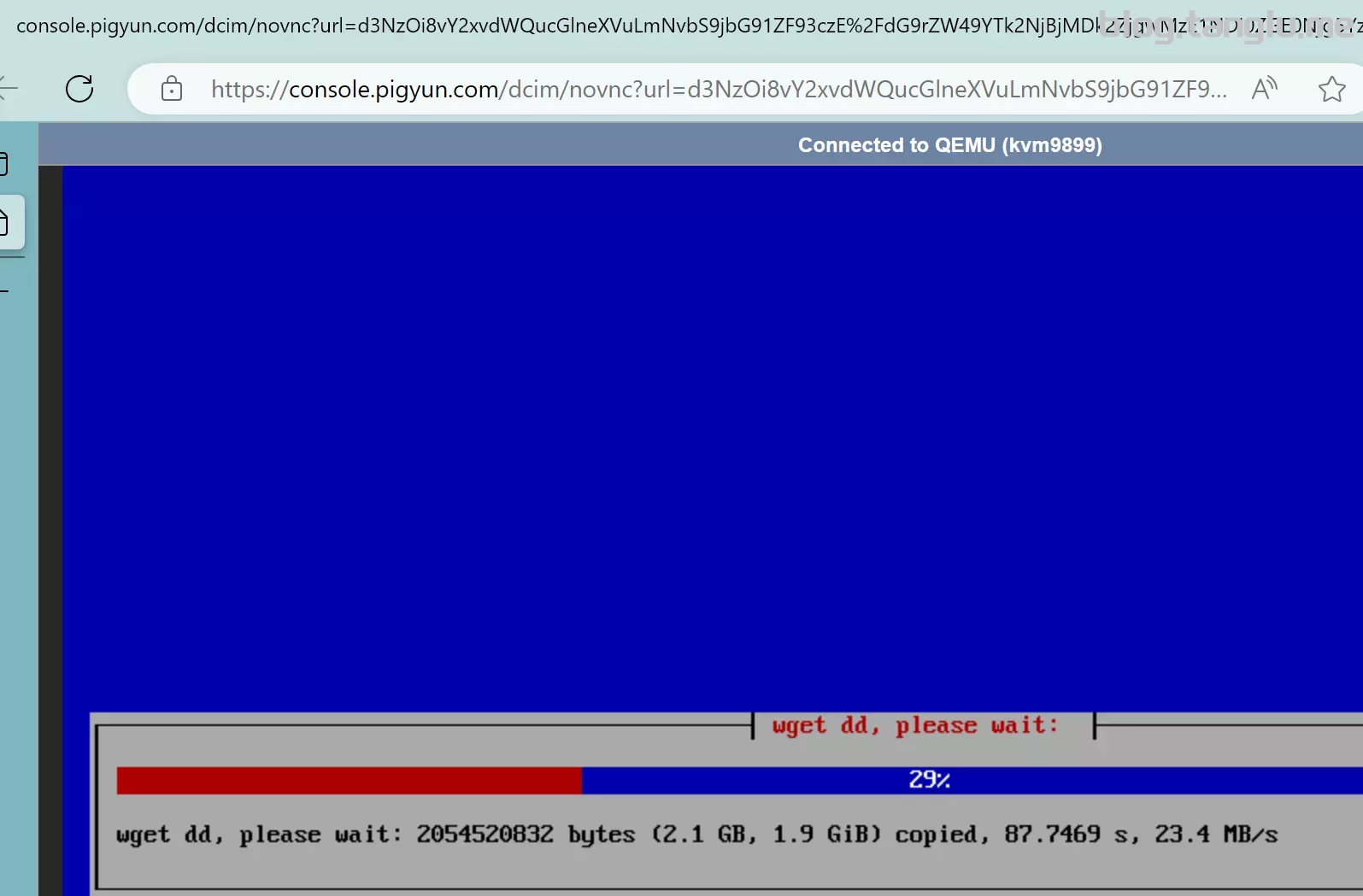
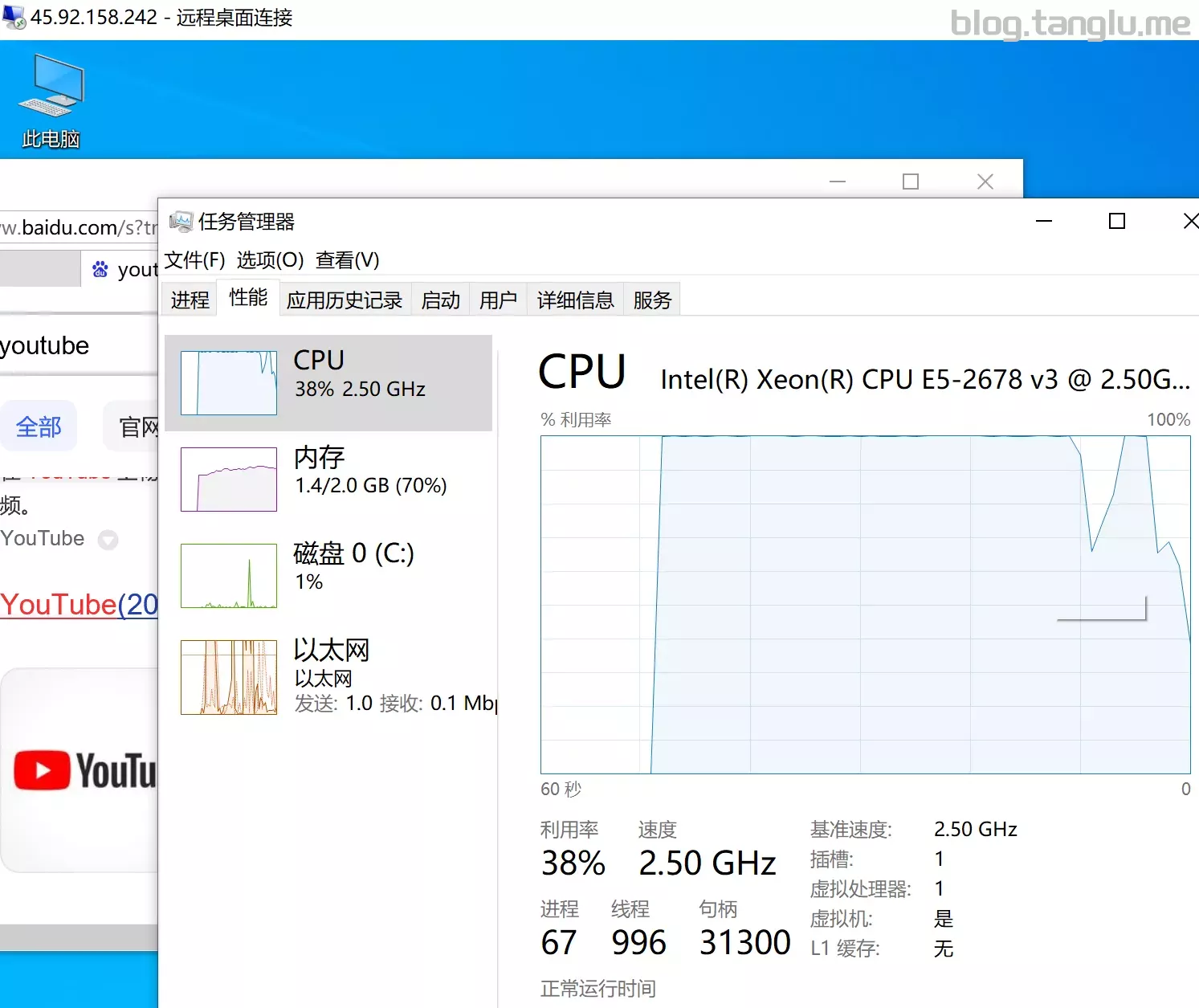
pingyun BIOS启动 有VNC
wget -qO- inst.sh | bash -s - -n 45.92.158.242,255.255.248.0,45.92.158.1 -t https://file.1323123.xyz/dd/windows/cxthhhhh/Disk_Windows_10_x64_Lite_by_CXT_v1.0.vhd.gz
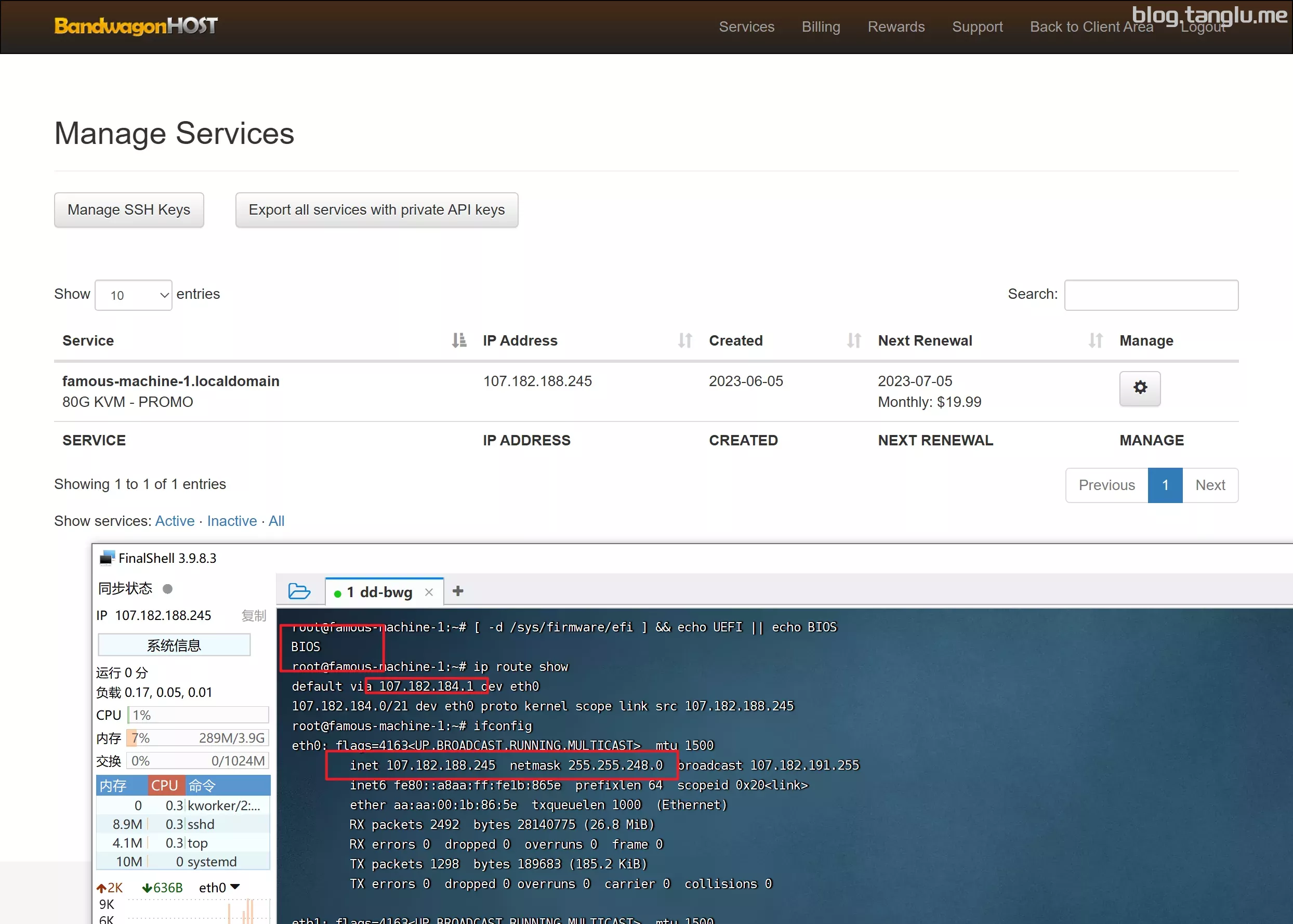
bandwagonhost 搬瓦工 bwg bwg81 bwg88
BIOS启动 有VNC
wget -qO- inst.sh | bash -s - -n 107.182.188.245,255.255.248.0,107.182.184.1 -t https://file.1323123.xyz/dd/windows/cxthhhhh/Disk_Windows_Server_2022_DataCenter_CN_v2.12.vhd.gz
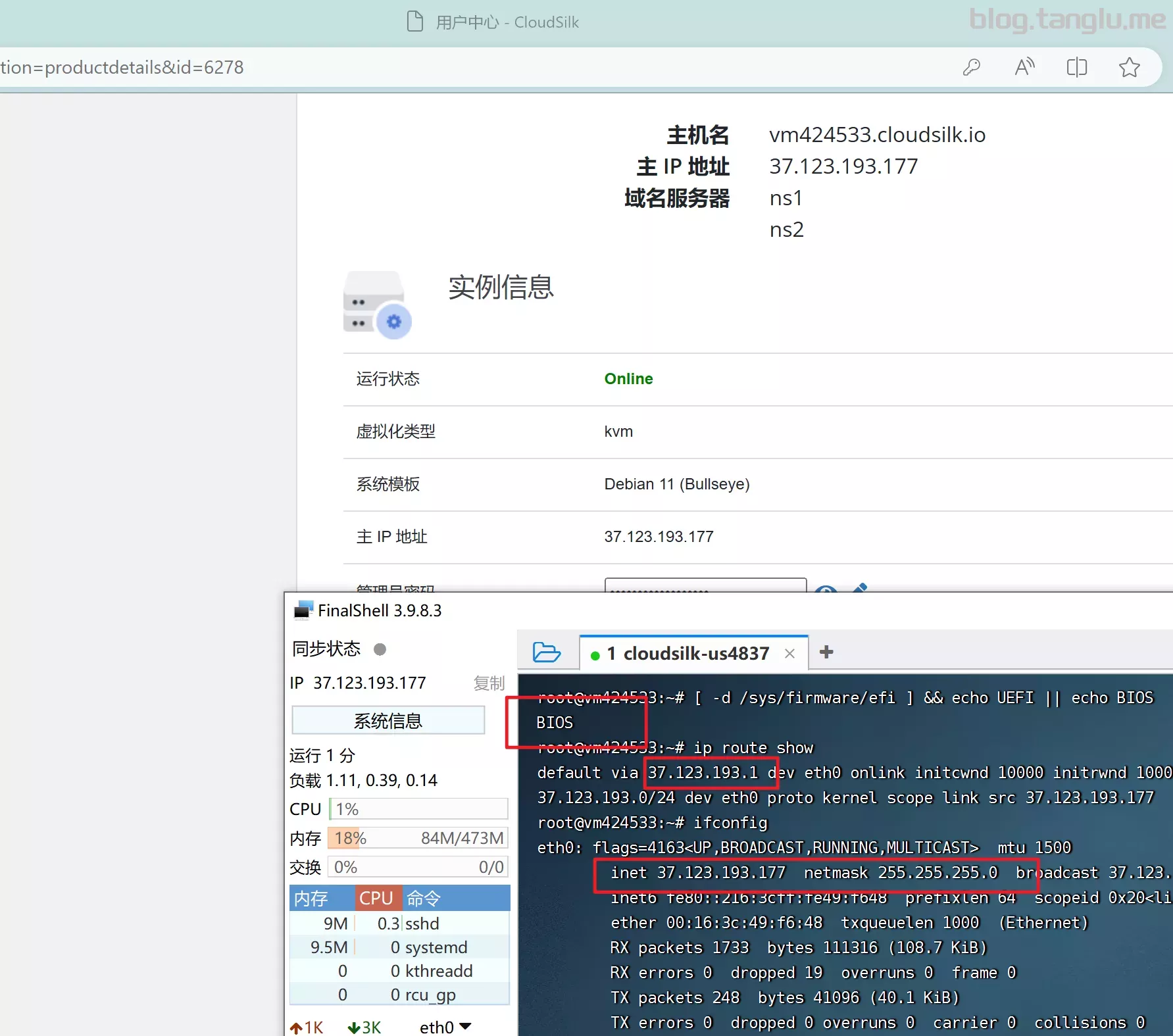
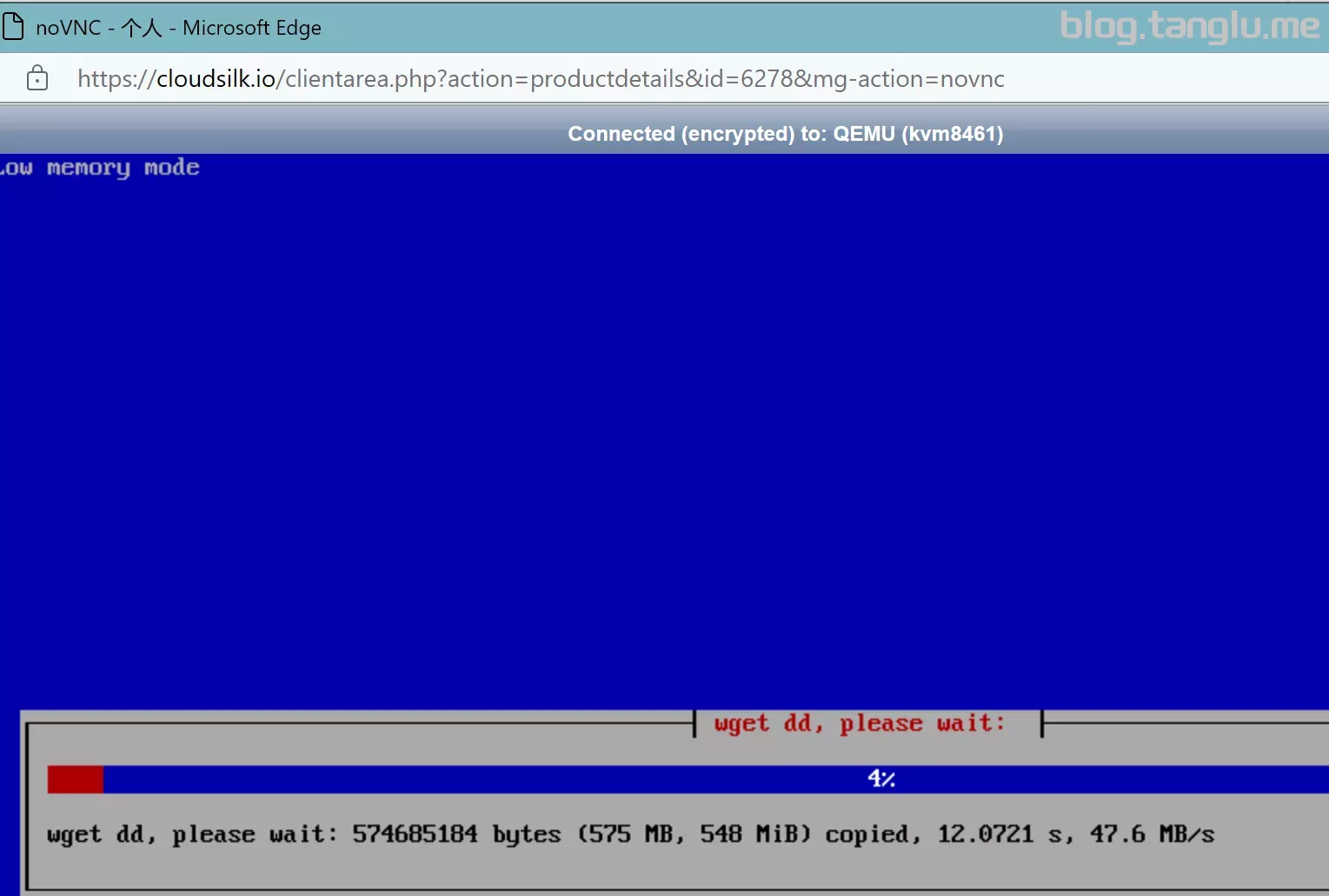
cloudsilk 白丝云
BIOS启动 有VNC
1核1GB内存 10GB硬盘,我这里选用win7镜像
cloudsilk dd完网卡信息是错误的,没办法上网,修改网卡也不会刷新,不清楚为什么
wget -qO- inst.sh | bash -s - -n 37.123.193.177,255.255.255.0,37.123.193.1 -t https://file.1323123.xyz/dd/windows/cxthhhhh/Disk_Windows_7_Vienna_Ultimate_CN_v2.0.vhd.gz
saltyfish 咸鱼云
BIOS启动 有VNC
wget -qO- inst.sh | bash -s - -n 38.59.230.214,255.255.255.128,38.59.230.129 -t https://file.1323123.xyz/dd/windows/natee/win7-s1
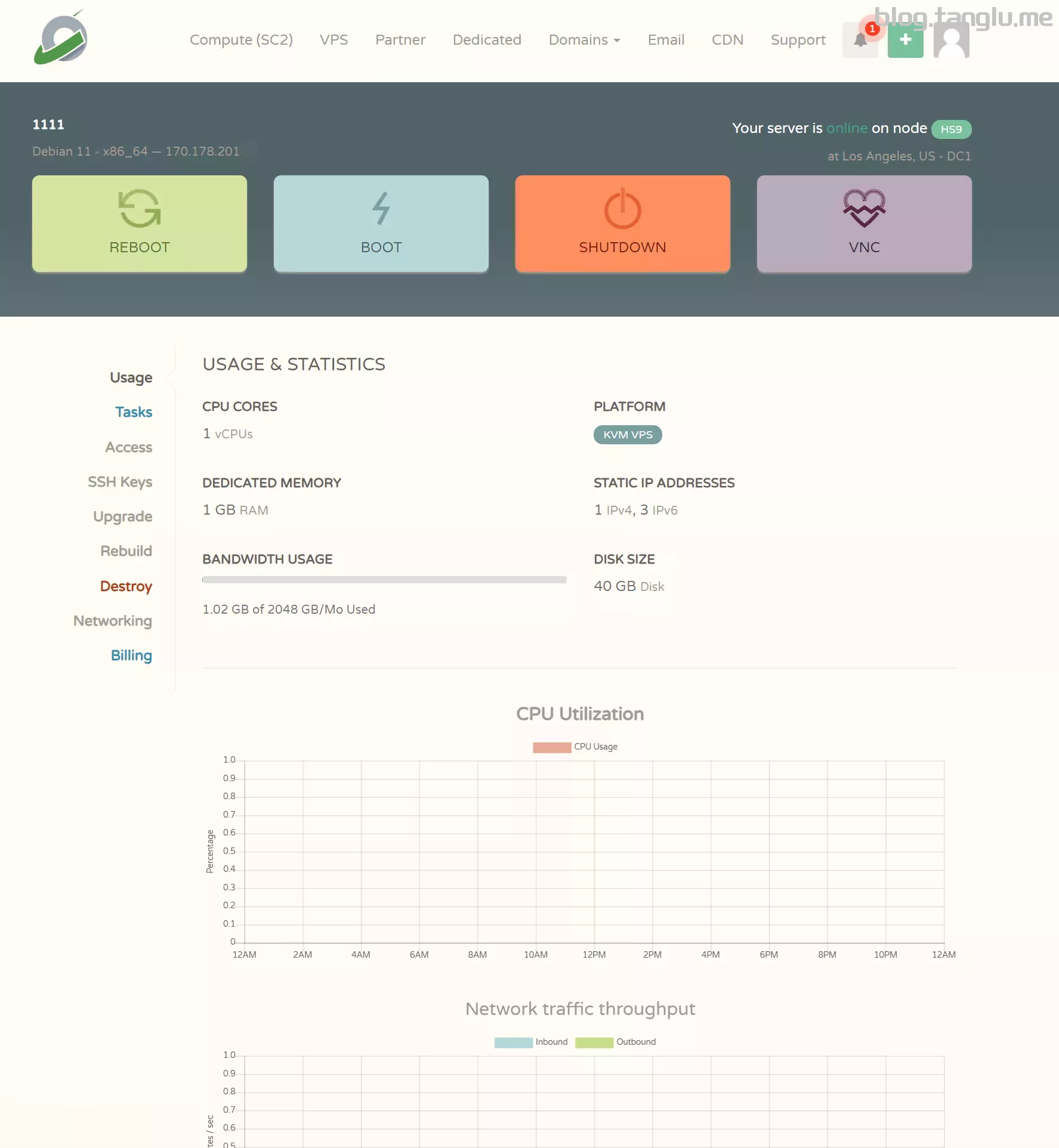
cloudcone_vps cc
dd完似乎需要手动添加网卡
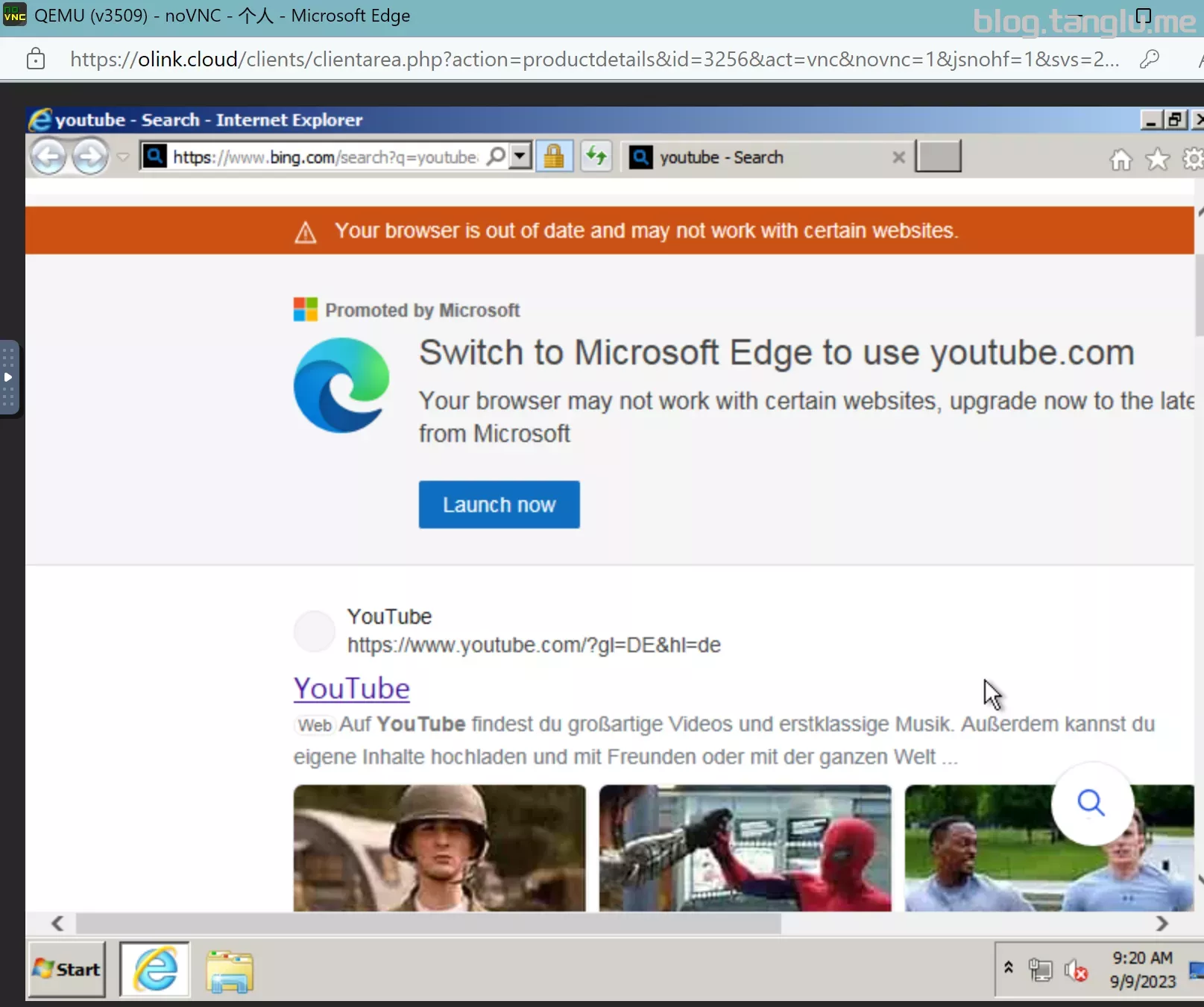
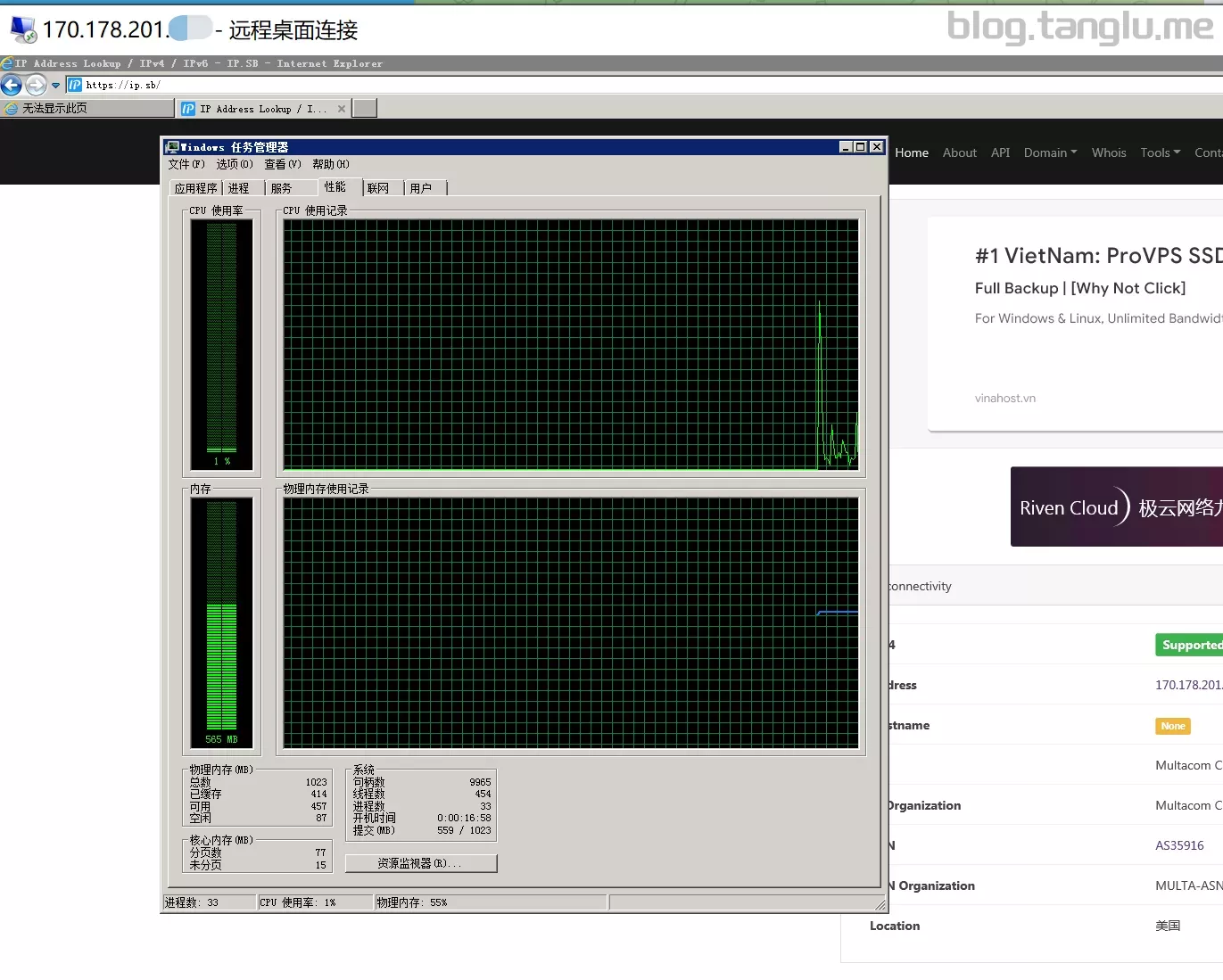
wget -qO- inst.sh | bash -s - -n 170.178.201.*,255.255.255.128,170.178.201.129 -t https://file.1323123.xyz/dd/windows/cxthhhhh/Disk_Windows_7_Vienna_Ultimate_CN_v2.0.vhd.gz
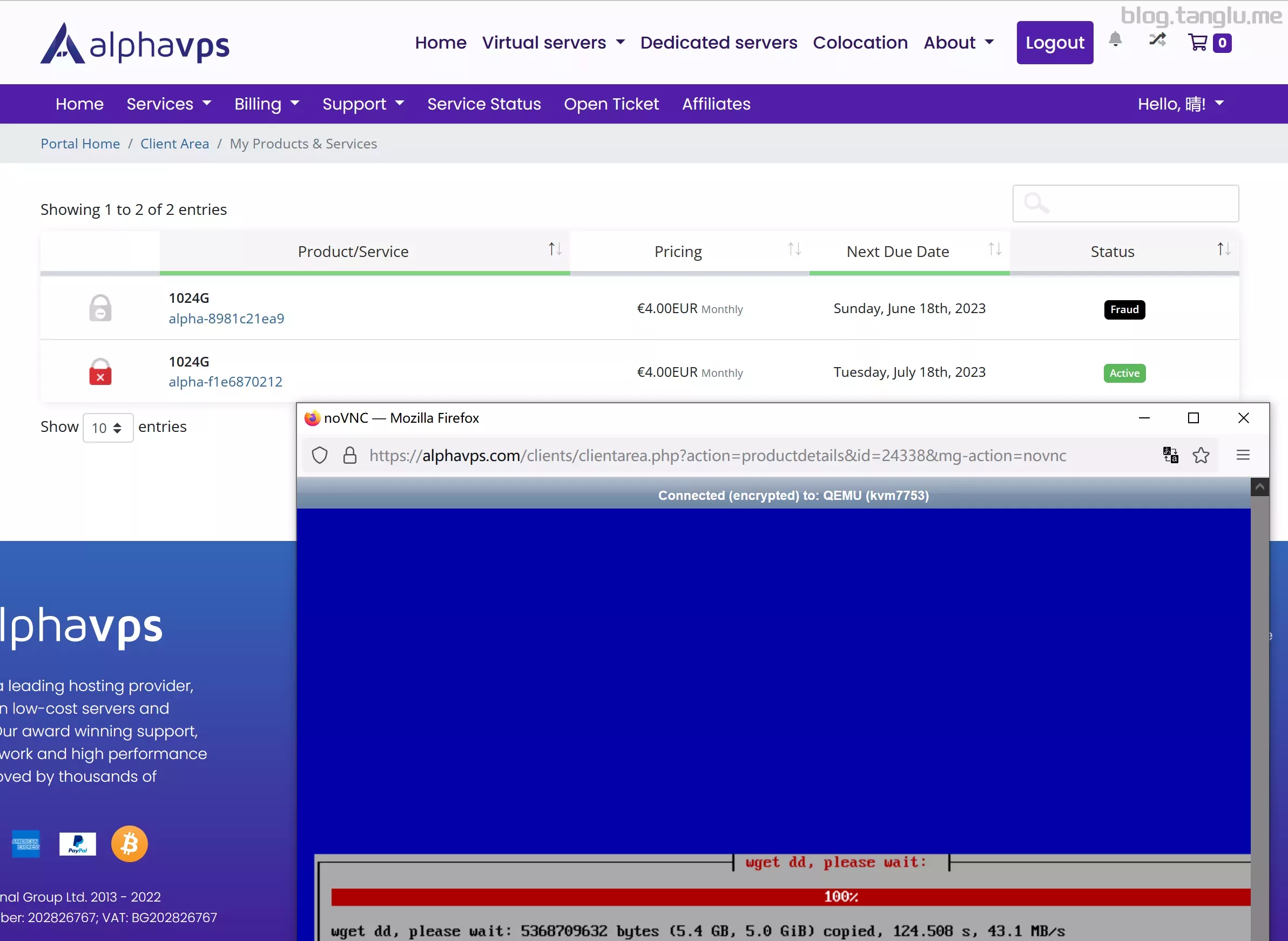
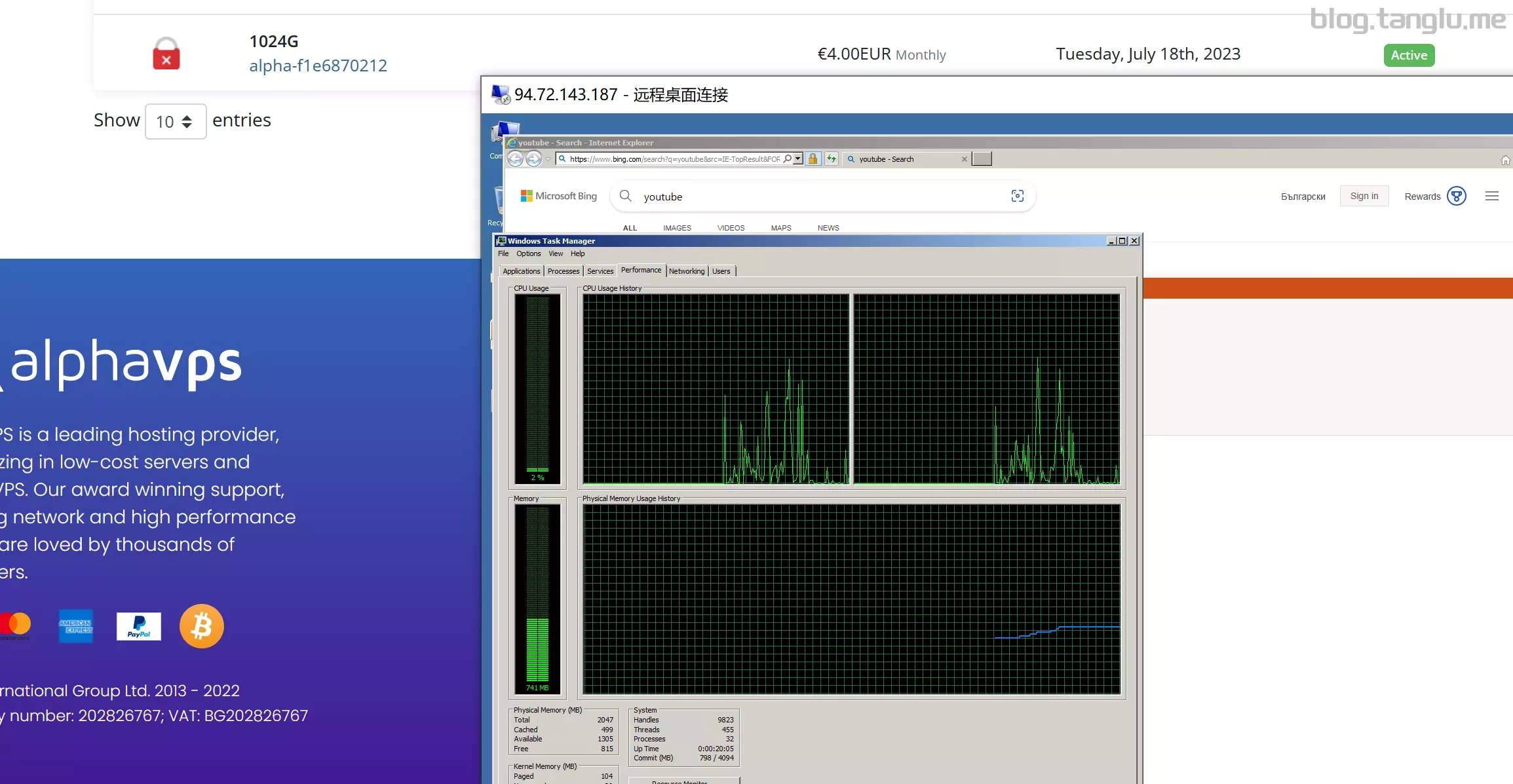
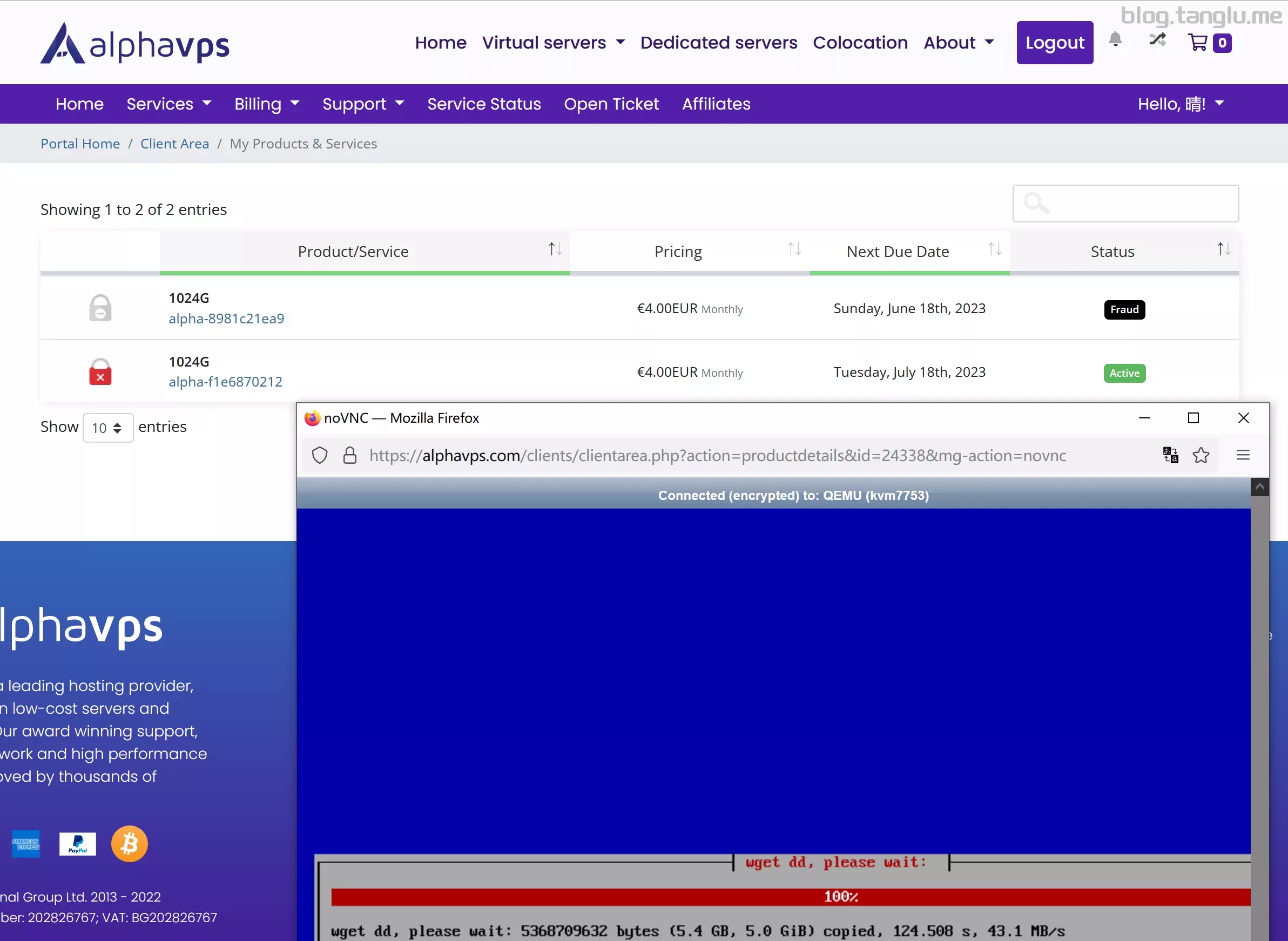
alphavps BIOS启动 有VNC
这款是 storage vps
wget -qO- inst.sh | bash -s - -n 94.72.143.187,255.255.255.192,94.72.143.129 -t https://file.1323123.xyz/dd/windows/natee/win7-sp1-ent-x64-us.vhd.gz
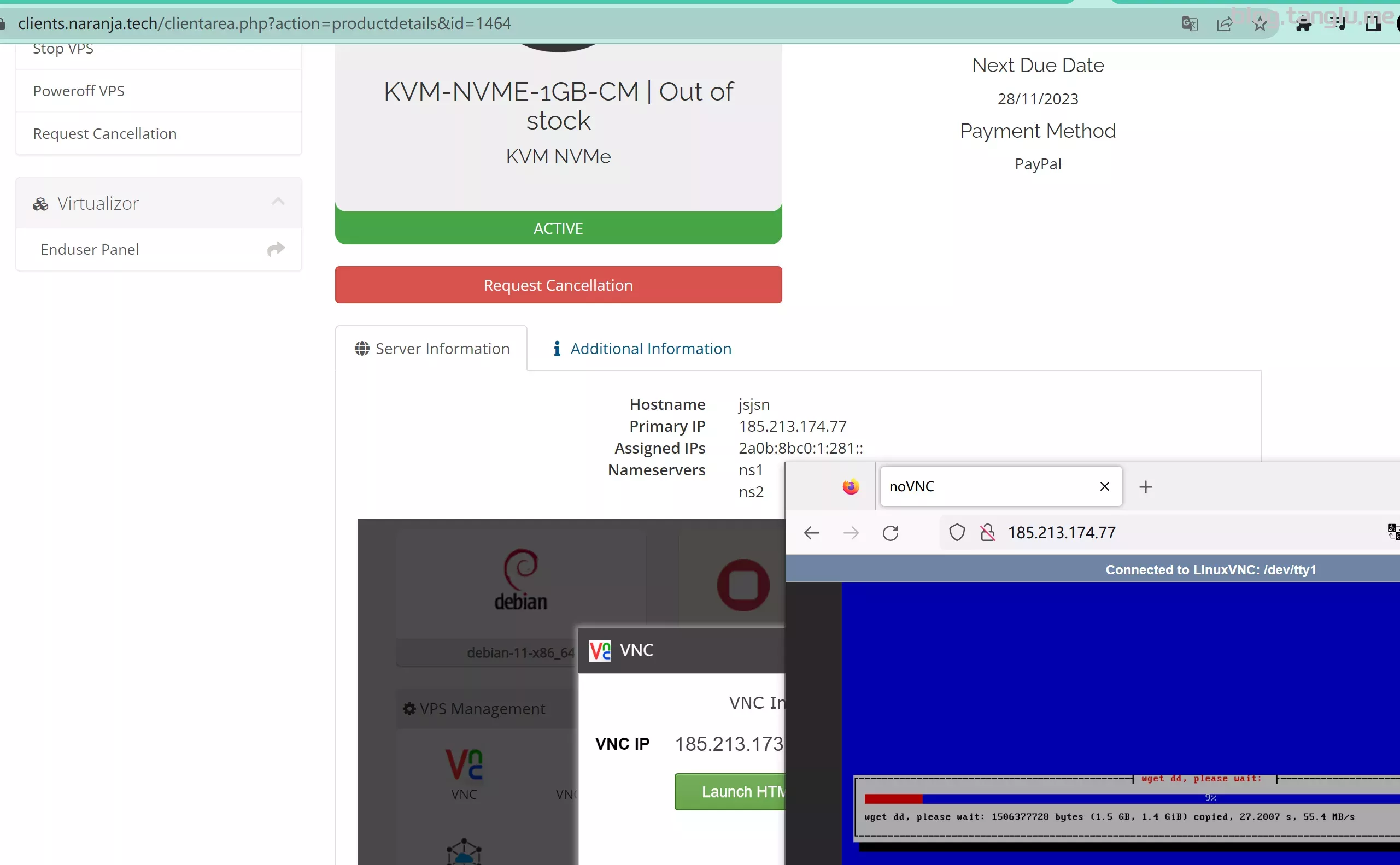
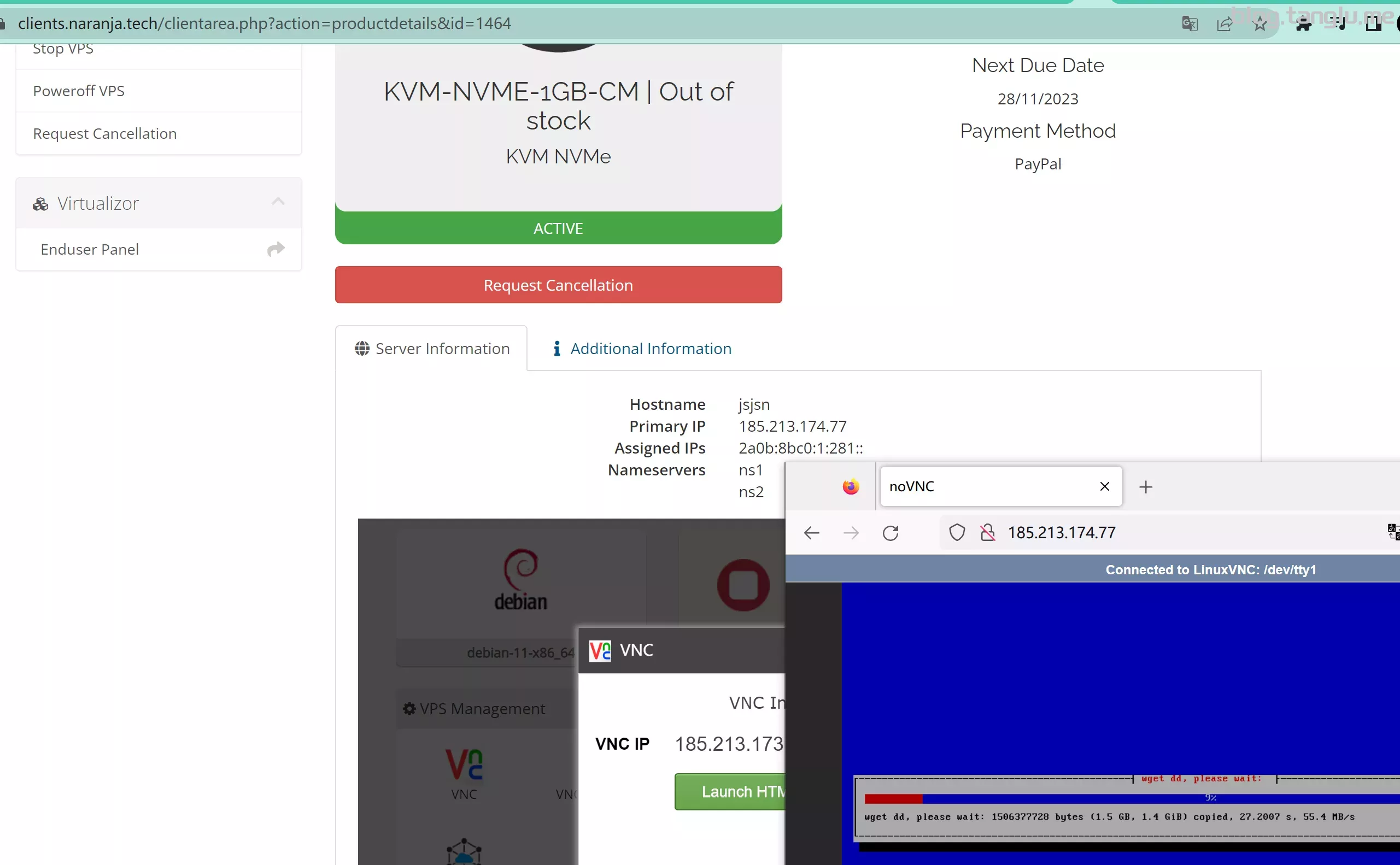
naranja BIOS启动 有VNC
wget -qO- inst.sh | bash -s - -n 185.213.174.77,255.255.255.0,185.213.174.1 -t https://file.1323123.xyz/dd/windows/natee/win7-sp1-ent-x64-us.vhd.gz
vmiss BIOS启动 有VNC
wget -qO- inst.sh | bash -s - -n 38.47
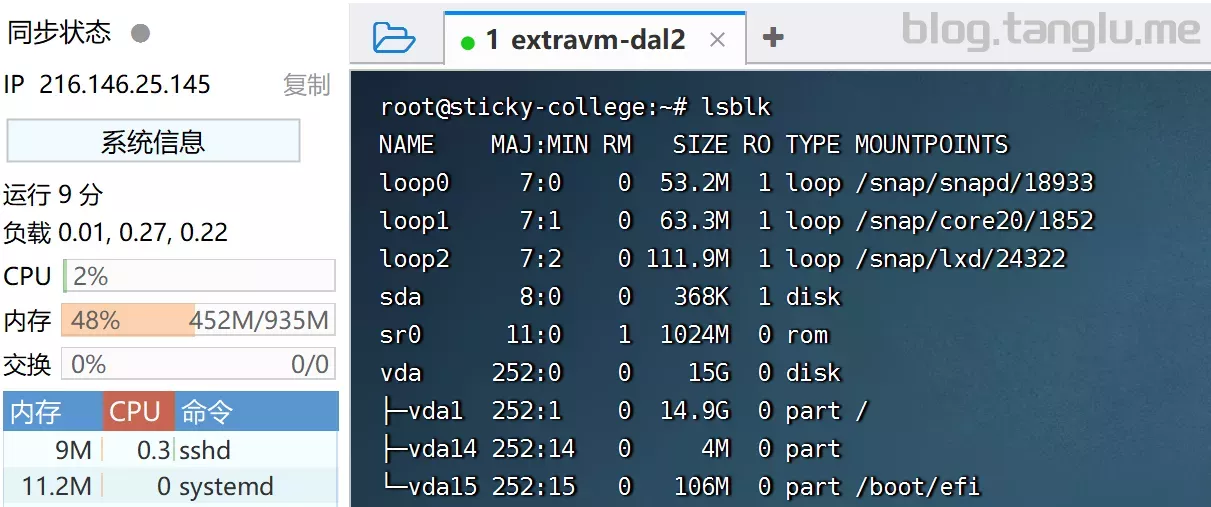
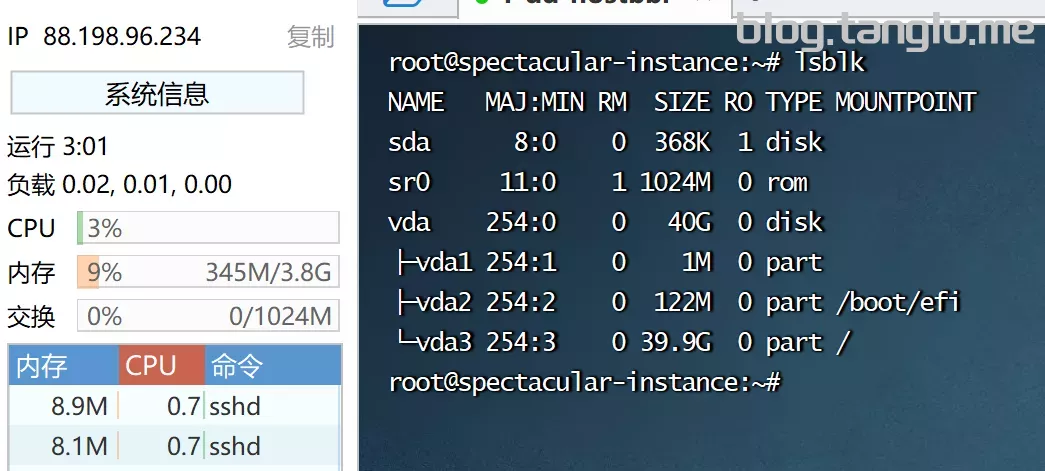
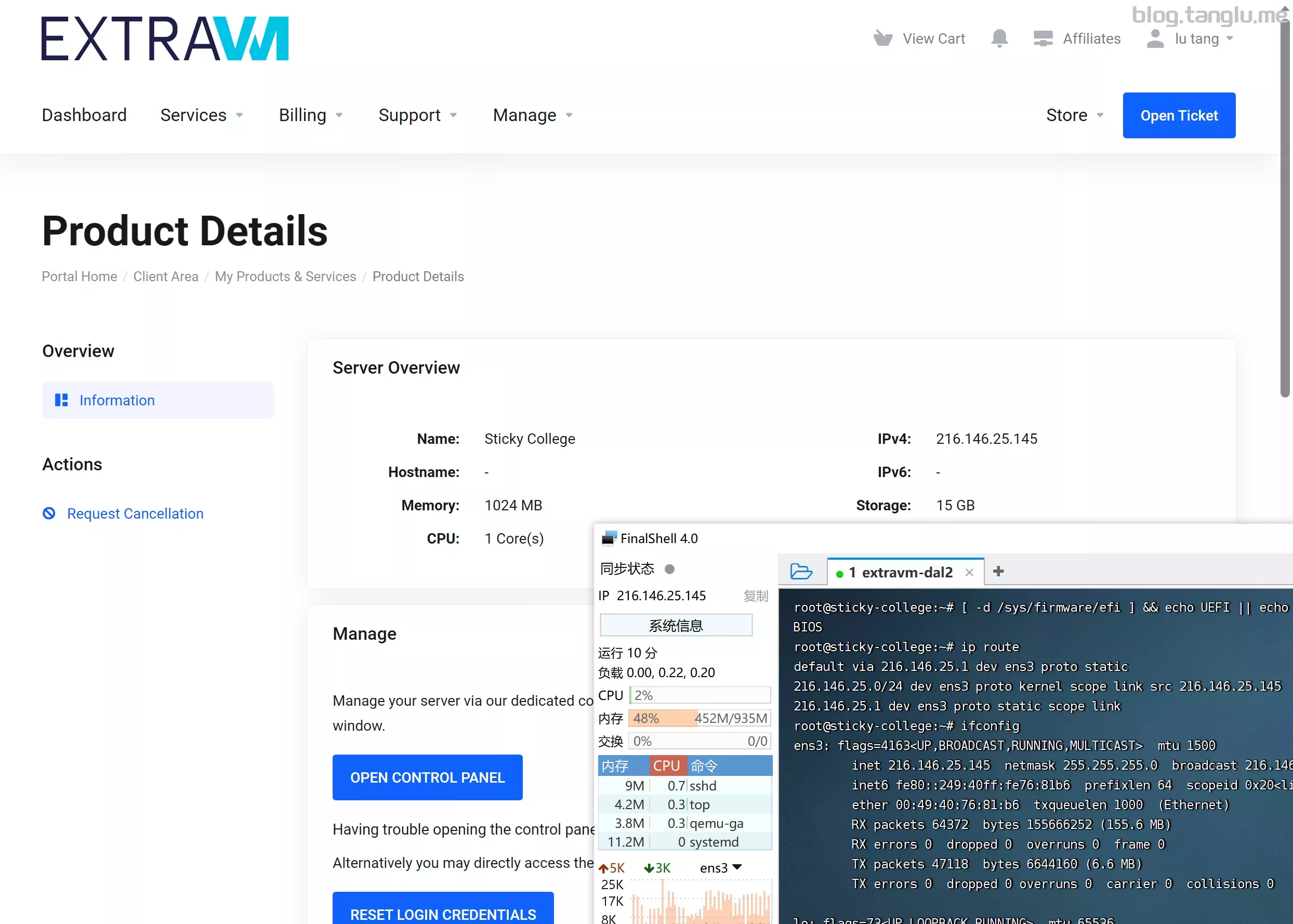
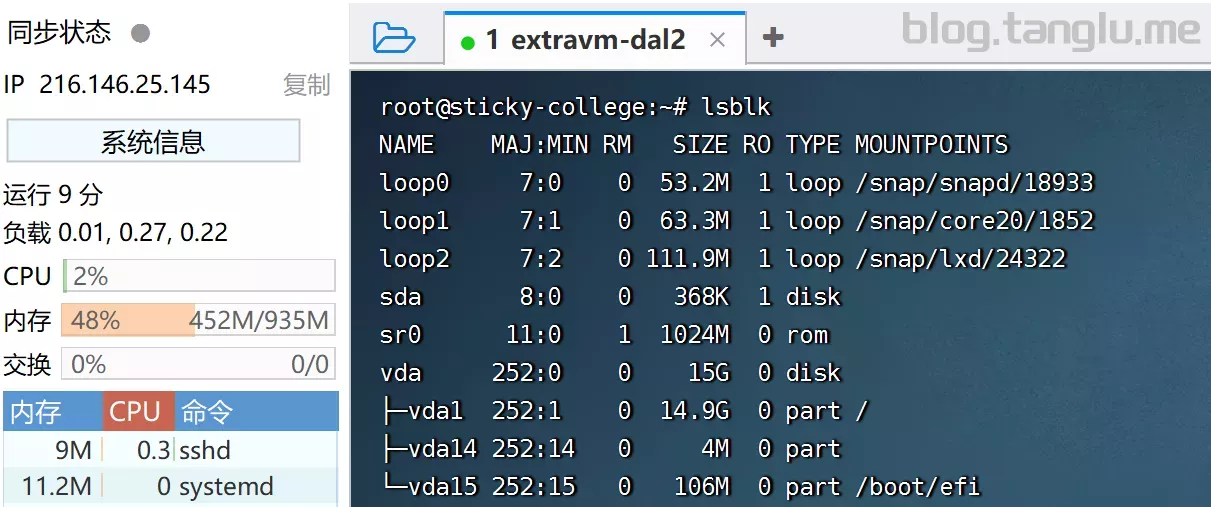
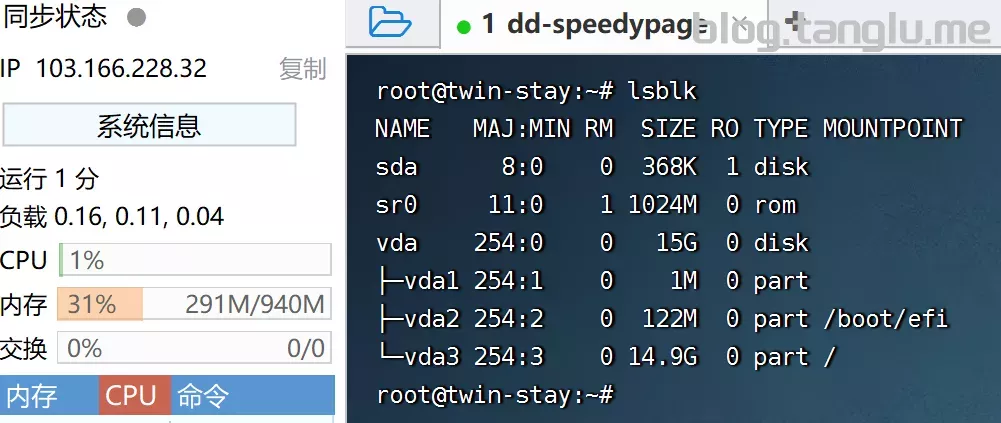
/vda 是挂载的数据盘,实际 /vda 才是系统盘, 这时需
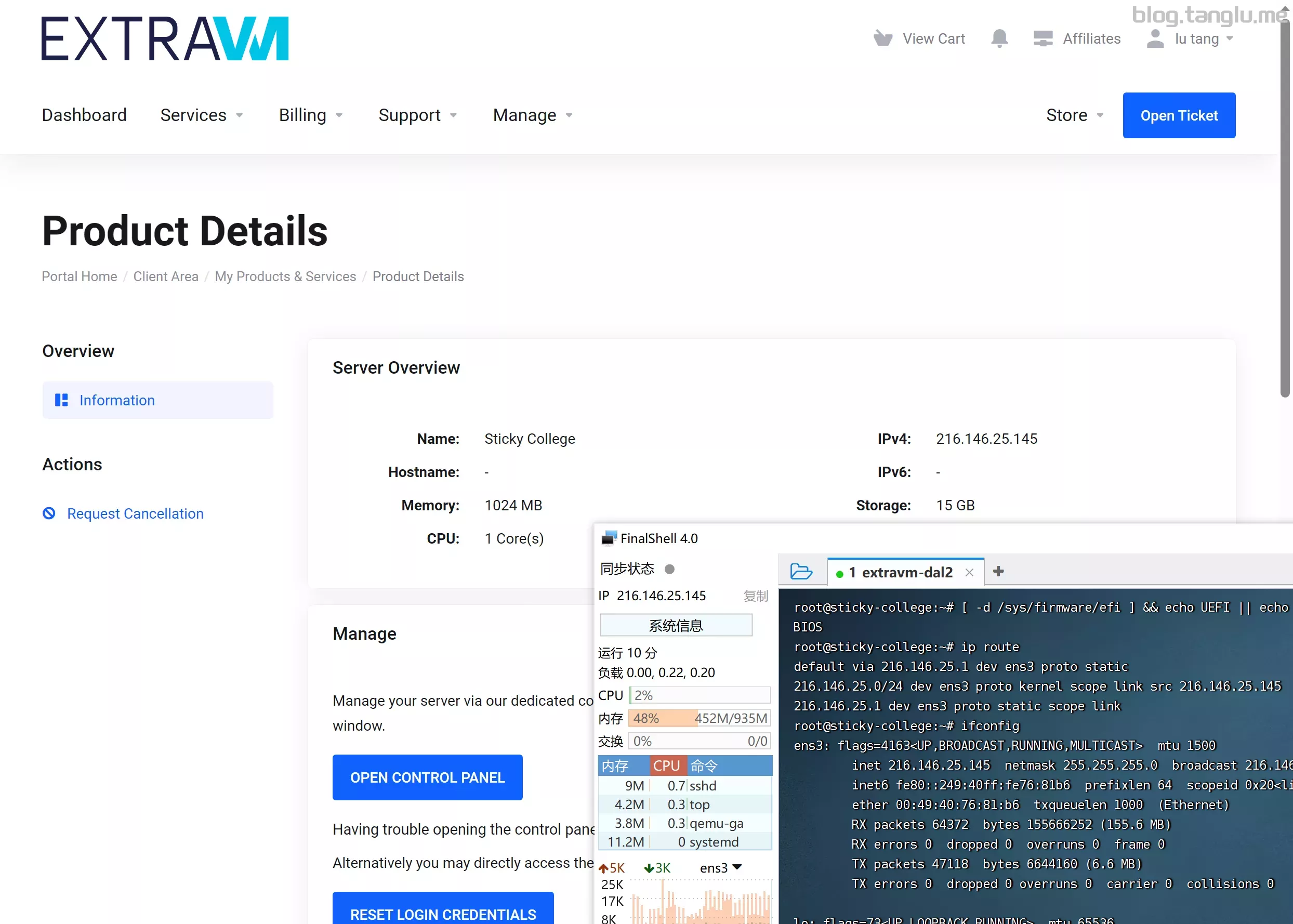
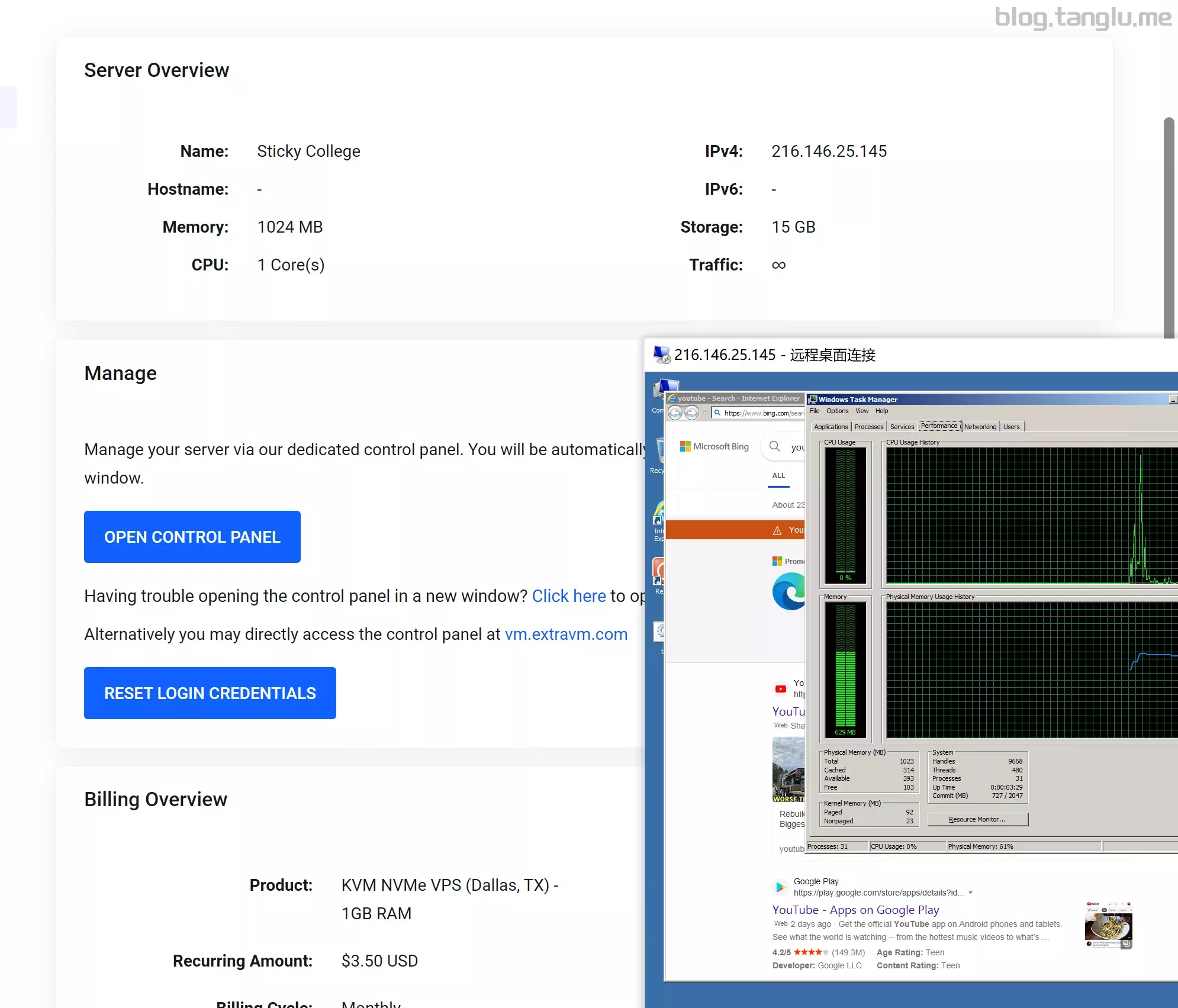
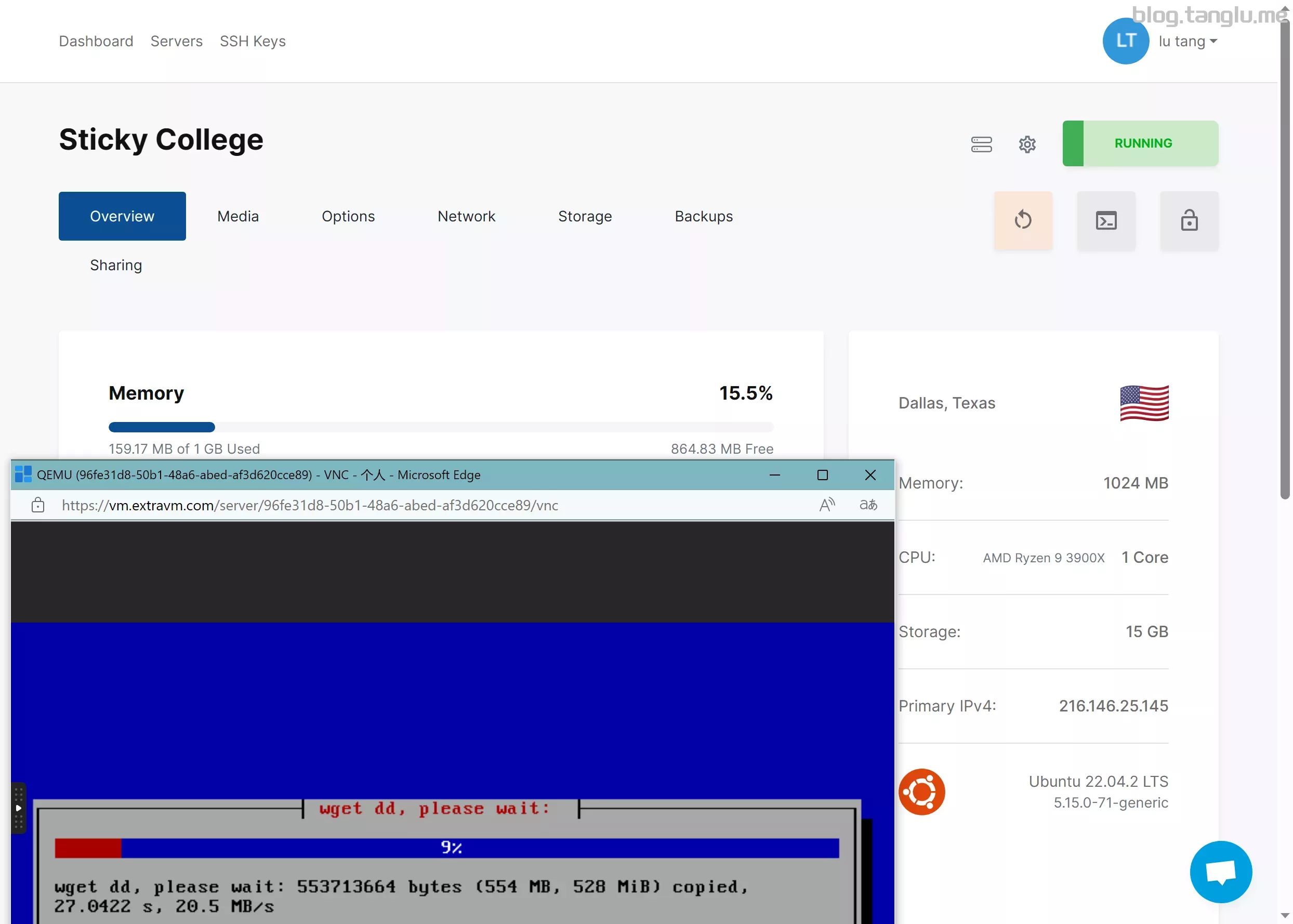
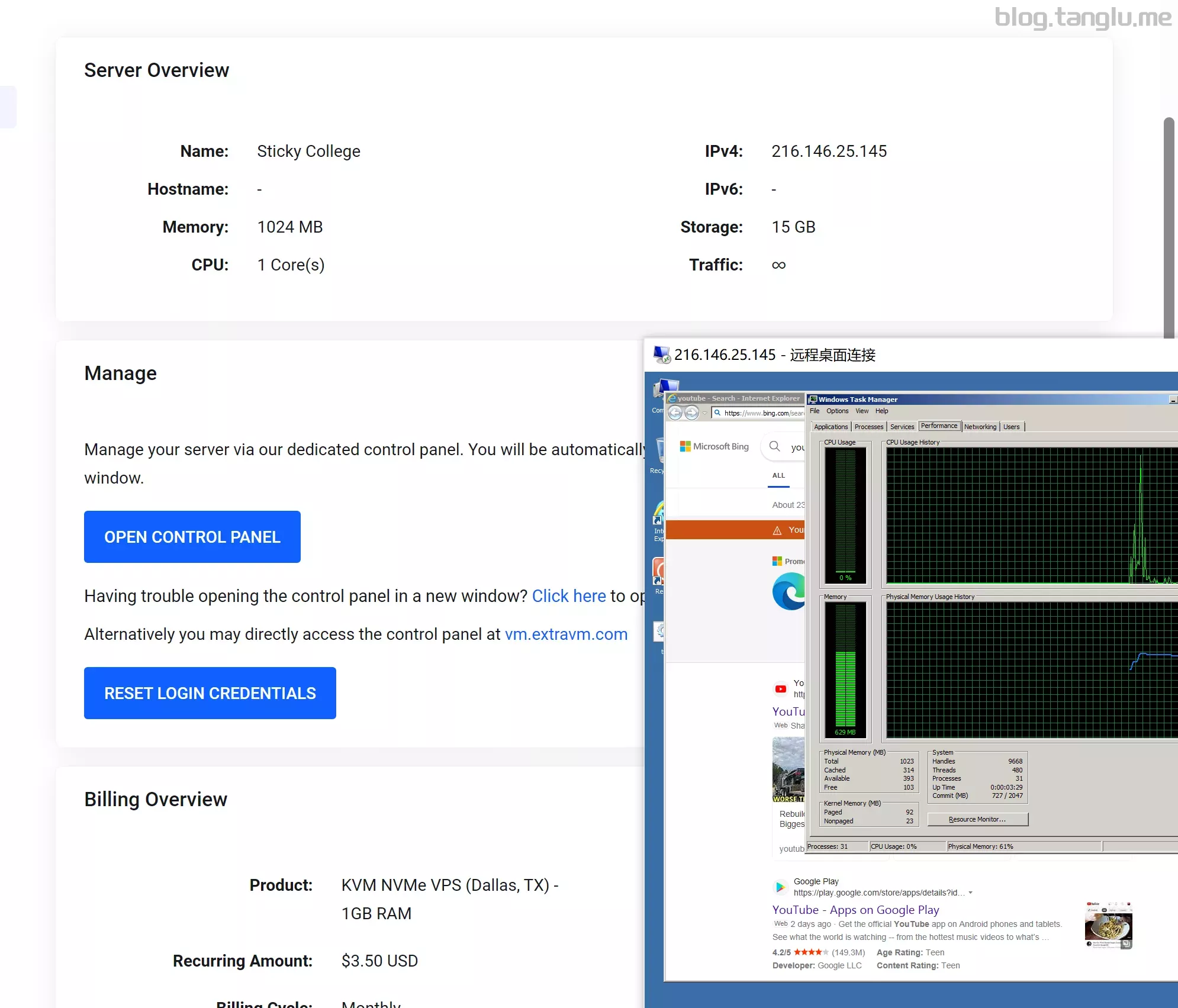
wget -qO- inst.sh | bash -s - -p vda -n 216.146.25.145,255.255.255.0,216.146.25.1 -t https://file.1323123.xyz/dd/windows/natee/win7-sp1-ent-x64-us.vhd.gz
kurun BIOS启动 有VNC
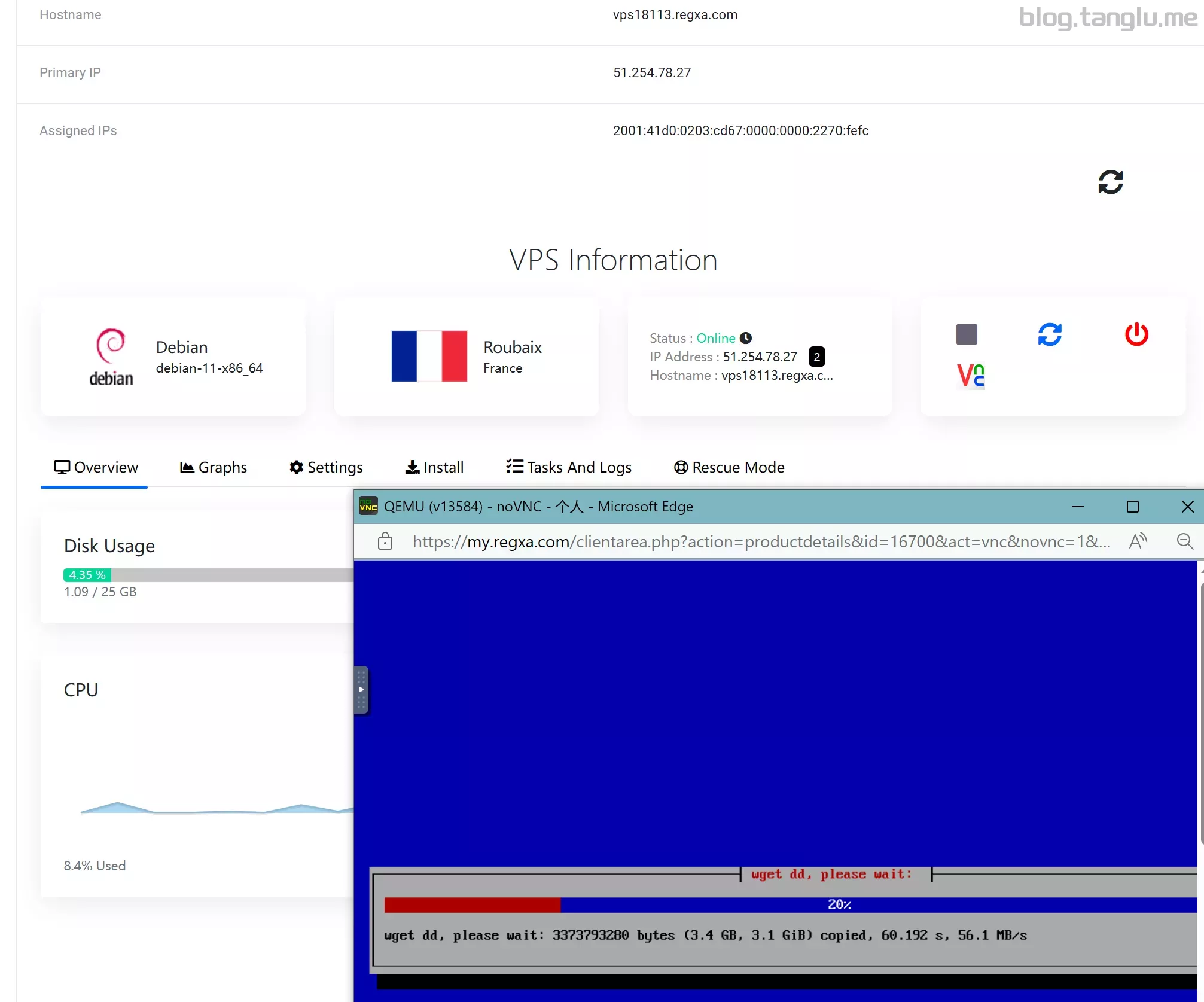
wget -qO- inst.sh | bash -s - -t https://filO- inst.sh | bash -s - -n 51.254.78.27,255.255.255.255,162.19.60.254 -t https://file.1323123.xyz/dd/windows/natee/win7-sp1-ent-x64-us.vhd.gz
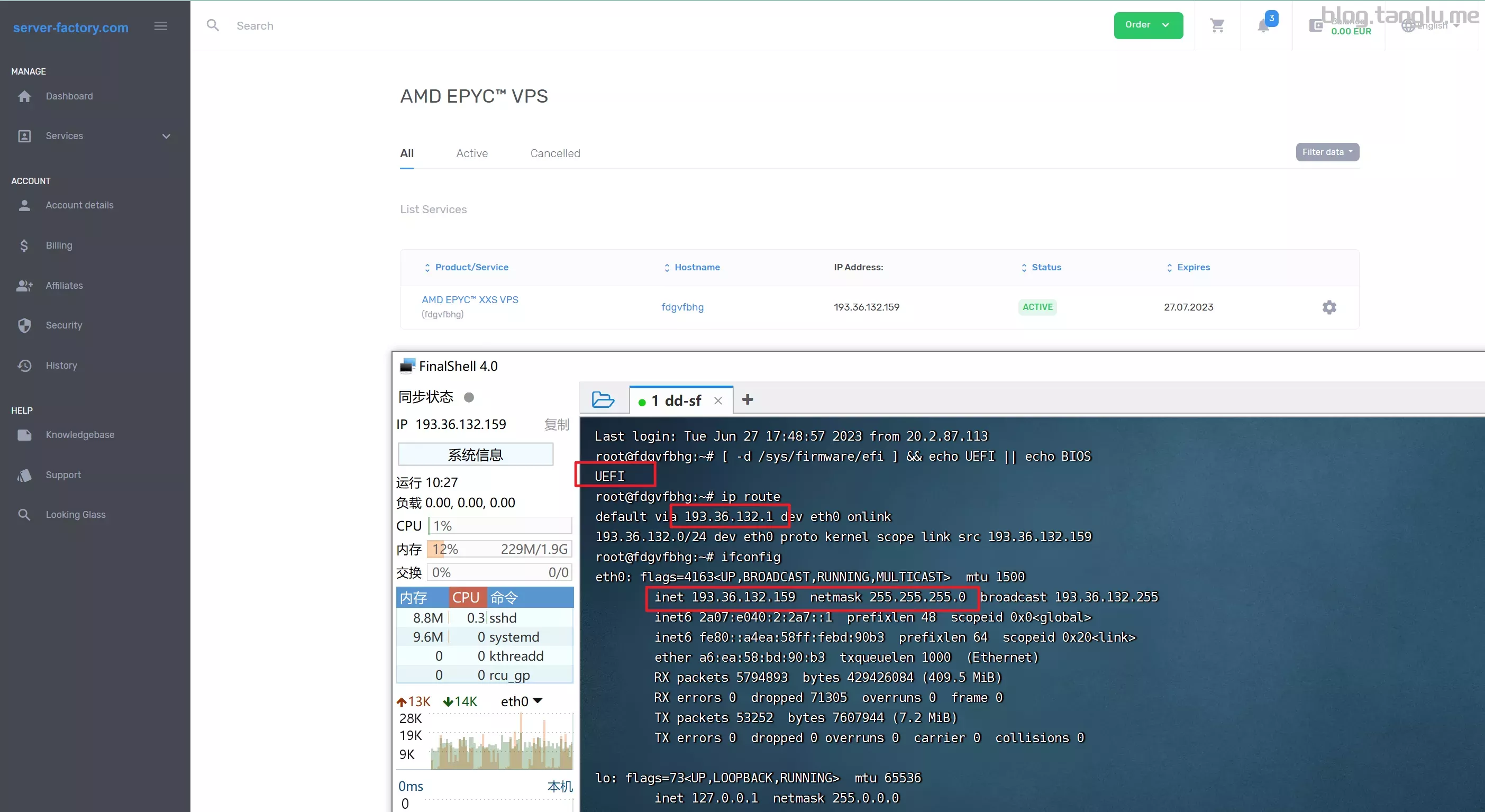
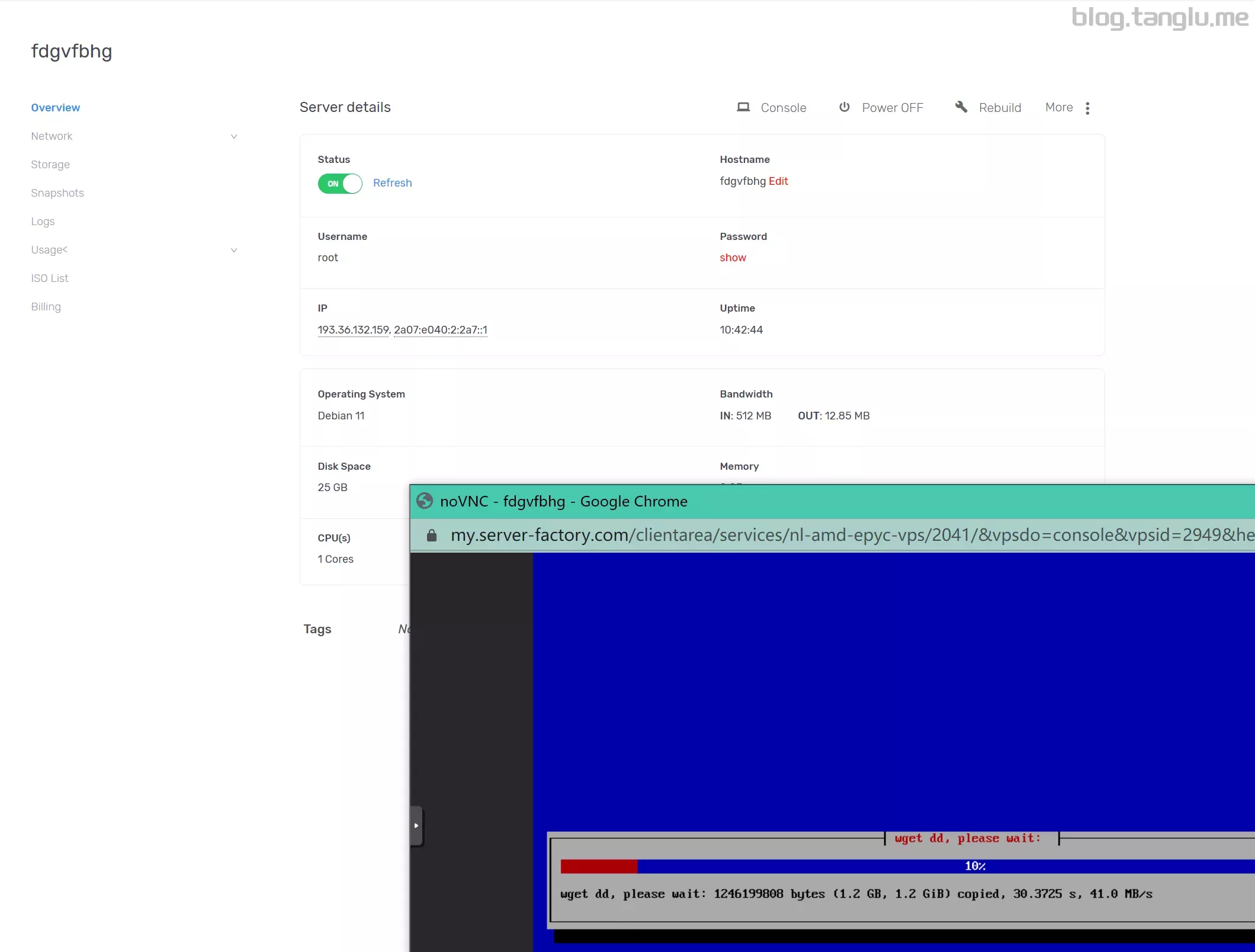
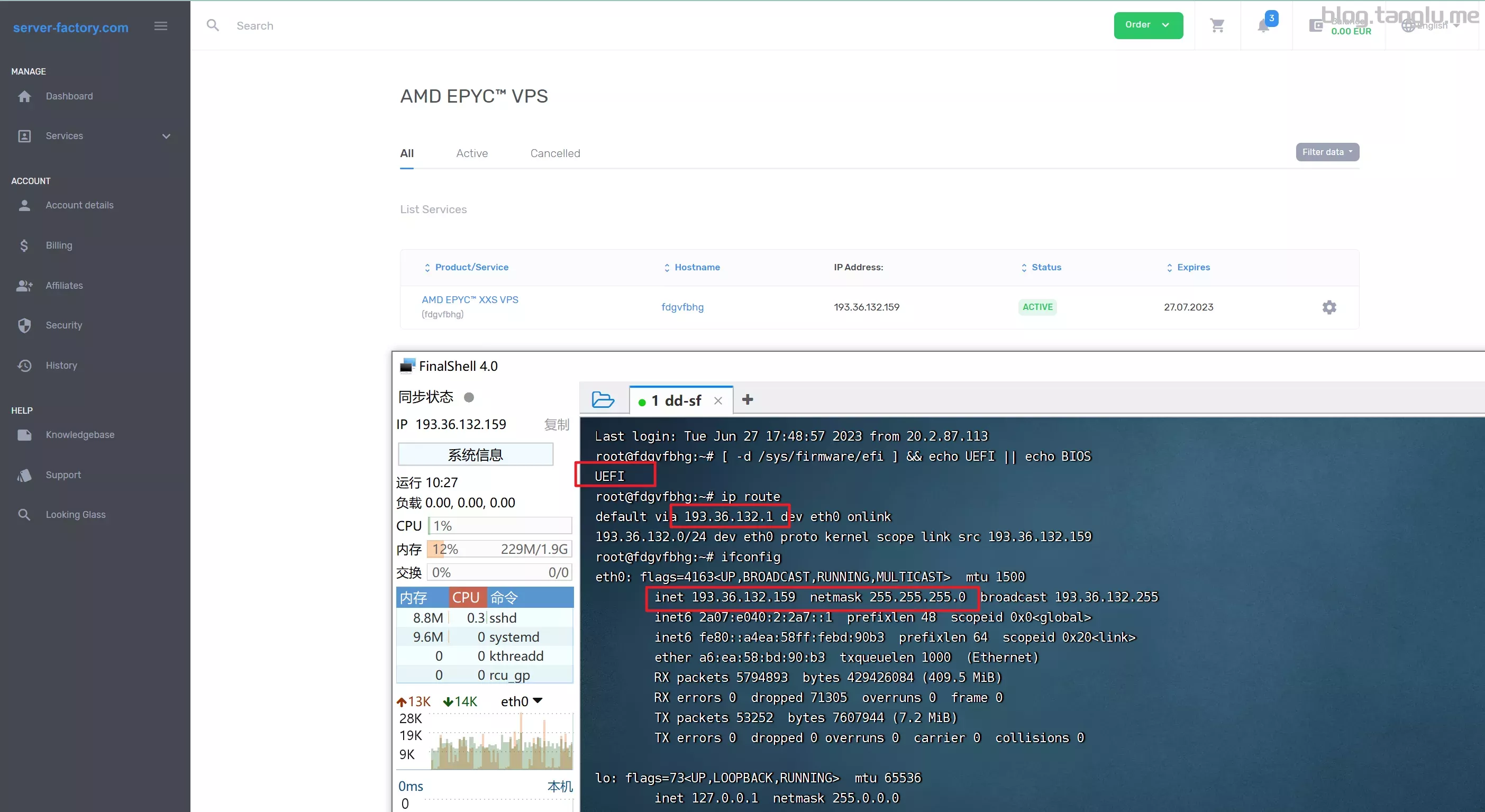
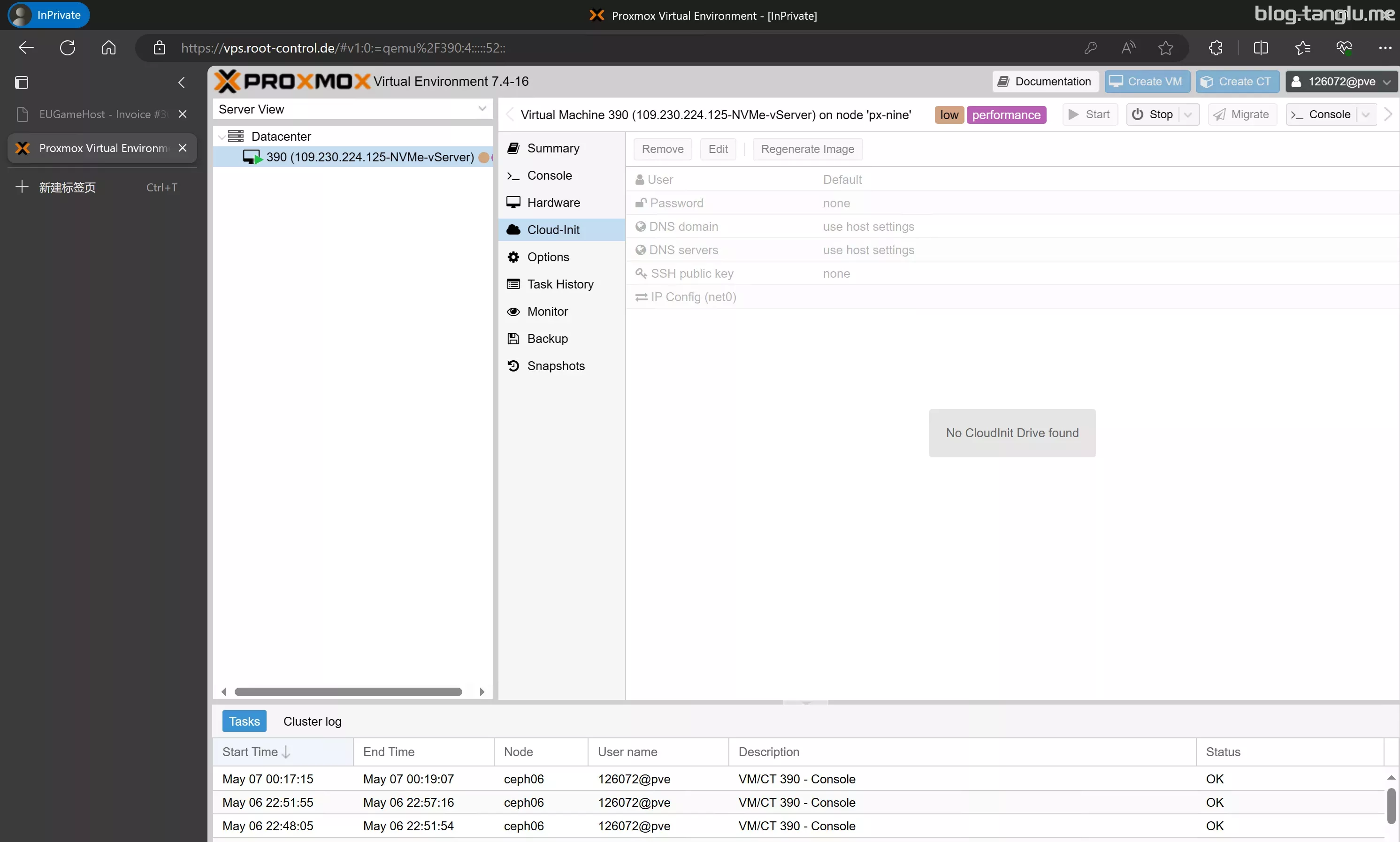
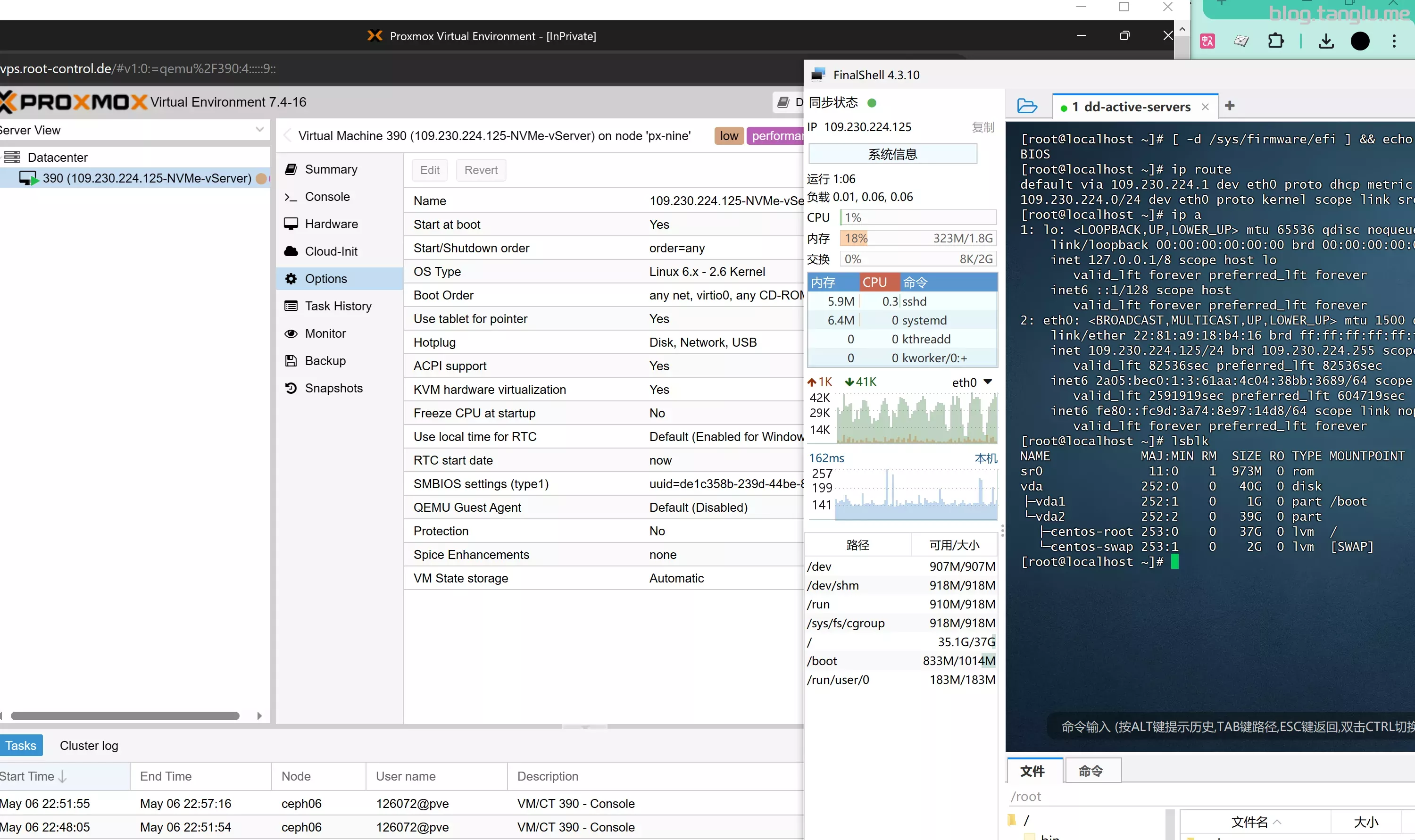
server-factory UEFI启动 有VNC 支持一键免费安装windows_server
wget -qO- inst.tps://result.network-speed.xyz/r/1697287066_Z1FI02_GLOBAL.txt
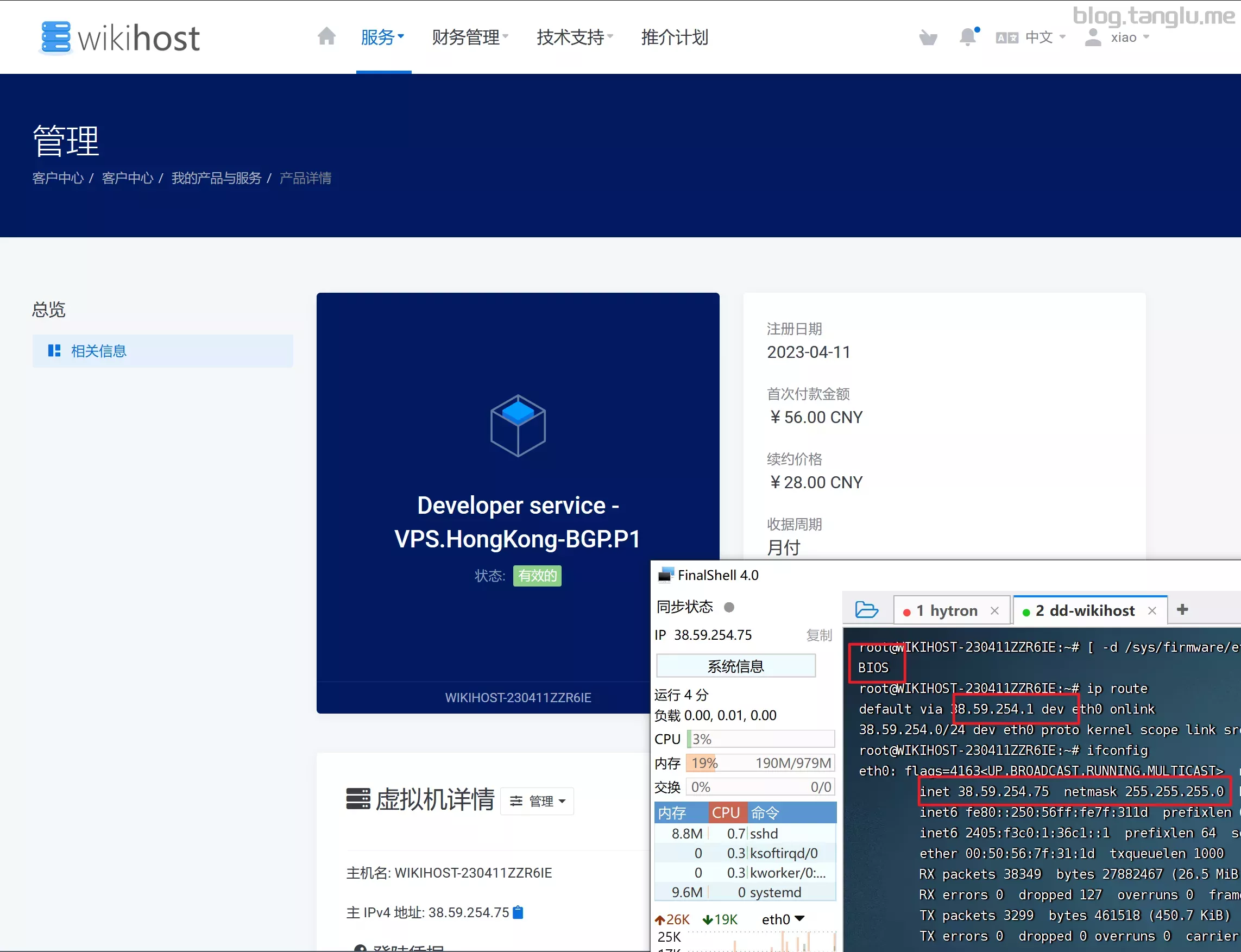
wikihost idc.wiki 鸡总
BIOS启动 有VNC
wget -qO- inst.sh | bash -s - -n 38.59.254.75,255.255.255.0,38.59.254.1 -t https://file.1323123.xyz/dd/windows/natee/win7-sp1-ent-x64-us.23.xyz/dd/windows/1keydd/win10ltsc_password_1keydd.gz
#myloc network DE
#cubic
ipv4:
https://result.network-speed.xyz/r/1697284770_6G730W_G
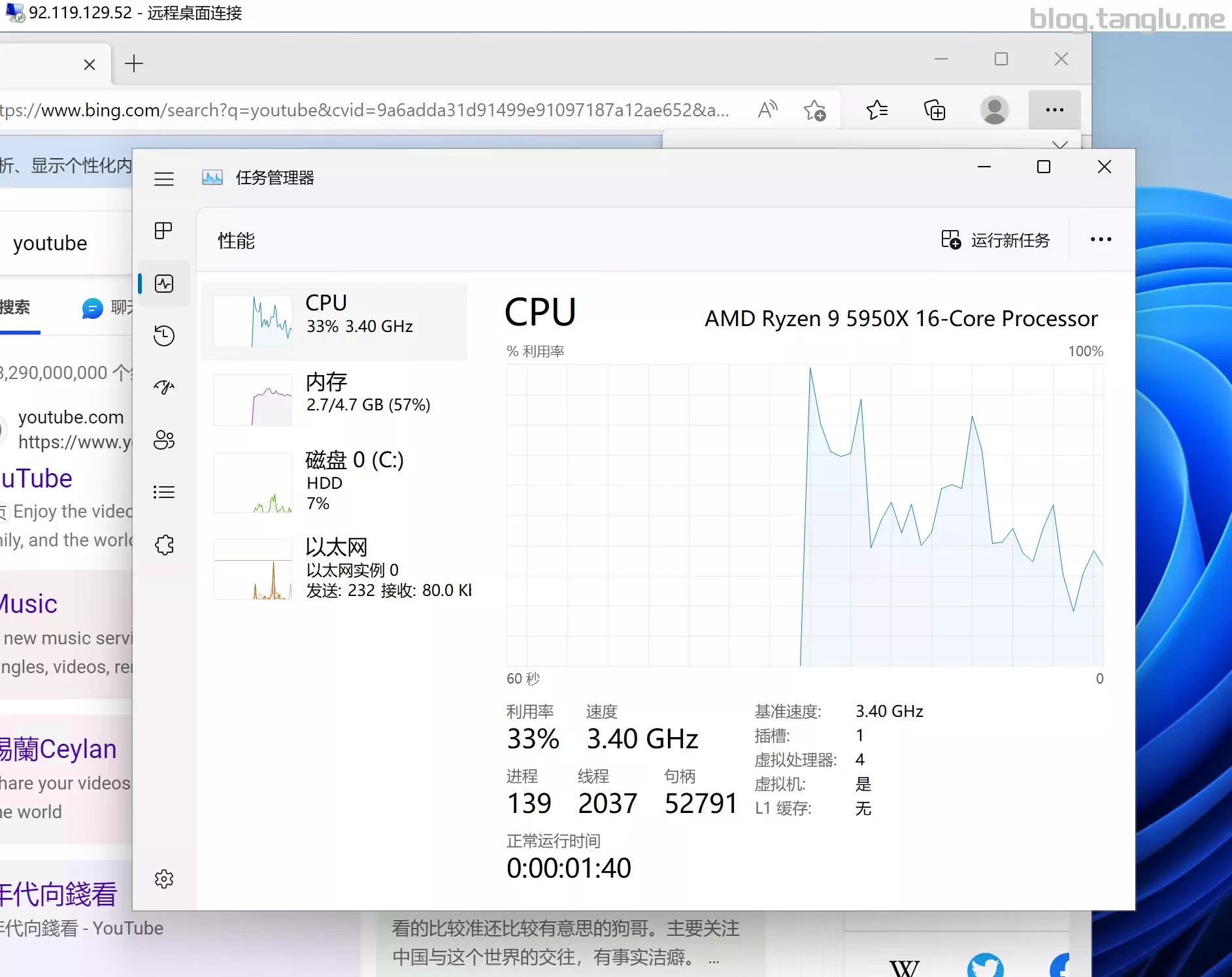
255.255.0,92.119.
S启动 有VNC 需要指定系统盘分区
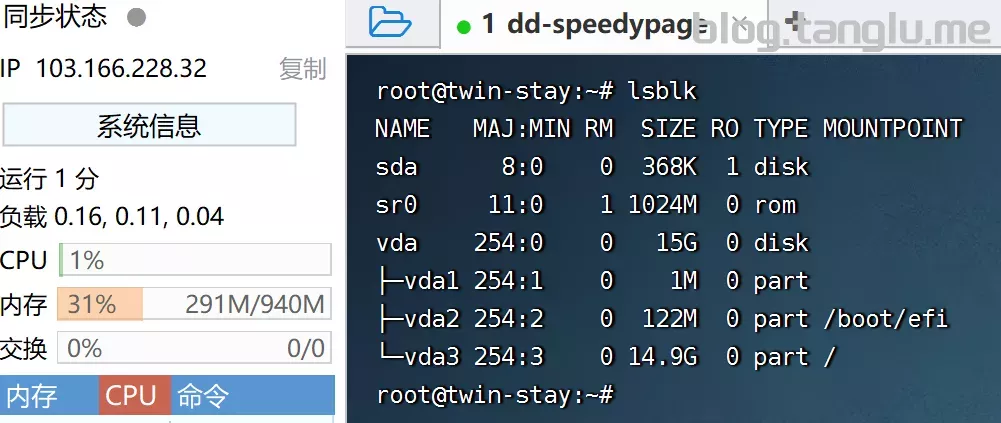
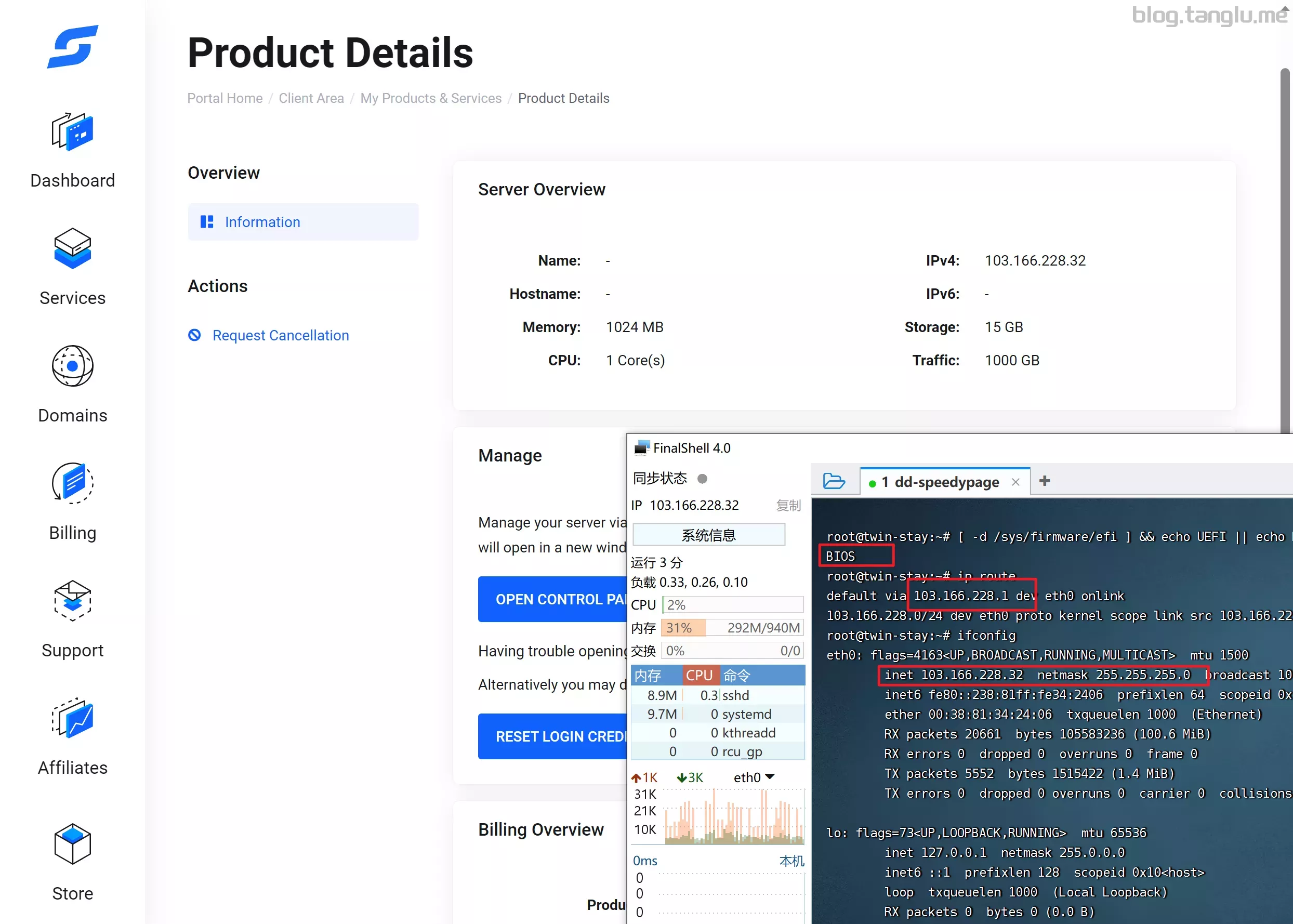
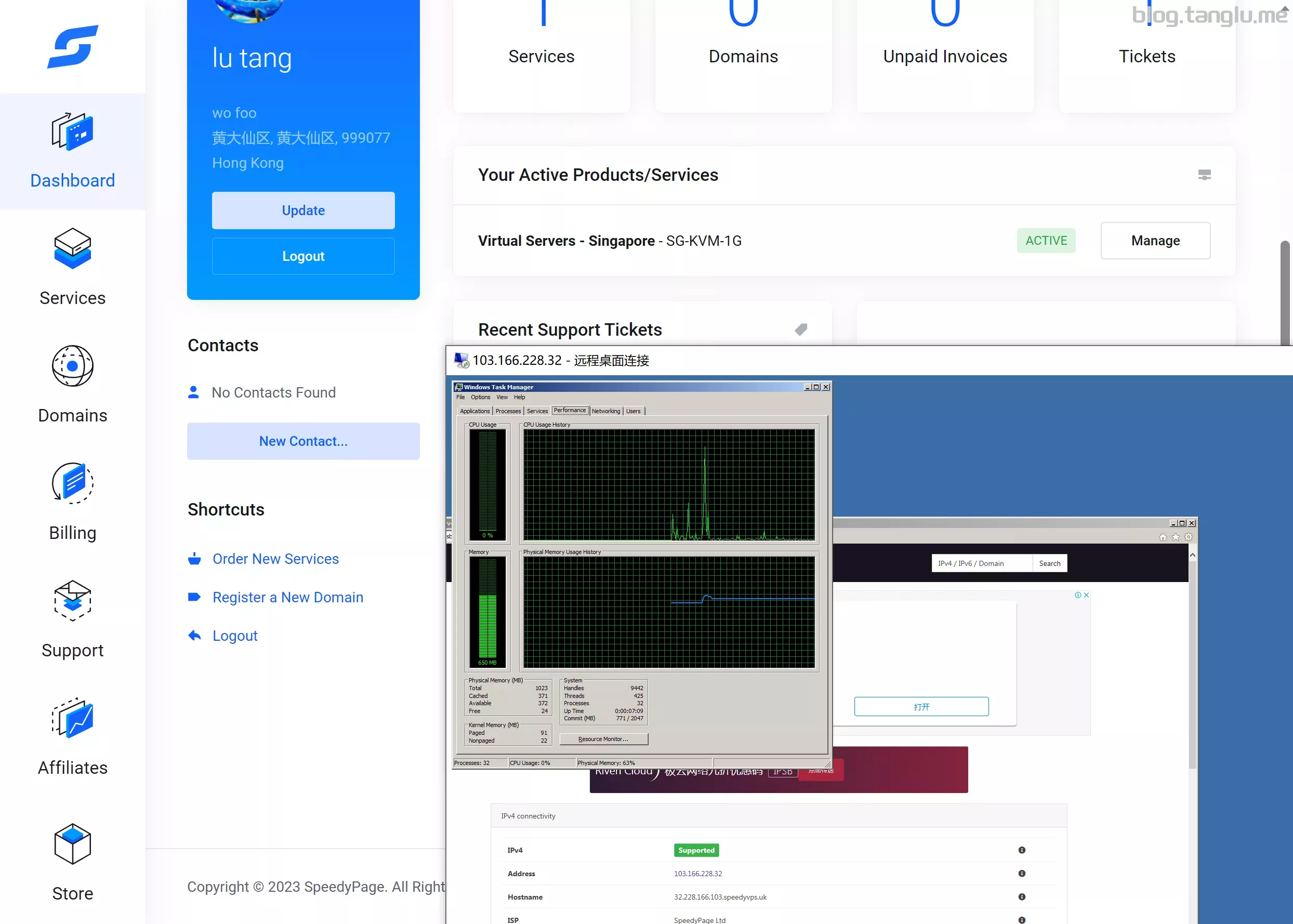
wget -qO- inst.sh | bash -s - -p vda -n 103.166.228.32,255.255.255.0,103.166.228.1 -t https://file.1323123.xyz/dd/windows/natee/win7-sp1-ent-x64-us.vhd.gz
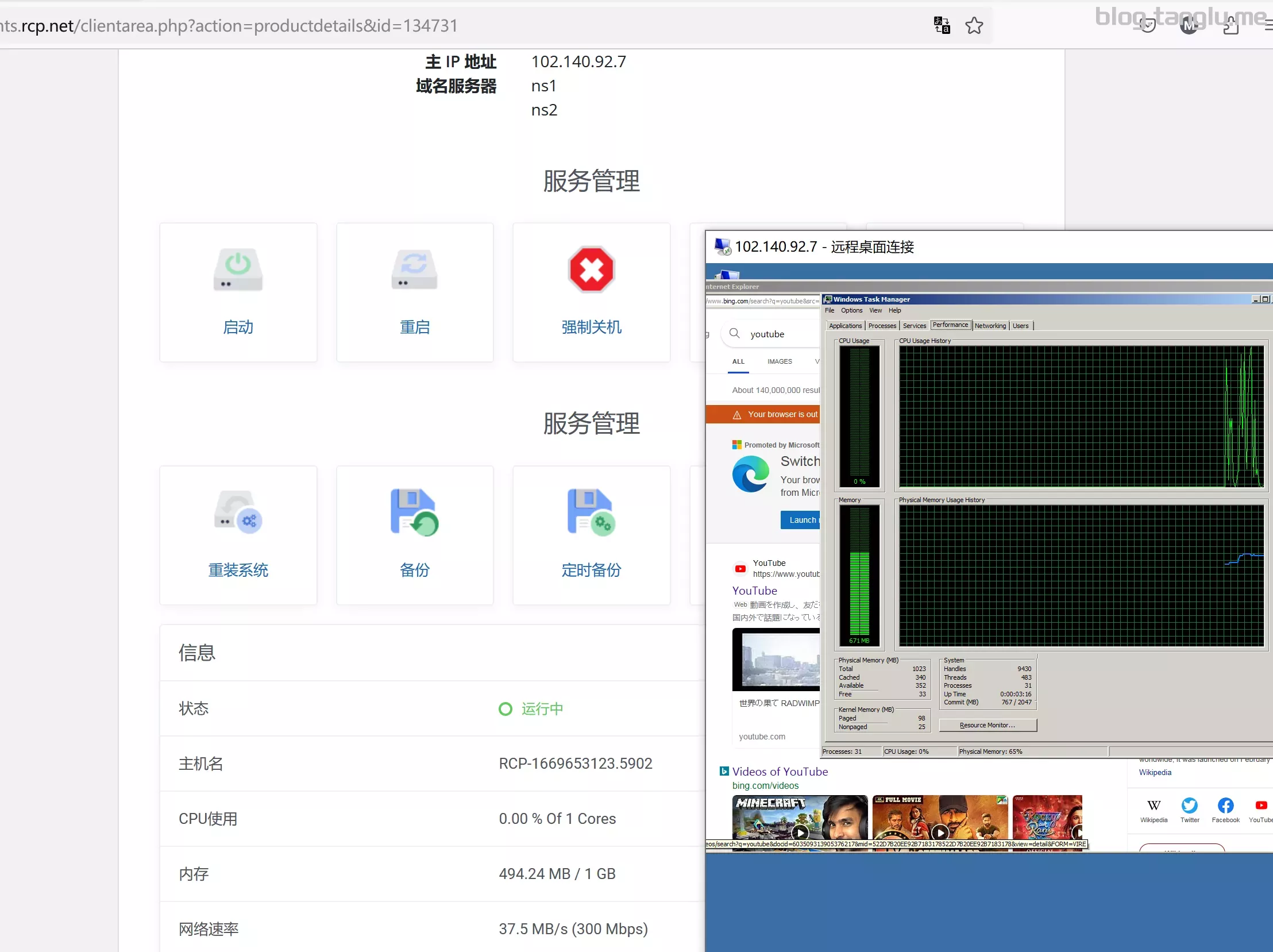
RCP BIOS启动 有VNC
wget -qO- inst.sh | bash -s - -n 102.140.92.7,255.255.255.0,102.140.92.1 -t https://file.1323123.xyz/dd/windows/nateebash -s - -n wrk
#AS203446
https://result.network-speed.xyz/r/1708757724_23D5AT_GLOBAL.txt
Xeon KVM Server:
Voxility Ryzen KVM Server:
Ryzen KVM Server:
Intel AS203446
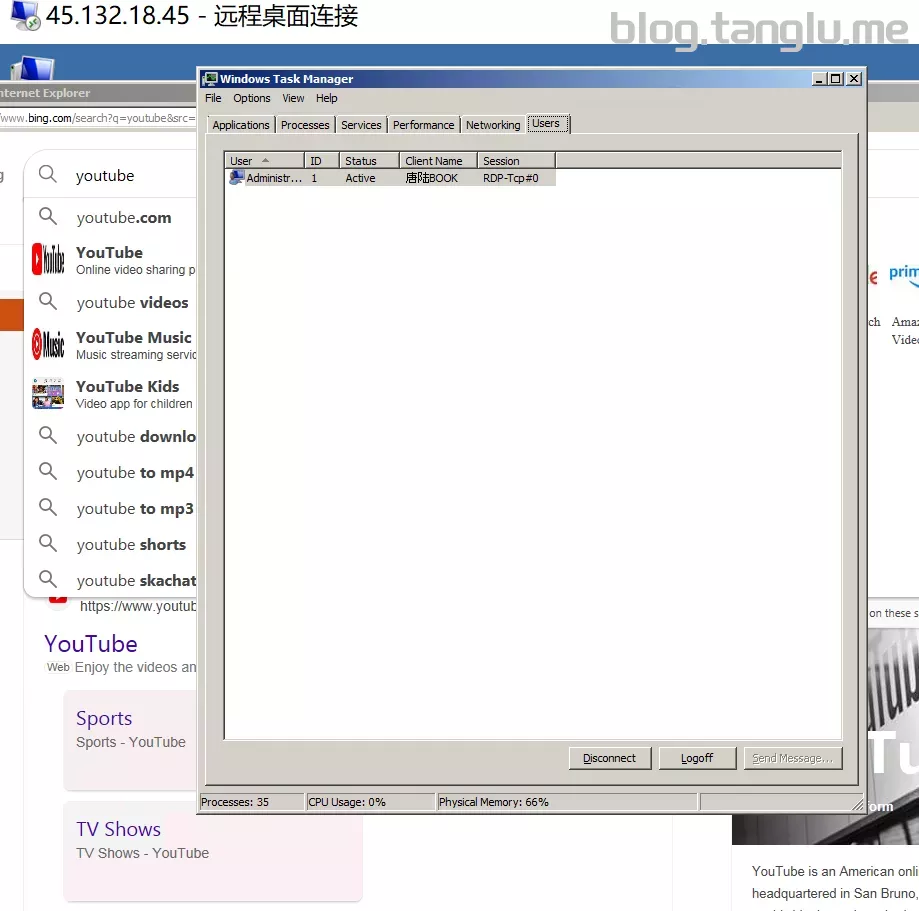
ruvds 比较出名的有三毛鸡 五毛机
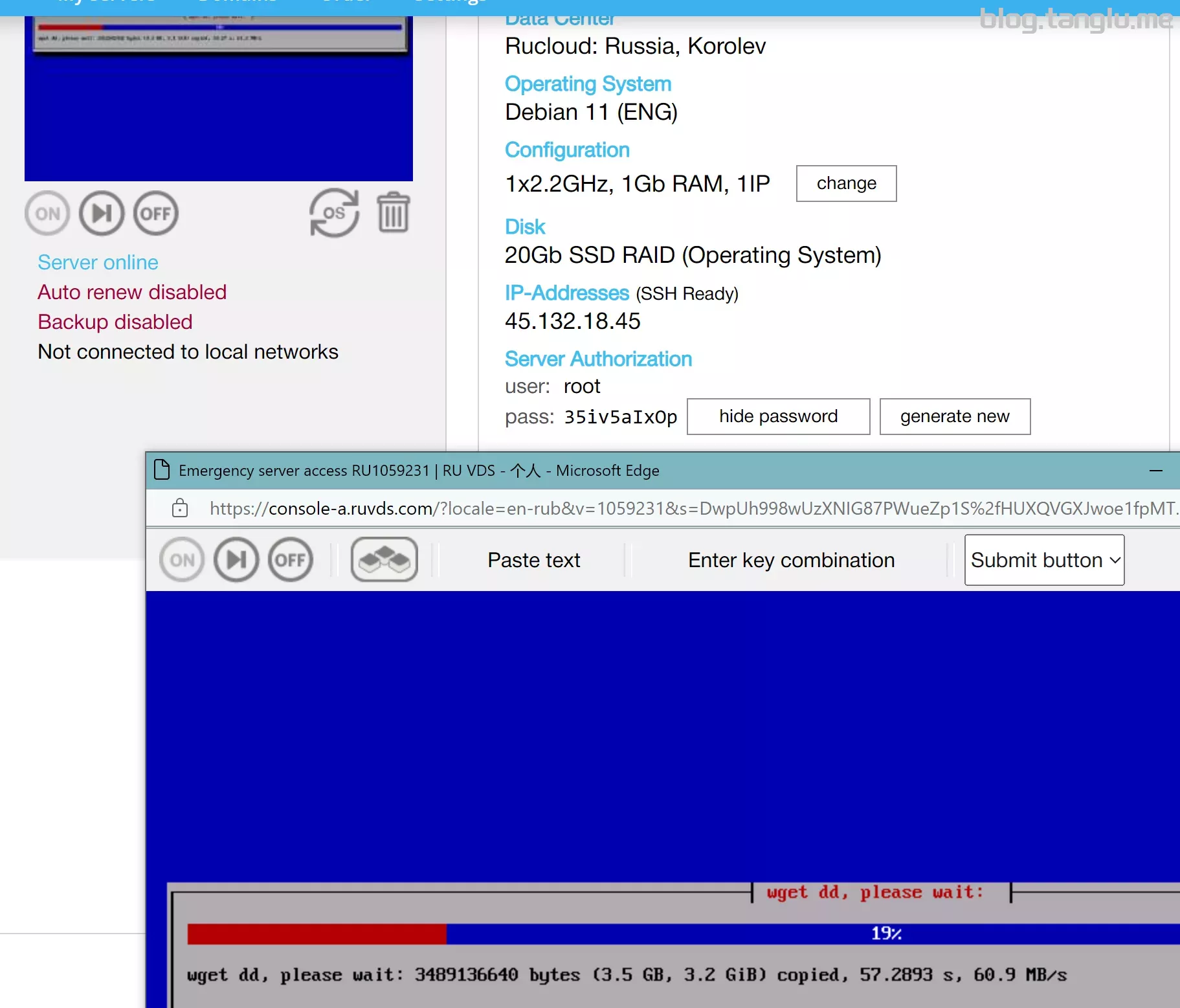
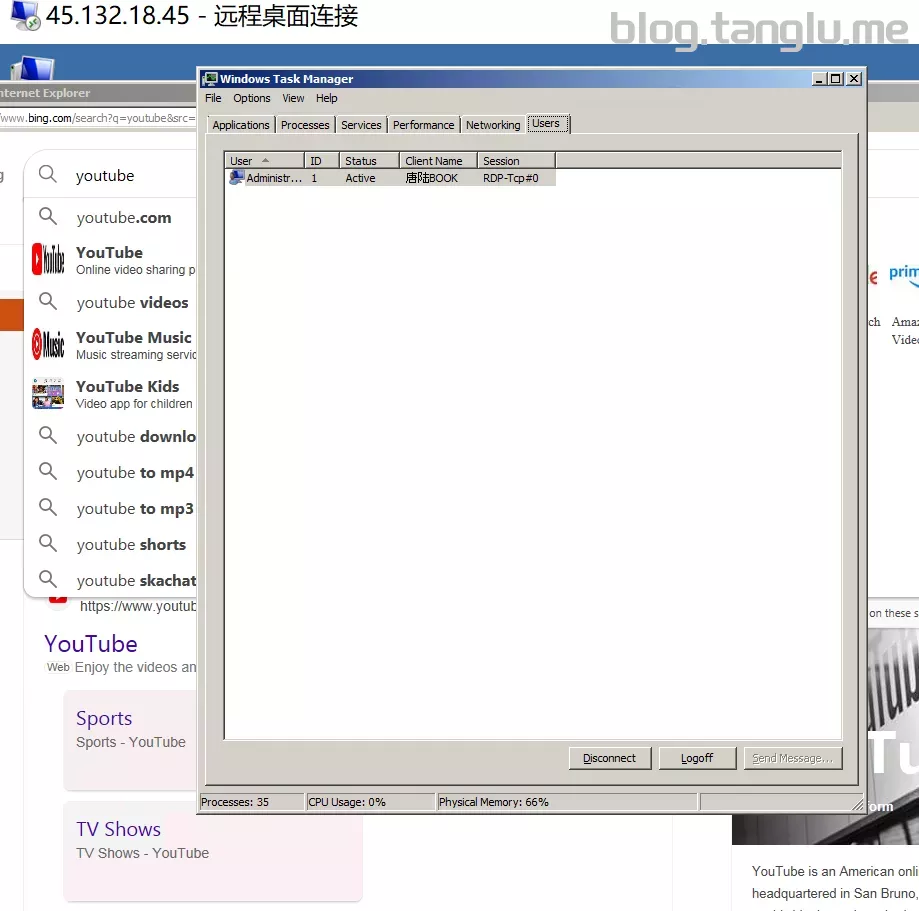
BIOS启动 有VNC
wget -qO- inst.sh | bash -s - -n 45.132.18.45,255.255.254.0,45.132.18.1 -t https://file.1323123.xyz/dd/windows/natee/win7-sp1-ent-x64-us.vhd.gz
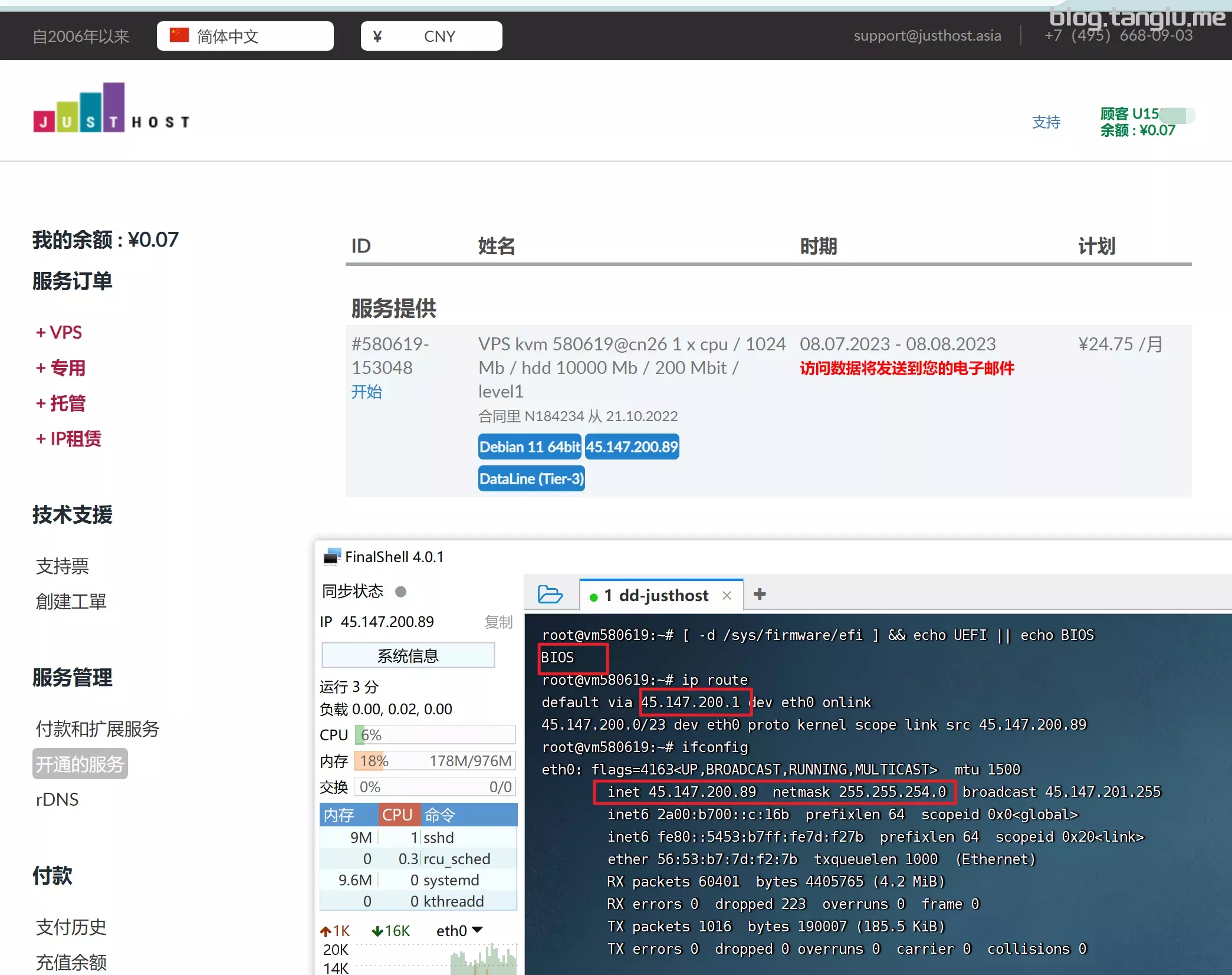
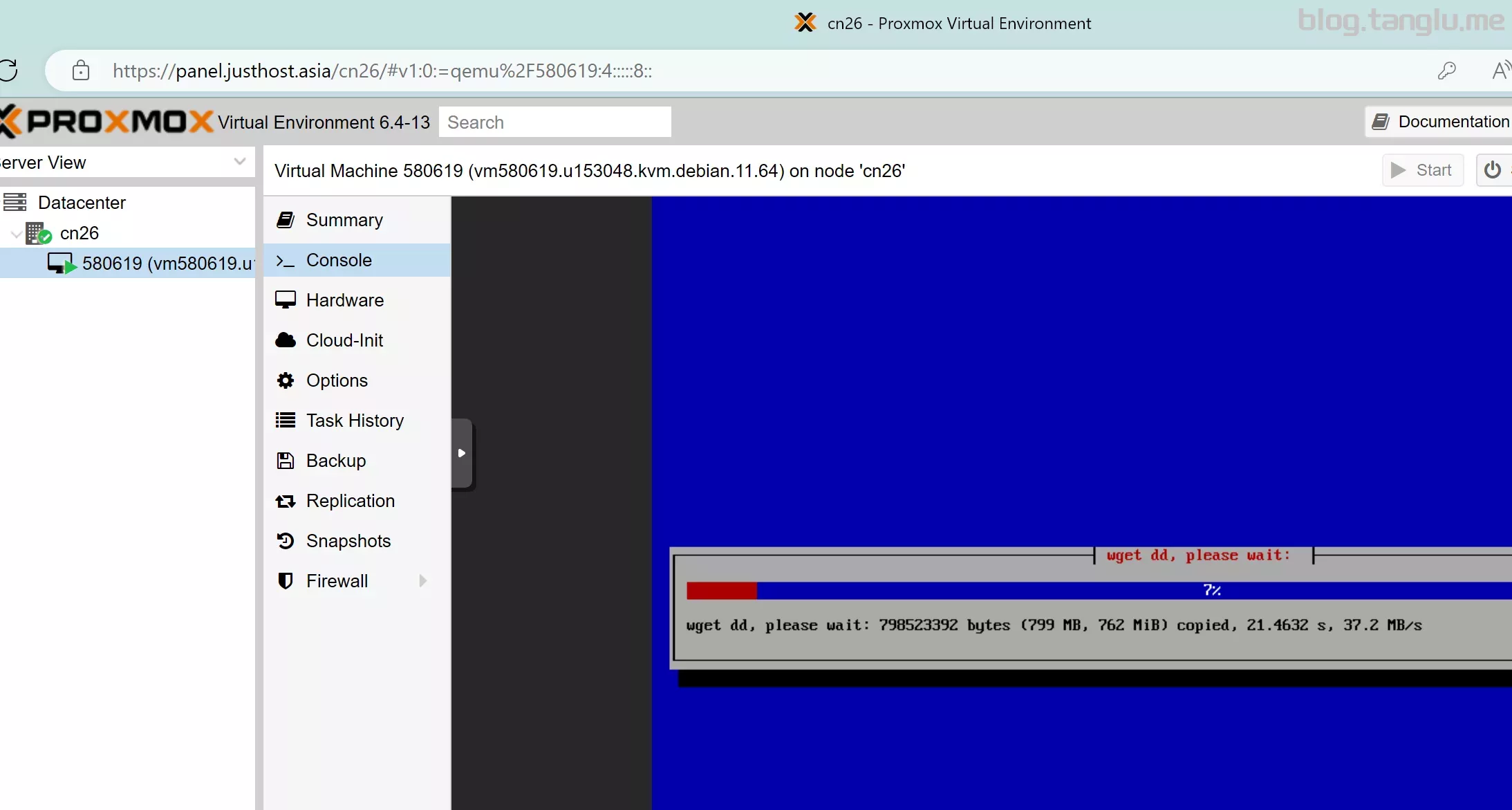
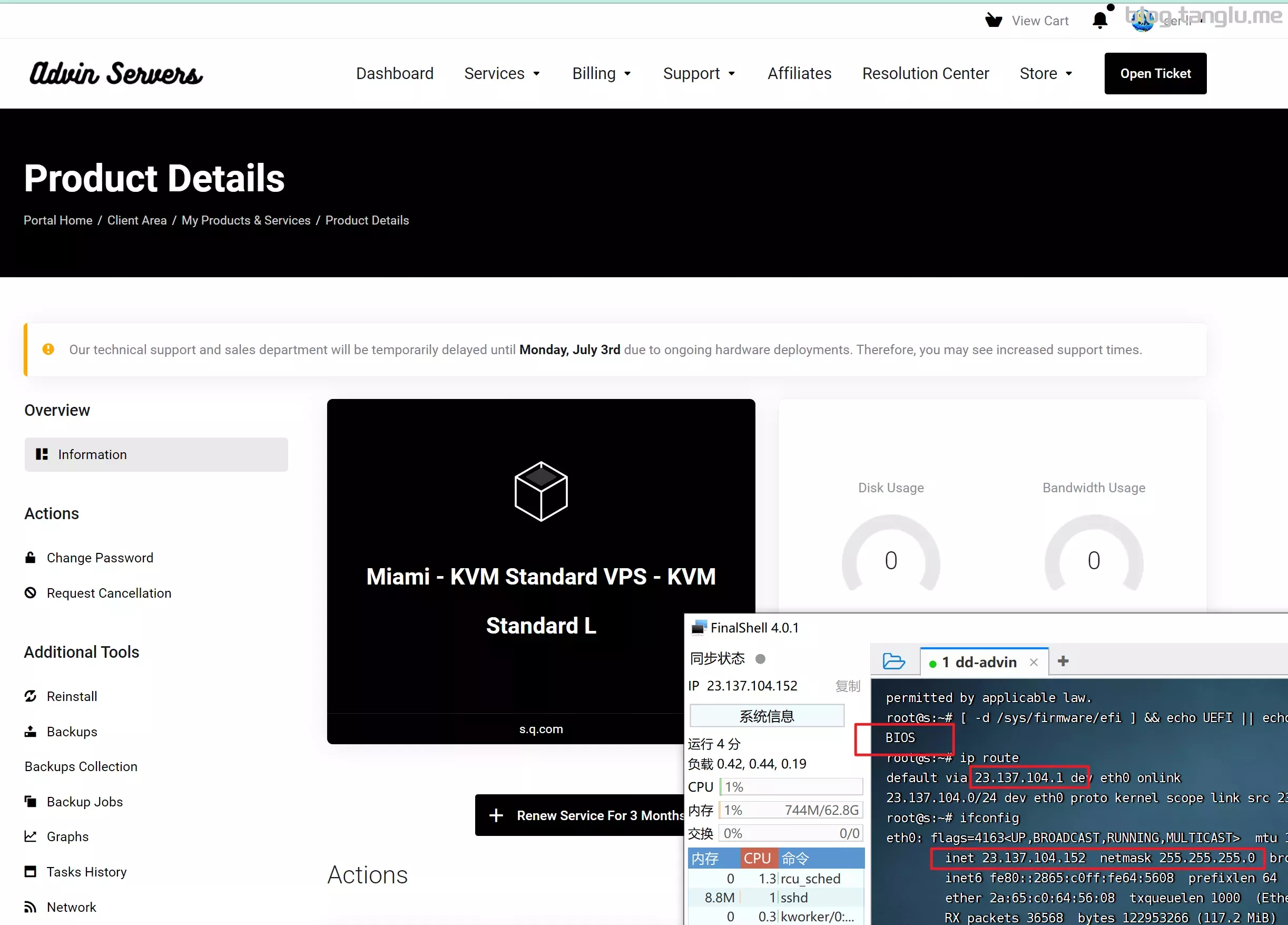
advinservers BIOS启动 有VNC 支持一键重装windows_server
wget -qO- inst.sork-speed.xyz/r/1697815
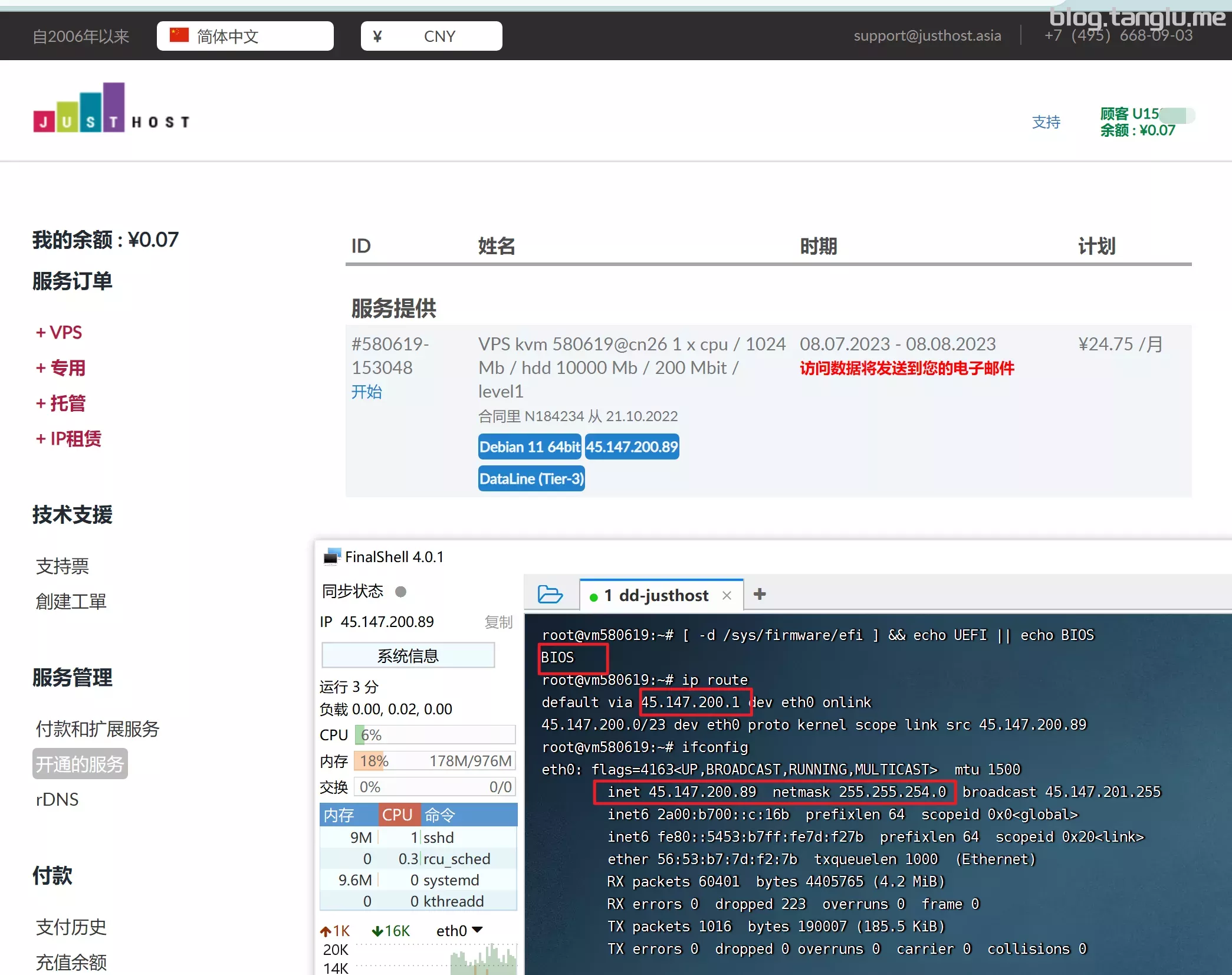
)
wget -qO- inst.sh | bash -s - -n 45.147.200.89,255.255.254.0,45.147.200.1 -t https://file.1323123.xyz/dd/windows/natee/win7-sp1-ent-x64-us.vhd.gz
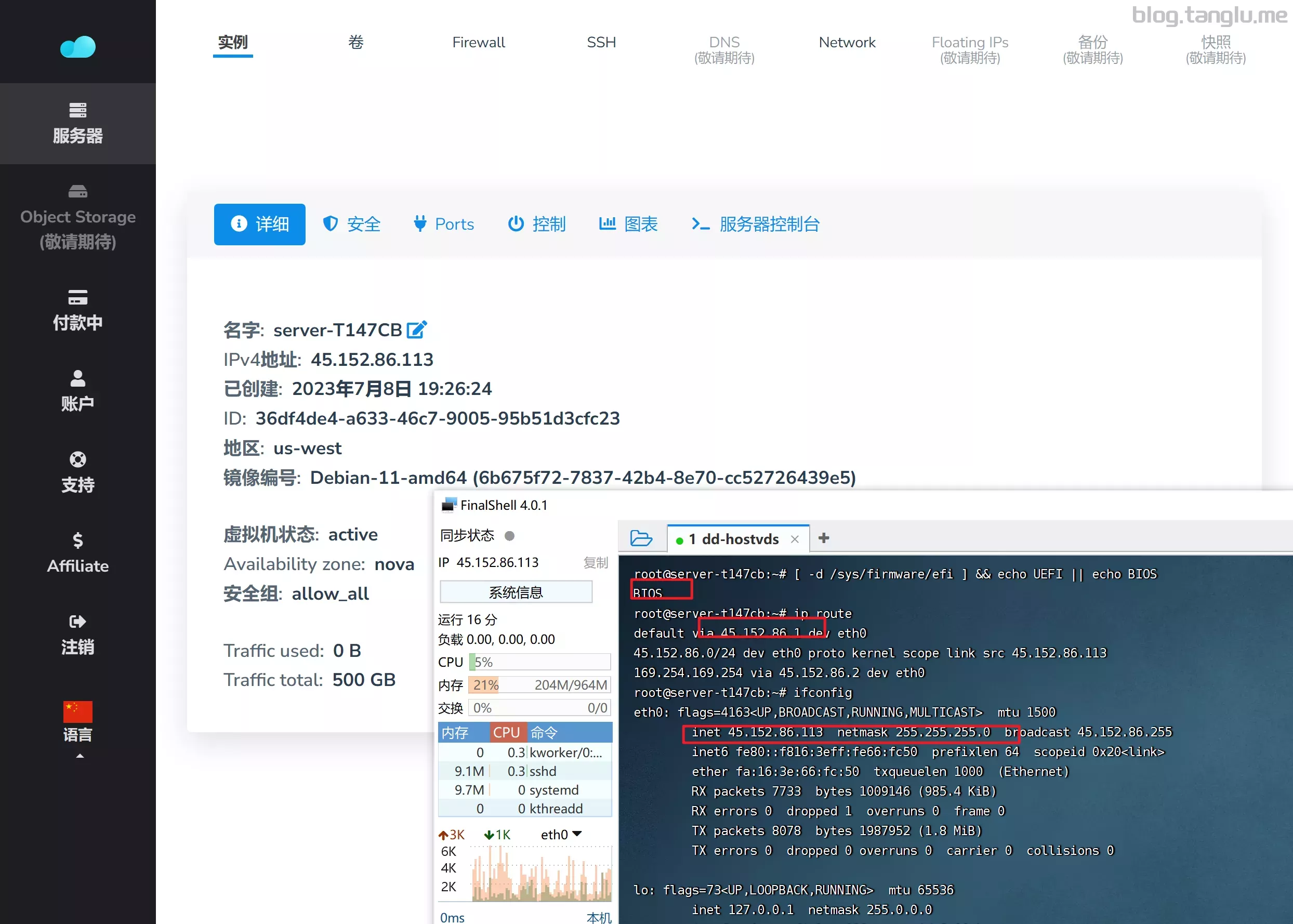
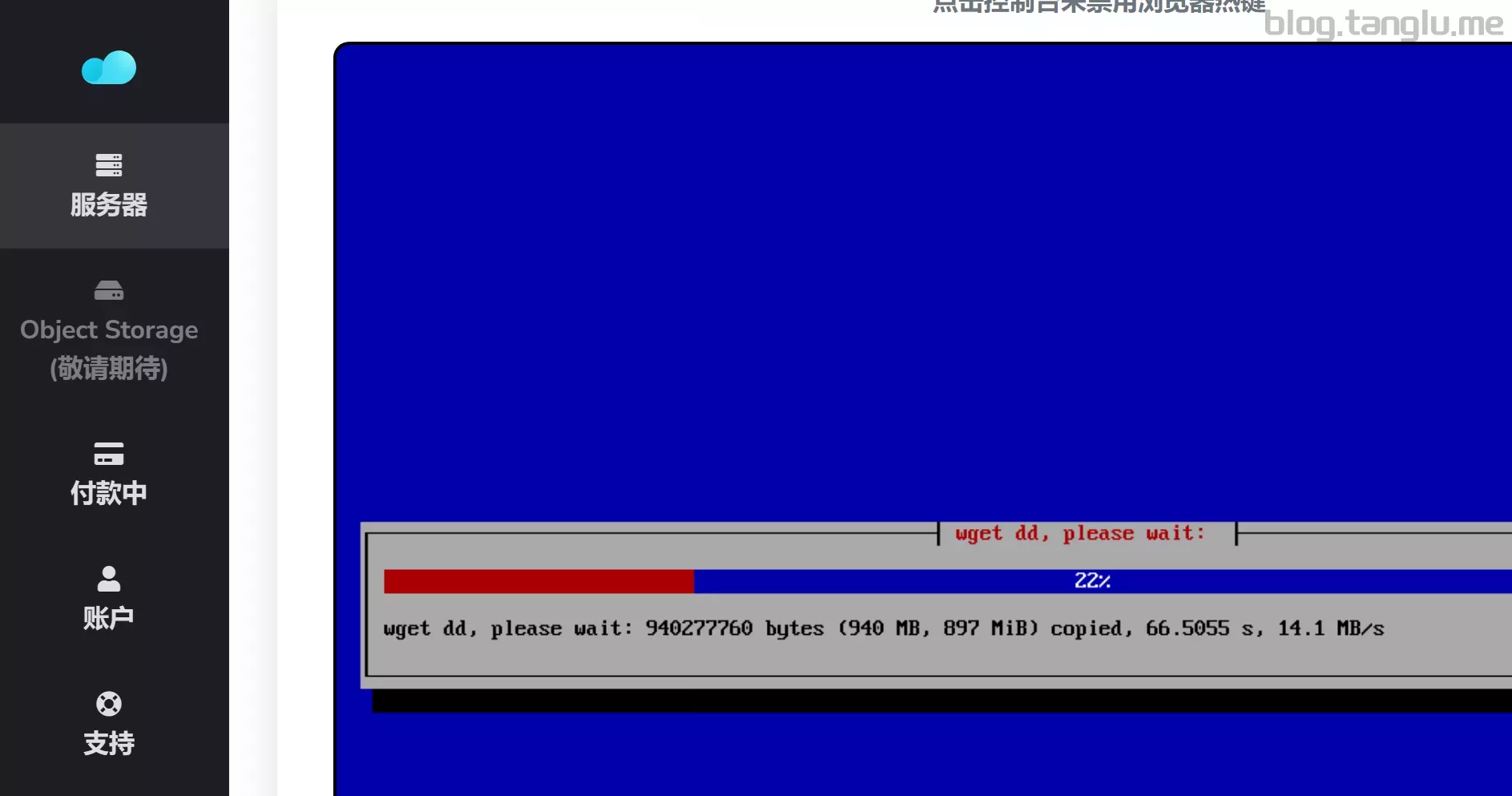
hostvds BIOS启动 有VNC
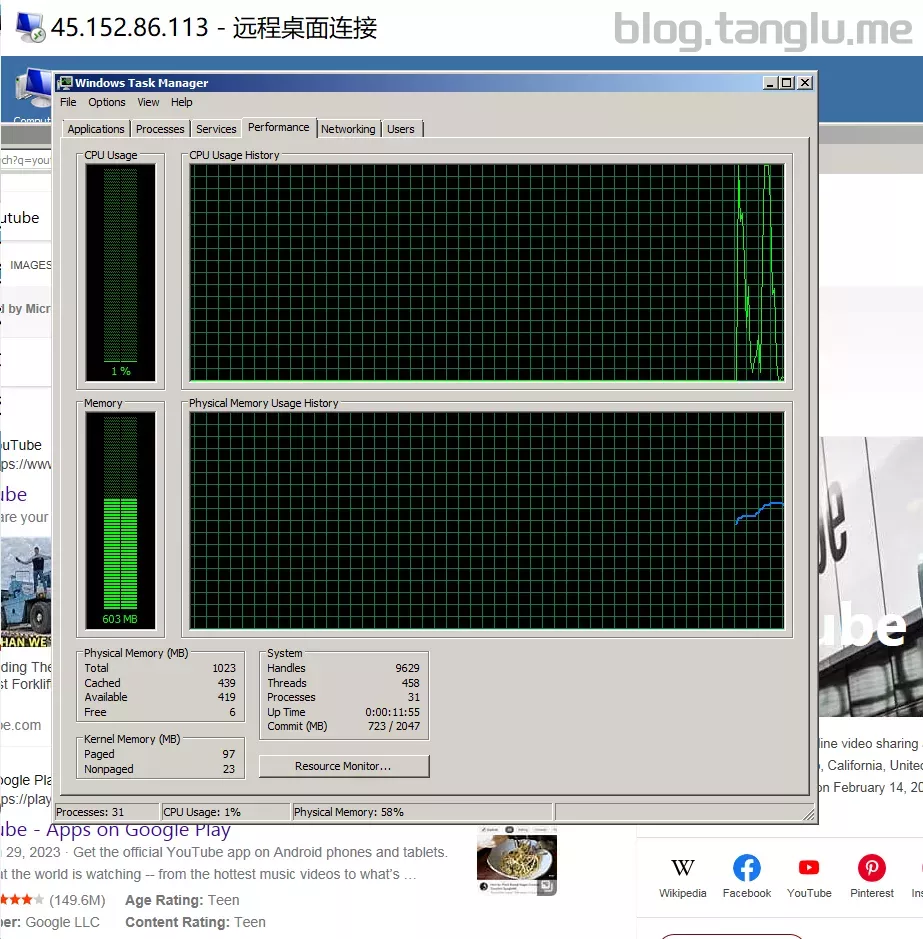
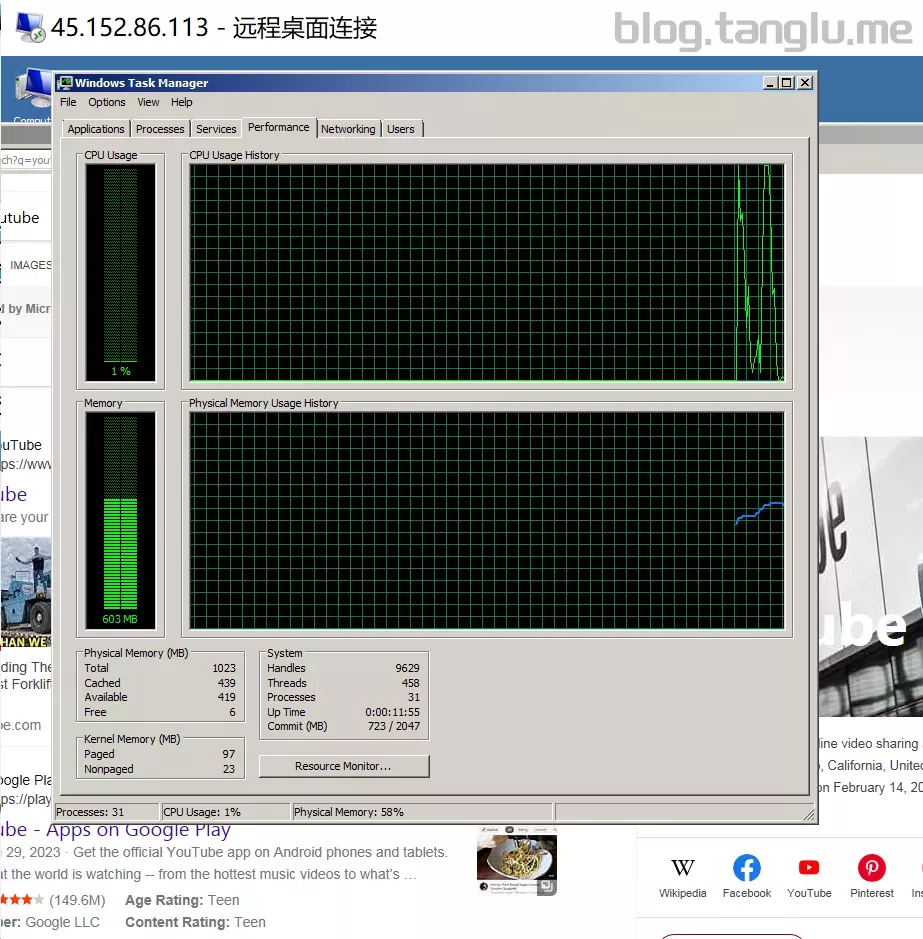
wget -qO- inst.sh | bash -s - -n 45.152.86.113,255.255.255.0,45.152.86.1 -t https://file.1323123.xyz/dd/windows/natee/win7-sp1-ent-x64-us.vhd.gz
contabo BIOS启动 有VNC(VNC客户端远程)
wget -qO- inst.sh | bash -s - -n 80.241.212.64,255.255.255.0,80.241.212.1 -t https://file.1.255.255.0,213.183.61.1 -t h
S启动 有VNC 支持一键重装w
nst.sh | bash -s - -p vda -n 51.68.67.*,255.255.255.255,192.168.0.1 -t https://file.1323123.xyz/dd/windows/teddysun/zh-cn_windows11_22h2.xz
silicloud BIOS启动 有VNC
wg
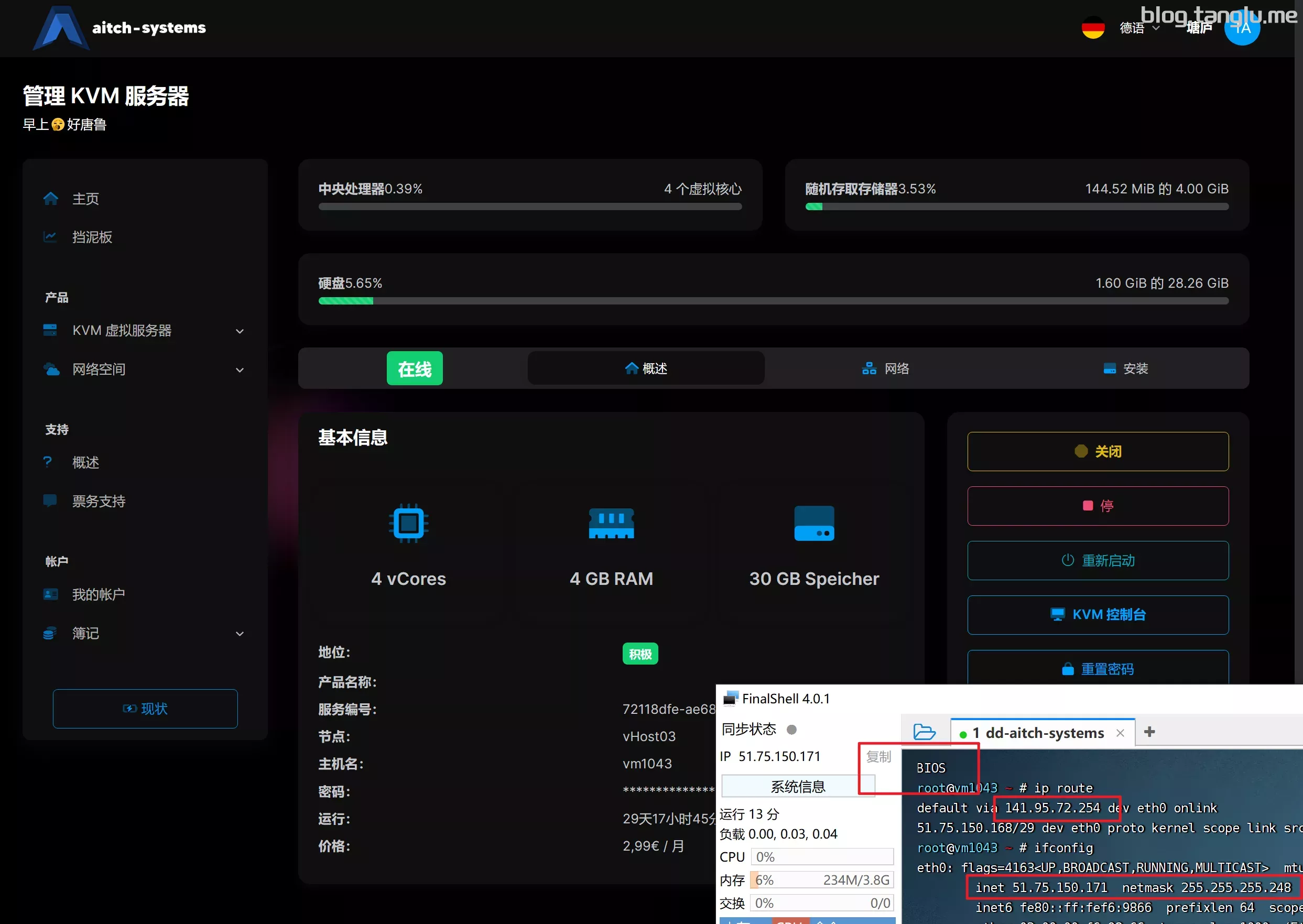
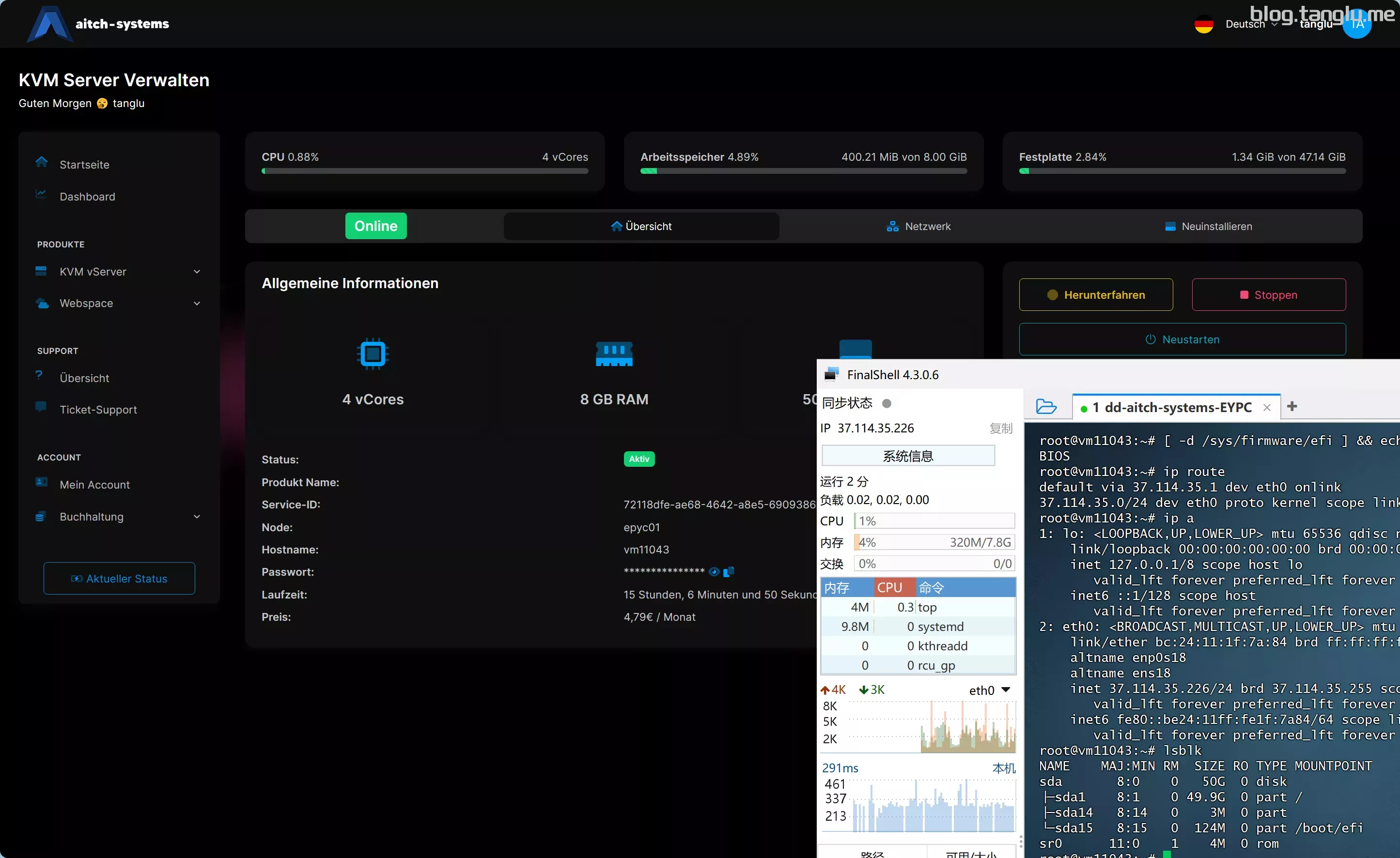
aitch ems
BIOS启动 有VNC
#AMD
wget -qO- inst.sh | bash -s - -n 51.75.150.171,255.255.255.248,141.95.72.254 -t https://file.1323123.xyz/dd/windows/teddysun/zh-cn_windows10_ltsc.xz

#Intel
curl -O https://raw.githubuserconte
erver BIOS启动 有VNC
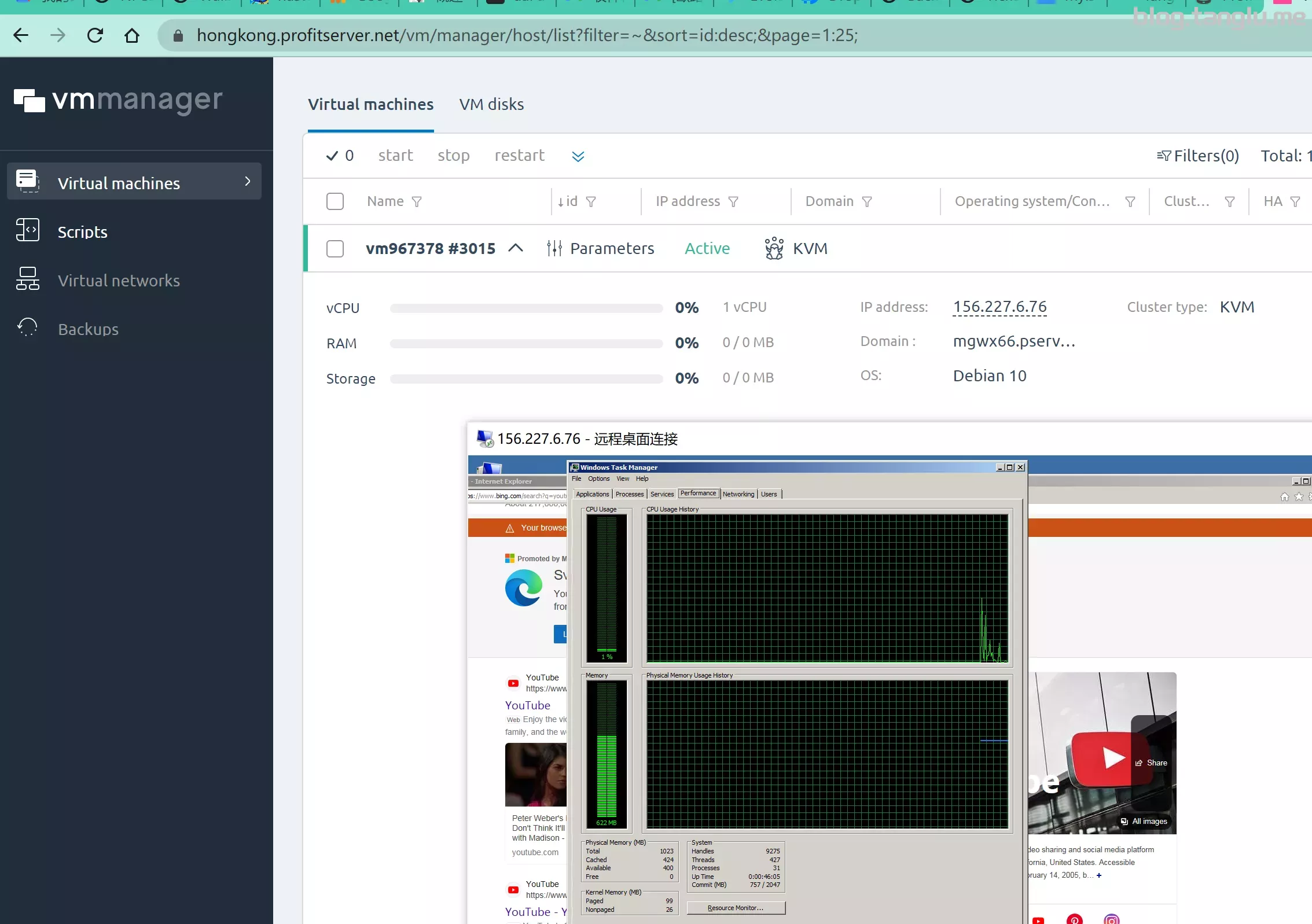
wget -qO- inst.sh | bash -s - -n 156.227.6.76,255.255.255.0,156.227.6.1 -t https://file.1323123.xyz/dd/windows/natee/win7-sp1-ent-x64-us.vhd.gz
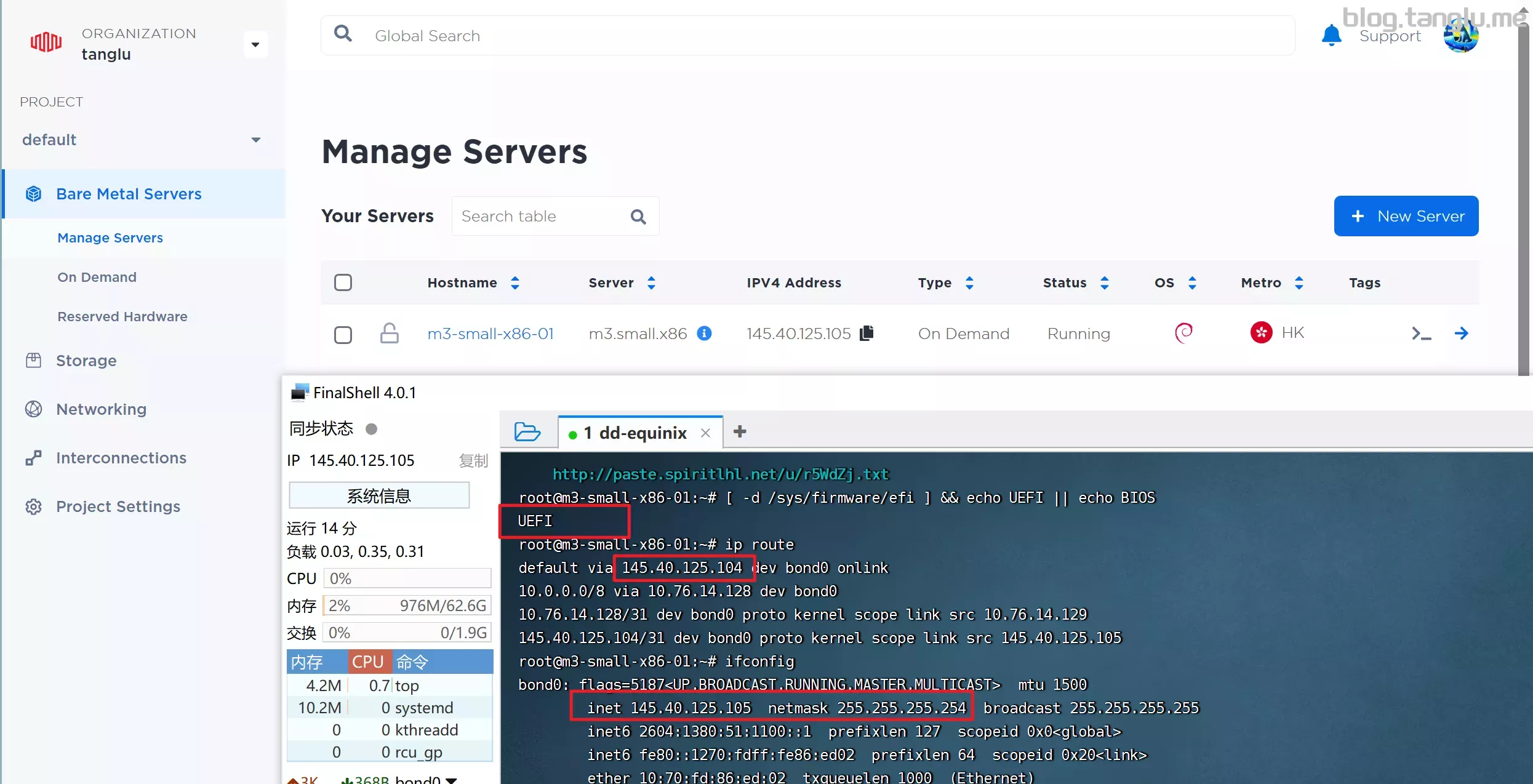
equinix UEFI启动 支持一键免费安装windows_server
这个是独服,我不太会
wget -qO- inst.sh | bash -s - -n 145.40.125.105,255.255.255.254,145.40.125.104 -t https://file.1323123.xyz/dd/windows/1keydd/win10ltsc_password_1keydd.gz
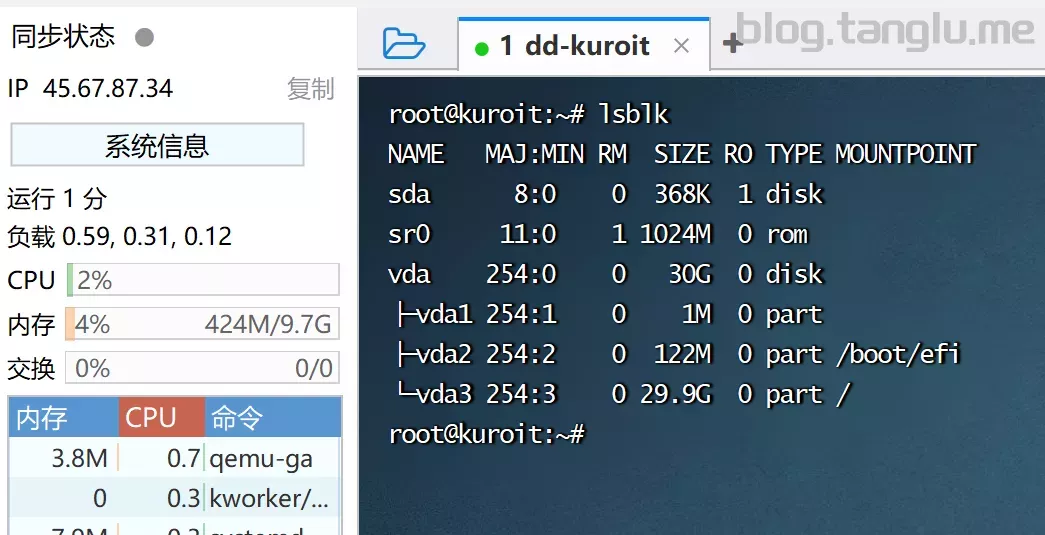
kuroit BIOS启动 有VNC 支持一键免费重
.sh | bash -s - -p vda -n 45.67.87.34,255.255.255.0,45.67.87.1 -t https://file.1323123.xyz/dd/windows/teddysun/zh-cn_windows11_22h2.xz
rw-hosting rwhosting
BIOS启动 有VNC
#VPS KVM AMD EPYC™
wget -qO- inst.sh | bash -s - -n 103.252.90.211,255.255.255.0,103.252.90.1 -t https://file.1323123.xyz/dd/windows/teddys
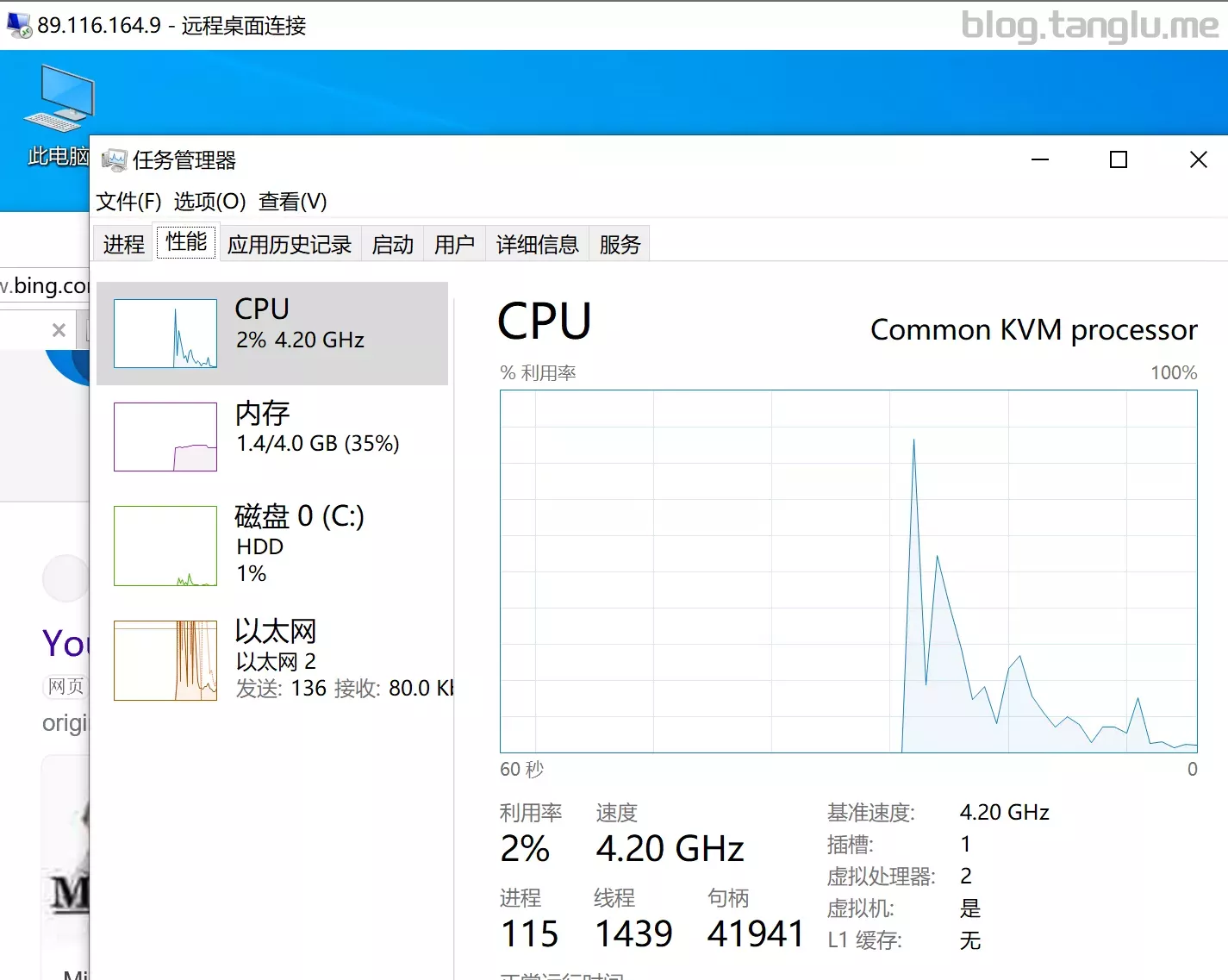
.164.9,255.255.255.0,89.116.164.1 -t https://file.1323123.xyz/dd/windows/1keydd/win10ltsc_password_1keydd.gz
teraswitch BIOS启动 有VNC
#我正常用debian10镜像好像有点问题 这家我都是dd后用
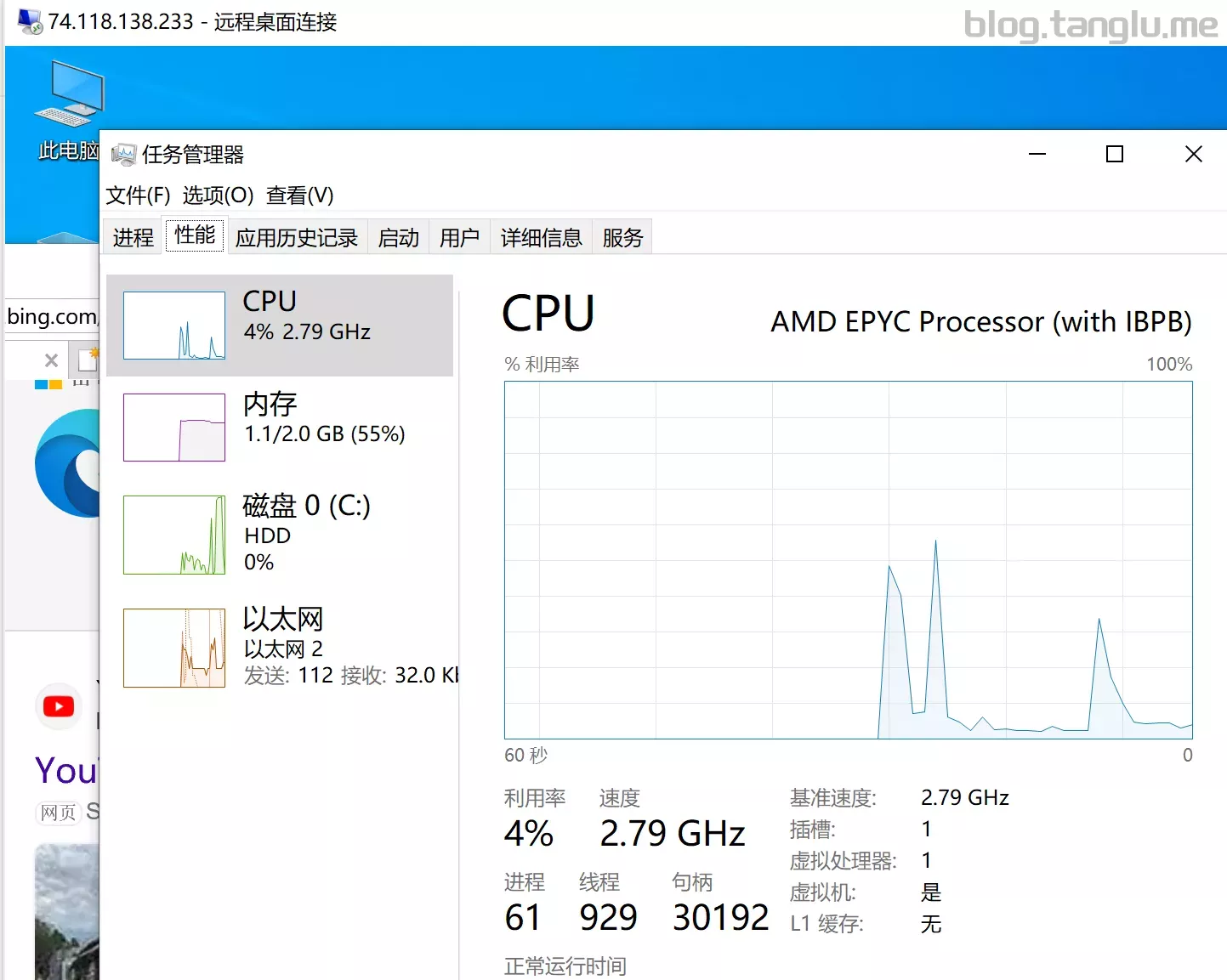
wget -qO- inst.sh | bash -s - -n 74.118.lt.network-speed.xyz/r/1697290018_JNV1T4_GLOBAL.txt
hostbrr BIOS启动 有VNC 支持一键免费重装windows_server
#AMD Ryzen 5950X Powered
wget -qO- inst.sh | bash -s - -p vda -n 188.40.172.71,255.255.255.0,188.40.63.24 -t https://file.1323123.xyz/dd/windows/1keydd/win10ltsc_password_1keydd.gz

#Memory-Optimized VPS
wget -qO- inst.sh | bash -s - -p vda -n 88.198.96.234,255.255.255.0,116.202.48.190 -t https://file.1323123.xyz/dd/windows/cxthhhhh/Disk_Windows_10_x64_Lite_by_CXT_v1.0.vhd.gz
AMD Ryzen 5950X Powered:
Memory-Optimized VPS:
allhost BIOS启动 有VNC 支持一键免费安装windows_server
wget -qO- inst.sh | bash -s - -w 1keydd -p vda -n 185.
l BIOD启动 有VNC 默认80端口未开放
用的debian10
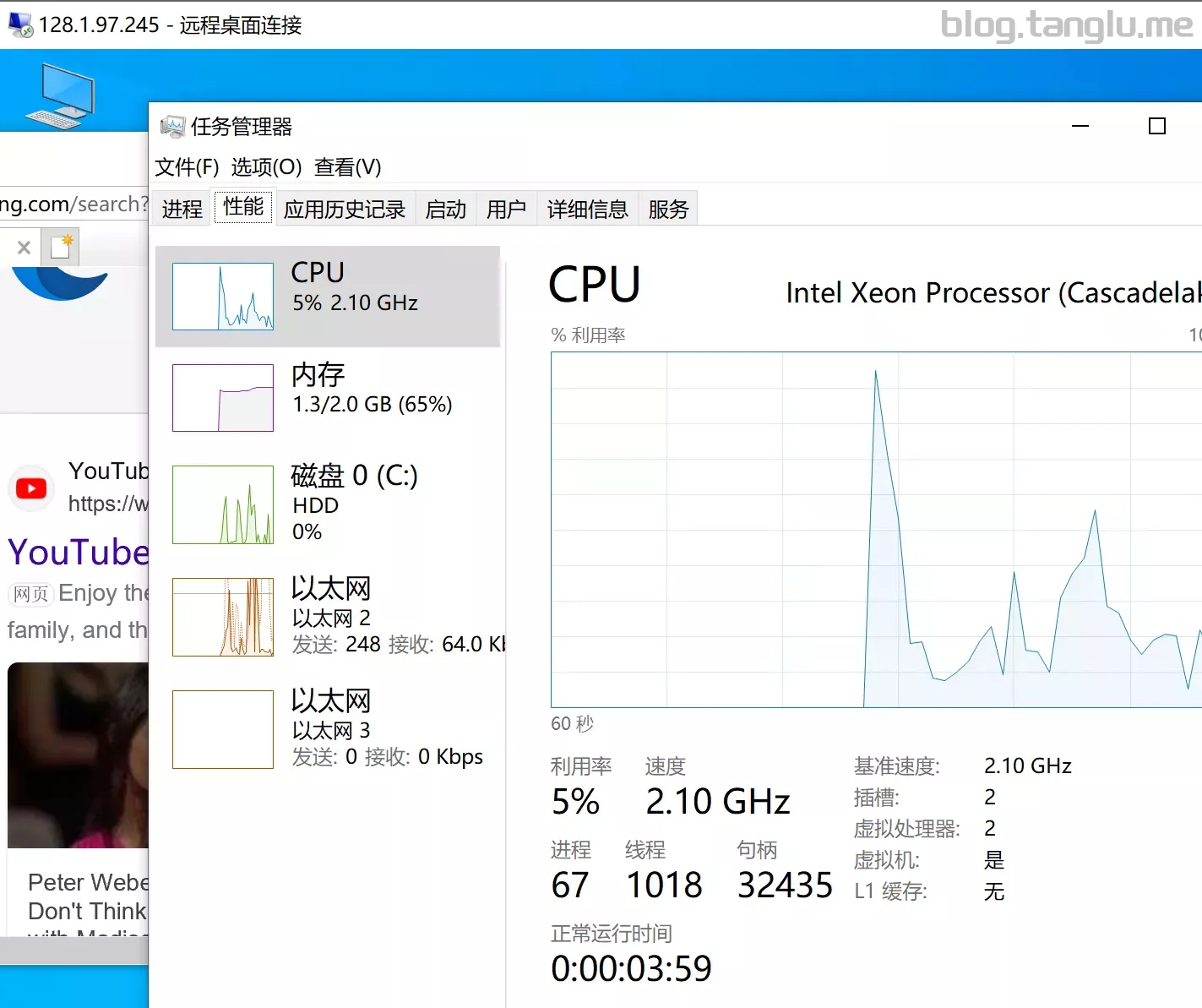
wget -qO- inst.sh | bash -s - -n 128.1.97.245,255.255.255.128,128.1.97.129 -t https://file.1323123.xyz/dd/windows/1keydd/win10ltsc_password_1keydd.gz
waf wafgroup
BIOS启动 有VNC 支持安装各类windows系统
wget -qO- inst.sh | bash
)
wget -qO- inst.sh | bash -s - -n 194.156.98.206,255.255.255.0,194.15ltimate_CN_v2.0.vhd.gz
creeperhost creeper creeperpanel
ovz 不支持dd 测试IP 217.145.236.32 只有centos7系统 无法重装
myhosti BIOS启动 有VNC
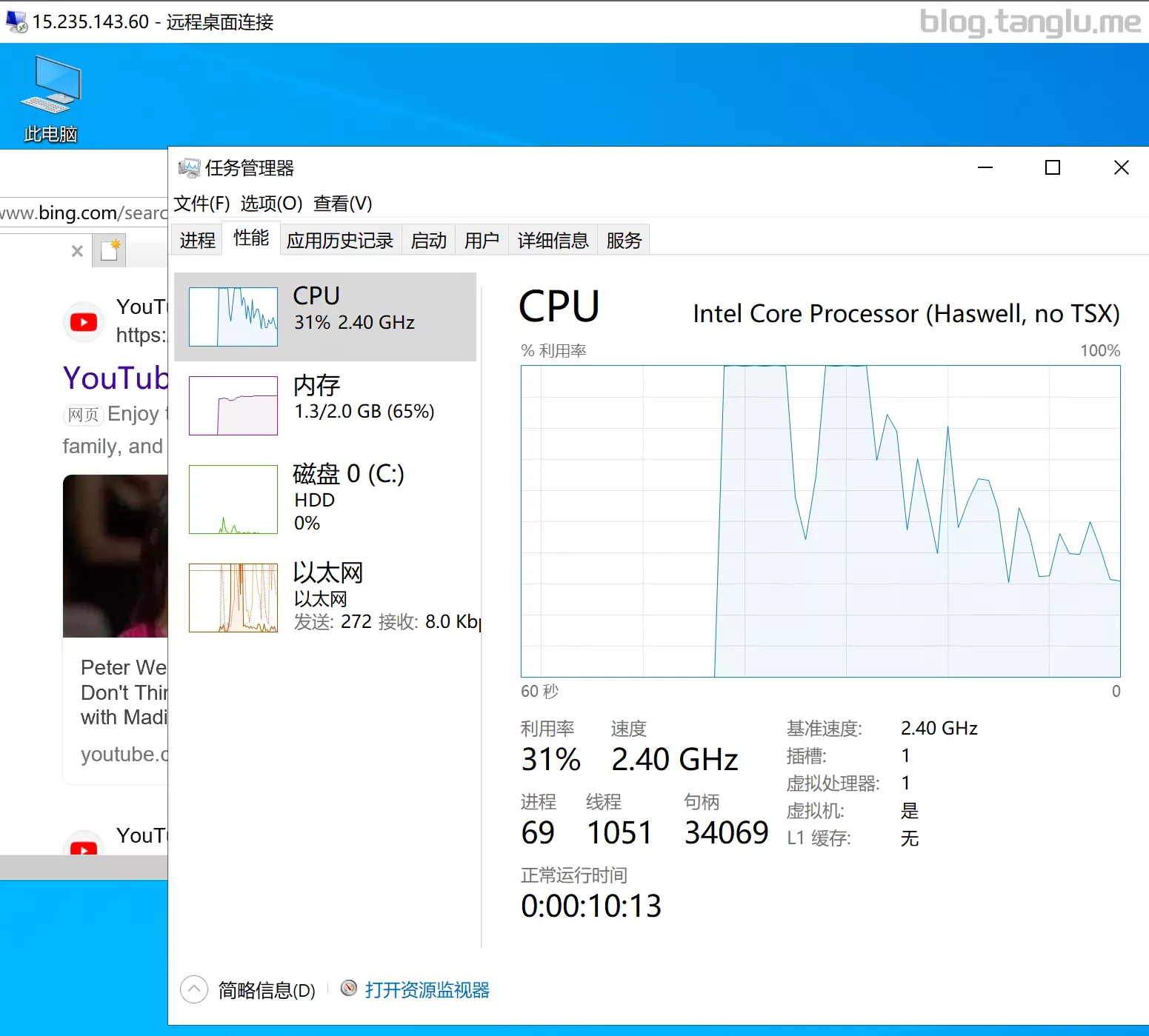
wget -qO- inst.sh | bash -s - -n 15.235.143.60,255.255.255.0,15.235.143.1 -t https://file.1323123.xyz/dd/windows/natee/guajibao-win10-ent-ltsc-2021-x64-cn.vhd.gz
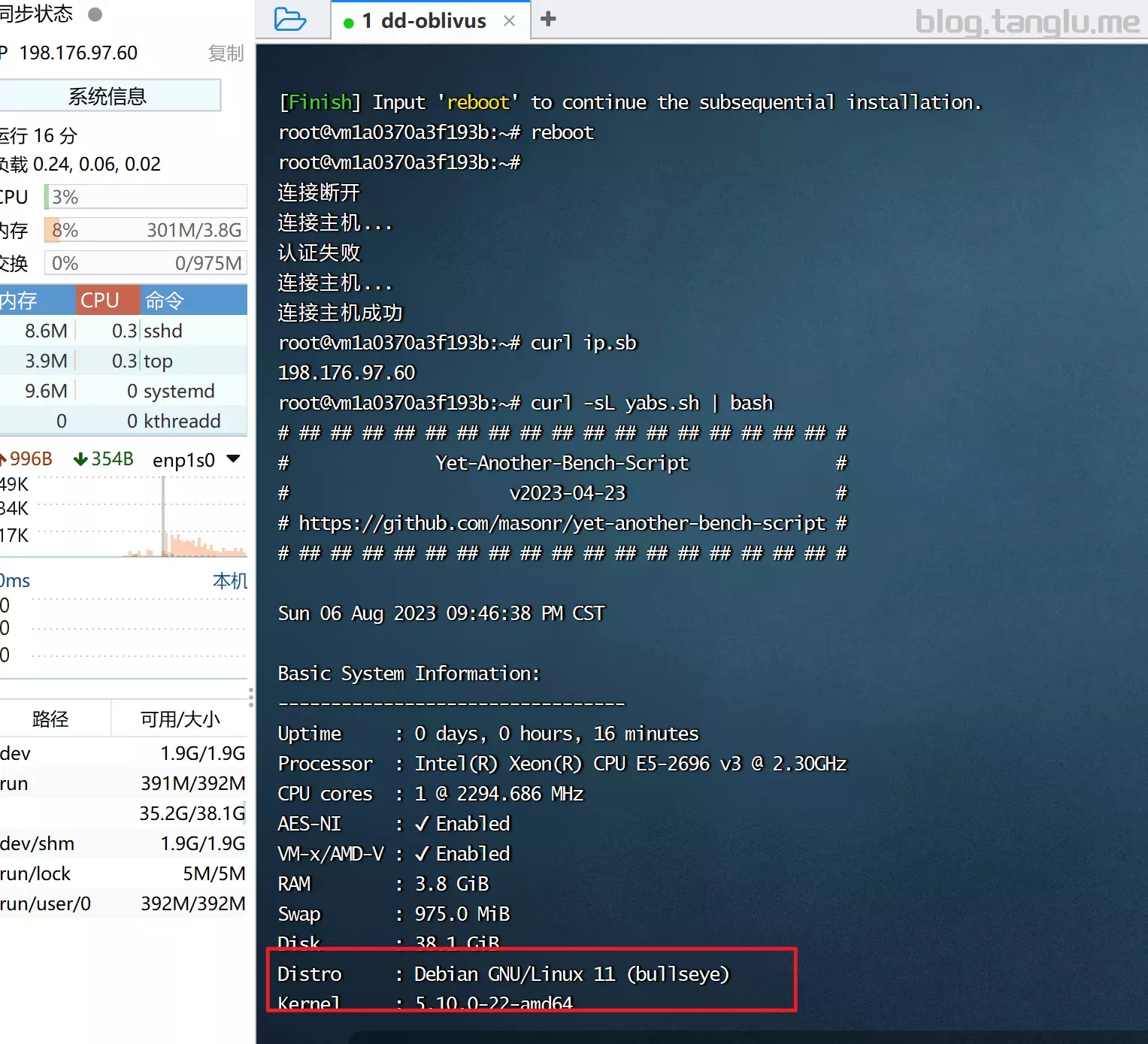
oblivus BIOS启动 支持一键免费安装windows 建议dd使用linux
wget -qO- inst.sh | bash -s --n 216.153.5hntent.com/leitbogioro/Tools/master/Linux_reinstall/InstallNET.sh' && chmod a+x InstallNET.sh
#执行dd命令
bash InstallNET.sh --image https://file.1323123.xyz/dd/windows/1keydd/win10ltsc_password_1keydd.gz
dd成linux
#因为系统不够纯净 还有docke
limewave BIOS启动 有VNC
wget -qO- inst.sh | bash -s - -n 104.224.53.138,255.255.255.128,104.224.53.129 -t https://file.1323123.xyz/dd/windows/1keydd/win10ltsc_password_1keydd.gz
network
#WA,US cubic
https://result.network-speed.xyz/r/169728718
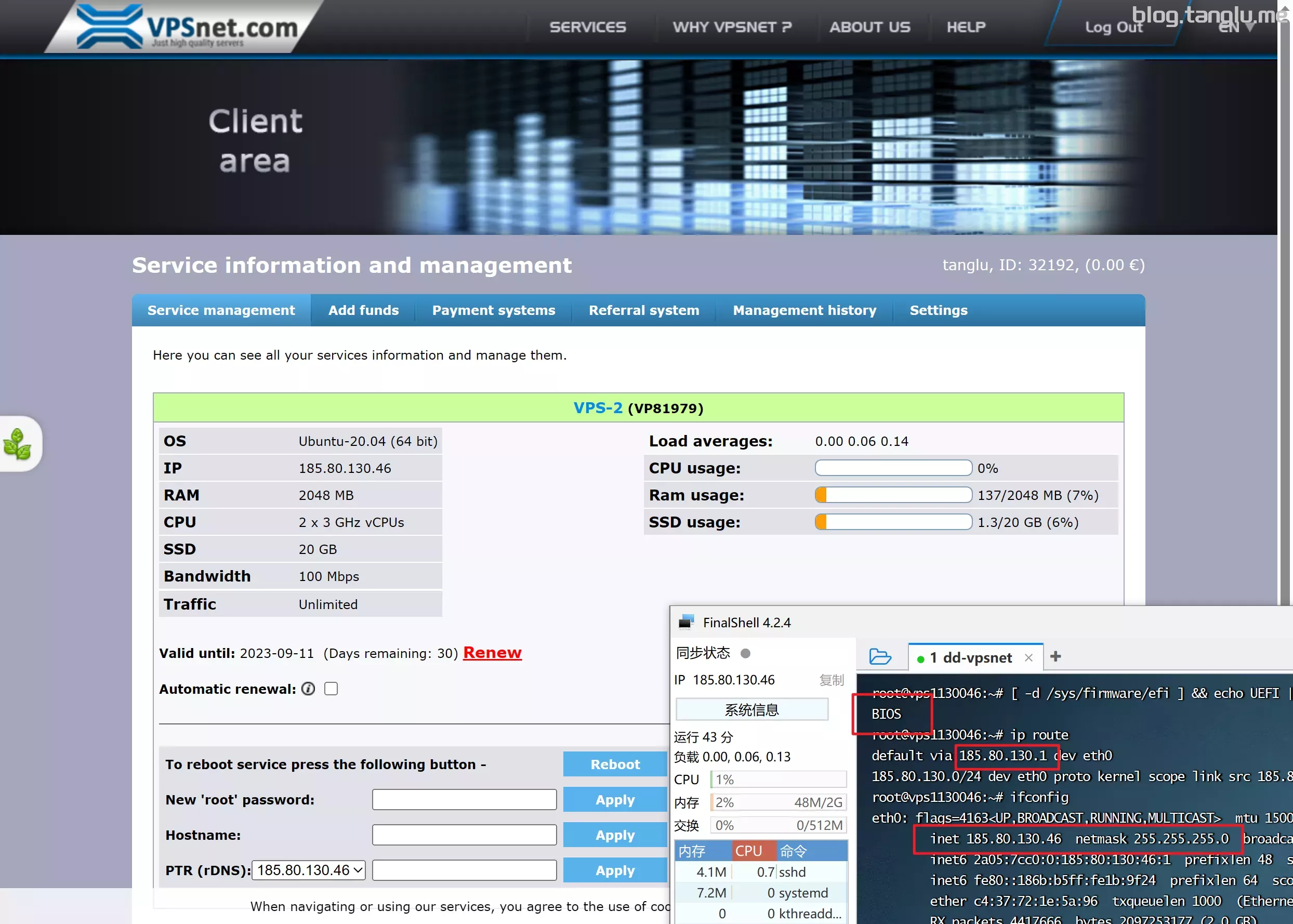
| bash -s - -n 185.80.130.46,255.255.255.0,185.80.130.1 -t https://file.1323123.xyz/dd/windows/1keydd/win10ltsc_password_1keydd.gz
lightnode BIOS启动 有VNC 支持一键免费安装windows 建议dd使用linux
#dd为windows
wget -qO- inst.sh | bash -s - -i eth1 -n 38.60.203.71,255.255.255.0,38.60.203.1 -t https://file.1323123.xyz/dd/windo
india
VPS SALE SINGAPORE
GPC-1
khanwebhost cheapkvm natkvmnet natkvm
BIOS启动 有VNC 支持一键免费安装windows_server
wget -qO- inst.sh | bash -s - -n 64.112.124.192,255.255.255.0,64.112.124.1 -t https://file.1323123.xyz/dd/windows/3.xyz/dd/windows/1keydd/win10ltsc_password_1keydd.gz
network
#ipv4 cubic

#Chicago,US
https://result.network-speed.xyz/r/1697290115_UG8BM7_GLOBAL.txt

#Ashburn,US
https://result.network-speed.x
1
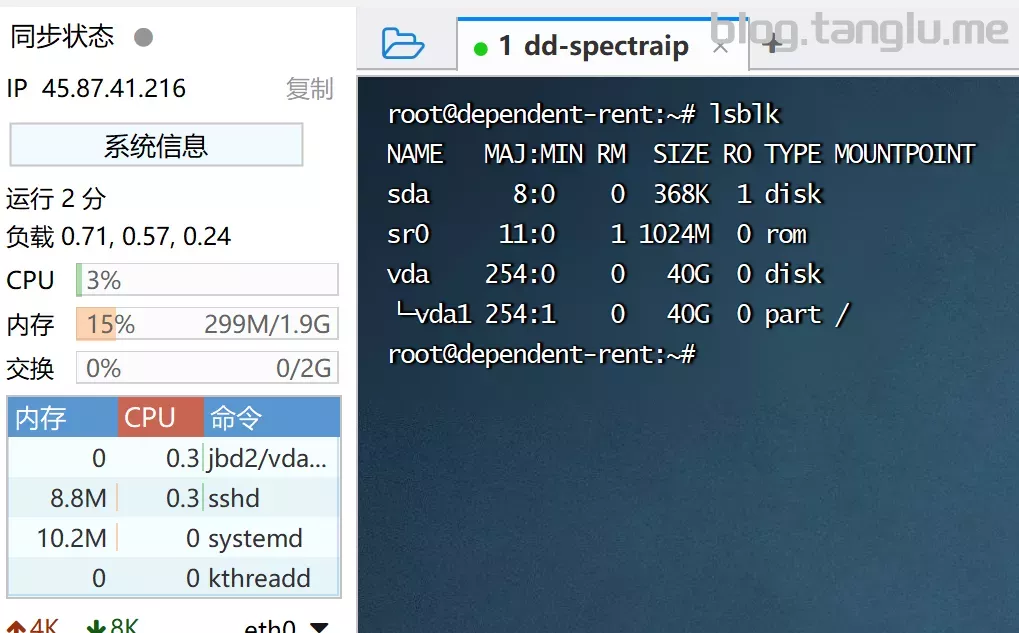
spectraip BIOS启动 有VNC 需要指定系统盘分区
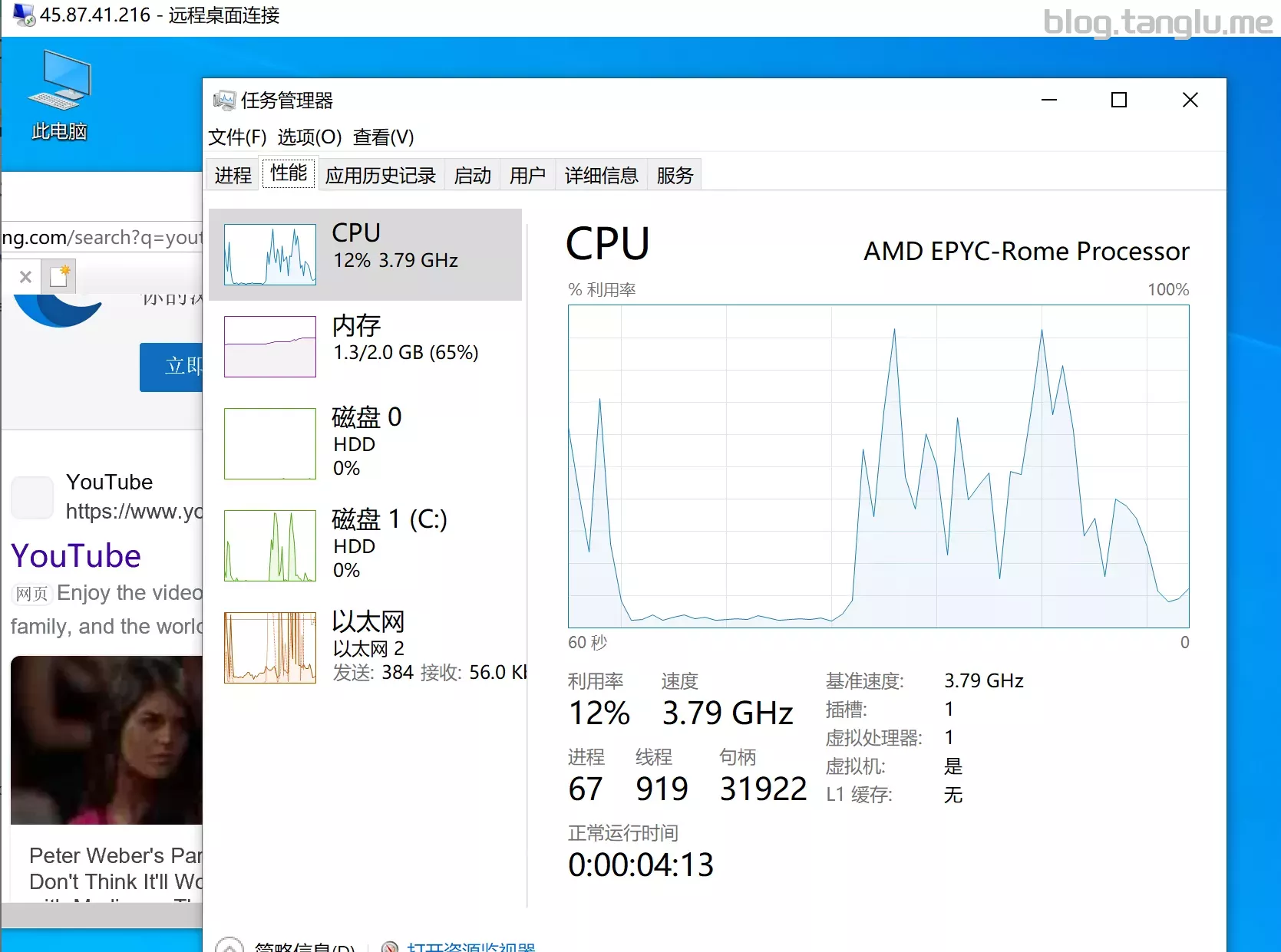
wget -qO- inst.sh | bash -s - -p vda -n 45.87.41.216,255.255.255.0,45.87.41.1 -t https://file.1323123.xyz/dd/windows/1keydd/win10ltsc_password_1keydd.gz
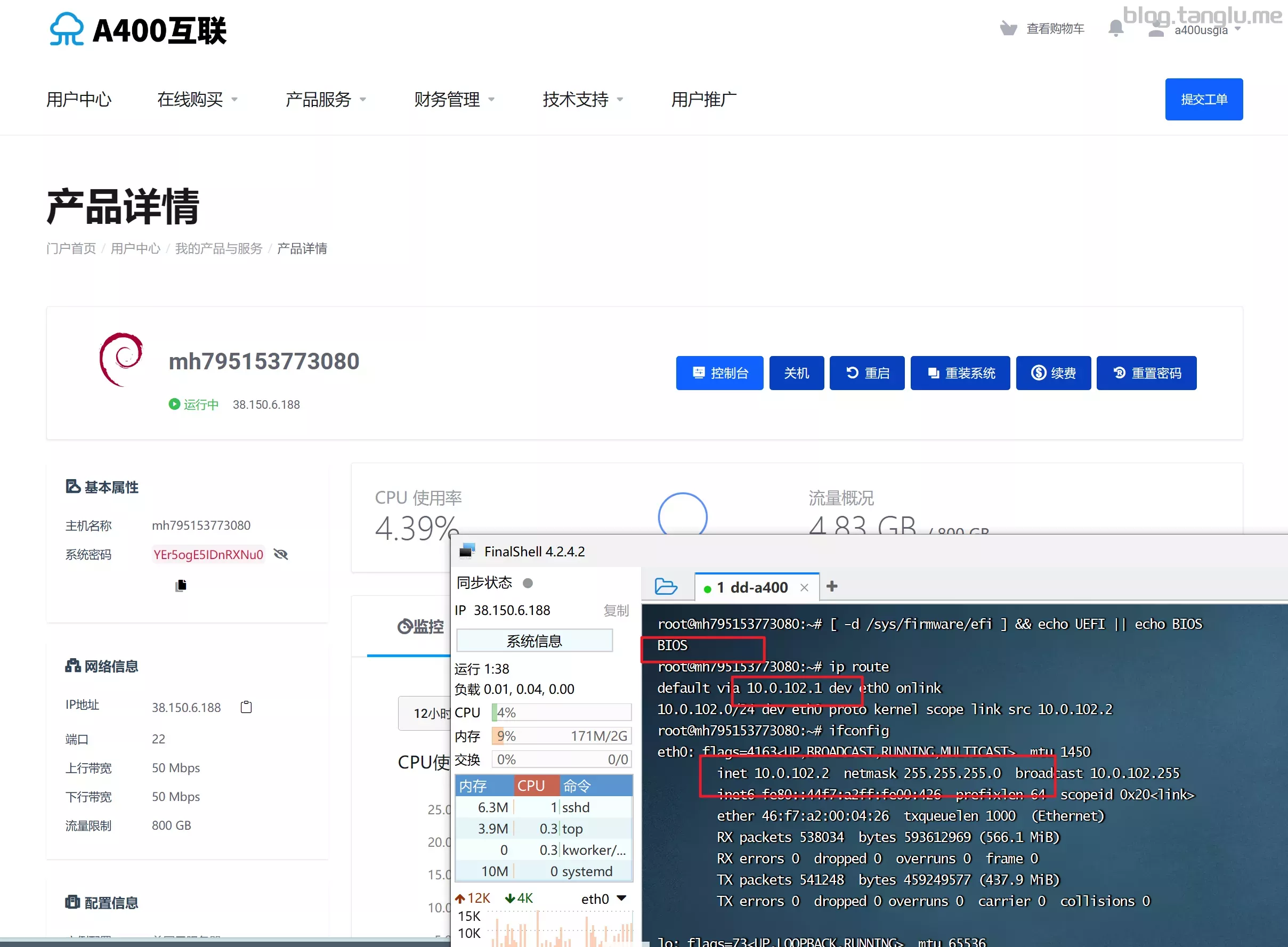
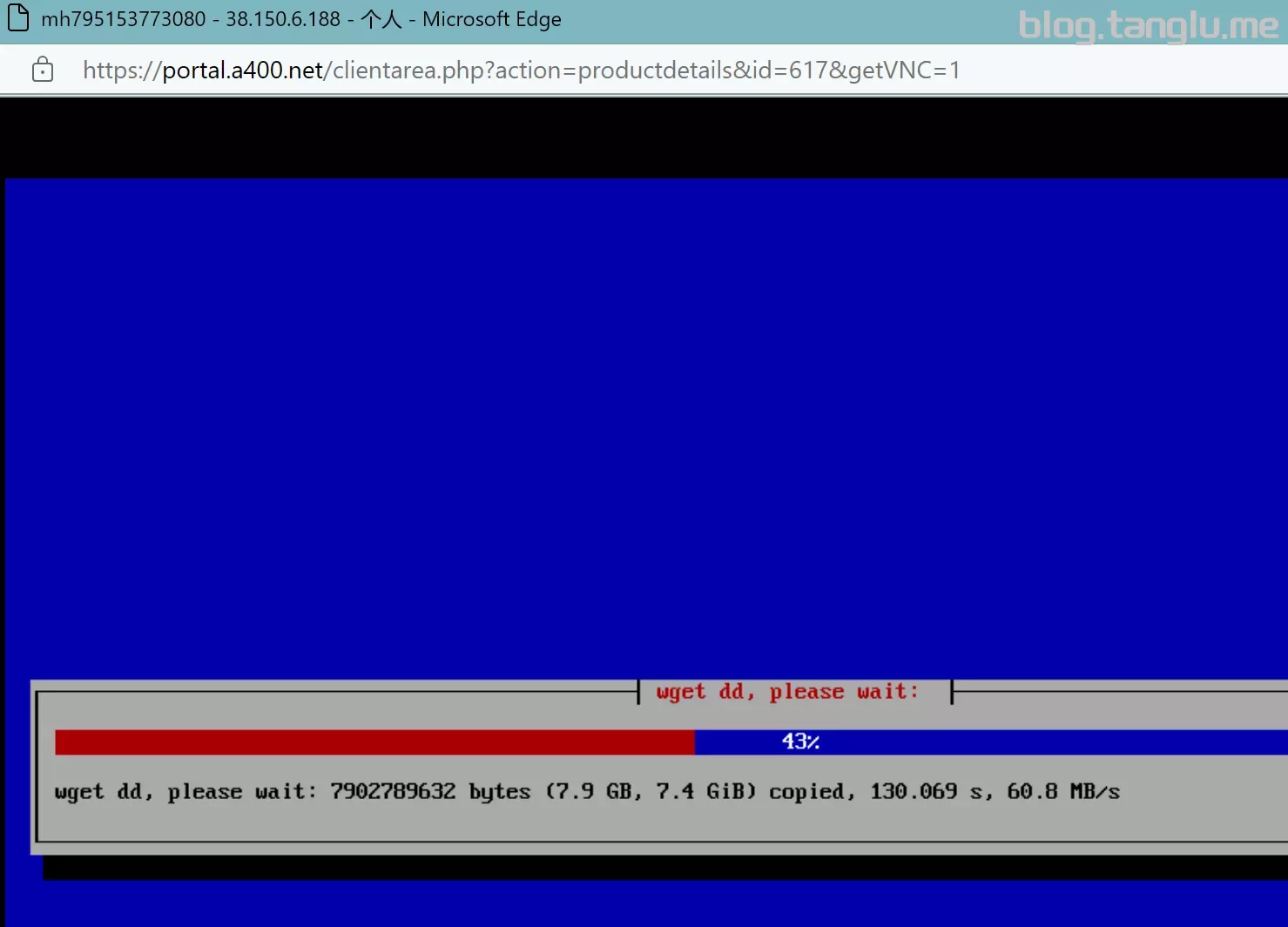
A400 s400互联
B
wget -qO- inst.sh | bash -s - -t https://file.1323123.xyz/dd/windows/1keydd/win10ltsc_password_1keydd.gz
zhnet BIOS/UEFI启动 有VNC
#JAPAN
wget -qO- inst.sh | bash -s -p vda - -n 163.5.92.*,255.255.255.0,163.5.92.2 -t https://file.1323123.xyz/dd/windows/1keydd/win10lt
bits BIOS启动 有VNC 支持一键免费安装windows_server
wget -qO- inst.sh | bash -s - -n 216.181.107.*,255.255.255.0,216.181.107.1 -t https://file.1323123.xyz/dd/windows/1keydd/win10ltsc_password_1ke/
hostslick BIOS启动 无VNC DHCP网络
建议dd linux使用
wget --no-check-certificate -qO InstallNET.sh 'https
rver
wget -qO- inst.sh | bash -s - -p vda -n 1
C 支持一键免费安装windows_server
cxthhhhh的win10报错 建议重装系统
#Ryzen DE
wget -qO- inst.sh | bash -s - -n 45.65.113.248,255.255.255.224,45.65.113.225 -t https://file.1323123.xyz/dd/windows/1keydd/win10ltsc_password_1keydd.gz
里dd一个debian11

wget --no-check-certificate -qO InstallNET.sh 'https://raw.githubusercontent.com/leitbogioro/Tools/master/Linux_reinstall/InstallNET.sh' && chmod a+x InstallNET.sh && bash InstallNET.sh -debian
6,255.255.255.192,45.158.9.1 -t https://file.1323123.xyz/dd/windows/1keydd/win10ltsc_password_1keydd.gz
#Epyc 7401P
#EYPC的ipv4没货了,这里用的纯ipv6
#1keydd的镜像失败了
wget -qO- inst.sh|bash -s - 10ltsc_password_1keydd.gz
hytron BIOS启动
建议dd使用
#这里dd为debian10
wget --no-check-certificate -qO InstallNET.sh 'https://raw.githubusercontent.com/leitbogioro/To
https://file.1323123.xyz/dd/windows/1keydd/win10ltsc_password_1keydd.gz
#PL-PERF-0
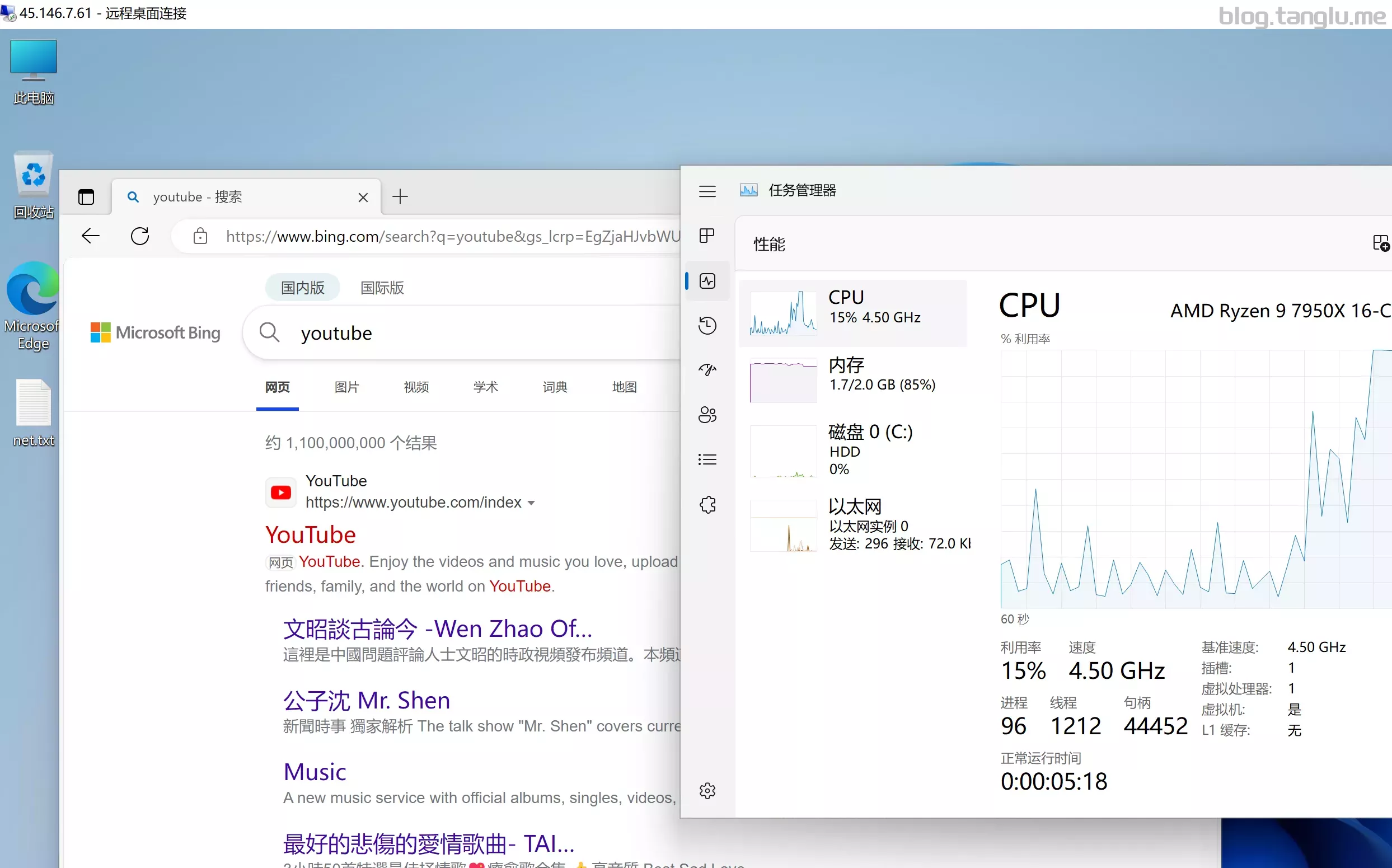
wget -qO- inst.sh | bash -s - -n 45.146.7.61,255.255.255.255,10.0.0.1 -t https://file.1323123.xyz/dd/windows/t
PL-PERF-0
DE-1 AMD
alwyzon BIOS启动 有VNC
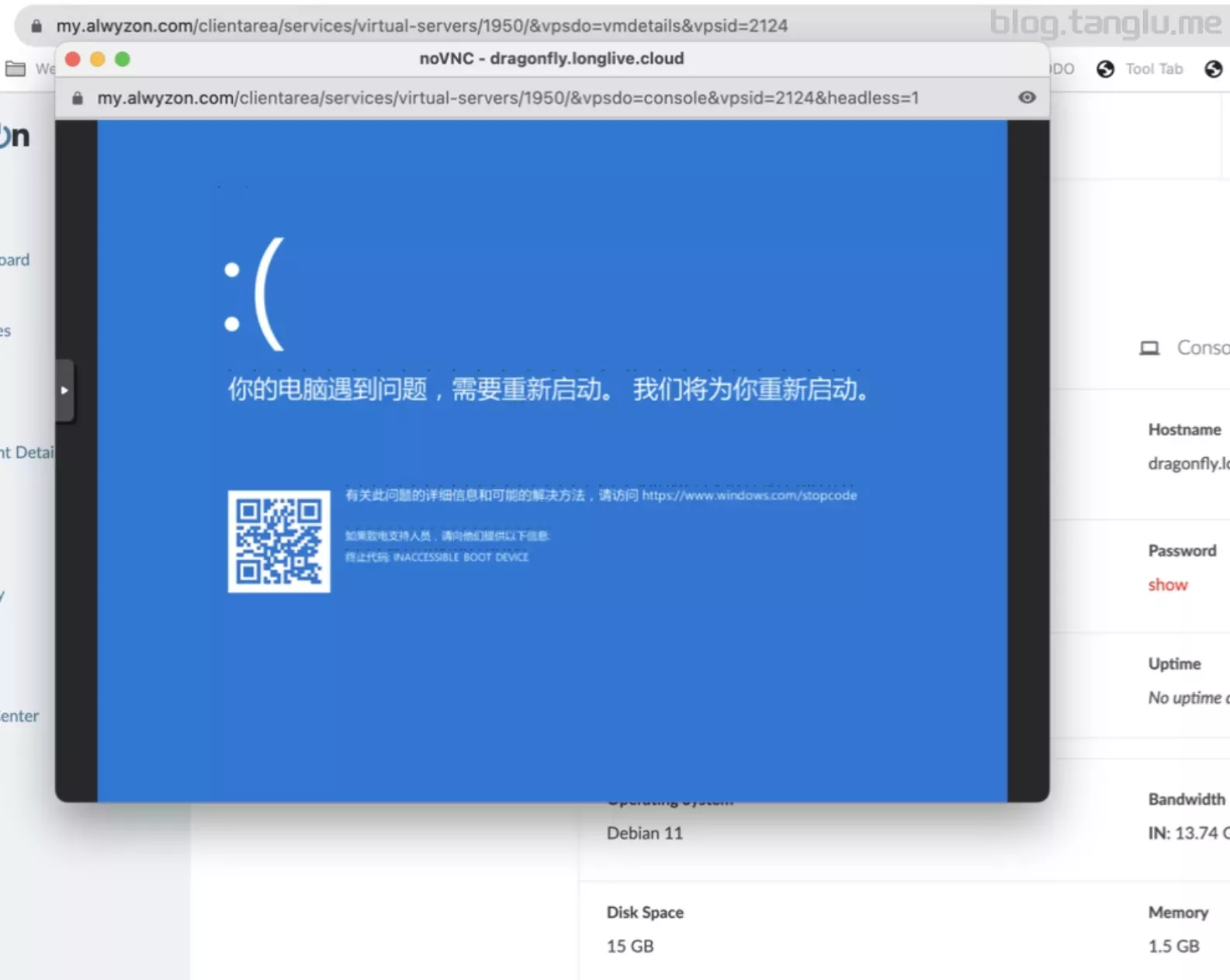
cxthhhhh的win10会蓝屏
cxthhhhh的win10
unesty BIOS启动 有VNC
#DE
#1keydd脚
cubic
#DE
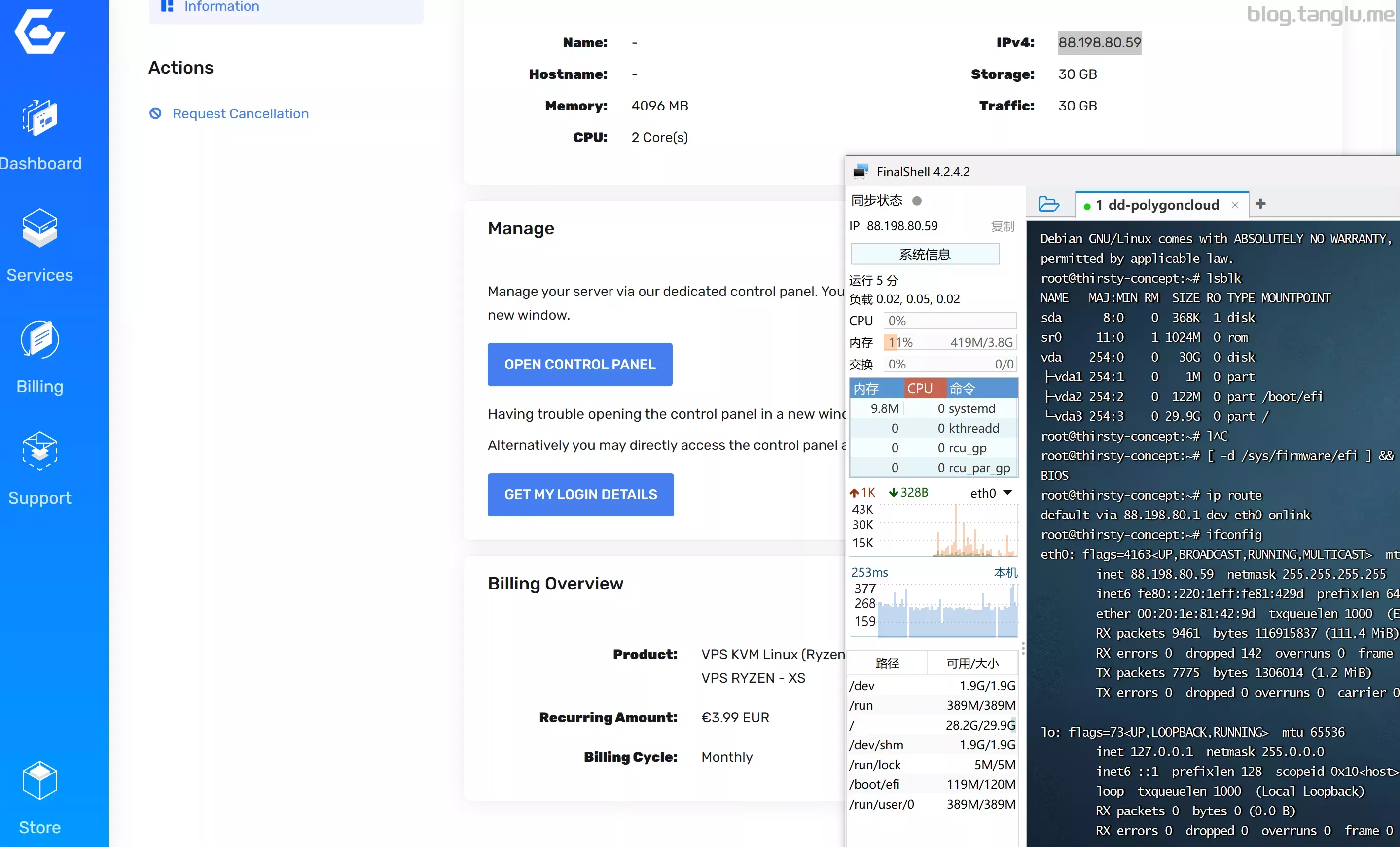
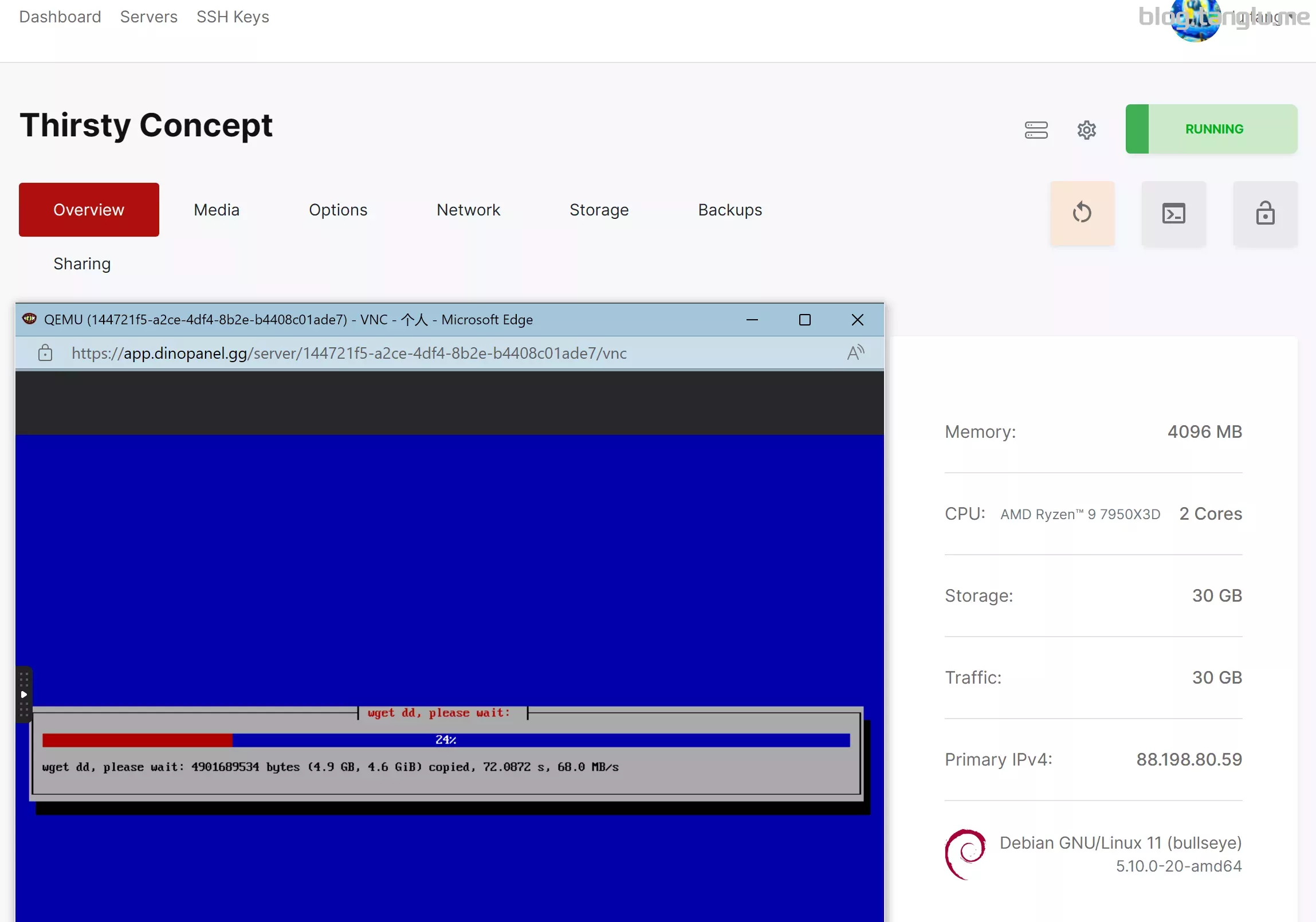
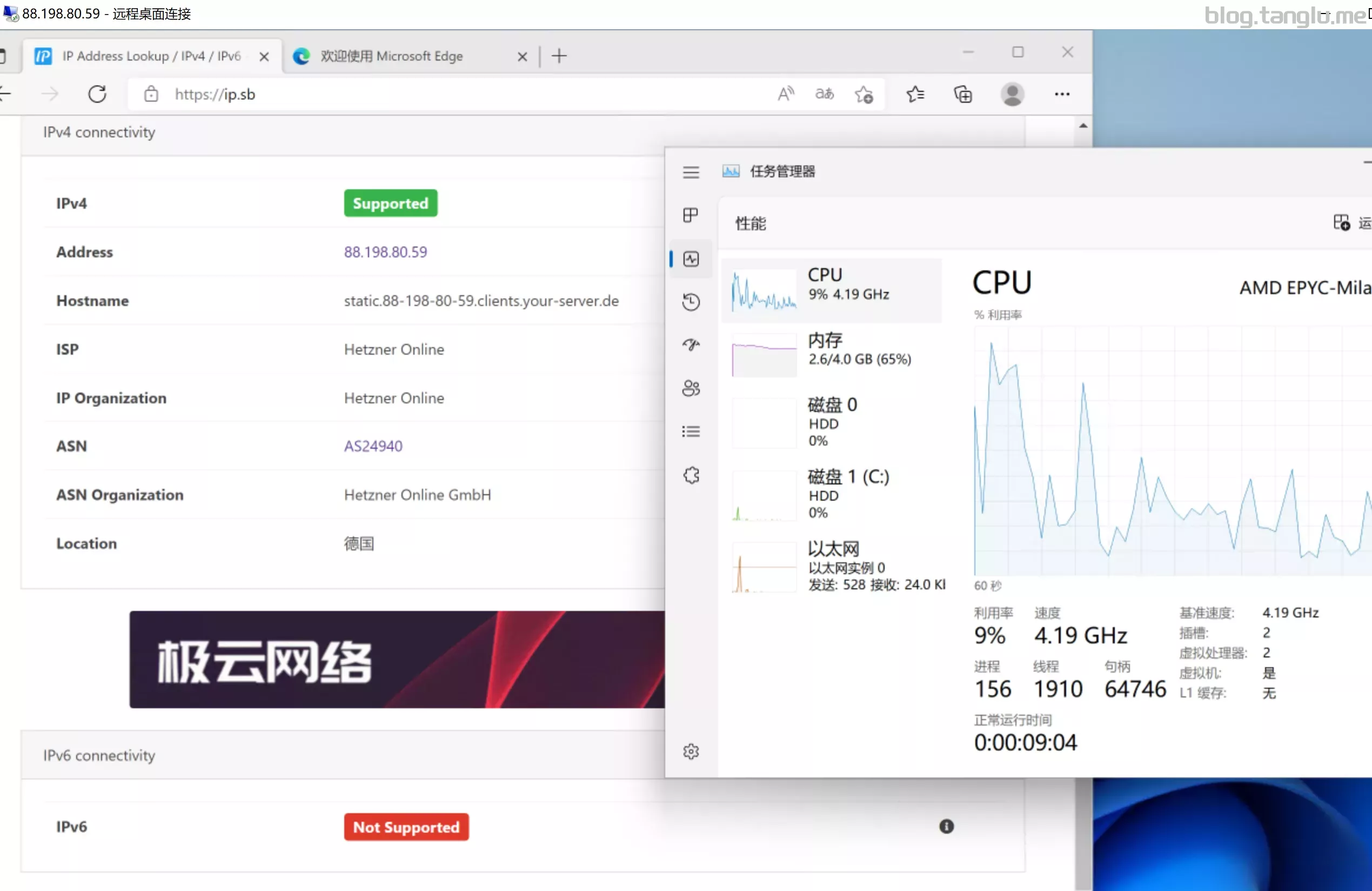
https://result.network-speed.xyz/r/1698161916qO- inst.sh | bash -s - -p vda -n 88.198.80.59,255.255.255.255,88.198.80.1 -t https://file.1323123.xyz/dd/windows/teddysun/zh-cn_windows11_22h2.xz
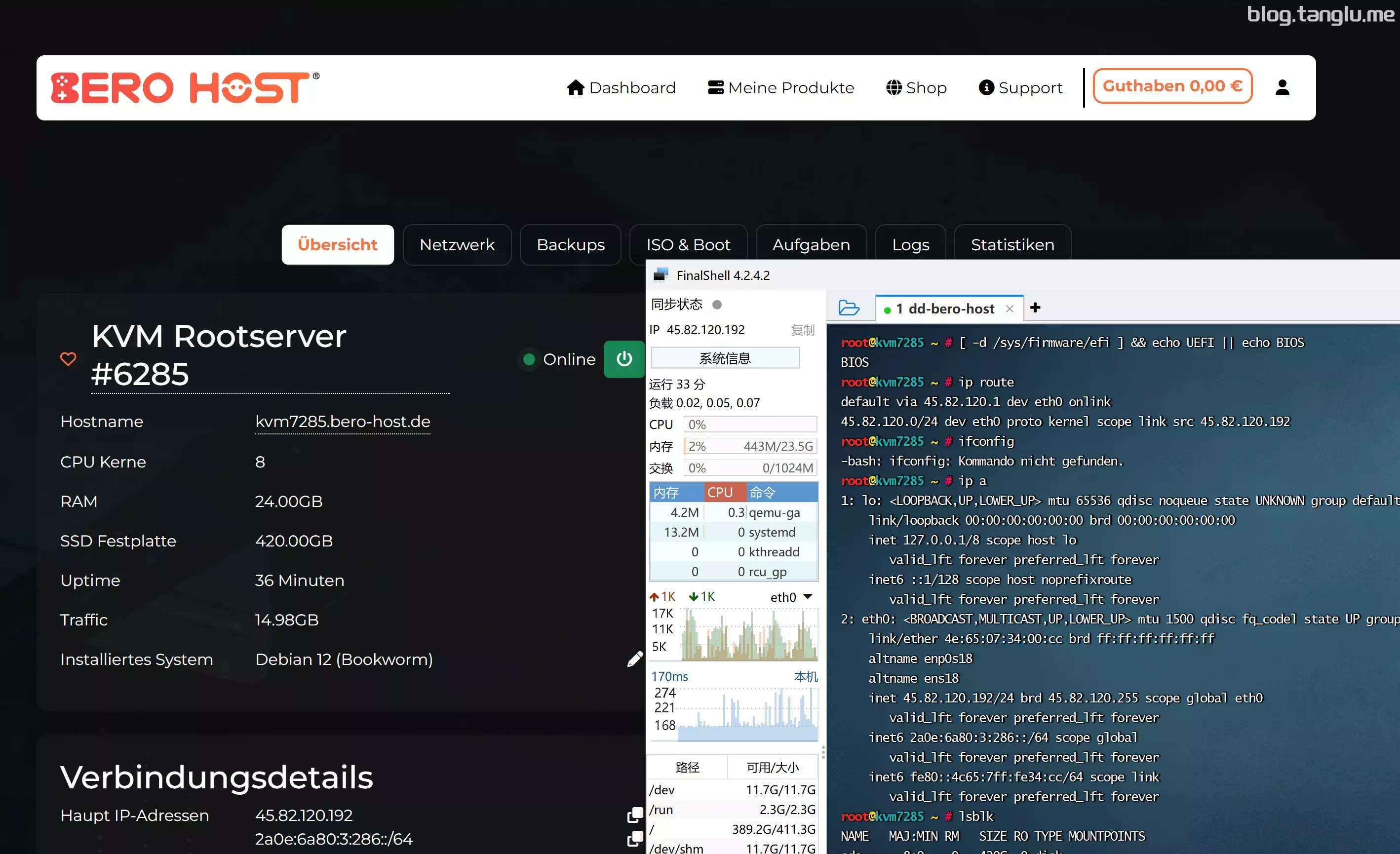
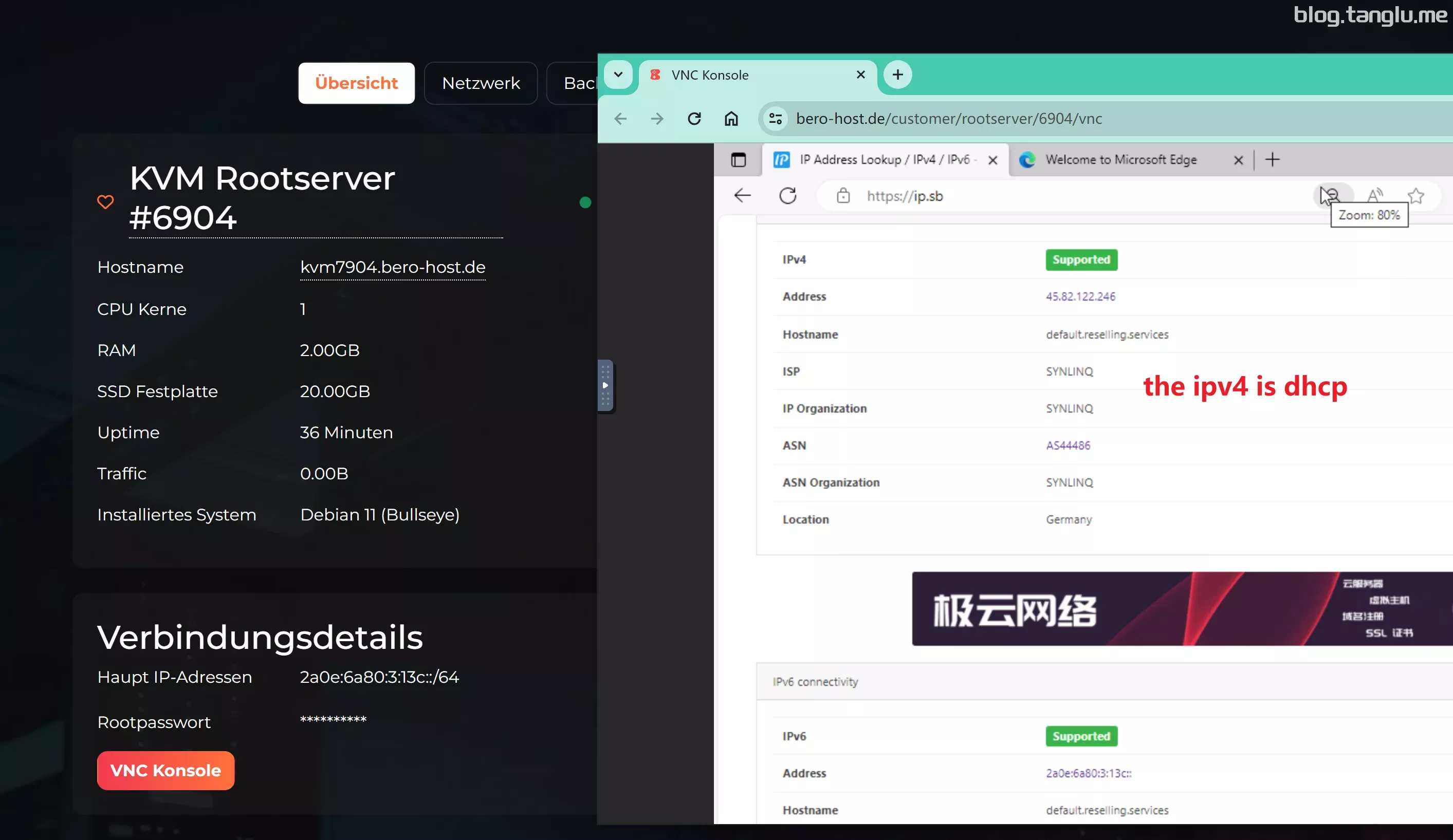
bero-host berohost
pv6给的是一个/64网段,dd前建议先指定一个IP
cxthhhhh’s win10会蓝屏报错
#Rootserver
#dd windows
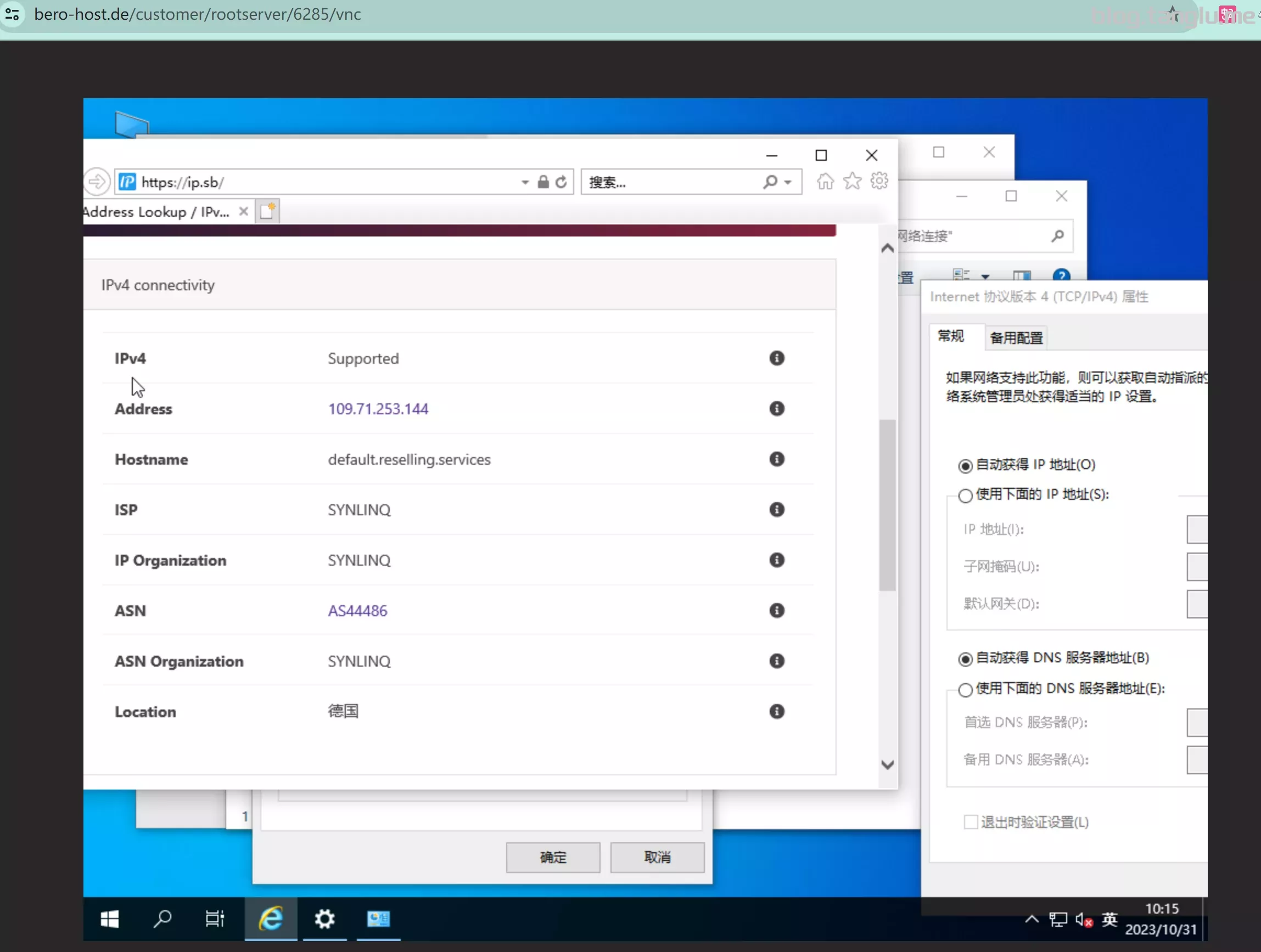
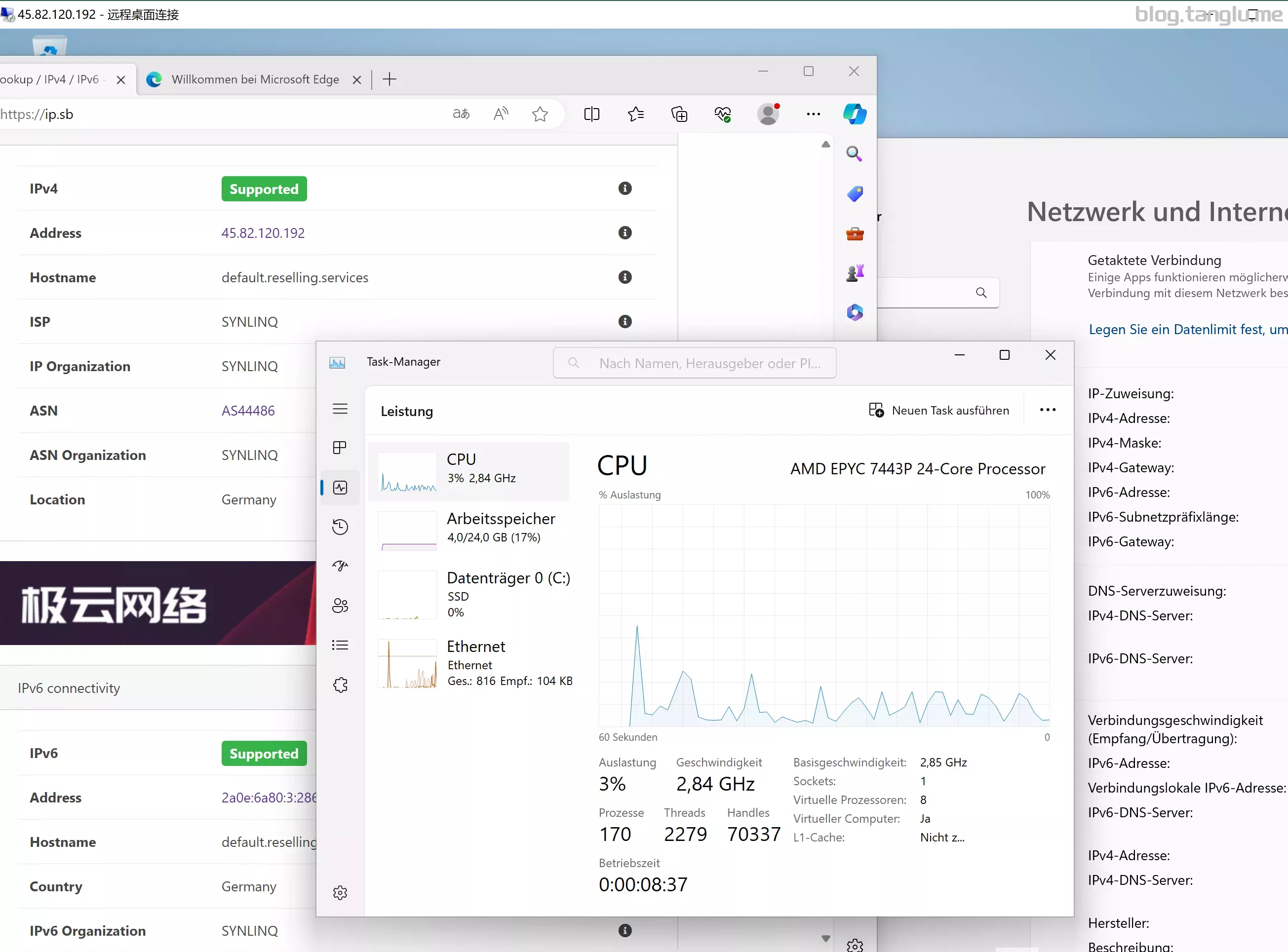
curl -O https://raw.githubusercontent.com/bin456789/reinstall/main/reinstall.sh && bash reinstall.sh dd --img=https://file.1323123.xyz/dd/windows/natee/guajibao-win10-ent-ltsc-2021-x64-cn.vhd.gz

#dd debian 11
bash InstallNET
u
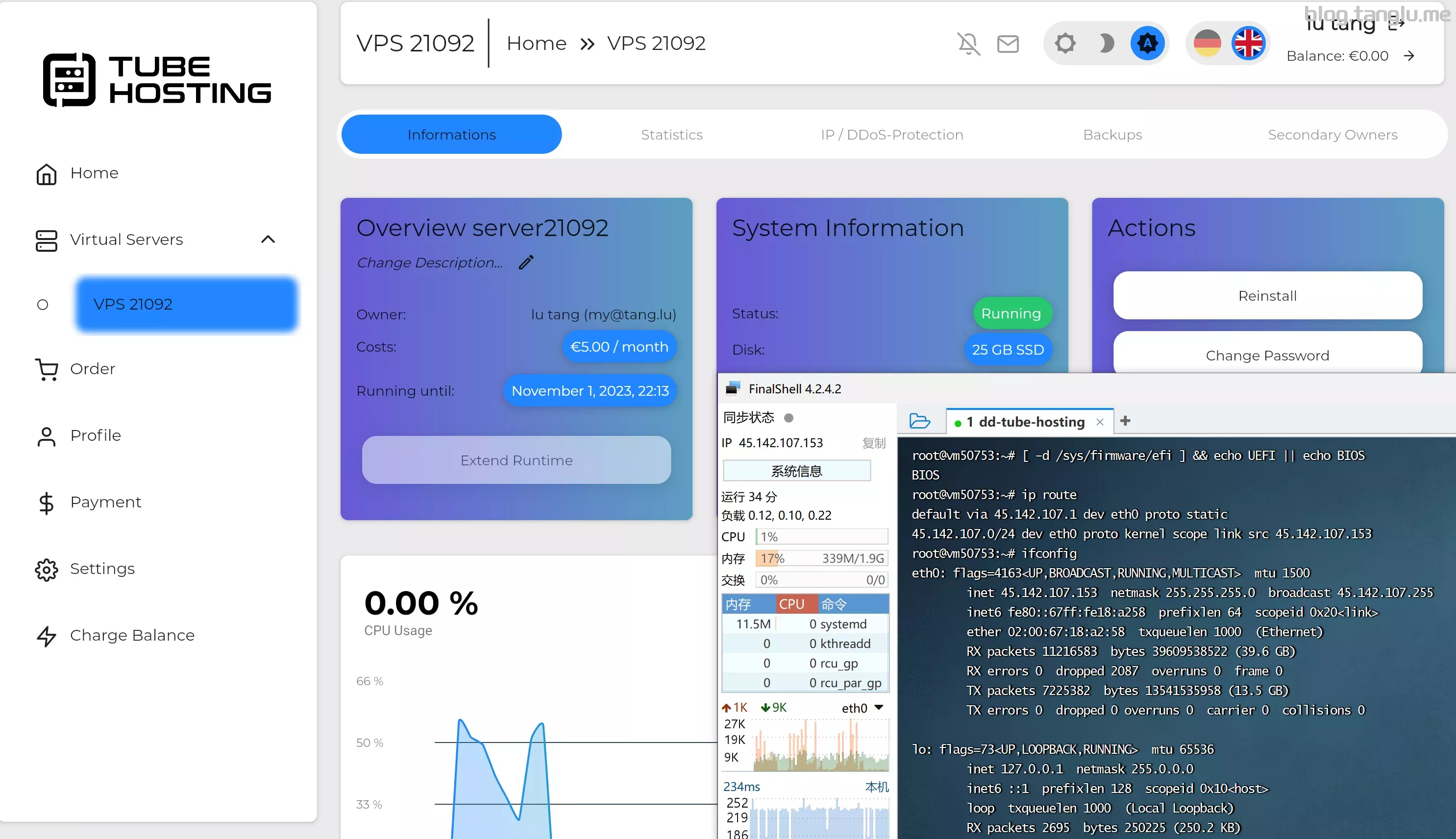
tube-hosting tube tubehosting
BIOS启动 支持一键免费安装windows_server
#dd后只能联系客服重启 dd后面板无法操作
cxthhhhh的win10镜像蓝屏
wget -qOrk
#cubic
https://result.network-speed.xyz/r/1698762729_4YZ67F_GLOBAL.txt
spexmc BIOS启动
建议dd系统
#Gaming KVM Rootserver 3GB
curl -O https://raw.githubusercontent.com/bin456789/reinstall/main/reinstall.sh && bash reinstall.sh dd --img=https://file.1323123.xyz/dd/windows/natee/guajibao-win10-ent-ltsc-2021-x64-cn.vhd.gz

#Rootserver KVM Linux 12GB
wget -qO- inst.sh | bash -s - -n 45.131.67.11
ons BIOS启动 有VNC
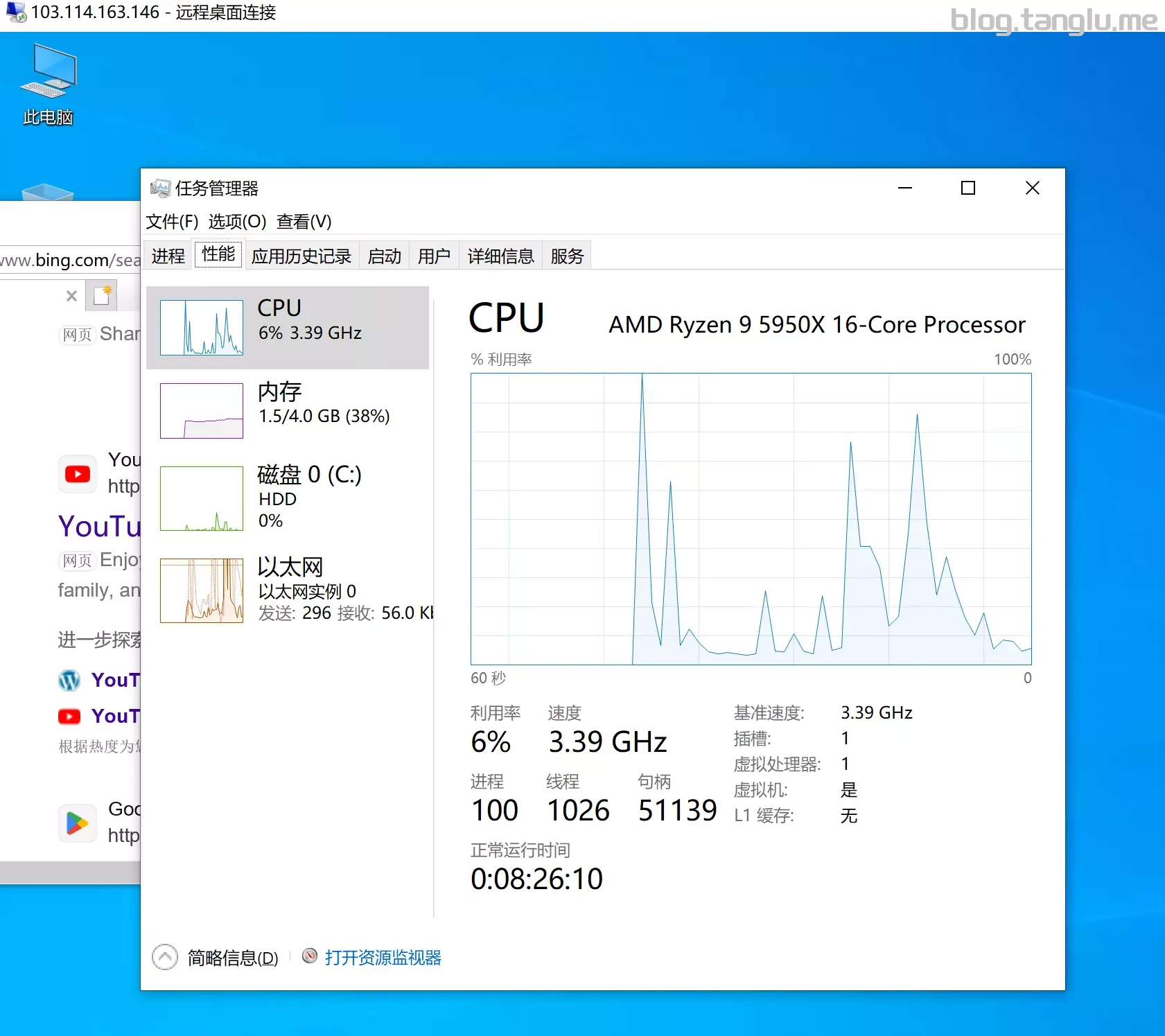
wget -qO- inst.sh | bash -s - -n 103.114.163.146,255.255.255.0,103.114.163.1 -t https://file.1323123.xyz/dd/windows/1keydd/win10ltsc_password_1keydd.gz
aeza BIOS启动 有VNC 支持一键免费安装windows
#DE
wget -qO- inst.sh | bash -s - -n 89.185.85.131,255.255.255.255,10.0.0.1 -t https://file.1323123.xyz/dd/windows/1keydd/win10ltsc_password_1keydd.gz

#US
cutall#network
#cubic
https://result.network-speed.xyz/r/1700881050_39F3WA_GLOBAL.txt
https://result.network-speed.xyz/r/1700882048_FVHBQ8_EU.txt
https://result.network-speed.xya
dd debian10
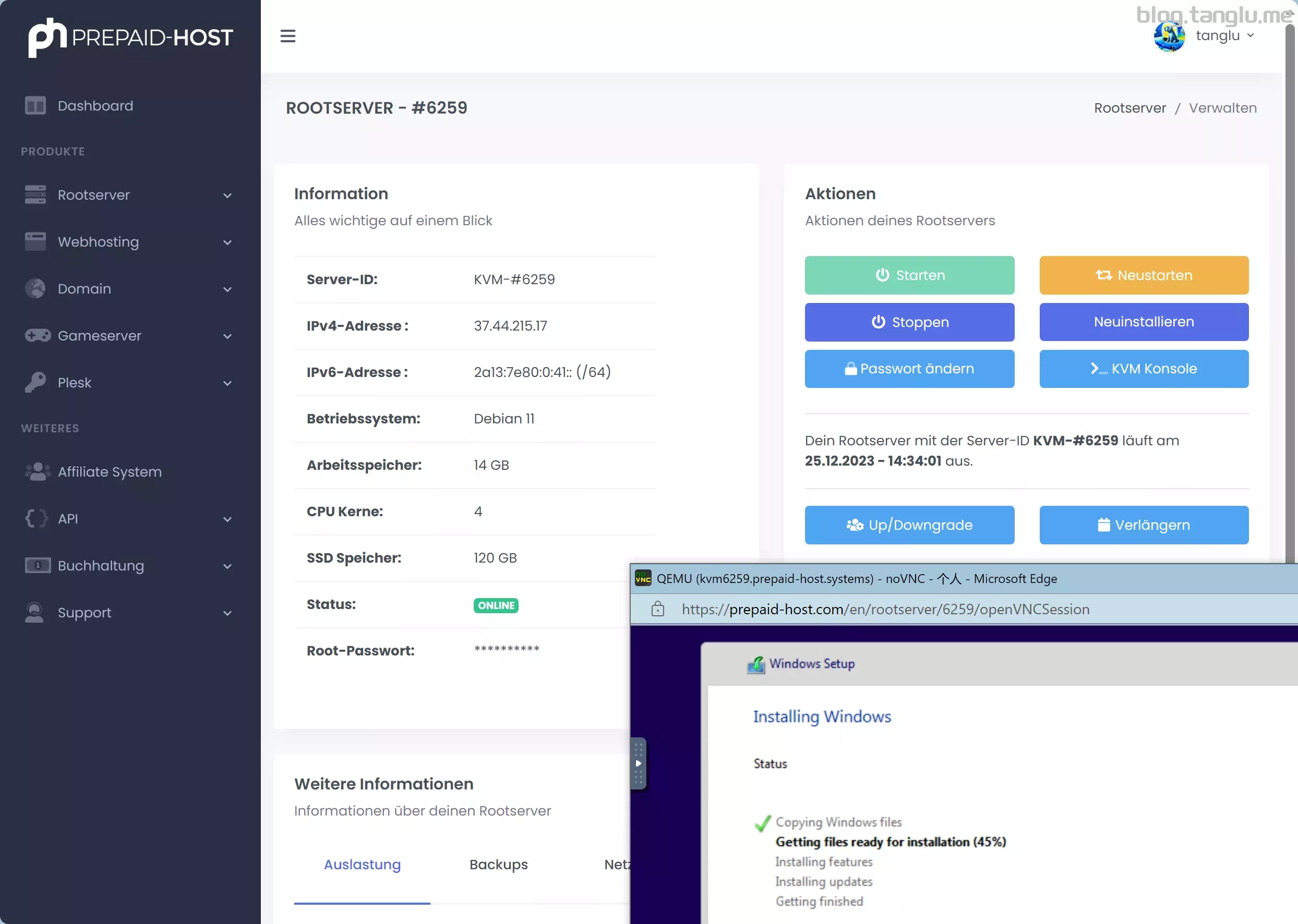
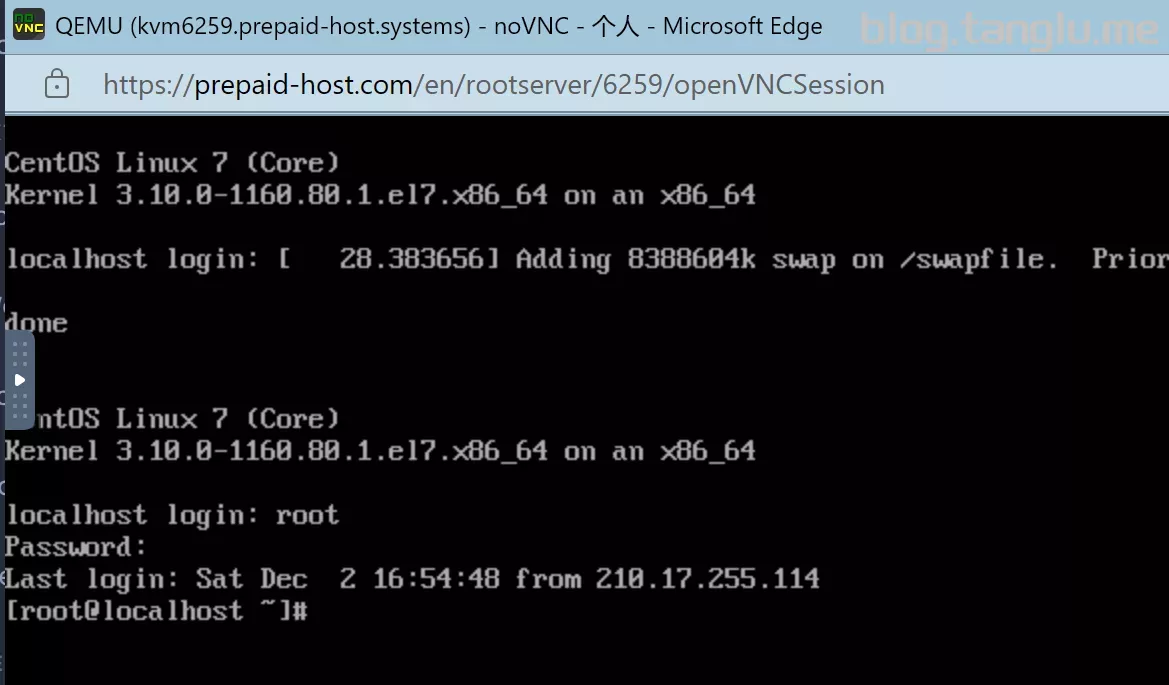
prepaid-host BIOS启动 有VNC 支持一键免费安装windows_server
curl -O https://raw.githubusercontent.com/bin456789/reinstall/main/reinstall.sh && bash reinstall.sh windows --iso=https://file.1323123.xyz/pve/windows_without_virto/Win10_22H2_EnglishInternational_x64v1.iso --image-name='Windows 10 Pro'


#dd centos7
curl -O https://raw.githubusercontent.com/bin456789/reinstall/main/reinstall.sh && bash reinstall.sh centos 7 --ci
#network
#cubic

https://result.network-speed.xyz/r/1700923168_W55089_GLOBAL.txt
centos7
layer7 BIOS启动 有VNC
curl -O https://raw.githubusercontent.com/bin456789/reinstall/main/reinstall.sh && bash reinstall.sh d
nexo BIOS启动 有VNC(但是坏的)
#AMD
curl -O https://raw.githubusercontent.com/bin456789/reinstall/main/reinstall.sh && bash reinstall.sh windows --iso=https://file.1323123.xyz/pve/windows_without_virto/Win10_22H2_EnglishInternational_x64v1.iso --image-name='Windows 10 Pro'

#Intel
wget -qO- inst.sh | bash -
I
c
#network
https://result.network-s
动 有VNC 提供/48 需要指定
indows10
wget -qO- inst.sh | bash -s - -p vda -n 213.255.246.207,255.255.255.0,213.255.246.1 -t https://file.1323123.xyz/dd/windows/1keydd/win10ltsc_password_1keydd.gz

#de
50.217.1 -t work
#2.5Gbps
https://result.network-speed.xyz/r/1703244624_27TTC2_GLOBAL.txt
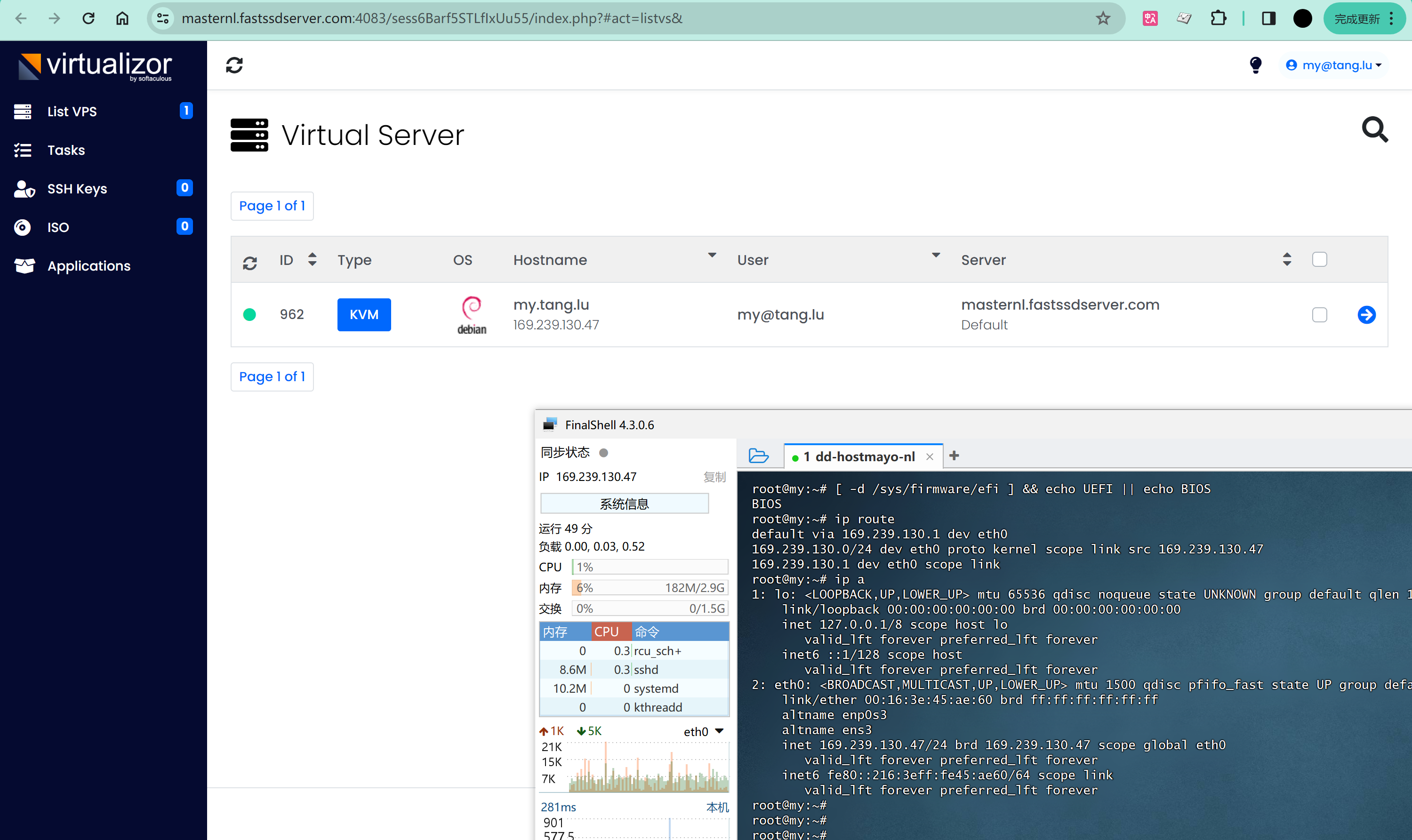
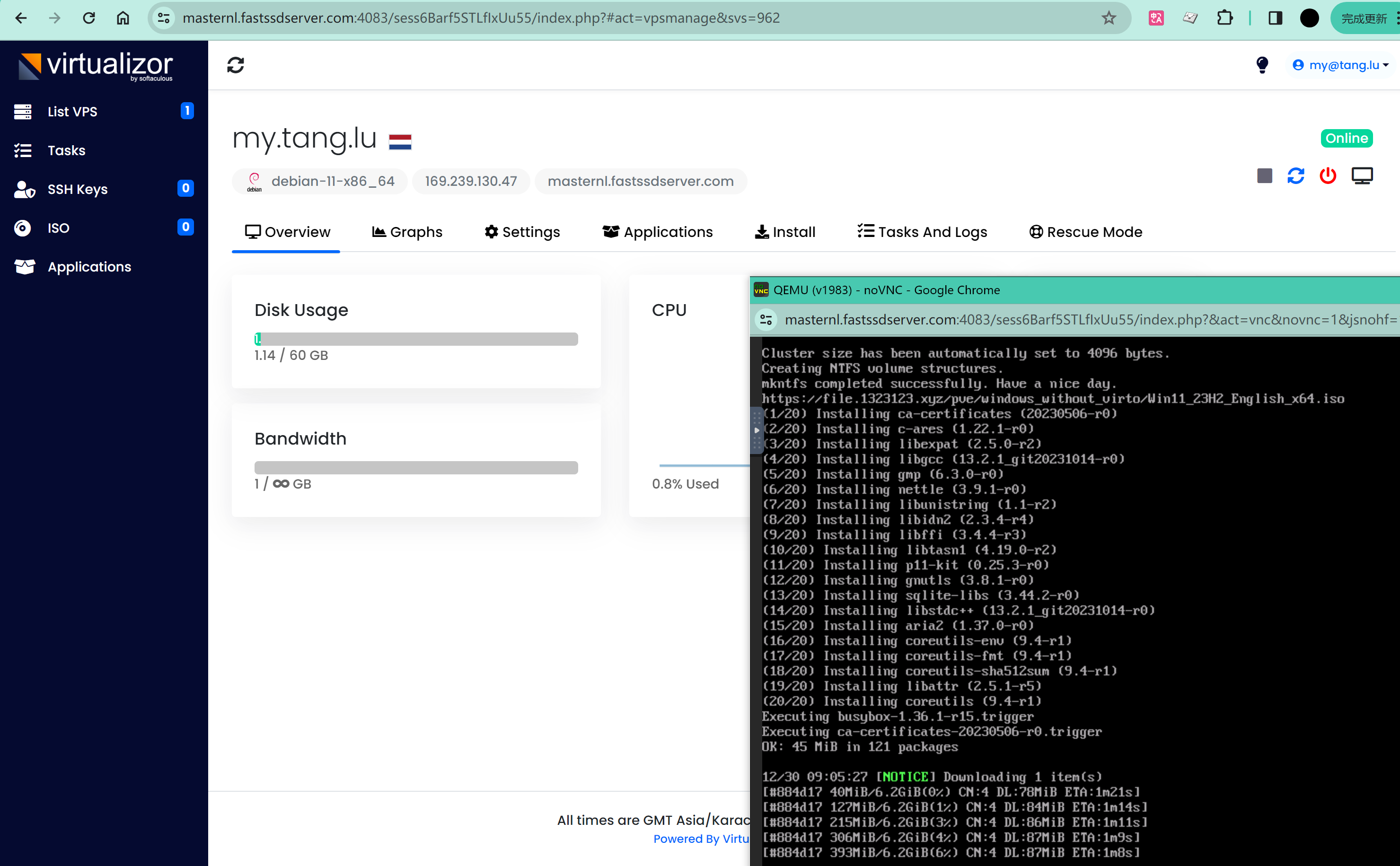
hostmayo BIOS启动 有VNC
部分镜像源有问题
curl -O https://raw.githubusercontent.com/bin456789/reinstall/main/reinstall.sh && bash reinsta
c1vhosting BIOS启动 有VNC
curl -O https://raw.githubusercontent.com/bin456789/reinstall/main/reinstall.sh && bash reinstall.sh centos 7 --ci

#windows2012
curl -O https://raw.git
ws
curl -O https://raw.githubusercontent.com/bin456789/reinstall/main'
#dd centos7
wget --no-check-certificate -qO InstallNET.sh 'https://raw.githubusercontent.com/leitbogioro/Tools/master/Linux_reinstall/InstallNET.sh' && chmod a+x InstallNET.sh && b
VNC 支持一键免费安装windows
自带windows镜像错误,暂时也无法dd windows
#10Gbps High Bandwidth Tokyo VPS Lite
curl -O https://raw.githubusercontent.com/bin456789/reinstall/main/reinstall.sh && bash reinstall.sh windows --iso=ht
ht-hosting BIOS启动 有V
-O https://raw.githubusercontent.com/bin456789/reinstall/main/reinstall.sh && bash reinstall.sh windows --iso=https://file.1323123.xyz/pve/windows_s://www.hivelocity.net/about/network/
NYC
https://result.network-speed.xyz/r/1712584314_37YVDQ_GLOBAL.txt
oplink BIOS启动 有VNC 支持已经免费安装windows
curl -O https://raw.githubusercontent.com/bin456789/r
有VNC
硬
curl -O https://raw.githubusercontent.com/bin456789/reinstall/main/reinstall.sh && bash reinstall.sh dd --img=https://file.1323123.xyz/dd/windows/natee/guajibao-win7-sp1-ent-x64-cn.vhd.gz
#ne
tempest waiting
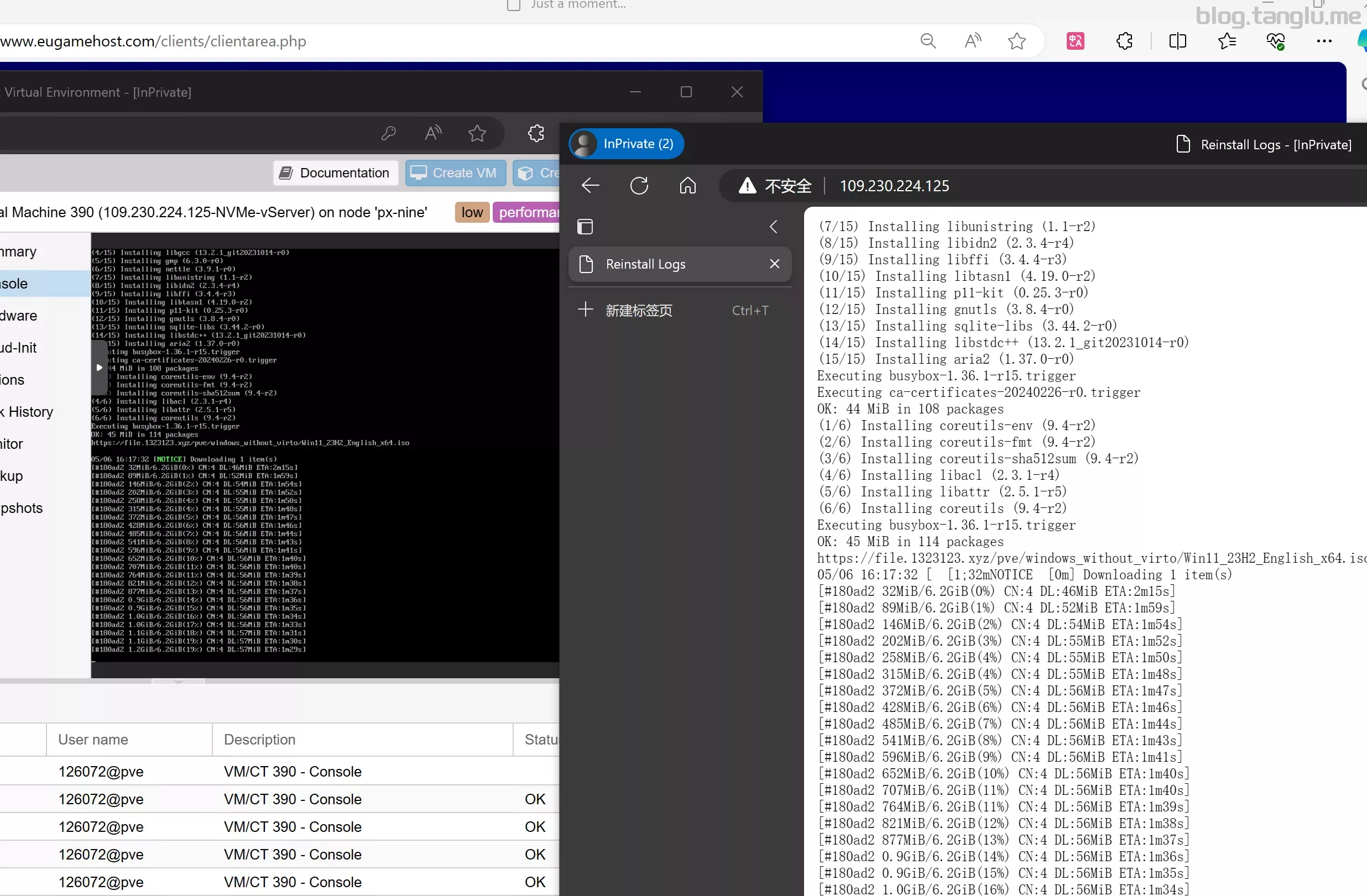
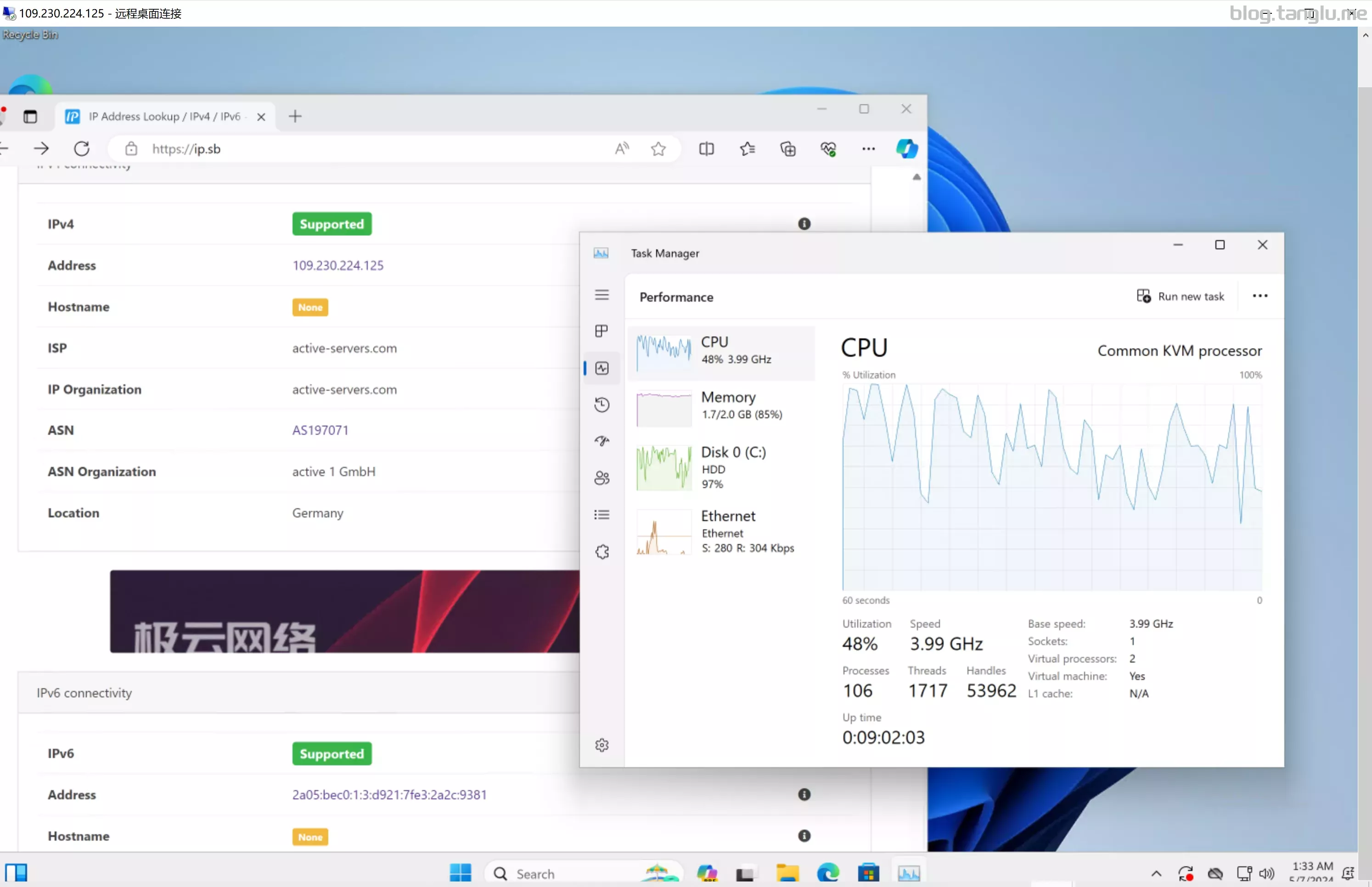
Eugamehost BIOS启动 有VNC 支持一键免费安装windows_server
记得开启pathfirewall 3389端口
#DE PATH
curl -O https://raw.githubusercontent.com/bin456789/reinstall/main/reinstall.sh && bash reinstall.sh windows --iso=https://file.1323123.xyz/pve/windows_without_virto/Win11_23H2_English_x64.iso --image-name='Windows 11 Pro'

#UK COSMIC
curl -O https://raw.githubusercontent.com/bin456789/reinstall/main/reinstall.sh && bash reinstall.sh windows --iso=https://file.1323123.xyz/pve/windows_without_virto/Win10_22H2_EnglishInternational_x64v1.iso --image-name='Windows 10 Education'
#network
#DE PATH
https://result.network-speed.xyz/r/1715088500_OKX7TC_GLOBAL.txt

#UK COSMIC
https://result.network-speed.xyz/r/1715087413_Q13QC8_GLOBAL.txt

#DE COSMIC
https://result.network-spee
11 Pro'
#net
Ryzen
noez BIOS启动 有VNC 支持一键免费安装windows_server
curl -O https://raw.githubusercontent.com/bin456789/reinstall/main/reinstall.sh && bash reinstall.sh windows --iso=https://fil
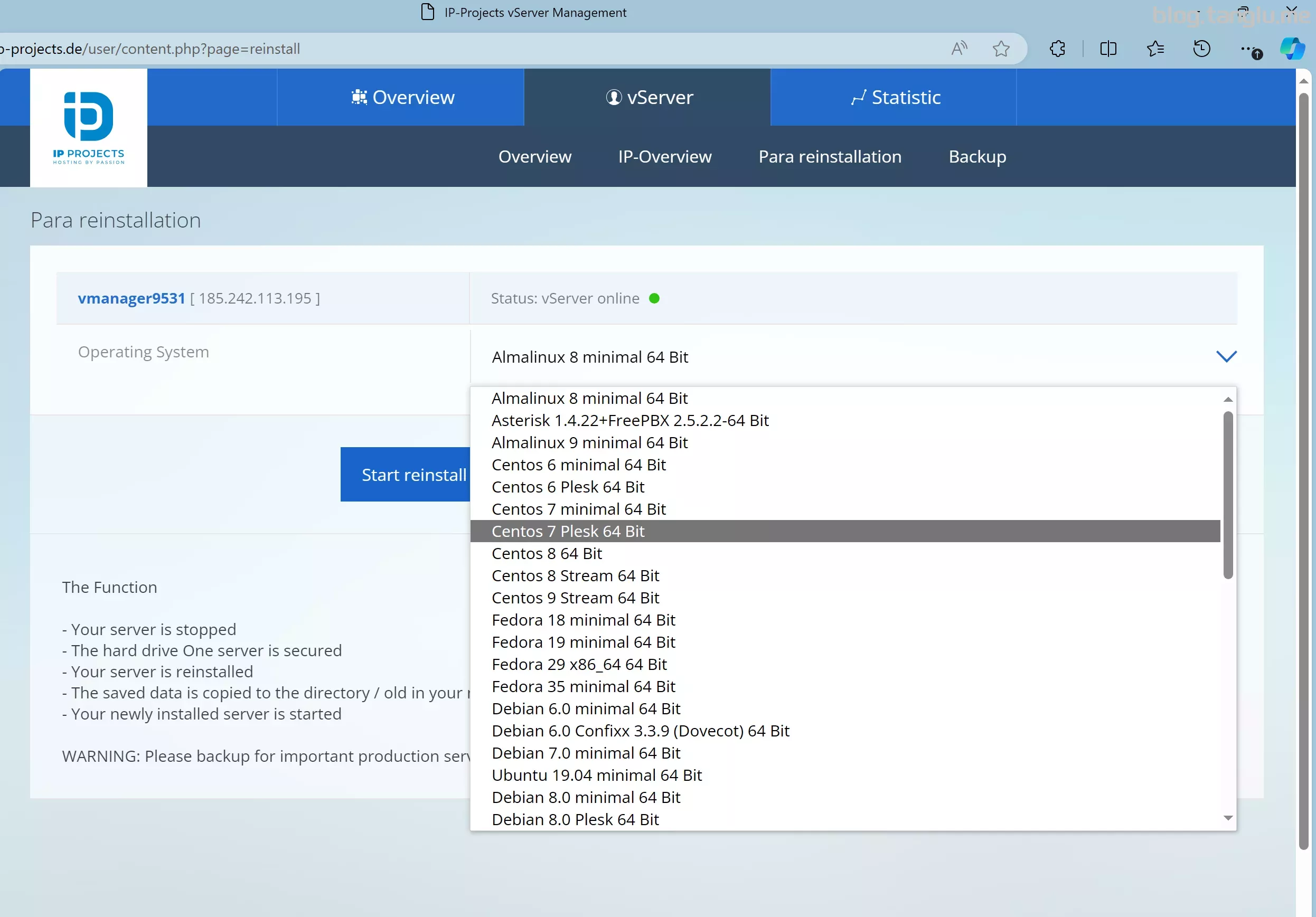
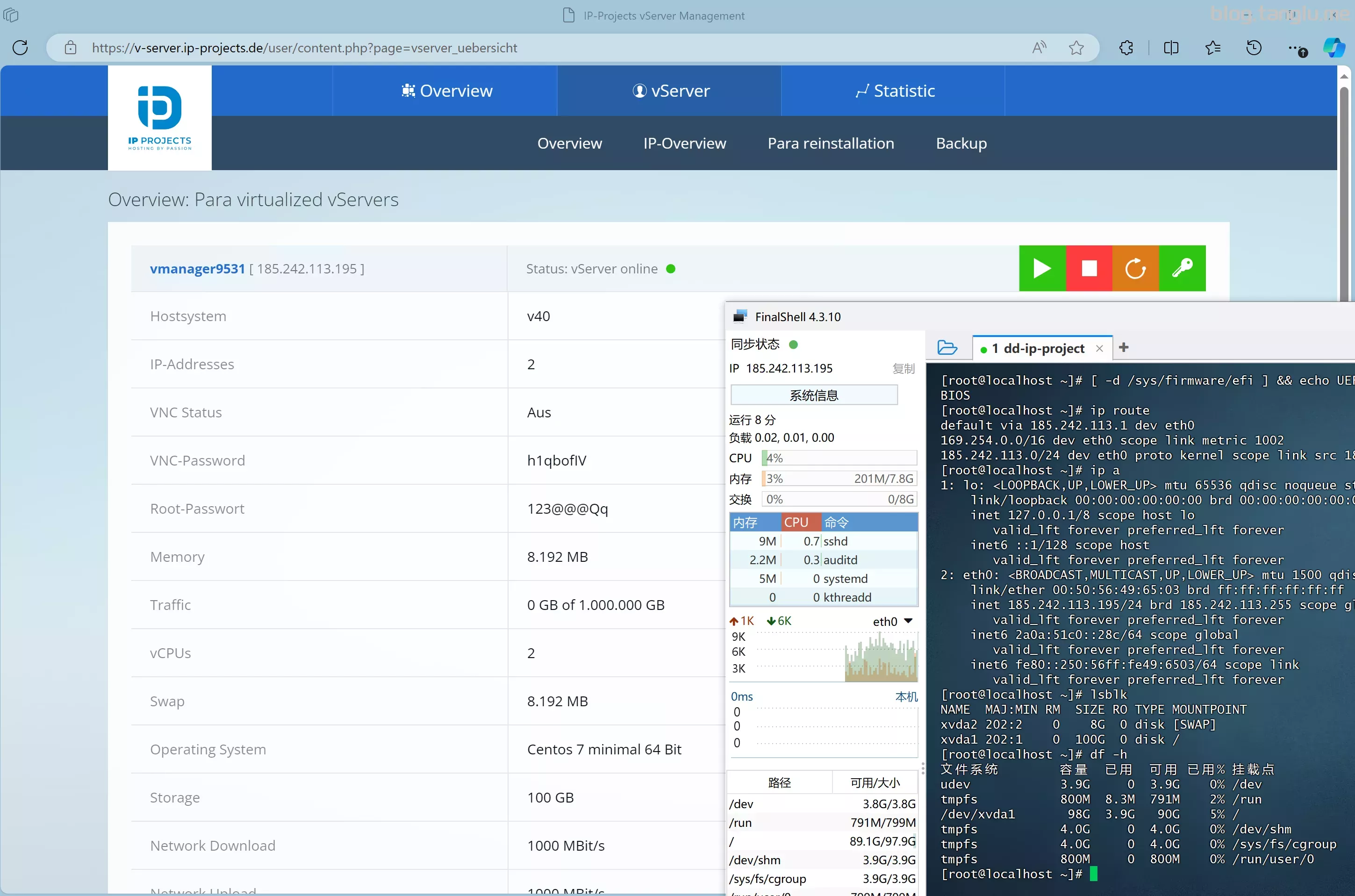
or vServers which are HVM virtualised.
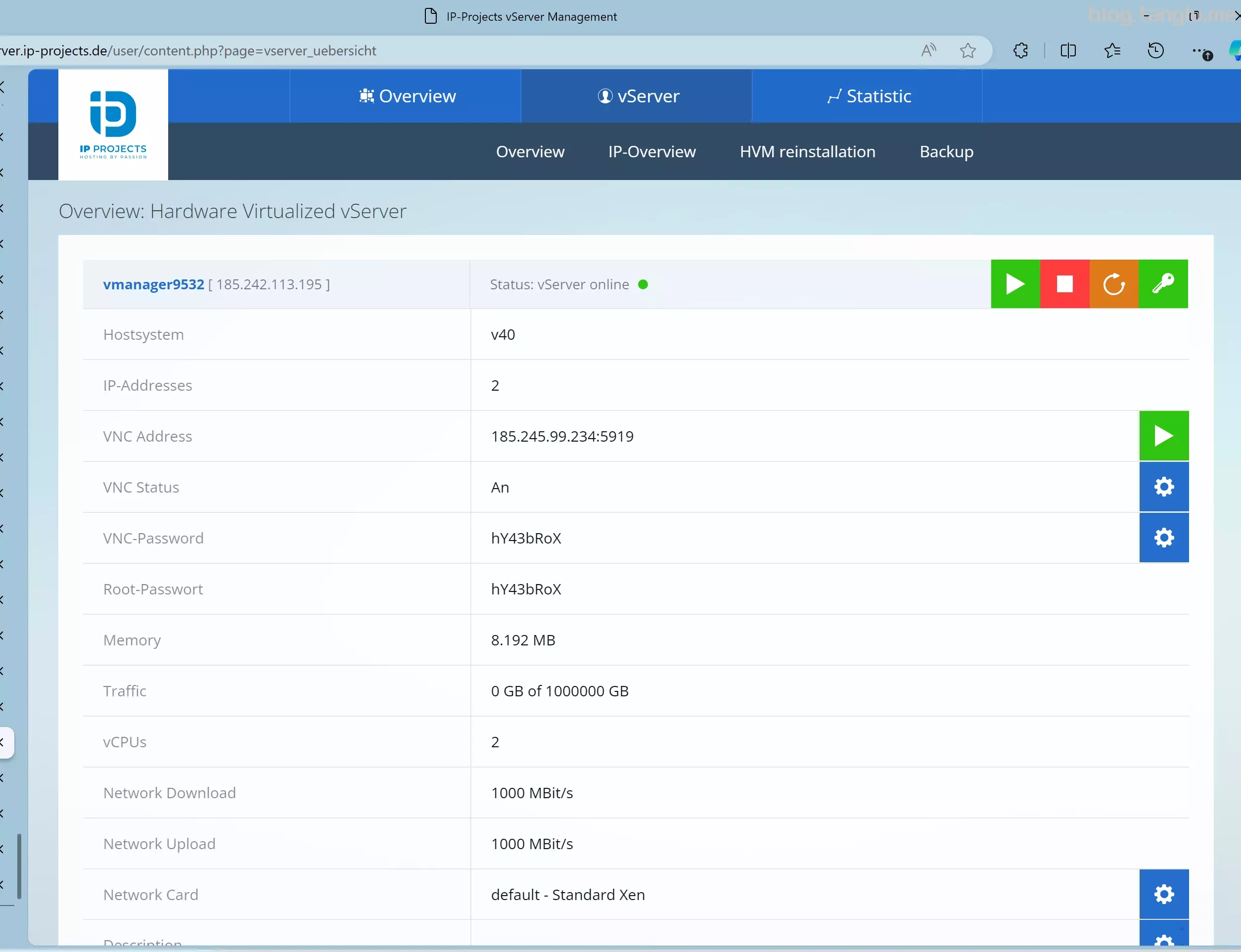
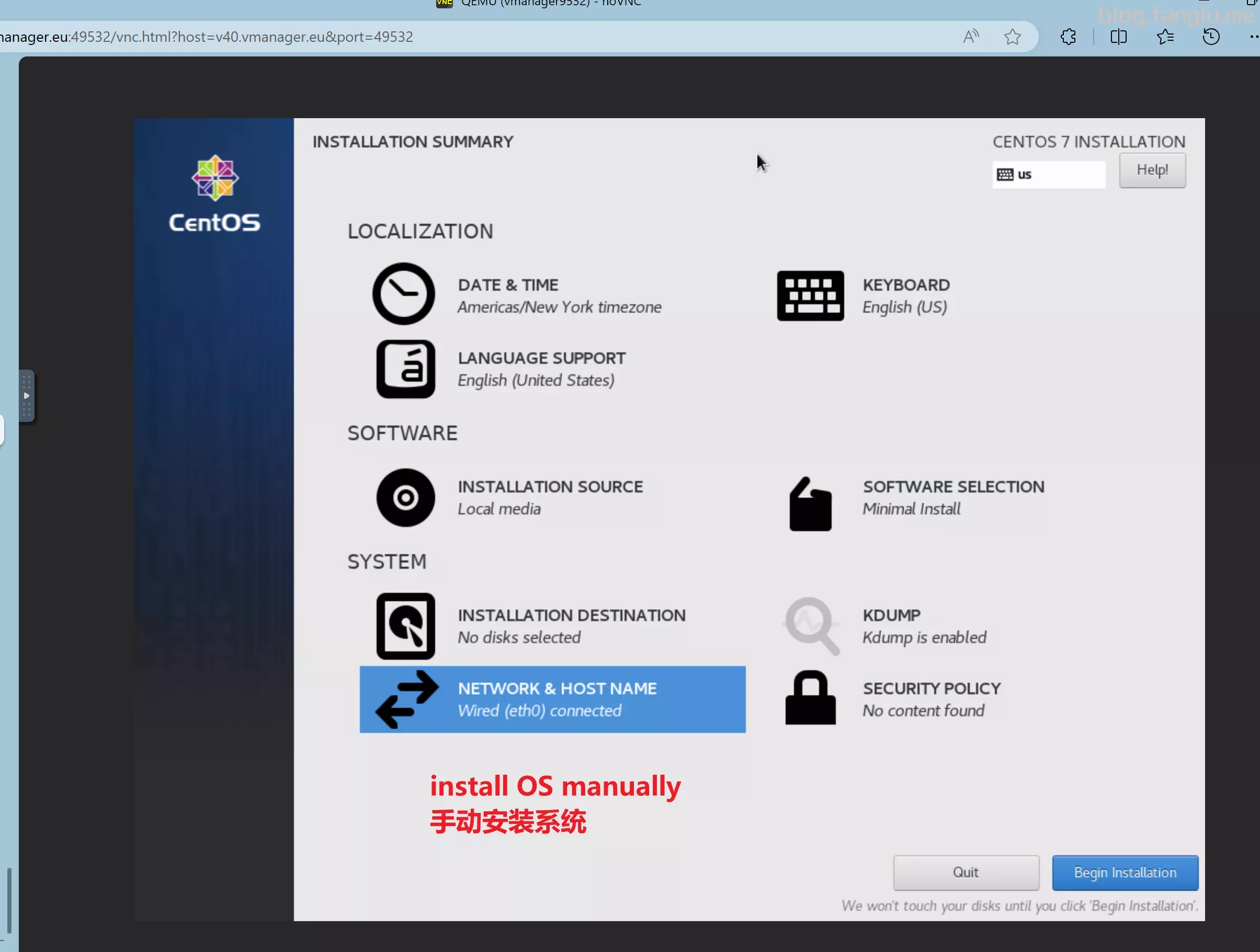
#提交工单让客服切换为HVM reinstallation,之后挂载VNC手动安装linux,然后再执行dd 否则报错 no grub

curl -O https://raw.githubusercontent.com/bin456789/reinstall/main/re
.txt
Para reinstallation:
HVM reinstallation:
手动在 HVM reinstallation 模式下安装系统
centralbilisim BIOS启动 有VNC 支持一键免费安装windows_server
dchost BIOS启动 有VNC 支持一键免费安装windows_server
curl -O https:/ws --iso=https://file.1323123.xyz/pve/windows_without_virto/SERVER_EVAL_x64FRE_en-us_2022.iso --image-name='Windows Server 2022 SERVERSTANDARD'

























































评论区